Install a trading bot in cTrader
You can install a trading bot directly from cTrader Store, or by opening a cBot .algo file in a cTrader app.
Note
Cloud synchronisation automatically delivers the installed cBot to all cTrader apps where your cTrader ID is active.
cTrader Store
Go to the cBots section of cTrader Store, install a cBot, open it and then start it in the cloud from cTrader Mobile.
In the cBots tab of cTrader Algo, click Get algos from Store. The dedicated cBots section in cTrader Store will open.
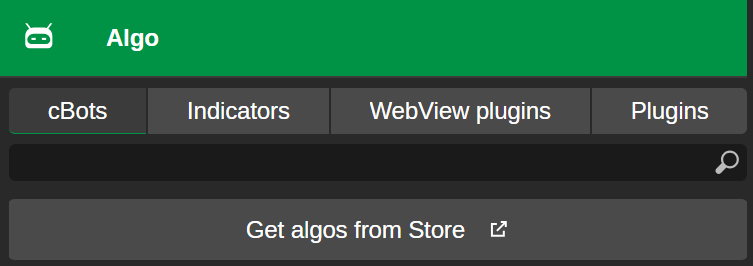
Learn how to install cBots from Store and start them in the cloud from cTrader Web.
In the cBots tab of cTrader Algo, click Get algos from Store. The dedicated cBots section in cTrader Store will open.
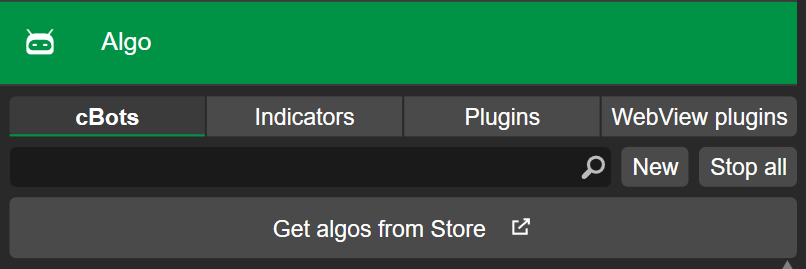
Learn how to install cBots from Store and start them in the cloud or locally from cTrader Windows.
Note
With cloud synchronisation enabled, any cBot installed from Store automatically appears in your cTrader Windows, and you can start it in the cloud.
If cloud synchronisation is disabled, download the cBot file from cTrader Store and open it in your desktop app. You can then start only its local instance.
In the cBots tab of cTrader Algo, click Get algos from Store. The dedicated cBots section in cTrader Store will open.
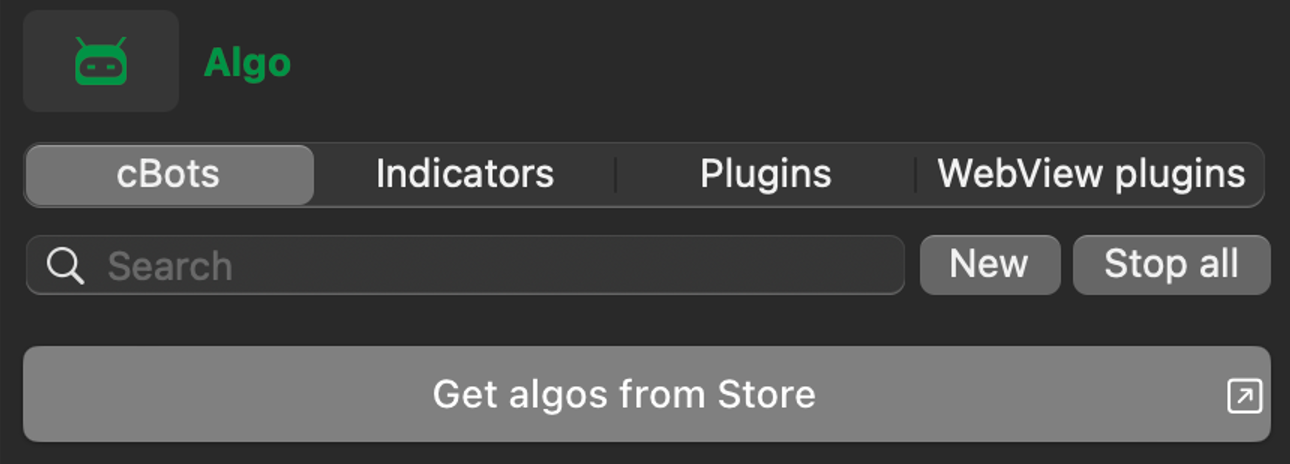
Learn how to install cBots from Store and start them in the cloud or locally from cTrader Mac.
Note
With cloud synchronisation enabled, any cBot installed from Store automatically appears in your cTrader Mac, and you can start it in the cloud.
If cloud synchronisation is disabled, download the cBot file from cTrader Store and open it in your desktop app. You can then start only its local instance.
cBot file
Do one of the following:
-
Tap the cBot
.algofile, then choose cTrader to open it.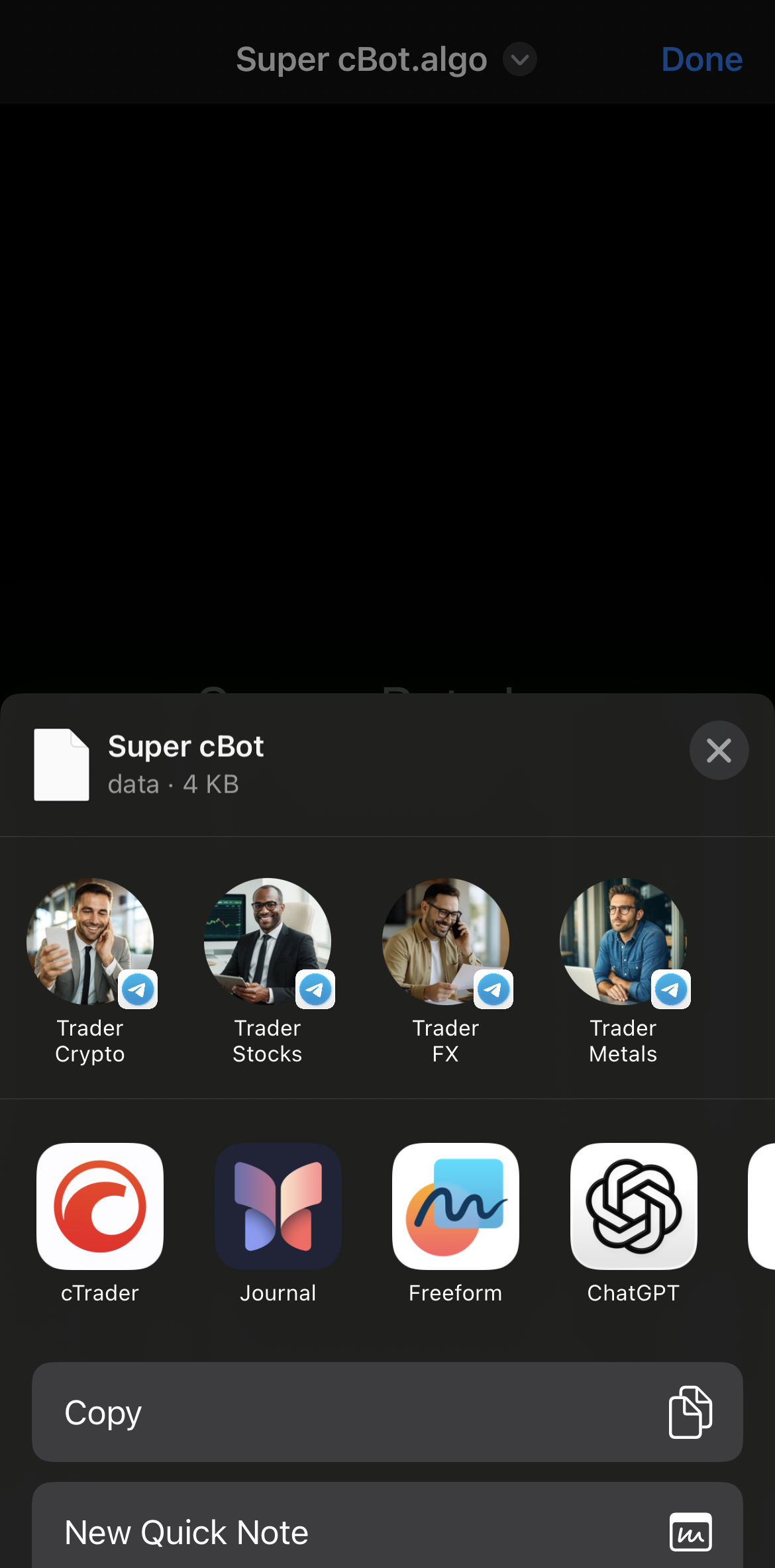
-
Tap the Upload button in cTrader Algo, then choose the cBot file in your file system.
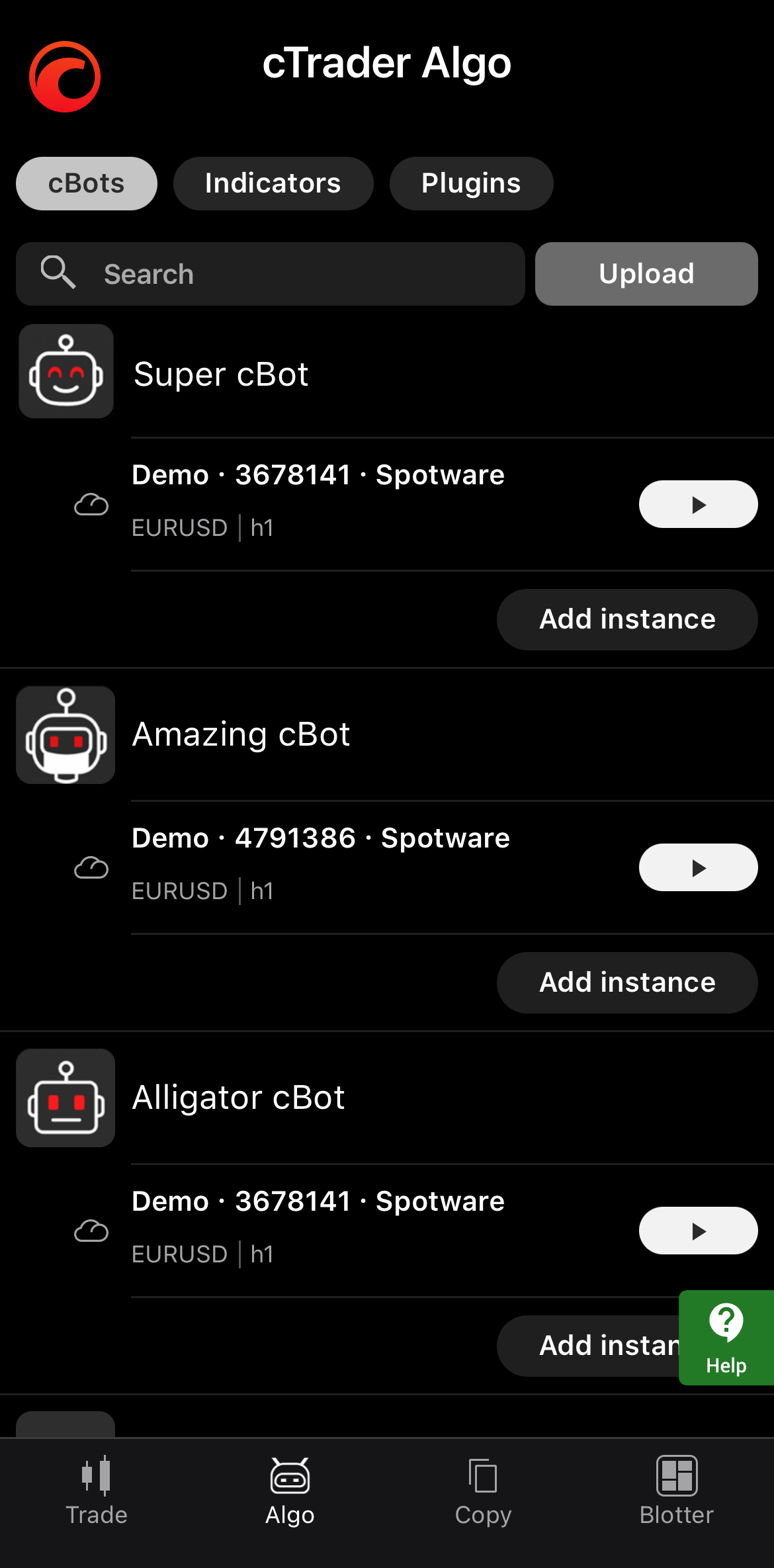
In either case, the cBot should appear in the list of algorithms, and you can start it.
If you have cTrader Windows on your computer, do one of the following:
-
Double-click the cBot
.algofile, and it should open in the appropriate cTrader app. -
Right-click the file, select Open with and choose cTrader.
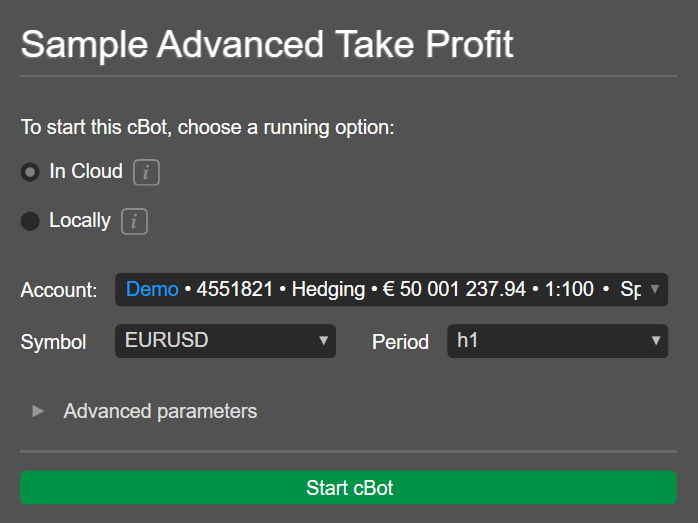
The new cBot should become visible in the list under the cBots tab or the Start cBot window should appear. You can start the bot.
Note
With cloud synchronisation enabled, a cBot installed from a file becomes available in your other cTrader apps, and you can start it in the cloud.
If you have cTrader Mac on your computer, do one of the following:
-
Double-click the cBot
.algofile, and it should open in the appropriate cTrader app. -
Right-click the file, select Open with and choose cTrader.
The new cBot should appear in the list under the cBots tab, and you can start the bot.
Note
With cloud synchronisation enabled, a cBot installed from a file becomes available in your other cTrader apps, and you can start it in the cloud.