Manage cBots
The cBots tab of cTrader Algo lists all available trading bots for the active cTrader ID. You can manage each cBot from any cTrader app.
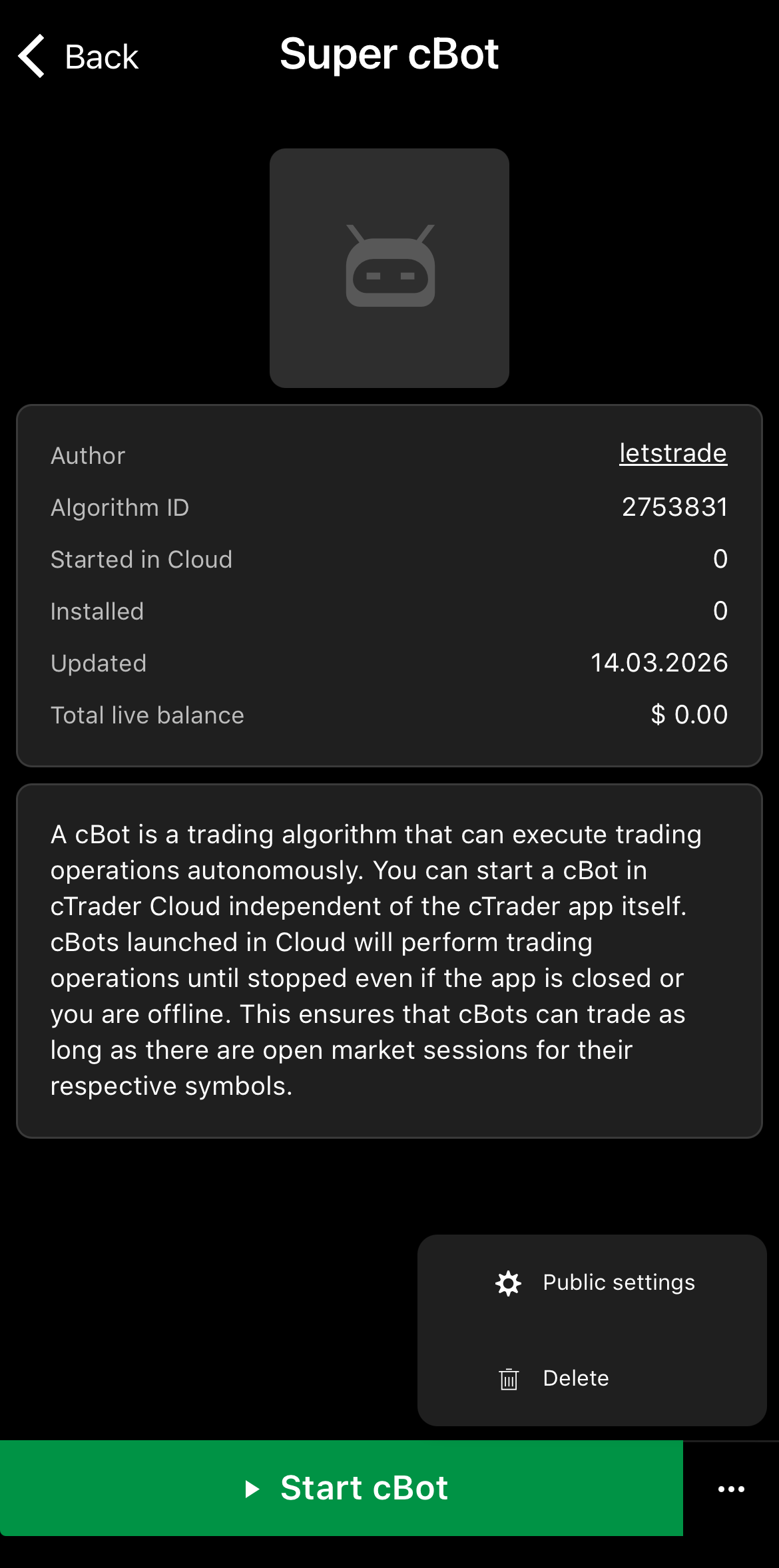
In cTrader Mobile, tap a cBot, then press the More icon in the bottom-right corner to open the management menu.
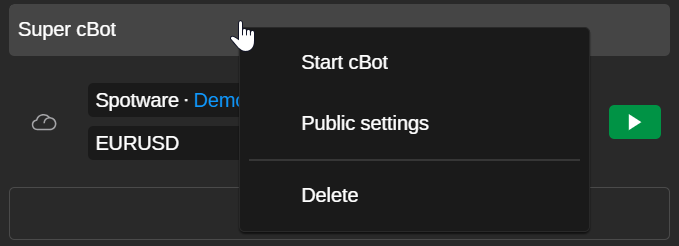
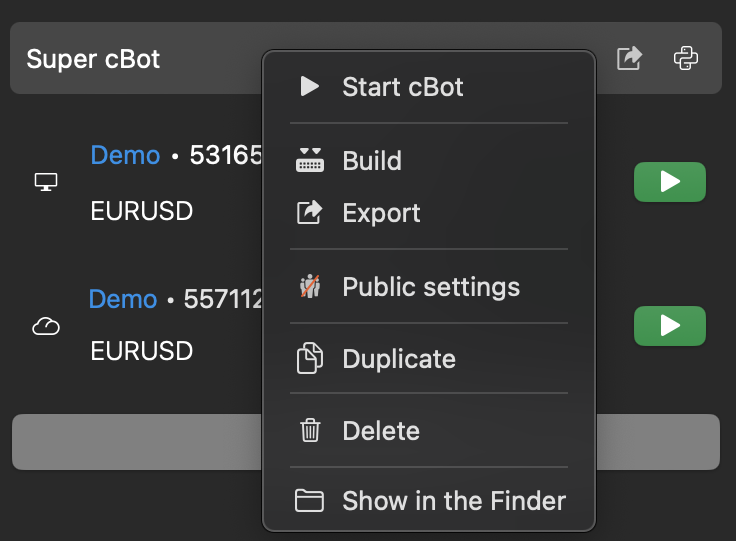
In cTrader Web, right-click a cBot to open its management menu.
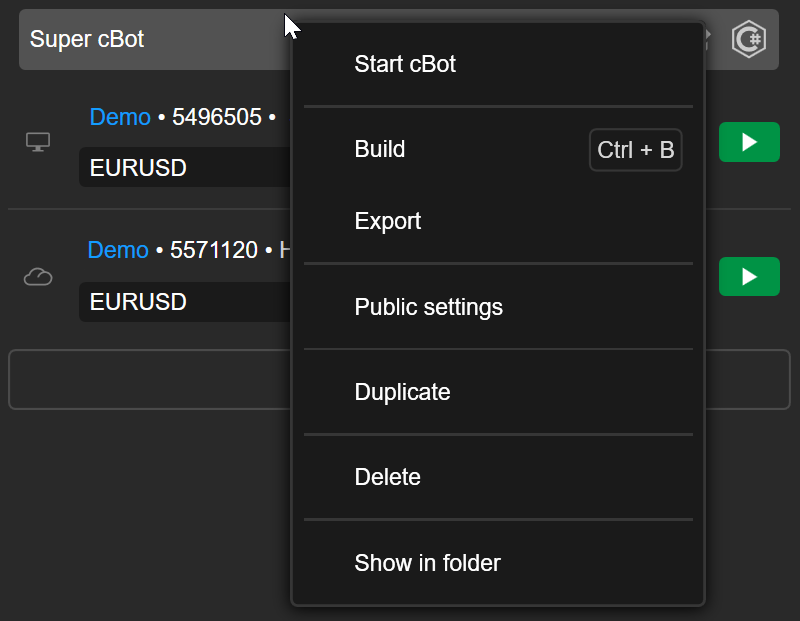
In cTrader Windows, right-click a cBot to open its management menu.
In cTrader Mac, right-click a cBot to open its management menu.
Upload an image
Adding an image to a cBot makes it easier to identify among several algorithms.
Note
This operation is possible only if you created the cBot yourself or installed it via an .algo file.
In the cBot menu, choose Public settings. In the General tab, tap the Edit icon, press Upload file, then choose an image from your device.
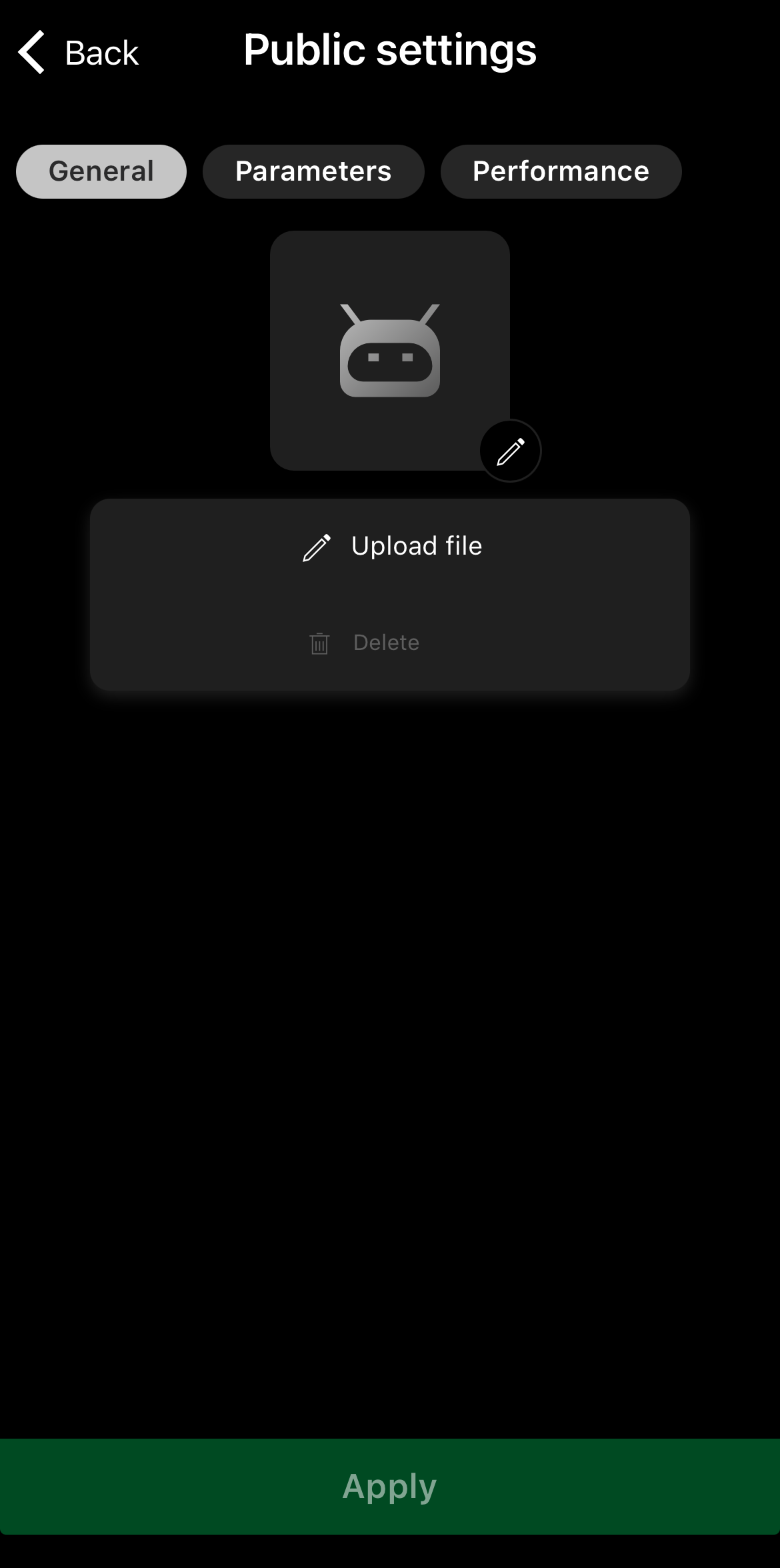
Tap the Apply button to finish.
In the cBot menu, choose Public settings. In the General tab of the new window, click Image 120 x 120 px.
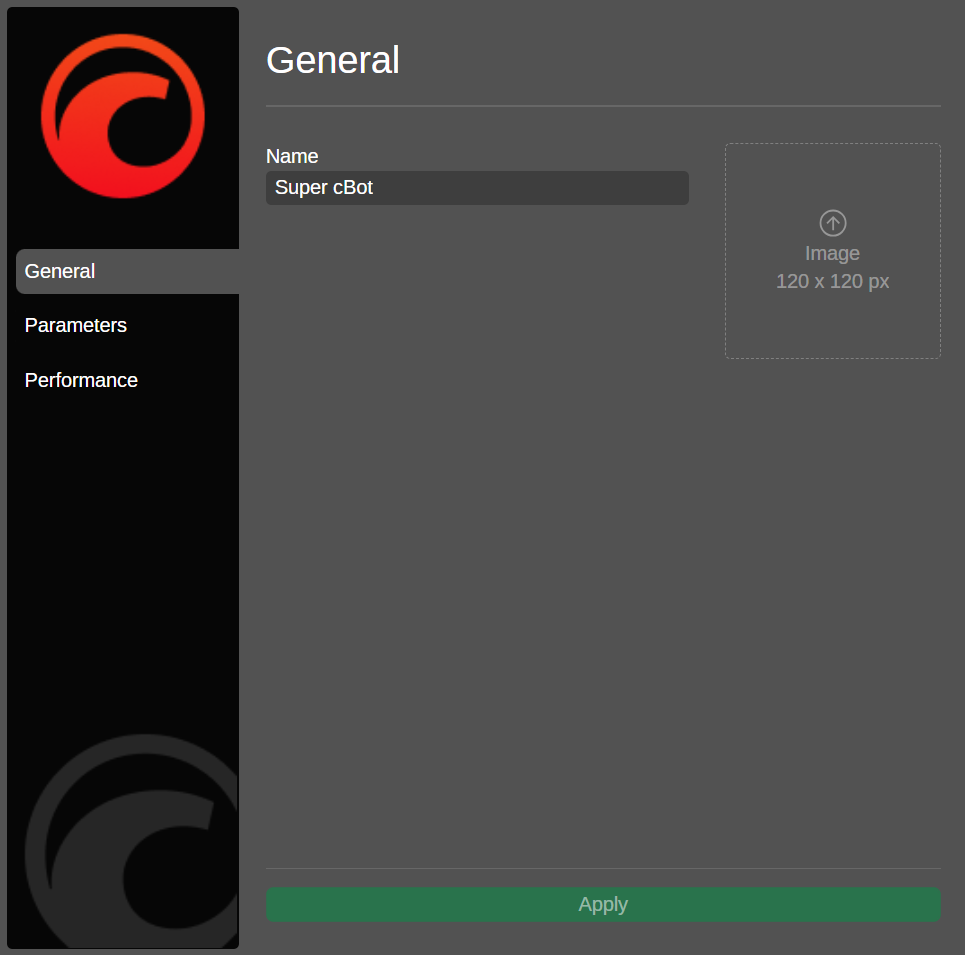
Choose an image from your device, then click Apply.
In the cBot menu choose Public settings. In the General tab of the new window, click Image 120 x 120 px.
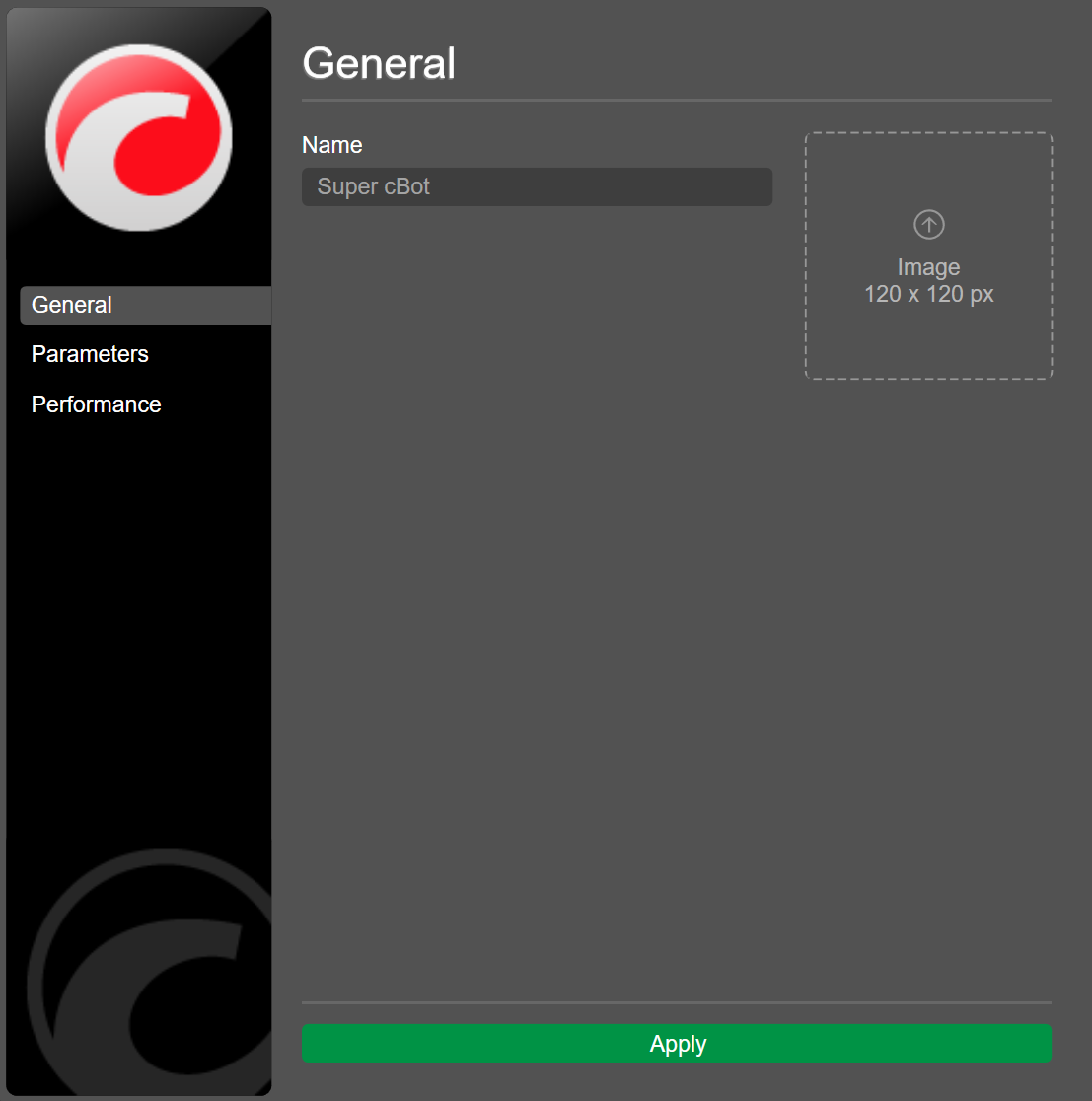
Choose an image from your device, then click Apply.
In the cBot menu, choose Public settings. In the General tab of the new window, click 120 x 120 px.
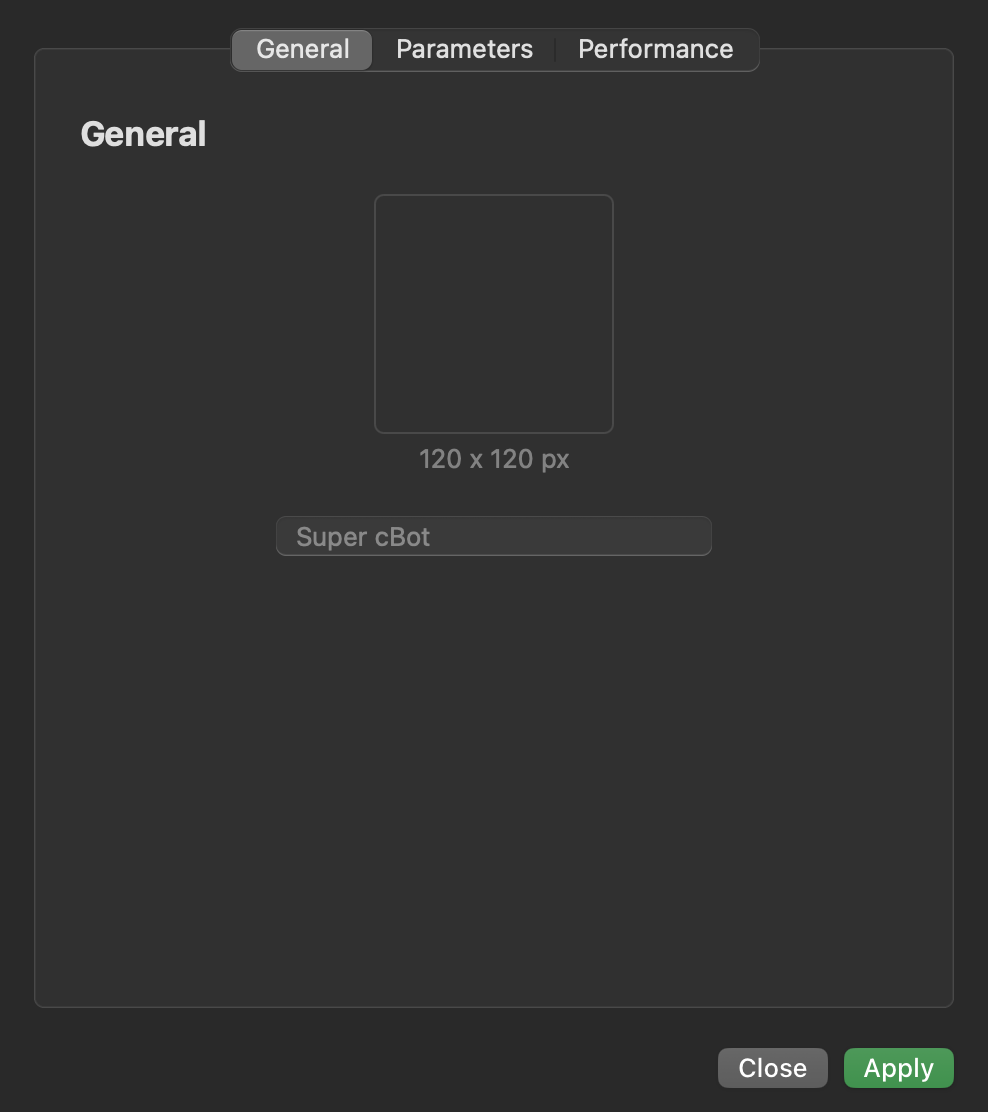
Choose an image from your device, then click Apply.
Note
With cloud synchronisation, the new cBot image automatically appears in all cTrader apps where your cTrader ID is active.
Set default parameters
Saving your preferred values as default parameters for a cBot lets you start instances of that cBot in the cloud quickly, without having to edit parameters manually each time.
Note
This action is available only if you created the cBot yourself or installed it via an .algo file.
In the cBot menu, choose Public settings. Navigate to Parameters, then specify your preferred values.
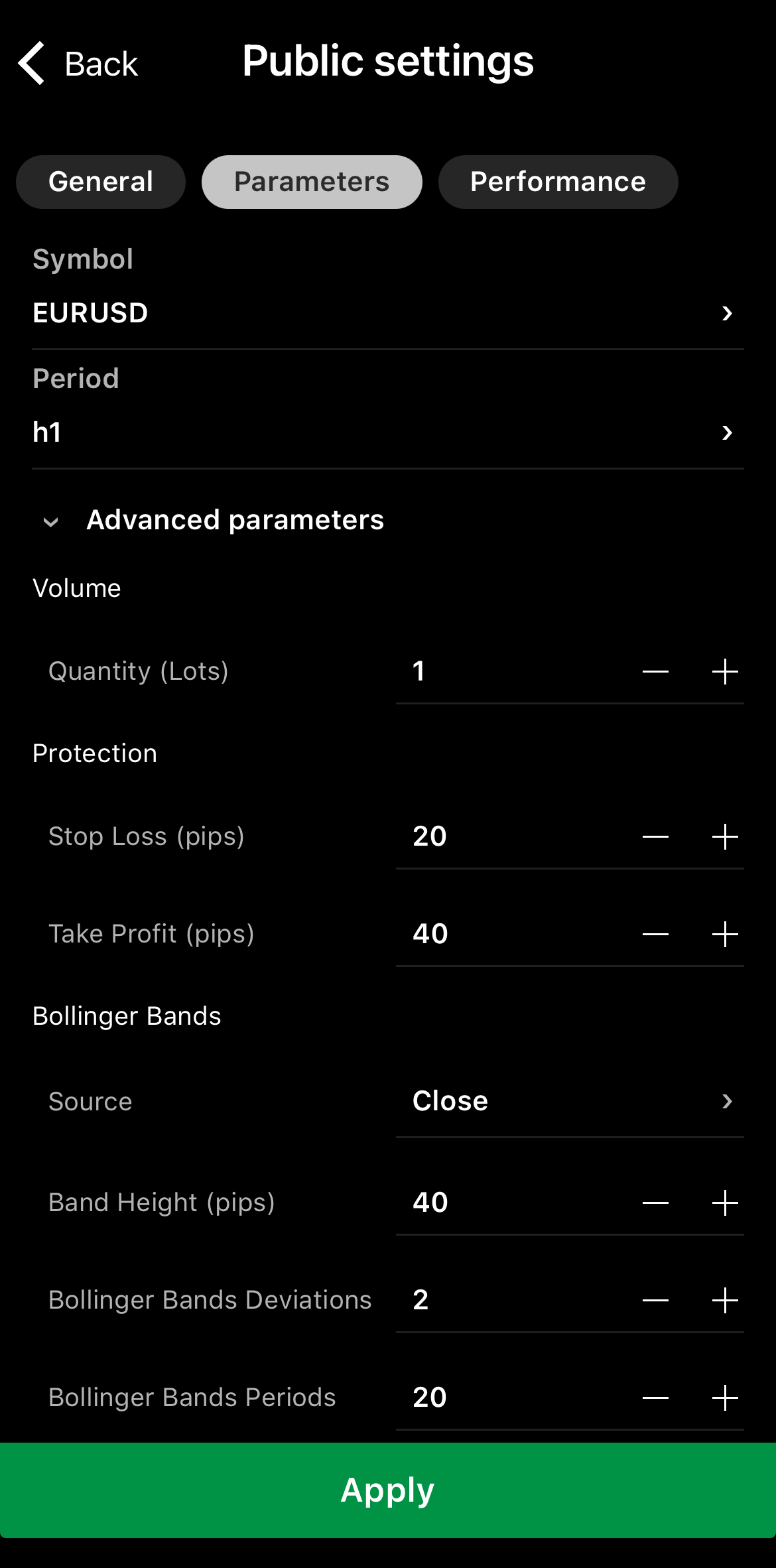
Tap Apply to save the configuration.
In the cBot menu, choose Public settings. Navigate to Parameters, then specify your preferred values.
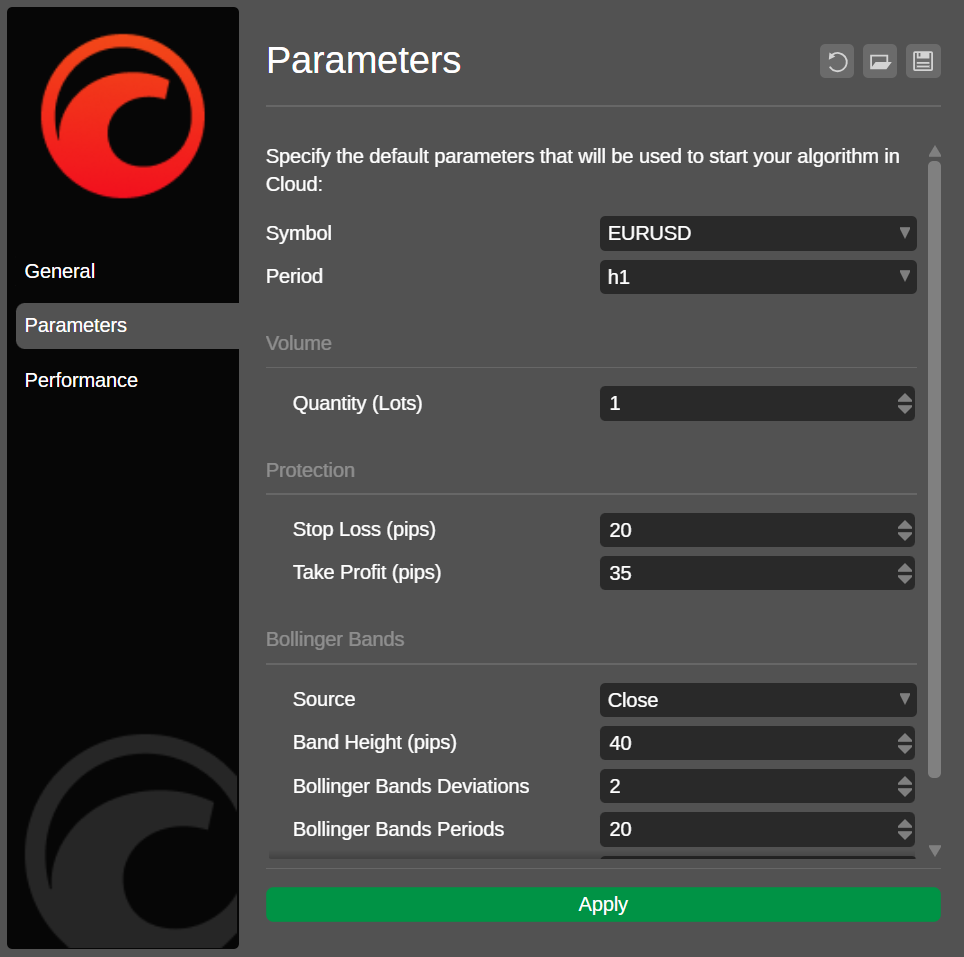
Click Apply to save the configuration.
In the cBot menu, choose Public settings. Navigate to Parameters, then specify your preferred values.
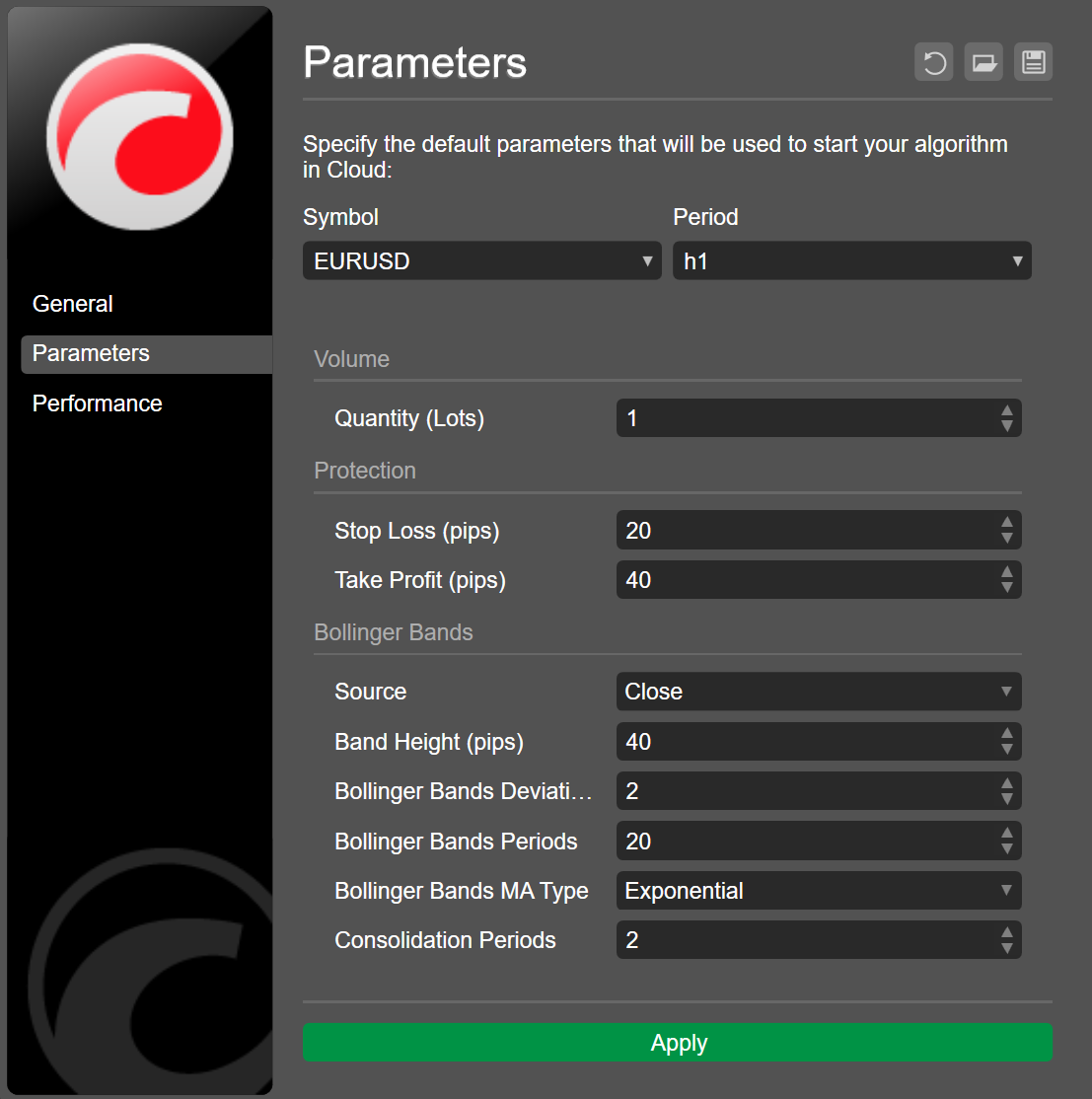
Click Apply to save the configuration.
In the cBot menu, choose Public settings. Navigate to Parameters, then specify your preferred values.
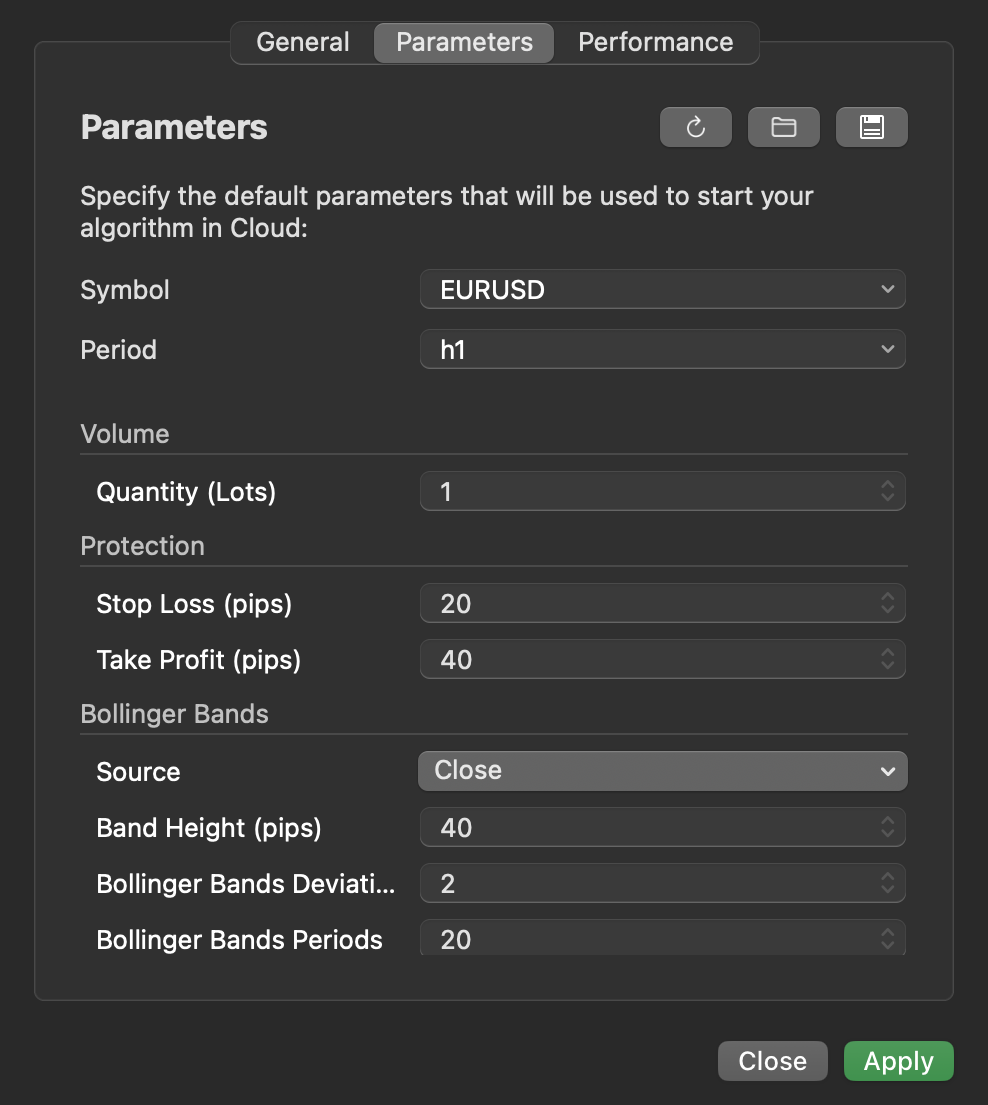
Click Apply to save the configuration.
Duplicate a cBot
Duplication allows you to quickly create a copy of an existing cBot in cTrader Windows or Mac.
Note
This option is available only if you created the cBot yourself or installed it via an .algo file.
Delete a cBot
Warning
With cloud synchronisation, deleting a cBot in any cTrader app automatically removes the same cBot from all cTrader apps where your cTrader ID is active.