Manage cBot instances
Each cBot instance, whether cloud or local, uses parameters that define its operations.
Essential parameters
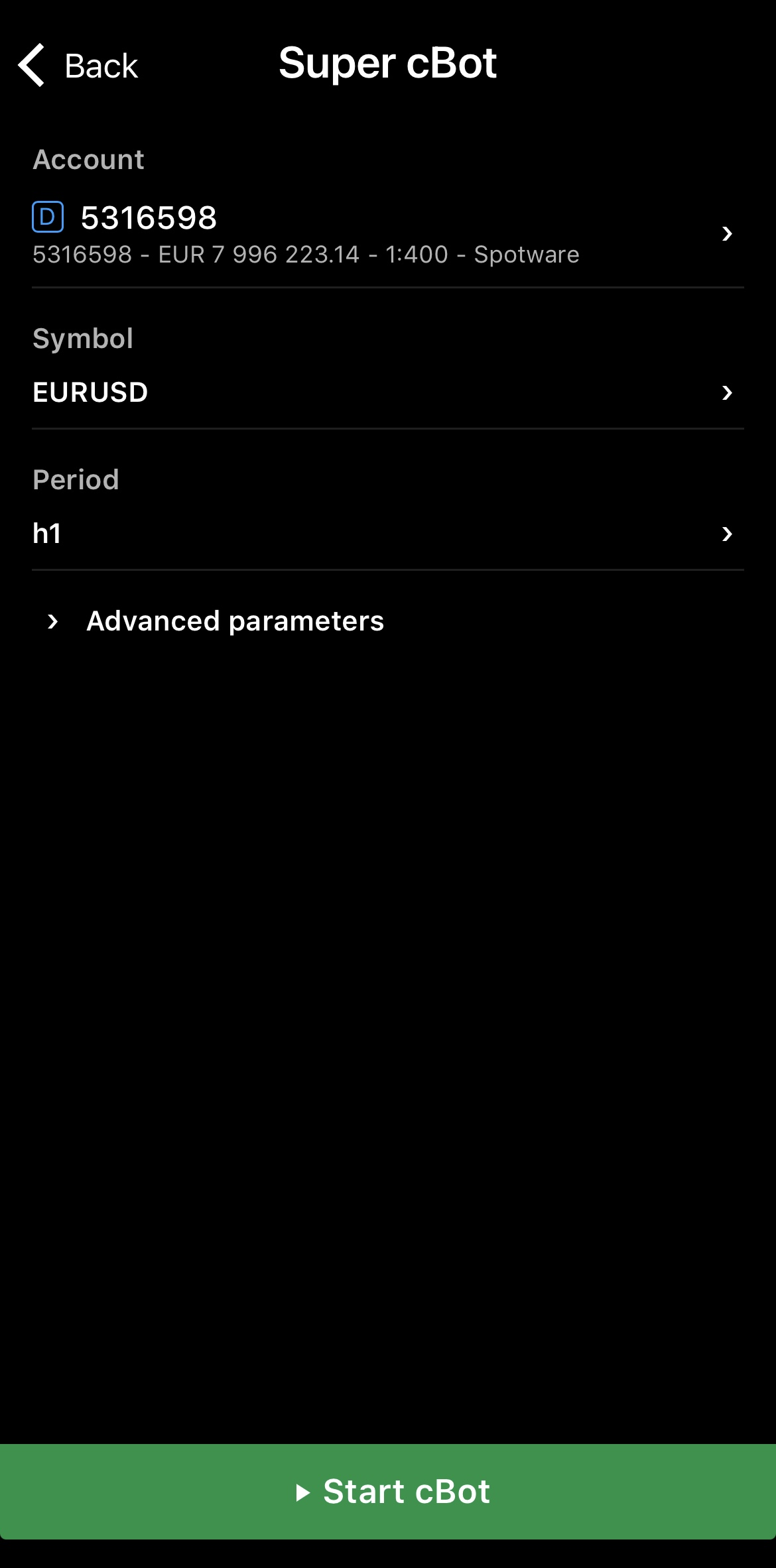
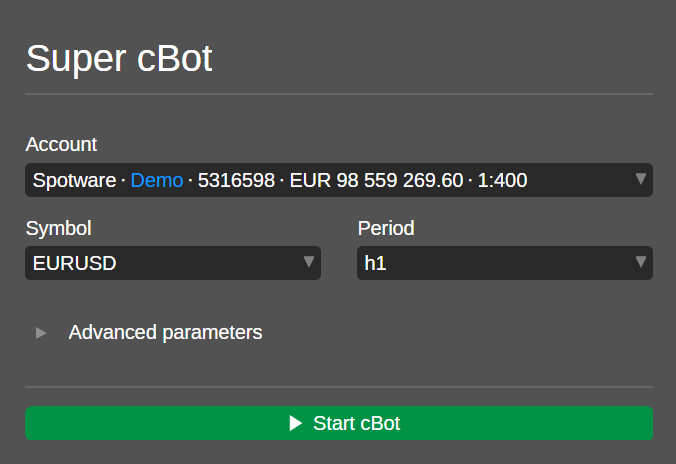
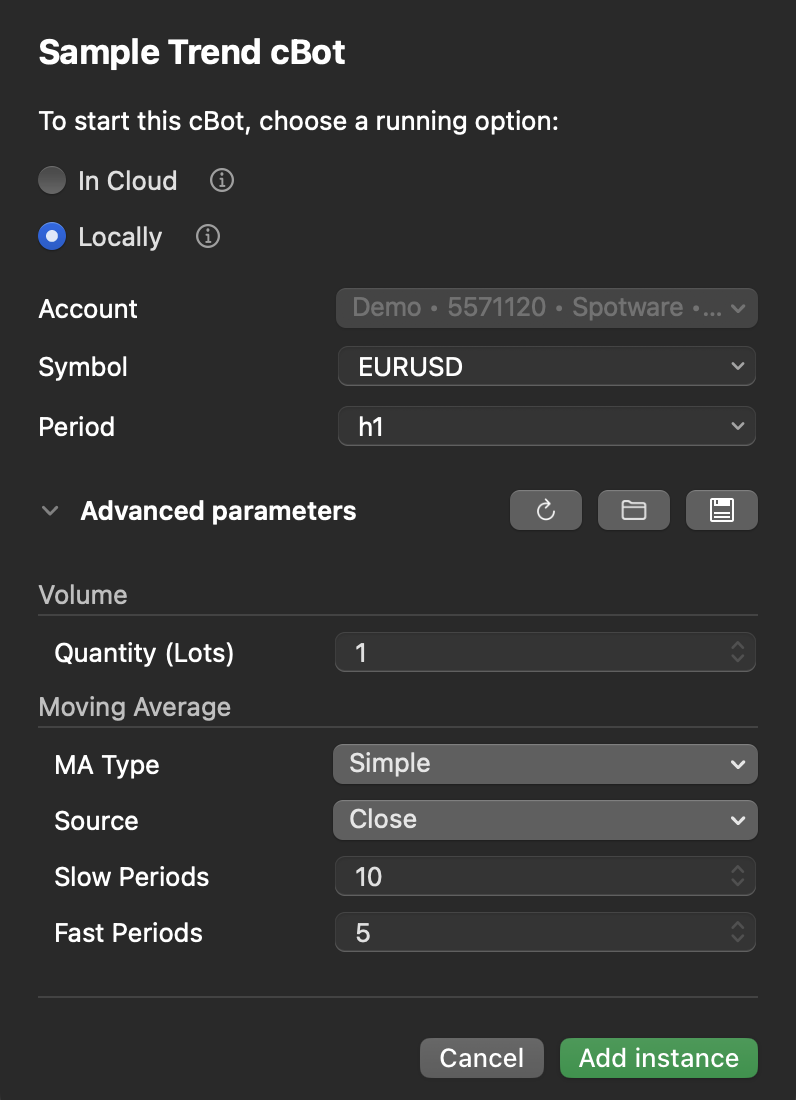
Three essential parameters are always visible in the cTrader UI for every instance: the trading account that funds the instance, the symbol it trades and the period it runs on.




Additional parameters
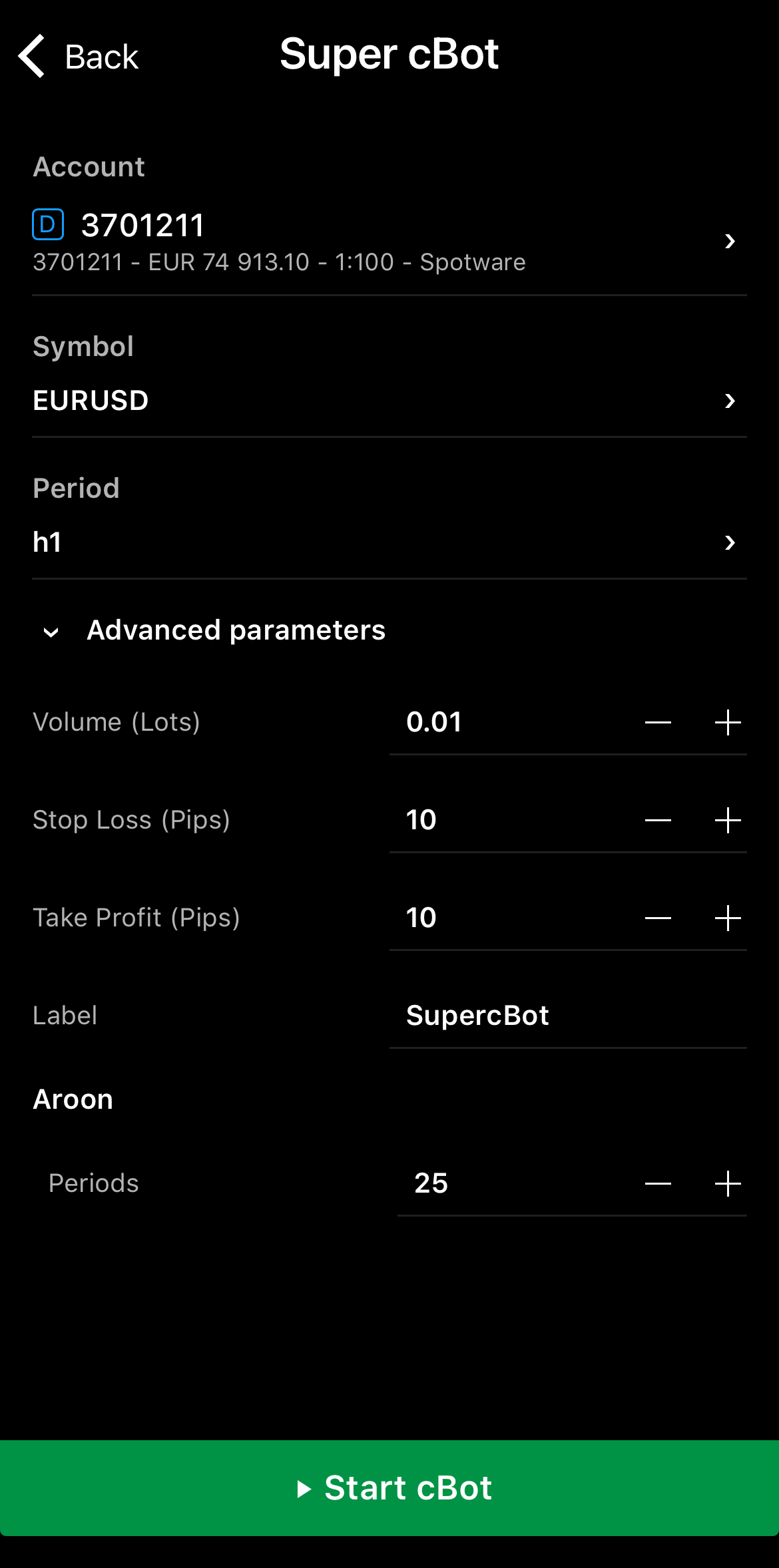
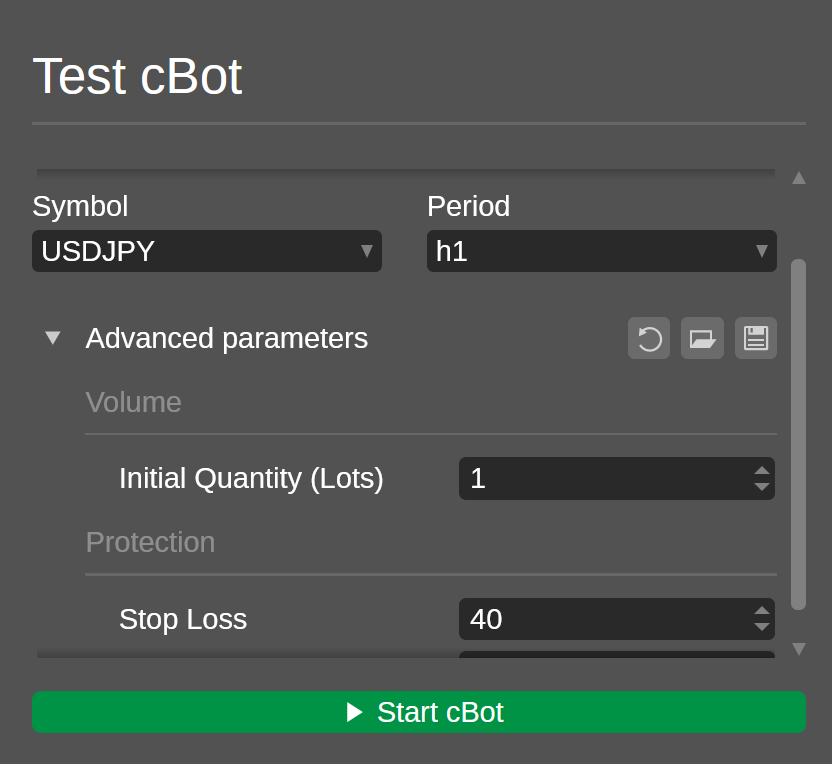
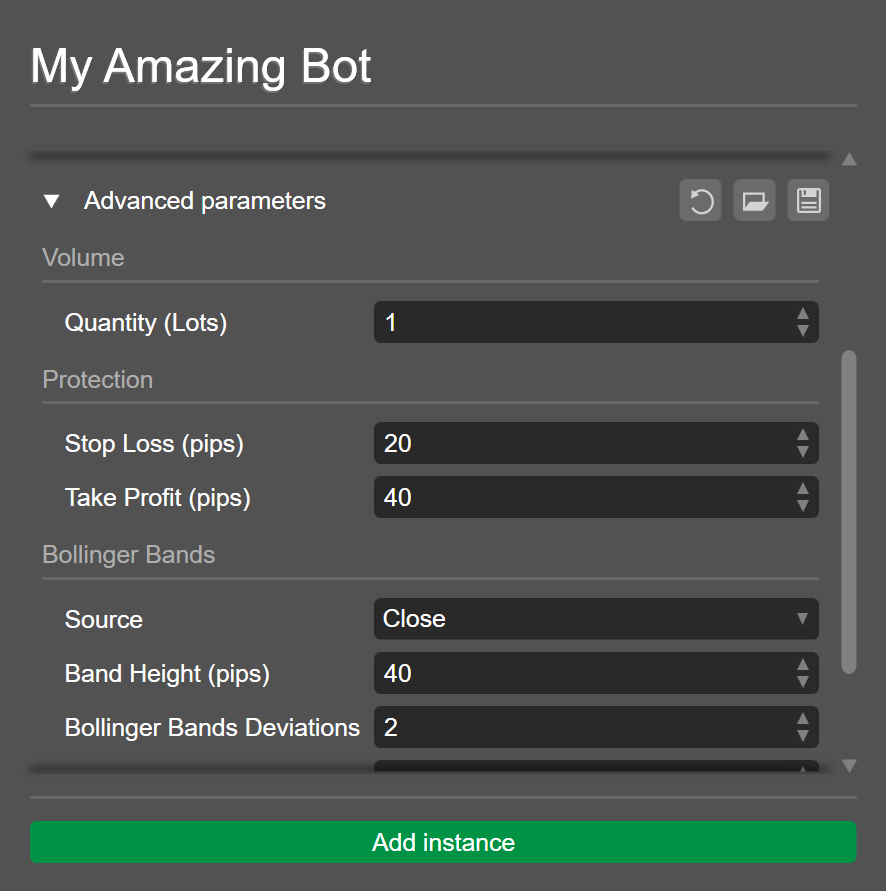
Additional parameters come from the cBot's code and appear in the cTrader UI as Advanced parameters or Parameters. Examples include trade volume, stop loss, take profit, indicator type, indicator settings, risk profile and target profit.
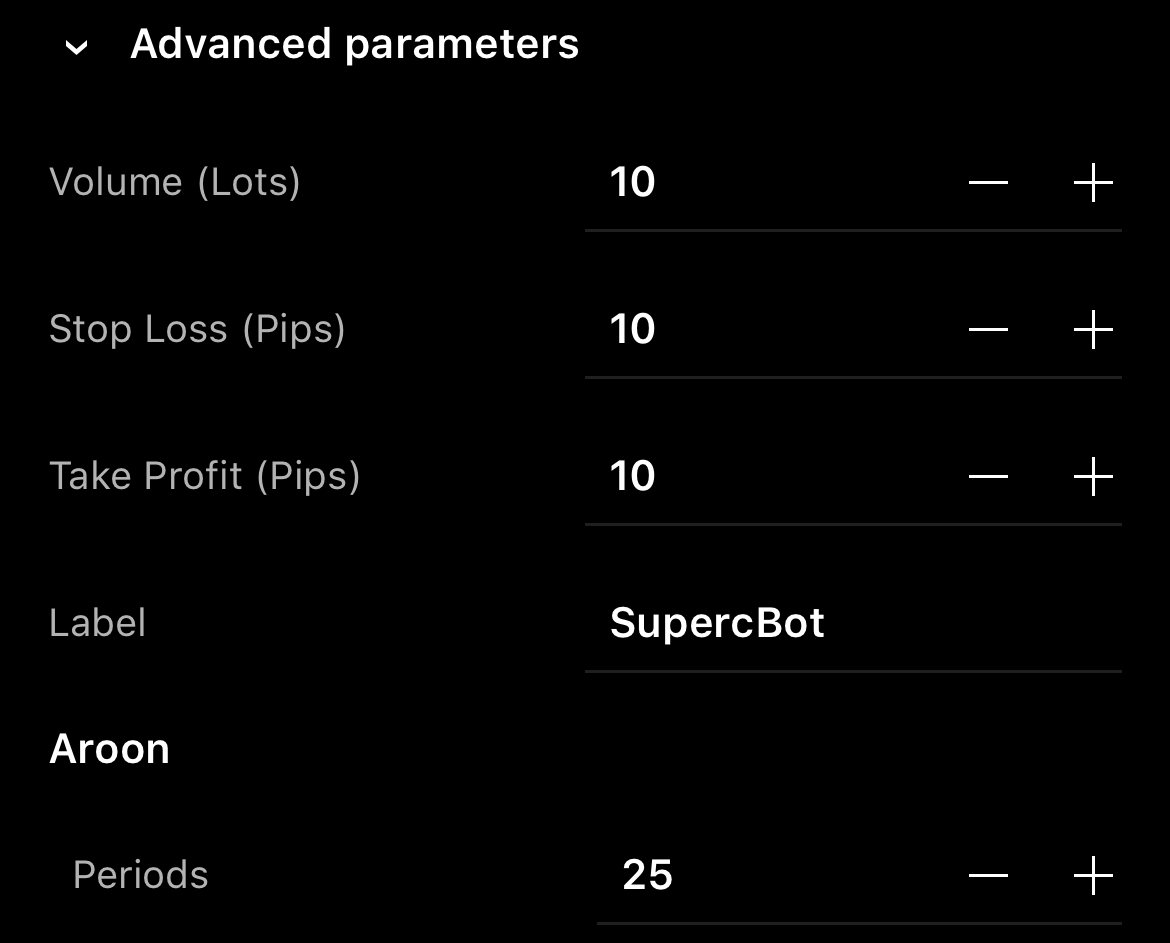
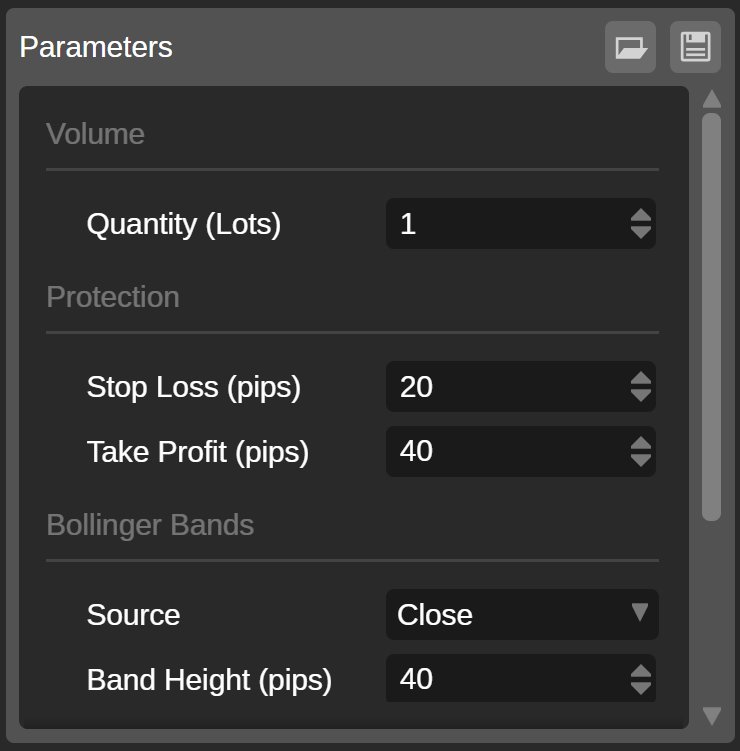
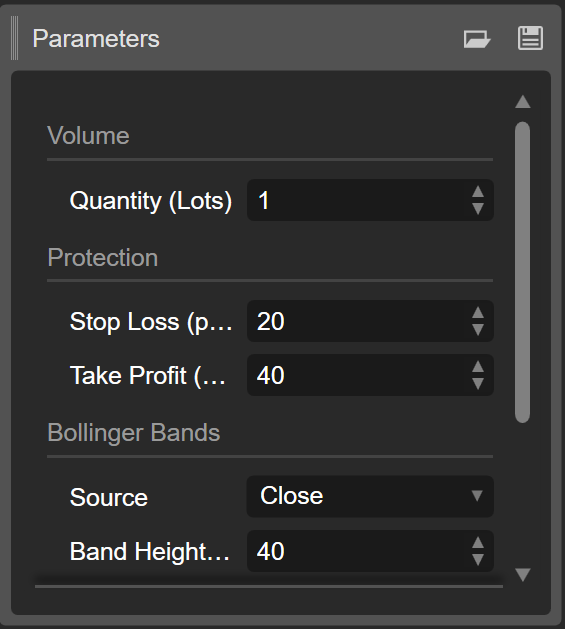
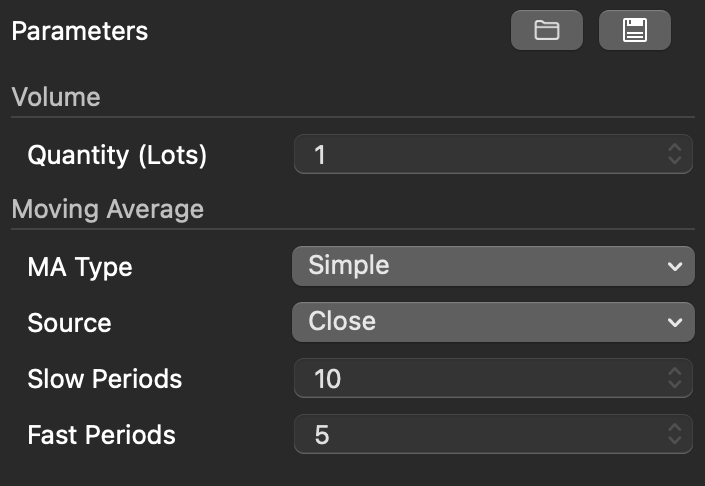
Additional parameters affect a cBot's trading behaviour and performance. If you are not sure how to configure them, check the cBot product page in cTrader Store or contact the algorithm developer.
Tip
In cTrader Algo, you can learn how to backtest a cBot to see how it performs on historical data and optimise its parameters to discover a good combination of values.
Add a new instance
Note
cTrader Mobile and Web support only cloud instances, while cTrader Windows and Mac support both cloud and local instances.
cTrader displays at least one instance containing default parameter values for every installed cBot. You can add a new instance whenever you need it via the Add instance button.
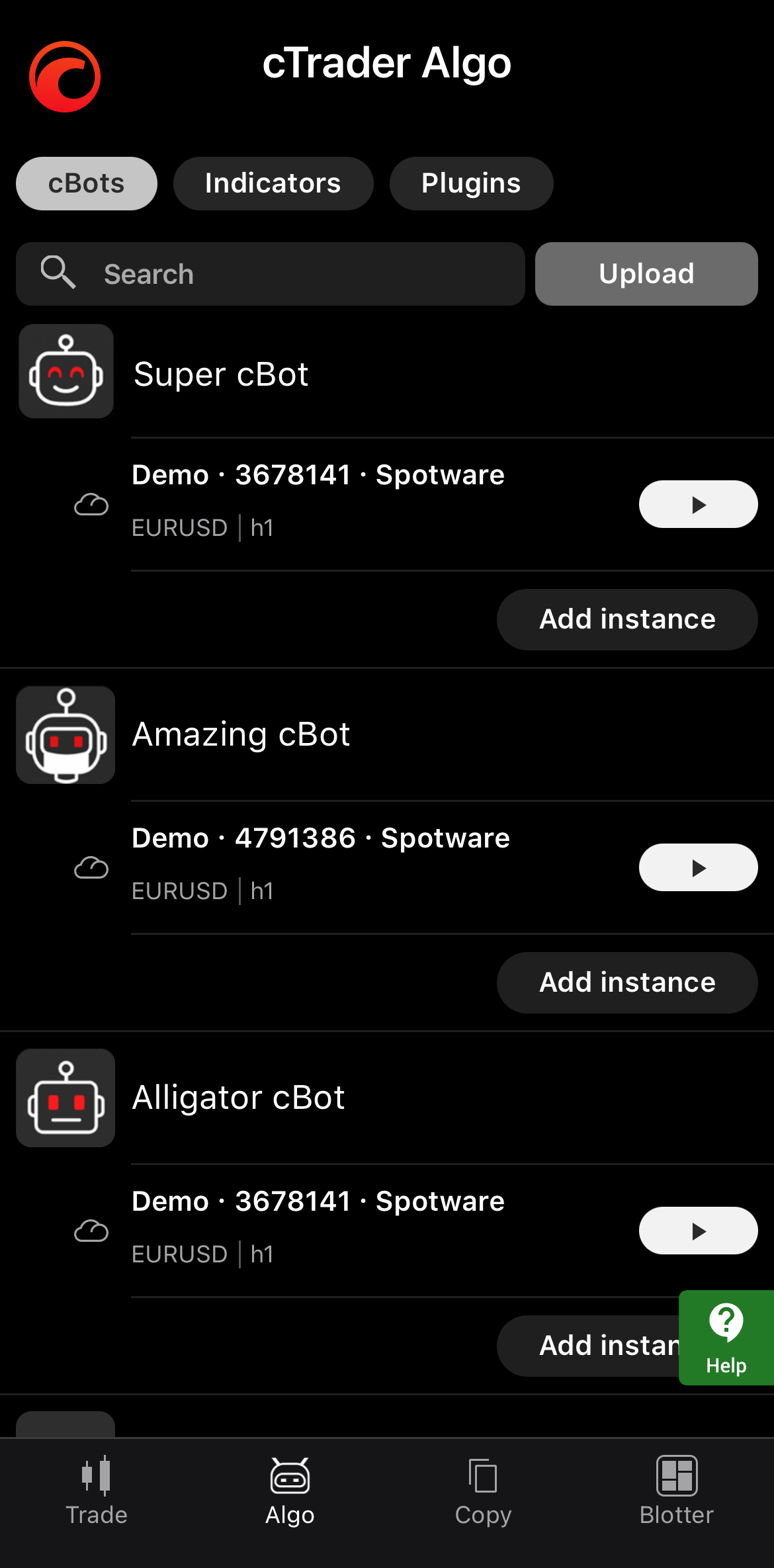
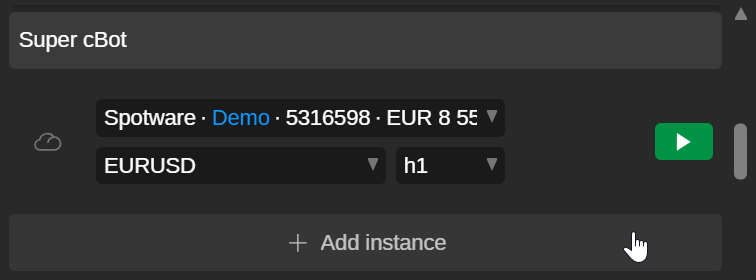
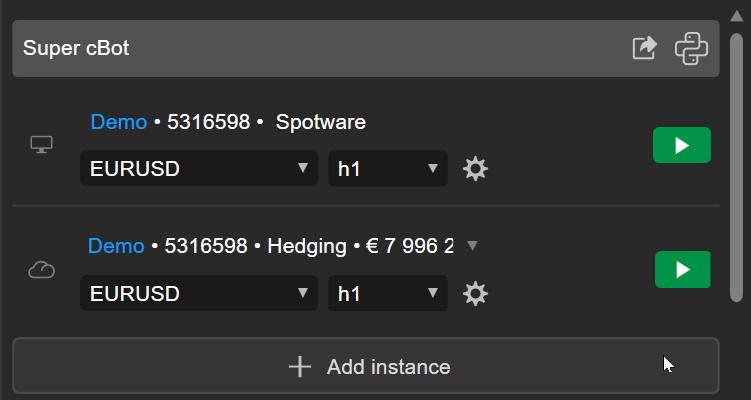
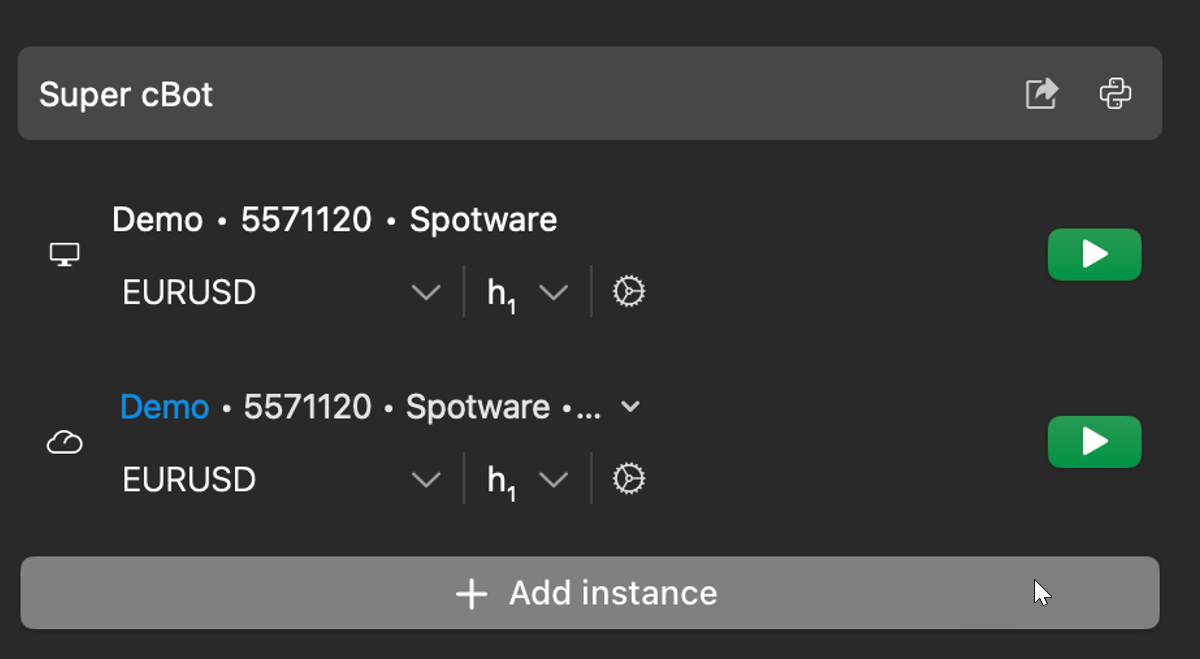
Specify your preferred values for the instance. Expanding Advanced parameters reveals any available additional parameters, which you can also configure.
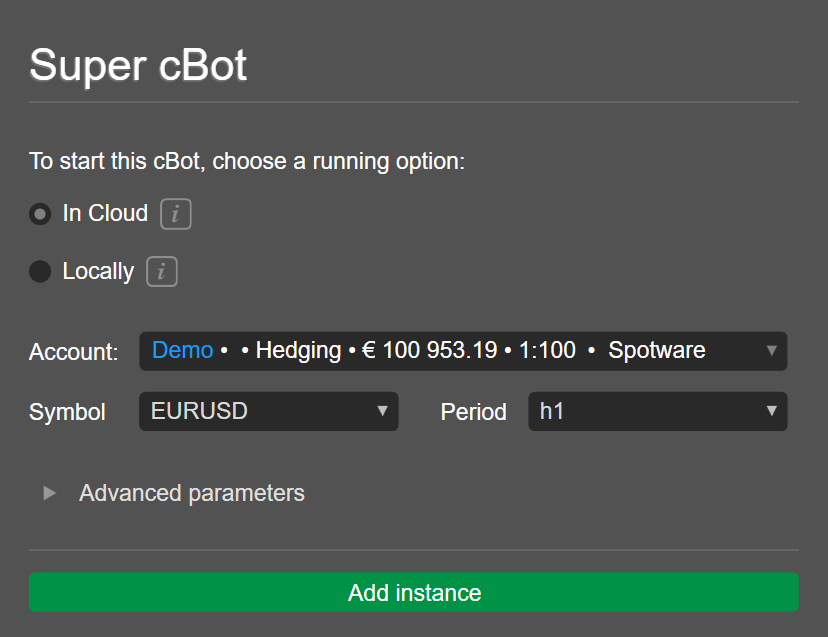
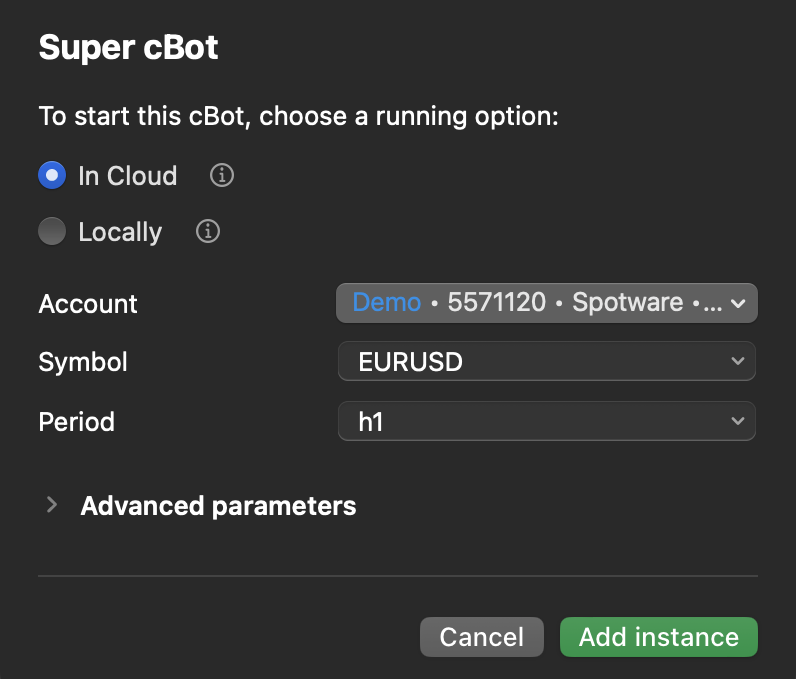
Edit instance parameters
Note
cTrader synchronises changes to cloud instances across all apps where your cTID is active.
You can access and change the parameters of an instance via several methods.
Parameters section
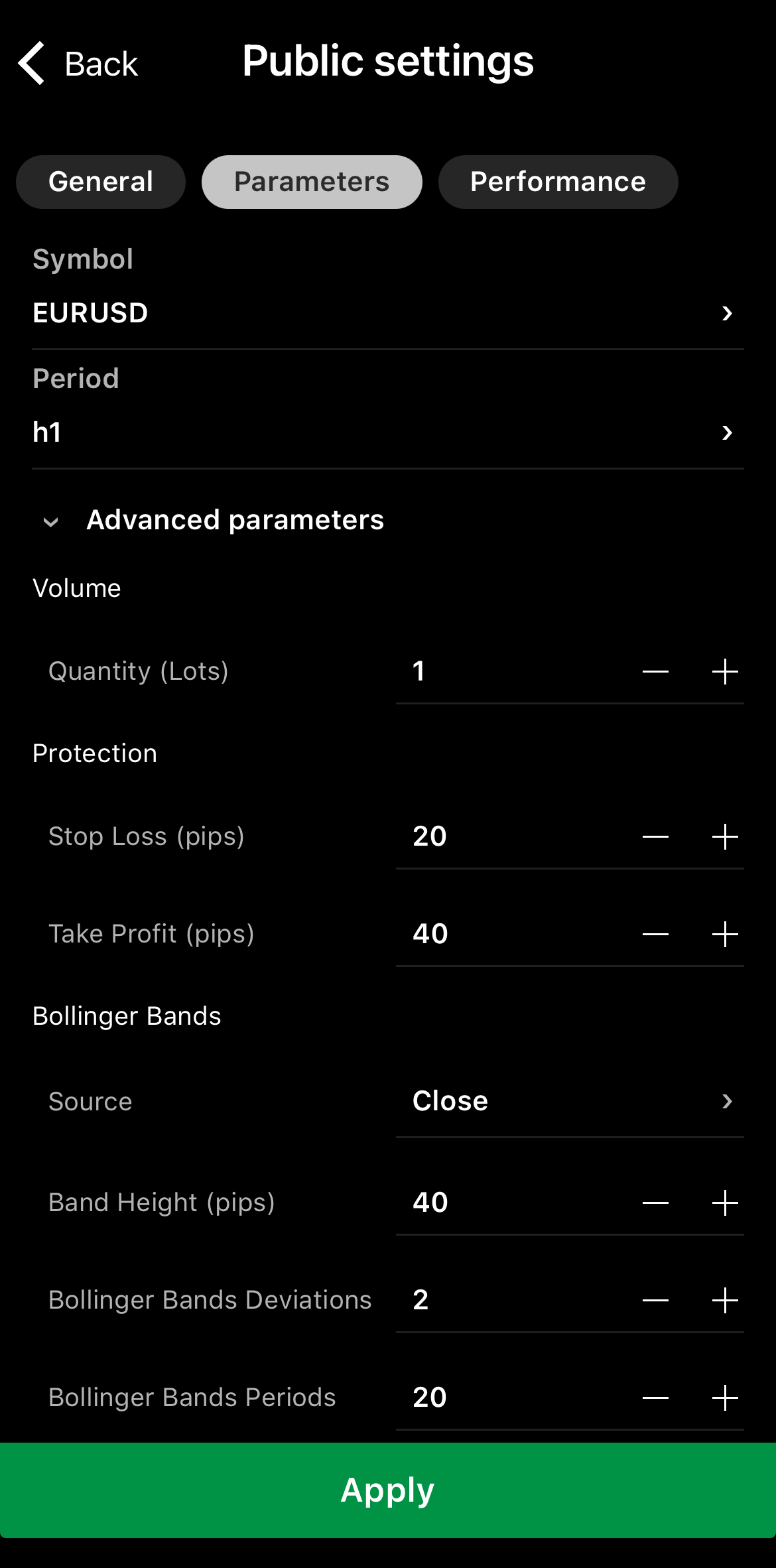
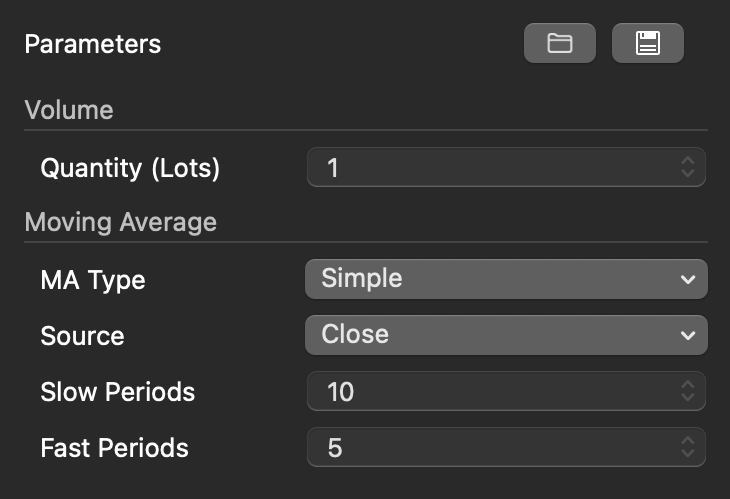
A Parameters section is available for every cBot instance in the cTrader UI, provided the app supports that instance.
Tap an instance, then navigate to the Parameters section.
Click an instance below the cBot name, then navigate to the Instance information tab in the central grid. You should see the Parameters section.
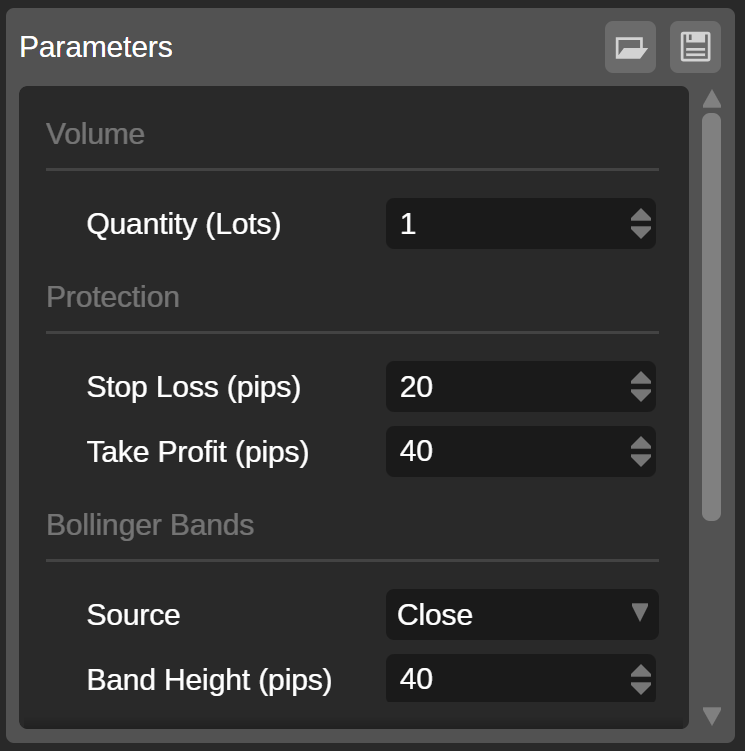
Click an instance below the cBot name. You should see the Parameters section under the chart on the right.
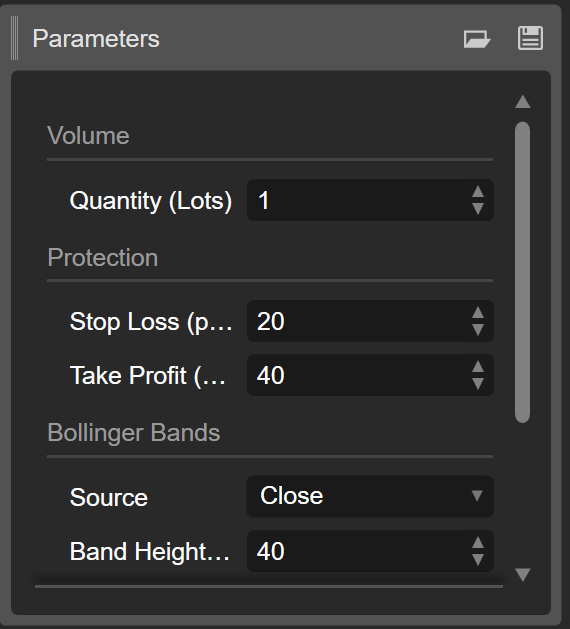
Click an instance below the cBot name. You should see the Parameters section under the chart on the right.
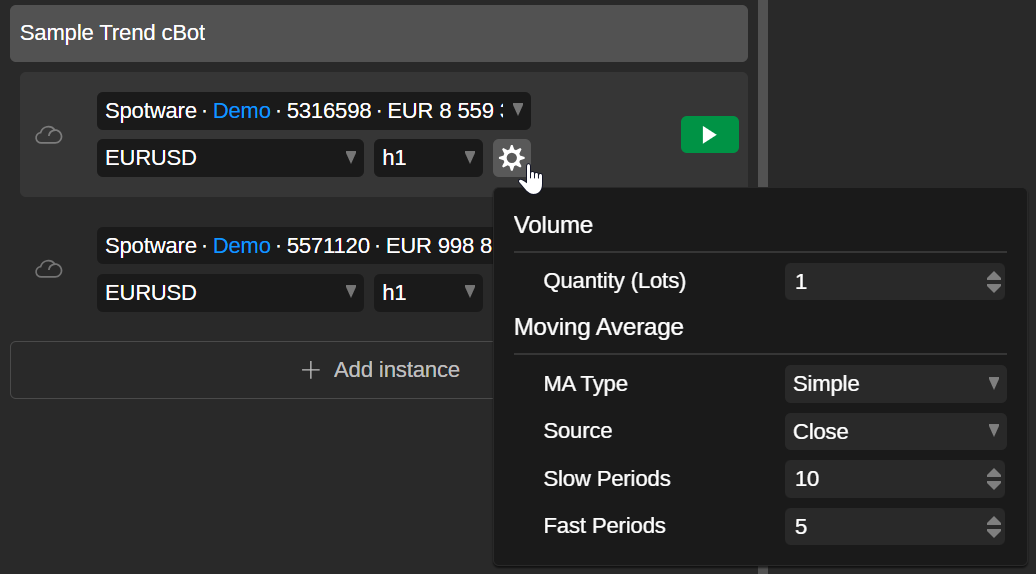
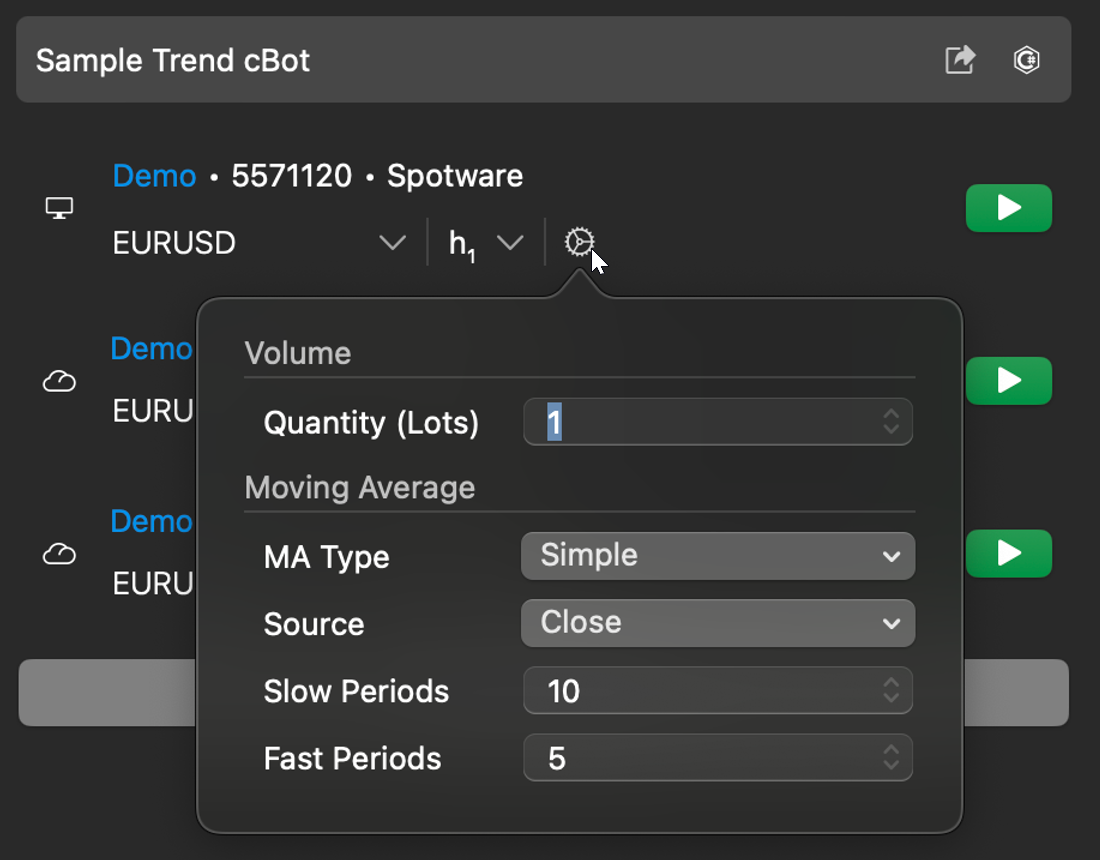
Cog icon
In cTrader Web, Windows or Mac, clicking the Cog icon next to the period selector reveals additional parameters.
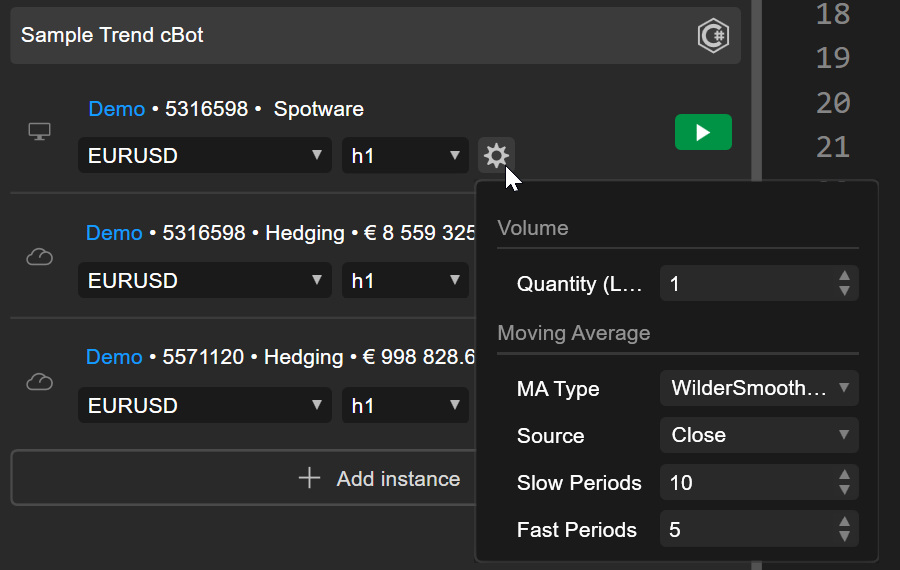
New instance
When adding a new instance, you can configure both essential and additional parameters.
CBOTSET file
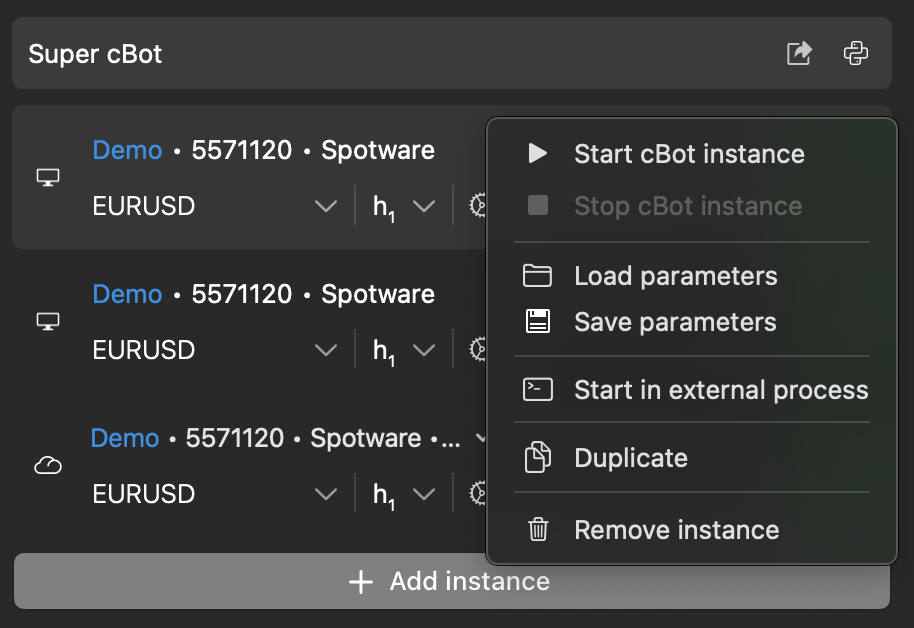
A .cbotset file stores specific values for a cBot's additional parameters. Loading this file for an instance fills the fields automatically. If you have such a file, right-click an instance in cTrader Windows or Mac, then select Load parameters.
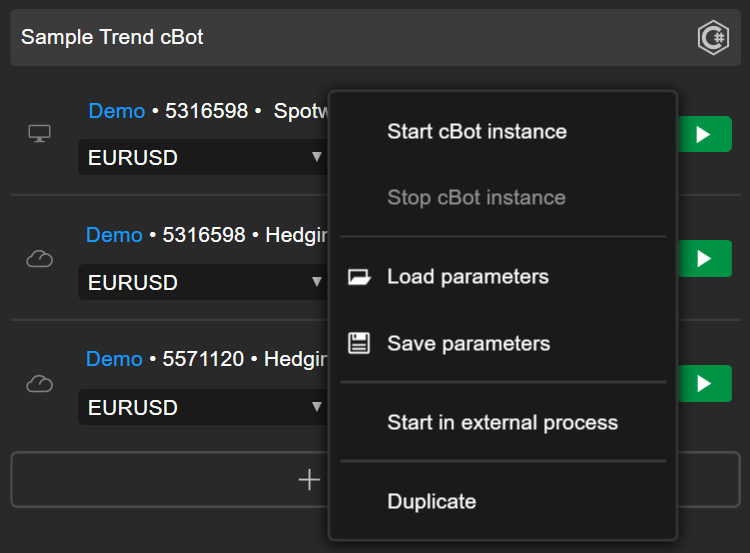
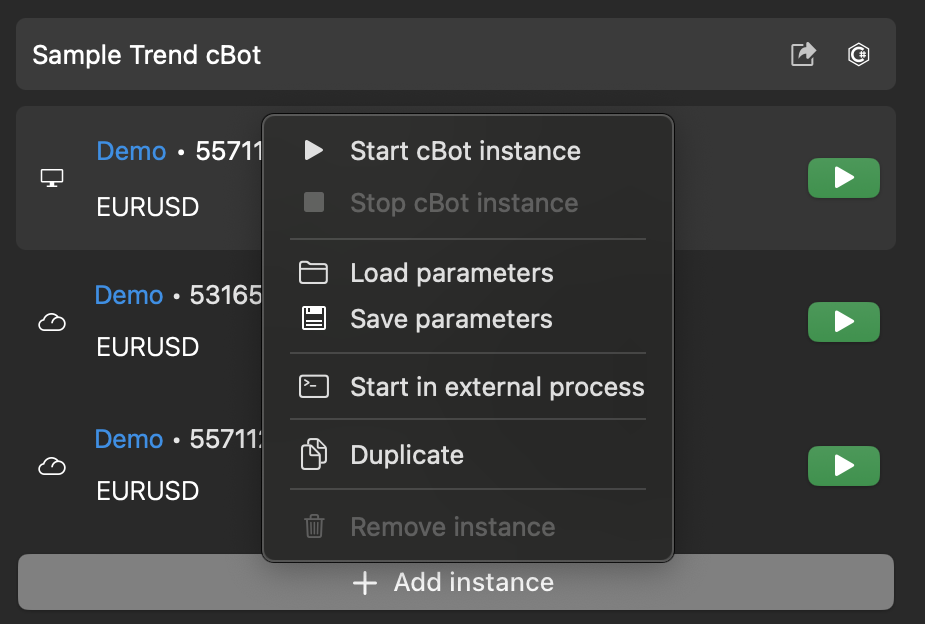
Choose the file on your computer, then click Open.
Duplicate an instance
Duplication is a way of creating new cBot instances quickly from existing instances. In cTrader Web, Windows or Mac, right-click an instance containing your preferred values, then select Duplicate.
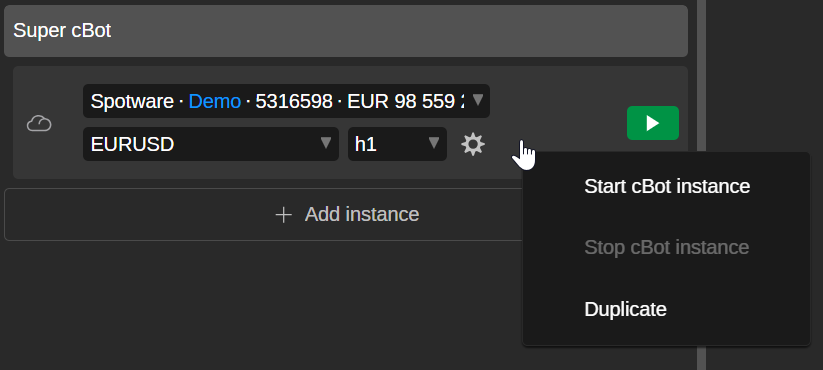
A new instance will appear below the cBot.
Save instance parameters
Saving the parameter values of an instance as a .cbotset file lets you quickly reuse the same settings in another instance. You can generate the file from the cBots tab or the Parameters section of an instance.
cBots tab
In cTrader Windows or Mac, right-click the instance whose values you want to save, then select Save parameters.
Select a location on your computer, then click Save.
Parameters section
In cTrader Web, Windows or Mac, go to the Parameters section of the instance and click the Save icon in the top-right corner. Choose a location to store the .cbotset file on your computer, then click Save.
Delete an instance
Deleting a cBot instance removes it from the list under the cBot.
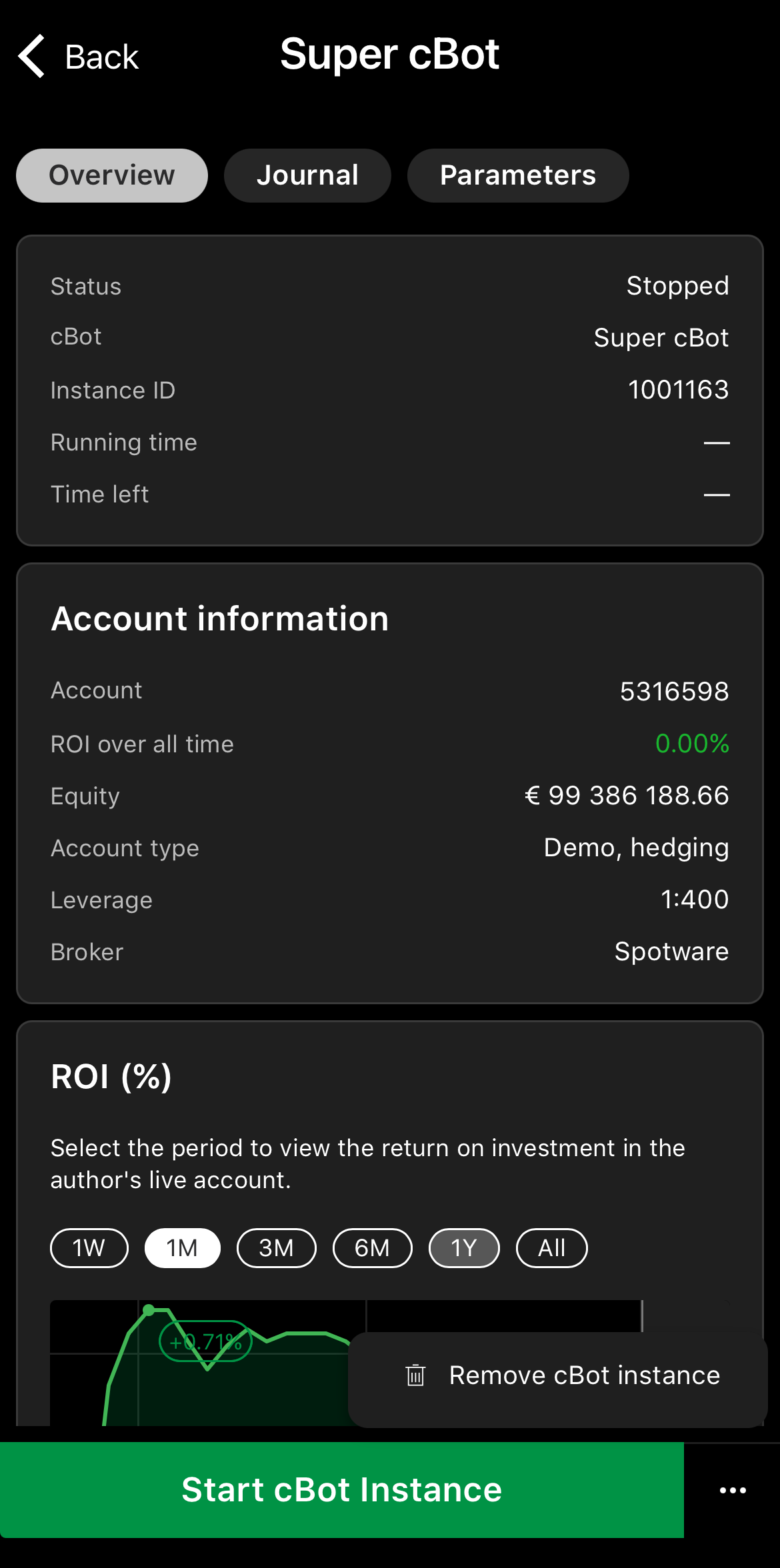
Tap the instance you want to delete, press the More icon in the bottom-right corner and select Remove cBot instance.
Right-click the instance you want to delete, then select Remove cBot instance.
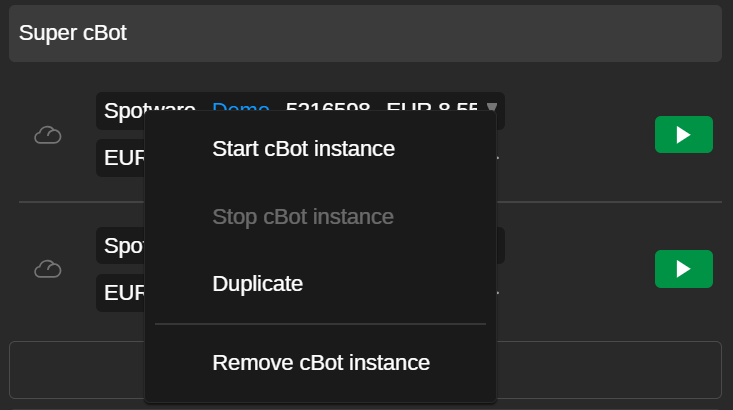
Right-click the instance you want to delete, then select Remove cBot instance.
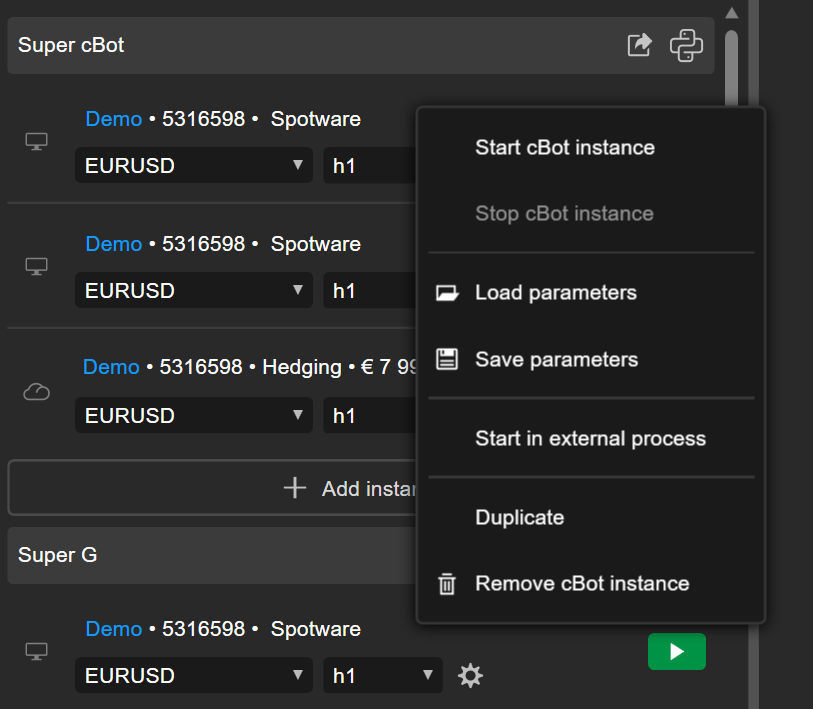
Right-click the instance you want to delete, then select Remove instance.