Start a trading bot in cTrader
Starting a cBot means starting a cloud or local instance.
Note
cTrader Mobile and Web support cloud instances, while cTrader Windows and Mac support both cloud and local instances.
Cloud instance
A cloud instance, recognisable by the cloud icon, is a free, safe and isolated environment provided by cTrader. Once started, the instance runs 24/7 independently of your device and does not require your cTrader app to stay open or connected to the internet. The instance runs until you stop it.




Local instance
A local instance, recognisable by the computer icon, functions as an on-site process on your machine. Once started, the instance runs only while the cTrader app stays open and uses your system's CPU, RAM and internet connectivity. The instance runs until you stop it or close the cTrader app.


Start an instance
Locate the cBot you want to start.
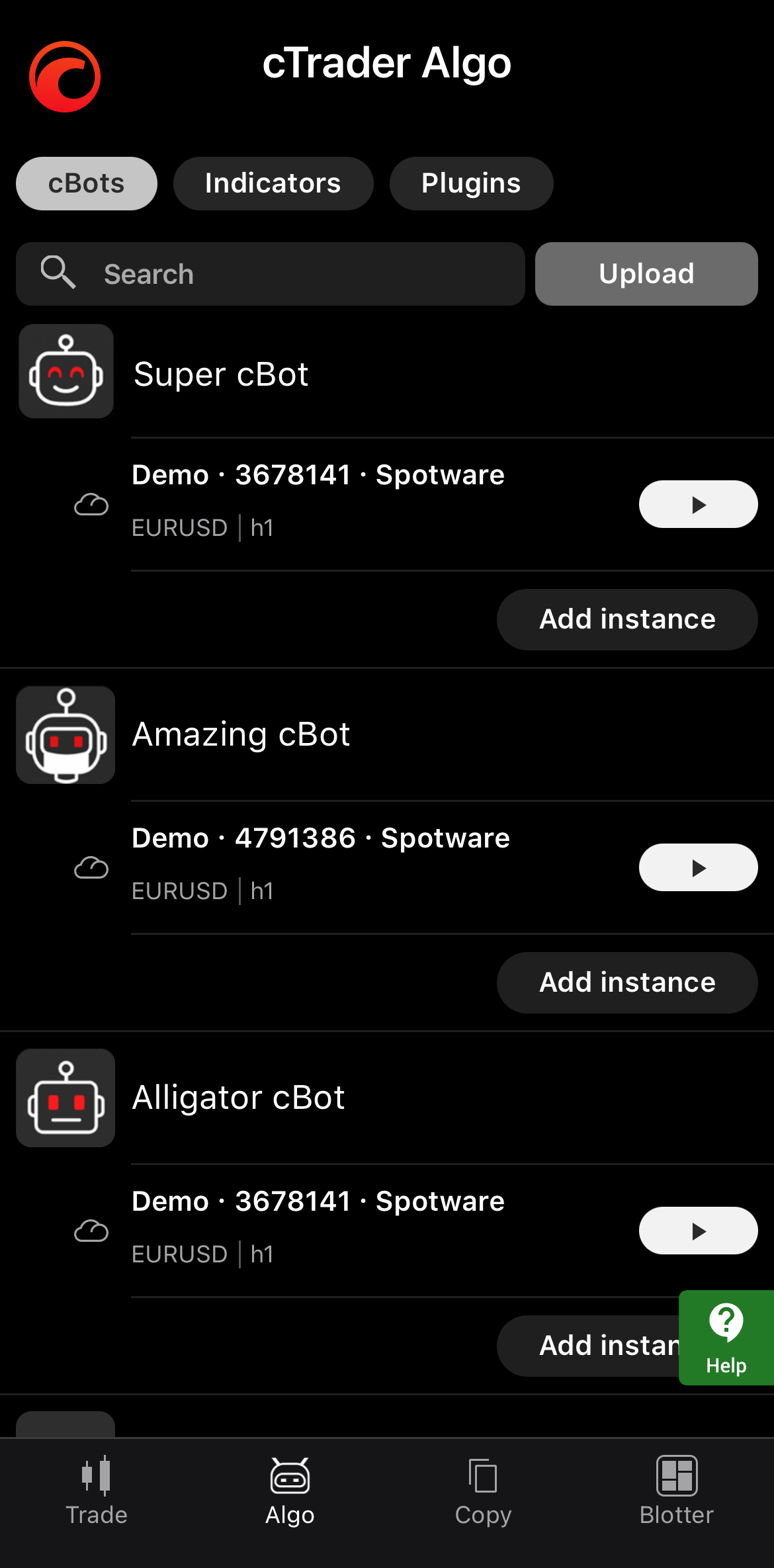
In the Algo bottom sheet accessible from My cTrader, tap the Start button for an instance.
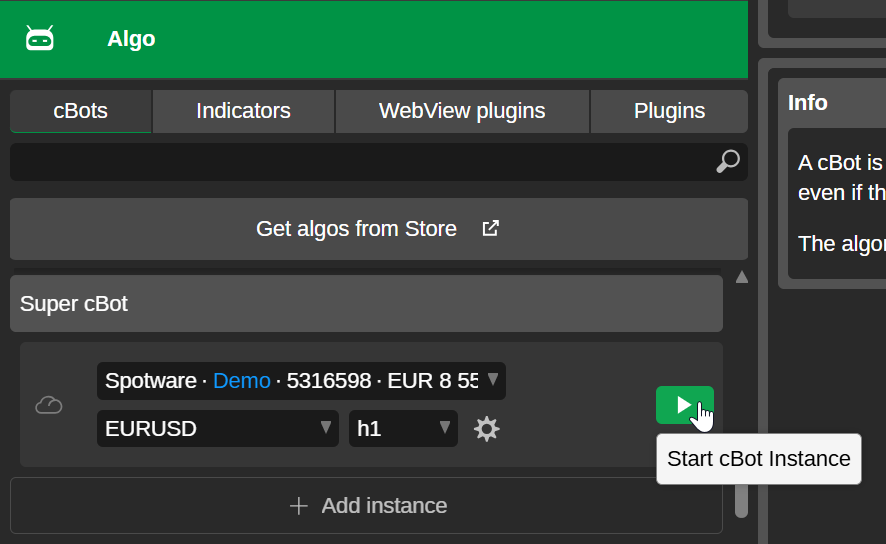
In the cBots tab of cTrader Algo, click the Start cBot instance button for an instance.
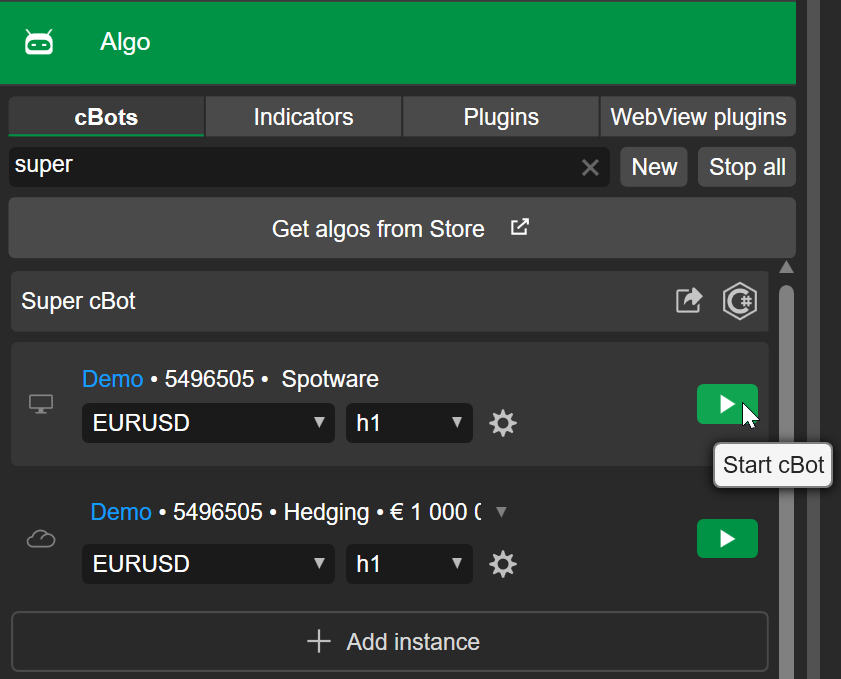
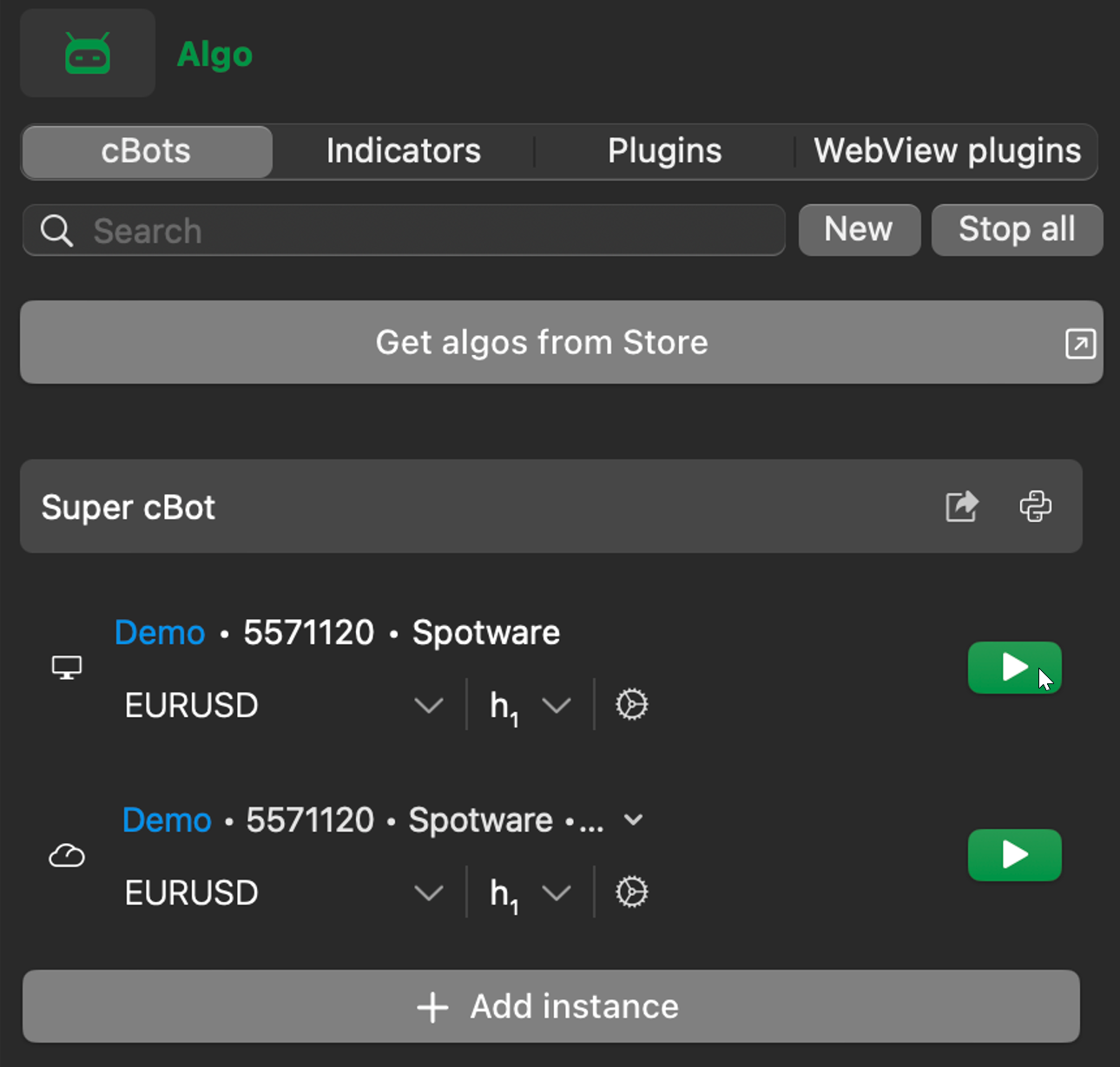
In the cBots tab of cTrader Algo, click the Start cBot button for an instance.
Alternative method
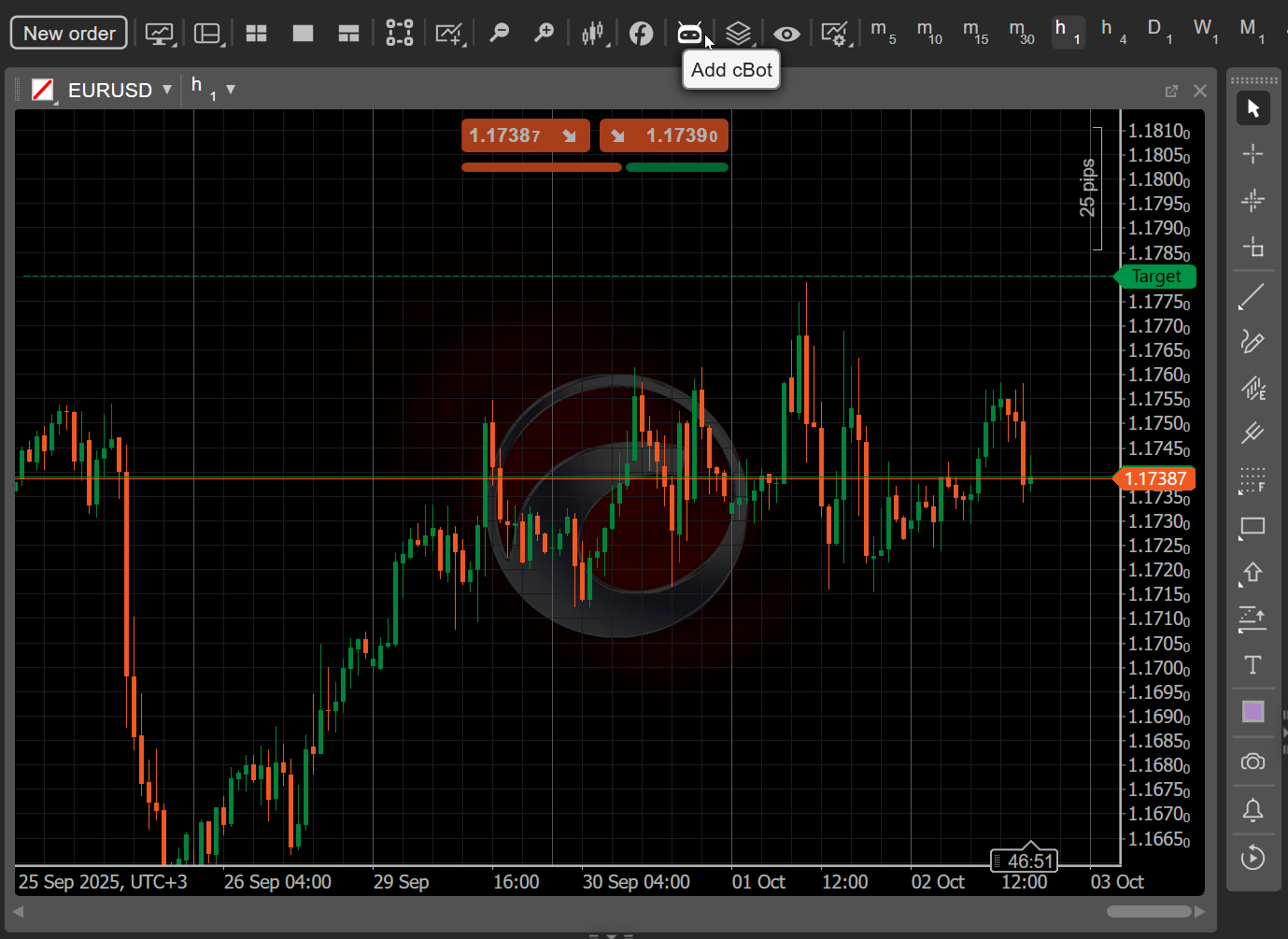
The Trade app in cTrader Windows offers another way to start cBots. To run a trading bot in the active symbol chart, click the Add cBot icon in the chart toolbar.
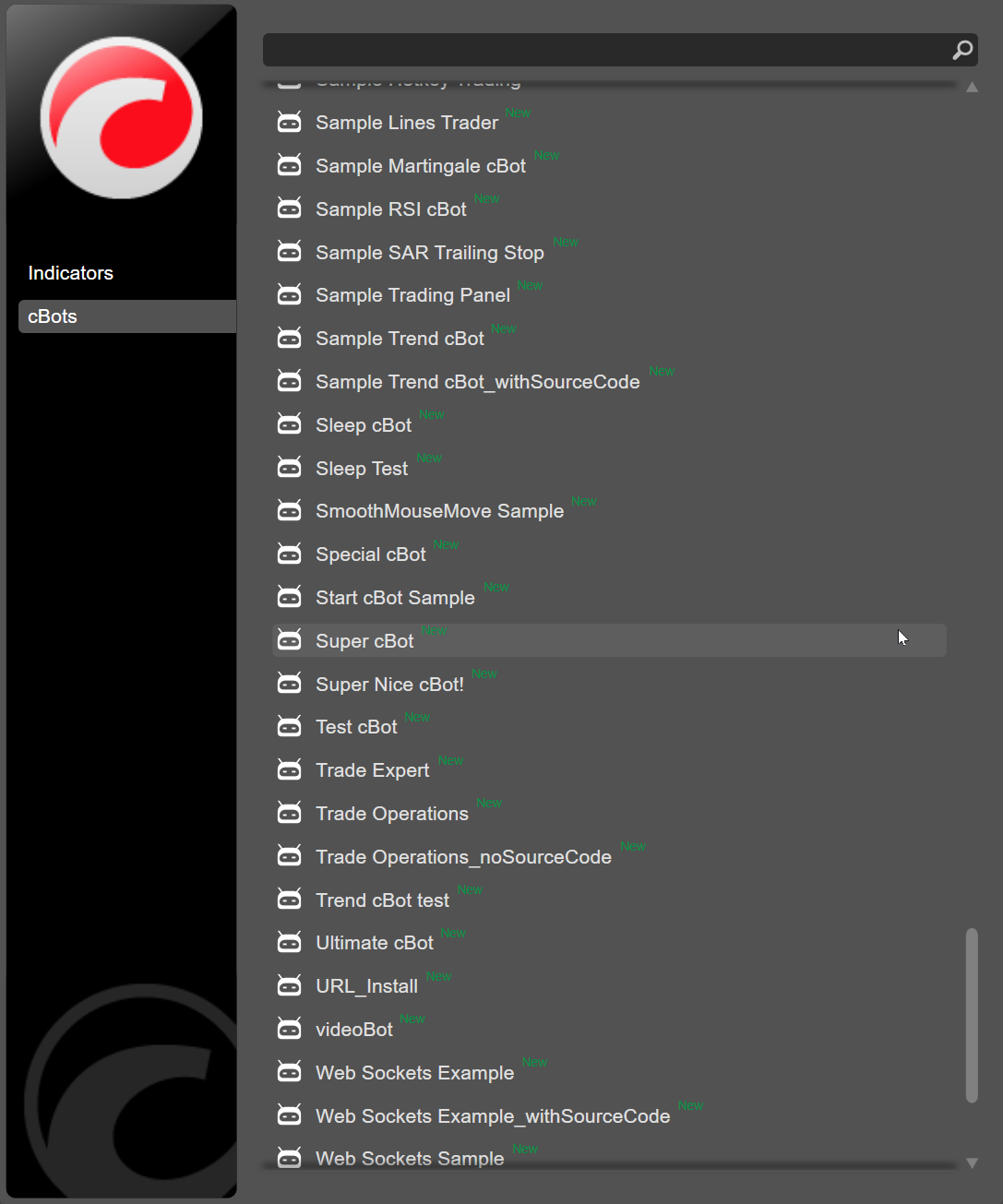
Choose a cBot from the list, specify your preferred instance parameters if applicable, then click Add to chart.
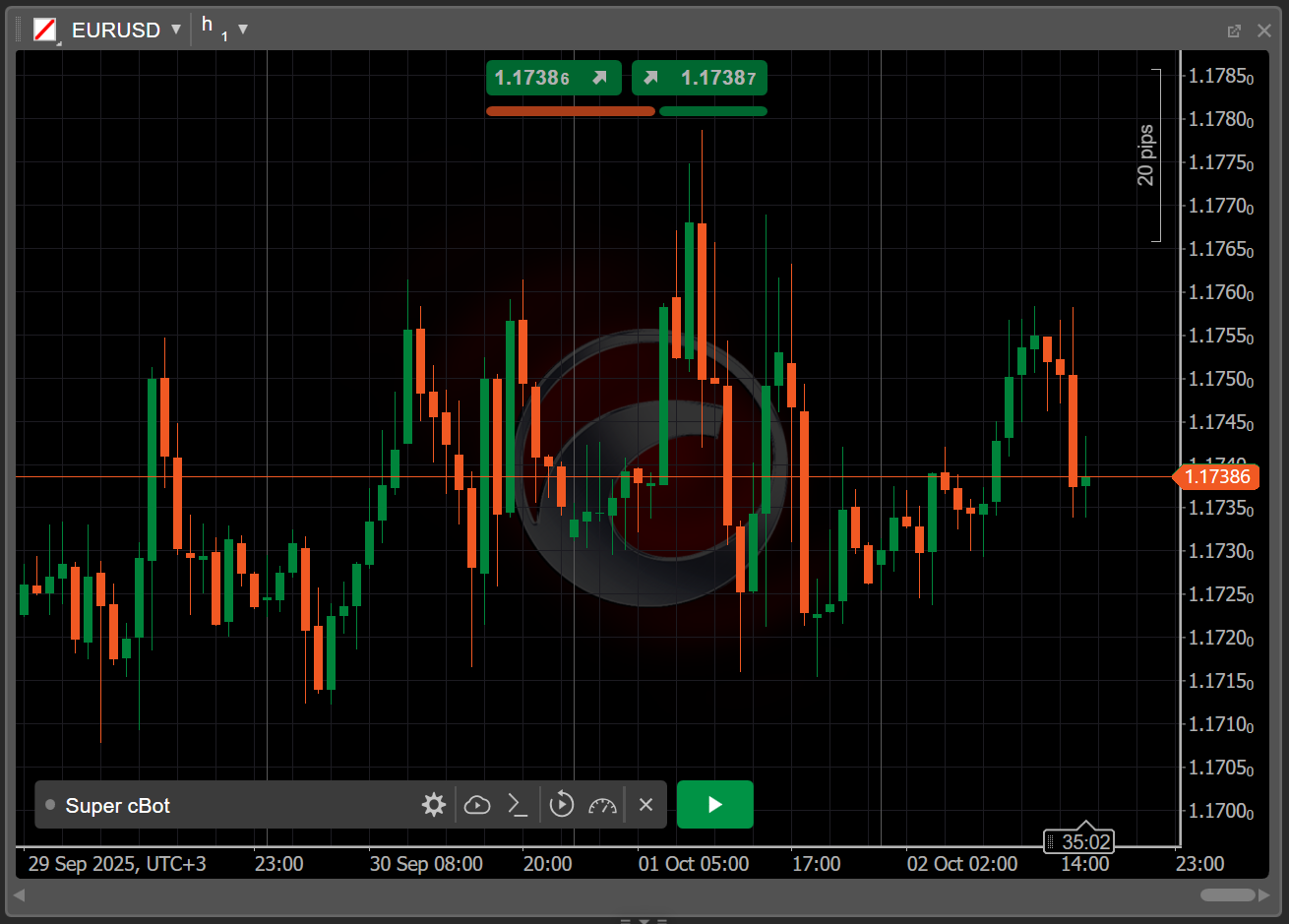
After the cBot instance appears on the chart, click the Start cBot button. Other controls for managing the cBot instance are available on the chart.
In the cBots tab of cTrader Algo, click the Start cBot button.
Alternative method
The Trade app in cTrader Mac offers another way to start cBots. To run a trading bot in the active symbol chart, click the Add cBot icon in the chart toolbar.
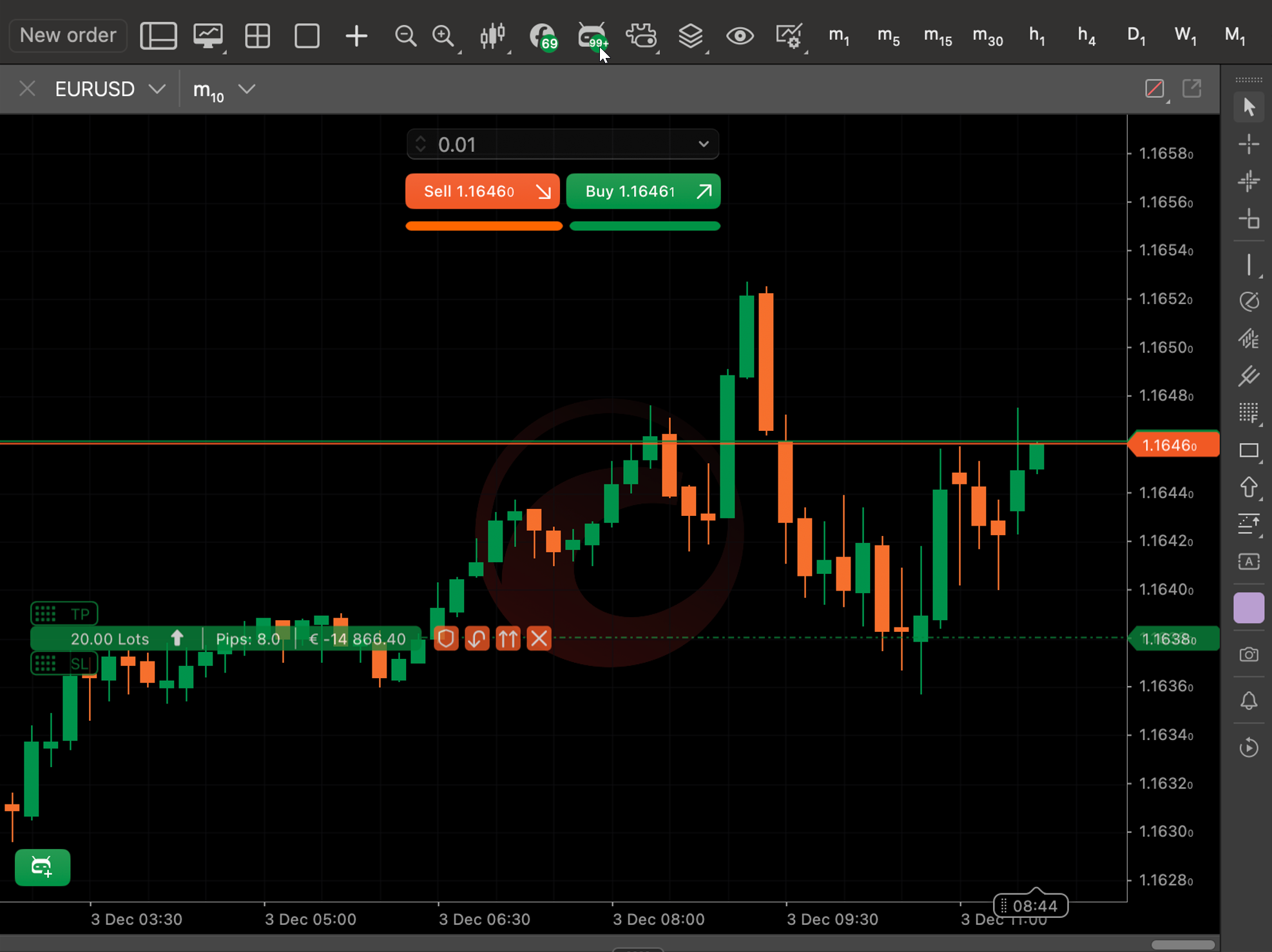
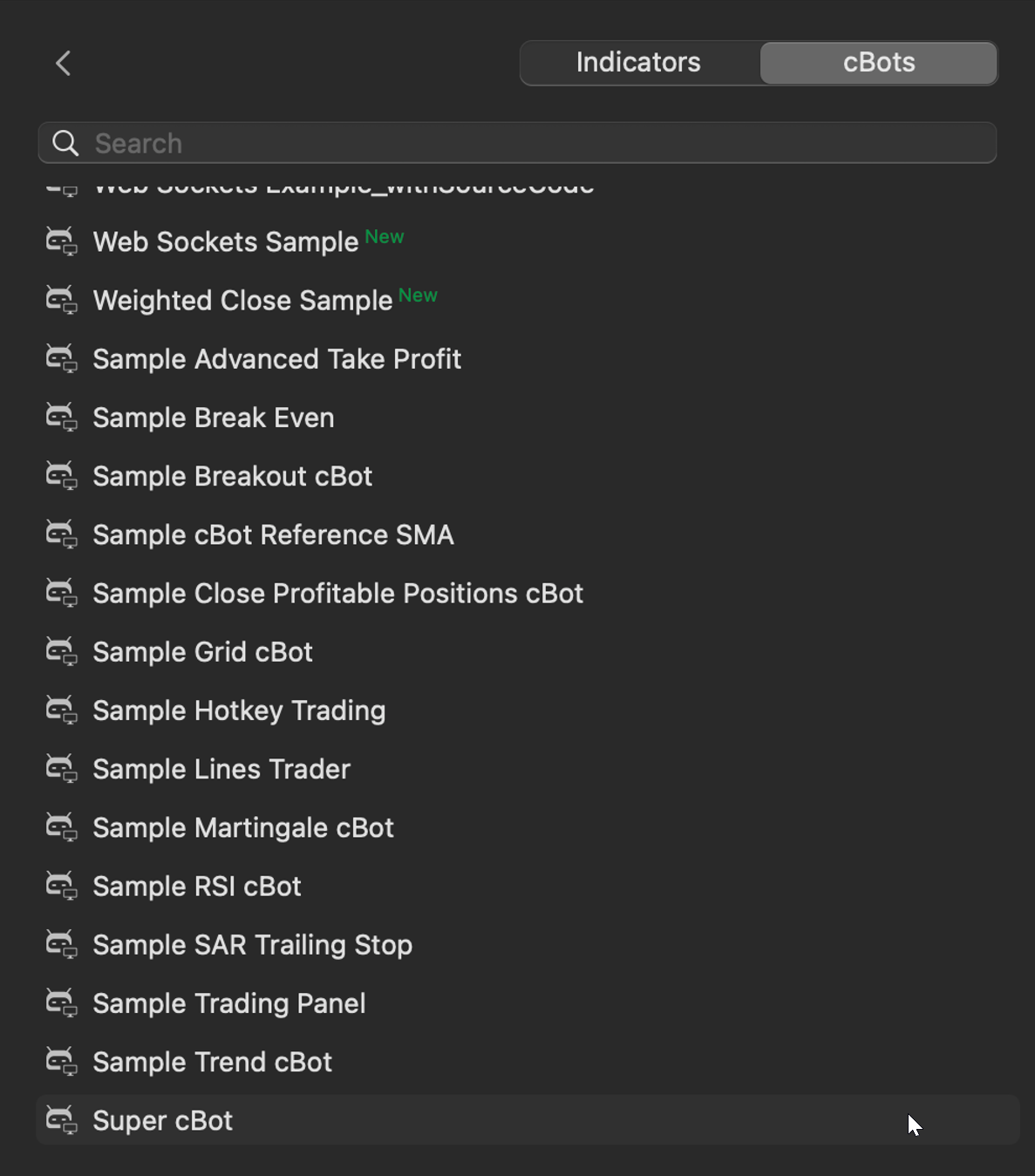
Choose a cBot from the list, specify your preferred instance parameters if applicable, then click Add to chart.
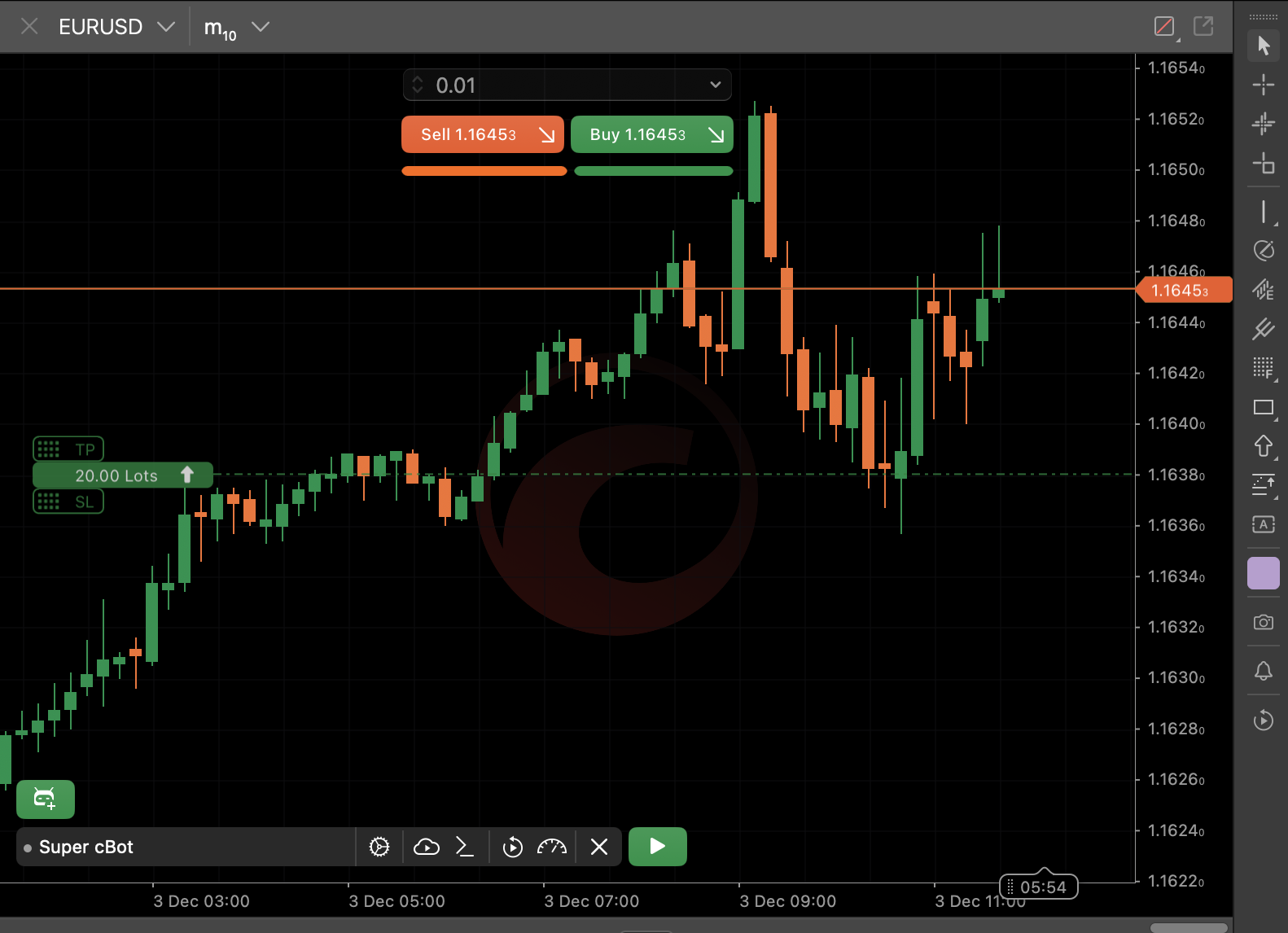
After the cBot instance appears on the chart, click the Start cBot button. Other controls for managing the cBot instance are available on the chart.
Stop an instance
Note
You can stop an active cloud instance from any cTrader app, regardless of the app where you started it. However, stopping a running local instance is possible only in the cTrader Windows or Mac app where it is running.
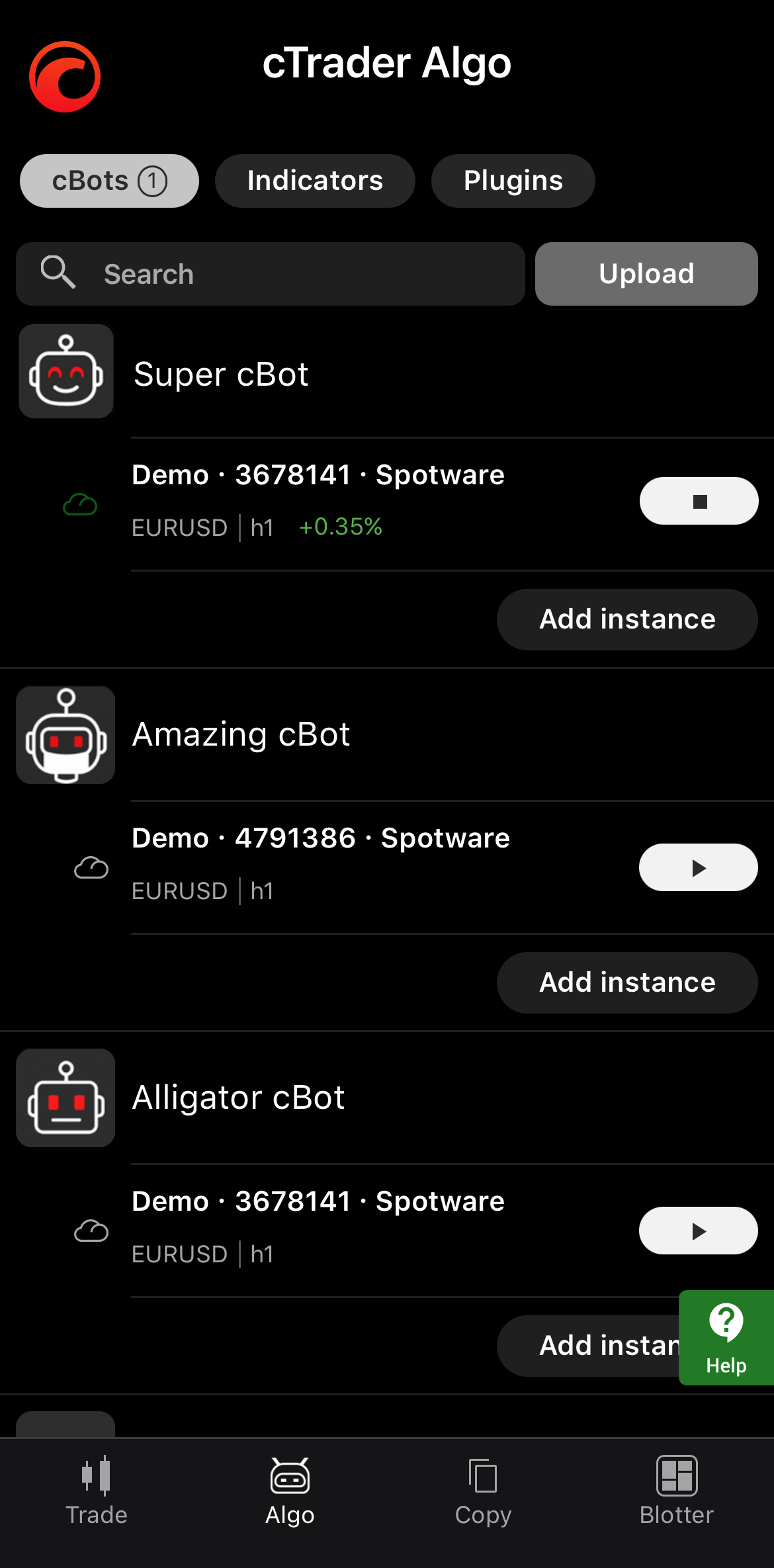
Tap the Stop cBot button.
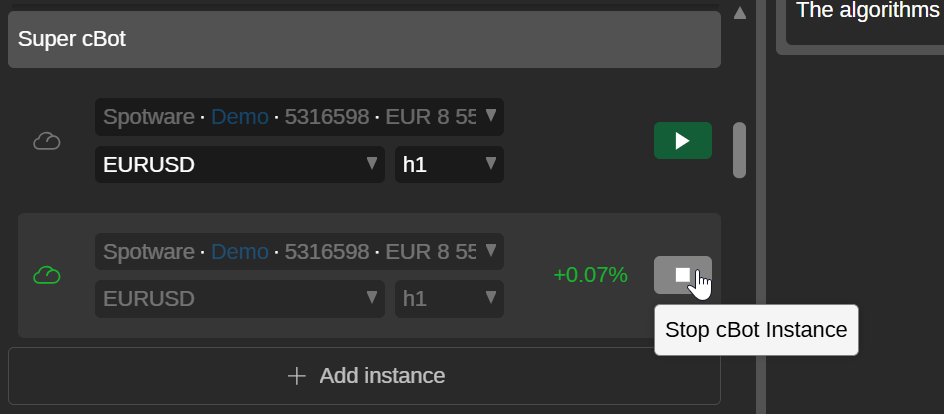
Click the Stop cBot instance button.
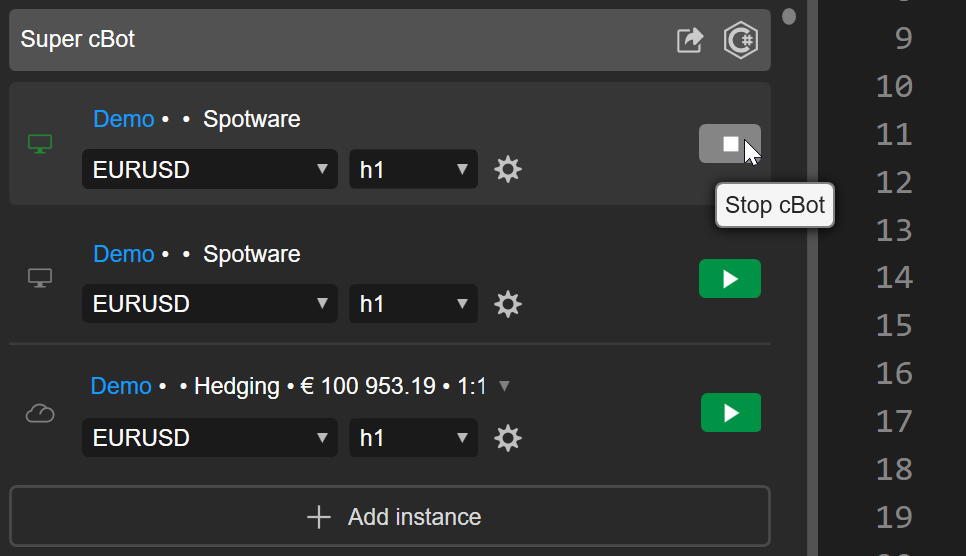
Click the Stop cBot button.
Tip
In cTrader Windows, clicking the Stop all button terminates all active instances at once.
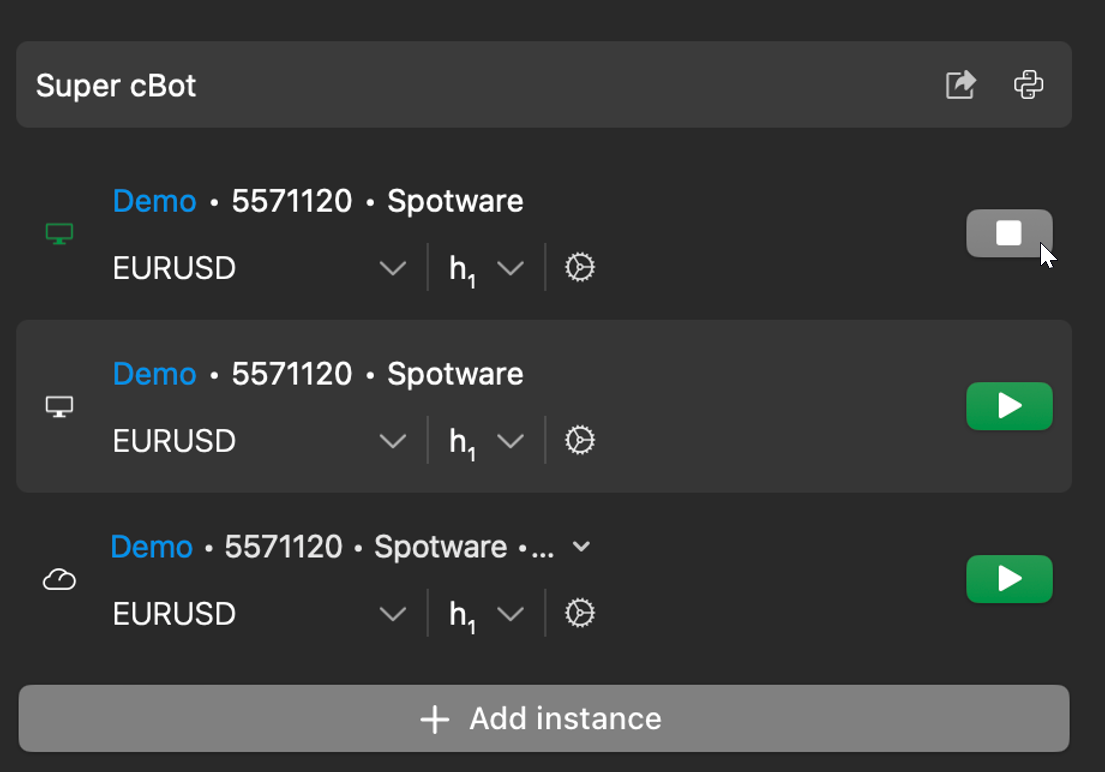
Click the Stop cBot button.
Tip
In cTrader Mac, clicking the Stop all button terminates all active instances at once.