cTrader remote MCP server setup
Note
The remote MCP server is compatible with cTrader Web.
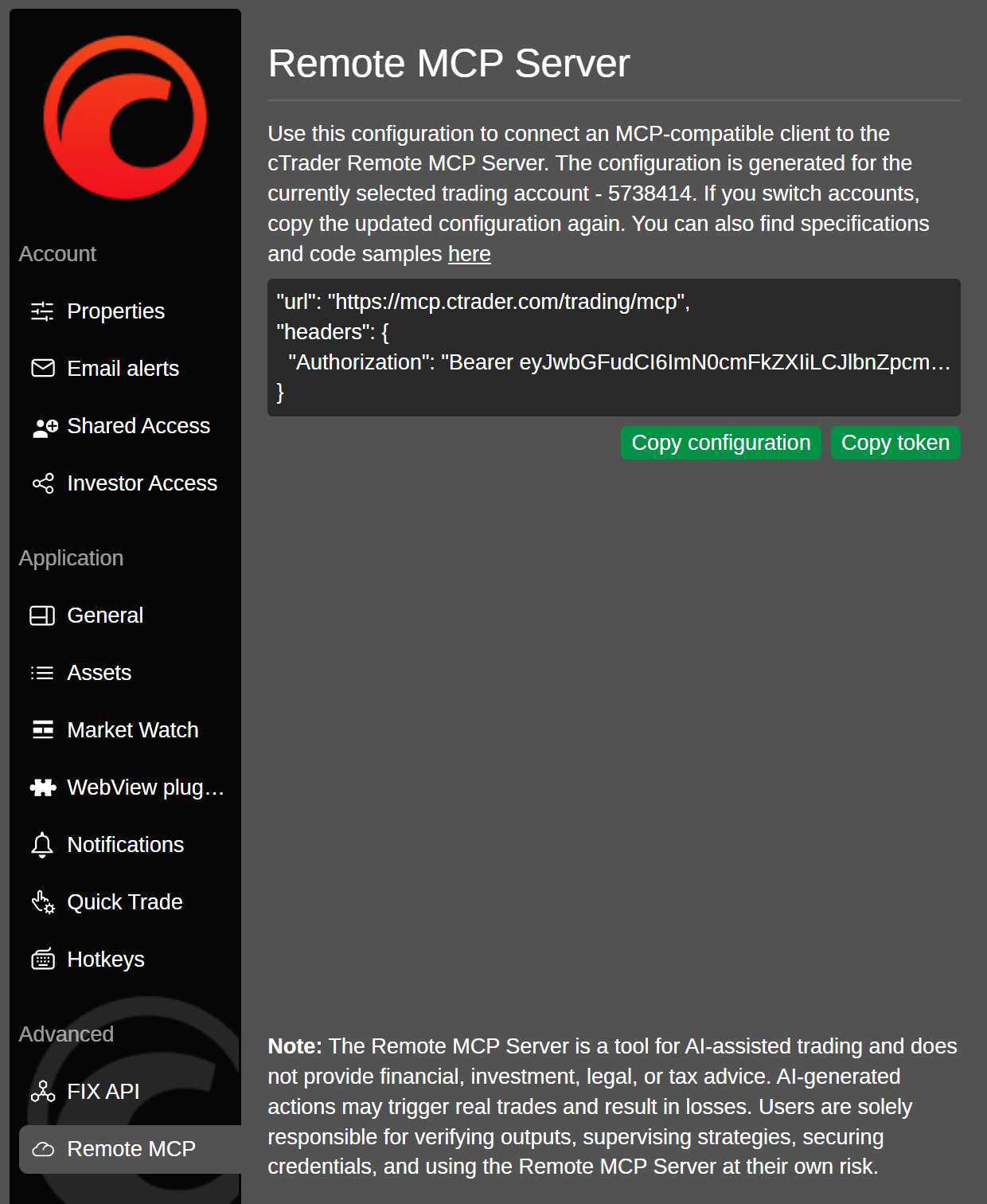
The remote MCP server authenticates via an active session in cTrader Web. Ensure you are logged in with your cTID, open Settings, then navigate to Remote MCP.
Note
A separate token is issued for each trading account on which you want to execute actions with an AI agent. If needed, select a different account and find its configuration in Settings.
Copy the configuration containing your token, along with the prompt below, and paste them into your AI agent.
Set up the cTrader remote MCP server for me. Add the following to my MCP configuration, then verify the connection.
The agent will update your MCP configuration, connect to the cTrader remote server and ask for your approval whenever required.
You may need to copy the token separately if it has expired or if you need to switch between trading accounts.
Tip
Install skills to help your AI agent work more effectively with cTrader MCP servers.
Verification
Restart your AI client session or application, then check that the remote MCP server appears in the list of connected servers.
Warning
The remote MCP server requires an active cTrader Web session. If your session expires, you will need to re-authenticate.
Warning
The MCP server is a tool for AI-assisted trading and does not provide financial, investment, legal or tax advice. AI-generated actions may trigger real trades and result in losses. Users are solely responsible for verifying outputs, supervising strategies, securing credentials and using the MCP server at their own risk.