UI basics
Algorithm tabs
Depending on your cTrader app, several tabs are available in cTrader Algo:
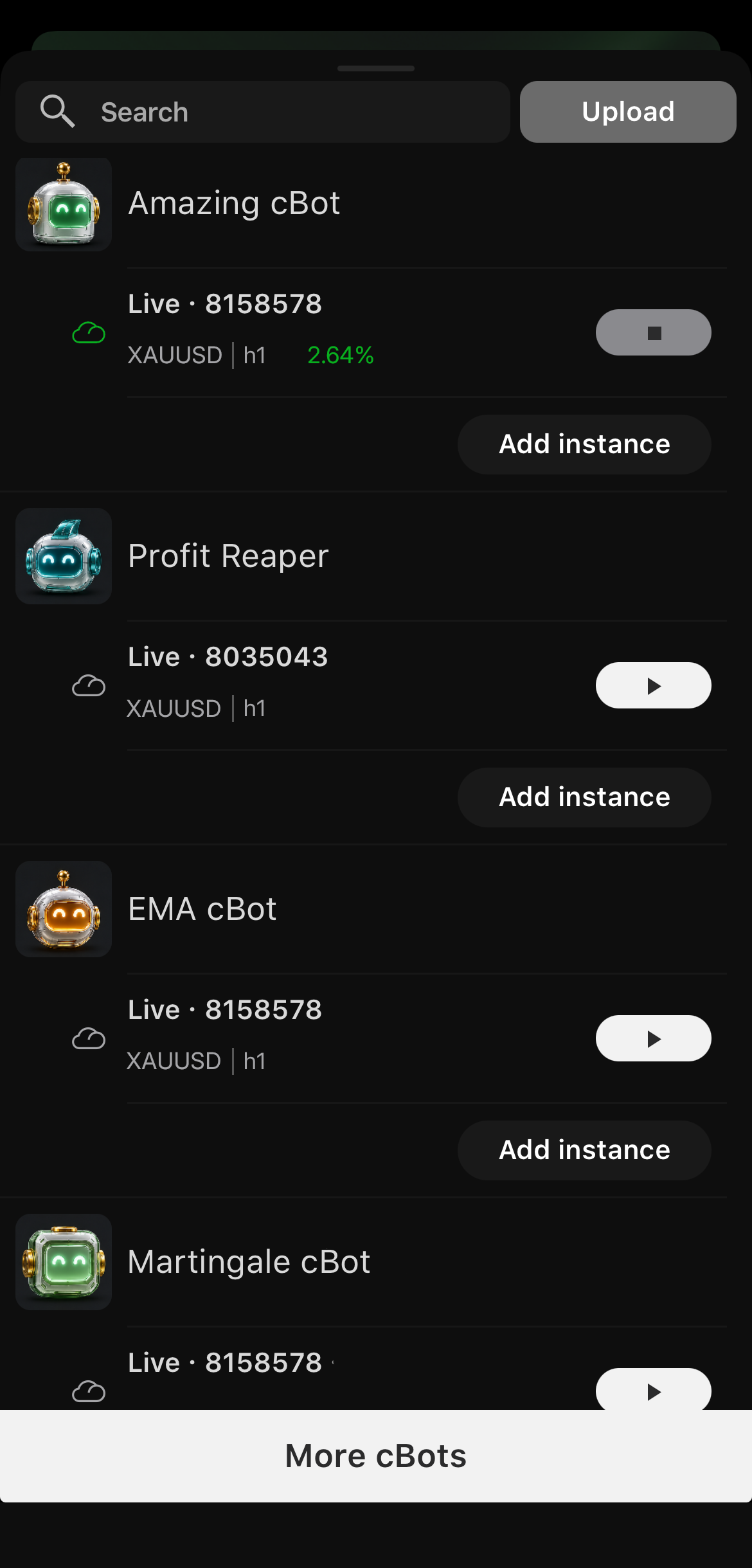
cTrader Algo in cTrader Mobile contains:
- A search field for quickly finding cBots by name.
- An Upload button that allows you to select a local
.algofile, adding it to your account and uploading it to the cloud. - A list of installed cBots, each with its cloud instances and an Add instance button.
- A More cBots button.
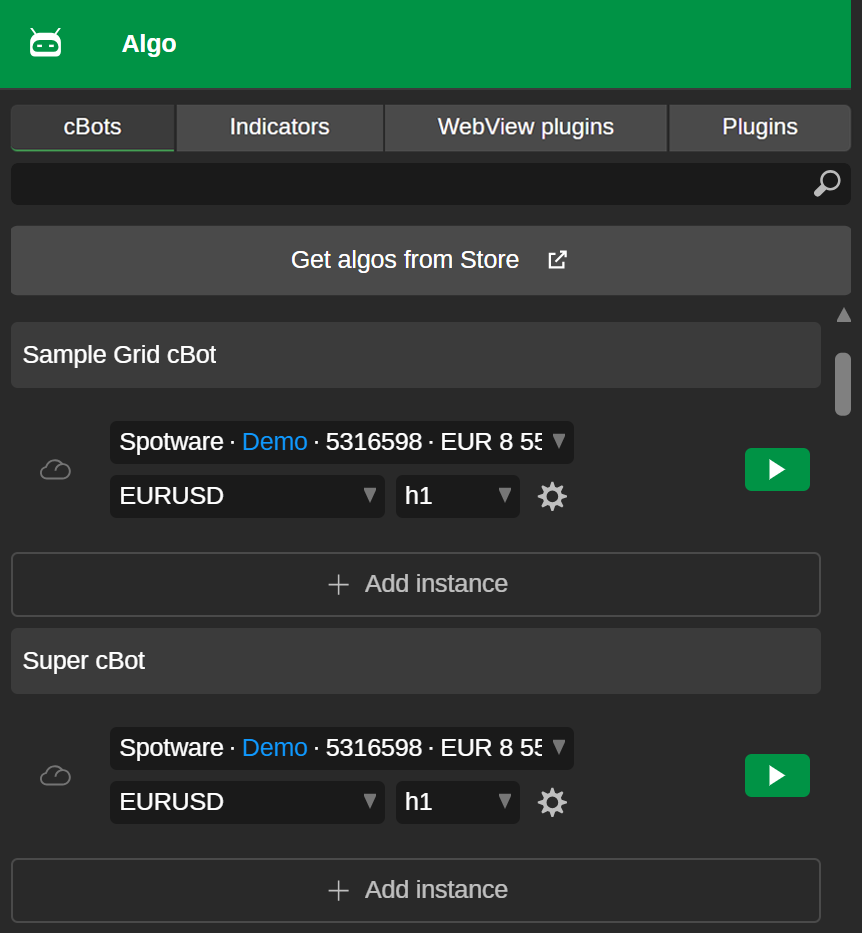
Each tab contains one or more of the following:
- A search field for quickly finding algorithms by name.
- A Get algos from Store button, leading to the corresponding algorithm section in cTrader Store.
- A list of installed algorithms of the corresponding type.
The cBots tab provides cloud instances for starting trading bots, while the Indicator and Plugins tabs simply list the corresponding algorithms.

Each tab contains one or more of the following:
- A search field for quickly finding algorithms by name.
- A New button for opening the algorithm creation wizard.
- A Get algos from Store button, leading to the corresponding algorithm section in cTrader Store.
- A list of installed algorithms of the corresponding type.
- A code editor that appears after clicking the algorithm name, allowing you to write code and build algorithms.
-
A programming language icon, C# algorithm or Python algorithm, is shown to the right of each algorithm, except in the WebView plugins tab.
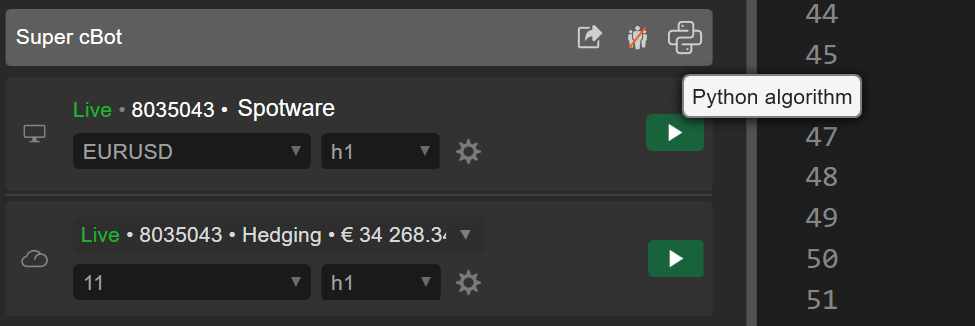
The cBots tab displays local and cloud instances and provides a Stop all button for terminating all active instances. The Indicators tab supports only local instances.
Right-clicking a cBot, indicator or plugin opens a context menu containing one or more of the following:
- Start cBot – Add a new instance, define its parameters and start it (available only for cBots).
- Build – Build this cBot, indicator or plugin using its current code.
- Export – Open the algo export window.
- Public settings – Open the public settings for this cBot, indicator or plugin.
- Duplicate – Duplicate this cBot, indicator or plugin.
- Delete – Delete this cBot, indicator or plugin.
- Show in folder – Open the folder containing the file for this cBot, indicator or plugin on your local machine.
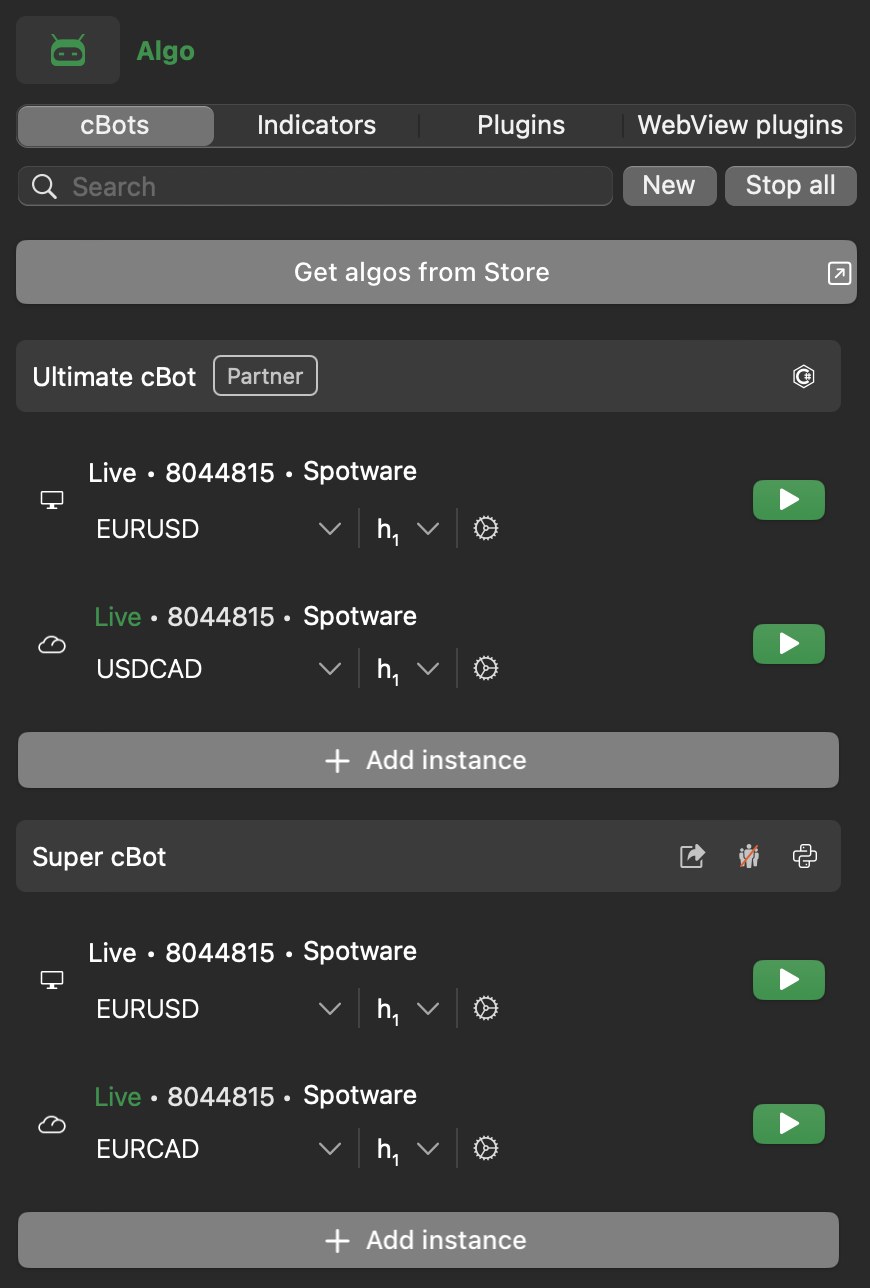
Each tab contains one or more of the following:
- A search field for quickly finding algorithms by name.
- A New button for opening the algorithm creation wizard.
- A Get algos from Store button, leading to the corresponding algorithm section in cTrader Store.
- A list of installed algorithms of the corresponding type.
- A Pin icon for pinning up to five frequently used cBots, indicators or plugins to the top of each tab.
- A code editor that appears after clicking the algorithm name, allowing you to write code and build algorithms.
- A programming language icon, C# algorithm or Python algorithm, is shown to the right of each algorithm, except in the WebView plugins tab.
The cBots tab displays local and cloud instances and provides a Stop all button for terminating all active instances. The Indicators tab supports only local instances.
Right-clicking a cBot, indicator or plugin opens a context menu containing one or more of the following:
- Start cBot – Add a new instance, define its parameters and start it (available only for cBots).
- Build – Build this cBot, indicator or plugin using its current code.
- Export – Open the algo export window.
- Public settings – Open the public settings for this cBot, indicator or plugin.
- Duplicate – Duplicate this cBot, indicator or plugin.
- Delete – Delete this cBot, indicator or plugin.
- Show in folder – Open the folder containing the file for this cBot, indicator or plugin on your local machine.
Code editor
In cTrader Windows or Mac, click a cBot, indicator or plugin name in the left navigation panel, and the Monaco Editor will open.
Note
Unlike other tabs that feature a code editor for selected algorithms, the WebView plugins tab provides an interface for building web-based plugins.
By default, the code editor is located in the centre of the screen. You can write, edit and build your cBots, plugins and indicators directly in this editor without using any third-party or external IDEs.
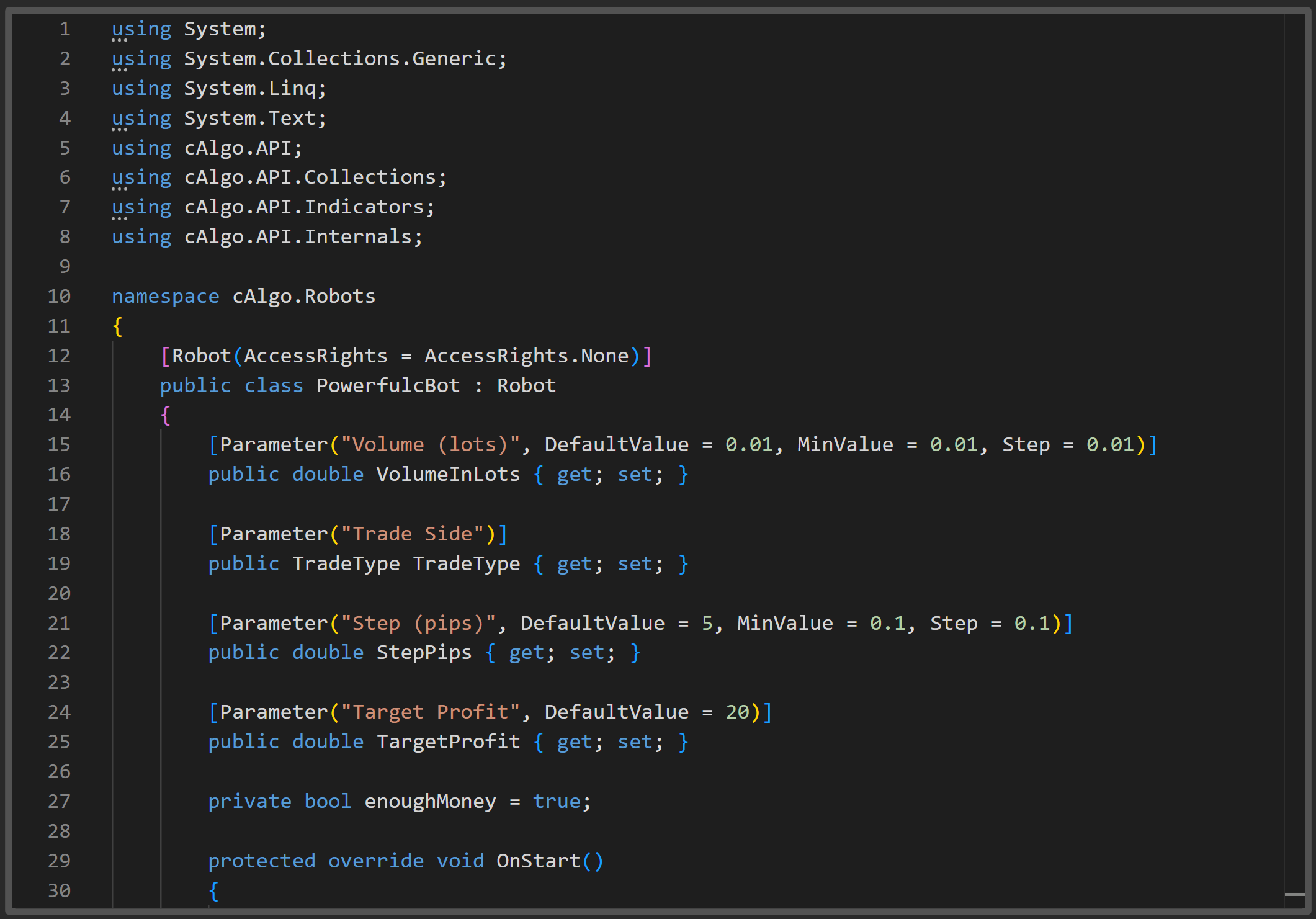
The bar at the top of the editor contains several buttons and dropdown menus.

| Button or icon | Action |
|---|---|
| Code editor/Cloud view | Switch between the code editor window and the cloud view for the chosen algorithm. |
| Build result/Help Centre | Enable or disable the display of the build result window and the cTrader Help Centre. |
| Save | Save all currently unsaved changes in the algorithm code (or Ctrl+S). |
| Build | Build the algorithm using its current code. If there are any unsaved changes, a red '*' sign will be displayed next to this icon (or Ctrl+B). |
| Project settings | Open the window for managing the algorithm project properties and references. |
| Edit in... | Open the algorithm project in an external IDE. |
| Public settings | Open the public settings for the cBot, indicator or plugin. |
Build result
The Build result section, located directly below the code editor, displays the results of a build action. If a build succeeds, you see the following:
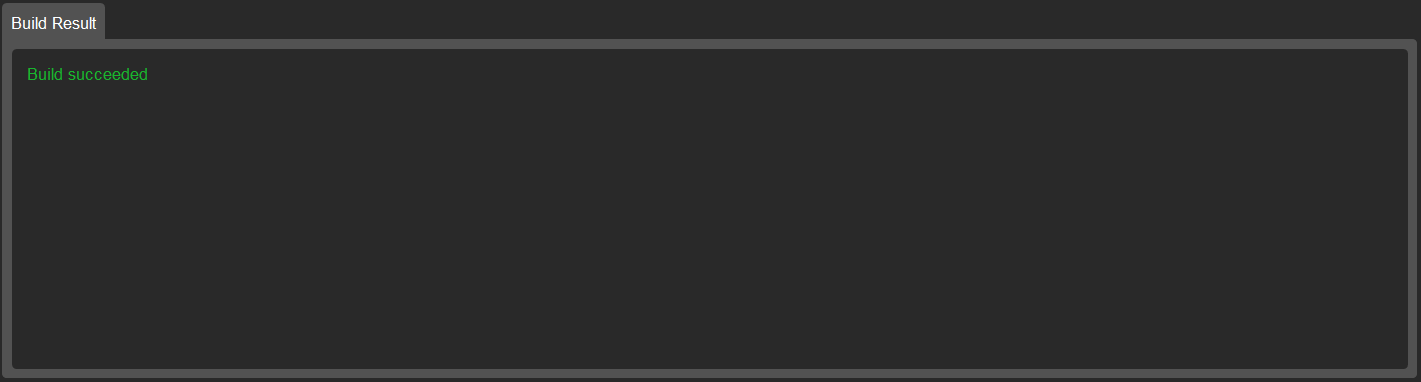
If the build action is unsuccessful, you will see a message about errors encountered during the build action.

Cloud view
When cloud synchronisation is enabled, cloud instances are provided along with local instances in the cBots tab.
In cTrader Windows or Mac, select a cloud instance of a cBot in the cBots tab, and the cloud view is displayed on the right. Here, you can start a cloud instance, view information about the instance and review other statistics.