Start a trading bot in cTrader
A cBot becomes available for use after you do one of this:
- Create your own.
- Install a cBot in cTrader Store.
- Open a cBot
.algofile using cTrader.
Note
With cloud synchronisation enabled, any created or installed cBot automatically appears in all cTrader applications where your cTID is active.
Start an instance
Note
cTrader Mobile and Web support only cloud instances, while cTrader Windows and Mac support both local and cloud instances. New instances can be added as required.
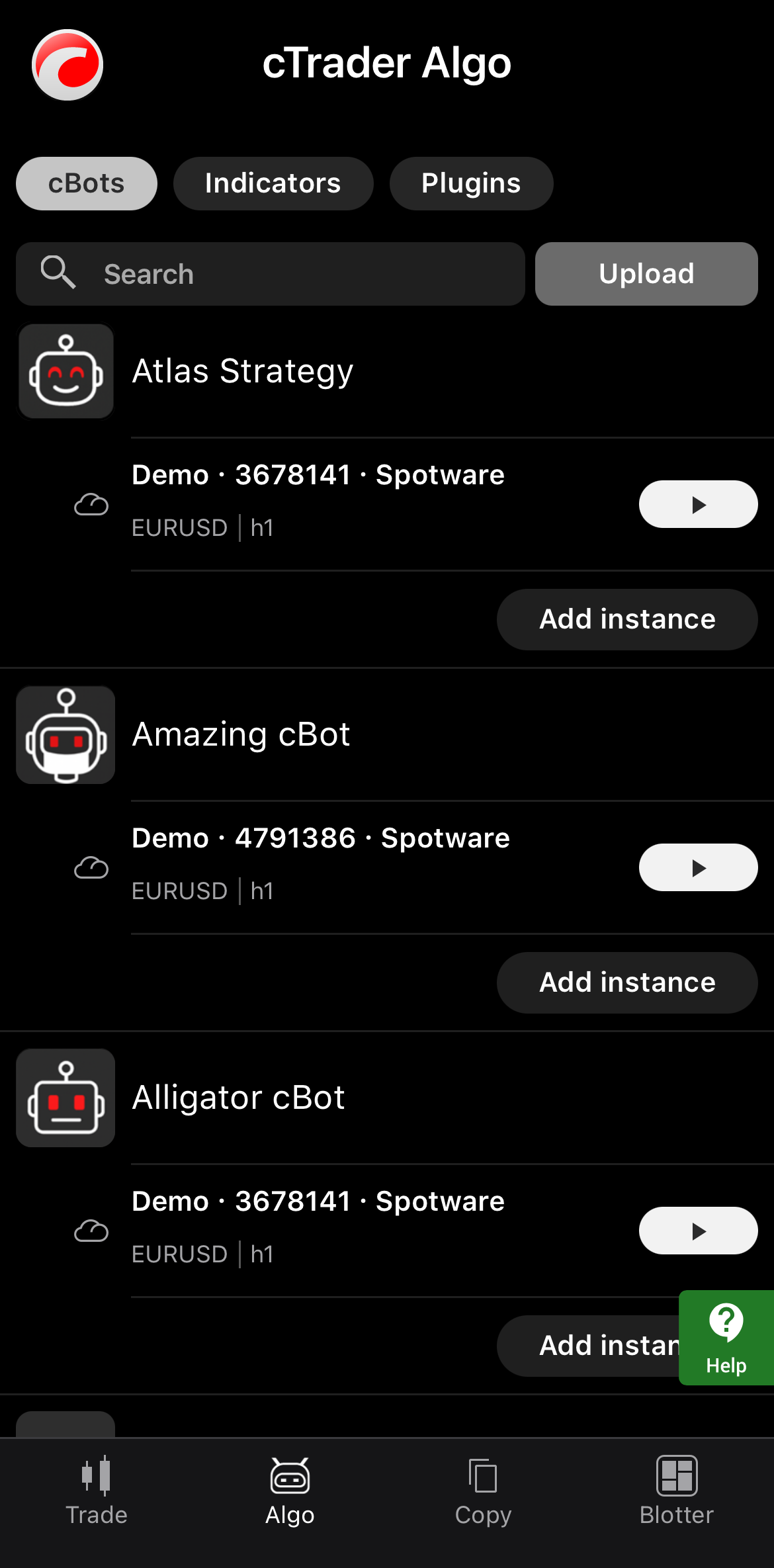
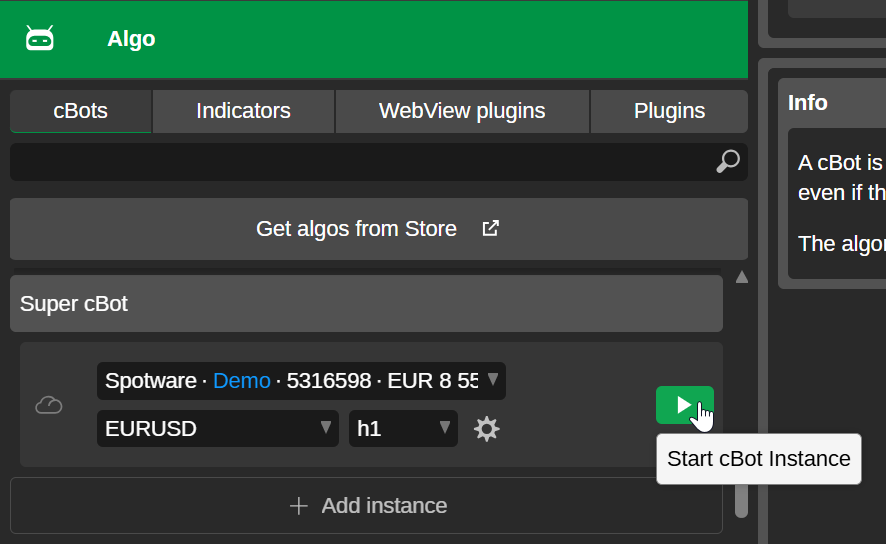
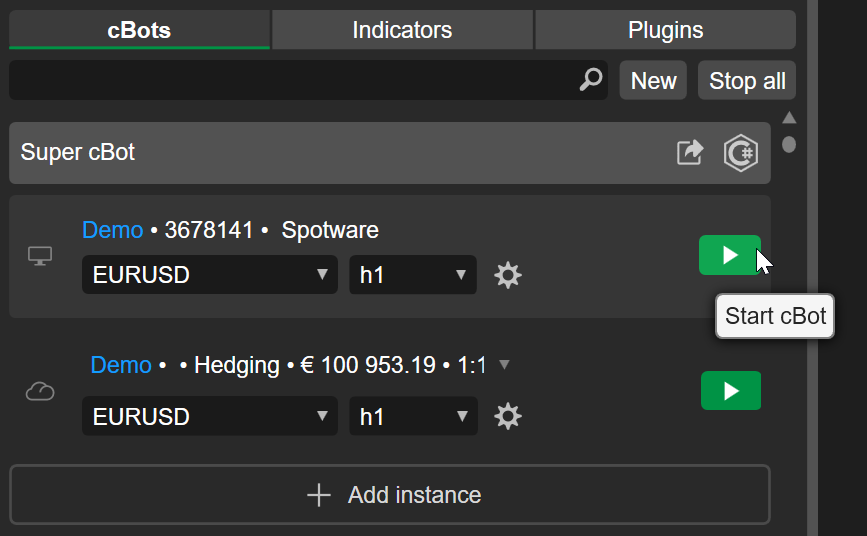
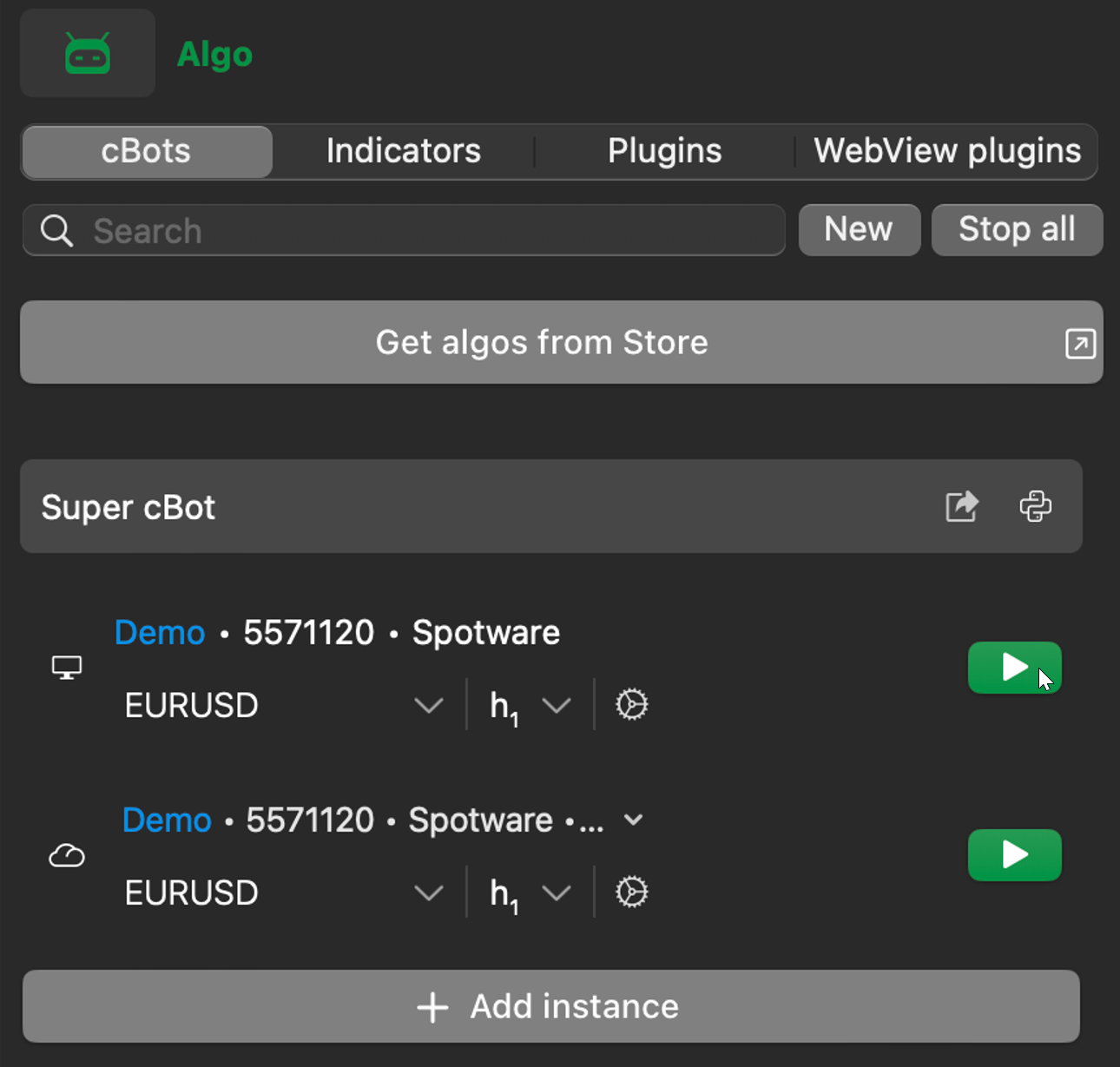
To start a cBot, tap the Start icon on any available instance in cTrader Algo.
Alternative method
The Trade app in cTrader Windows and Mac offers an alternative method of starting cBots:
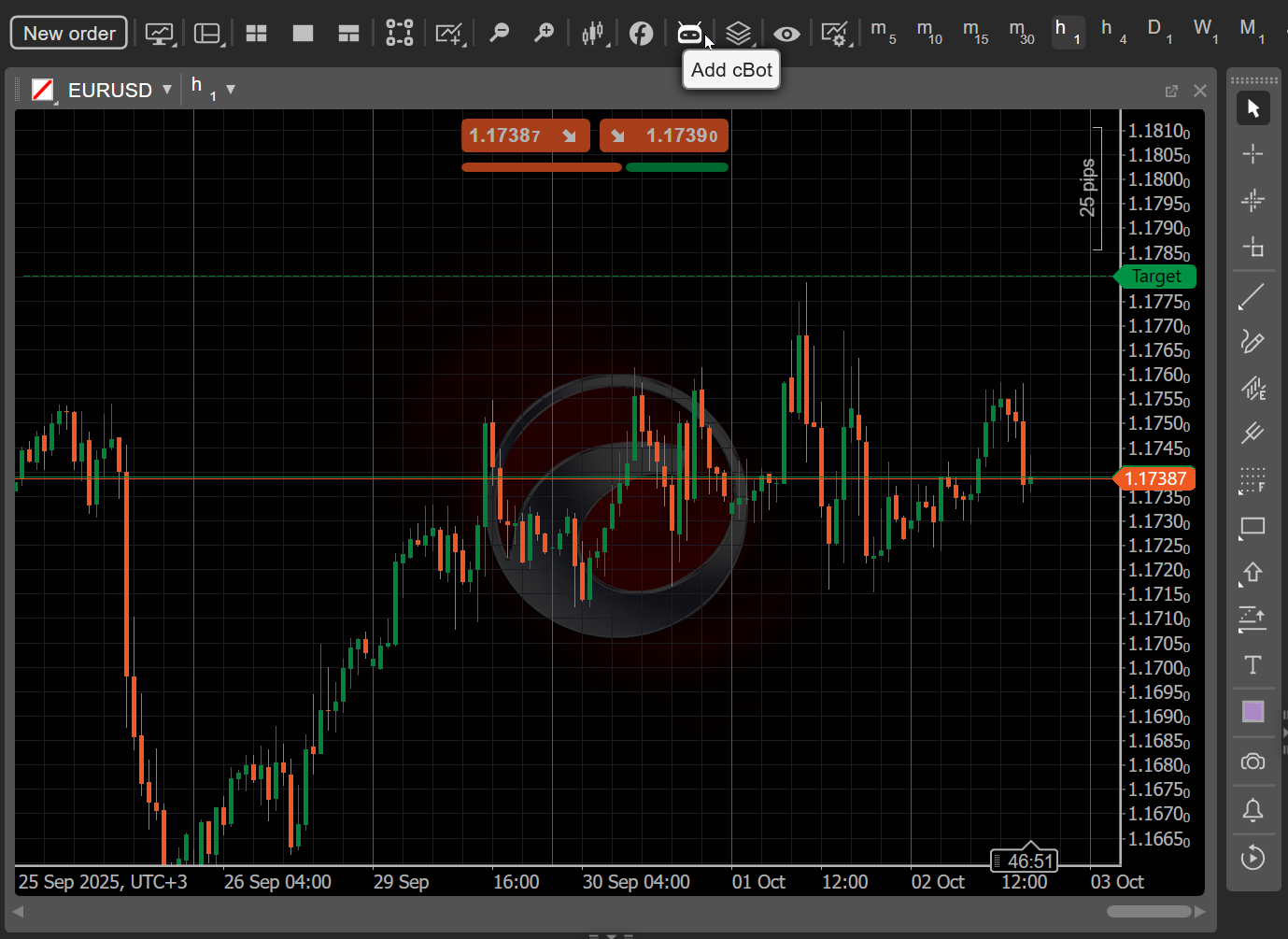
Open a symbol chart on which you want to run a cBot, then click the Add cBot icon in the chart toolbar.
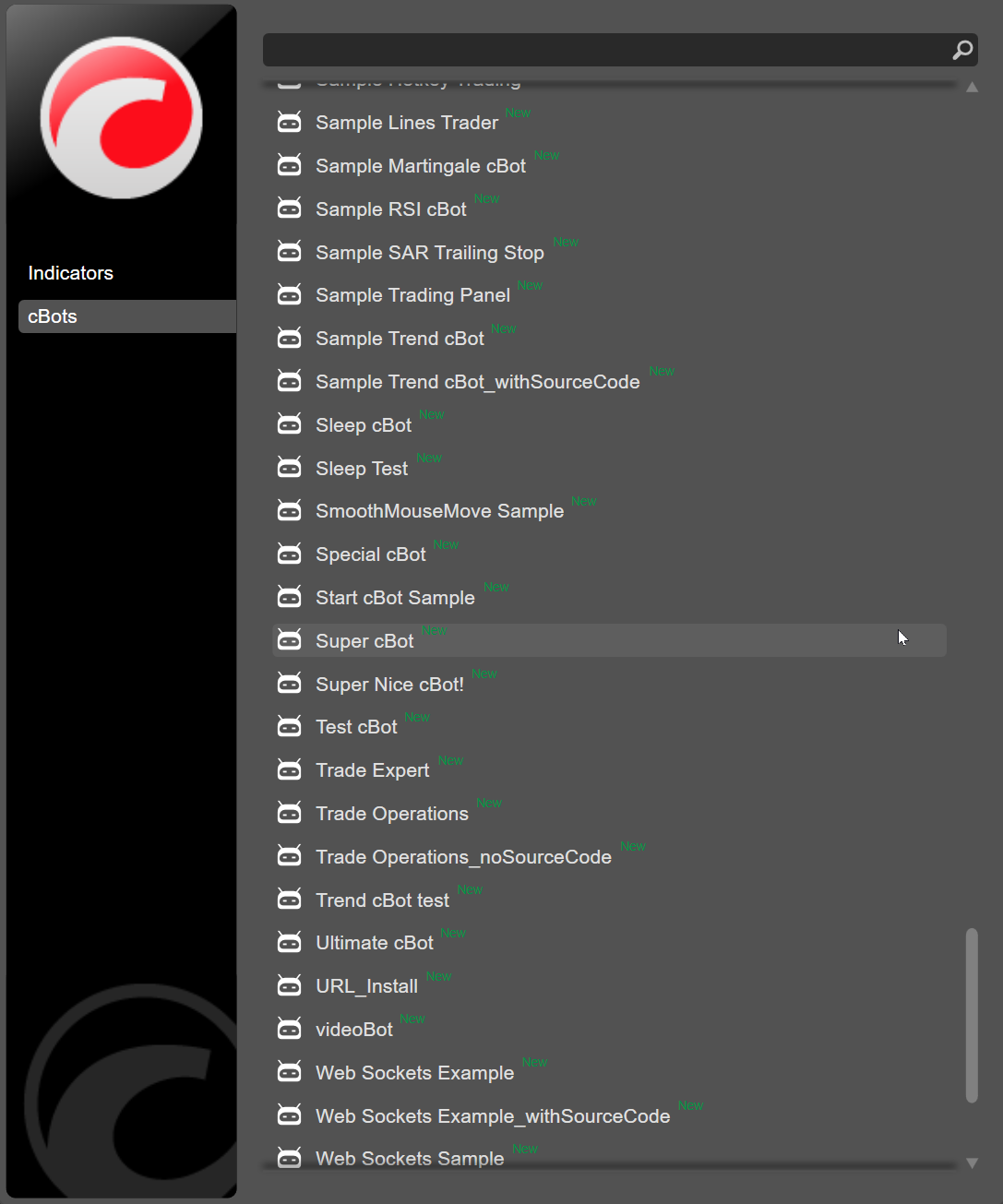
Choose a cBot from the list, specify your preferred instance parameters if applicable, then click the Add to chart button.
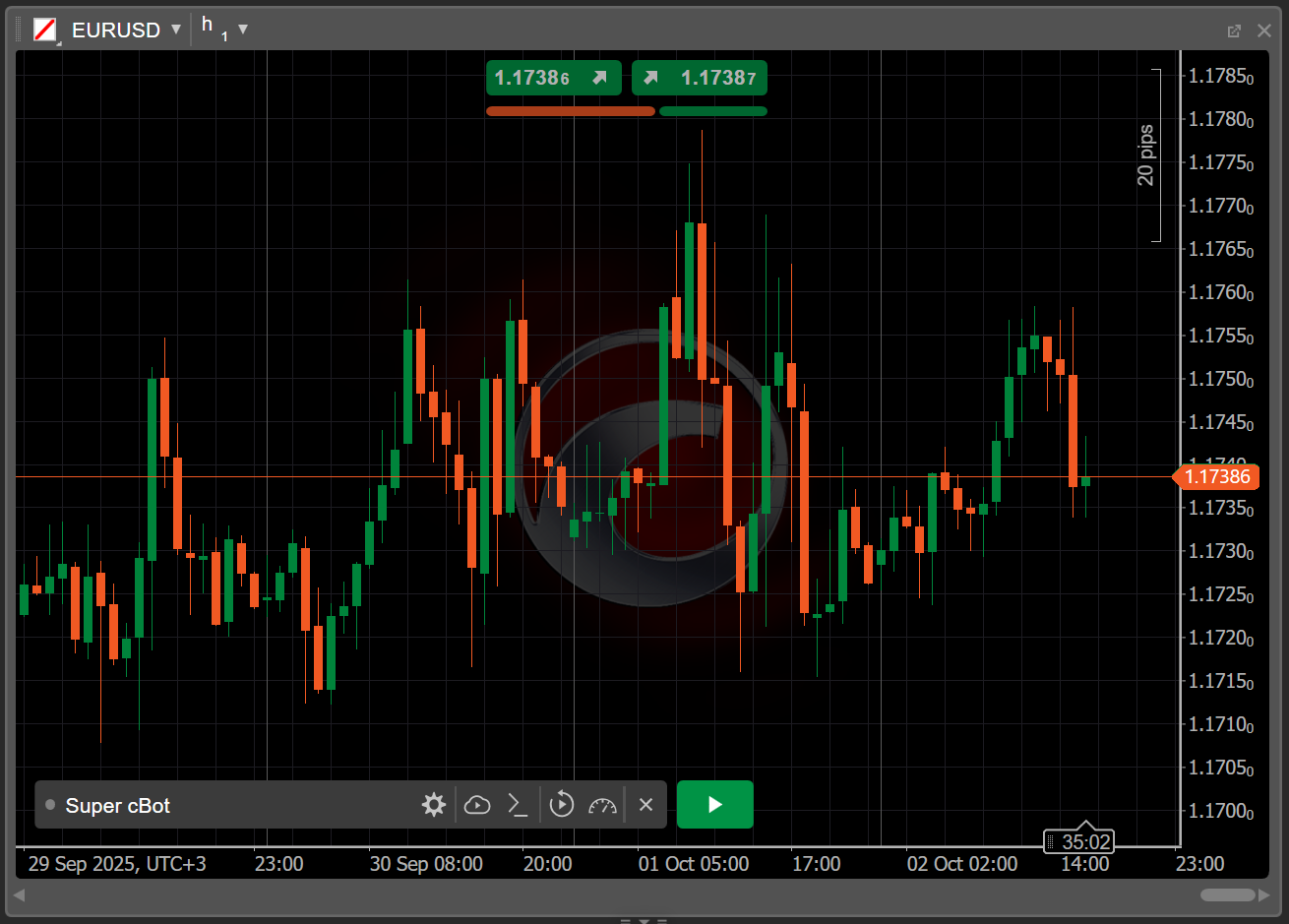
Once the cBot instance appears on the chart, you can click the Start cBot icon. Other controls for managing the cBot instance are also available.
Alternative method
The Trade app in cTrader Windows and Mac offers an alternative method of starting cBots:
Open a symbol chart on which you want to run a cBot, then click the Add cBot icon in the chart toolbar.
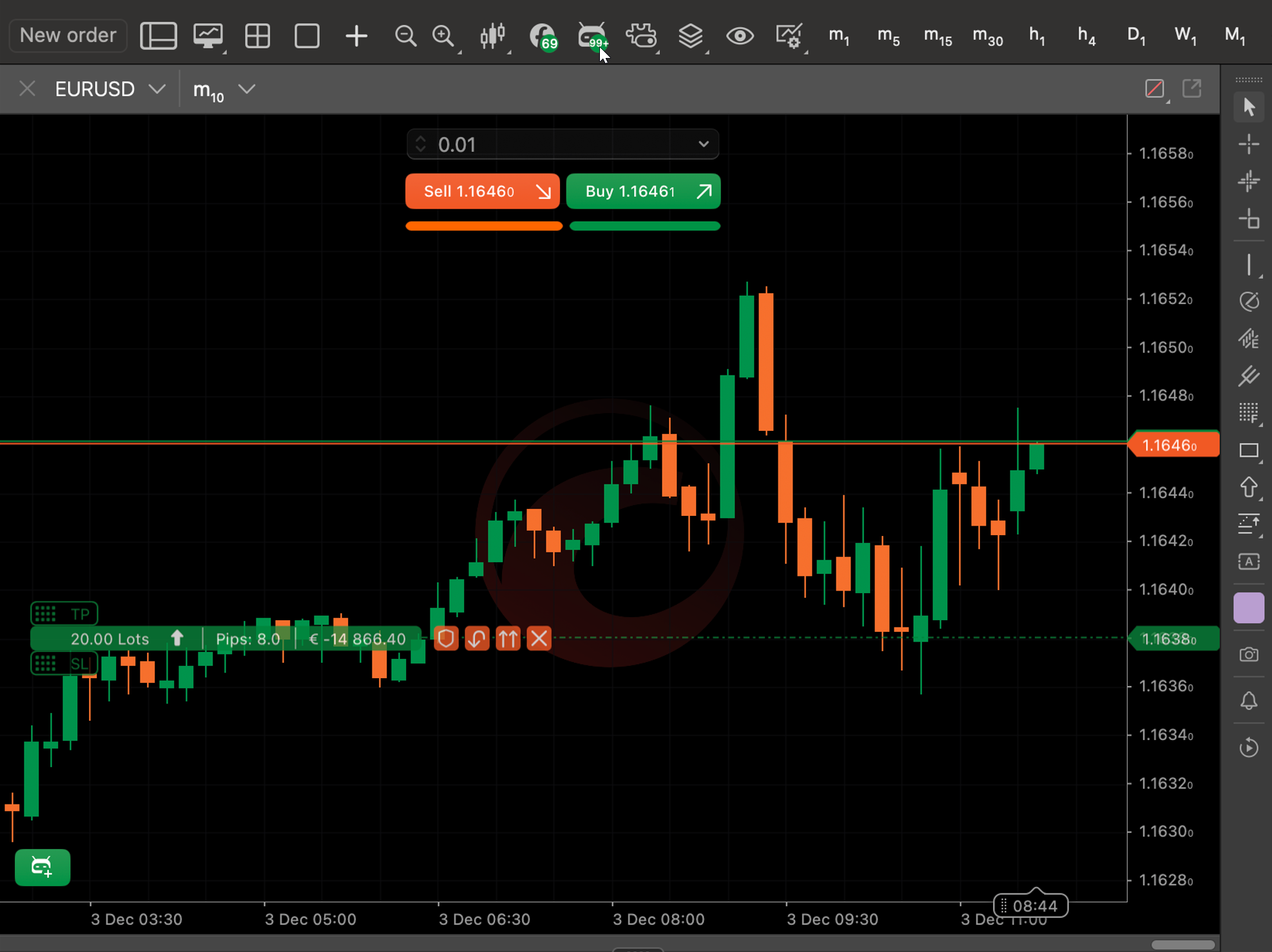
Choose a cBot from the list, specify your preferred instance parameters if applicable, then click the Add to chart button.
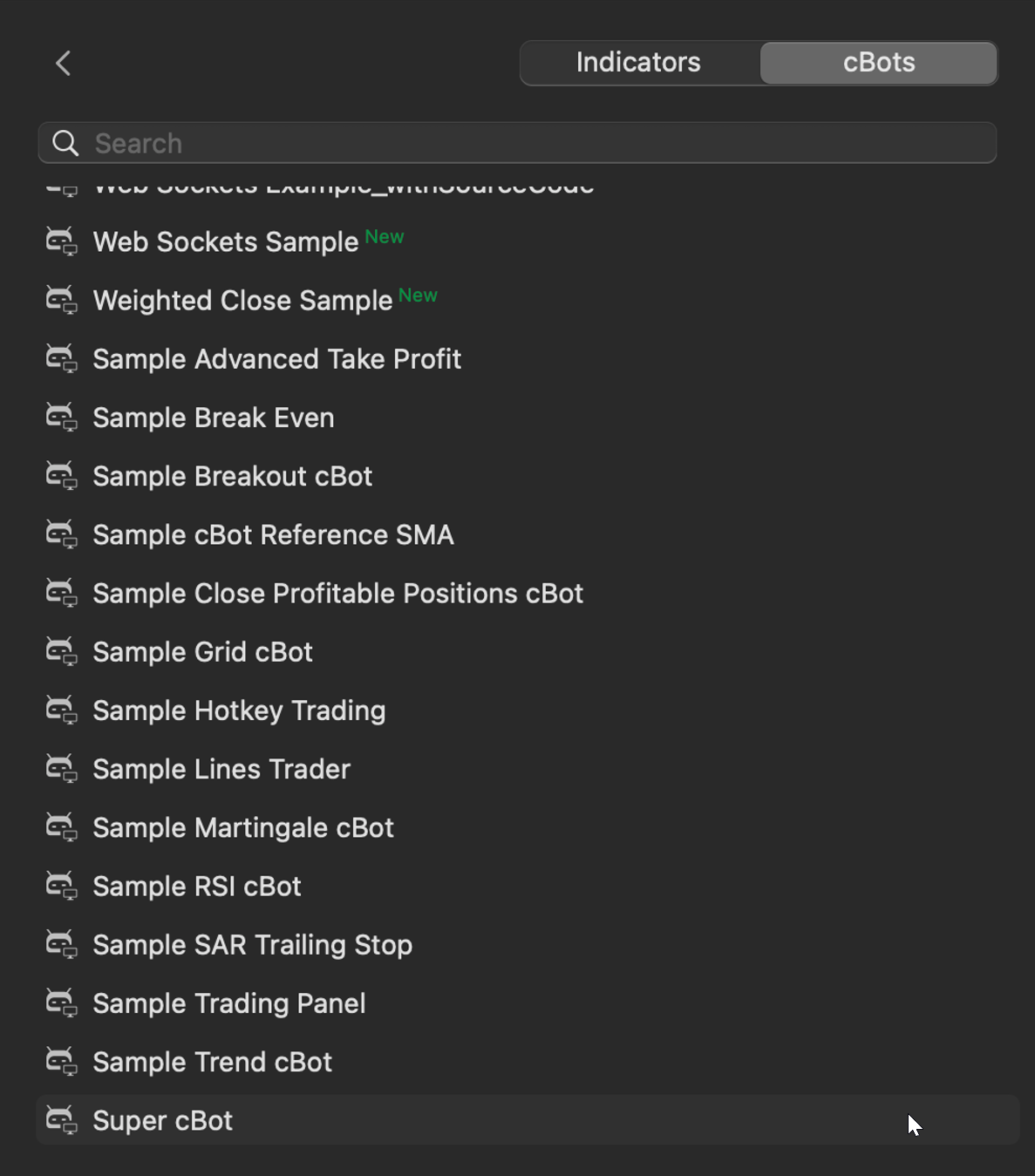
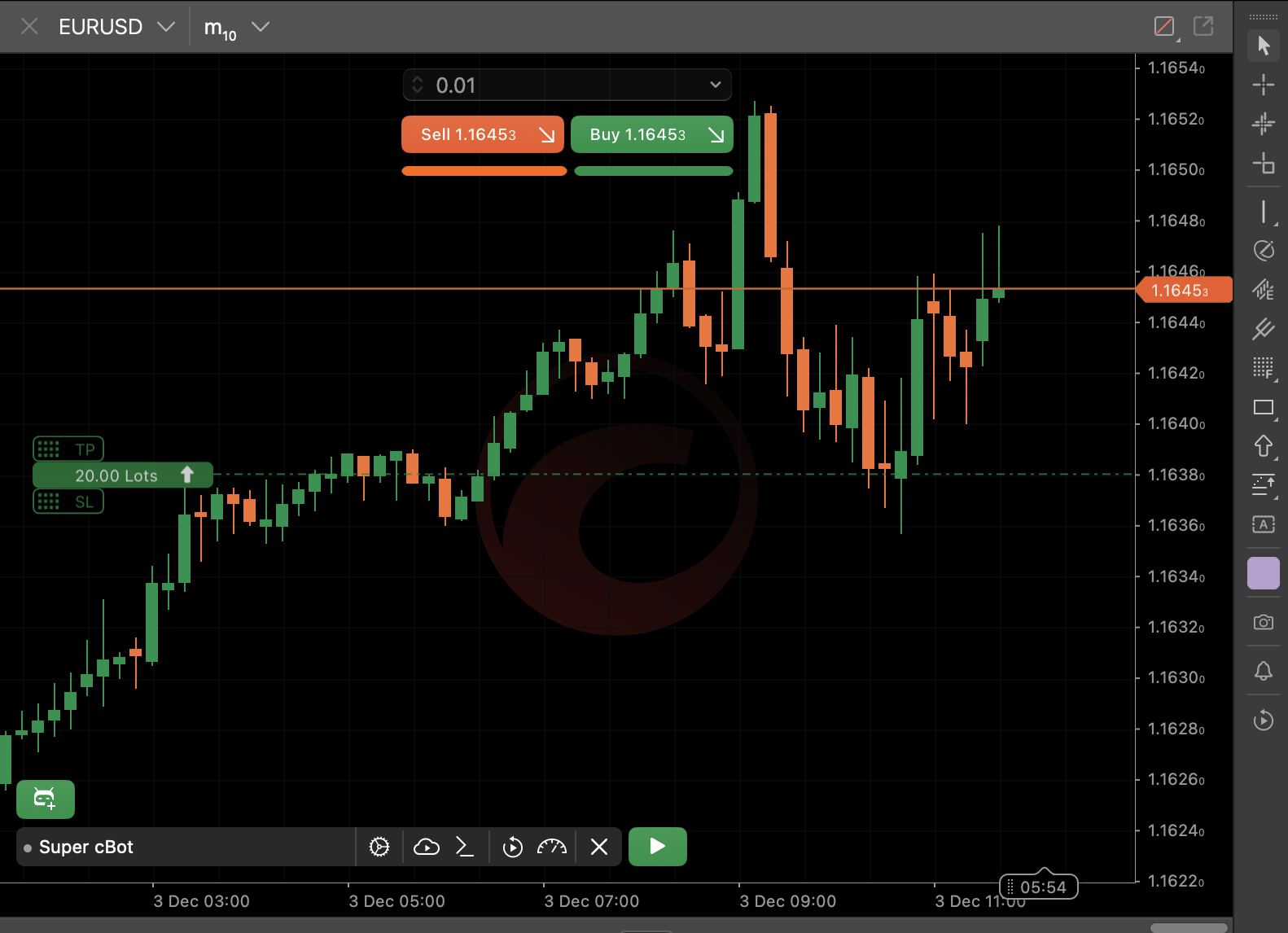
Once the cBot instance appears on the chart, you can click the Start cBot icon. Other controls for managing the cBot instance are also available.
Add a new instance
While some instances appear by default for each installed cBot, you can add new instances as needed.
Note
Both local and cloud instances can be added in cTrader Windows and Mac, whereas only cloud instances can be added in cTrader Mobile and Web.
Tap the Add instance button.
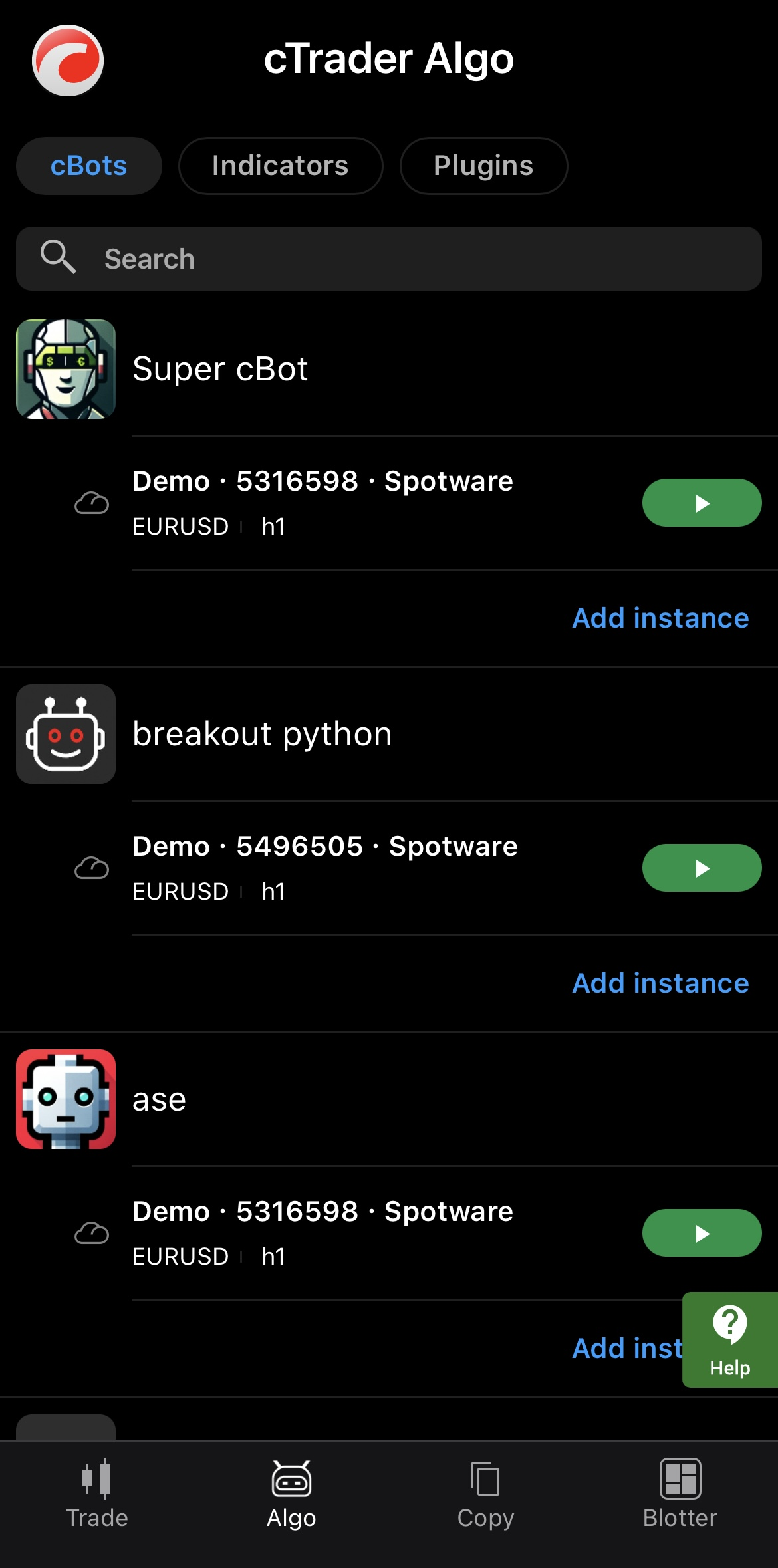
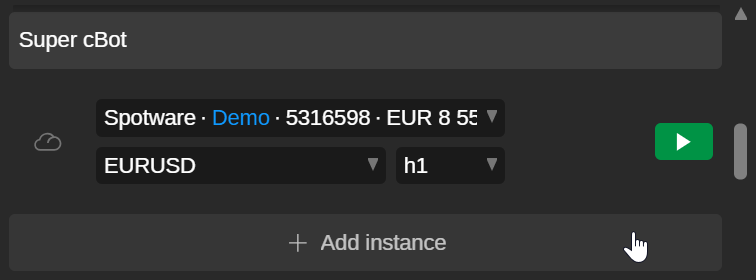
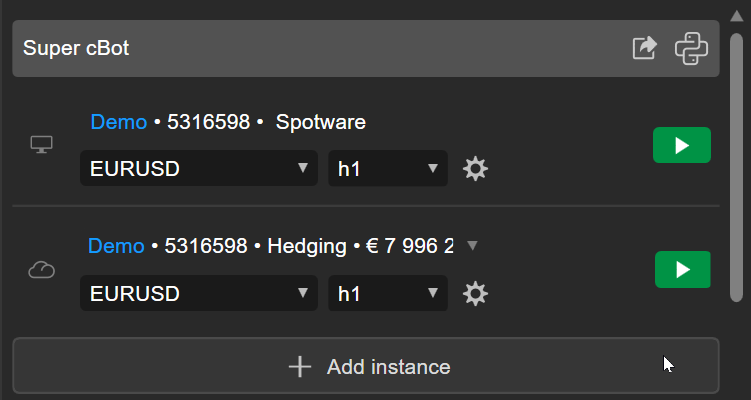
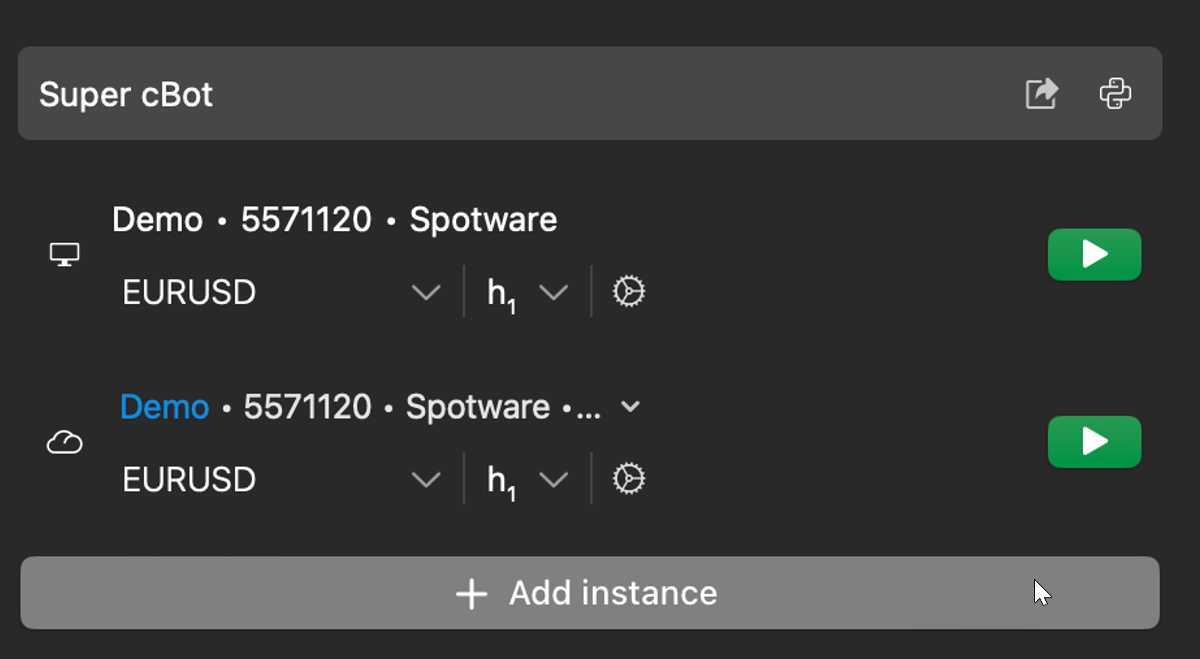
Specify your preferred instance parameters if applicable.
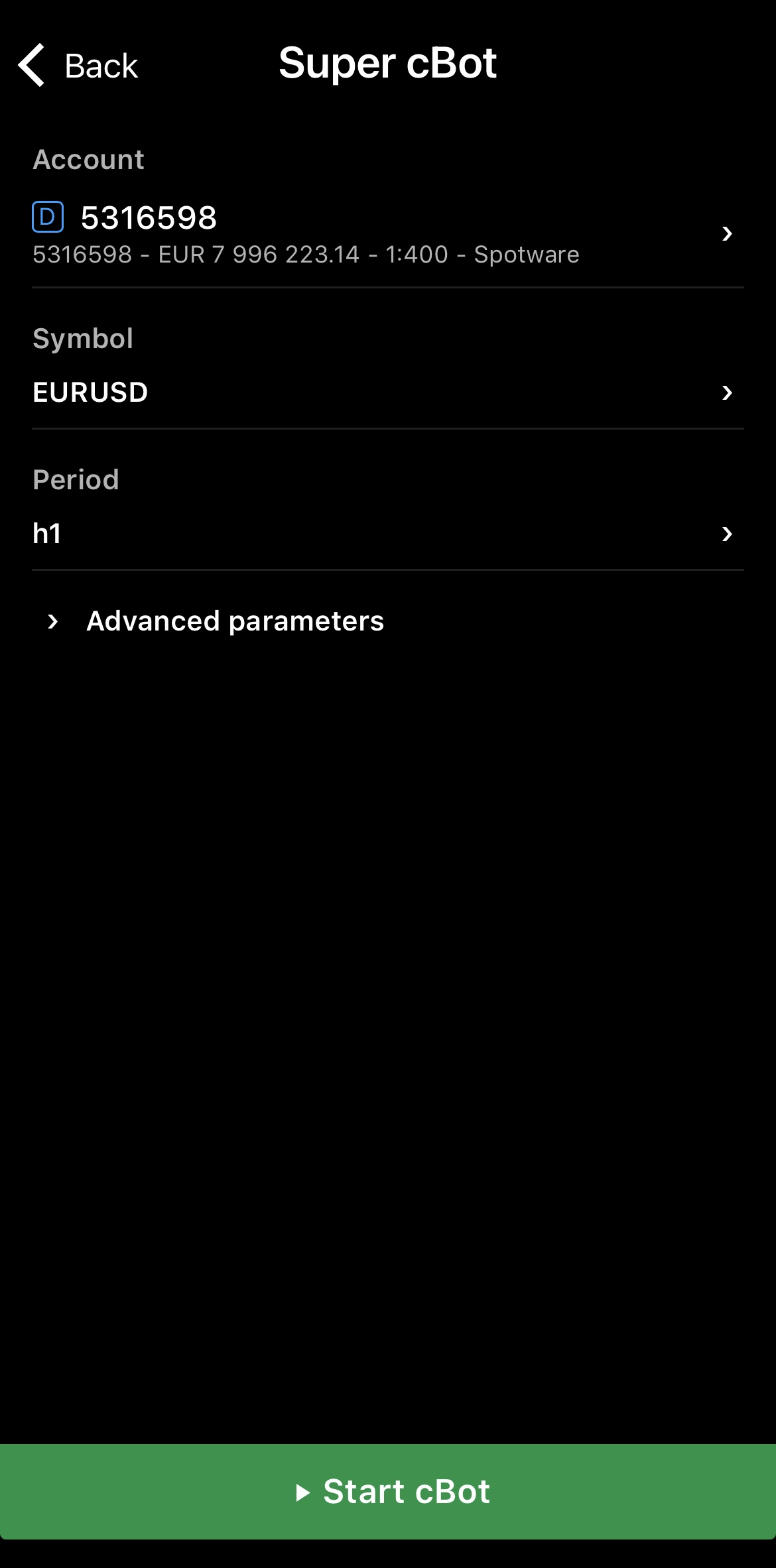
Tap the Start cBot button and the new instance begins running automatically, but you can stop it if needed.
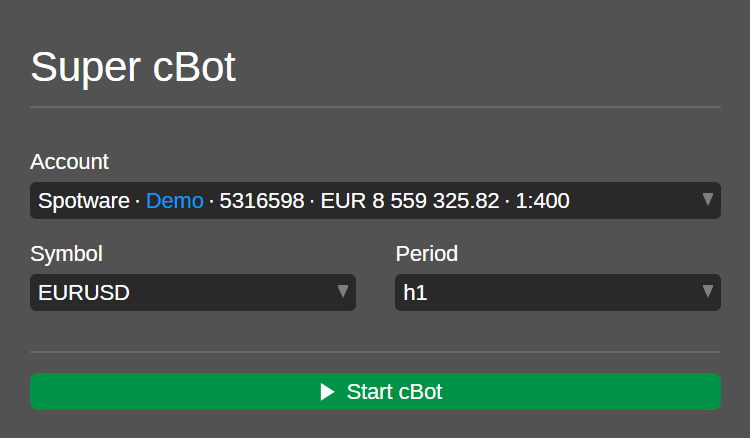
Click the Start cBot button and the new instance begins running automatically, but you can stop it if needed.
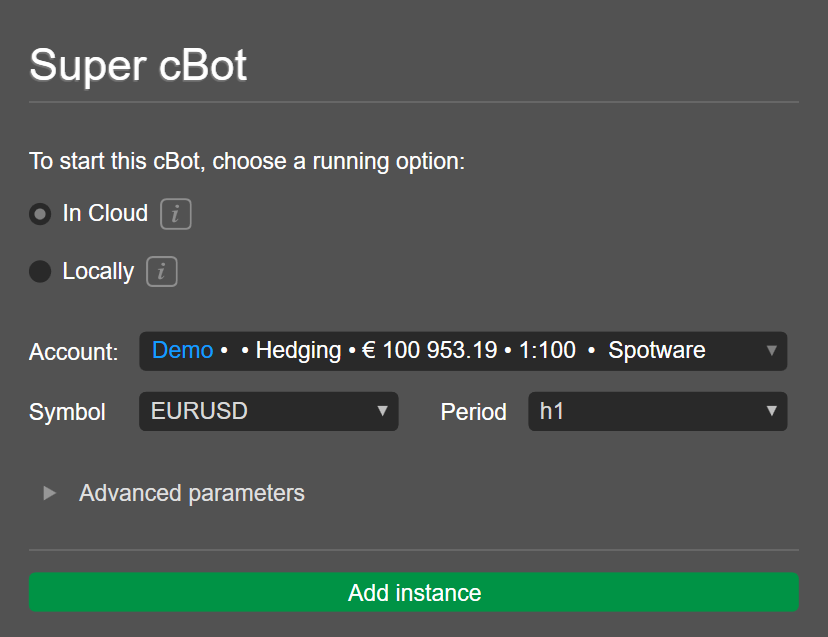
Click Add instance and the new instance appears. You can start it if needed.
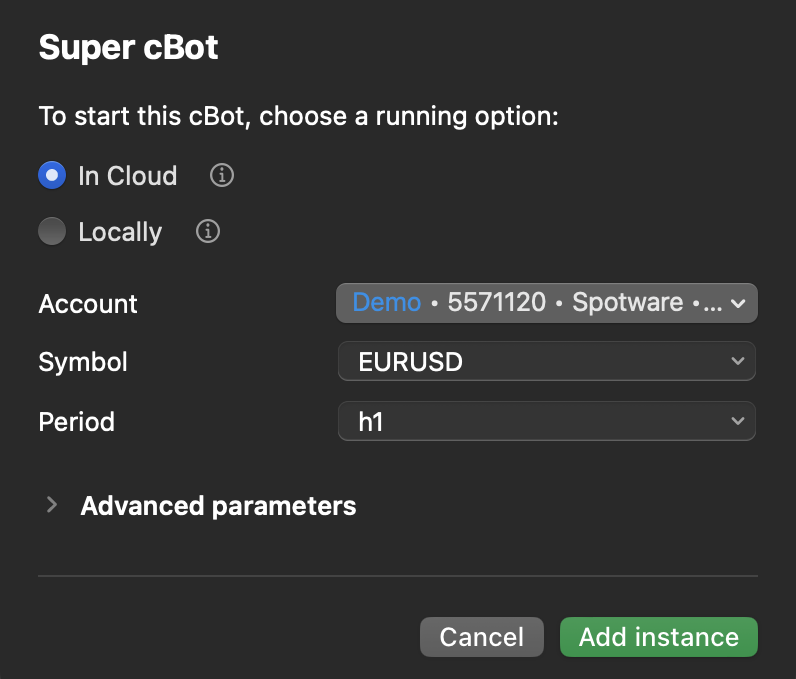
Click Add instance and the new instance appears. You can start it if needed.
Stop an instance
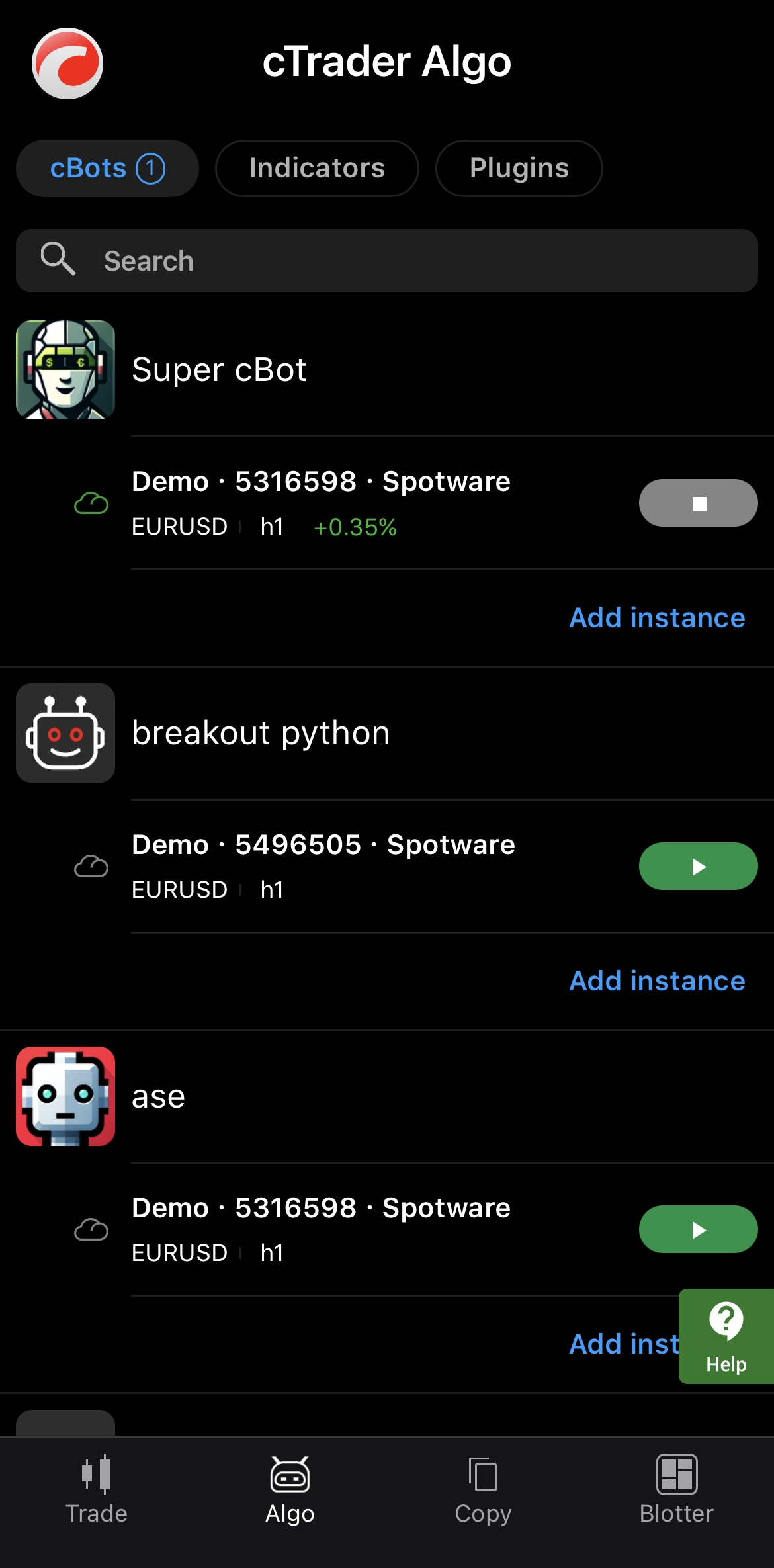
To terminate a running cBot or active instance, tap the Stop cBot icon.
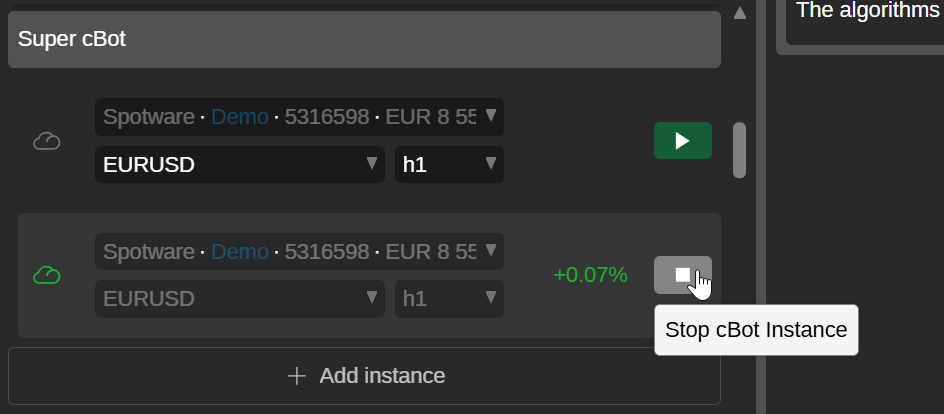
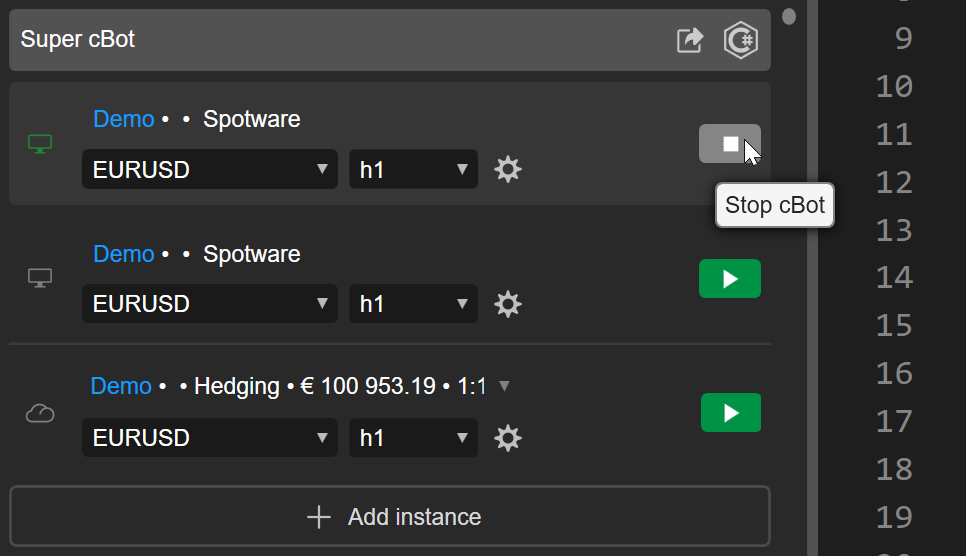
Tip
In cTrader Windows, you can click the Stop all button to terminate all active instances at once.
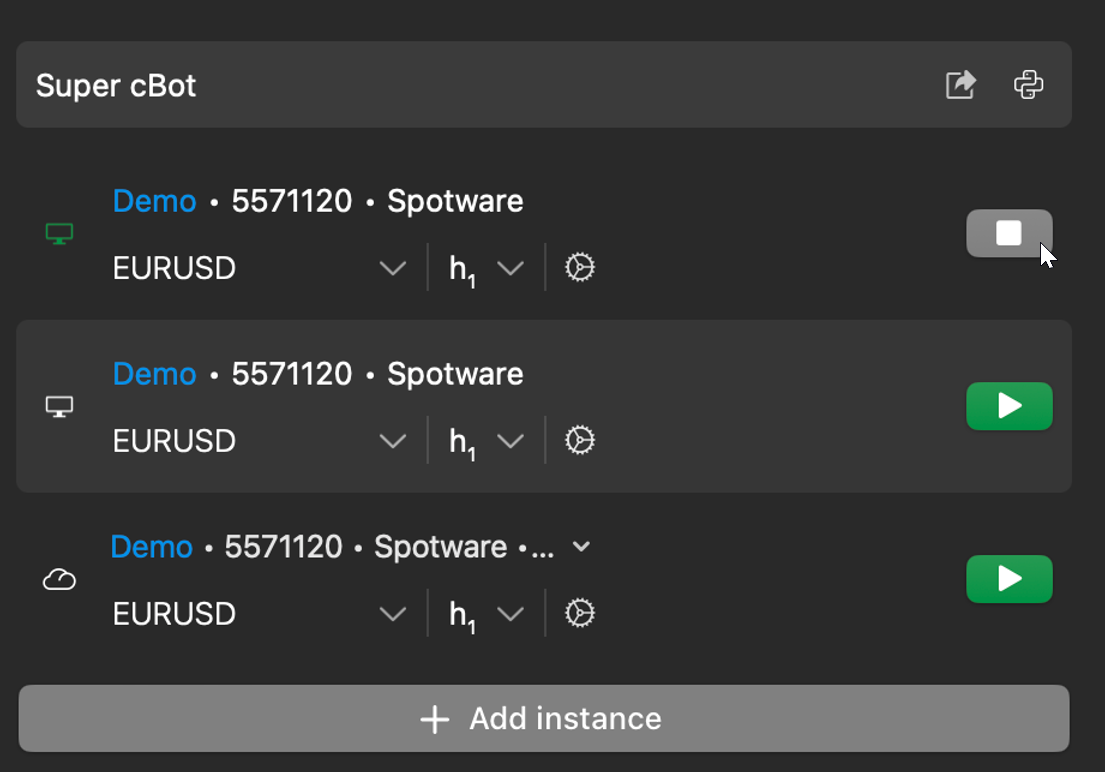
Tip
In cTrader Mac, you can click the Stop all button to terminate all active instances at once.
Delete an instance
Deleting a cBot instance removes it from the list under the cBot.
Tap the instance you want to delete, press the More icon in the bottom-right corner and select Remove cBot instance.
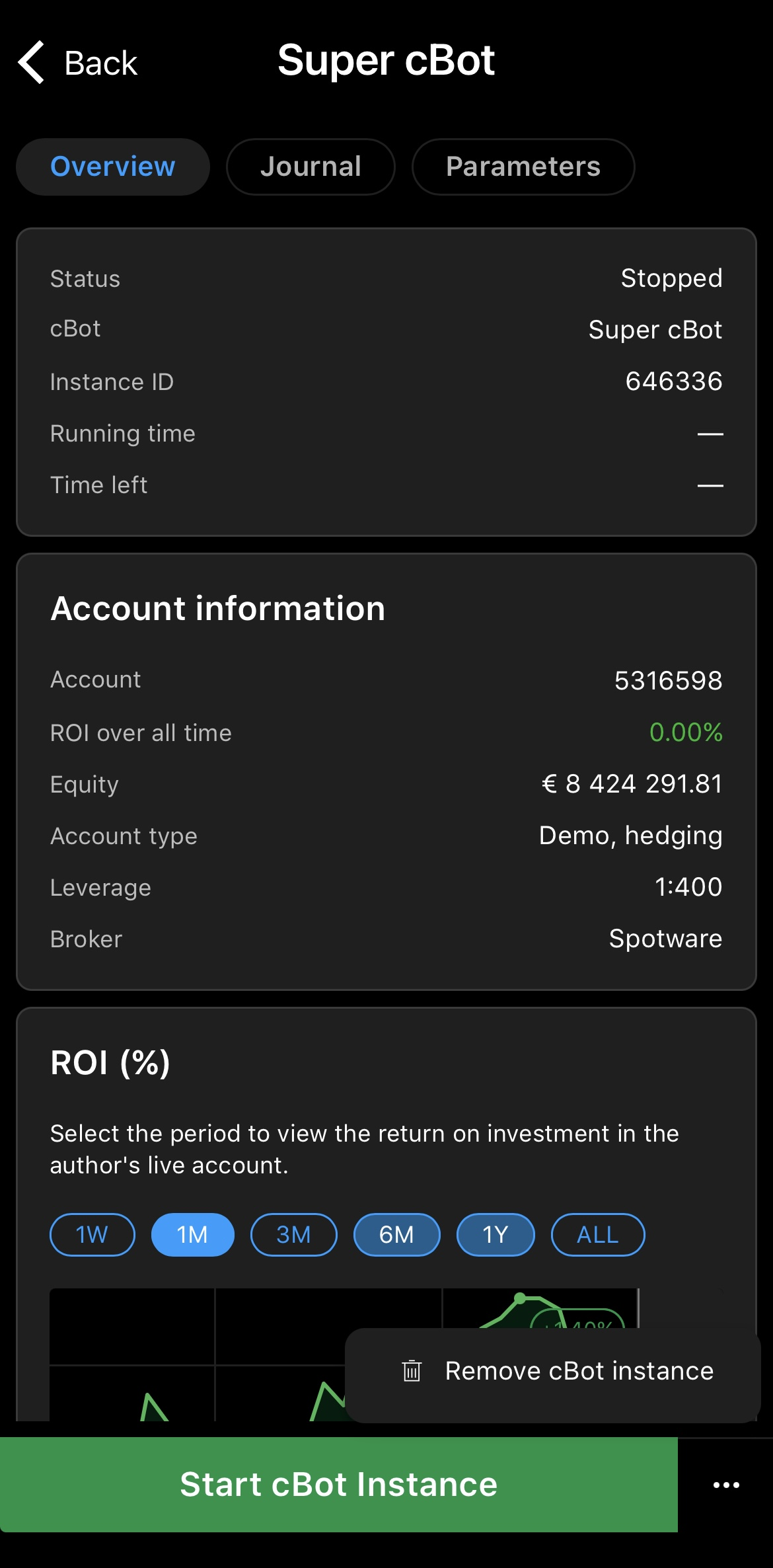
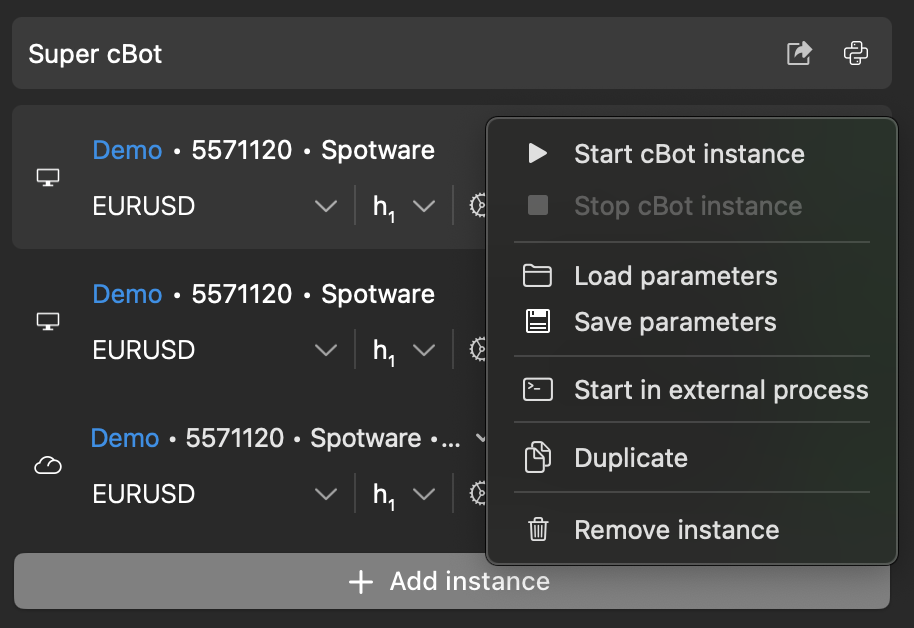
Right-click the instance you want to delete, then select Remove cBot instance.
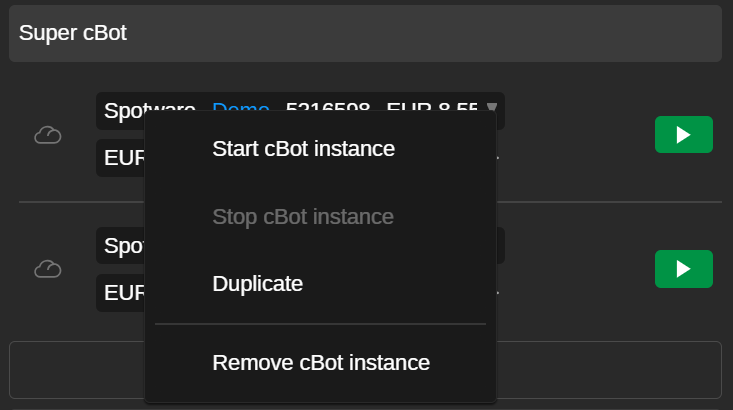
Right-click the instance you want to delete, then select Remove cBot instance.
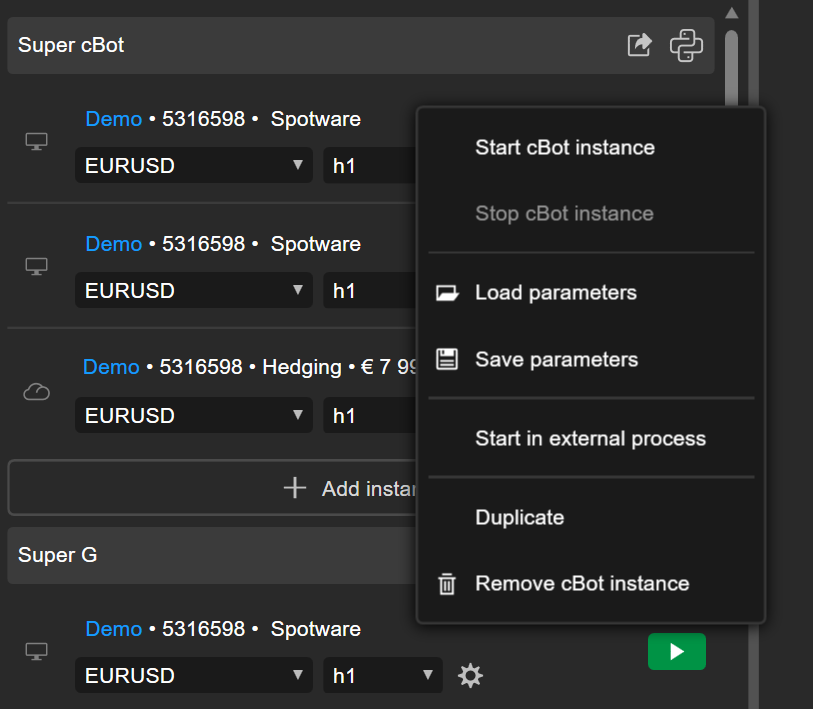
Right-click the instance you want to delete, then select Remove cBot instance.