Plugin placements in cTrader UI
Plugins can add custom elements to areas of the cTrader UI such as Active Symbol Panel (ASP), Trade Watch (TW), chart and custom frames, custom window and main menu area. This guide demonstrates how to use each of these options and suggests relevant use cases.
Plugin placements in one minute!
- By extending the cTrader UI, you can seamlessly integrate third-party services with the trading terminal.
- A single plugin can execute different functionalities in different areas of the UI, allowing you to customise the look and feel of cTrader.
- You can configure the custom elements created by the plugin so they can be detached from and reattached to their original locations in the cTrader UI.
- Certain ideas may fit better in specific areas of the UI. You can experiment with placements to discover what works best.
ASP
ASP is located to the right of the chart display. A plugin can add one or more custom elements using the following options:
- As an
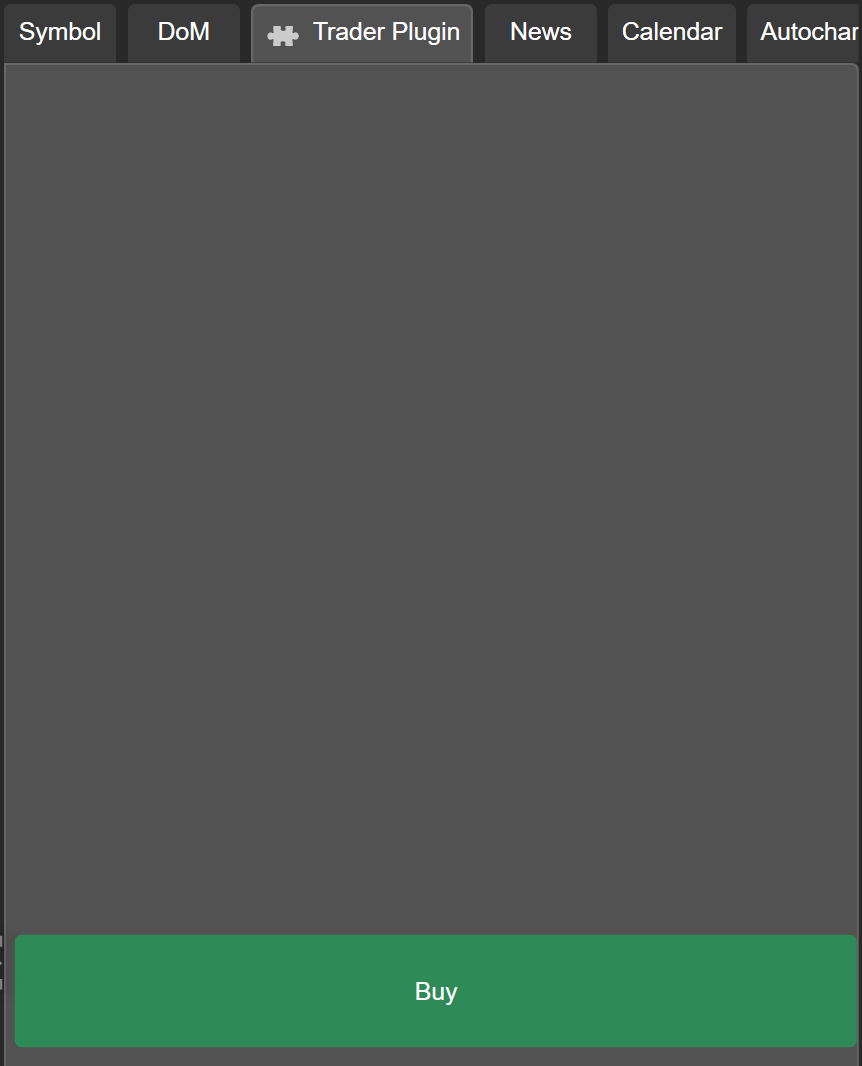
AspTab. When this option is used, the plugin displays custom elements in separate tab(s) alongside Symbol, DoM and others. - As an
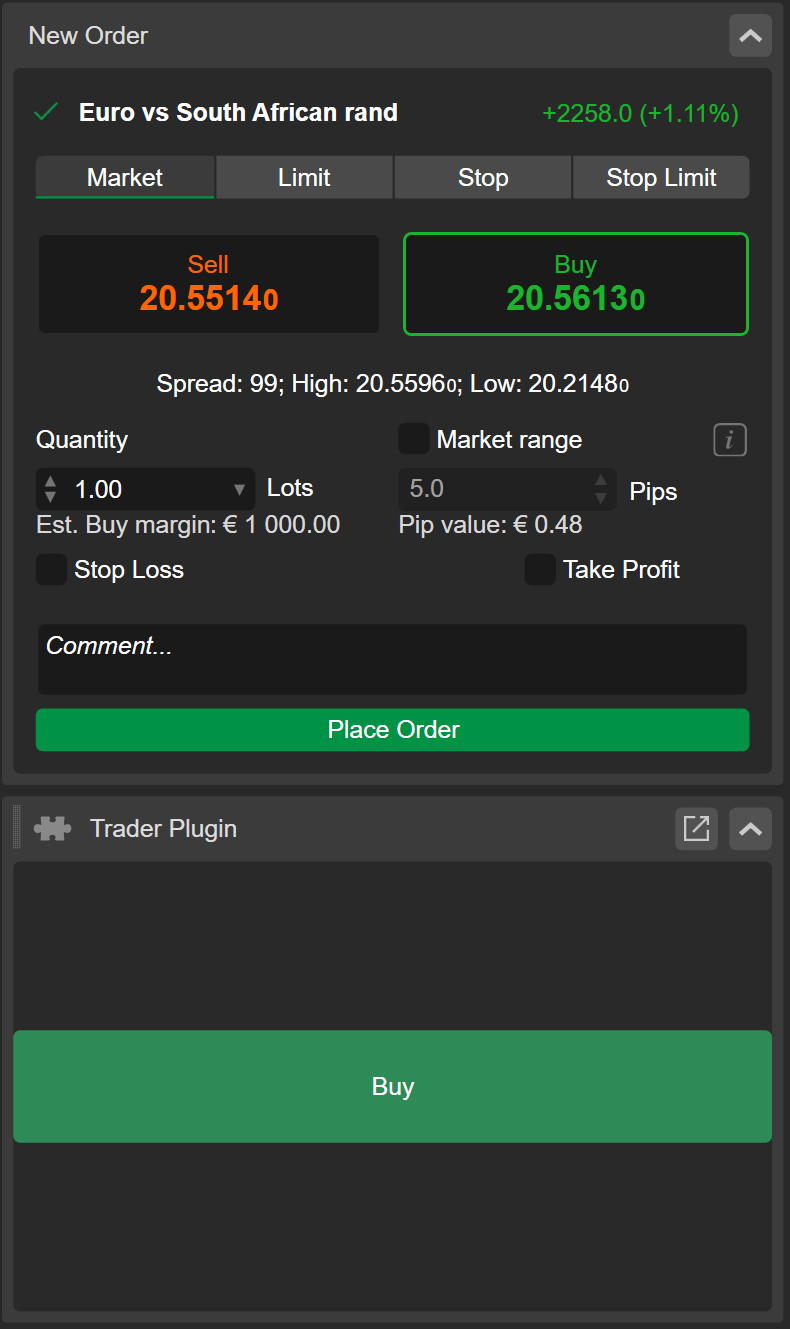
AspBlock. When this option is used, the plugin displays custom elements in the Symbol tab in new collapsible and expandable section(s) with customisable titles and positions.
Here is how the same plugin looks as a block and as a tab.
Use cases
Here are some ideas for plugins displaying custom elements in an ASP block:
- A small calculator of protection levels for a given symbol.
- A grid displaying additional information about the currently active symbol.
The following ideas would function best when embedded as an ASP tab:
- A list containing custom analytics about all currently open positions.
- A WebView of a financial news outlet.
To add custom elements as an ASP block, use the Asp.SymbolTab.AddBlock(string title) method.
1 2 3 | |
To add custom elements as an ASP tab, use the Asp.AddTab(string title) method.
1 2 3 | |
To determine the order in which a block or tab appears in ASP, use the Index property of AspBlock and AspTab, respectively.
Warning
Note that no custom tabs can be placed before the Symbol tab. You also cannot embed your block higher than the New Order section in the Symbol tab. As a result, the smallest possible index for a block embedded into ASP is 1.
Trade Watch
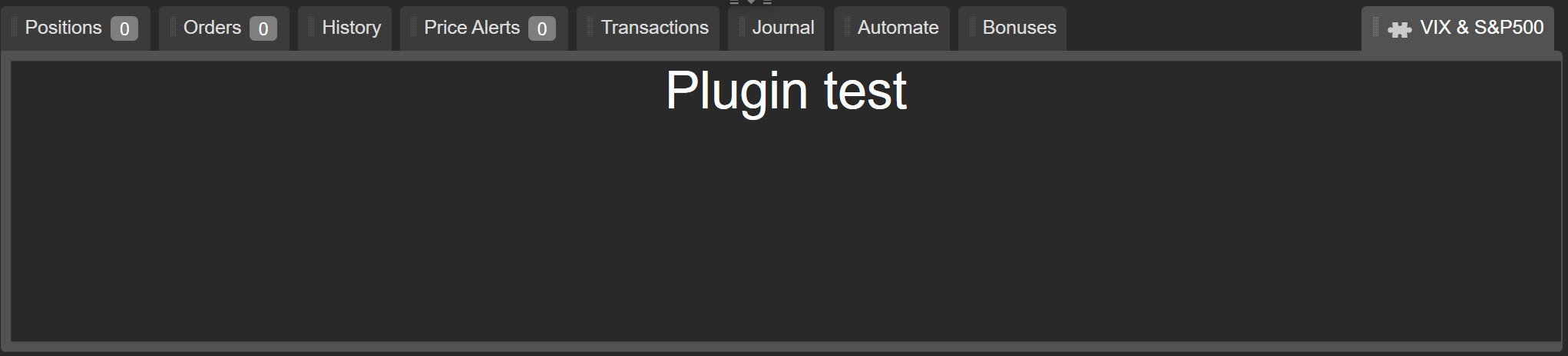
Trade Watch is located just below the chart area. You can add custom elements there as a separate tab.
Here is how a plugin could look like when added to the display.
Use cases
The following ideas are suited for being shown in Trade Watch display.
- A custom analytics suite showing various statistics about the user's current account.
- A WebView of a trading-oriented web forum.
To add custom elements as a new tab in Trade Watch display, use the Trade Watch.AddTab(string title) method.
1 2 3 | |
Similarly to ASP blocks and tabs, you can use the Index property of a Trade WatchTab to define its position relative to other tabs in Trade Watch display.
Note
All custom tabs placed into Trade Watch display appear only to the far-right of the default tabs included in the cTrader UI upon the first launch of the terminal. Subsequently, the the Index of these tabs must be 1 or greater; the index only determines the relative position of plugin tabs compared to other plugin tabs.
Chart and custom frame
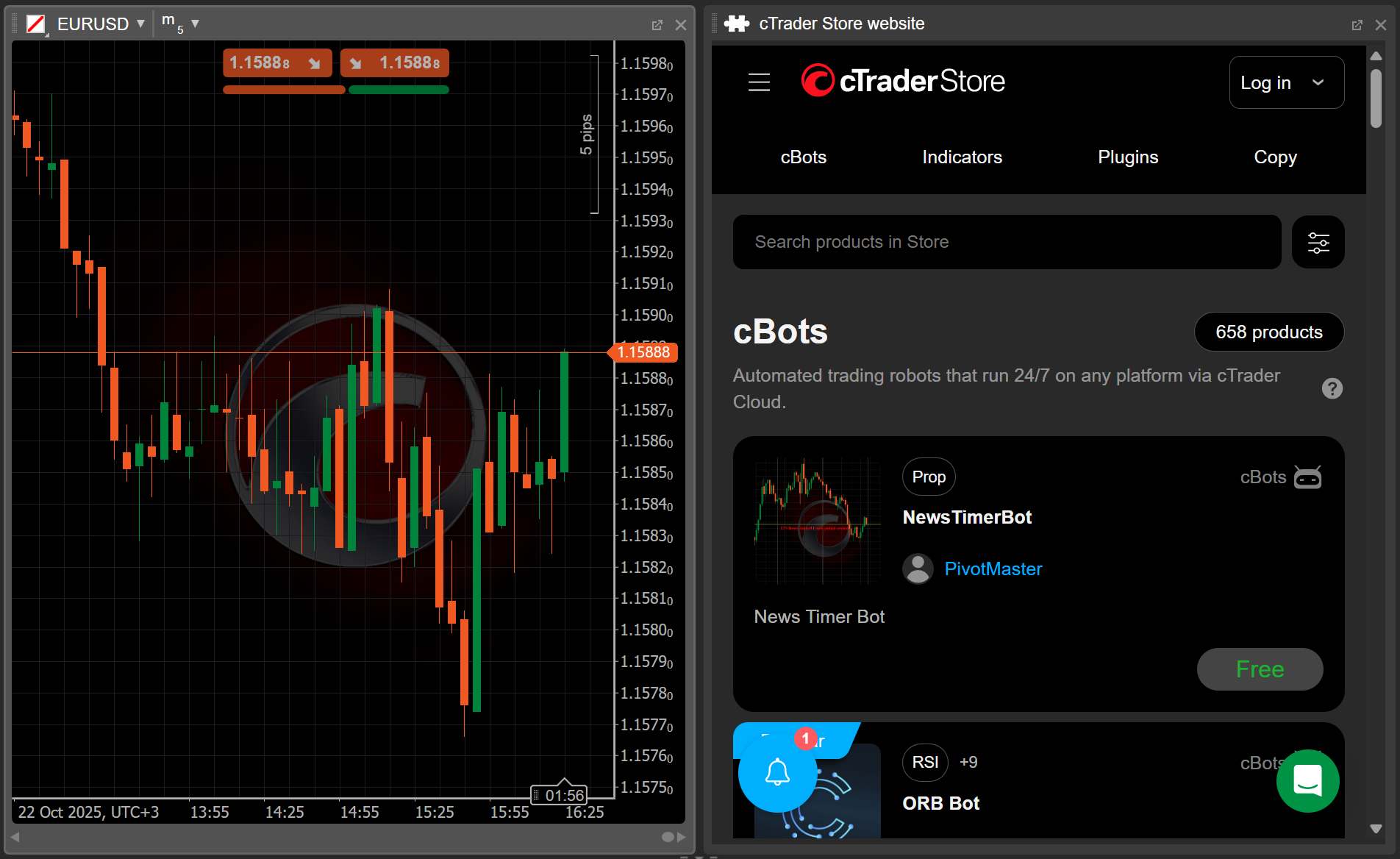
You can also choose to display custom elements in a separate chart frame, essentially adding it as a new chart to your current chart view. Additionally, a plugin may open any number of charts for any available symbols and chart frames.
Here is how a custom chart frame with a WebView looks like next to a regular chart.
Use cases
The following ideas would look and work at their best when embedded in a custom frame:
- A WebView of another charting service.
- A large-scale custom trading panel.
- A WebView of a generative AI service that a trader may consult with when deciding how to react to market movements.
To add a new custom frame, use the ChartManager.AddCustomFrame(string title) method.
1 2 3 | |
For your plugin to open a new chart, use the ChartManager.AddChartFrame(string symbolName, TimeFrame timeFrame) method.
1 | |
Note
Once a plugin adds a new custom frame or chart, cTrader will switch to the multi-chart mode even if the single chart mode or the free-chart mode was enabled previously.
Main menu
Plugins can be coded to add custom sections to the main menu UI, in addition to existing sections such as Trade, Algo, Copy and Analyze. Any added custom section can hold websites, dashboards, buttons, tools and more.
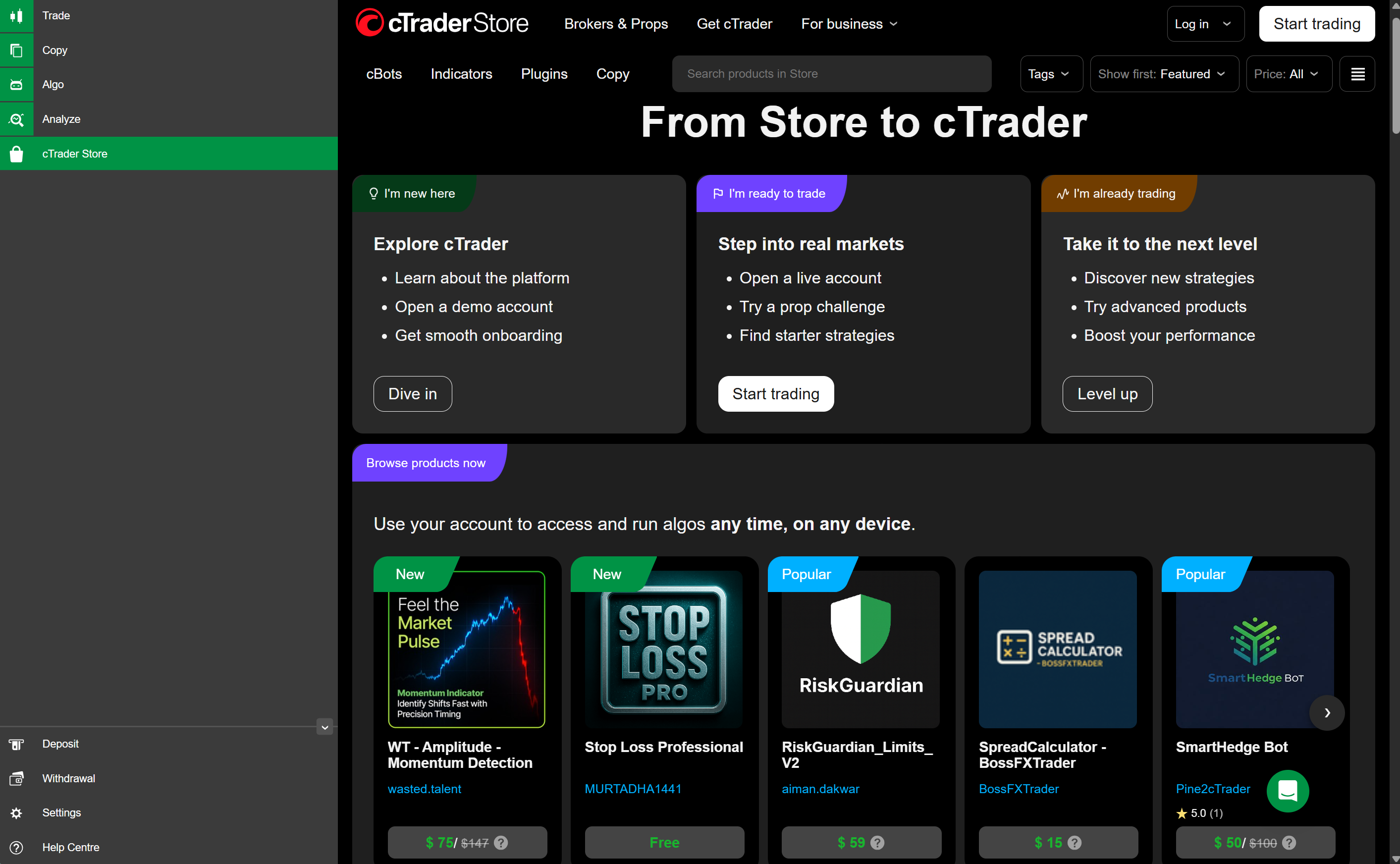
Here is the code for a simple plugin that adds a cTrader Store custom section, which houses the cTrader Store website, to the main menu:
1 2 3 4 5 6 7 8 9 10 11 12 13 14 15 16 17 18 19 20 21 22 23 24 25 26 27 28 29 30 31 32 33 34 35 36 37 38 39 40 41 42 43 44 45 46 47 48 49 50 51 52 53 | |
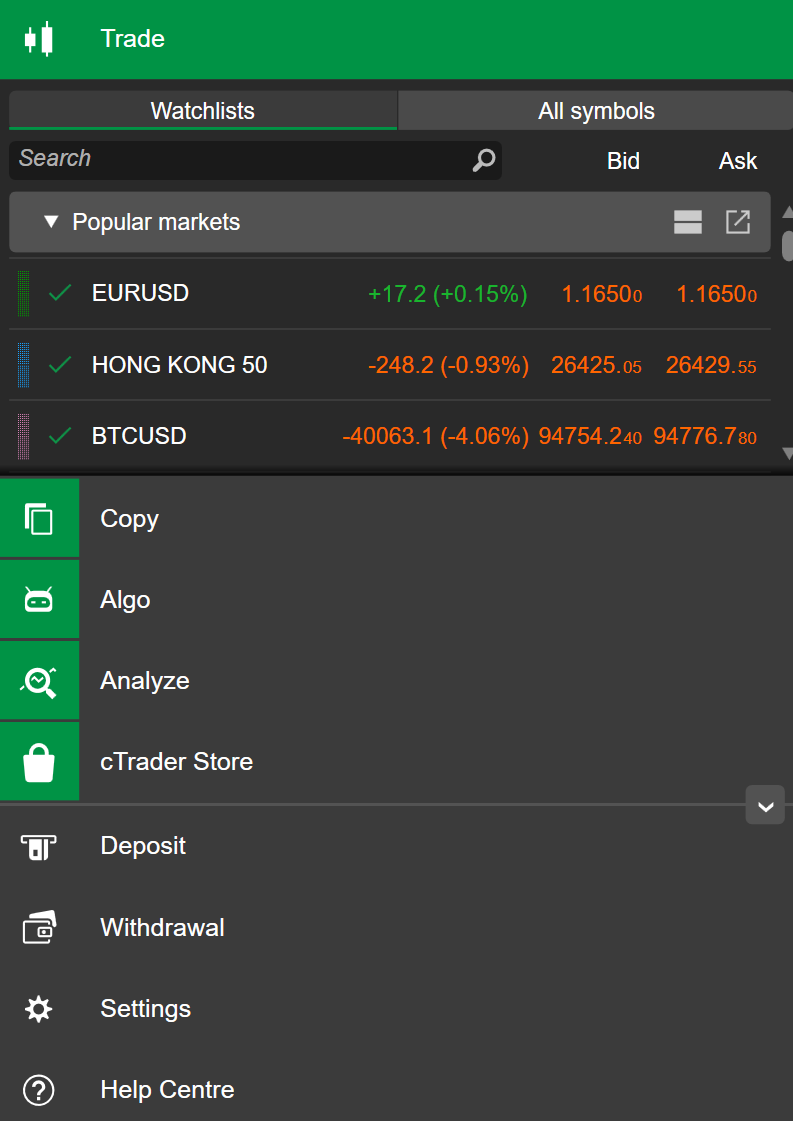
Selecting cTrader Store navigates to the custom section, revealing its content as shown below.
Multiple placements
The following plugin adds custom elements to several locations of the cTrader UI at once:
- The plugin displays the sum of commissions for all currently open positions in an ASP block.
- In Trade Watch display, the plugin shows the cumulative volume of all open positions.
- The plugin also shows a WebView of ctrader.com in a custom chart frame.
1 2 3 4 5 6 7 8 9 10 11 12 13 14 15 16 17 18 19 20 21 22 23 24 25 26 27 28 29 30 31 32 33 34 35 36 37 38 39 40 41 42 43 44 45 46 47 48 49 50 51 52 53 54 55 56 57 58 59 60 61 62 63 64 65 66 67 68 69 70 71 72 73 74 75 76 77 78 79 | |
Summary
cTrader provides several options for placing custom elements via plugins. You can use them to customise the cTrader UI and make the platform truly yours.