How to export and install algos in cTrader
After you create an algorithm in cTrader, you can use the export functionality to share and distribute it efficiently. In this article and the corresponding video, we will show you how to export and install cBots, indicators and plugins.
Export algos
Note
The export procedure is identical for all types of algorithms (cBots, indicators and plugins).
For this example, we want to export the Sample Trend cBot and distribute it to multiple users.
Open the Algo app, right-click the cBot you want to export, then click Export. When the export window appears, select your preferred export option.
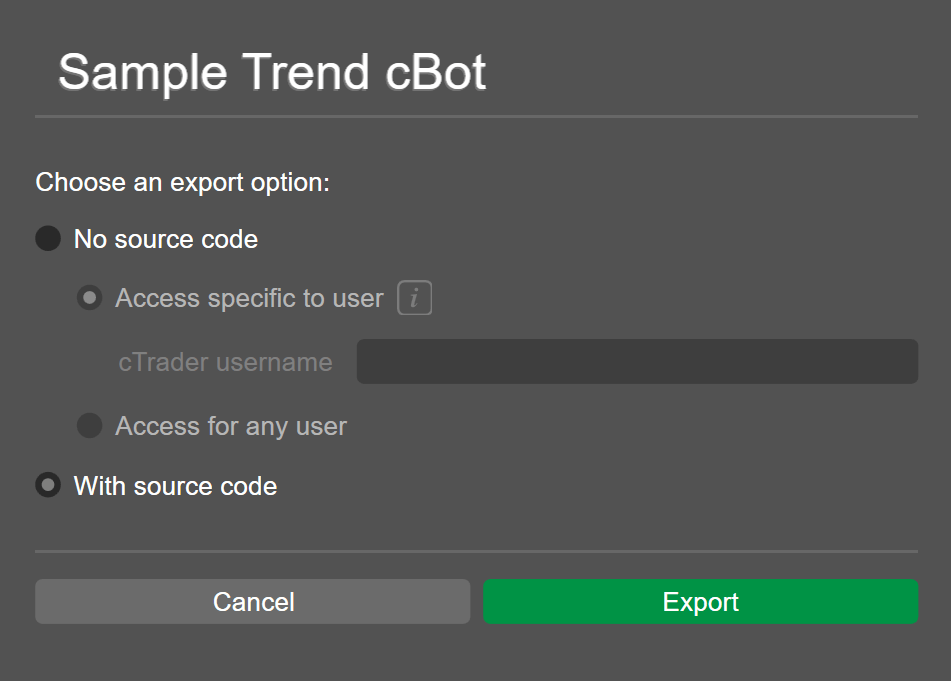
- No source code - export the
.algofile without source code, specifying whether a single cTrader user or all users can open it. - With source code - export the
.algofile with source code, granting access to all cTrader users.
To avoid restrictions, we will choose the With source code option for our Sample Trend cBot. You will then be directed to the Robot folder, where the exported cBot is saved. From there, you can share the file or transfer it to other users and devices.

Where is an exported algo saved on my computer?
- cBot:
..Documents/cAlgo/Sources/Export/Robot - Indicator:
..Documents/cAlgo/Sources/Export/Indicator - Plugin:
..Documents/cAlgo/Sources/Export/Plugin
Install algos
After any user receives an .algo file, they can open it by double-clicking it. The file opens in cTrader, and the start window appears.
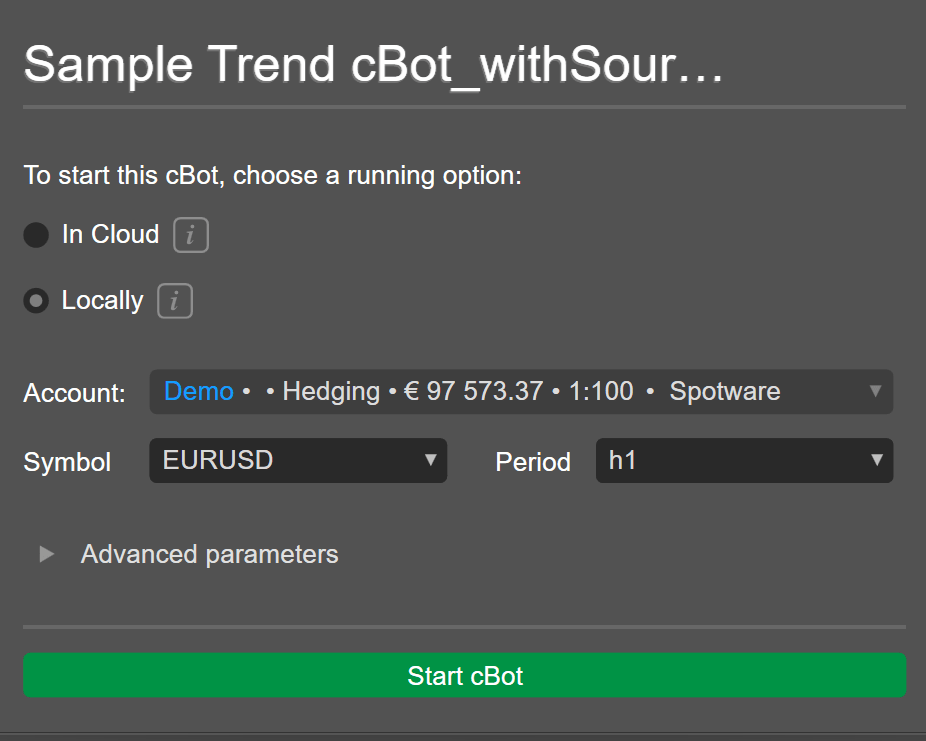
Here, cTrader users can choose to start a cBot in Cloud or locally. They can select a trading account, symbol and period for the cBot. Additionally, Advanced parameters are expandable to configure other settings.
Click Start cBot to begin running the cBot in Cloud or locally.
This article has demonstrated how to export and install algorithms in cTrader.