How to manage cBots and indicators using algos VIDEO
The algorithm managing another algorithm functionality enables traders to add cBots and indicators to a chart using code. With this capability, they can plan and develop effective trading strategies, make dynamic adjustments, execute multiple strategies and apply automated risk controls.
In this article and its corresponding video, we will show you how to create and work with cBots that manage other algorithms.
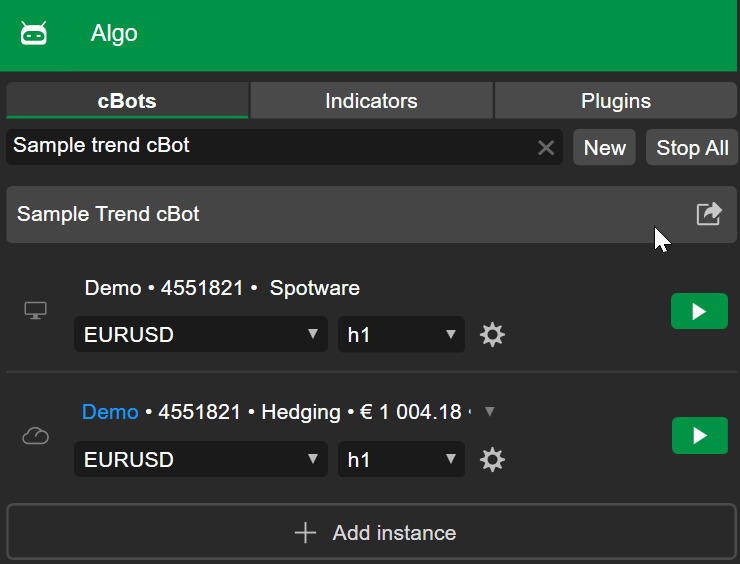
Add an indicator using a cBot In the Algo app, open the cBots tab. Search for and choose the Sample Trend cBot sample, which uses moving averages.
Define two indicators.
ChartIndicator _indicator1 ;
ChartIndicator _indicator2 ;
Add two indicators to the chart.
_indicator1 = Chart . Indicators . Add ( "Simple Moving Average" , SourceSeries , FastPeriods , MAType );
_indicator2 = Chart . Indicators . Add ( "Simple Moving Average" , SourceSeries , SlowPeriods , MAType );
The indicator appearance can be customised through its output line settings. Customisable options include colour, thickness and line style.
We will make the line for the first indicator red and thick.
_indicator1 . Lines [ 0 ]. Color = Color . Red ;
_indicator1 . Lines [ 0 ]. Thickness = 3 ;
The same operation can be applied to remove indicators from a chart at any time. We will make the changes take effect when the bar changes.
protected override void OnBarClosed ()
{
Chart . Indicators . Remove ( _indicator1 );
Chart . Indicators . Remove ( _indicator2 );
}
You can copy the full code below:
1
2
3
4
5
6
7
8
9
10
11
12
13
14
15
16
17
18
19
20
21
22
23
24
25
26
27
28
29
30
31
32
33
34
35
36
37
38
39
40
41
42
43
44
45
46
47
48
49
50
51
52
53
54
55
56
57
58
59
60
61
62
63
64
65
66
67
68
69
70
71
72
73
74
75
76
77
78
79
80 using cAlgo.API ;
using cAlgo.API.Indicators ;
namespace cAlgo
{
[Robot(TimeZone = TimeZones.UTC, AccessRights = AccessRights.None, AddIndicators = true)]
public class SampleTrendcBot : Robot
{
[Parameter("Quantity (Lots)", Group = "Volume", DefaultValue = 1, MinValue = 0.01, Step = 0.01)]
public double Quantity { get ; set ; }
[Parameter("MA Type", Group = "Moving Average")]
public MovingAverageType MAType { get ; set ; }
[Parameter("Source", Group = "Moving Average")]
public DataSeries SourceSeries { get ; set ; }
[Parameter("Slow Periods", Group = "Moving Average", DefaultValue = 10)]
public int SlowPeriods { get ; set ; }
[Parameter("Fast Periods", Group = "Moving Average", DefaultValue = 5)]
public int FastPeriods { get ; set ; }
private MovingAverage slowMa ;
private MovingAverage fastMa ;
private const string label = "Sample Trend cBot" ;
ChartIndicator _indicator1 ;
ChartIndicator _indicator2 ;
protected override void OnStart ()
{
fastMa = Indicators . MovingAverage ( SourceSeries , FastPeriods , MAType );
slowMa = Indicators . MovingAverage ( SourceSeries , SlowPeriods , MAType );
_indicator1 = Chart . Indicators . Add ( "Simple Moving Average" , SourceSeries , FastPeriods , MAType );
_indicator2 = Chart . Indicators . Add ( "Simple Moving Average" , SourceSeries , SlowPeriods , MAType );
_indicator1 . Lines [ 0 ]. Color = Color . Red ;
_indicator1 . Lines [ 0 ]. Thickness = 3 ;
}
protected override void OnBarClosed ()
{
Chart . Indicators . Remove ( _indicator1 );
Chart . Indicators . Remove ( _indicator2 );
}
protected override void OnTick ()
{
var longPosition = Positions . Find ( label , SymbolName , TradeType . Buy );
var shortPosition = Positions . Find ( label , SymbolName , TradeType . Sell );
var currentSlowMa = slowMa . Result . Last ( 0 );
var currentFastMa = fastMa . Result . Last ( 0 );
var previousSlowMa = slowMa . Result . Last ( 1 );
var previousFastMa = fastMa . Result . Last ( 1 );
if ( previousSlowMa > previousFastMa && currentSlowMa <= currentFastMa && longPosition == null )
{
if ( shortPosition != null )
ClosePosition ( shortPosition );
ExecuteMarketOrder ( TradeType . Buy , SymbolName , VolumeInUnits , label );
}
else if ( previousSlowMa < previousFastMa && currentSlowMa >= currentFastMa && shortPosition == null )
{
if ( longPosition != null )
ClosePosition ( longPosition );
ExecuteMarketOrder ( TradeType . Sell , SymbolName , VolumeInUnits , label );
}
}
private double VolumeInUnits
{
get { return Symbol . QuantityToVolumeInUnits ( Quantity ); }
}
}
}
To build the cBot, use the Ctrl + B Build .
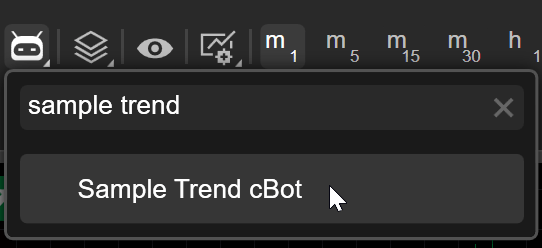
Go to the Trade app. Select the EURUSD chart, click the cBot icon, search for and select Sample Trend cBot .
When the Add instance window appears, click Apply and then start the cBot.
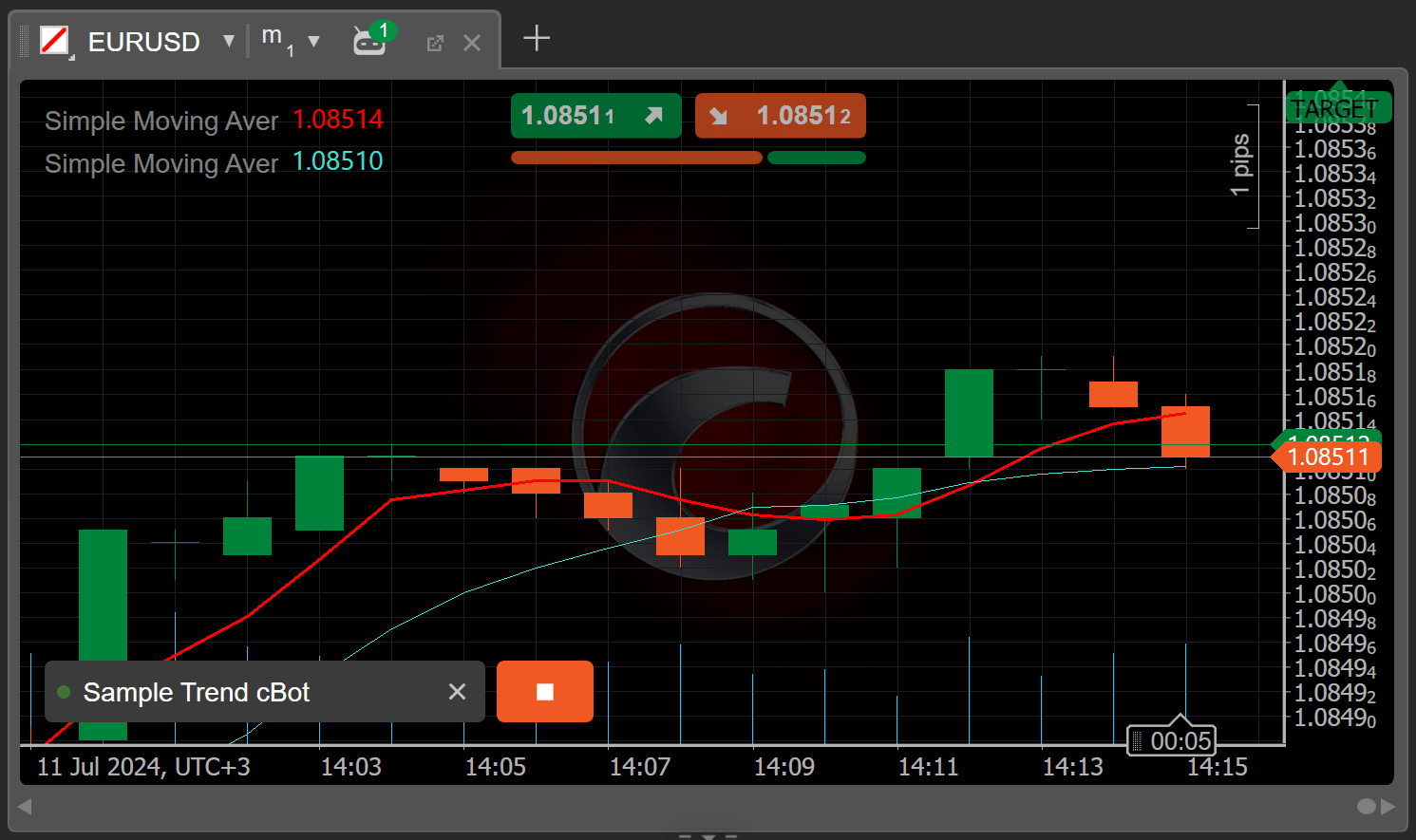
You should see that the two moving averages used for trading have been added to the chart.
Start a cBot using another cBot We will demonstrate how to manage a cBot through another cBot. This time, we will create a new empty cBot from scratch.
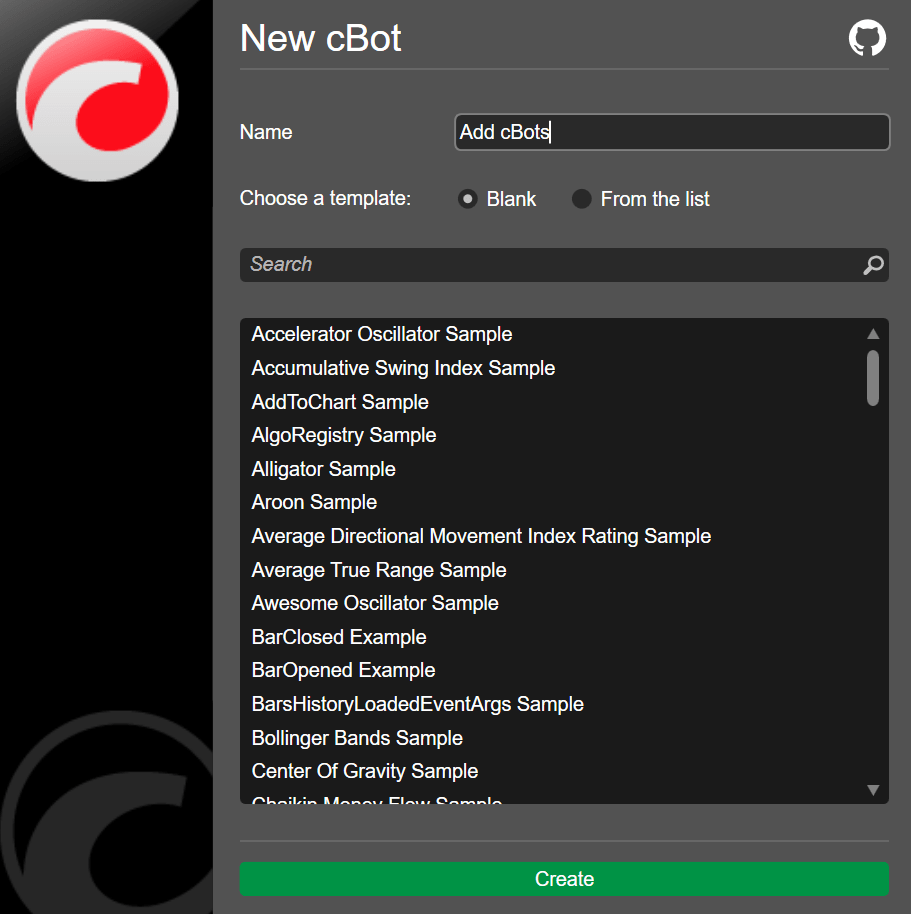
Go to the Algo app and click the New button under the cBots tab. Select the Blank option, enter a name such as Add cBots and then click Create .
We start by defining two chart robot objects.
ChartRobot _robot1 ;
ChartRobot _robot2 ;
We then add those robots to the chart in the OnStart() method.
_robot1 = Chart . Robots . Add ( "Sample Trend cBot" , 0.01 , MovingAverageType . Simple , Bars . ClosePrices , 10 , 5 );
_robot2 = Chart . Robots . Add ( "Sample Trend cBot" , 0.01 , MovingAverageType . Simple , Bars . ClosePrices , 12 , 7 );
We can also add an event handler to print a message whenever the cBot is started.
Chart . Robots . RobotStarted += ChartRobots_RobotStarted ;
private void ChartRobots_RobotStarted ( ChartRobotStartedEventArgs obj )
{
Print ( "Robot Started" );
}
Write some logic inside the OnBarClosed() method to start the first robot when the bar changes, stop it and then start the second robot on the next bar.
1
2
3
4
5
6
7
8
9
10
11
12
13 protected override void OnBarClosed ()
{
if ( _robot1 . State == RobotState . Stopped )
{
_robot1 . Start ();
_robot2 . Stop ();
}
else if ( _robot1 . State == RobotState . Running )
{
_robot1 . Stop ();
_robot2 . Start ();
}
}
You can copy the full code below:
1
2
3
4
5
6
7
8
9
10
11
12
13
14
15
16
17
18
19
20
21
22
23
24
25
26
27
28
29
30
31
32
33
34
35
36
37
38
39
40
41
42
43
44
45
46
47
48
49
50 using System ;
using cAlgo.API ;
using cAlgo.API.Collections ;
using cAlgo.API.Indicators ;
using cAlgo.API.Internals ;
namespace cAlgo.Robots
{
[Robot(AccessRights = AccessRights.None, AddIndicators = true)]
public class AddcBots : Robot
{
ChartRobot _robot1 ;
ChartRobot _robot2 ;
protected override void OnStart ()
{
_robot1 = Chart . Robots . Add ( "Sample Trend cBot" , 0.01 , MovingAverageType . Simple , Bars . ClosePrices , 10 , 5 );
_robot2 = Chart . Robots . Add ( "Sample Trend cBot" , 0.01 , MovingAverageType . Simple , Bars . ClosePrices , 12 , 7 );
Chart . Robots . RobotStarted += ChartRobots_RobotStarted ;
}
private void ChartRobots_RobotStarted ( ChartRobotStartedEventArgs obj )
{
Print ( "Robot Started" );
}
protected override void OnBarClosed ()
{
if ( _robot1 . State == RobotState . Stopped )
{
_robot1 . Start ();
_robot2 . Stop ();
}
else if ( _robot1 . State == RobotState . Running )
{
_robot2 . Start ();
_robot1 . Stop ();
}
}
protected override void OnStop ()
{
// Handle cBot stop here
}
}
}
After you build the cBot, return to the Trade app, search for and select Add cBots and then start the cBot.
When the Permission request dialogue appears, click Allow .
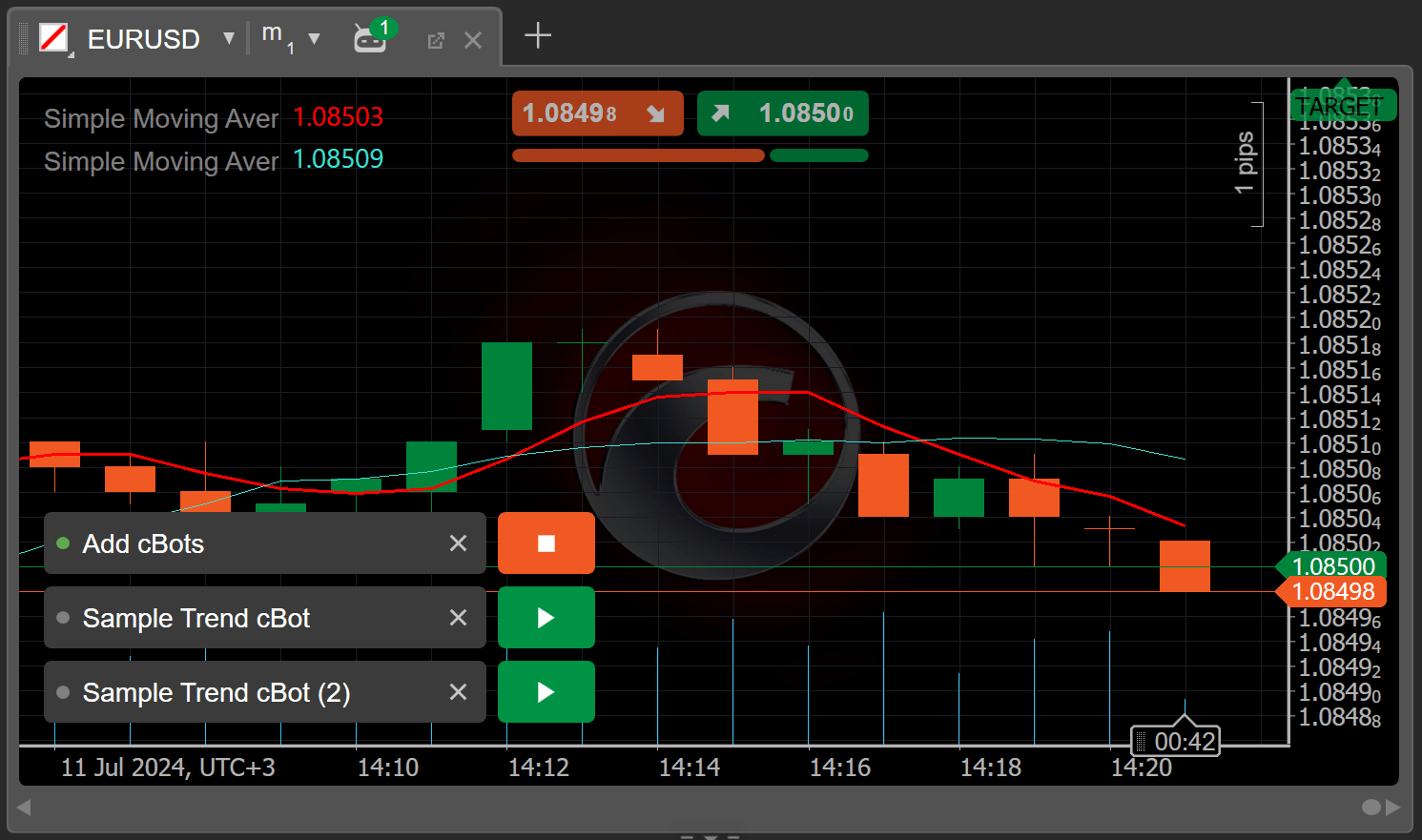
The two instances of Sample Trend cBot should appear on the chart.
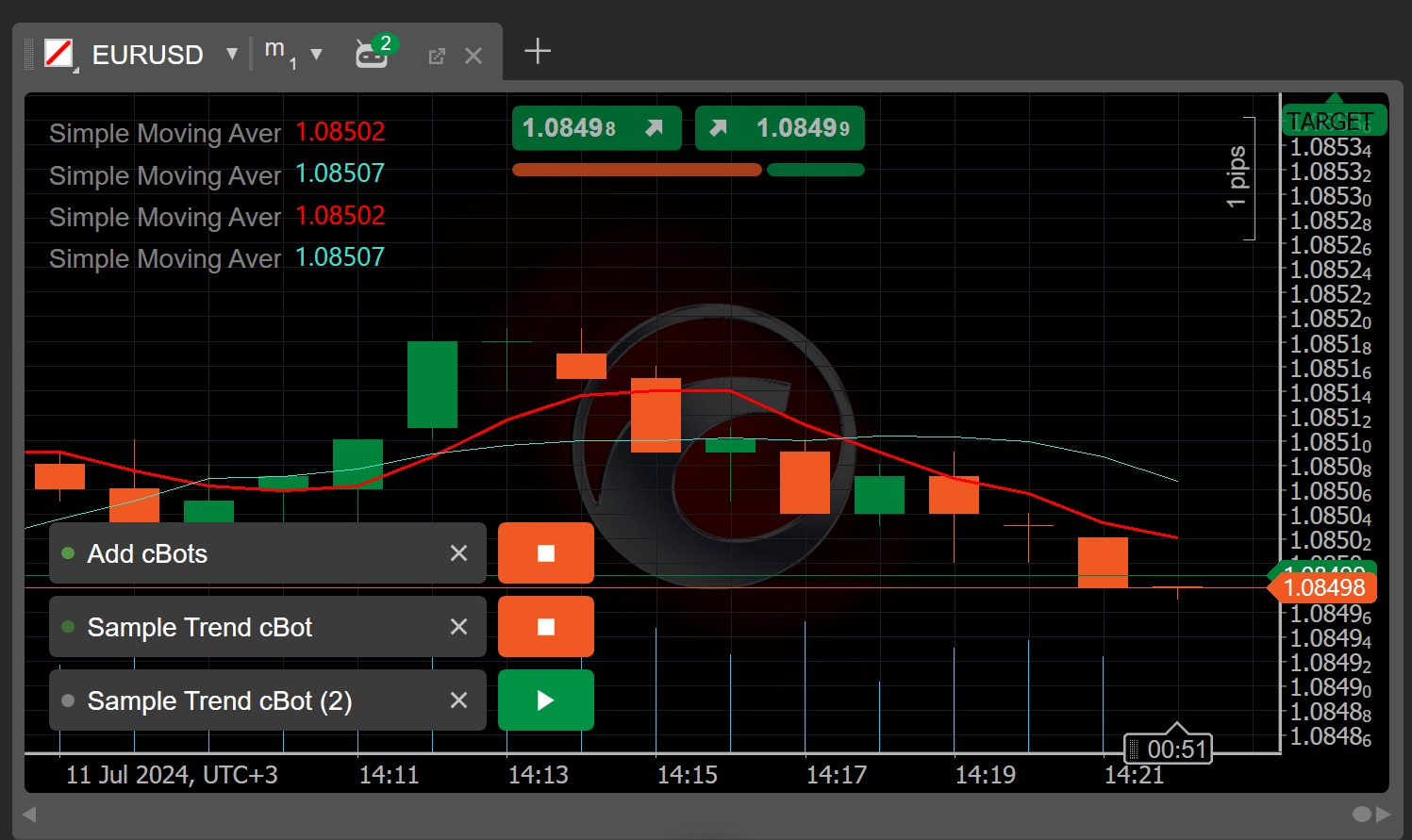
Wait for the first bar to complete and you should see the first instance of the Sample Trend cBot start automatically.
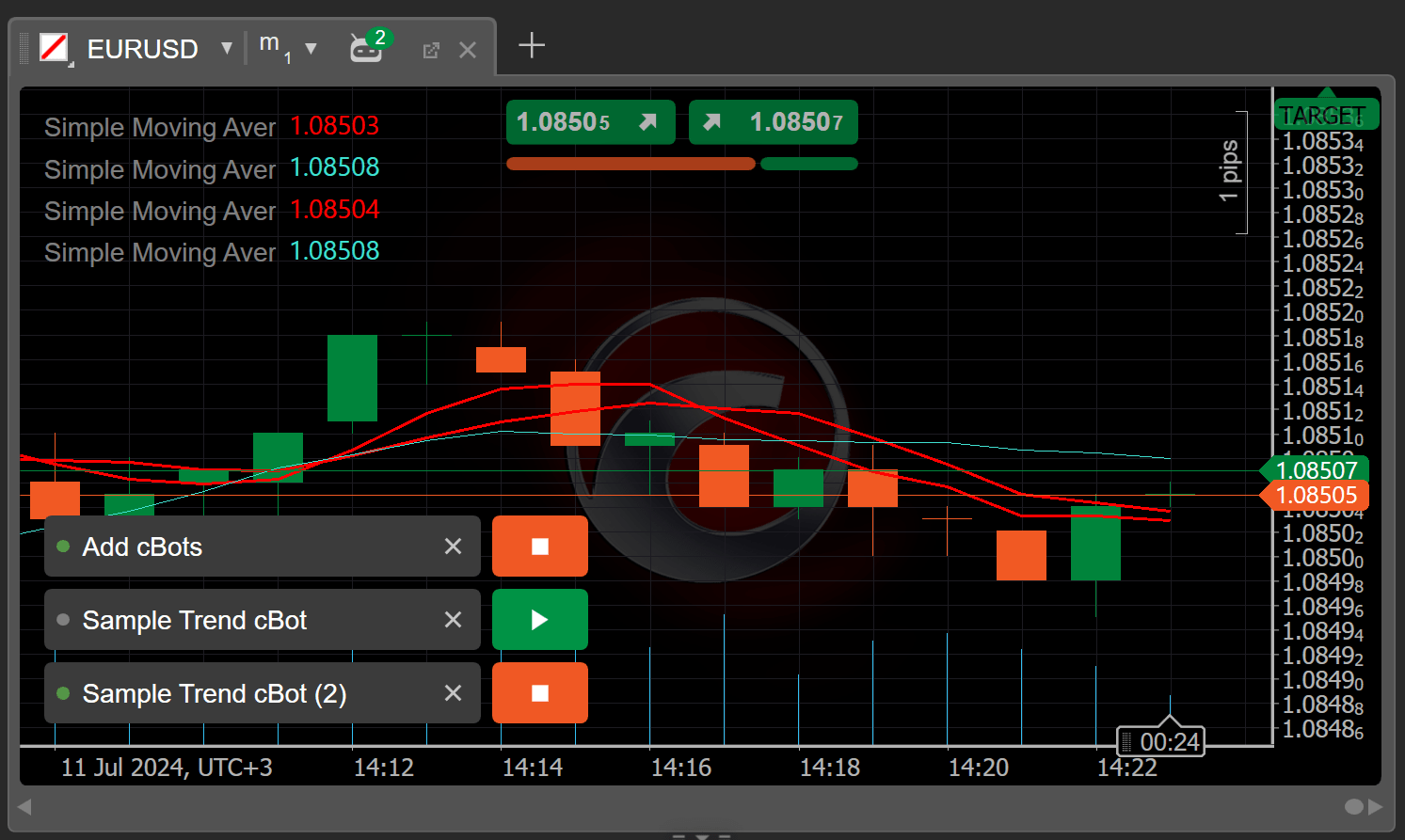
On the next bar, you should see the second instance of the Sample Trend cBot start automatically.
You can observe how the cBot executes our logic and manages the two other cBots based on changing conditions.
Modify cBot parameters during execution You might need to change the parameters of a cBot while it is running. For example, you decide to quickly update the code on the go after receiving important financial news or updates.
Rather than stopping and starting our cBot, let’s immediately modify the SlowPeriods parameter for the first cBot.
else if ( _robot1 . State == RobotState . Running )
{
_robot1 . Stop ();
_robot1 . Parameters [ "SlowPeriods" ]. Value = ( int ) _robot2 . Parameters [ "SlowPeriods" ]. Value + 1 ;
_robot1 . Start ();
}
Now, we will rebuild the cBot.
You can copy the full code below:
1
2
3
4
5
6
7
8
9
10
11
12
13
14
15
16
17
18
19
20
21
22
23
24
25
26
27
28
29
30
31
32
33
34
35
36
37
38
39
40
41
42
43
44
45
46
47
48
49
50
51 using System ;
using cAlgo.API ;
using cAlgo.API.Collections ;
using cAlgo.API.Indicators ;
using cAlgo.API.Internals ;
namespace cAlgo.Robots
{
[Robot(AccessRights = AccessRights.None, AddIndicators = true)]
public class AddcBots : Robot
{
ChartRobot _robot1 ;
ChartRobot _robot2 ;
protected override void OnStart ()
{
_robot1 = Chart . Robots . Add ( "Sample Trend cBot" , 0.01 , MovingAverageType . Simple , Bars . ClosePrices , 10 , 5 );
_robot2 = Chart . Robots . Add ( "Sample Trend cBot" , 0.01 , MovingAverageType . Simple , Bars . ClosePrices , 12 , 7 );
Chart . Robots . RobotStarted += ChartRobots_RobotStarted ;
}
private void ChartRobots_RobotStarted ( ChartRobotStartedEventArgs obj )
{
Print ( "Robot Started" );
}
protected override void OnBarClosed ()
{
if ( _robot1 . State == RobotState . Stopped )
{
_robot1 . Start ();
_robot2 . Stop ();
}
else if ( _robot1 . State == RobotState . Running )
{
_robot1 . Stop ();
_robot1 . Parameters [ "SlowPeriods" ]. Value = ( int ) _robot2 . Parameters [ "SlowPeriods" ]. Value + 1 ;
_robot1 . Start ();
}
}
protected override void OnStop ()
{
// Handle cBot stop here
}
}
}
Navigate to the Trade app and start the cBot to see how the indicator value changes on each bar.
Summary We hope this article has helped you understand how to use algorithms to start, control and manage other algorithms.