How to optimise a cBot
In cTrader, it is possible to create cBots with any number of customisable parameters affecting their behaviors such as order protection levels or default order volumes. This raises the question of how exactly traders can determine the optimal values of these parameters. Fortunately, cTrader offers a built-in tool that can handle optimisation, saving traders valuable time.
In this user guide, we focus on how users can optimise their cBots and demonstrate why cBot optimisation is essential for any Algo developer.
How cBot optimisation works
Think of optimisation as a series of backtests. Each backtesting pass occurs on the same data but uses different values for any parameters coded in a cBot.
Consider a cBot that can react to cases when fast and slow period moving averages cross each other (the fast moving average crossing the slow moving average). We want to be able to customise how many fast and slow periods the cBot receives data for.
Our cBot, therefore, should have the following two parameters.
1 2 3 4 5 | |
To define the optimal parameter values, we would need to extensively test how the cBot works in various market conditions and when given different values for the two parameters above. If we were to perform these tests manually, they would take a lot of time without providing an easy-to-interpret set of results.
Luckily, we can make cTrader run these tests automatically, and at their conclusion, provide us with certain parameter values that allow the cBot to achieve the best possible results. This process is known as cBot optimisation.
Access cBot optimisation
To access cBot optimisation, perform the following actions.
First, select an instance of the cBot you would like to optimise. If necessary, create a new instance by clicking the plus icon and selecting a symbol, or selecting Add instance in the context menu that opens by clicking the More icon.
Afterward, switch to the Optimisation tab located just to the right of the Backtesting tab. The central screen in this tab should look as follows.

Configure optimisation settings and cBot parameters
As optimisation is a series of backtests, you can configure the same settings as you would for regular backtesting. To do so, click the cog icon and change the values in the newly opened menu.

To select the exact parameters cTrader needs to optimise, click the Parameters button immediately to the right of the cog icon.
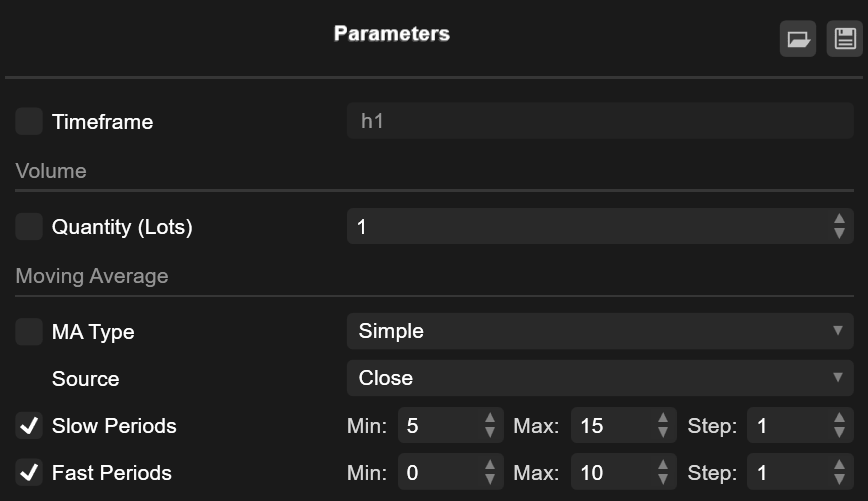
In this sub-section, enable or disable the flags to the left of each parameter name to include/exclude these parameters from the optimisation process. Note that the Timeframe parameter is present for all cBots regardless of their configuration.
We want optimisation to determine the optimal values of slow and fast periods that our cBot will consider on start. However, we do not yet want to try other moving average types.
Define the optimisation criteria and algorithm
It is possible to determine which exact criteria cTrader is going to use to select the optimal parameter values among the backtesting passes that it will conduct.
To do so, click the Criteria button represented by the upward line icon. You will see the following section.

The settings for each criterion include two menus. In the menu to the left, select whether the criterion should be minimised or maximised. In the menu to the right, choose the criterion that should be minimised or maximised from a set of predefined options. New criteria can be added by clicking on Add criterion.
In the screenshot above, we want cTrader to maximise our net profit and the number of winning trades that our cBot makes. At the same time, we want to minimise the maximum equity drawdown percentage.
For the sake of brevity, this article does not cover custom optimisation criteria and the GetFitness() method. To learn more about them, consult our technical documentation.
To choose a specific optimisation algorithm, click the Algorithm button to the right of the Criteria button. The following sub-section should open.

The exhaustive search algorithm is highly accurate but resource-intensive. When the Grid option is selected, cTrader creates a grid of all possible parameter values and runs all backtests required to test them. While this process is thorough, it can take some time.
Fortunately, cTrader includes the Genetic algorithm option. This algorithm emulates natural selection by considering each pass as an individual, the cBot parameters as genes, and the degree of fit to the optimisation criteria as adaptability. The genetic algorithm stops once it detects that any changes to certain parameter values would produce diminishing returns to cBot effectiveness.
As the genetic algorithm is less resource intensive than exhaustive search yet still produces accurate results, we recommend selecting this optimisation method.
Allocate resources and perform cBot optimisation
To perform cBot optimisation, select the range of historical data that cTrader will run backtesting basses on. To do so, use the calendar slider at the top of the Optimisation tab or the menus to the left and right of it.
Note that optimisation is a resource-intensive process that may take some time to complete. As we want to receive the results relatively quickly, we will choose one year as the optimisation period.

cTrader also allows for determining the exact percentage of the CPU resources allocated to the optimisation process. To customise this setting, click the Resources button to the left of the left-most calendar menu.

In the newly appeared section, drag the slider to increase or decrease the CPU consumption.
After finishing resource allocation, you should be ready to proceed with optimisation. To do so, click the Play button to the right of the right-most calendar menu. After cTrader loads the historical data, you will see optimisation passes added to the central screen in real time.

At the top of the grid, you will also see the current number of passes, the elapsed time, and the remaining optimisation time.
Any completed passes will be marked with a green check mark. All passes during which your cBot has reached stop out will, instead, be marked with a grey check mark.
Note
You can save and load optimisation results, which allows you to carry them over across different devices.
Interpret and apply the results of optimisation
In the central grid, cTrader will display several metrics for each backtesting pass including the number of winning trades your cBot has made and the maximum equity drawdown percentage.
Of particular note is the Fitness column that displays a fitness score for each pass. Think of a fitness score as a metric that evaluates the degree to which a pass has maximised/minimised your chosen optimisation criteria. Higher fitness scores are indicative of higher degrees of fit with these criteria.
To quickly select the pass with the highest fitness score, simply enable the Autoselect the best pass flag located just above the central grid. Note that you can enable the Autoselect the best pass flag as optimisation occurs, and cTrader will dynamically search for the best possible parameter values.

As you can see in the Fitness column, pass number 33 provided the best possible fitness score compared to all other passes.
We can safely click Apply next to pass 33, and the parameter values used during this pass will be immediately applied to our cBot instance.

The default values for the Slow periods and Fast periods parameters were equal to 10 and 5, respectively.
As is the case with backtesting, the Trade Watch display will provide an equity chart and detailed trade statistics summarising the actions taken by our cBot during a particular pass. Note that the equity chart is only displayed for 20 best passes from the central grid.

The steadily increasing Balance and Equity lines just reinforce the fact that pass 33 provided the parameter values necessary for our cBot to function effectively.
Summary
In brief, cBot optimisation is a powerful tool for ensuring that your automated trading advisors are configured just right. We highly recommend conducting multiple rounds of optimisation with different criteria to get an idea of what parameter values would be best for any cBots you have developed yourself or acquired from other developers.