Custom notifications
The custom notification API includes types that enable trading algorithms to deliver real-time popup alerts directly in cTrader. These popups allow cBots, indicators and plugins to communicate progress, success, errors or general information to users visually and contextually.
With custom notifications API support, cBots no longer have to rely on the Log tab, chart objects or external Telegram bridges for communication. Algos simply tell traders what is happening directly via the standard notification system in cTrader. Algorithm developers and users benefit from speed, reliability and clarity without any complex setups.
Relevant API interfaces include:
INotifications.ShowPopup(caption, message, state)to display a popup notification with a given title, message and state (PopupNotificationState).PopupNotificationinterface for programmatic control of long-running or progressive notifications by calling.Complete()to update their final state.
The messages delivered by the custom notifications API appear instantly, are colour-coded by state and can be completed later. The notification states are defined using the PopupNotificationState enum:
-
InProgressto represent long-running processes or pending states. Example:
-
Successto indicate that an operation was completed successfully. Example:
-
Errorto signal a failure or exception. Example: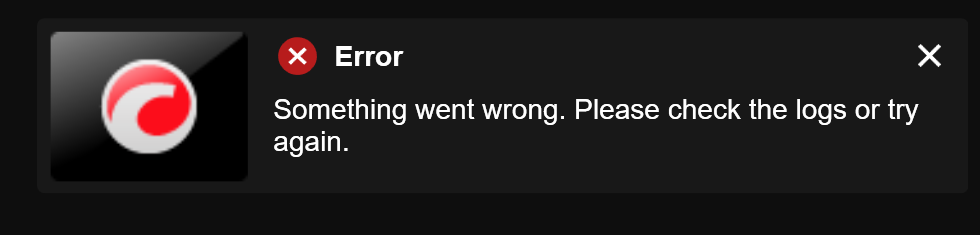
-
Partialto communicate a partially successful result (e.g. some orders succeeded). Example: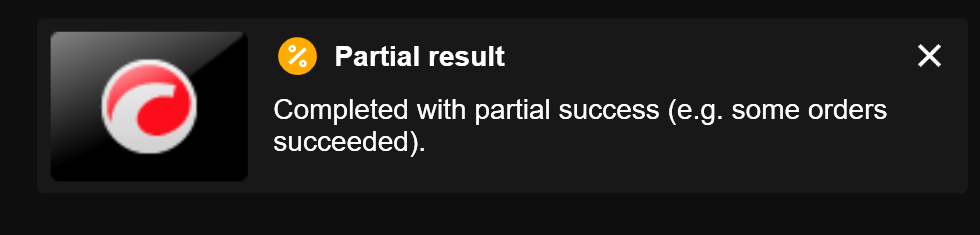
-
Informationfor general alerts, updates or feedback. Example:
Tip
Use popup notifications to track trade activity, debug logic flows, alert users of market events or data errors and deliver dynamic UI feedback during live or manual strategy operations.
Notifications API objects can be used to do the following:
| Feature or operation | Examples |
|---|---|
| Order tracking and feedback | Display order execution feedback Confirm TP/SL exits Track trailing stop modifications |
| Risk and rule-based alerts | Warn about low margin levels Show alerts for blocked trades |
| Progress and diagnostics | Show analysis progress with popups |
| Manual trading interactions | Provide feedback for trade actions Warn about manual overrides or interventions |
| Market events and signal alerts | Signal indicator crossovers Announce session opens or price spikes |
| Strategy debugging and transparency | Trace strategy/logic steps visually Report logic failures |
Basic example
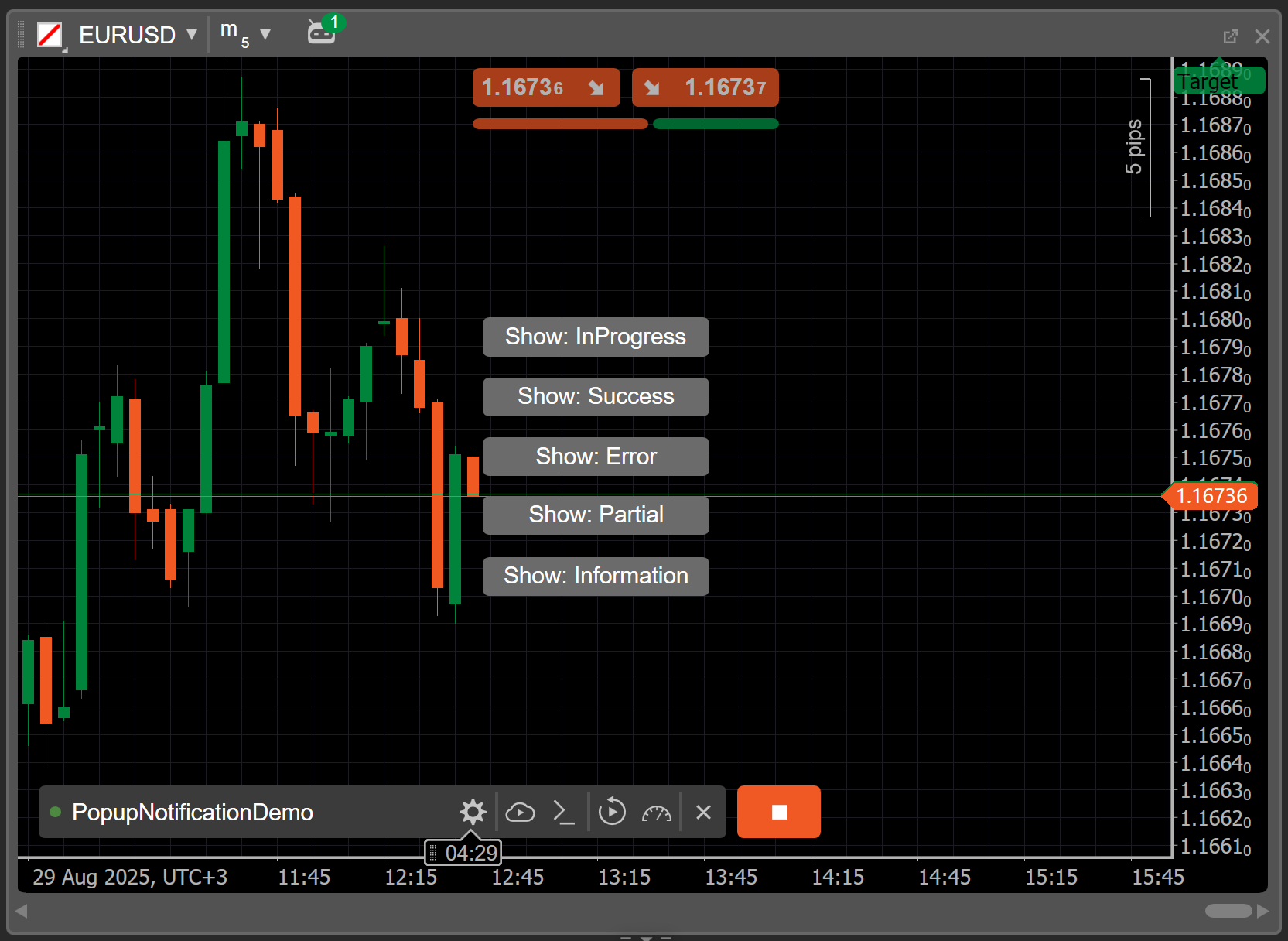
When an instance of this cBot is added to a chart, it provides five buttons, one per notification state. Clicking a button triggers a popup notification.
1 2 3 4 5 6 7 8 9 10 11 12 13 14 15 16 17 18 19 20 21 22 23 24 25 26 27 28 29 30 31 32 33 34 35 36 37 38 39 40 41 42 43 44 45 46 47 48 49 50 51 52 53 54 55 56 57 58 59 60 61 62 63 64 65 66 67 68 69 70 71 72 73 74 75 76 77 78 79 80 81 82 83 84 85 86 87 88 89 90 91 92 93 | |
Order tracking and feedback
Display order execution feedback
Use popup notifications to instantly see whether your market order was successful or not. For example, after your cBot places a buy order, it shows a success popup if your trade was filled or an error popup if your broker rejected it.
1 2 3 | |
Confirm TP or SL exits
Get notified when your cBot trade exits due to take-profit or stop-loss. A popup shows the exit reason along with the profit or loss from the closed position. This real-time feedback at the moment of exit helps you track trades and stay up to date with the results of your active positions.
1 2 3 4 5 6 | |
Track trailing stop modifications
See a popup each time a trailing stop updates the stop loss for your position. The notification includes the new stop-loss value and shows how the trailing stop is tracking price action. These alerts let you monitor how your trade protection adjusts without opening any panel.
1 2 3 4 5 6 7 | |
Risk and rule-based alerts
Warn about low margin levels
Receive a popup alert when the margin level of your account falls below a critical threshold (e.g. 80%). The warning helps you take timely action, such as closing positions or adding funds, to avoid forced liquidation or a margin call. The popup acts as an automated safeguard based on real-time risk data.
1 2 3 4 5 6 7 | |
Show alerts for blocked trades
Some cBots are programmed to stop placing trades when internal safety rules, such as low equity or excessive drawdown, are triggered. A popup can explain the block and show you which condition was violated. This notification ensures you understand why a signal was skipped and reinforces disciplined strategy behaviour.
1 2 3 4 5 6 7 8 9 10 | |
Progress and diagnostics
Show analysis progress with popups
Use an InProgress popup to indicate the start of a long-running process, such as data validation or preparation for back testing. Once the operation is complete, update the popup to a Success or Error state. The displayed progress report keeps you informed without needing to check logs or debug messages.
1 2 3 4 5 6 7 8 9 10 11 12 13 | |
Manual trading interactions
Notify users after button-triggered trades
After you click a custom control or button, your cBot can place an order and immediately show a popup with the result. The notification confirms whether your manual action succeeded or failed and displays any error returned by the broker. This visual feedback reduces guesswork and improves your confidence in manual interventions.
1 2 3 4 5 6 7 8 9 10 11 12 13 14 15 | |
Warn about manual overrides or interventions
When you override automated logic or perform a manual override (e.g. force a trade during a blocked state), a popup can acknowledge the action.
1 2 3 4 5 | |
Market events and signal alerts
Signal indicator crossovers
Monitor key technical events such as moving average crossovers or RSI thresholds and show a popup alert when they occur. The notification highlights the indicator and the condition met, such as a bullish crossover. This keeps you informed of technical signals and makes your strategy more transparent and traceable.
1 2 3 4 5 6 7 8 9 10 11 12 13 14 15 16 | |
Alert session opens or price spikes
Create popups that trigger when important market events occur, such as the London session opening or a rapid price movement within a short period. These notifications act as situational awareness tools and help you react to potential volatility or prepare for market activity.
1 2 3 4 5 6 7 8 9 10 11 12 13 | |
Strategy debugging and transparency
Trace strategy steps visually
Use a sequence of popups to show the logical flow of your strategy. For example, display a message when checking trend, confirming a signal or validating risk. Each popup represents a specific checkpoint, which allows you to follow how the strategy makes decisions in real time.
1 2 3 4 5 6 7 8 9 10 11 | |
Report logic failures or unexpected data
When your strategy encounters an error or invalid data, such as a price mismatch or unavailable indicator, use a popup to show the exact issue. This setup helps you identify bugs or data gaps during development and demo/live trading, resulting in faster debugging and more resilient logic.
1 2 3 4 5 6 7 8 9 10 11 12 13 14 | |