Customise an algorithm in cTrader
If you are the author of an algorithm, you can customise how it appears to other users. You can access the public settings for any of your algorithms from different locations depending on the cTrader app you use.
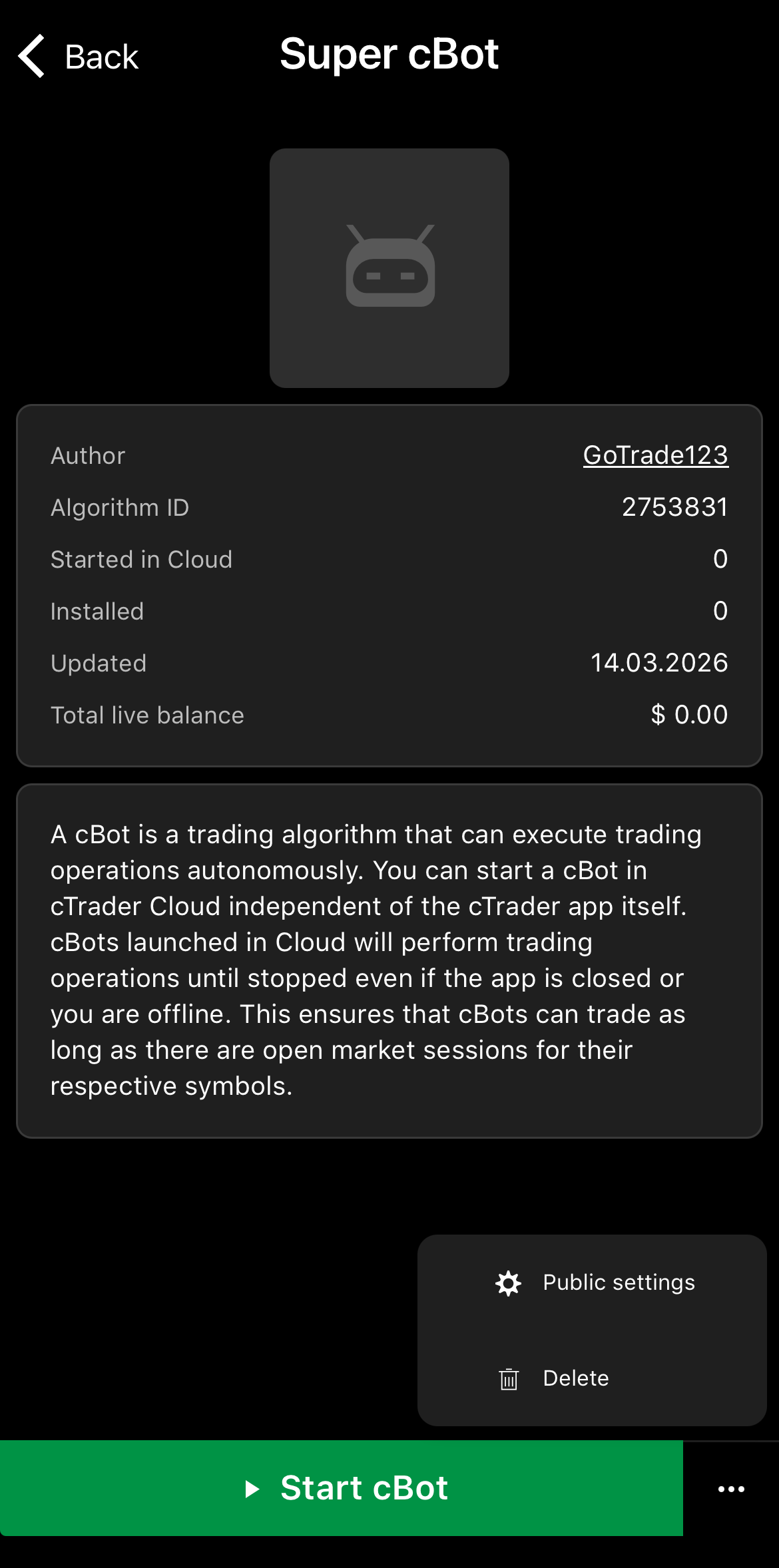
Tap the algorithm to open its main screen, press the More icon in the bottom-right corner, then select Public settings.
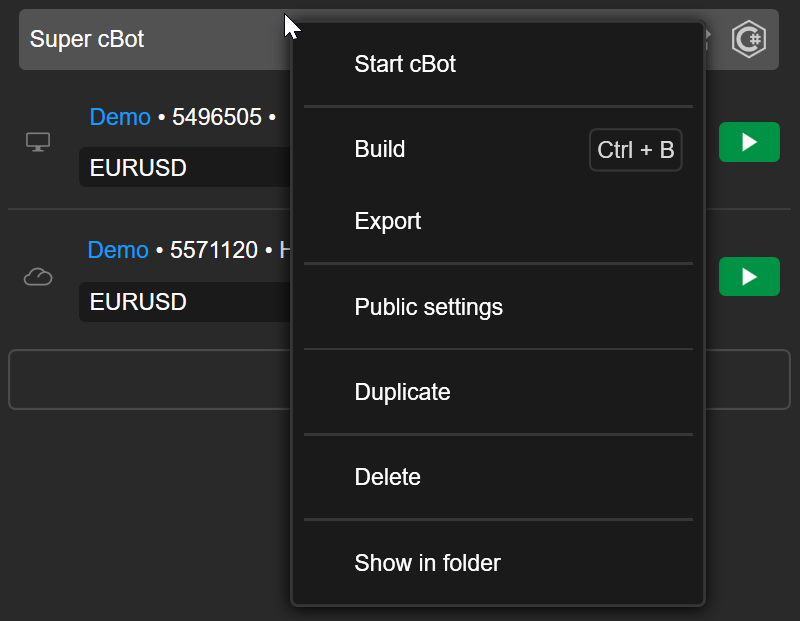
Right-click the algorithm, then select Public settings in the context menu.
Set algorithm image
You can upload an image that will serve as the display image of your algorithm. Traders you invite to use your algorithm will see this photo in their cTrader apps, so choose a clear and appealing image.
Note
If you publish your algorithm in cTrader Store, users who install your algo there will also see the image in their cTrader apps.
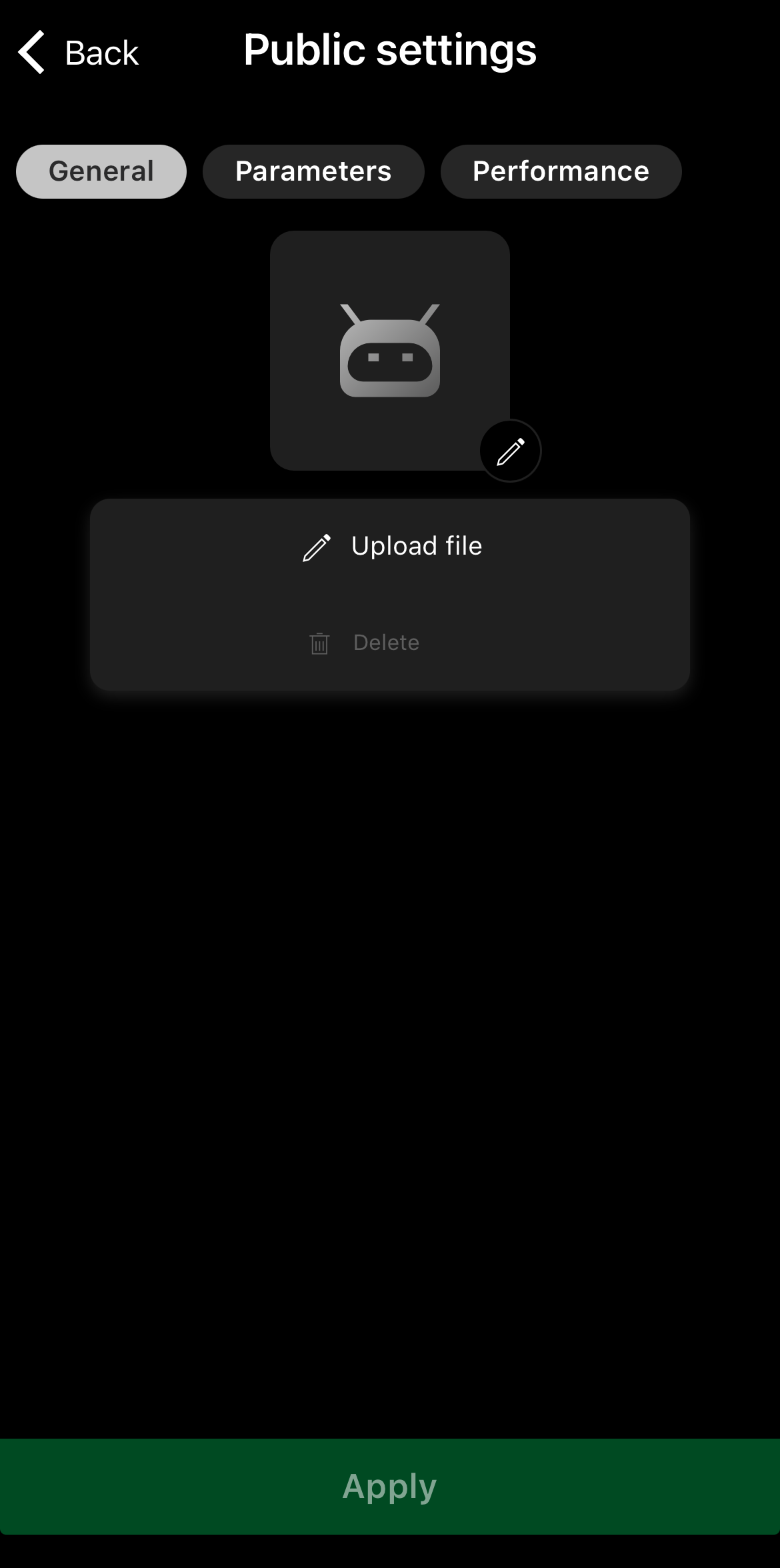
In Public settings of the algo, tap the Edit icon. Select the Image field or active image, choose a photo on your device, then apply the changes.
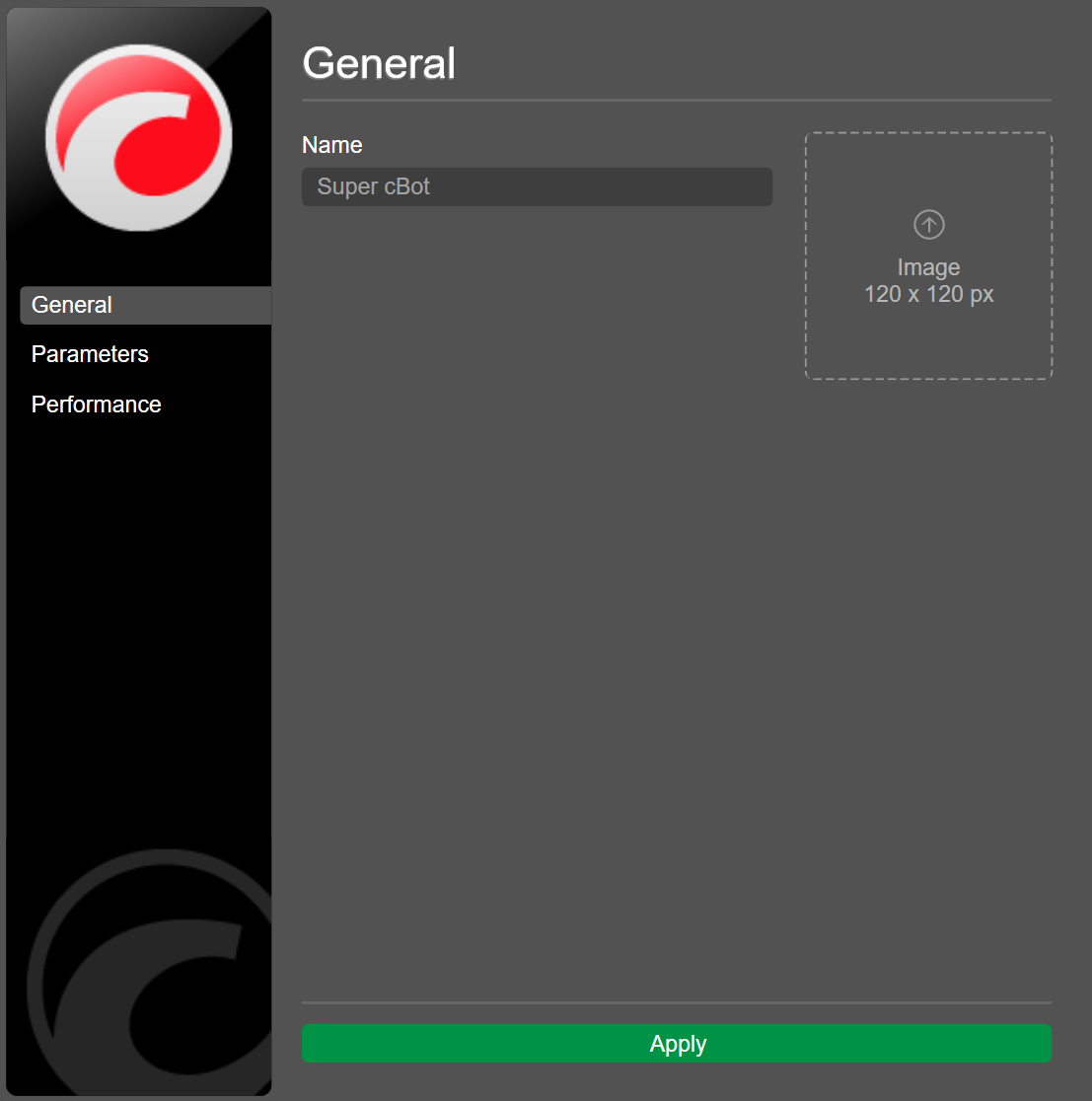
In the General tab of the algorithm's Public settings, click Image 120 x 120 or the active image, choose a photo on your computer, then apply the changes.
Set performance statistics
You can display ROI charts on the algorithm page to showcase performance based on your live trading activity.
Note
ROI charts are generated using the performance of your chosen live trading account. They reflect all the actions you perform, not just those performed by the algorithm.
In the Performance tab of the algorithm's Public settings, enable the Display ROI charts checkbox. Select a live account in the Choose live account selector and apply the changes.
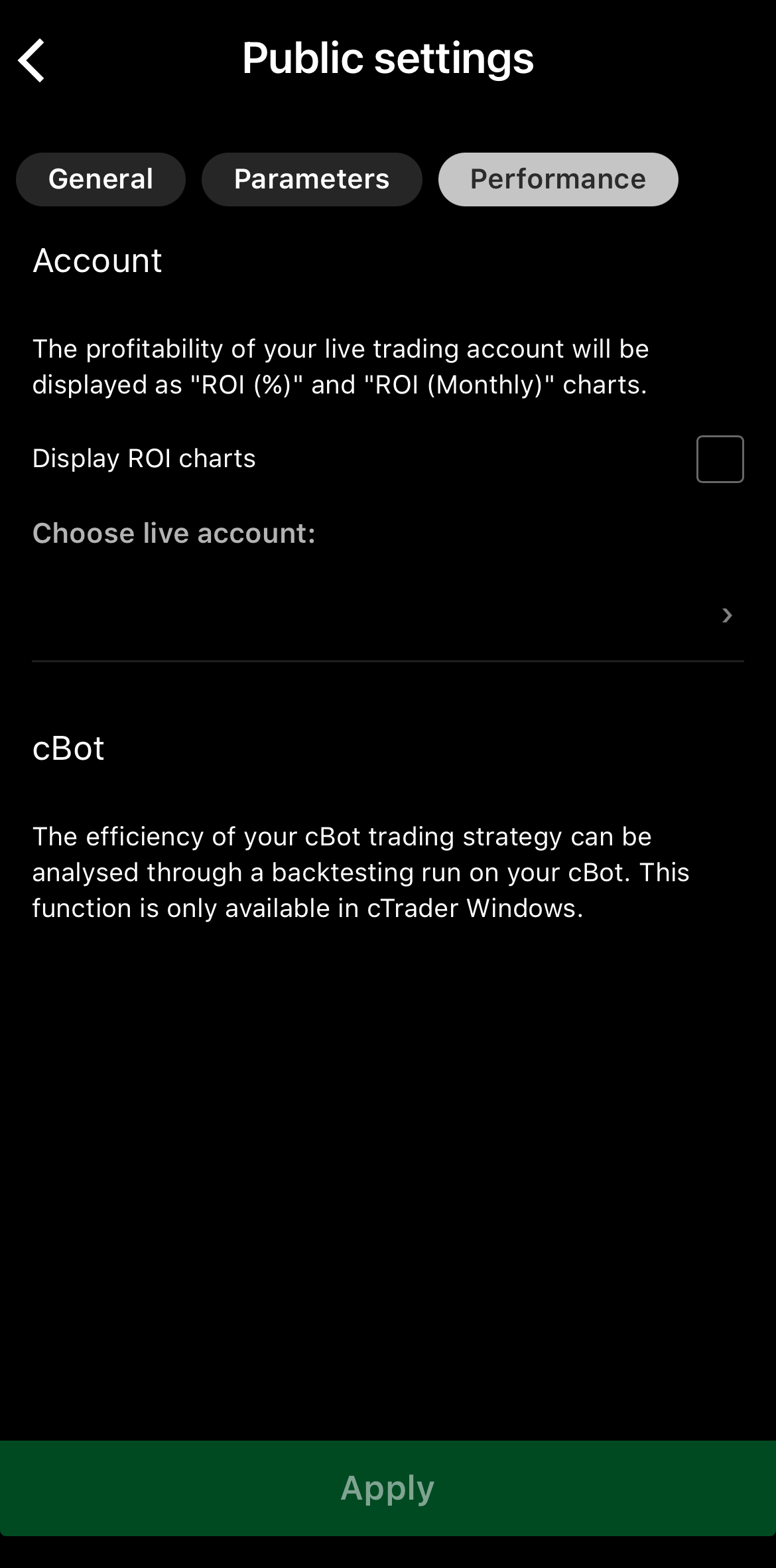
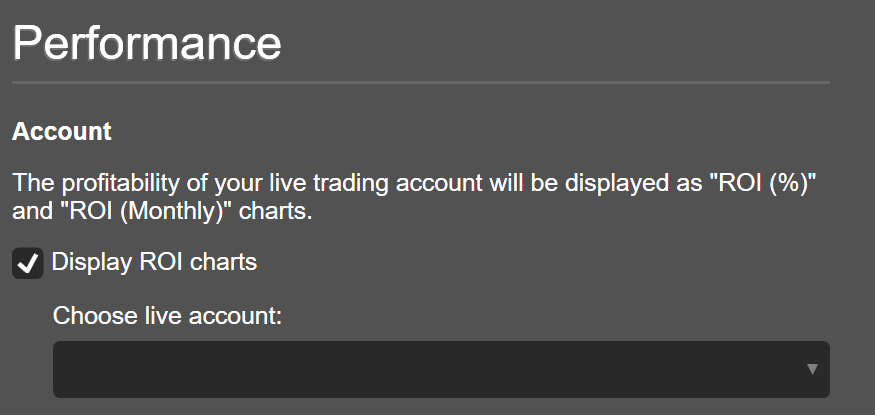
Statistics on the instance page
The instance page displays the statistics of the live account to which it is attached, regardless of whether you enable or disable ROI charts.
Set backtesting results
Backtesting is the process in which you run a cBot on historical market data under configurable conditions, and the backtesting report is one of the most effective ways to promote a cBot. This report displays all essential statistics, including balance and equity charts, the number of winning trades and more.
Note
Backtesting results can be set only via cTrader Windows, while traders can view backtesting reports on all cTrader platforms. When viewed on mobile devices, backtesting reports are automatically adapted to fit the screen size.
In Public settings of the algo, navigate to Performance, tick Display backtesting report and set the symbol, period, testing period and starting capital.
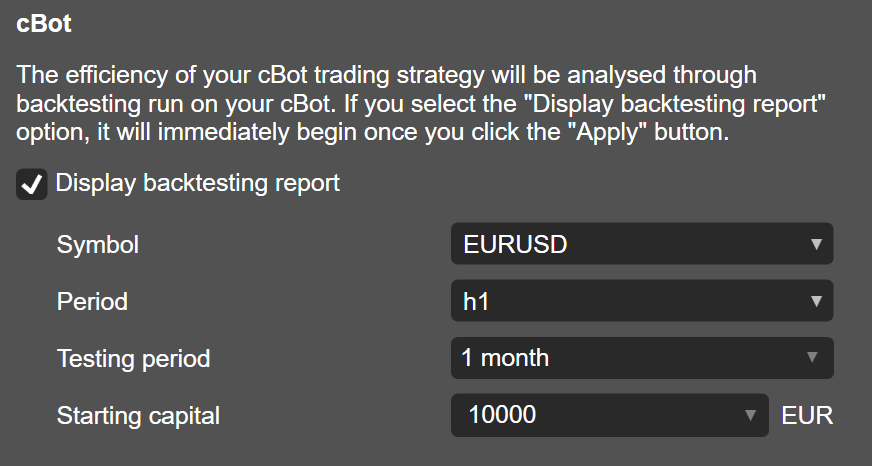
After you tap Apply, cTrader will automatically start backtesting. This operation may take some time depending on the chosen testing period and capabilities of your local machine. Once complete, the backtesting report will be displayed on the algorithm page.
If you want to remove the current backtesting report, untick the Display backtesting report checkbox.
Note
In the Public settings window, you can only configure the symbol, period and starting capital for backtesting. You cannot conduct backtesting on custom market data from a CSV file or modify other settings. Such operations are possible only with local cBot instances in cTrader Windows or Mac.