How to use .cbotset files
In this article and the video, we discuss how you can use .cbotset files. You can think of these files as containers for storing and reusing certain instance settings and parameter values for cBots.
Apply and save .cbotset files
The easiest way to start working with .cbotset files is to add a new cBot instance. Upon choosing a cBot, cTrader will display the Add instance window where you will be able to customise its parameters.
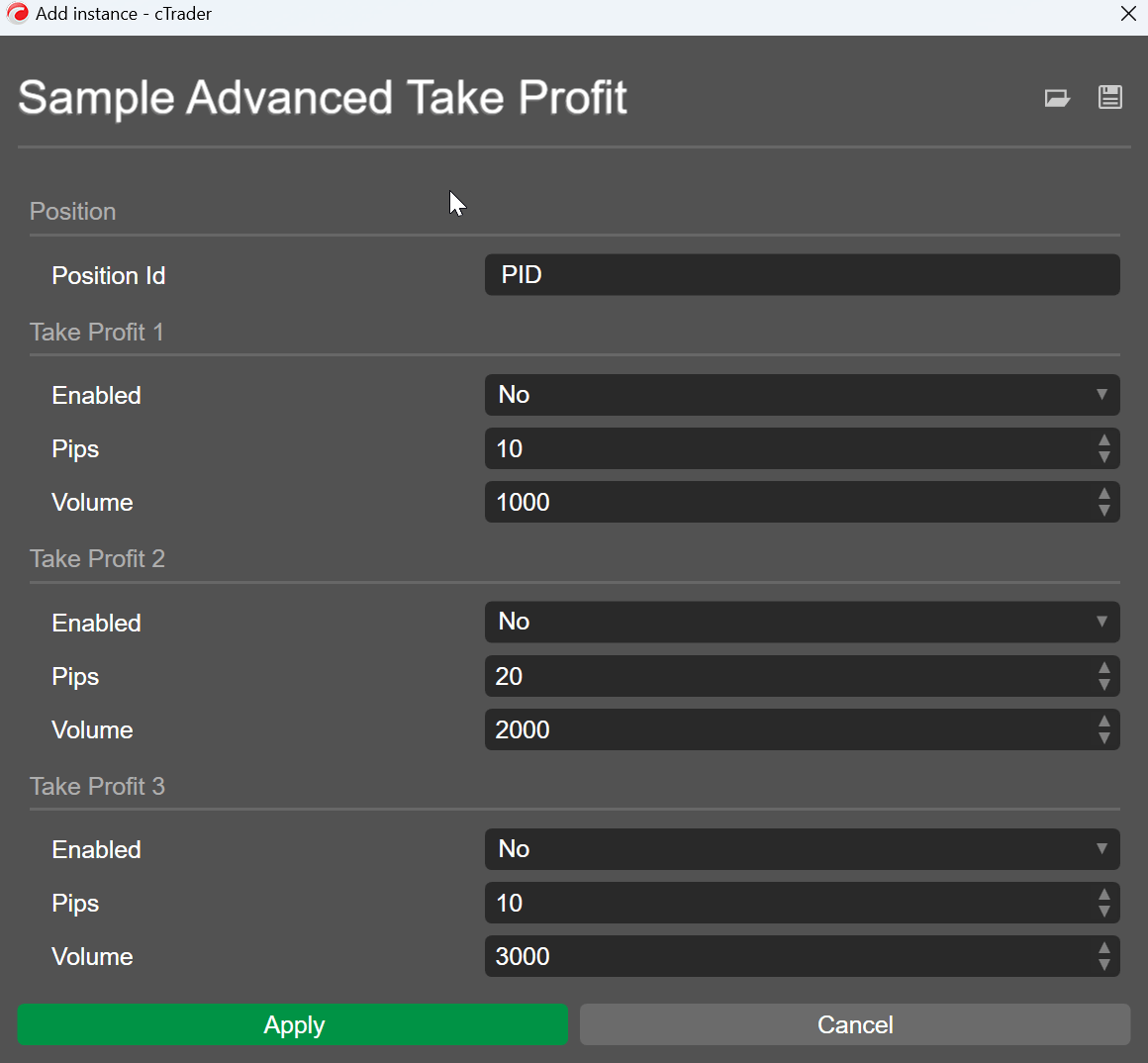
Alternatively, you can select an existing instance and access its Modify parameters window. For cBots, this is done by either double-clicking an instance and selecting Modify parameters or double-clicking an instance. Note that changing parameters is only possible if an instance is currently stopped.
To store the current instance parameters in a separate file, click the Save icon in the upper right corner of the window as seen in the image below.
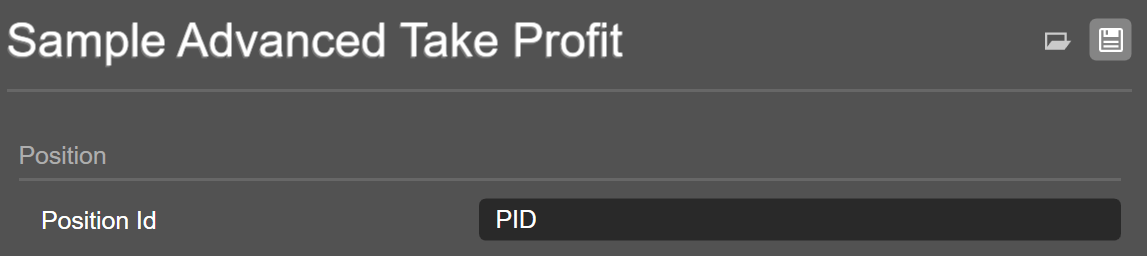
In the file dialogue, input the name of the file and confirm your choice.
Note
By default, the name of the .cbotset file contains the name of your algo as well as the symbol and the timeframe to which the chosen instance is attached.
When working with another instance of the same algo, click the Open icon as seen in the image below. This opens the file selection dialogue where you will be able to choose the .cbotset file you saved earlier.
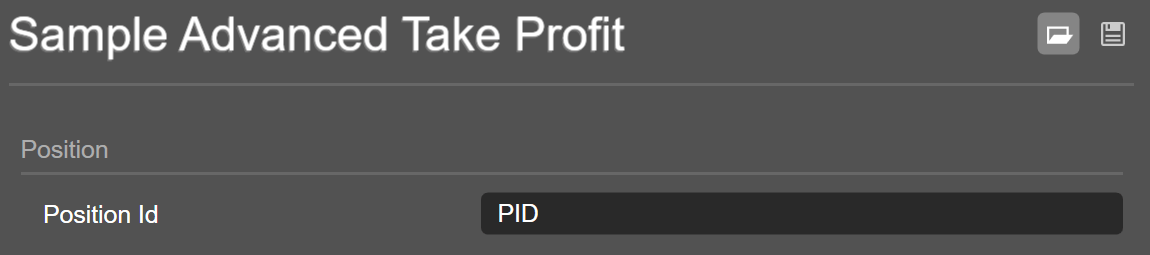
Upon selecting and opening a .cbotset file, several instance settings will be refreshed to match the values specified in the selected file. These settings include not only parameter values but also the symbol and the timeframe to which the currently selected instance is attached.
If your cBot is currently attached to a chart for another symbol or a chart with a different timeframe than specified in the file, cTrader will display a warning window.

Option 2: click Apply next to the chosen pass and then save the newly applied values via the Parameters tab by clicking the Save icon.
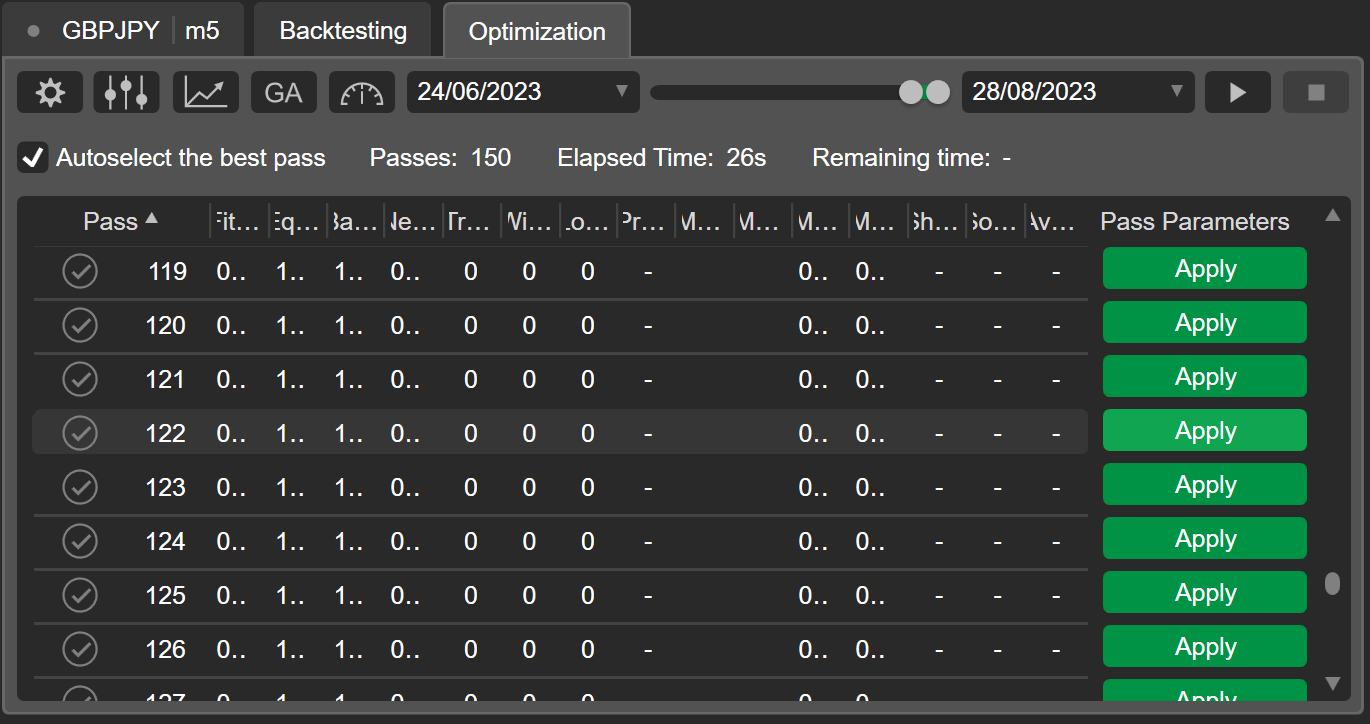
Afterwards, you should be able to freely reuse the file with optimisation results for any of the new instances of the same algo.
- Scenario 2 - when your algo has a large number of parameters, making it difficult to configure each new instance 'by hand'.
Consider an example of a cBot with four or more parameters.
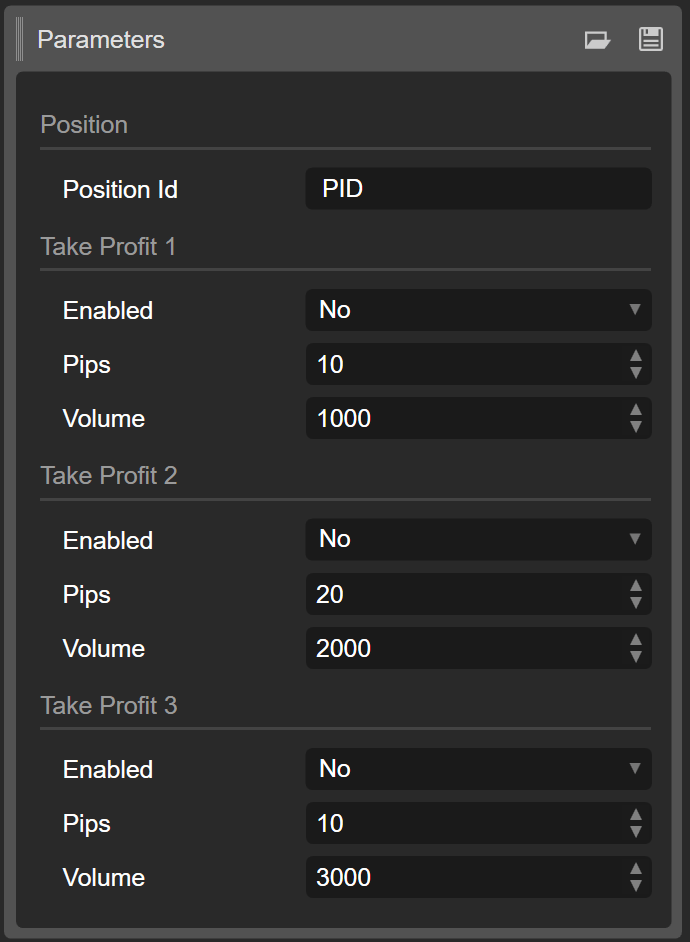
It would take a long time to manually specify the required parameter values when creating new instances of such algos. Luckily, the entire process takes seconds when using .cbotset files as you can easily apply any configurations you want to any instances you have or may create in the future.
- Scenario 3 - when you have several configurations of parameters each of which achieves different results, and you want to easily switch between them.
Depending on the situation, you may want to create several combinations of parameters that dramatically change how an algo behaves. This is often useful when you have a cBot where take-profit or stop-loss levels are included as parameters. In this case, you could quickly apply pre-made settings containing various protection mechanisms that correspond to your risk tolerance levels and market conditions.
You may even add several instances of the same algo and apply a different .cbotset file to each one on start, which could be helpful for hedging risks.
Use .cbotset files with cTrader CLI
You can also use .cbotset files when running cBots in external processes via the cTrader CLI tool.
When using the run command in cTrader CLI, you have a number of configurable options that allow you to specify several mandatory and optional settings, most notably the cBot you would like to launch or the symbol you would like to run it on.
To make sure that your cBot launches with parameters from a certain .cbotset file, simply specify the path to this file immediately after the path to the .algo file containing the cBot. The correct order is shown in the following example.
ctrader-cli.exe run C:\mycoolbot.algo C:\coolbotsettings.cbotset
Following this, you can specify other necessary arguments including your cTrader email (-c={email}), the path to the file containing your password (--pwd-file={passwordFile}), the number of your trading account (--account={account}), and the symbol and timeframe on which the cBot should run (--symbol={symbol} --period={period}).
After you execute the command, the bot will start operating using the parameter values from the chosen file.
Summary
Knowing how to work with a .cbotset file is a valuable skill for any algo trader who wants to maximise the performance of their algos. If you want to learn more about algo trading in cTrader, subscribe to our YouTube channel.