Build plugins
To build a plugin from a website URL, open the Algo app in cTrader Web, Windows or Mac and navigate to the Plugins tab.
Note
The plugin builder is available only in cTrader Web, Windows and Mac apps.
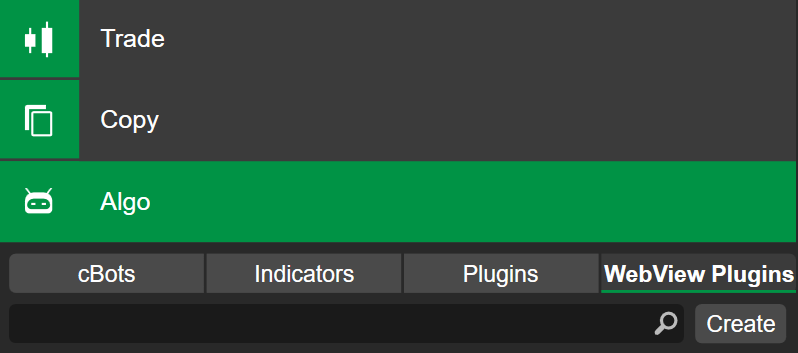
Click Create, then fill in the details for your plugin.
Enter plugin details
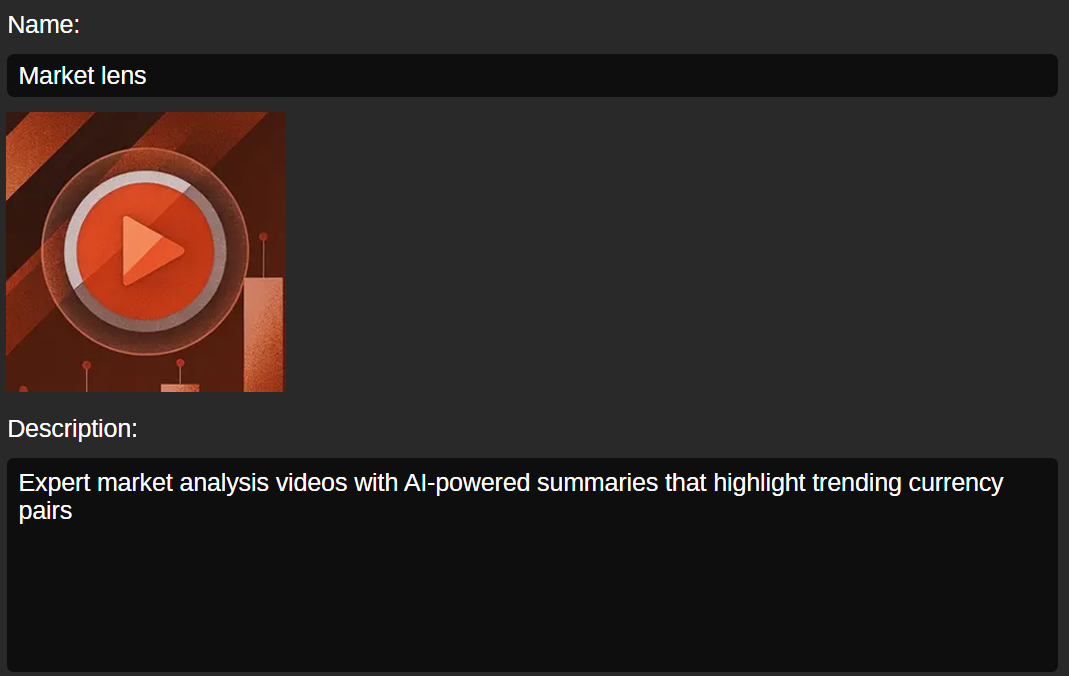
-
Name - enter the name you want traders to see for your plugin.
-
Image (300 × 300 px) - select an image from your computer. Traders will see this image when previewing your plugin.
-
Description - explain what your plugin does briefly. This short description appears to users when they open the Info screen of a plugin in cTrader Mobile.
Choose mobile placements
Now, specify the placements for mobile devices. If you want your plugin to be shown in a specific UI area, enable the checkbox for this location.
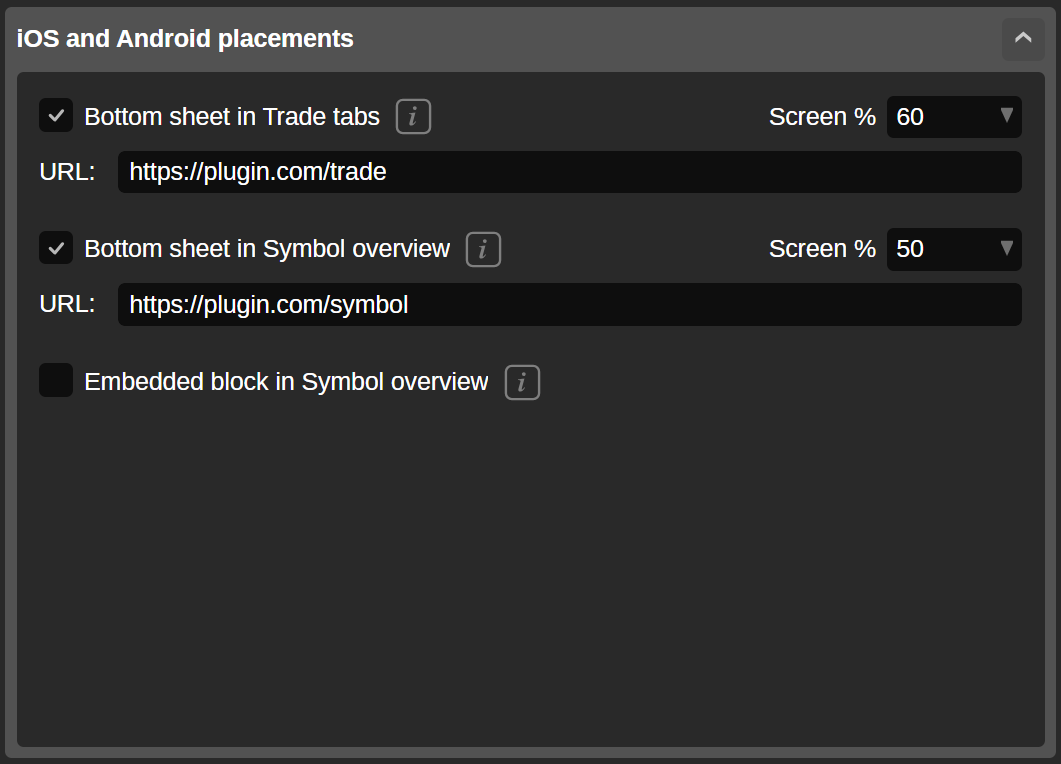
In the iOS and Android placements section, the following locations are provided:
- Bottom sheet available from tabs of the Trade app
- Bottom sheet available from the symbol Overview tab
- Embedded block in symbol Overview tab
Set the screen percentage (or select a size) that the plugin will occupy, then enter the required URL.
Note
The available screen percentages are 20, 40, 50, 60, 80 and 100, while the available sizes for Embedded block in symbol overview are S, M and L.
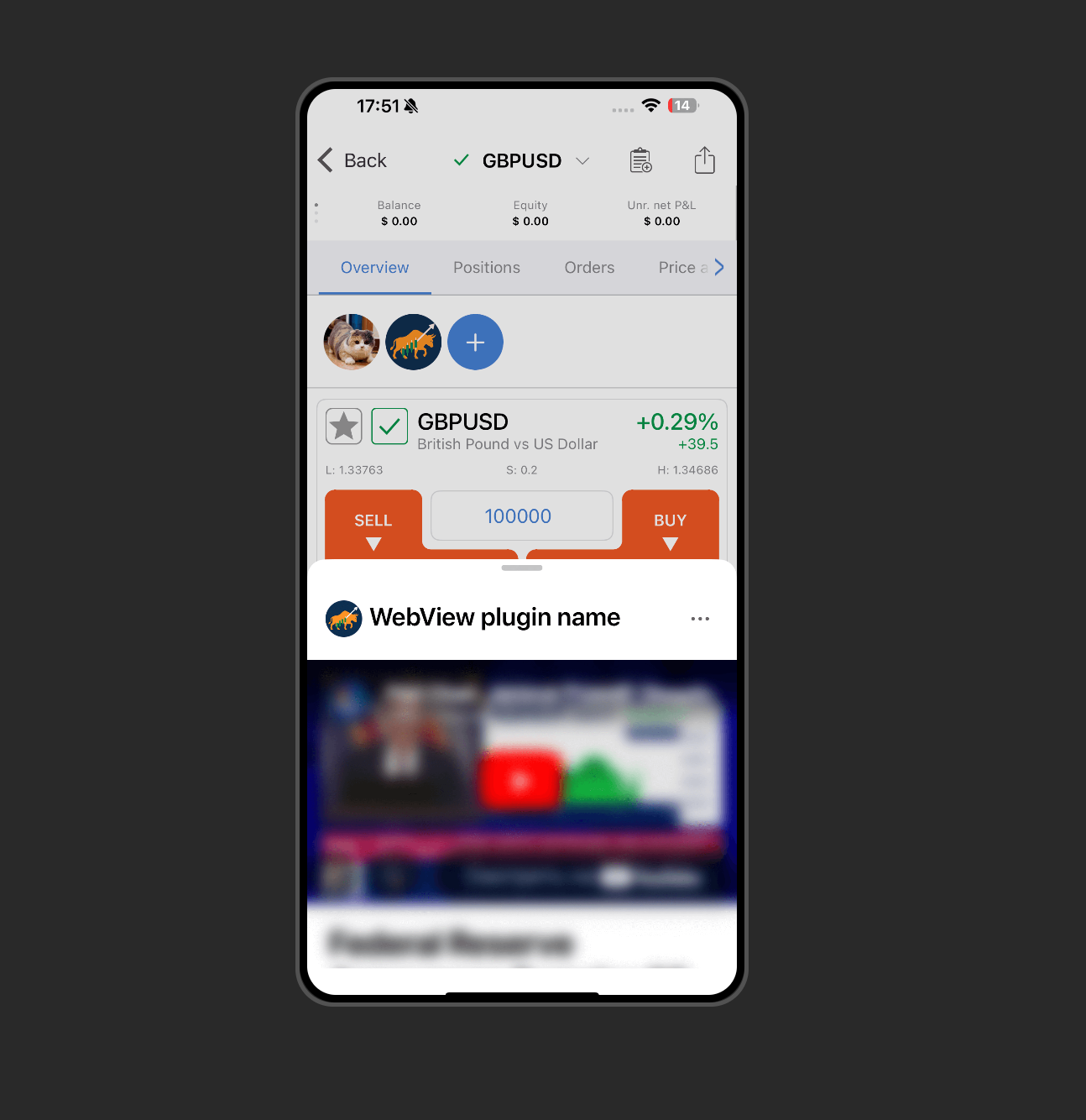
When you enable a mobile placement, the main grid shows a mockup plugin in the chosen location. For example, bottom sheet in Symbol overview is visualised as follows:
Tip
Copy a direct link to the view by clicking the Copy link button above the mobile screen visualisation. The copied link includes all available query strings for the placement, and you can open the link in your web browser to preview the resulting content.
Choose desktop placements
Specify the placements for desktop apps. If you want your plugin to be shown in a specific UI area, enable the checkbox for this location.
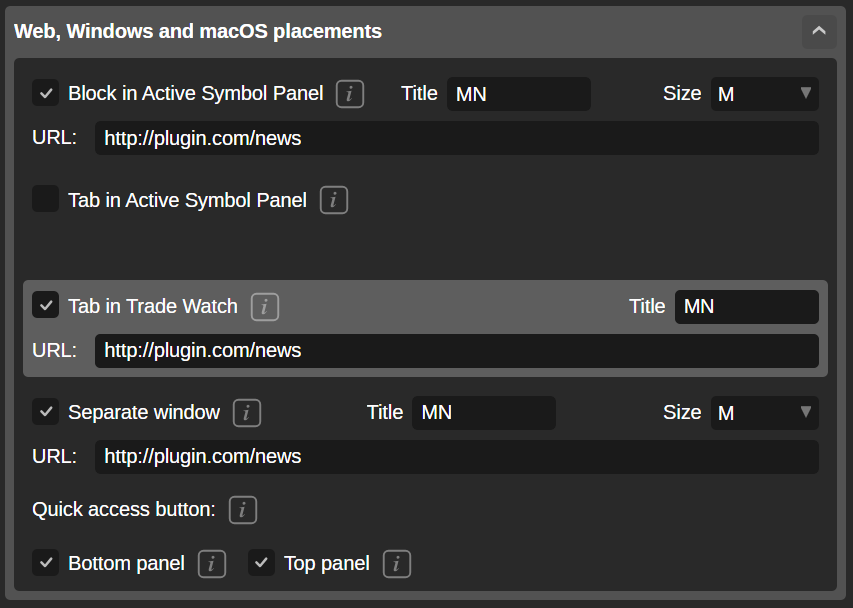
In the Web, Windows and macOS placements section, the following locations are provided:
- Block in Active Symbol Panel
- Tab in Active Symbol Panel
- Tab in Trade Watch
- Separate window
- Quick access button
For most locations, you have to enter a title, choose a size (S, M or L) and provide the required URL. For the quick access button, Bottom panel and Top panel checkboxes are provided as options.
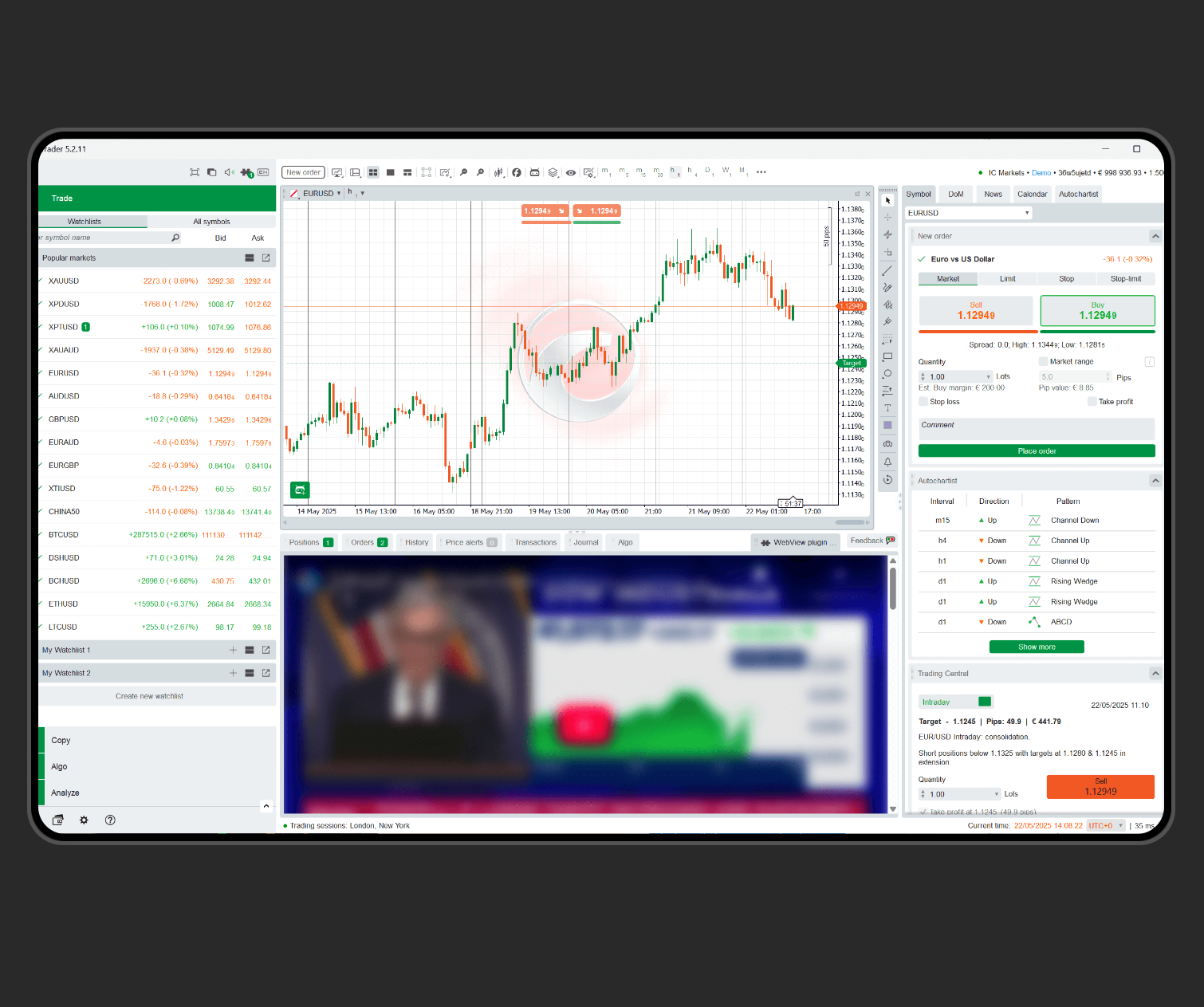
When you enable a desktop placement (quick access button excluded), the main grid shows a mockup plugin in the chosen location. For example, tab in Trade Watch is visualised as follows:
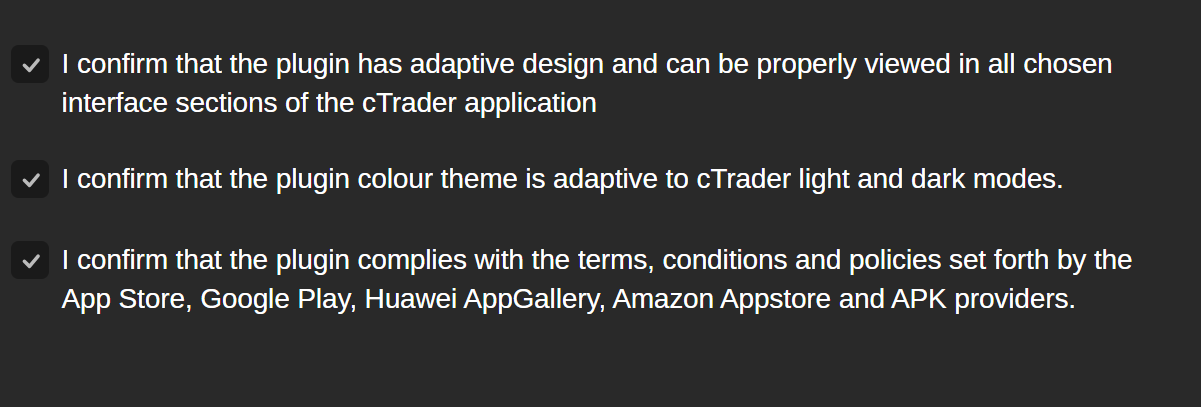
Select the options to confirm that your plugin complies with the rules and policies of cTrader, App Store, Google Play, Huawei AppGallery, Amazon Appstore and others.
When you are done, click Publish in the top-right corner of the builder, and your plugin will be uploaded to the cloud.
