The ability to add new tabs to Trade Watch makes the cTrader UI truly customisable and adaptable to various trading needs.
In this article and its corresponding video, we will demonstrate how to add objects to Trade Watch panel using a plugin.
Create a plugin
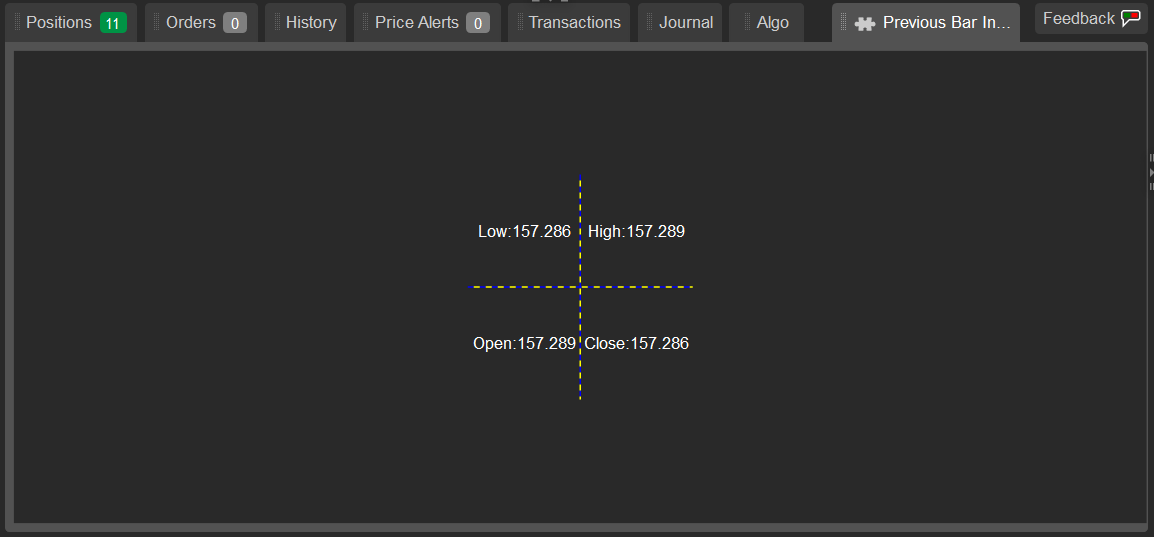
We will create a website plugin first, but our eventual plugin will be a two-by-two grid that displays information about the last known bar prices for the m1 timeframe and the USDJPY symbol.
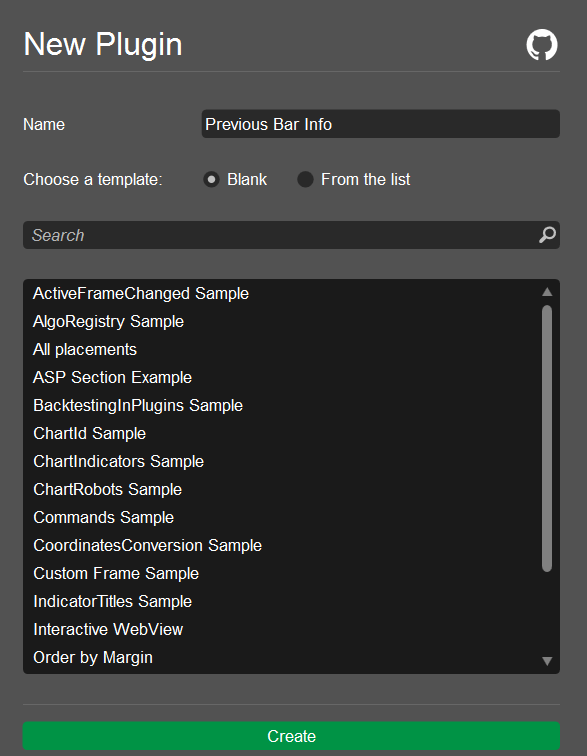
You can start by going to the Algo app and then navigating to the Plugins tab. Click the New button to create a new plugin. Tick the Blank option. Give your plugin a name, such as "Previous Bar Info", and click the Create button.
Add a new tab to Trade Watch panel and name it Previous Bar Info.
12
vartradeWatchTab=TradeWatch.AddTab("Previous Bar Info");tradeWatchTab.IsSelected=true;
usingSystem;usingcAlgo.API;usingcAlgo.API.Collections;usingcAlgo.API.Indicators;usingcAlgo.API.Internals;namespacecAlgo.Plugins{[Plugin(AccessRights = AccessRights.None)]publicclassPreviousBarInfo:Plugin{protectedoverridevoidOnStart(){vartradeWatchTab=TradeWatch.AddTab("Previous Bar Info");tradeWatchTab.IsSelected=true;varwebView=newWebView();tradeWatchTab.Child=webView;webView.NavigateAsync("https://ctrader.com/");}protectedoverridevoidOnStop(){// Handle Plugin stop here}}}
To build the plugin, click the Build button or use the Ctrl+B hotkeys.
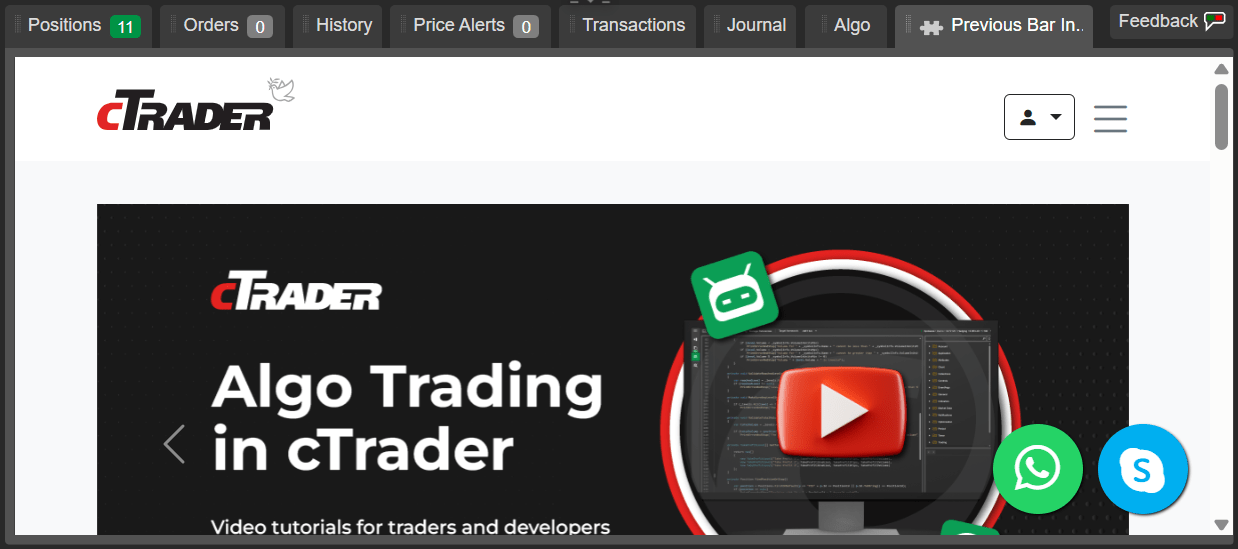
Go to the Trade app to see what your plugin is displaying.
Using the WebView component, you can display any website within a plugin by setting the website URL in the plugin code. Additionally, you can create different plugins for the websites you use in your daily trading and turn them on or off in cTrader settings.
Add a grid and text boxes to the plugin
Return to the Algo app and edit the plugin code.
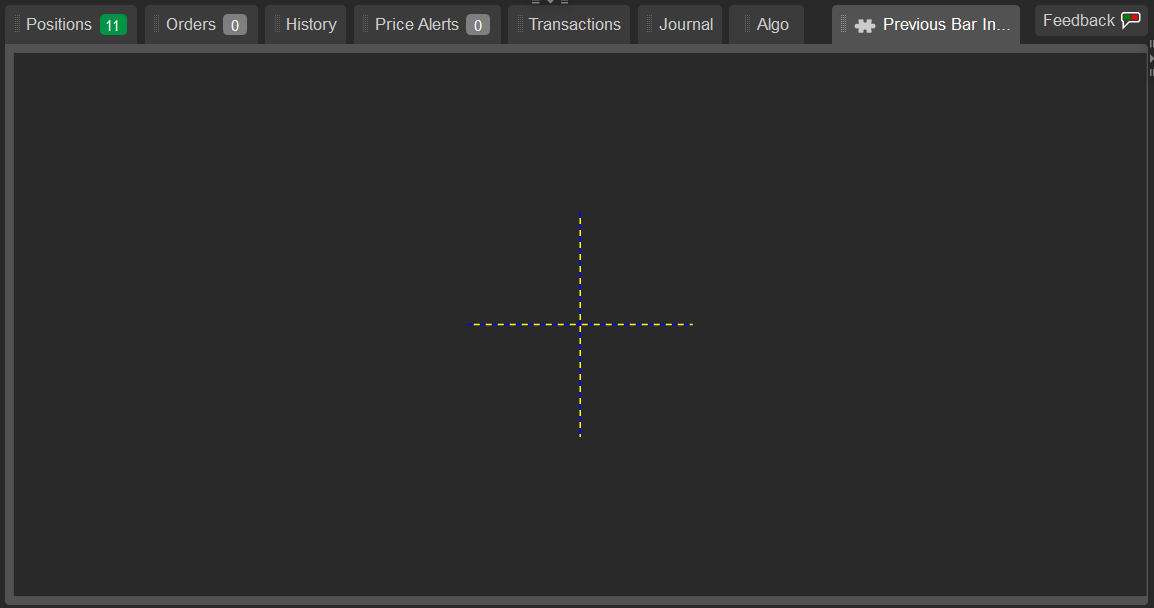
We need to replace the WebView component with a grid object and make each grid a child of the Trade Watch plugin.
usingSystem;usingcAlgo.API;usingcAlgo.API.Collections;usingcAlgo.API.Indicators;usingcAlgo.API.Internals;namespacecAlgo.Plugins{[Plugin(AccessRights = AccessRights.None)]publicclassPreviousBarInfo:Plugin{TextBlock_lowBlock;TextBlock_highBlock;TextBlock_closeBlock;TextBlock_openBlock;Bars_bars;protectedoverridevoidOnStart(){vartradeWatchTab=TradeWatch.AddTab("Previous Bar Info");tradeWatchTab.IsSelected=true;vargrid=newGrid(2,2){HorizontalAlignment=HorizontalAlignment.Center,VerticalAlignment=VerticalAlignment.Center,ShowGridLines=true,Height=150,Width=150,};tradeWatchTab.Child=grid;_bars=MarketData.GetBars(TimeFrame.Minute,"USDJPY");_lowBlock=newTextBlock{Text="Low:"+_bars.LowPrices.LastValue,HorizontalAlignment=HorizontalAlignment.Center,VerticalAlignment=VerticalAlignment.Center,};_highBlock=newTextBlock{Text="High:"+_bars.HighPrices.LastValue,HorizontalAlignment=HorizontalAlignment.Center,VerticalAlignment=VerticalAlignment.Center,};_closeBlock=newTextBlock{Text="Close:"+_bars.ClosePrices.LastValue,HorizontalAlignment=HorizontalAlignment.Center,VerticalAlignment=VerticalAlignment.Center,};_openBlock=newTextBlock{Text="Open:"+_bars.OpenPrices.LastValue,HorizontalAlignment=HorizontalAlignment.Center,VerticalAlignment=VerticalAlignment.Center,};grid.AddChild(_lowBlock,0,0);grid.AddChild(_highBlock,0,1);grid.AddChild(_openBlock,1,0);grid.AddChild(_closeBlock,1,1);}protectedoverridevoidOnStop(){// Handle Plugin stop here}}}
Build the plugin and then go to the Trade app to see the changes.
Subscribe to events
Navigate back to the plugin source code in the Algo app. Add the following lines of code to subscribe to the tick event and make the values update on every tick: