Risk-reward
Risk-reward compares a trade's potential profit with its potential loss: the reward is the distance from your entry to the take profit; the risk is the distance to the stop loss.
The risk-reward tool draws that comparison on the chart. It automatically calculates an order size based on your expected gains and risk tolerance, and places a buy or sell order with one tap.
Add a risk-reward tool
In the chart toolbar, tap (Sell) or (Buy) to plan the trade. The risk-reward tool appears with three levels, each with its own label:
- Reward – take profit, with the reward shaded green.
- Ratio – entry price, with the risk-reward ratio and the size.
- Risk – stop loss, with the risk shaded red.
The reward sits above the entry on a buy and below it on a sell.
You can set the whole plan by dragging on the chart, without opening any settings:
- Drag the Reward control to set take profit.
- Drag the Risk control to set stop loss.
- Drag the entry price control to move the entry price.
Note
After you tap a control, drag it from anywhere on the chart.
To move the whole plan to another price, drag the point in the middle. Every parameter updates as you drag, including Ratio and the volume.
Stretching the tool along the time axis only changes its width.
Size the trade
Tap the tool to raise its toolbar, then to open its settings. They open on , which decides the volume. The three steps are icon tabs along the top of the bottom sheet:
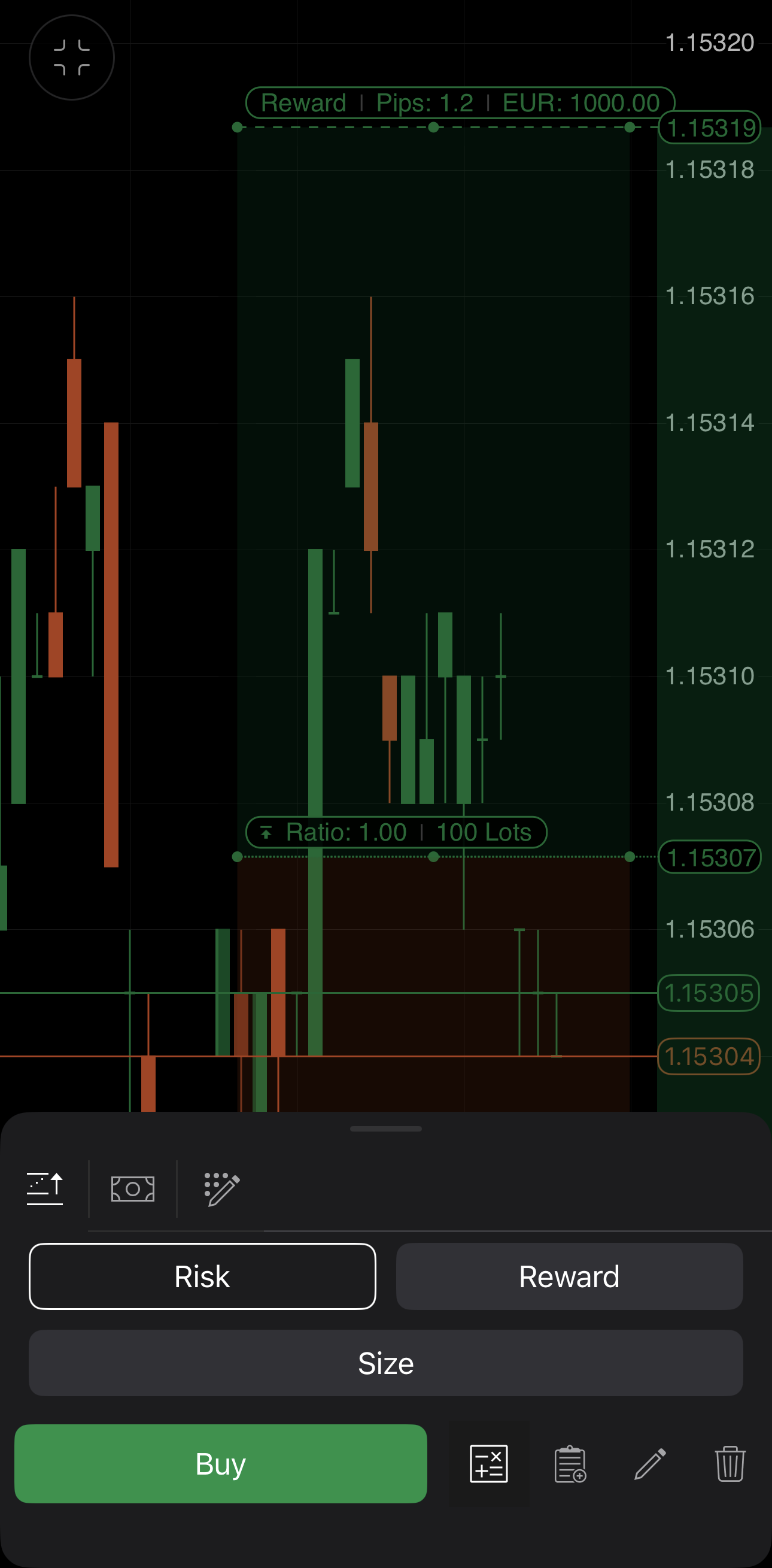
Pin the figure that stays fixed while you drag the Risk or Reward control. Ratio changes whatever you pin.
- Risk – keeps the risk in funds fixed. Dragging the Risk control changes the volume; dragging the Reward control changes the reward in funds.
- Reward – keeps the reward in funds fixed. Dragging the Reward control changes the volume; dragging the Risk control changes the risk in funds.
- Size – keeps the volume fixed. Dragging either control changes the risk or the reward in funds.
Changing the volume in the order settings moves the pinned level instead: the stop loss with Risk pinned, the take profit with Reward pinned. A new risk-reward tool starts with the pin of the last one you edited.
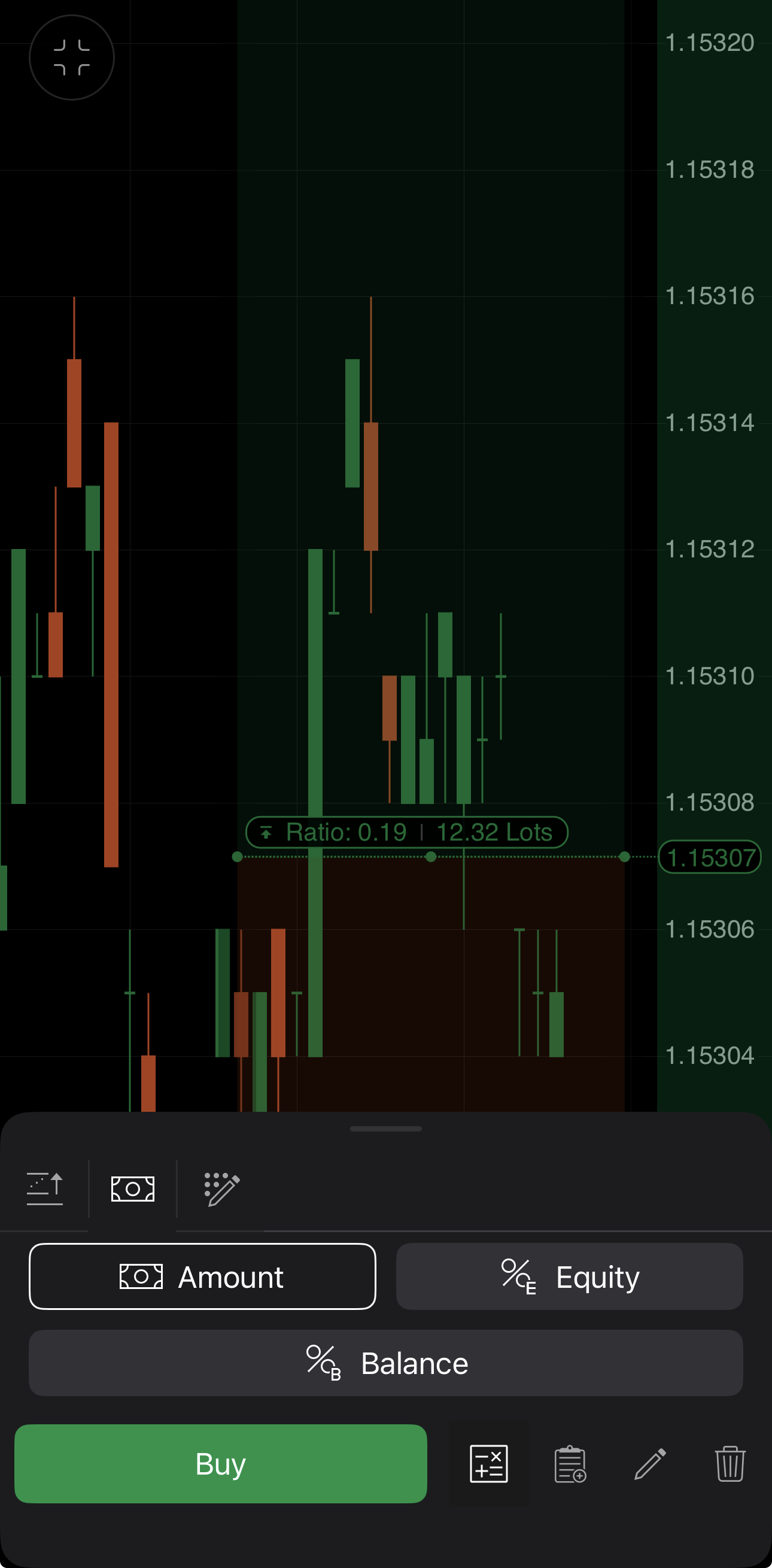
Choose how the pinned risk or reward is measured: as funds or as a share of your account.
- Amount – sets the pinned value as funds, 1000 in your account currency by default.
- Equity – sets the pinned value as a percentage of your equity, 5% by default. The amount it stands for changes with your equity.
- Balance – sets the pinned value as a percentage of your balance, 5% by default.
Note
With Size pinned, the calculation type cannot be changed.
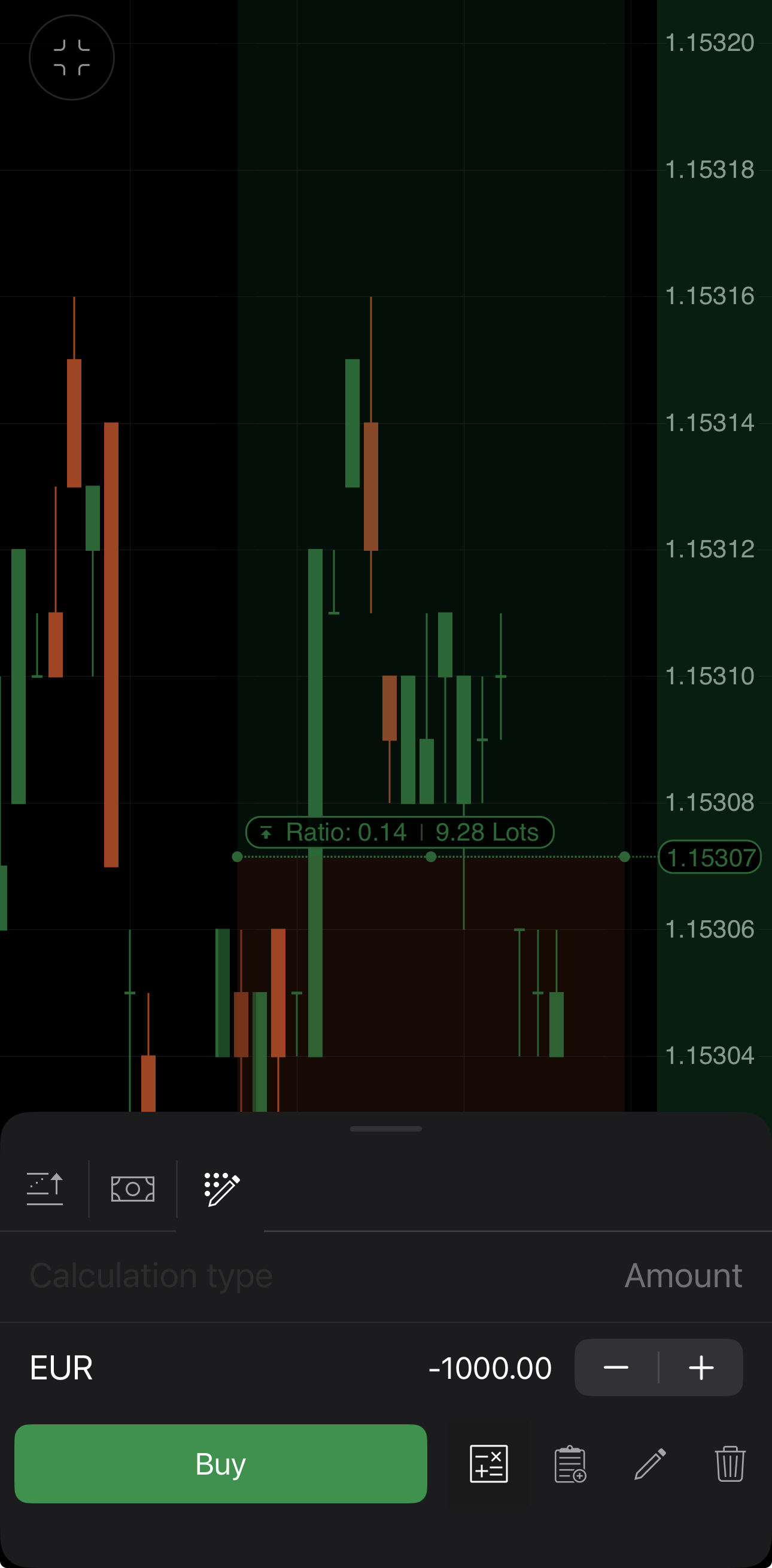
Set the pinned figure itself, in money or as a percentage, depending on the calculation type, with and . A new risk-reward tool does not keep the value you set on the last one.
Example
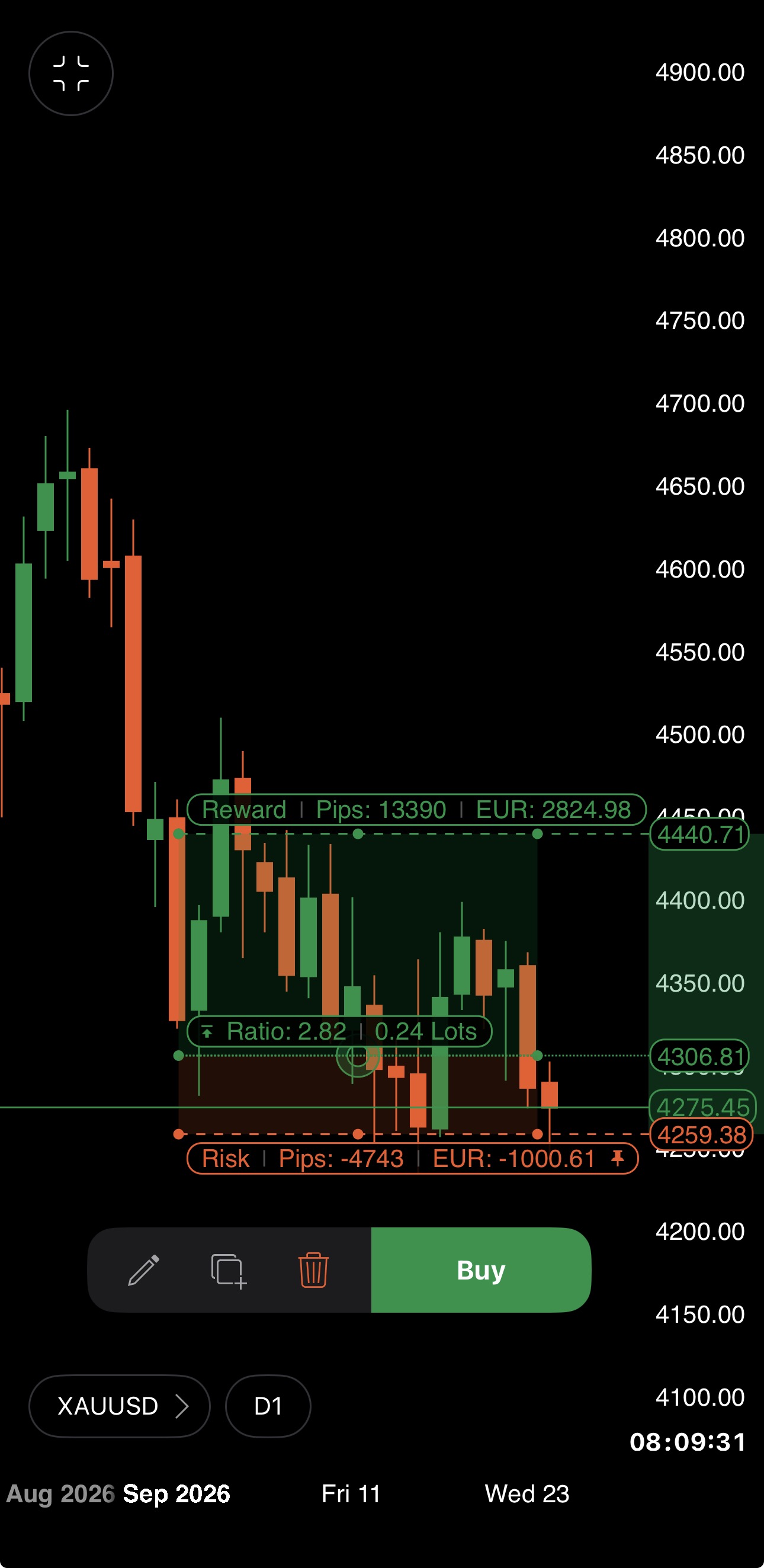
You plan to buy XAUUSD at 4306.81, above the current ask, and are prepared to lose €1,000. cTrader sets a stop order. Pin Risk as an Amount and set the value to 1000.00, then drag the stop loss to 4259.38, 4743 pips below the entry. The volume becomes 0.24 lots, and Risk reads -€1,000.61.
Drag the take profit to 4440.71. The volume stays at 0.24 lots, and Reward changes to €2,824.98, which puts Ratio at 2.82.
Set the order
Tap in the risk-reward bottom sheet to set up the order. Its five icon tabs along the top of the bottom sheet cover what the Place order menu does:
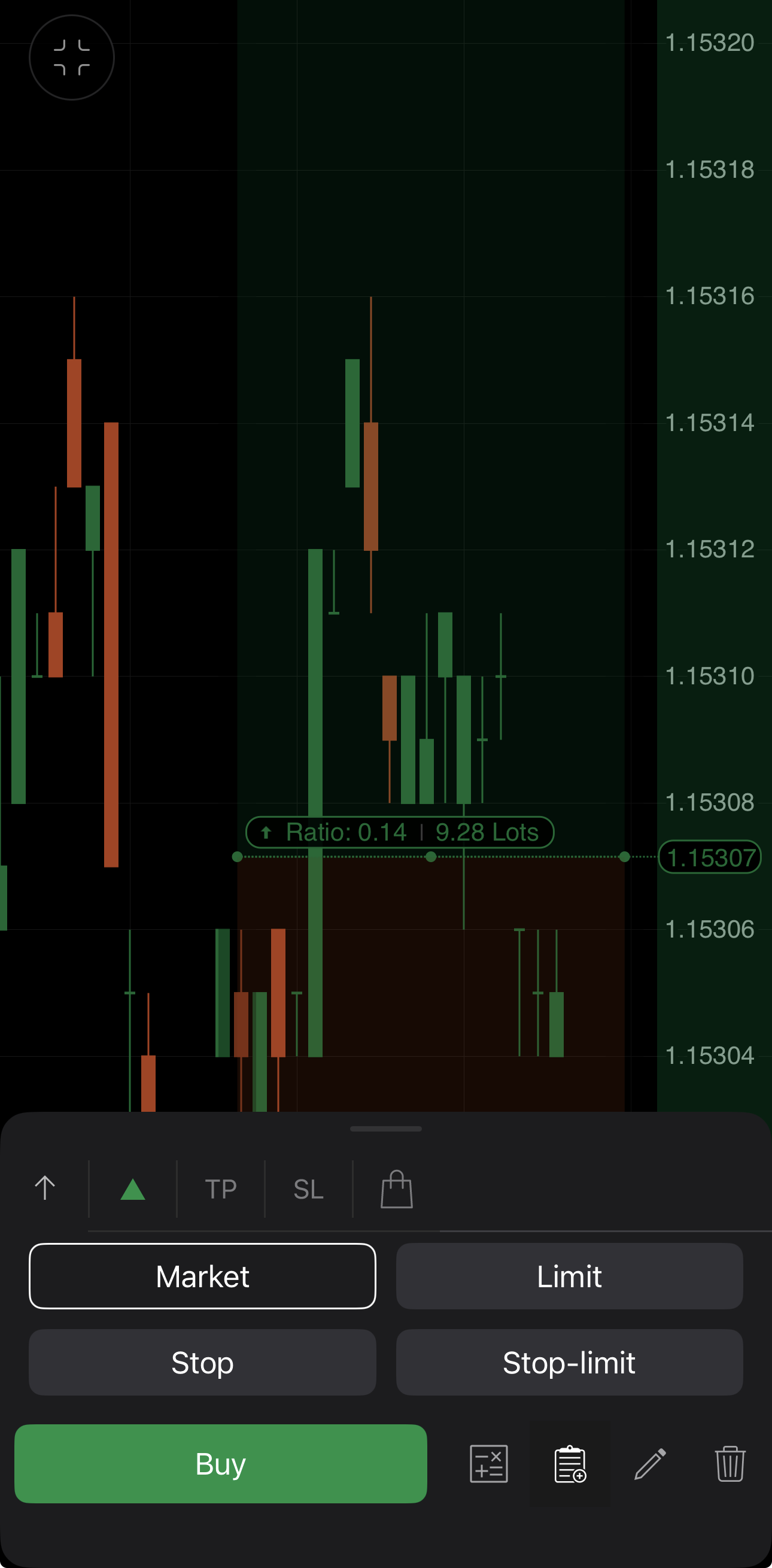
- Market – fills immediately at the best available price.
- Limit – fills at your entry price or better.
- Stop – triggers a market order at your entry price.
- Stop-limit – triggers a limit order at your entry price.
cTrader automatically sets Limit or Stop depending on the entry price:
- Buy – a stop order above the ask, a limit order below it.
- Sell – a stop order below the bid, a limit order above it.
The type updates whenever the entry price crosses the bid or ask, and when you type an entry price or switch direction. The Market order type does not change automatically, even when the entry price crosses the bid or ask.
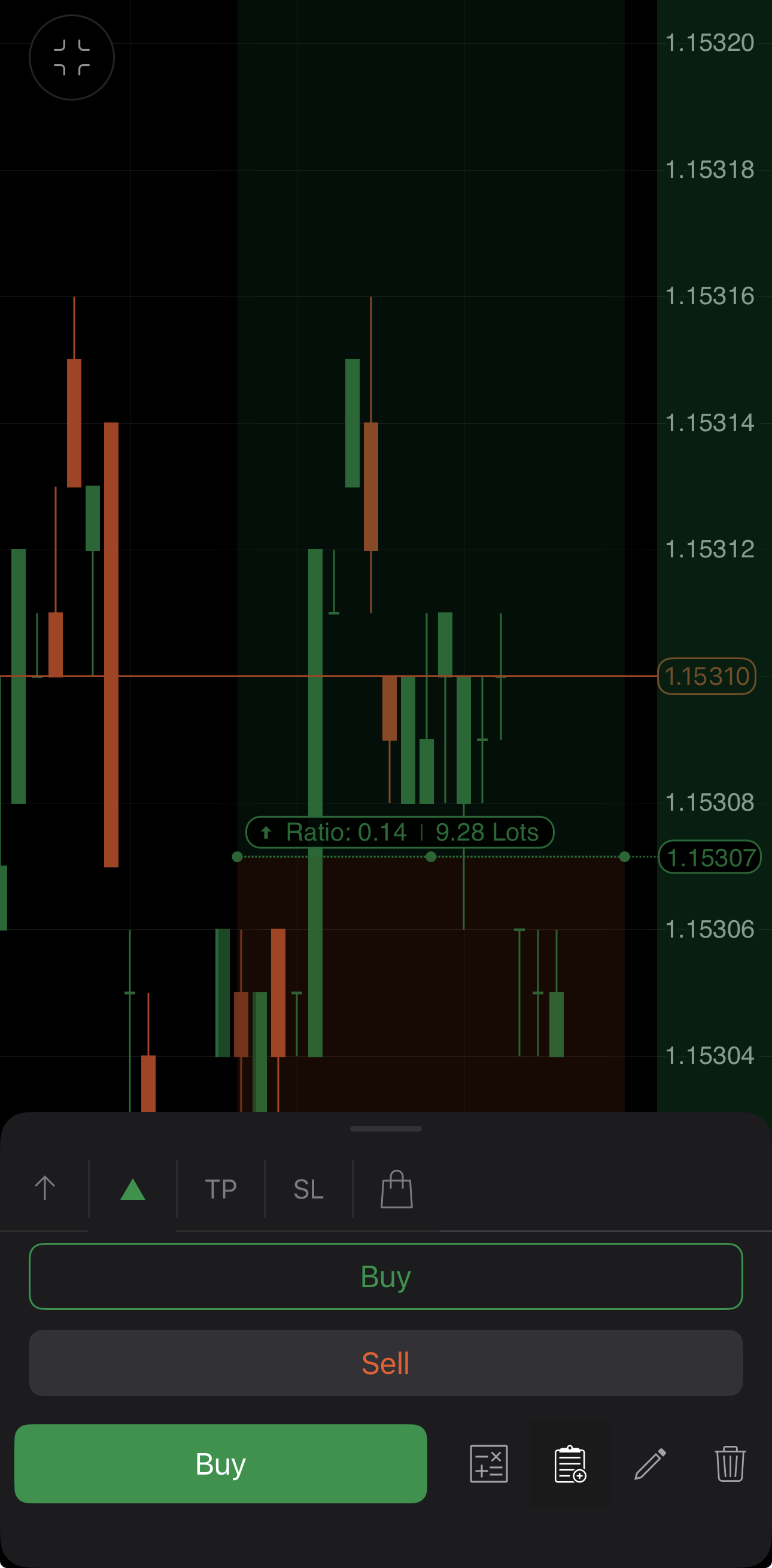
Swap the direction between Buy and Sell; the tool flips with it.
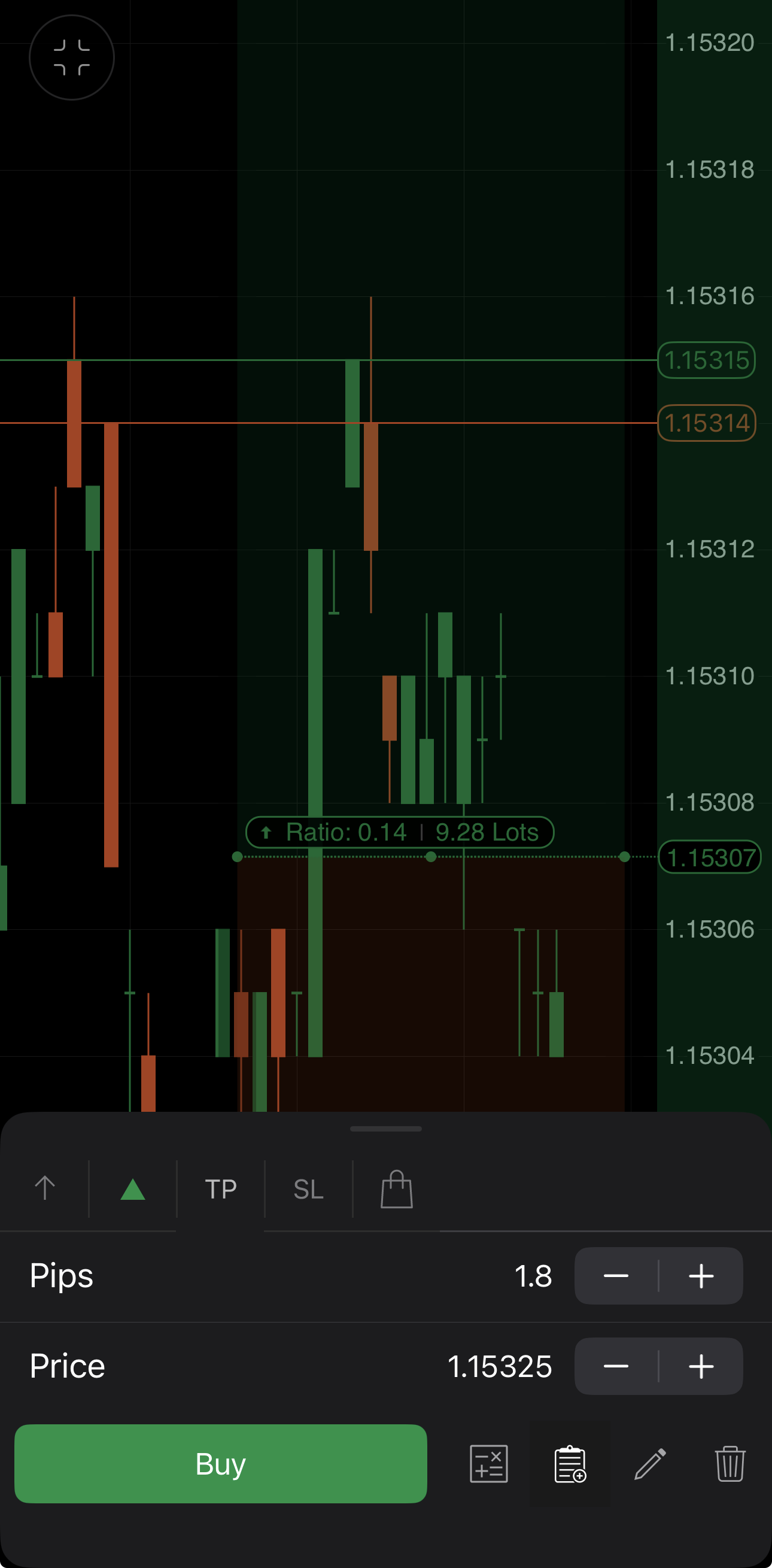
- Pips – the take profit as a distance from the entry.
- Price – the take profit as an exact level.
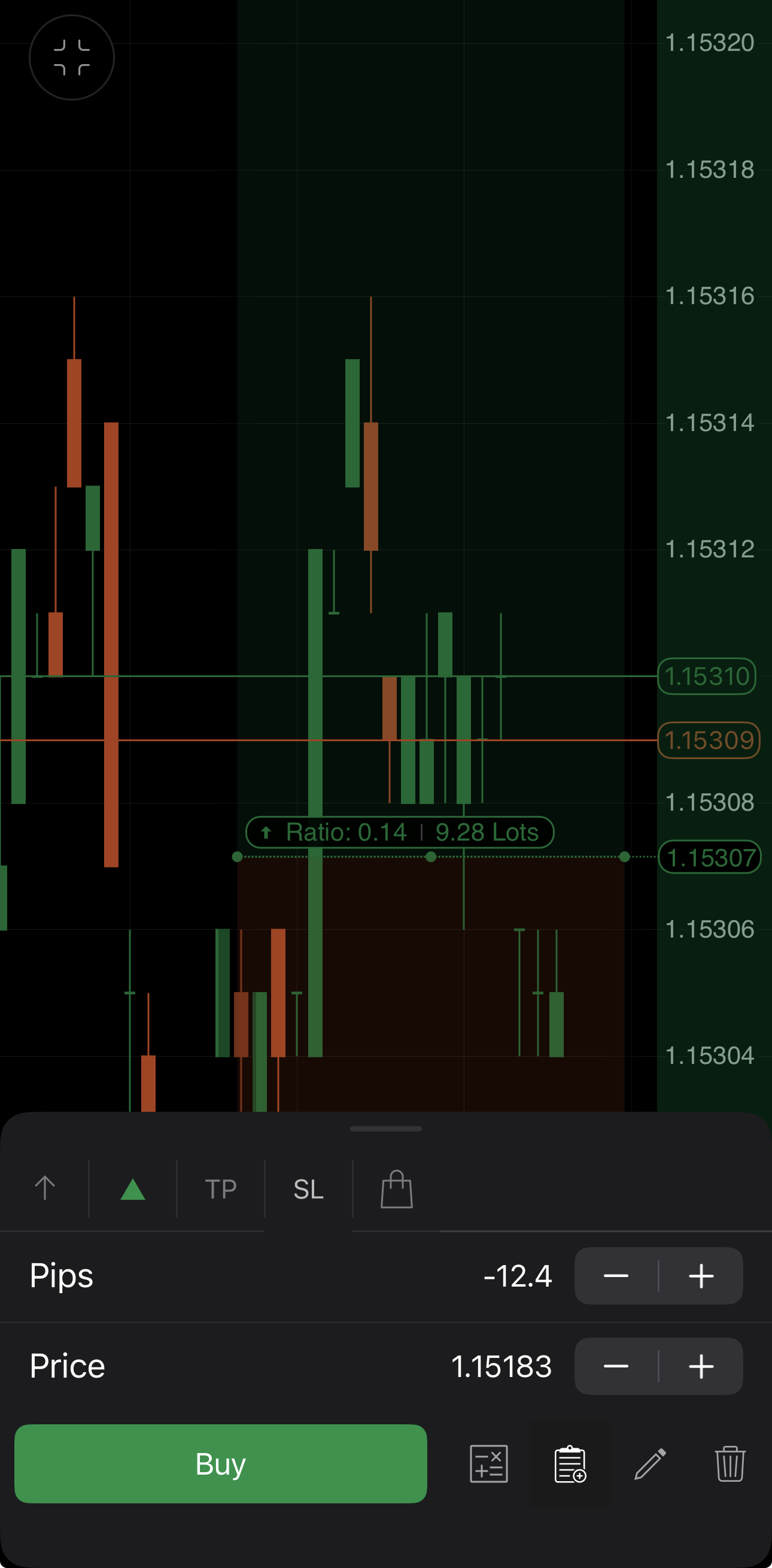
- Pips – the stop loss as a distance from the entry.
- Price – the stop loss as an exact level.
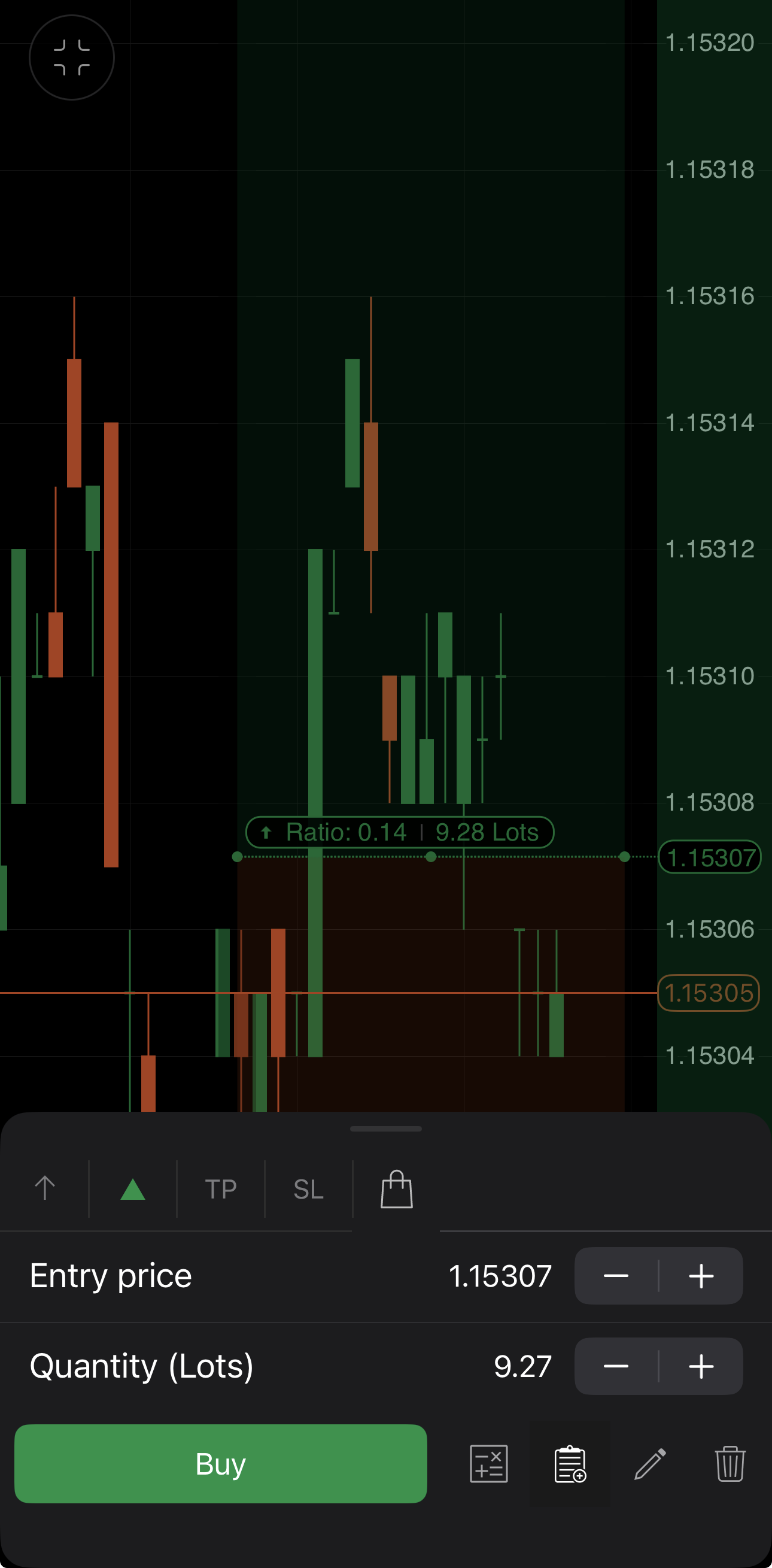
- Entry price – the level the trade starts from.
- Quantity/Volume – the trade size.
Style the tool
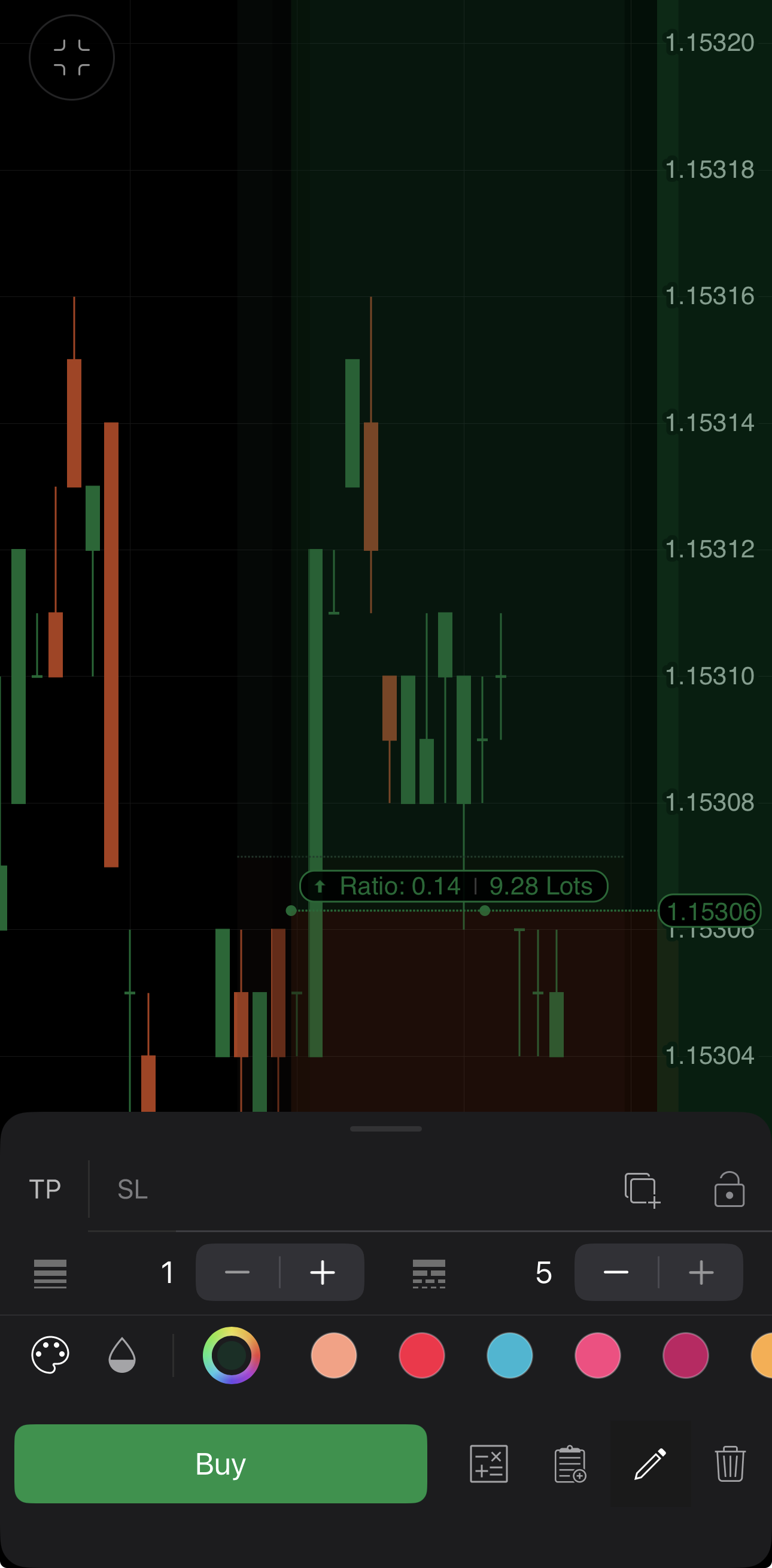
Tap in the risk-reward toolbar to open the risk-reward bottom sheet, then tap another to style the TP and SL halves separately, each with its own colour, line thickness and style. Distinct colours keep several plans readable on one chart.
Note
Duplicating and locking the tool work as they do for any drawing.
Place an order
Tap Buy or Sell in the risk-reward toolbar to send the order with the parameters you have set, protections included. While the tool is selected, the chart's Quick Trade buttons are hidden.
The button is disabled when:
- Order type does not match the entry price, such as Limit on a buy above the ask.
- Symbol of the risk-reward tool differs from the symbol on the chart.
Warning
A market order fills at the current price, not at the entry price shown on the chart. The volume is calculated from the entry price. The pinned risk or reward holds only if the order fills close to it. To open a position at a specific price, choose Limit or Stop.
Remove the tool
Tap in the risk-reward toolbar. Deleting the tool only removes the object from the chart. An open position or a pending order you have already placed from it is managed from Positions or Orders correspondigly, or on the chart, as covered in Chart trading.