Sign up and log in
You sign in to cTrader Mobile with a cTrader ID – one set of credentials for every cTrader app, holding all your trading accounts, which have no password of their own.
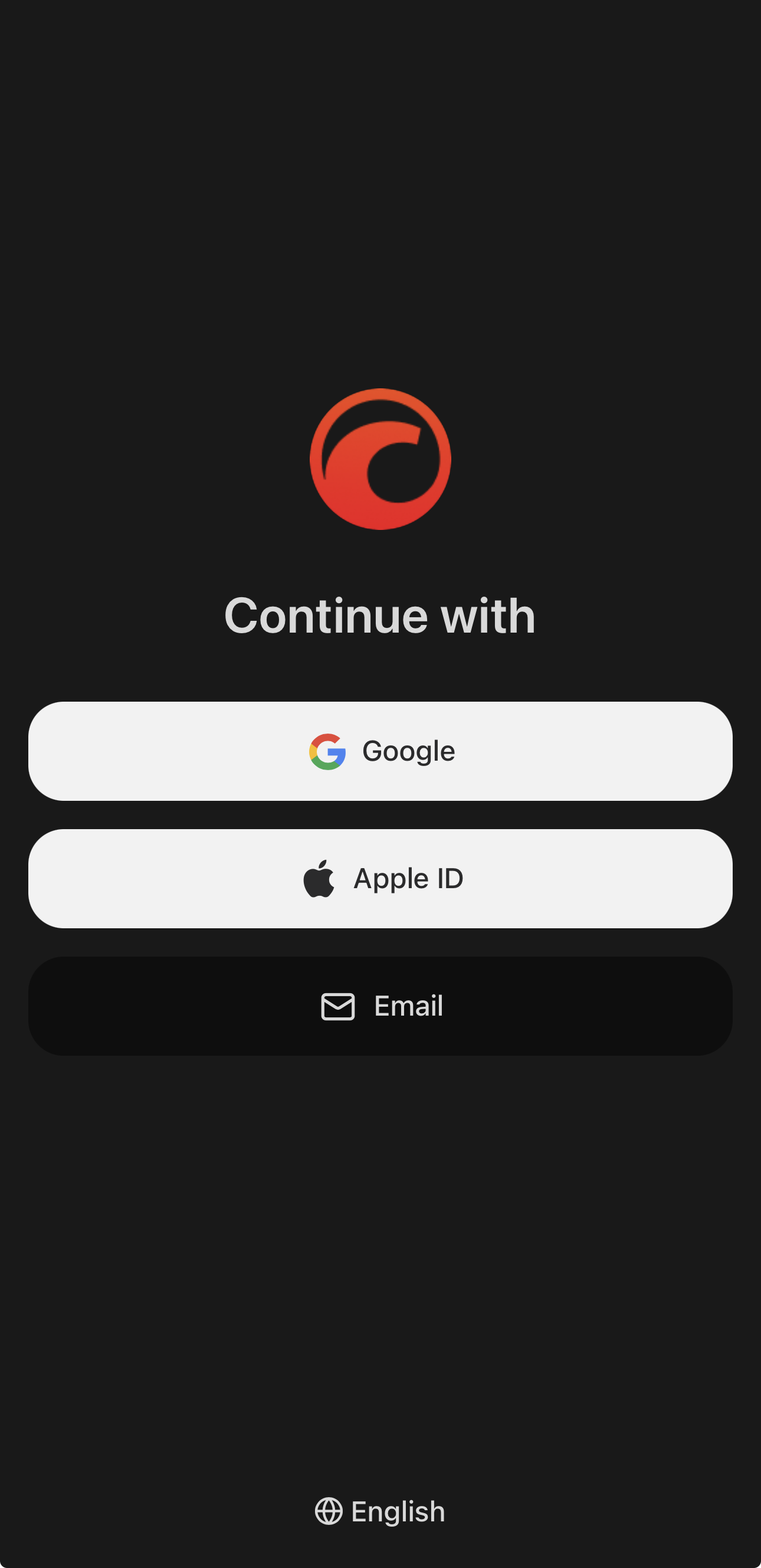
The app opens on the Continue with screen.
Tip
Use the button at the bottom to set the language before you start.
Create a cTrader ID
If you do not have one yet, tap Email, then Create cTrader ID and set email and password. Tapping Google or Apple ID instead creates the ID for you through social authorisation.
Note
If your broker created your cTrader ID, see creating a cTrader ID by a broker and setting a cTrader ID password.
You can manage your credentials later in the profile menu.
Log in
Tap Email, fill in your email or username along with your password, then tap Log in. For social authorisation, tap Google or Apple ID.
Note
Always log in the same way you signed up.
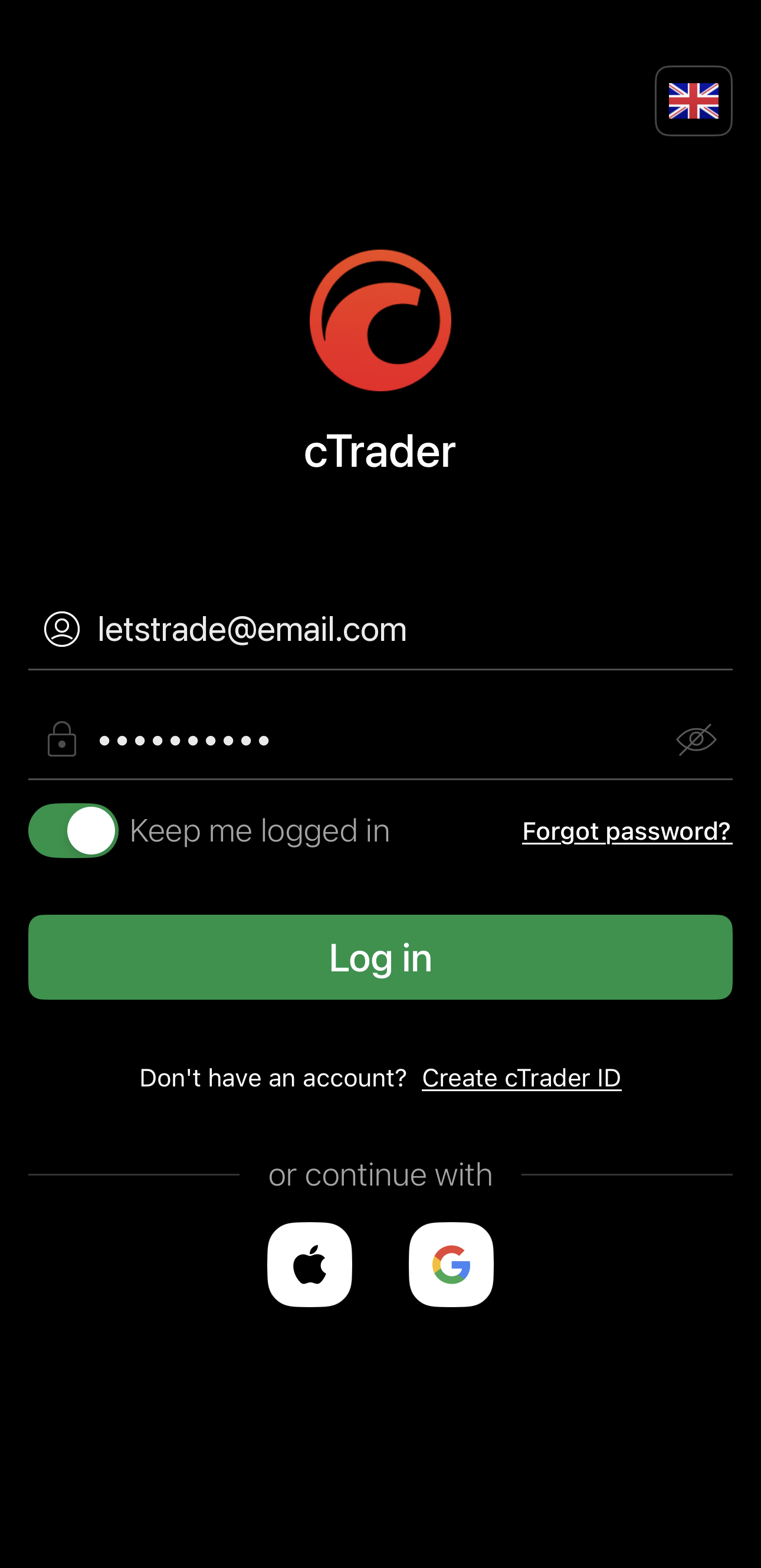
in the password field shows what you have typed, and Keep me logged in, on by default, keeps you signed in between sessions.
If you cannot recall your password, tap Forgot password?. See Reset a password.
Note
To log out, tap Log out, which sits in both the main menu and My cTrader.