Account management
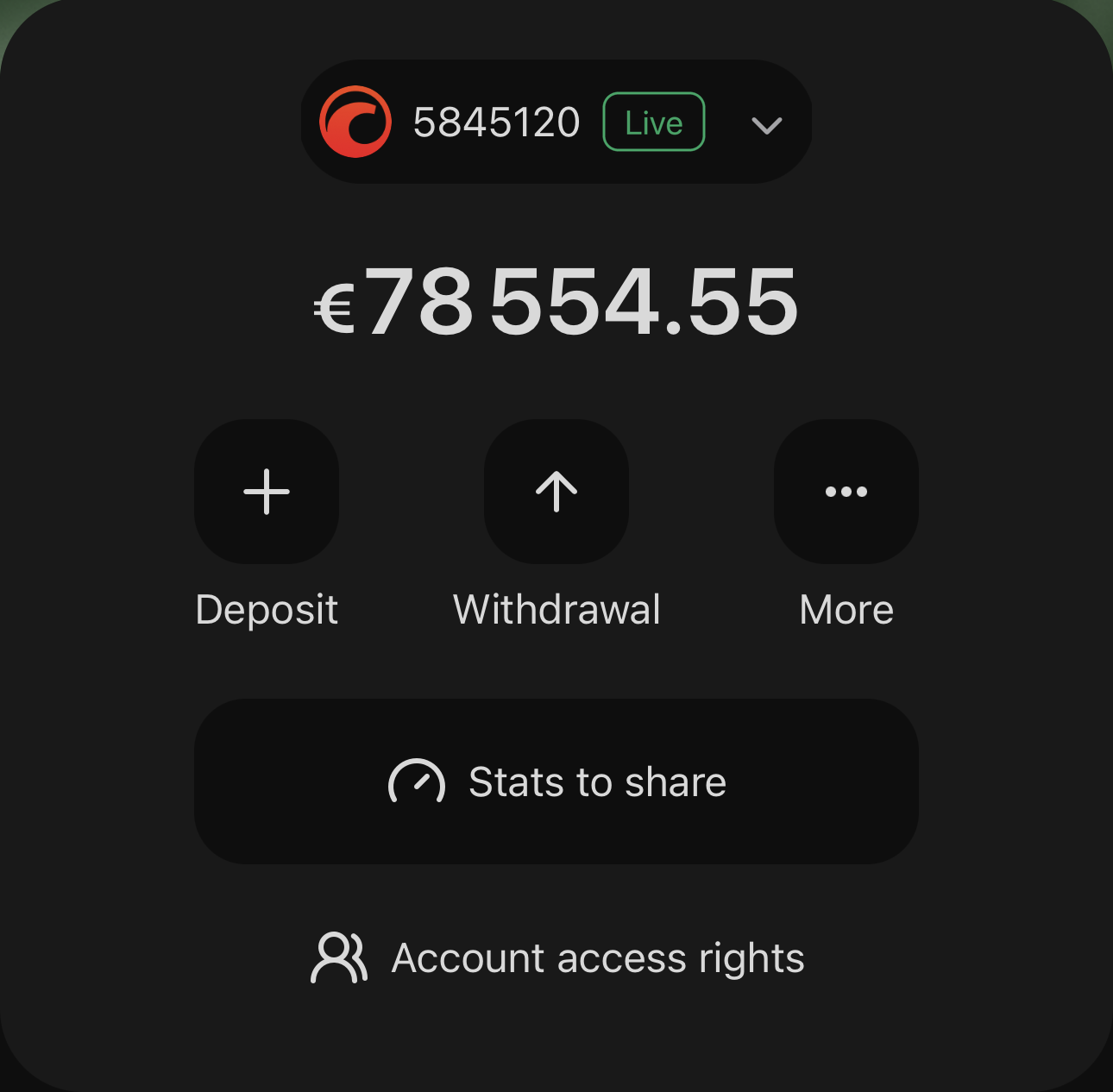
One cTrader ID can hold several trading accounts, live and demo, and you move between them without logging out. Act on your active account from the top block of My cTrader or from the main menu. In My cTrader, a demo account also carries Go live to open a live account.
Note
A broker-branded app shows only the accounts you hold with that broker.
Note
You log in with a cTrader ID but trade on a trading account. See Profile menu for the cTrader ID itself: your public profile, credentials, active sessions and notifications.
Account selector
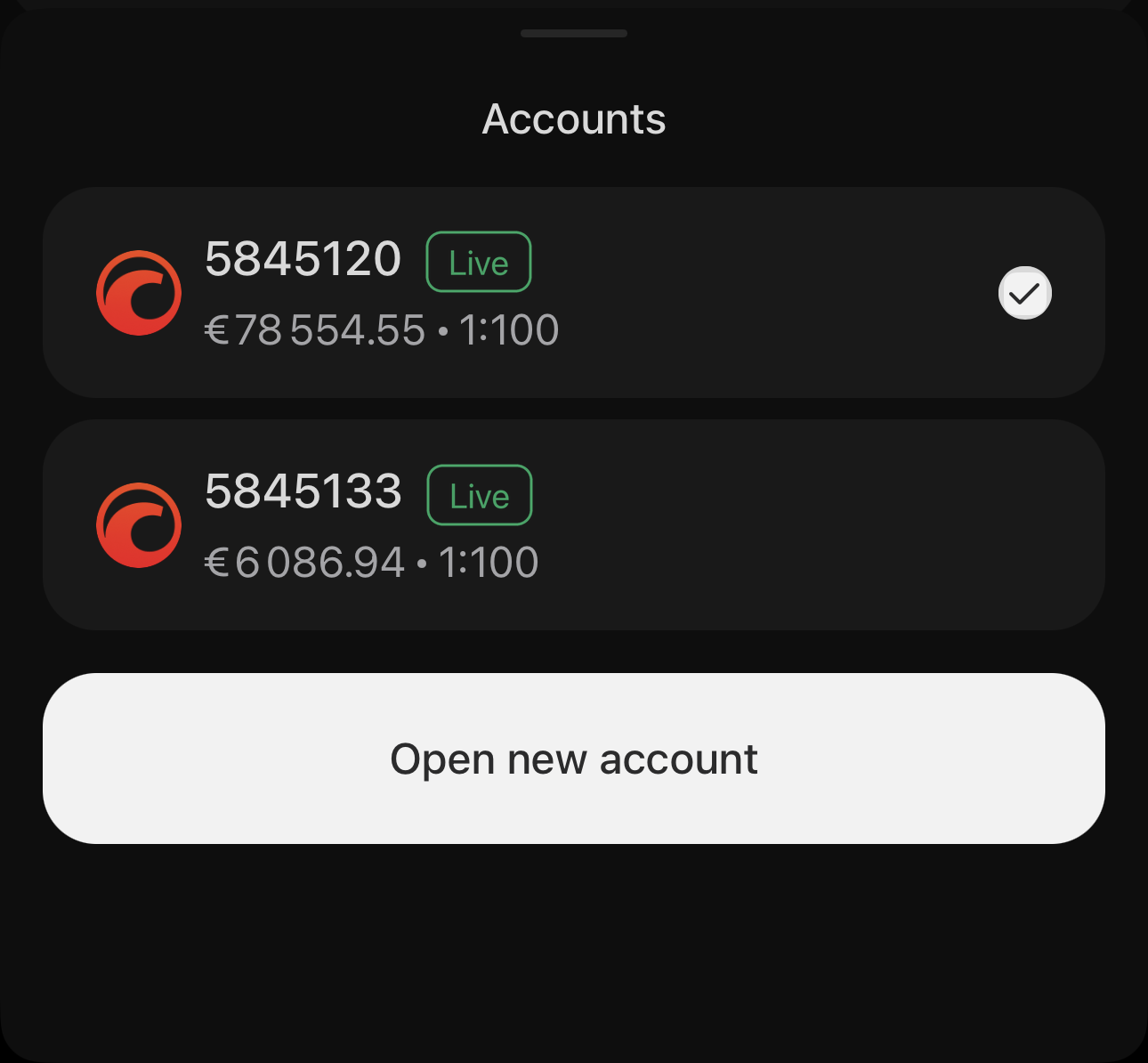
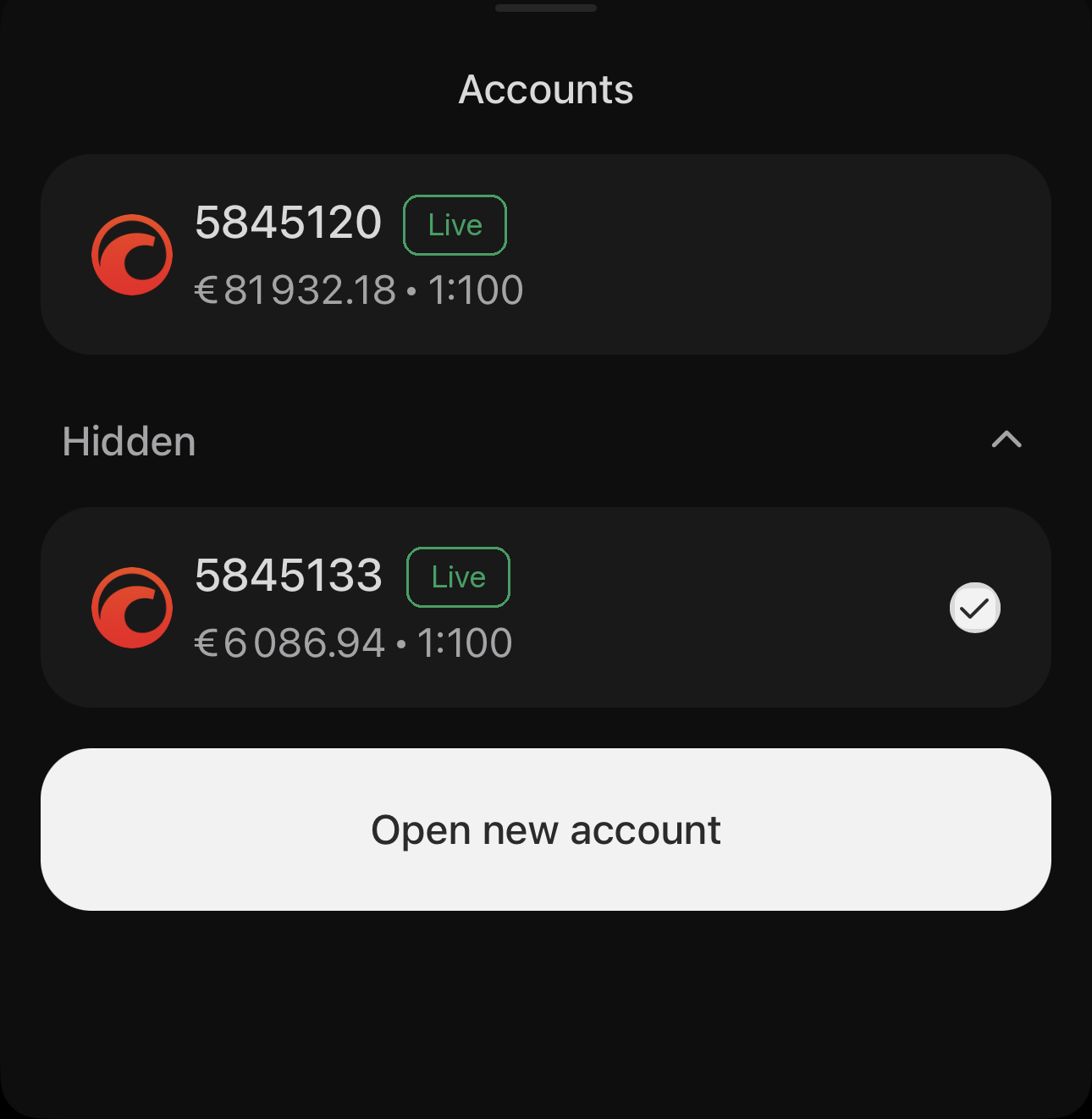
Tap the account selector to open Accounts as a bottom sheet. Each account gives its broker's logo, number and Demo or Live badge, with its balance and leverage beneath them. A tick marks the one you are on.
Tap another account and positions, orders and history all change to it. To add another account to your cTrader ID, tap Open new account at the foot of the list.
Account tracker
Keep one figure on screen while you trade with the account tracker, the badge in the top bar next to the search field in Markets, Positions and Blotter.
Long-tap the account tracker to open the Top panel metric bottom sheet.
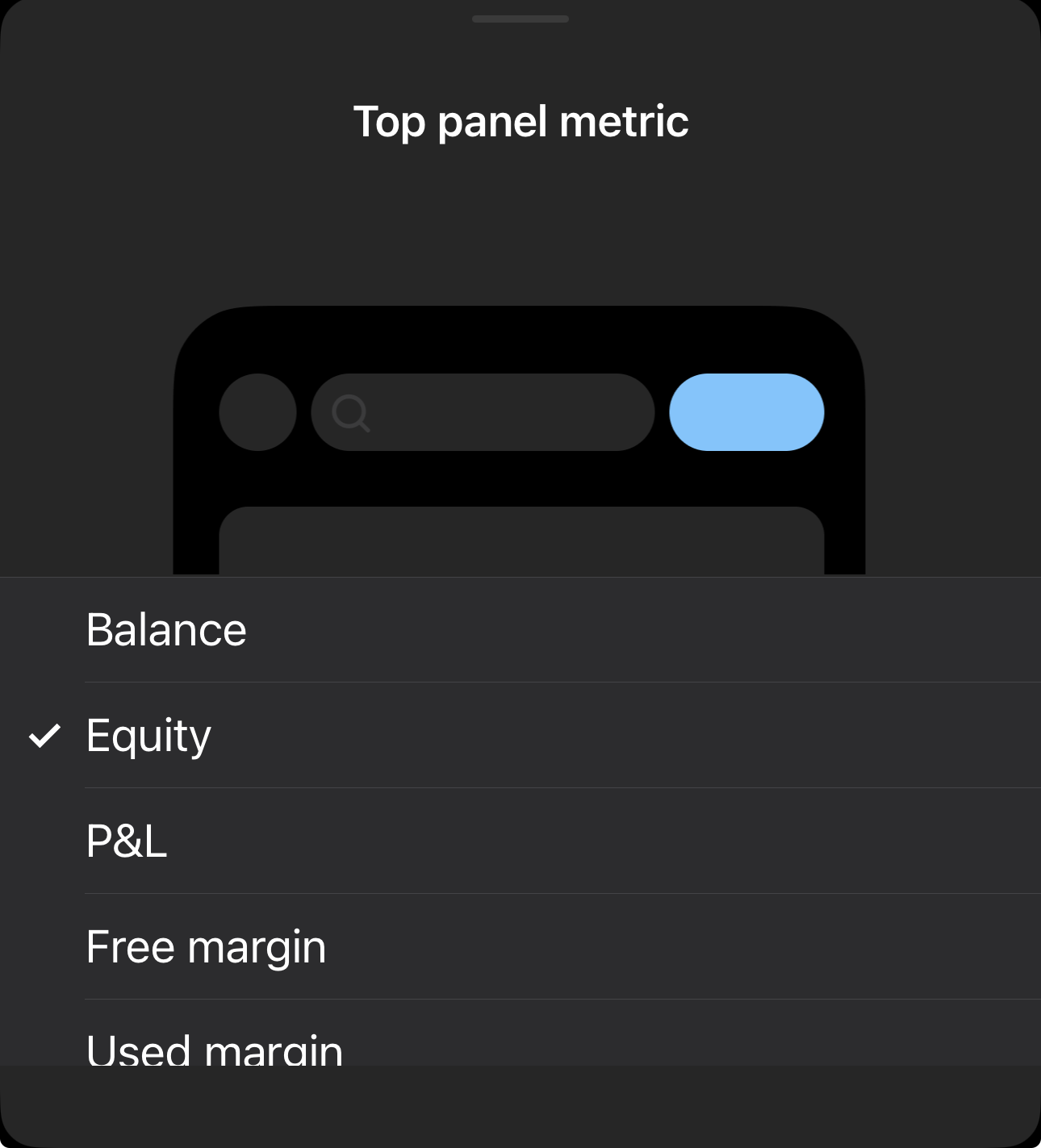
Pick one of six:
- Balance
- Equity
- P&L
- Free margin
- Used margin
- Margin level
The swipeable balance bar includes all of them.

A red dot appears on the account tracker when your margin level falls to 200% or below. Your positions stay open at that point: the dot is a warning that you are approaching your broker's stop-out level.
Tip
To be warned at a margin level of your own choice, set Custom margin calls in Settings.
Balance bar
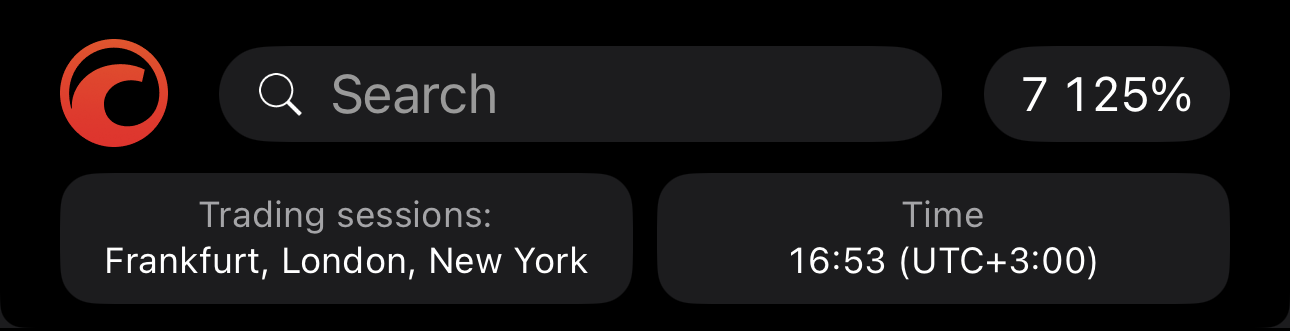
The balance bar is off by default, so enable Show balance bar in Settings. It then runs under the top bar in Markets, Positions and Blotter. Swipe it sideways to move between its four sets of figures, up to hide it and down to show it again.
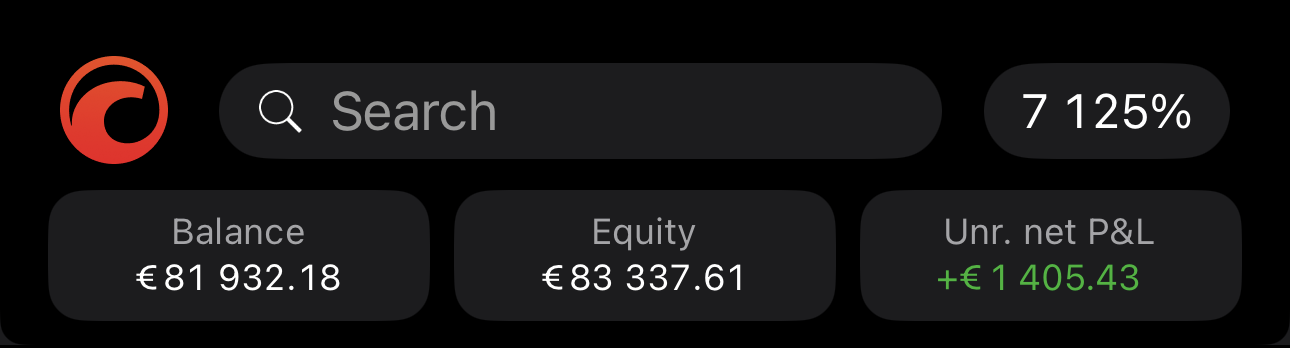
Three tiles in the account currency:
- Balance – the account without open positions counted.
- Equity – the balance plus the profit or loss of the open positions so far.
- Unr. net P&L – that profit or loss on its own, after commission and swap.
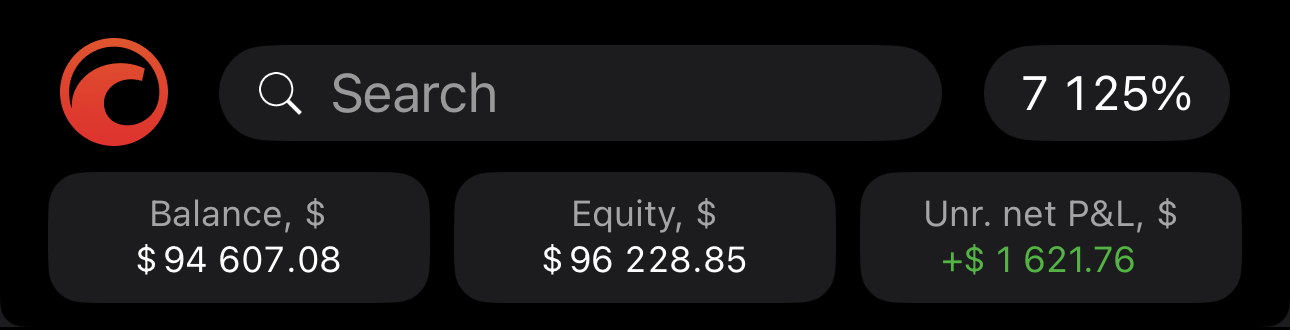
The same three tiles in US dollars.
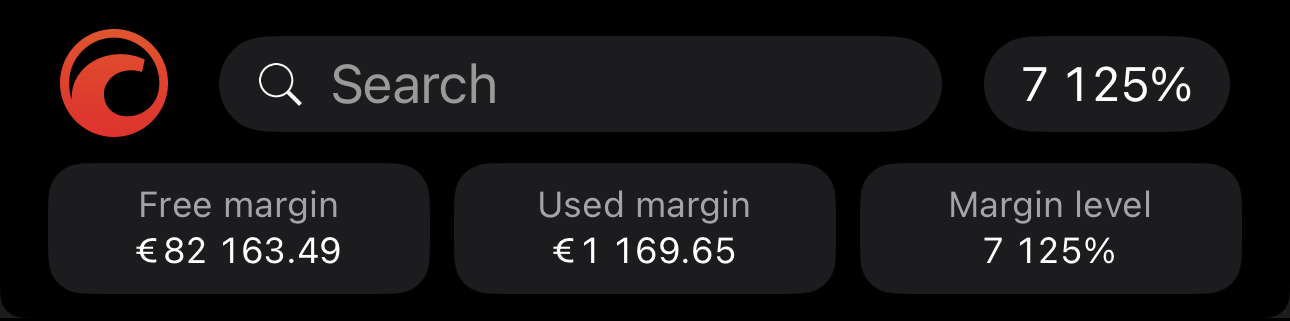
Three tiles for your margin:
- Free margin – the equity you can still open new positions with.
- Used margin – the equity your open positions are holding.
- Margin level – your equity as a percentage of the used margin.
See margin calculation.
Account dashboard
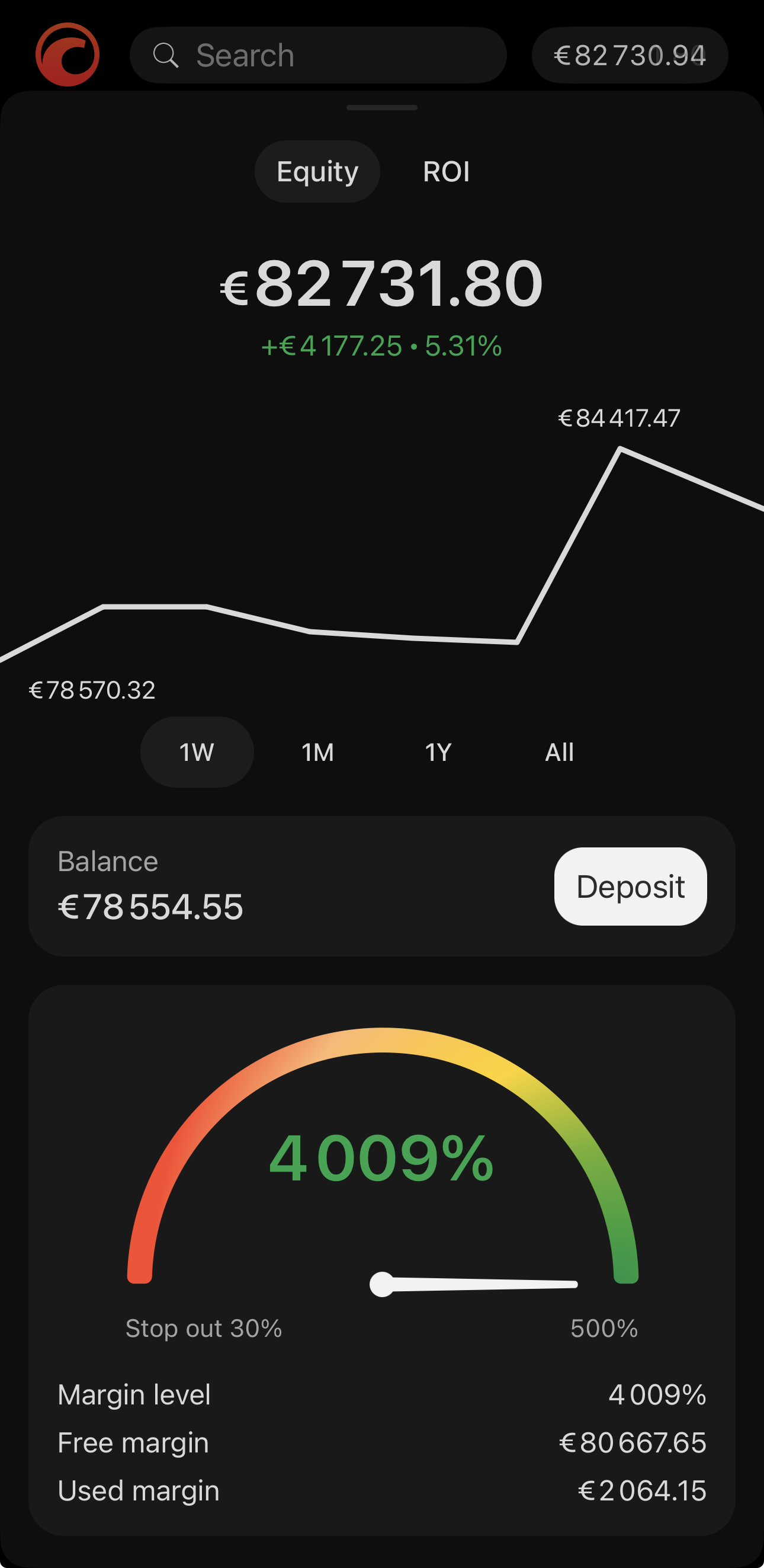
Tap the account tracker and the account dashboard opens. It puts the account's performance chart, its balance and margin figures on one screen.
The chart at the top has two tabs: Equity and ROI. Set how far back the chart plots on the date range beneath it: 1W, 1M, 1Y and All.
Equity plots the value of the account over time, with the change over the chosen period written beneath it in both money and percentage terms.
ROI plots your return as a percentage. It counts only what your trading earned, so a deposit or a withdrawal moves the equity chart but leaves this one flat.
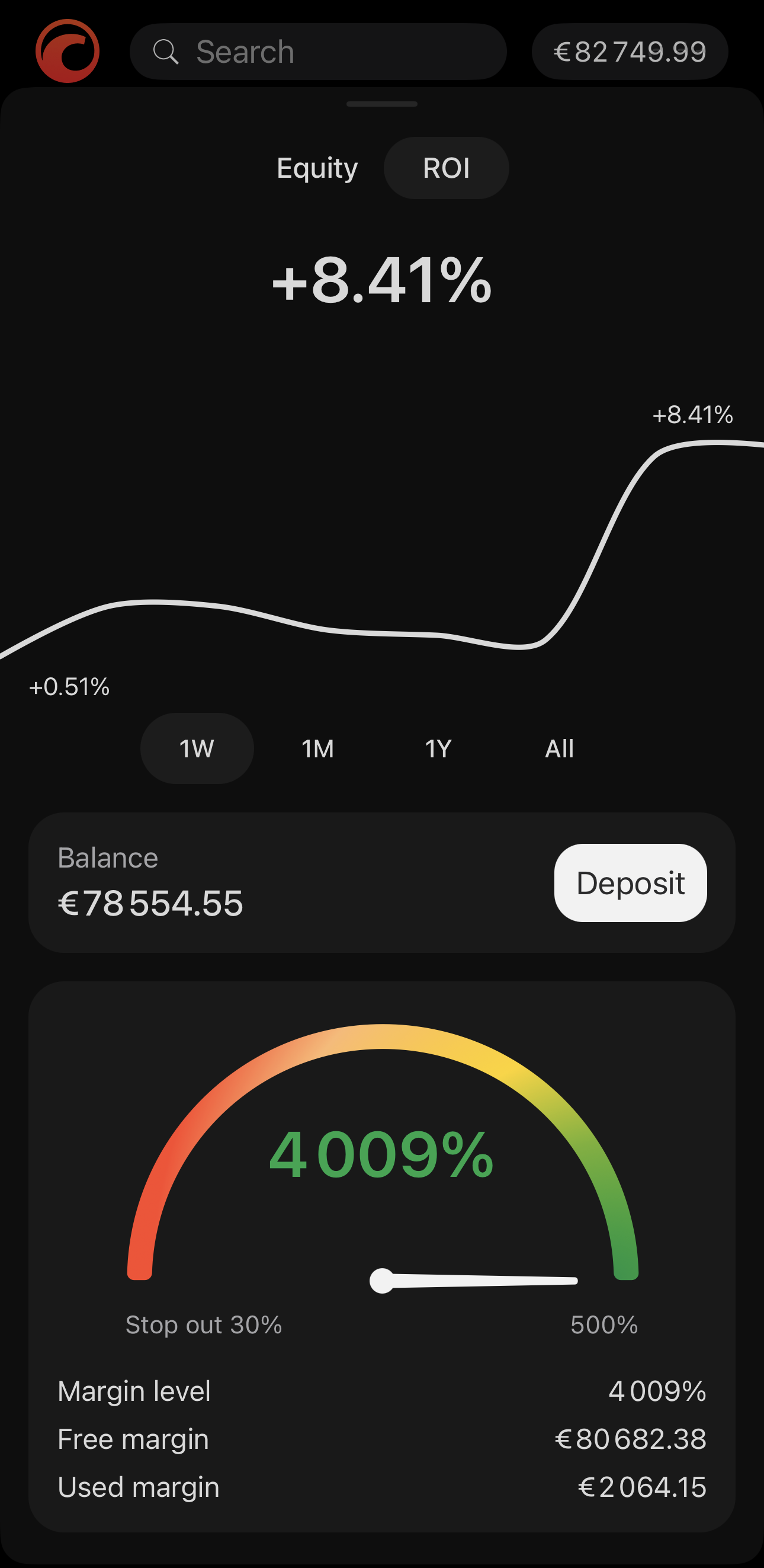
Balance here repeats your balance and carries a Deposit button. See Deposit and withdraw.
The margin dial points a needle at your margin level, on a scale running from your broker's stop-out level to 500%. The same three figures as the balance bar carries are written out below it: Margin level, Free margin and Used margin.
Warning
As the needle falls towards the red, your open positions are consuming the equity that supports them. See Margin calculation for the arithmetic.
Deposit and withdraw
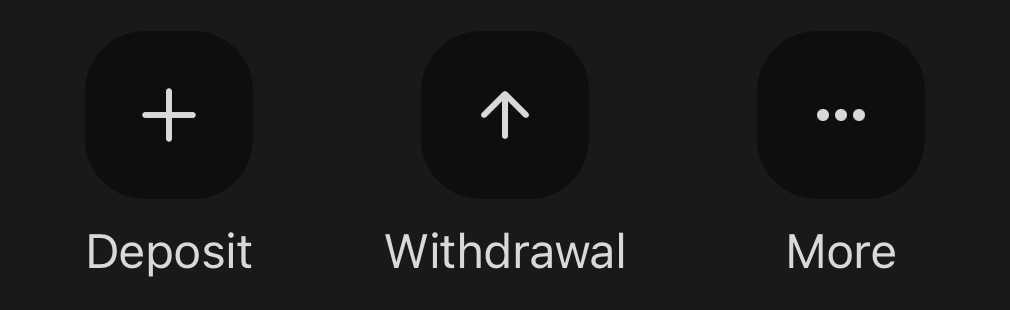
Tap Deposit or Withdrawal to reach one of two places, depending on your broker:
- A form inside cTrader, if your broker uses cTrader single sign-on.
- Your broker's payments page in your phone's browser, for every other broker.
Three places open those buttons, and all three act on the account you have selected:
Tap Deposit or Withdrawal beside More at the top of the screen.
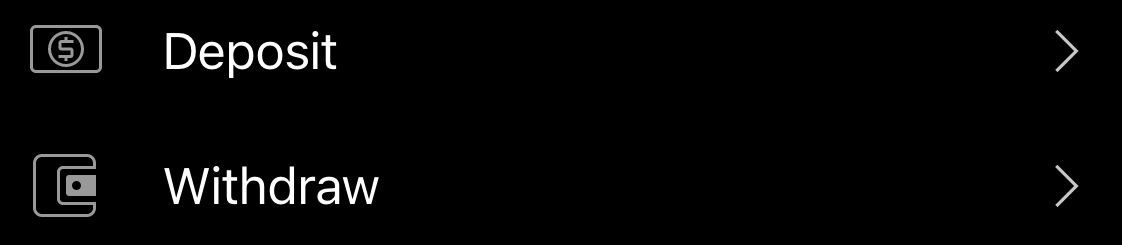
Tap the Deposit or Withdraw row, without leaving Markets, Positions or Blotter.
Tap Deposit on the Balance tile, beside the margin figures that tell you whether you need it. There is no withdrawal here.

Transactions and account actions
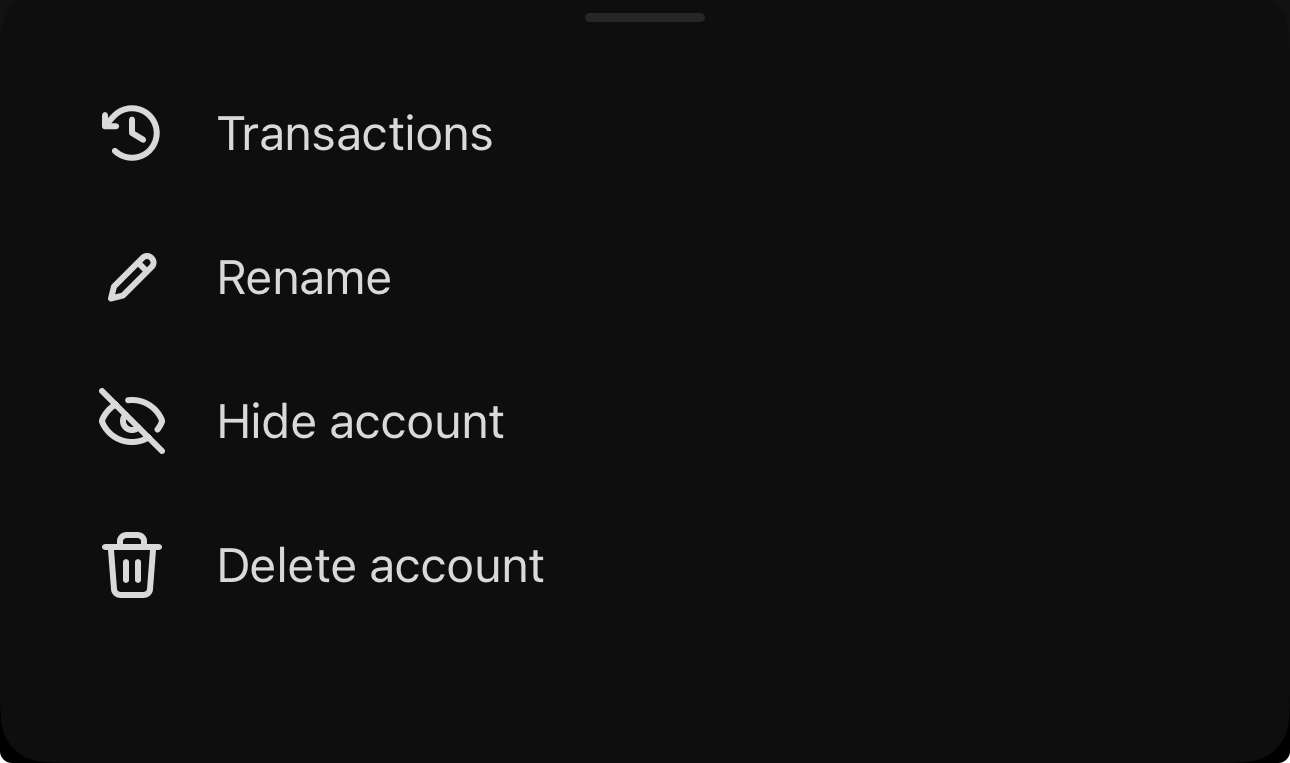
Tap More beside the balance for four actions:
- Transactions – review the funds that has moved in and out of the account.
- Rename – give the account a custom name.
- Hide account – move the account out of the list without deleting it.
- Delete account – remove an account permanently, picked from the full list you hold.
View transactions
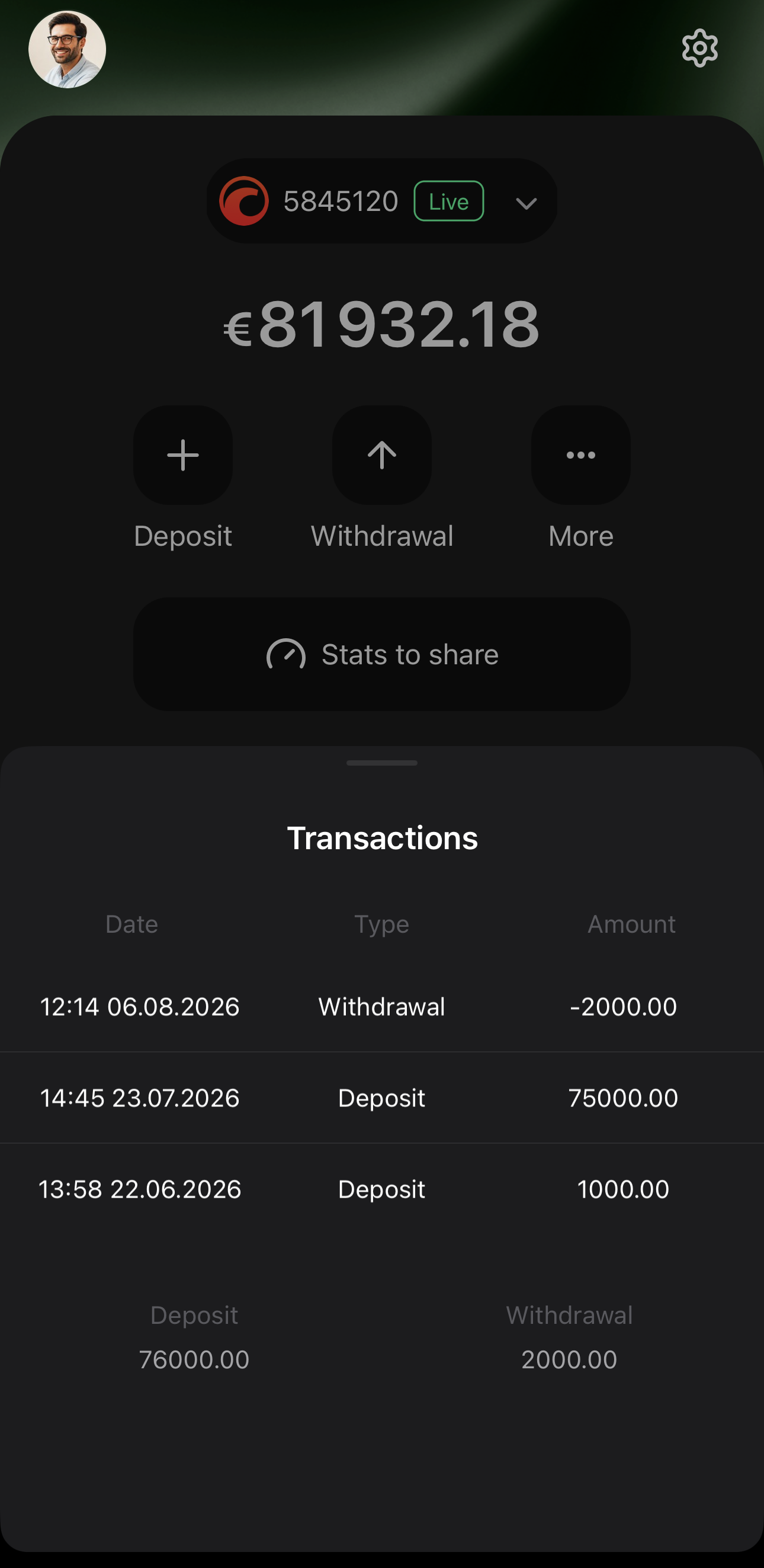
Tap Transactions to see every deposit and withdrawal on the account, one per row:
- Date – the day and time the funds moved.
- Type – deposit or withdrawal.
- Amount – the funds moved, negative on a withdrawal.
Rows run newest first, with deposits and withdrawals totalled separately at the foot.
Rename an account
Give an account a descriptive name in either of two places:
- Tap More beside the balance, then Rename.
- Open Manage trading accounts in the main menu and type the name in Account name on the account's card.
Hide an account
Hide an account in either of two places:
- Tap More beside the balance, then Hide account.
- Open Manage trading accounts in the main menu and tap Hide account on the account's card.
Hiding moves the account out of the account selector into a Hidden group at the foot of the list, behind a chevron. Its balance, positions, orders and history remain unchanged. You can hide your active account and carry on trading it.
Note
A hidden account cannot be renamed.
To bring it back into the main list, tap it, then tap More and Show account, or tap Show account on its card in Manage trading accounts.
Delete an account
Tap Delete account to open the trading accounts page of the cTID website inside the app, then delete the account there. Delete account is also available from Manage profile in the main menu.
Share an account
Let other traders see or trade the account, without handing over your login, from two entries under the balance:
- Stats to share – publish a link to the account's live statistics, which proves your record without granting any access.
- Account access rights – let another cTrader user trade the account on your behalf, with everything but depositing and withdrawing.