Main menu
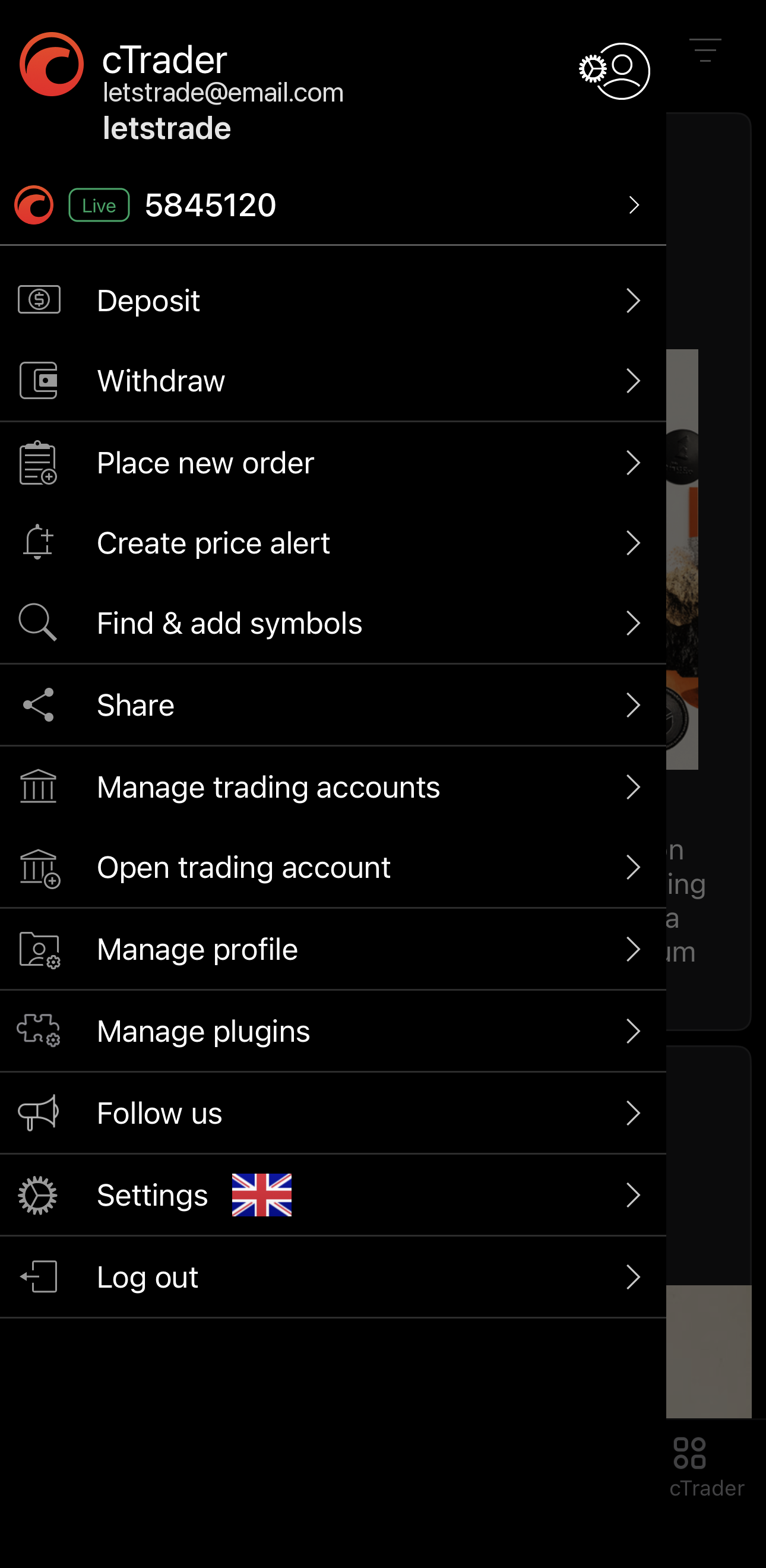
The main menu is a side panel in Markets, Positions and Blotter. To open it, tap in the upper-left corner or swipe in from the left edge.
Note
The main menu reaches many of the same features as My cTrader without leaving the screen you are on.
Switch account
The head of the menu shows your cTrader username and email, with your active trading account and its Live or Demo badge below it.
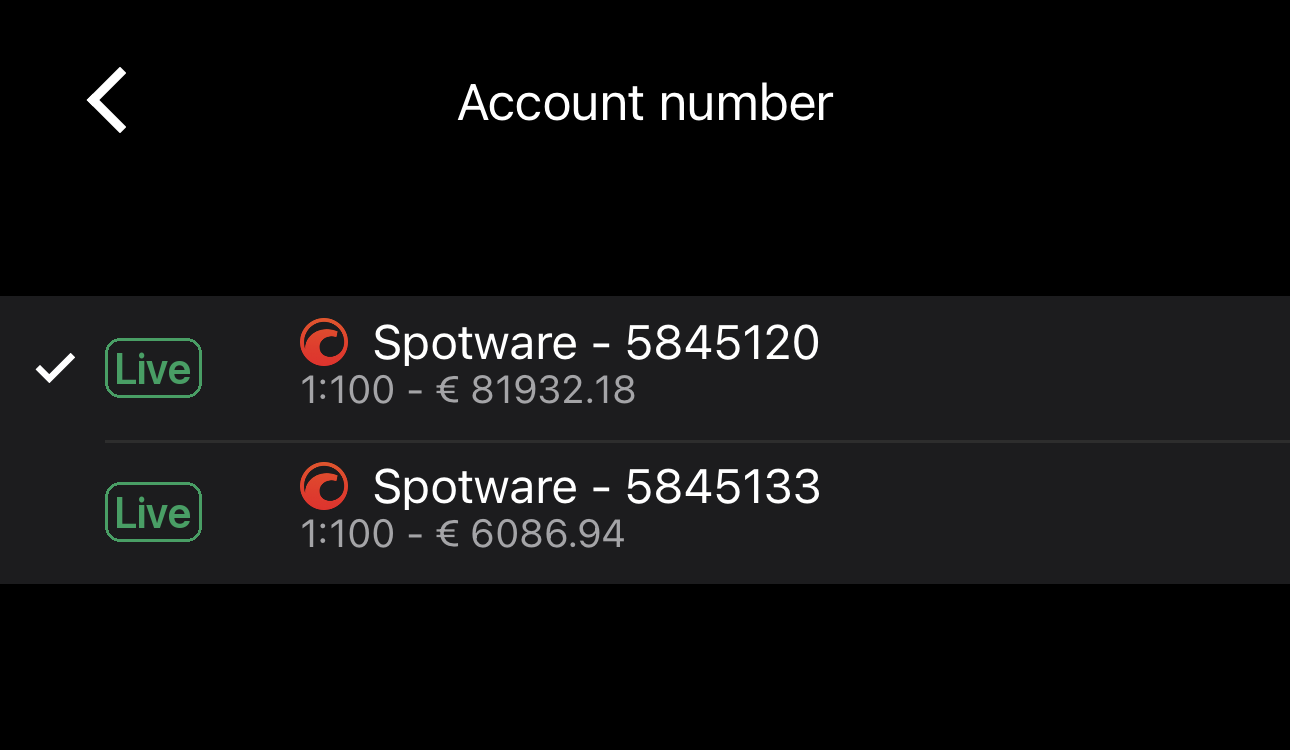
Tap the account selector to open Account number, which lists every trading account on your cTrader ID. Tap another account to switch to it. It holds the same accounts as the account selector in My cTrader.
To manage an account or open a new one, use Manage trading accounts and Open trading account further down the main menu.
Menu items
- Deposit – move funds into your selected account.
- Withdraw – move funds out of your selected account.
- Place new order – open the Place order screen for the first symbol in your current watchlist, then switch to another in the Symbol field if you need to.
- Create price alert – open the New price alert screen.
- Find & add symbols – search for a symbol and add it to your current watchlist.
- Share – send someone a link to cTrader.
- Manage trading accounts – rename or hide an account, and grant, revoke or reject access to it.
- Open trading account – open a live or demo account.
- Manage profile – reach your cTrader ID details and delete an account.
- Manage plugins – reach the plugins you have installed, with Add plugin at the foot for the catalogue.
- Follow us – reach the cTrader social accounts.
- Settings – open the app's settings. The flag beside it shows your current language.
- Log out – sign out of your cTrader ID.
Note
Some items in the main menu may depend on your broker.
Troubleshooting
Tap at the top of the main menu seven times to send troubleshooting information to the development team.