My cTrader
My cTrader is the trading hub that gathers what you need outside a chart, including Copy, Algo and Plugins, as well as your price alerts and the economic calendar.
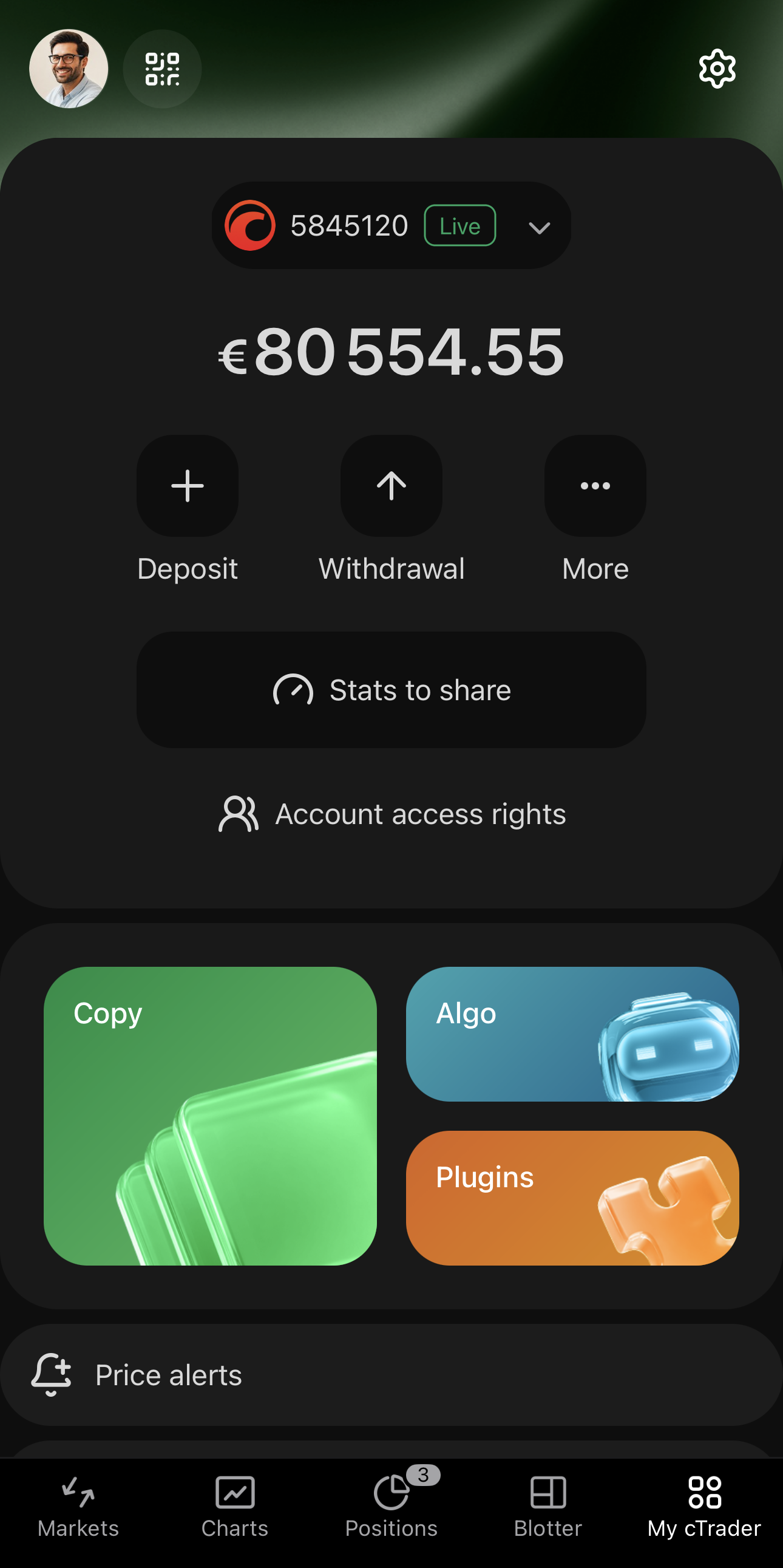
The top of the screen leads to three places:
- Profile menu – tap the profile picture in the upper-left.
- cTrader Invite – tap beside the profile picture. Available in broker-branded apps.
- Settings – tap in the upper-right.
You can reach the profile menu and settings from the main menu as well.
Account management
Tap the account selector below the profile picture to switch between your trading accounts. The card beneath it carries the balance of the active account, with deposits, withdrawals and the other account actions.
Products
Three tiles open the products you can use in cTrader Mobile:
-
Copy from hundreds of successful strategies offered by providers across cTrader brokers.
-
Run cBots 24/7 in the cloud and manage them from any cTrader app.
-
Add custom tools to your cTrader app and personalise your trading experience.
Note
You cannot build cBots in cTrader Mobile: create them in cTrader Algo on cTrader Windows or Mac.
Price alerts
Tap Price alerts to open the Price alerts screen, which lists every alert you have set. The Price alerts tab of the symbol overview shows the same list narrowed to one symbol.
Economic calendar
Tap Economic calendar to see all available economic events in chronological order. The Economic calendar block of the symbol overview shows only the events related to that symbol. Individual events also appear in Blotter.
Event list
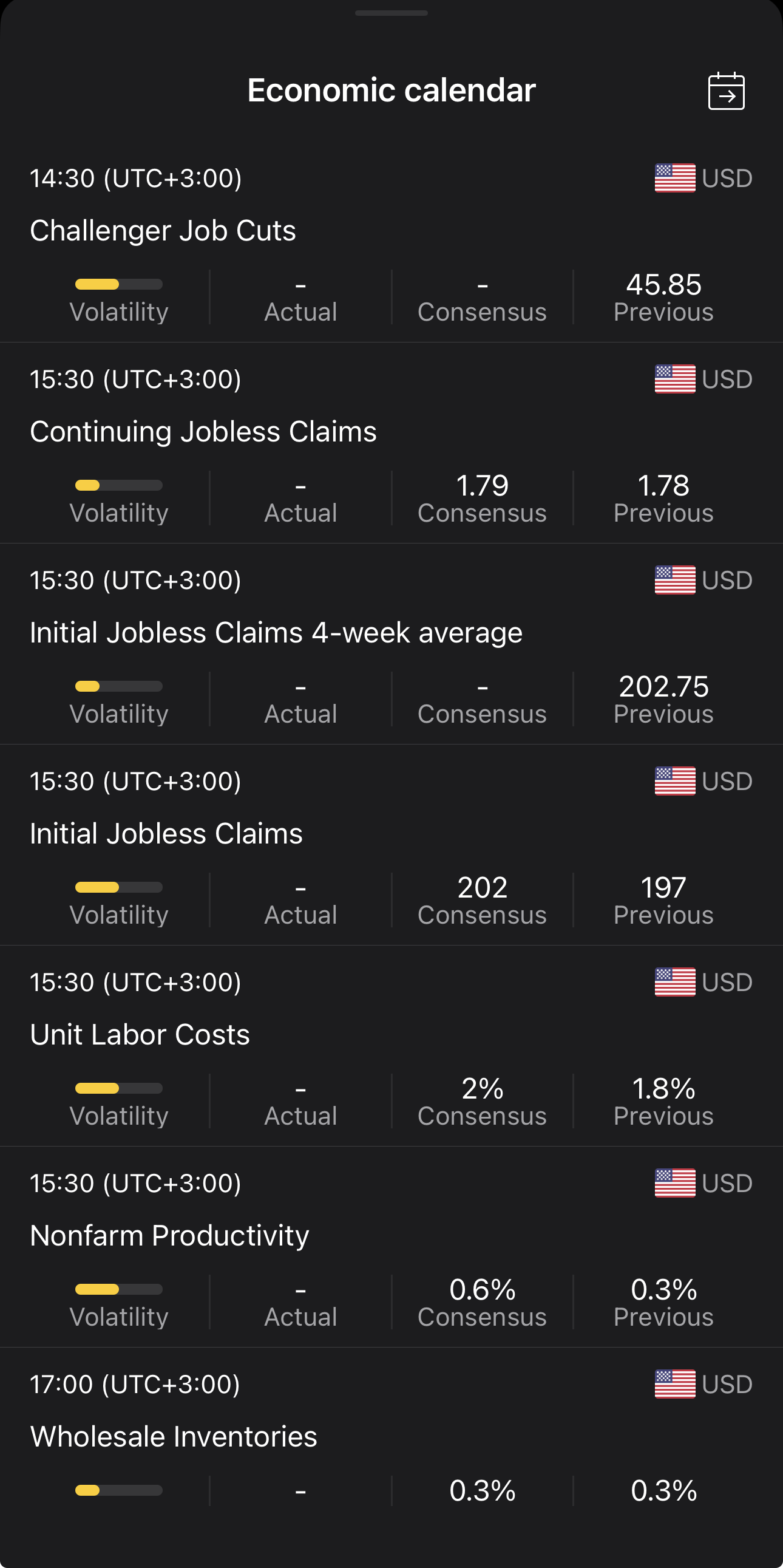
Scroll the list, grouped under a header for each day. Each event carries its title and the time of the release, in your timezone, with the UTC offset beside it and the flag and code of the currency it concerns, as well as the following figures:
- Volatility – how strongly the release is expected to move the market, drawn as a bar.
- Actual – the figure released. A dash stands there until the release lands.
- Consensus – the figure analysts expected. Some events have none and show a dash.
- Previous – the figure from the release before it.
Choose period
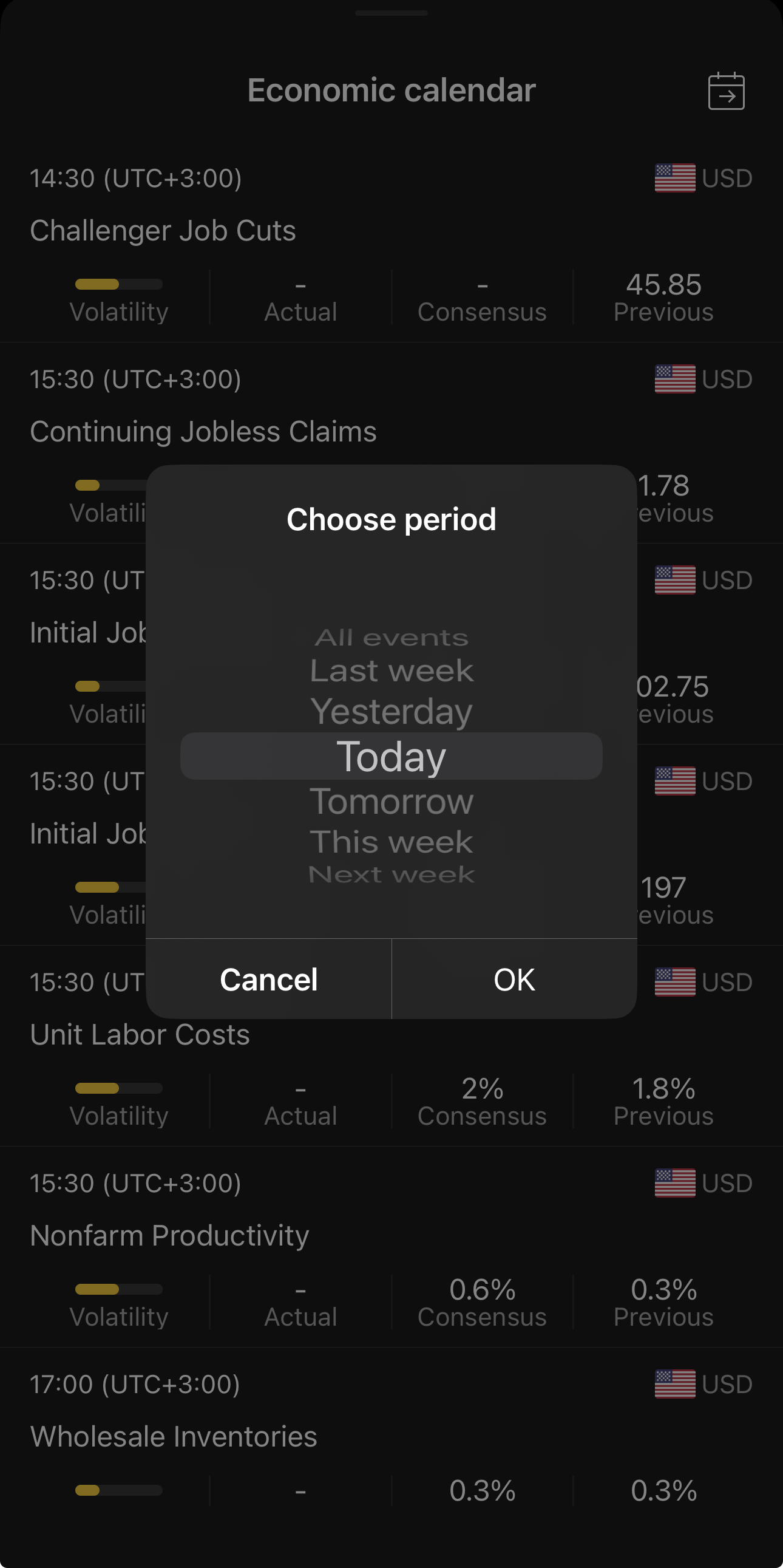
Tap in the upper-right to open the Choose period dialog, then spin the wheel to the span you want and tap OK.
Event details
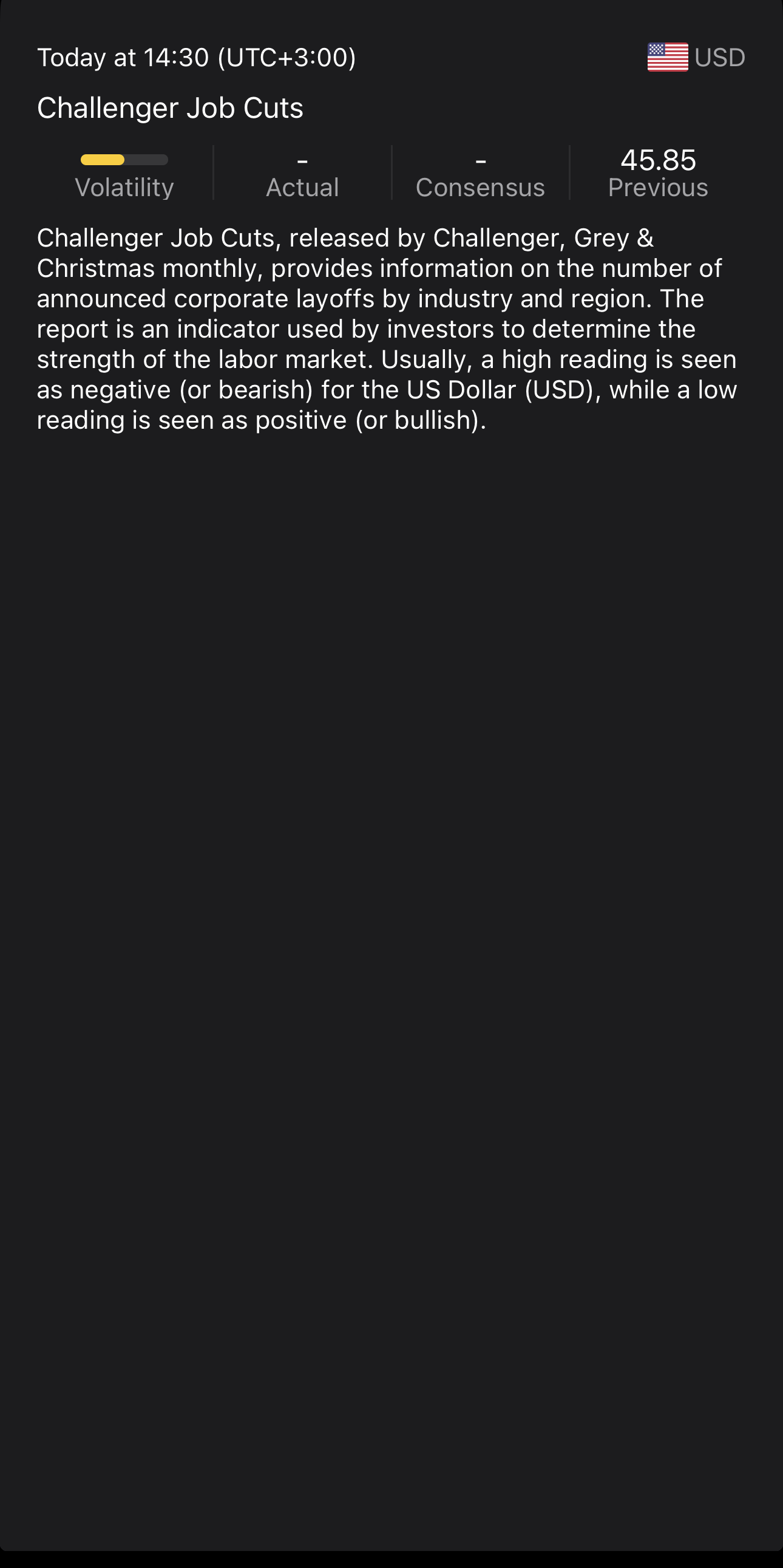
Tap an event to open its details. They repeat the figures and add a description of the release: who publishes it, how often and what it measures. The description also says whether a high or low reading is usually read as positive or negative for the currency.
Help and socials
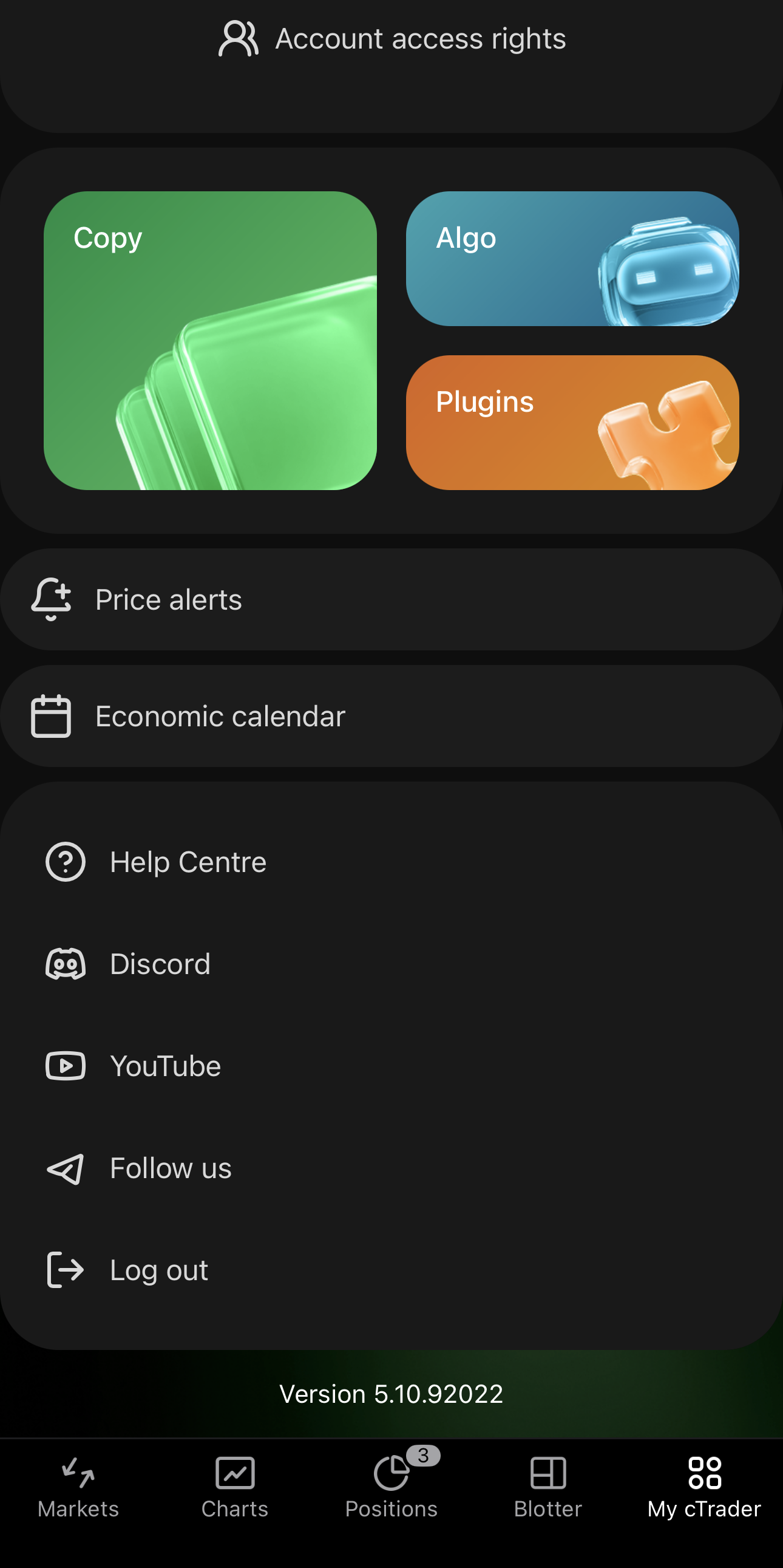
Scroll to the foot of the screen and tap a link to reach support or the community:
- Help Centre – find an answer in the embedded Help Centre.
- Discord – join the cTrader community server.
- YouTube – watch the cTrader channel.
- Follow us – reach other cTrader social accounts: Facebook, Instagram, TikTok, Telegram and Twitter.
- Log out – sign out of your cTrader ID.
The app version is printed below the list. Support may ask for it when you report a problem.
Note
What appears here depends on your broker, so your list may differ from the one above.