Settings
Settings hold your preferences for cTrader Mobile. They apply to the whole app, not to a single trading account. Alerts are the exception: they are notifications your cTrader ID sends you, for the account you choose.
Open them with Settings in the main menu, or with in the upper-right of My cTrader. Both routes lead to the same screen, which is divided into four tabs.
Settings
Set the app-wide preferences on the first tab.
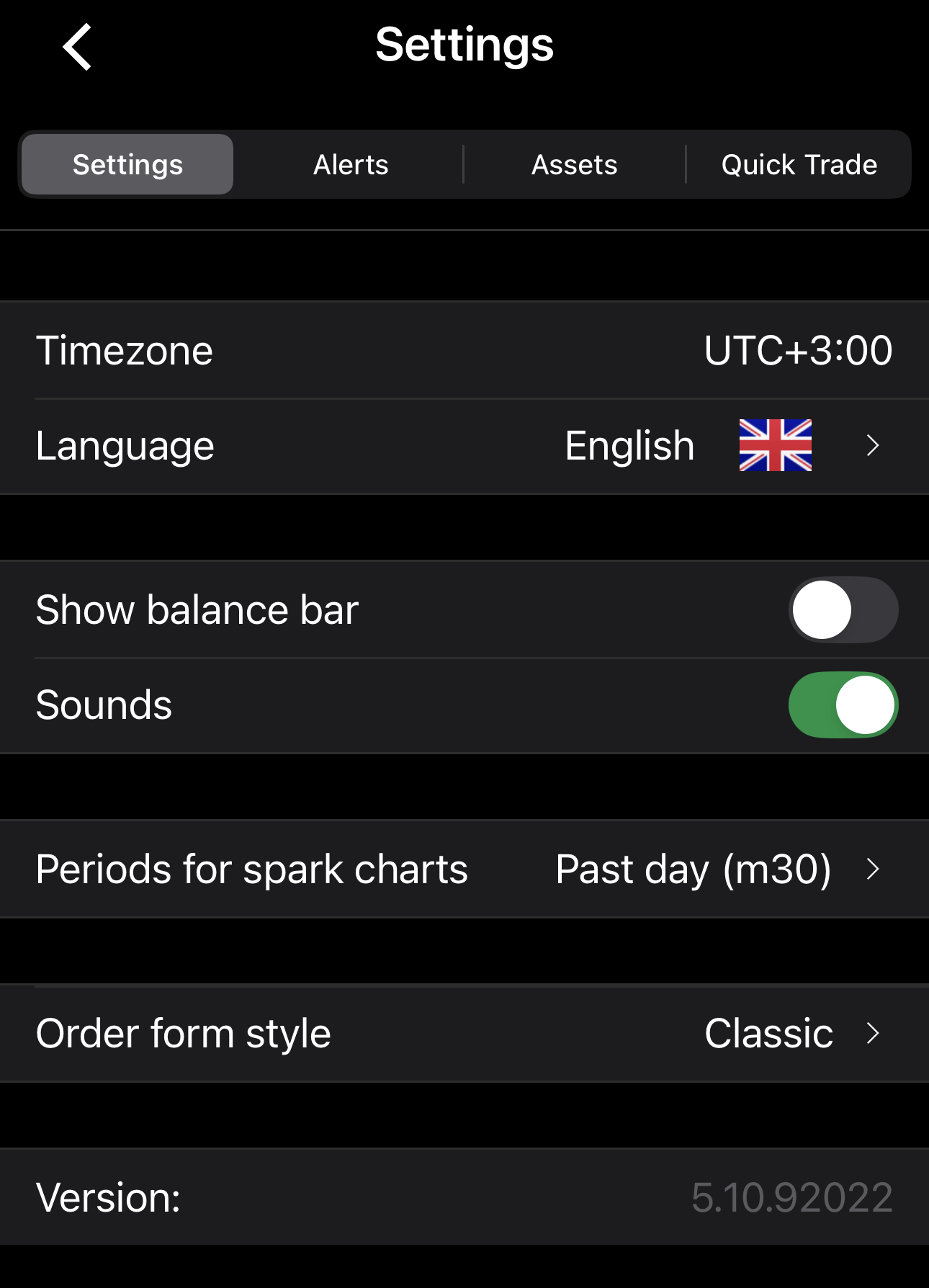
- Timezone – the time zone every timestamp in the app is shown in: chart axes, order times, history and the economic calendar.
- Language – the app's interface language (Arabic, Czech, English, French, German, Greek, Hungarian, Indonesian, Italian, Japanese, Korean, Malay, Polish, Portuguese, Russian, Serbian, Simplified Chinese, Slovak, Slovenian, Spanish, Thai, Turkish and Vietnamese).
- Show balance bar – enables or disables the balance bar on the trading screens. When disabled, the bar cannot be swiped into view. Off by default.
- Sounds – the app's sounds. On by default.
- Periods for spark charts – the timeframe behind the spark charts in a watchlist row.
- Order form style – the layout of the Place order form.
- Version – the cTrader Mobile build you are running. Support may ask for it.
Alerts
Select the account in Account number at the top, then set each event to arrive by push, by email or both. Each row names its current state beneath it, so you can read the whole configuration without opening a row.
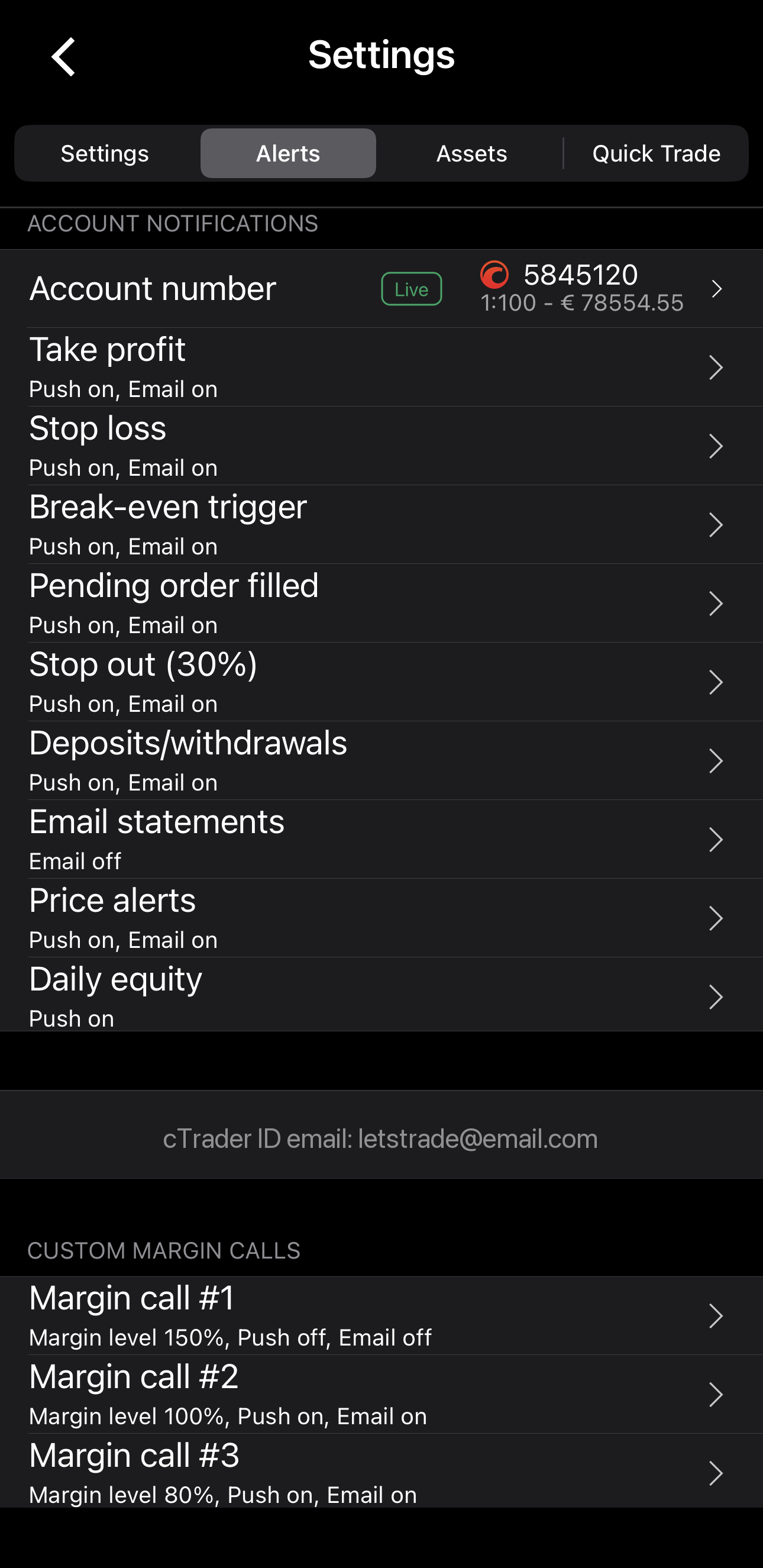
Most rows name the event they report: a take profit or stop loss closing a position, a break-even level triggering, a pending order filling, a price alert triggering, a deposit or withdrawal completing. They are the same events as the trading account notifications of your cTrader ID:
- Stop out – the percentage in brackets is your broker's own level.
- Break-even trigger – an alert that break-even has moved your stop loss. Available only in cTrader Mobile, not in your cTrader ID notifications.
- Email statements – periodic account statements, by email only.
- Daily equity – a daily summary of your equity, by push.
Below them, Custom margin calls holds three warnings of your own, Margin call #1 to #3. Each one carries:
- Margin level – the level at which the warning triggers.
- Push and Email – the channels the warning reaches you through, each switched on or off.
Tip
Custom margin calls are independent of the red dot on the account tracker, which appears at 200%. Set a higher margin level to be warned earlier.
Emails go to the cTrader ID address indicated between the two groups.
Assets
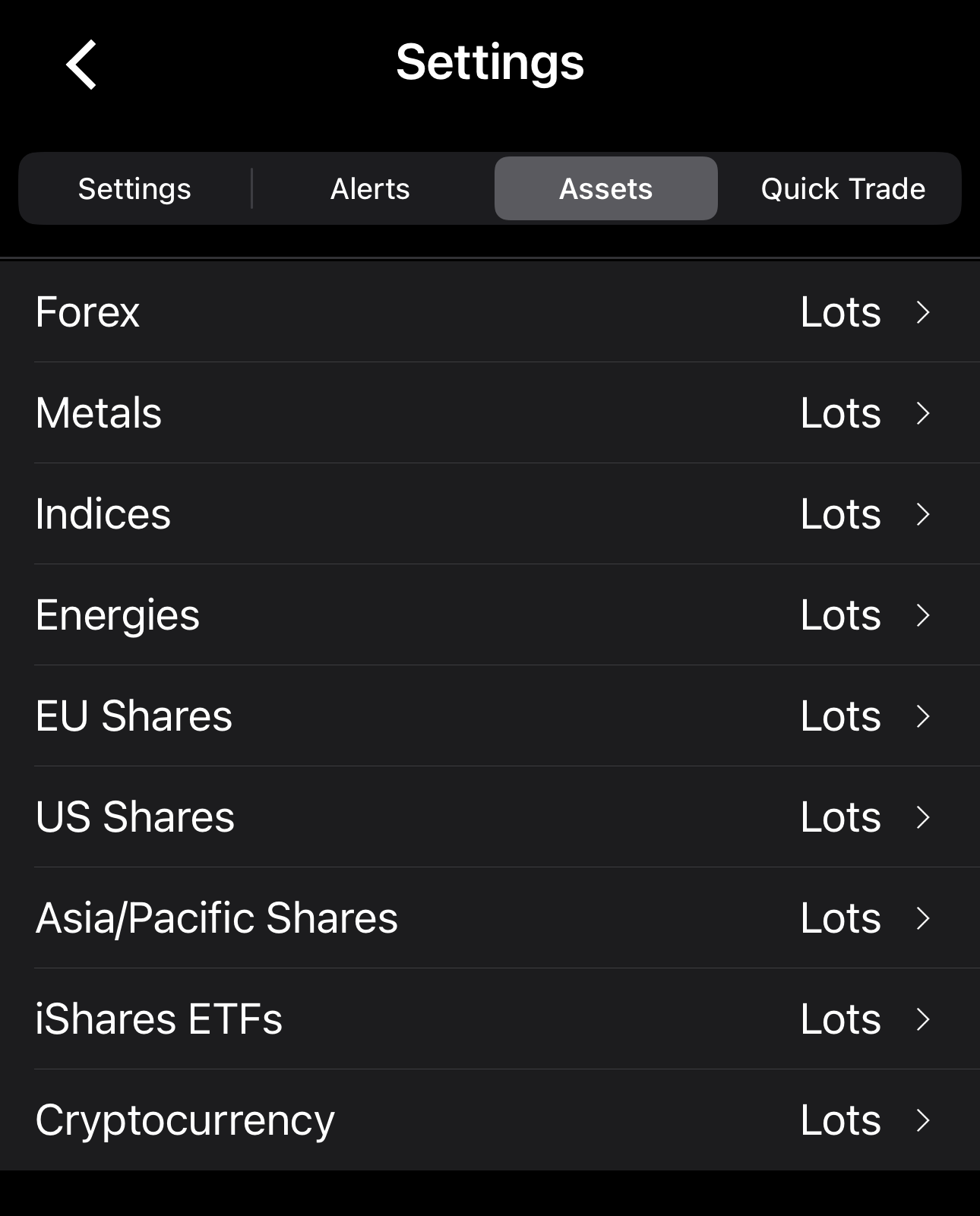
Set the volume format for each asset class, such as Forex, Metals or Indices. Tap a class and choose:
- Lots – volume in lots, a contract size your broker defines for each symbol.
- Units – volume in units of the traded asset.
The setting applies wherever the app shows a volume for that asset class.
Example
On a symbol with a lot size of 100,000 units, a trade of 0.10 lots reads as 10,000 units.
Note
The asset classes shown in Assets depend on the liquidity your broker offers.
Quick Trade
Turn on Quick Trade to enable chart trading and to place a market order straight from Sell or Buy in the Symbol section of the symbol overview. When it is off, those buttons open the Place order screen. Turning Quick Trade on means you accept the terms printed below its switches.
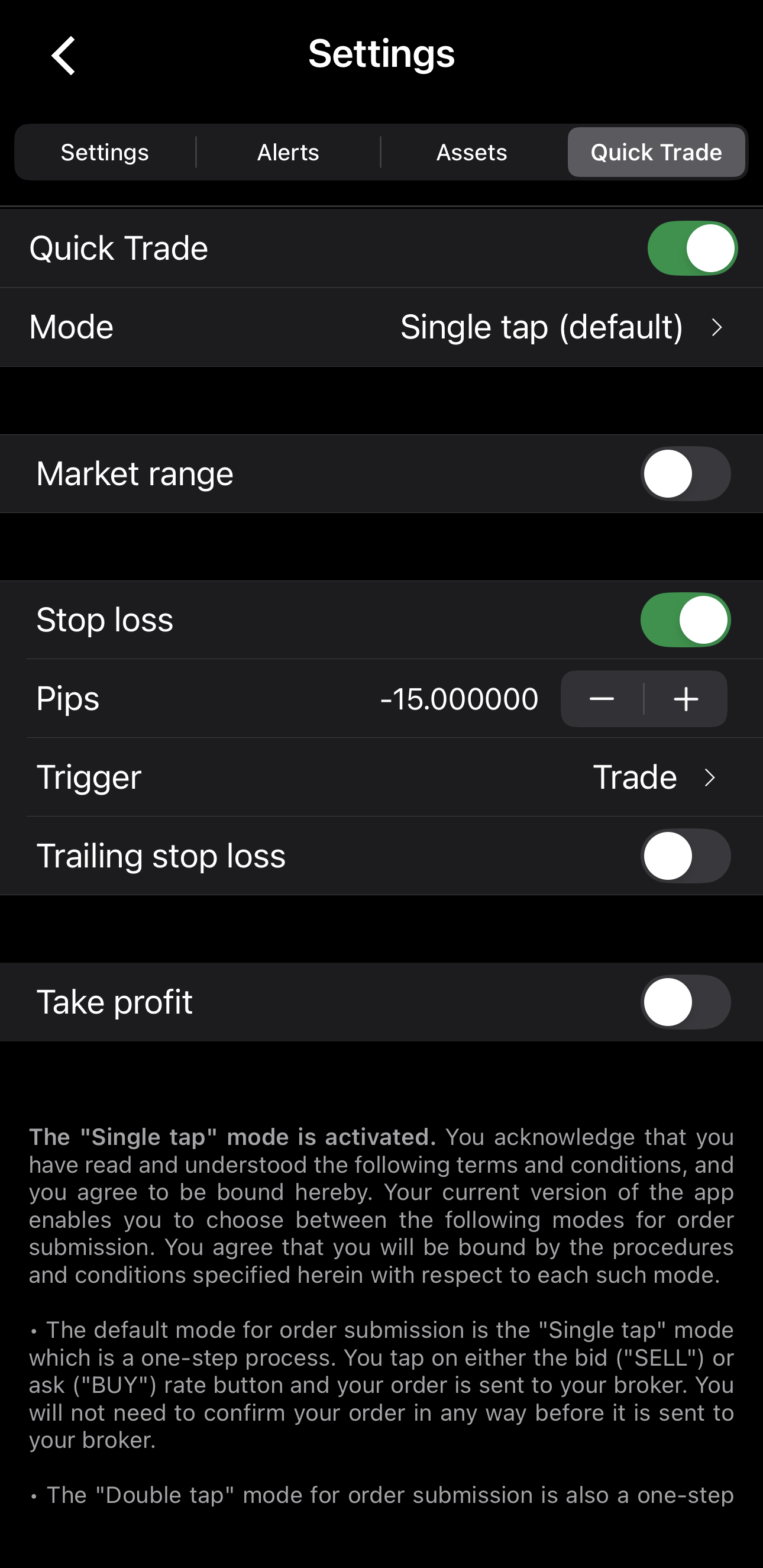
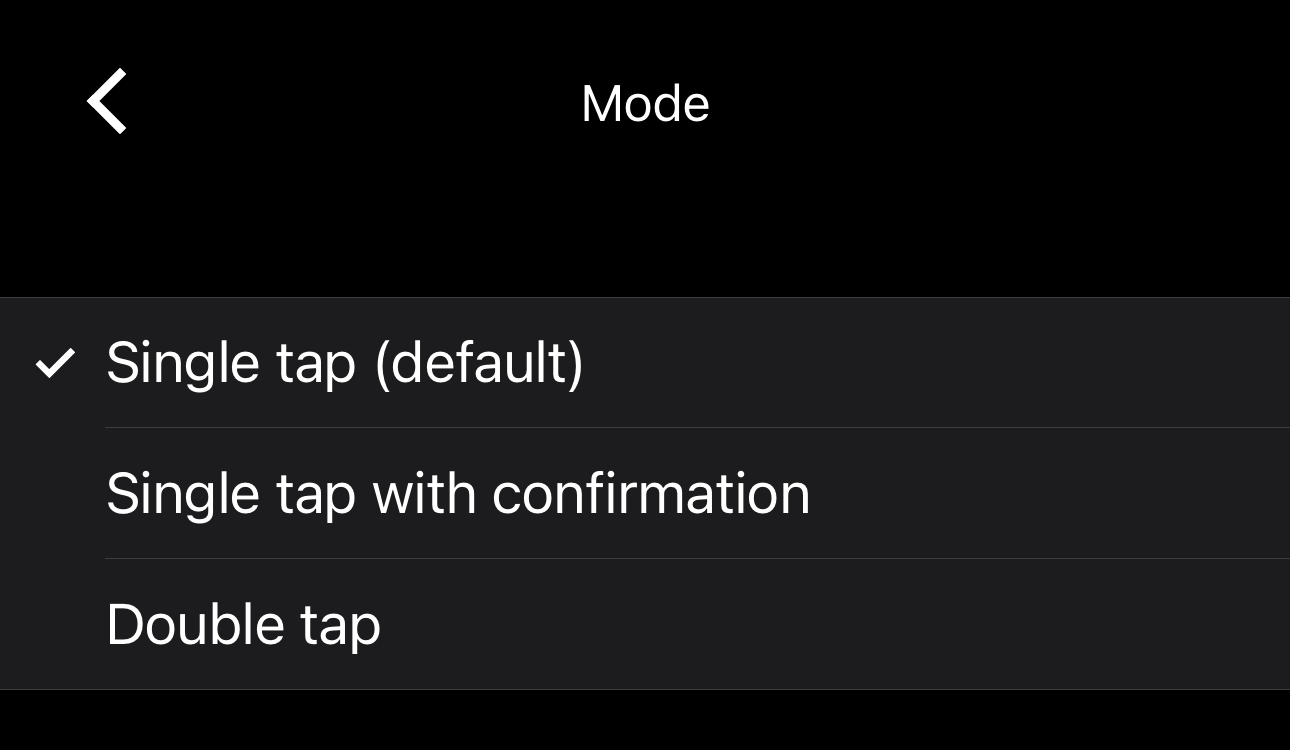
Mode decides how a tap is read:
- Single tap (default) – one tap on the bid or ask sends the order, with no prompt.
- Single tap with confirmation – one tap opens a prompt, and confirming sends the order.
- Double tap – two taps send the order.
Note
In Single tap (default) mode, one accidental tap on the Quick Trade buttons places a real order. To guard against accidental taps, choose Single tap with confirmation or Double tap.
Three switches preset the parameters of a Quick Trade order:
- Market range – the maximum deviation, in pips, between the requested price and the execution price of a market order.
- Stop loss – a preset distance from the entry price, in pips.
- Take profit – a preset distance from the entry price, in pips.
Enable one and its fields appear beneath it.