Chart trading
Chart trading lets you place and manage trades directly on a symbol's chart.
The trading controls appear once you open a chart. From there you can:
- Place market and pending orders with Quick Trade.
- Manage the positions and orders already on the chart.
- Set protections with the SL and TP controls.
Quick Trade
Quick Trade places orders straight from the chart, without opening the Place order screen.
To place an order:
- Set the trade size on the chart.
- Tap Buy/Sell to place a market order at the current price, or drag either onto the chart for a pending order. cTrader recognises the pending order type automatically from the drop level and the trade direction:
- Dropping the Buy control above the current price creates a buy stop; below it, a buy limit.
- Dropping the Sell control below the current price creates a sell stop; above it, a sell limit.
While you drag, a Cancel strip appears at the bottom of the chart. Drop the control there to cancel the order.
Note
You can set up Quick Trade actions, as well as preset the market range and protections that cTrader applies to every Quick Trade order. If Quick Trade is disabled, the Buy/Sell buttons open the Place order screen instead of placing the order immediately.
Manage trades
Every open trade stays on the chart, with its own controls. Tap a corresponding control to modify a position, a pending order or the protections attached to either, without leaving the chart.
Positions
You can manage positions on the chart.
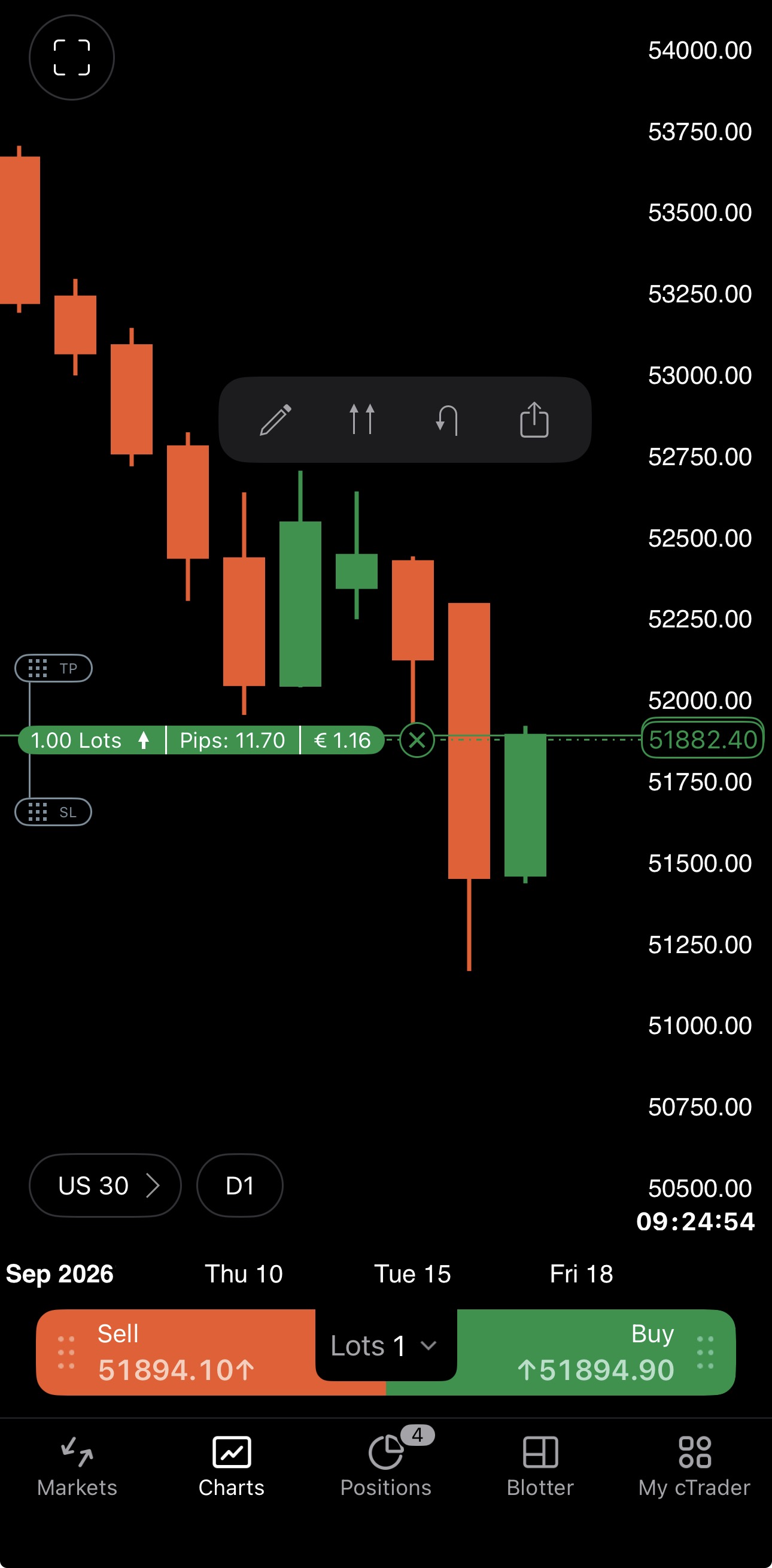
An open position appears on a chart as a position control. Tap it to:
- – open the position menu on its Modify tab, where you can change the direction and size, double, reverse or close the position.
- – open an additional position of the same size and direction.
- – close the position and open one of the same size in the opposite direction.
- – share the position as a signal link.
Tap on the position control to close it.
Orders
You can manage pending orders on the chart.
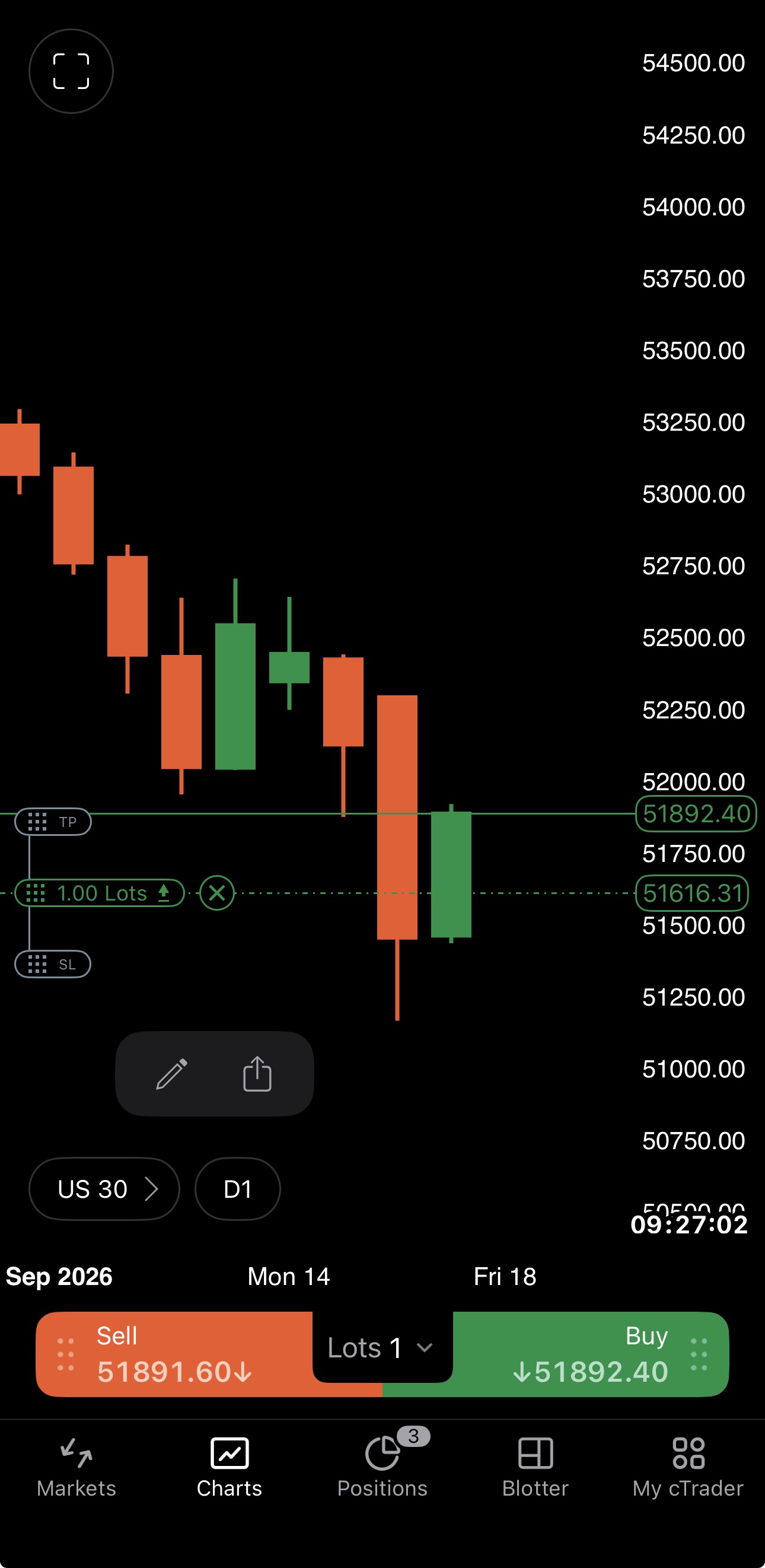
An order appears as an order control. Tap it to:
- – open the Modify pending order menu, where you can change the trade size, entry price, expiry, protections, or cancel the order.
- – share the order as a signal link.
Additional actions:
- Dragging — move the entry price.
- — cancel the order.
Protections
You can add protections to an order or a position without leaving the chart:
- Drag the TP control along the price axis to set a take profit.
- Drag further TP controls onto the chart to set multiple take-profit levels.
- Drag the SL control to set a stop loss.
Note
Trailing stop loss and break-even are set on the Place order or Modify pending order screen, or in a position's Protect tab.