Price alerts
A price alert notifies you when a symbol reaches a price level you have set. You do not have to keep the chart open to catch a move.
Price alerts screen
Every alert you have set is listed on the Price alerts screen, which you can reach three ways:
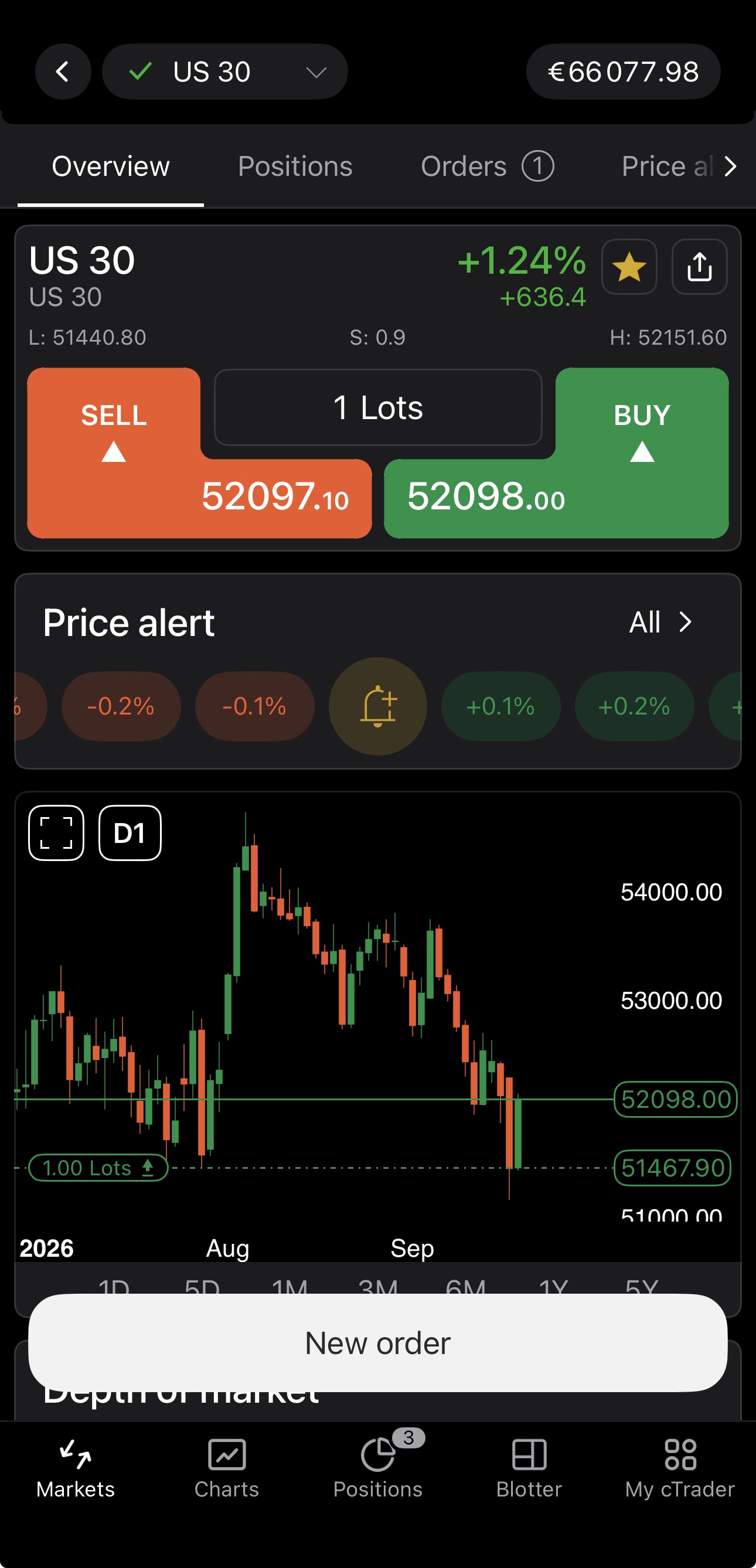
Tap All in the Price alert block of the symbol overview.
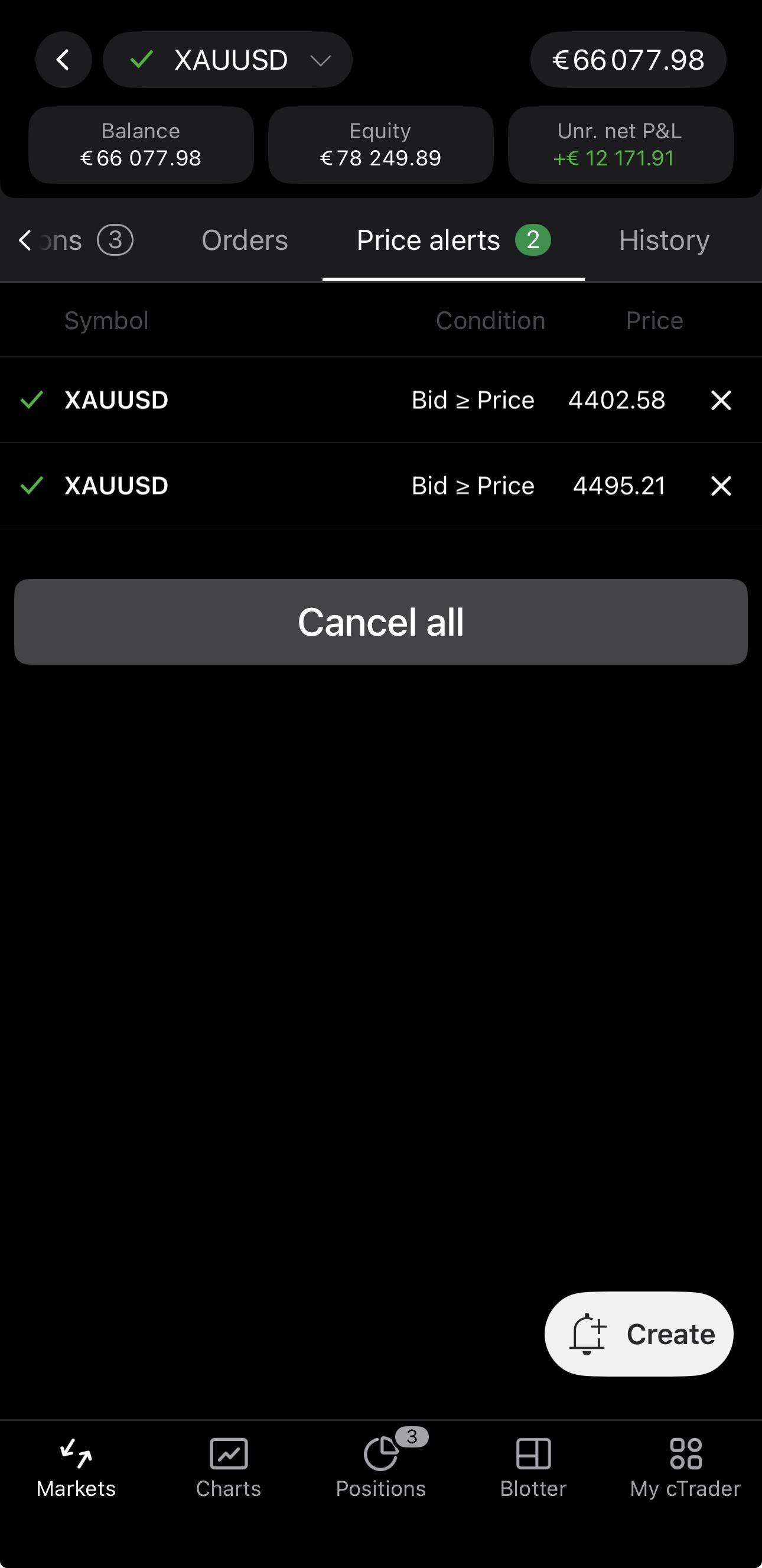
Open the Price alerts tab of the symbol overview.
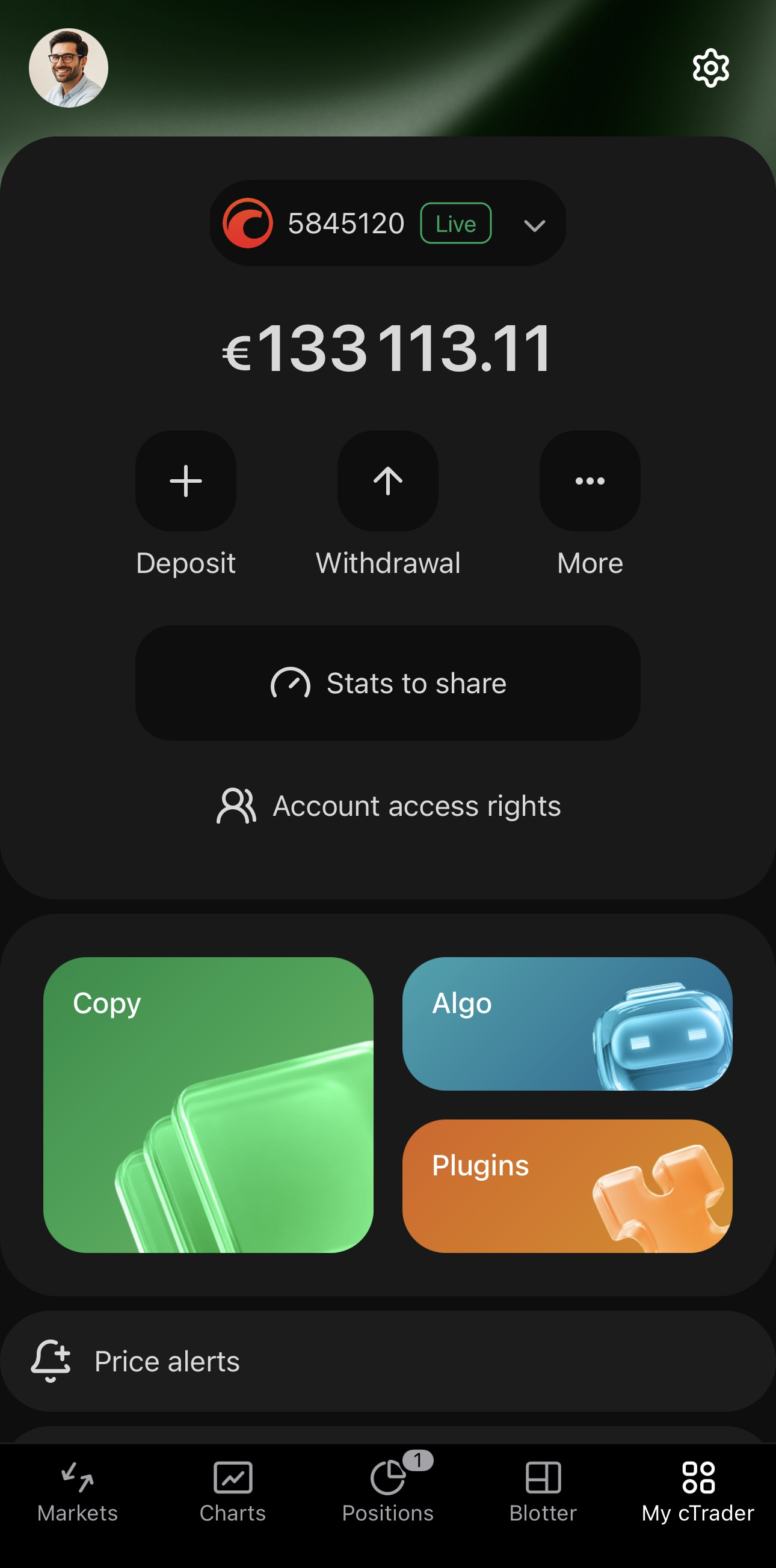
Tap Price alerts in My cTrader.
Note
The two symbol overview routes list that symbol's alerts only. My cTrader lists them for every symbol.
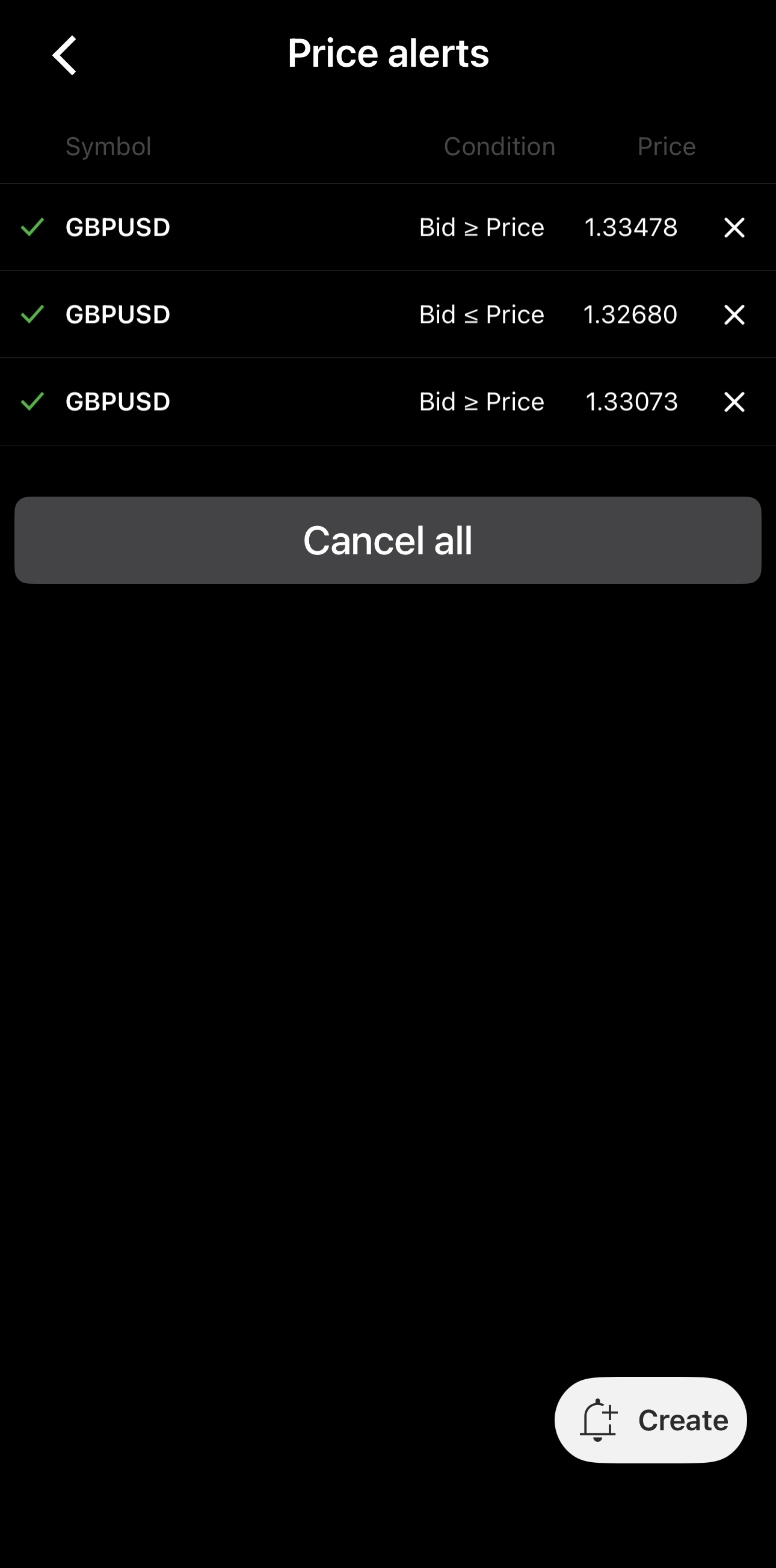
The screen lists your alerts in three columns:
- Symbol – the symbol the alert applies to.
- Condition – the rule that must be met, such as Bid ≥ Price or Ask ≤ Price. See Alert conditions.
- Price – the level that triggers it.
Create an alert
The quickest route is the Price alert block of the symbol overview, where tapping a percentage preset creates an alert.
To set up an alert in full, open the New price alert screen by tapping in the Price alert block, or Create on the Price alerts screen.
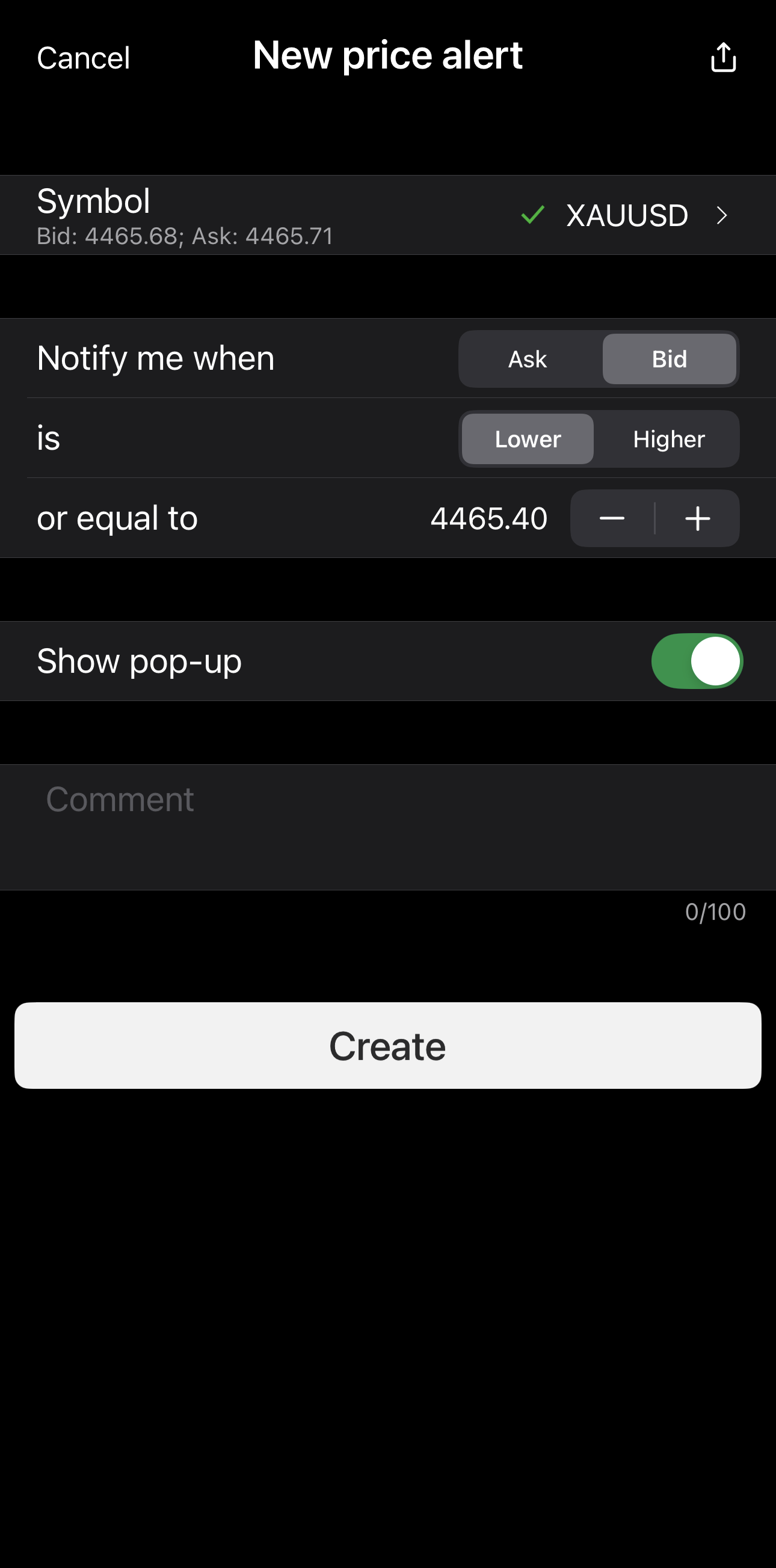
The screen holds:
- Symbol – the symbol the alert applies to, with its current bid and ask beneath. Tap the row to change it.
- Notify me when – the condition, completed as a sentence:
- Ask or Bid – the side of the quote the alert monitors.
- Lower or Higher – whether the price must fall or rise to the level.
- or equal to – always included, making the condition ≥ or ≤ rather than strictly above or below.
- Show pop-up – displays the alert as a pop-up in the app when the condition is met.
- Comment – an optional note of up to 100 characters that travels with the alert.
Type the price or step it with and .
Tap Create to set the alert.
in the upper-right corner shares the alert as a link. Opening the link sets up the same alert in the recipient's own cTrader app, whichever one they use.
Manage alerts
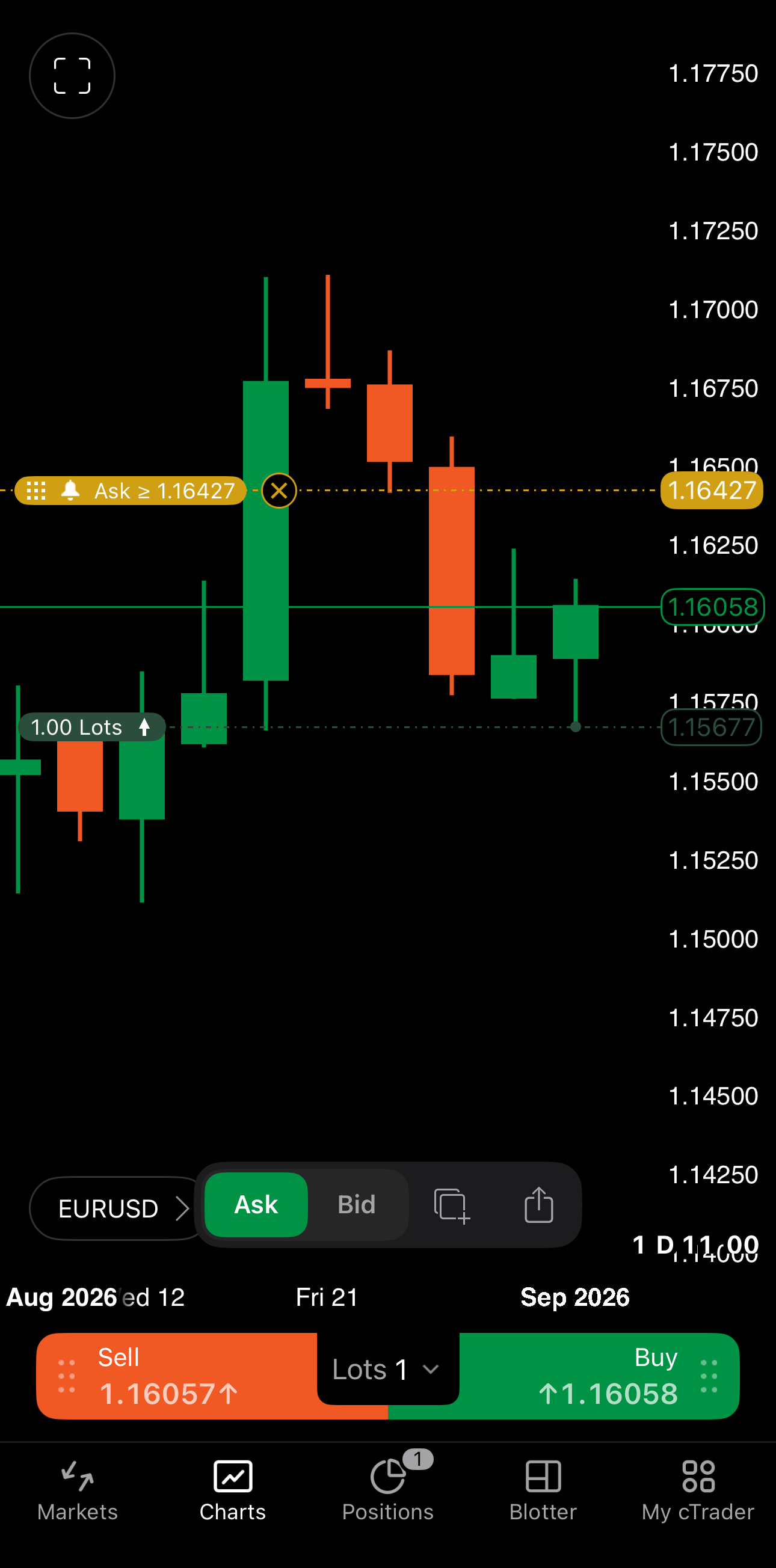
An alert appears on a chart as a price alert control. Drag it to move the alert to another price level, or tap it to focus the alert and raise its actions:
- Ask – monitor the price you would buy at.
- Bid – monitor the price you would sell at.
- – duplicate an alert on the symbol at a higher price.
- – share the alert as a link.
Cancel alerts
Tap to cancel an alert, either at the end of its row on the Price alerts screen or on its price alert control on a chart. Cancel all clears the whole list.
Alert conditions
The Price alerts screen writes the condition as a comparison in the Condition column, where Price stands for the level in the Price column beside it.
An alert triggers once. When the condition is met you are notified and the alert is cancelled. It does not trigger again the next time the price moves through the same level.
You can adjust the push and email notifications under Settings → Alerts. Show pop-up is set on the alert itself, so it can differ from one alert to another.