Watchlists
A watchlist groups symbols together so you can track their prices and trade them from one place. Watchlists are synced across cTrader Mobile, Web, Windows and Mac.
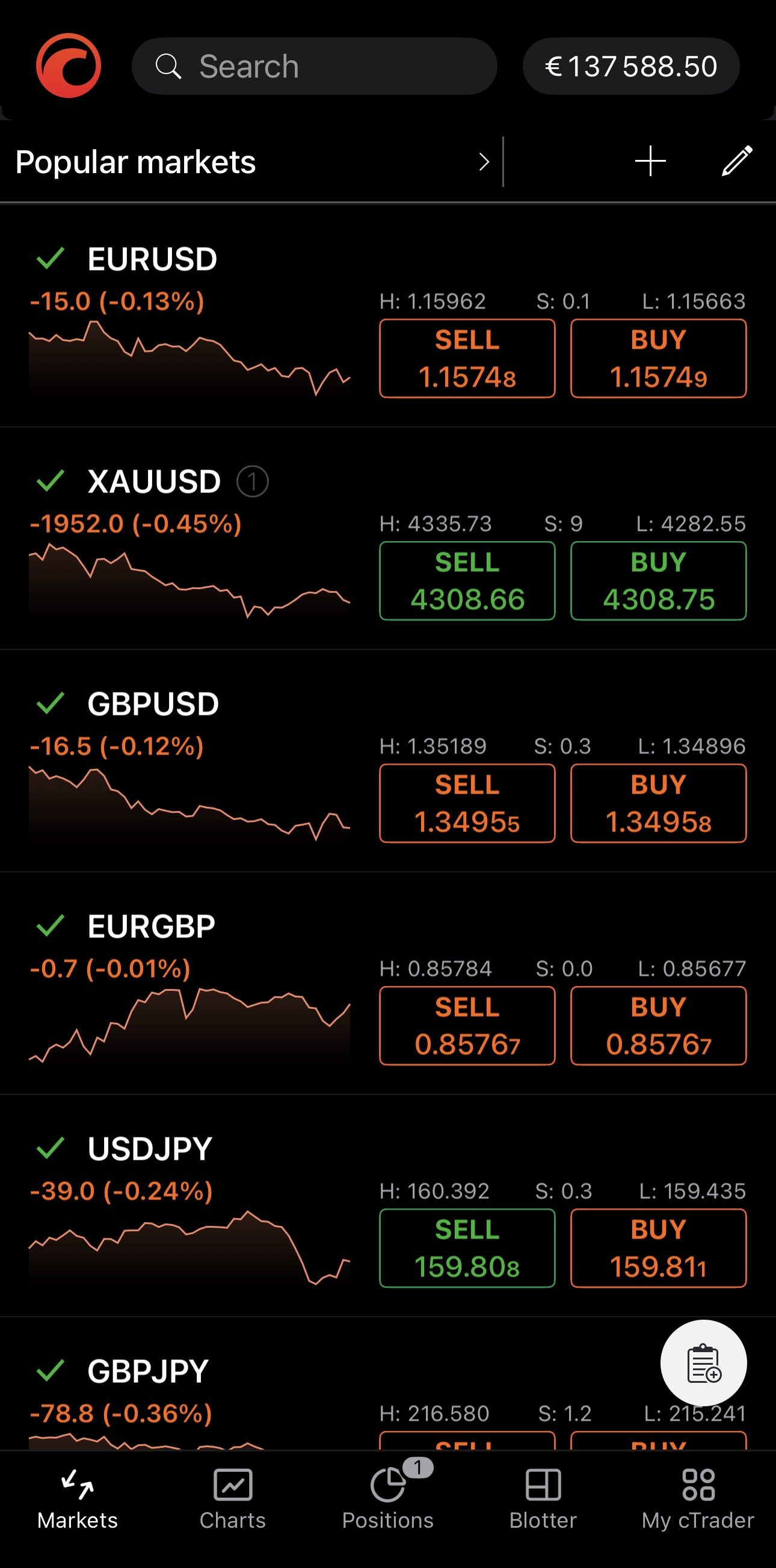
Watchlists live in the Markets app, the one cTrader Mobile ever opens on. Each row carries a symbol and everything you need to judge it at a glance:
- A symbol name, with the day's change as a number of points and a percentage.
- A spark chart of the price movement over the period set in Periods for spark charts.
- H – the day's high.
- S – the current spread.
- L – the day's low.
- Sell and Buy with their live prices.
From a symbol row in a watchlist you can:
- Tap a symbol to open its symbol overview.
- Tap Sell/Buy to open the Place order menu with that direction already set.
- Long-tap the symbol to open its chart.
Three controls sit above the list:
- The name of the current watchlist – tap it to open the Watchlists screen.
- – add symbols to the list.
- – edit the list.
The default watchlist is Popular markets, which holds widely traded currency pairs and indices. Edit it like any other, or build your own alongside it.
Create a watchlist
- Tap the name of the current watchlist to open the Watchlists screen.
- Tap Create watchlist.
- Give it a name.
- Choose the symbols to put in it, as described in Add symbols.
Manage watchlists
The Watchlists screen lists all your watchlists, with against the one currently open in Markets.
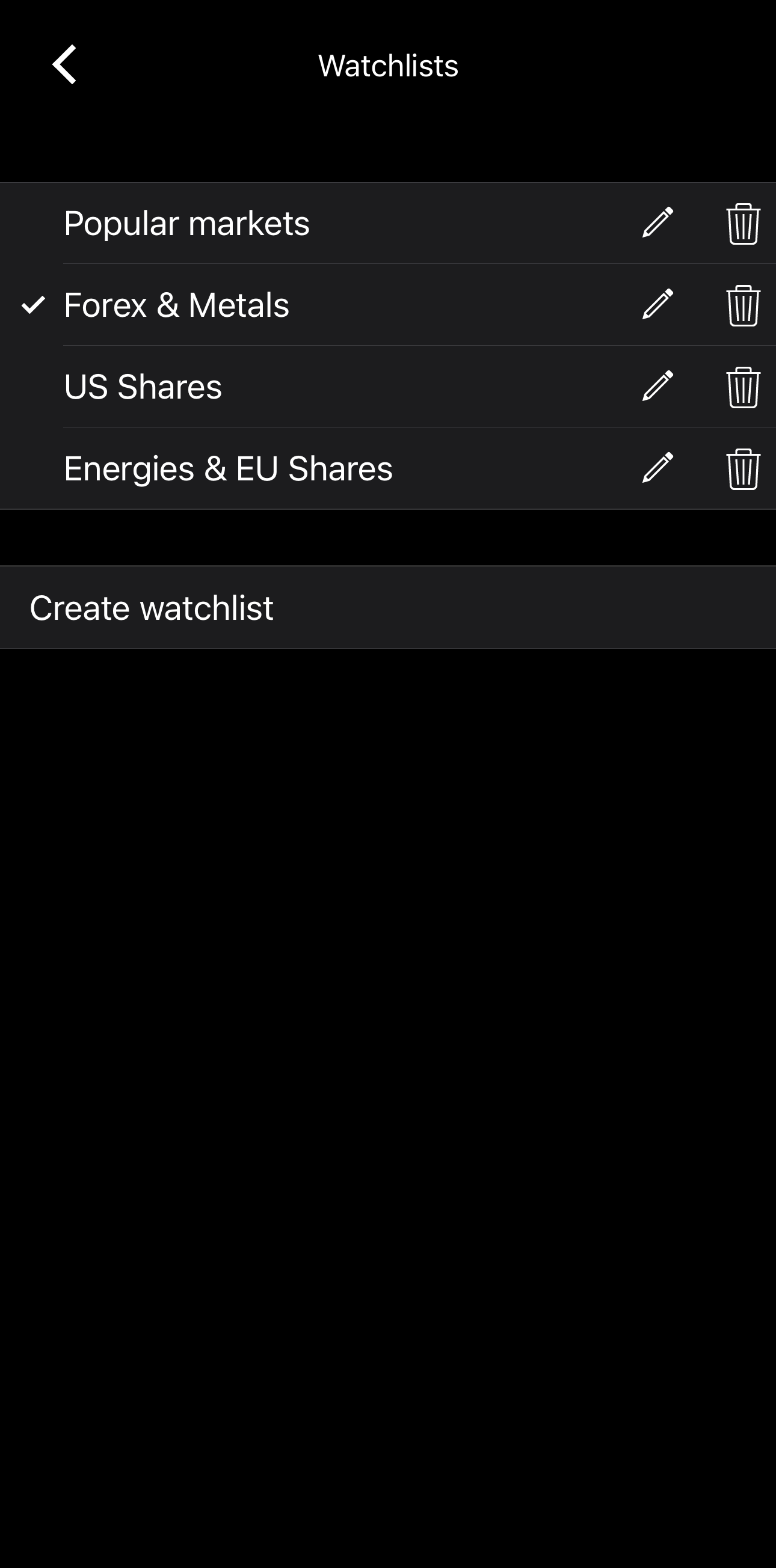
- — choose the watchlist.
- – rename the watchlist.
- – delete the watchlist.
Add symbols
Tap above the list to open Find & add symbols, which gives you two ways to work:
- Search by symbol name.
- Browse by asset class, such as forex, metals, energies, etc. Tap a class to expand it.
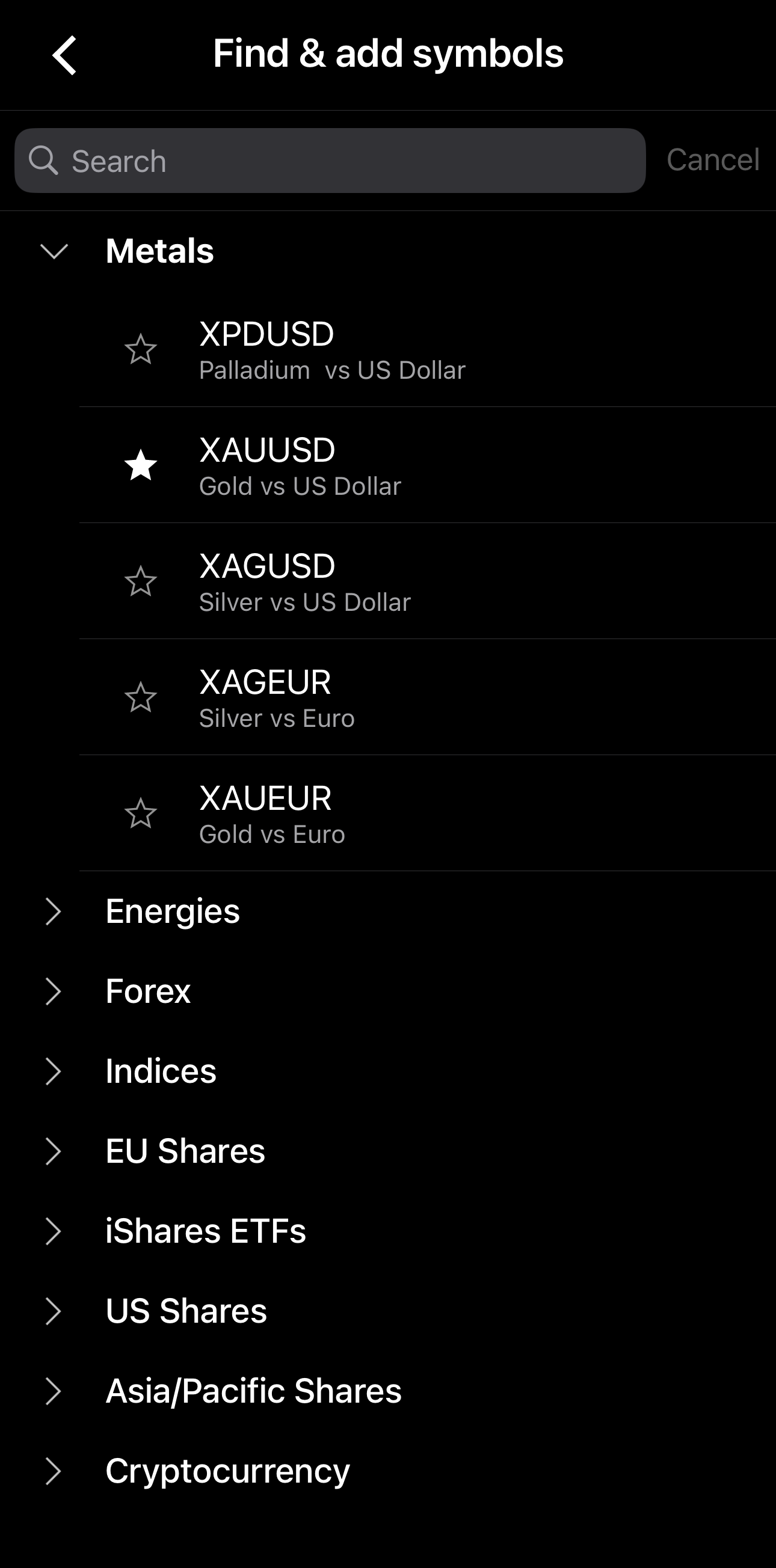
Tap anywhere on a symbol's row to add it to the current watchlist, and tap it again to take it out. A filled star marks the symbols the watchlist already holds.
Note
The symbols available to you depend on your broker and their setup.
Edit a watchlist
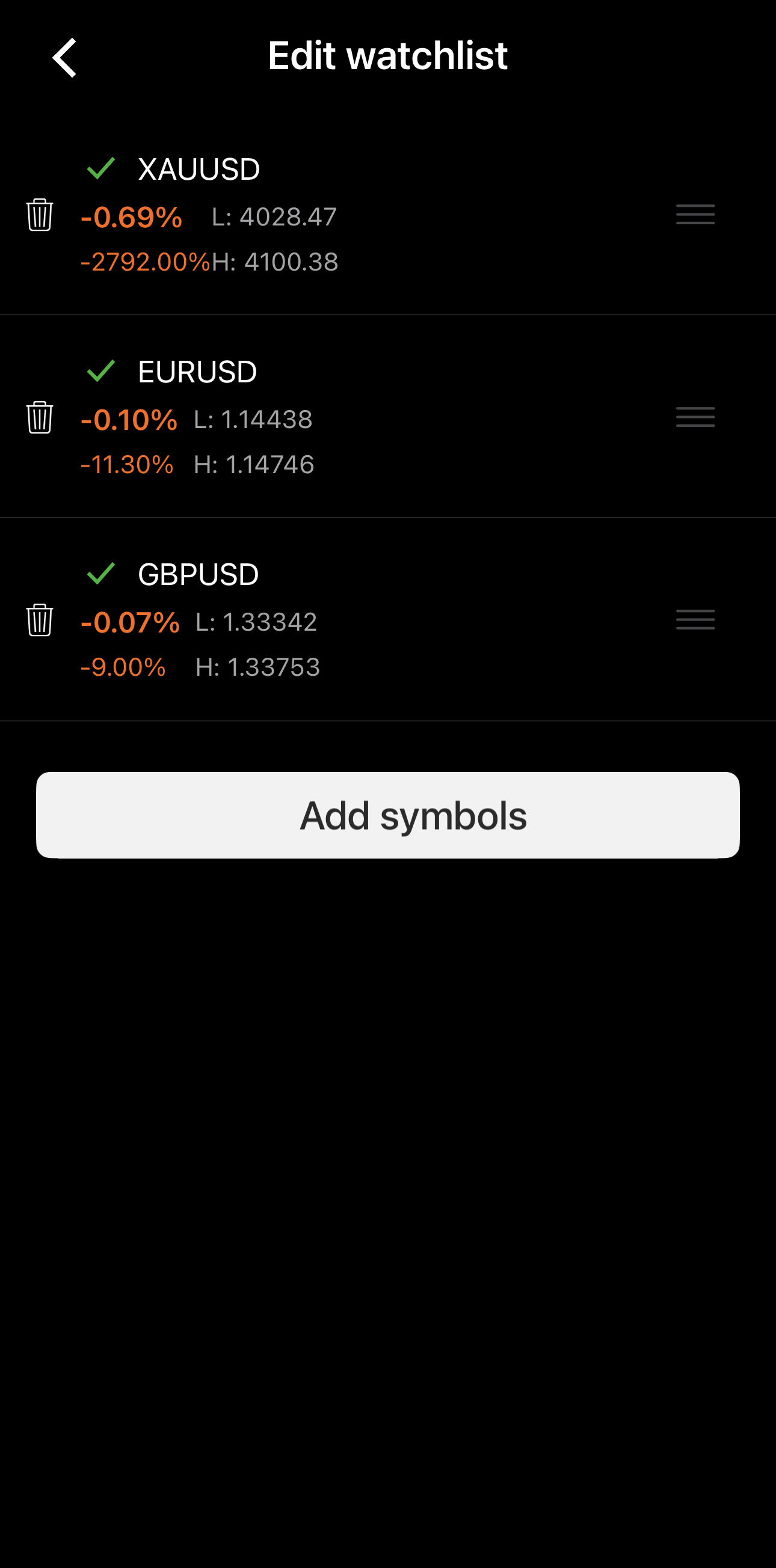
Tap above the list to open Edit watchlist, where you can:
- – remove the symbol beside it.
- – drag to reorder the list. The order you set here is the order the symbols appear in Markets.
- Add symbols – open the Find & add symbols screen.