サブスクリプションを提供
一度限りの価格の代わりに、または一度限りの価格と併せて、定期的に商品を販売できます。 サブスクリプションでは、購入者が定期的な料金を支払い、購入者がサブスクライブし続ける限り、収益を得続けることができます。 購入者側のフローについては、商品をサブスクライブをご覧ください。
注意
認証済みアカウントのみが有料およびサブスクリプション商品を公開できます。
サブスクリプションを有効にする 
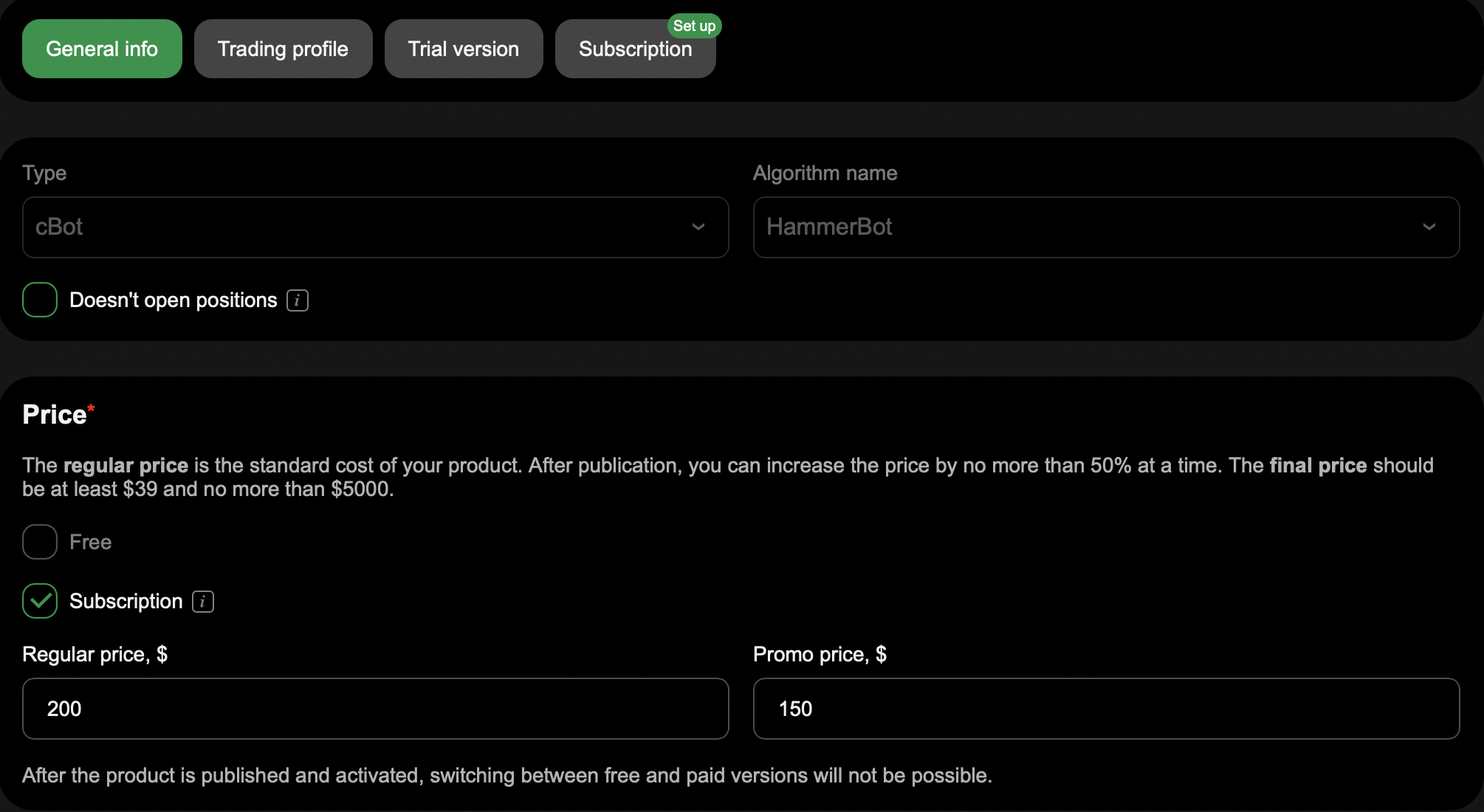
商品を公開または編集する際、価格ブロックでサブスクリプションを選択します。その際、以下の条件を考慮してください。
- 無料とサブスクリプションを同時に選択することはできません。
- サブスクリプションは一度限りの価格と組み合わせることができます。
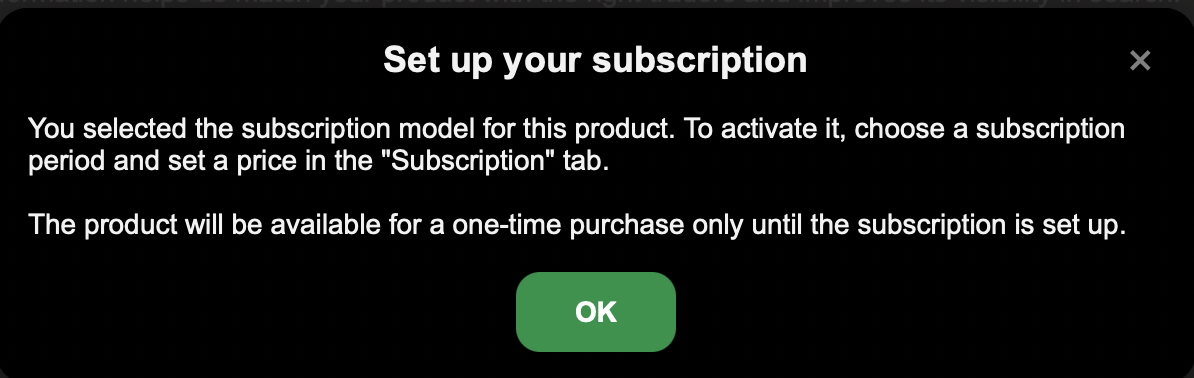
公開をクリックすると、サブスクリプションを設定してくださいというメッセージが表示され、設定を完了するよう促されます。 サブスクリプション条件を追加するまで、商品は無料として扱われます。
サブスクリプションの設定は、商品フォームの別のサブスクリプションステップです。 これを開いてプランを追加してください。
料金プラン 
商品の料金プランは、その価格と有効なサブスクリプションプランがあるかどうかによって異なります。
- 無料 - 価格が$0で、有効なプランがありません。
- サブスクリプション - 商品に少なくとも1つの有効なプランがあり、一度限りの価格の有無は問いません。
- 一度限り - 価格が$0を超えており、プランがありません。
料金プランを直接設定することはできません。料金プランは、上記で選択した価格とプランから決まり、商品とサブスクリプションプランページに表示されます。
注意
商品がサブスクリプションベースになると、無料に戻すことはできなくなります。
プランを追加 
サブスクリプションステップで、提供したい各請求期間のプランを追加します。 各プランで以下を設定します。
- サブスクリプション期間 - 購入者に請求する頻度を設定します。 各期間は1回のみ追加できます。
- サブスクリプション価格、$ - 各請求期間に請求される価格を設定します。
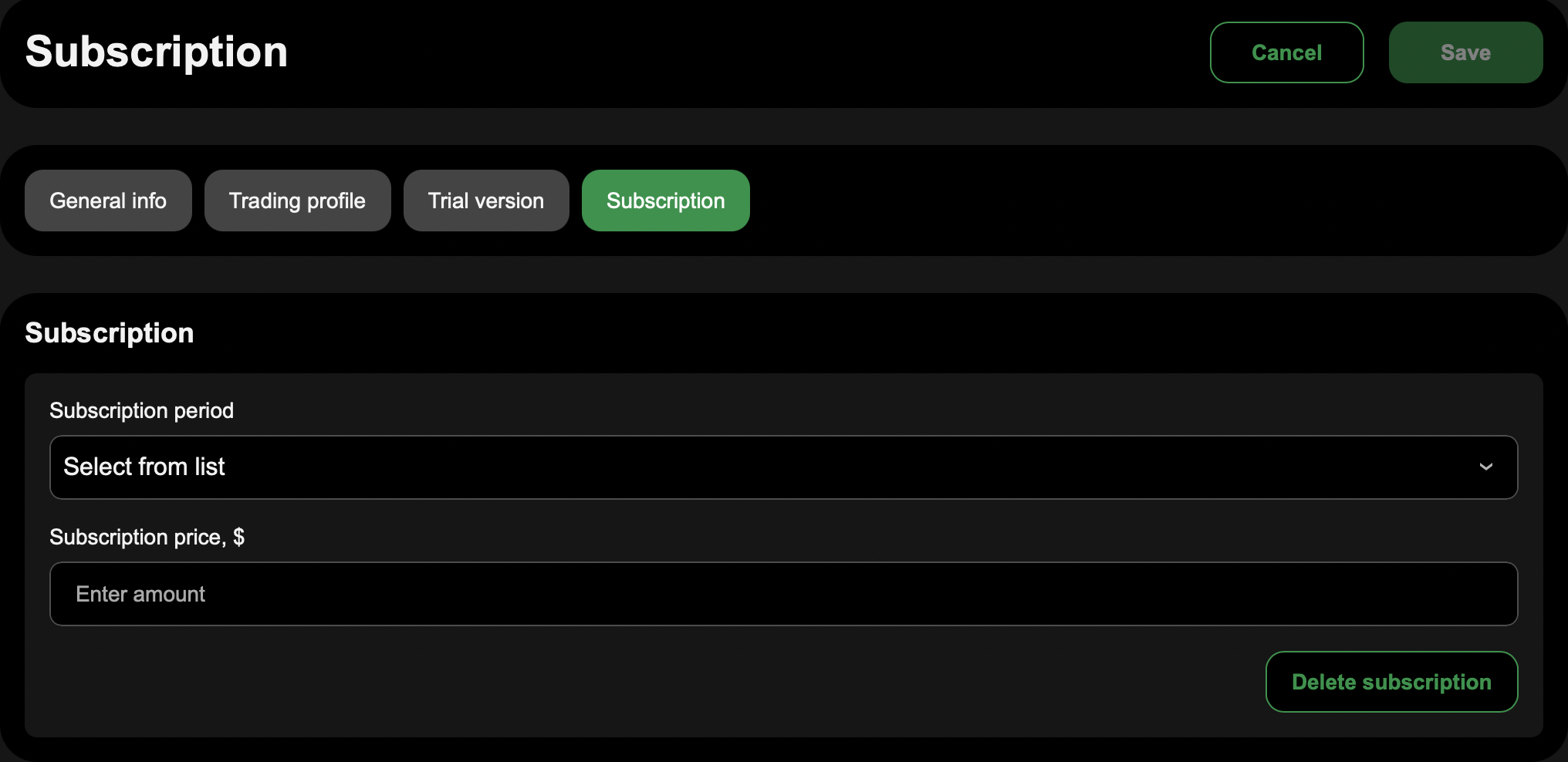
期間と価格を設定したら、保存をクリックします。
価格と制限 
設定できる定期的な金額には、商品の価格と請求期間に基づいて最小値と最大値があります。 フォームは入力時にこれらを適用し、金額が範囲外の場合はエラーメッセージを表示します。
請求期間 
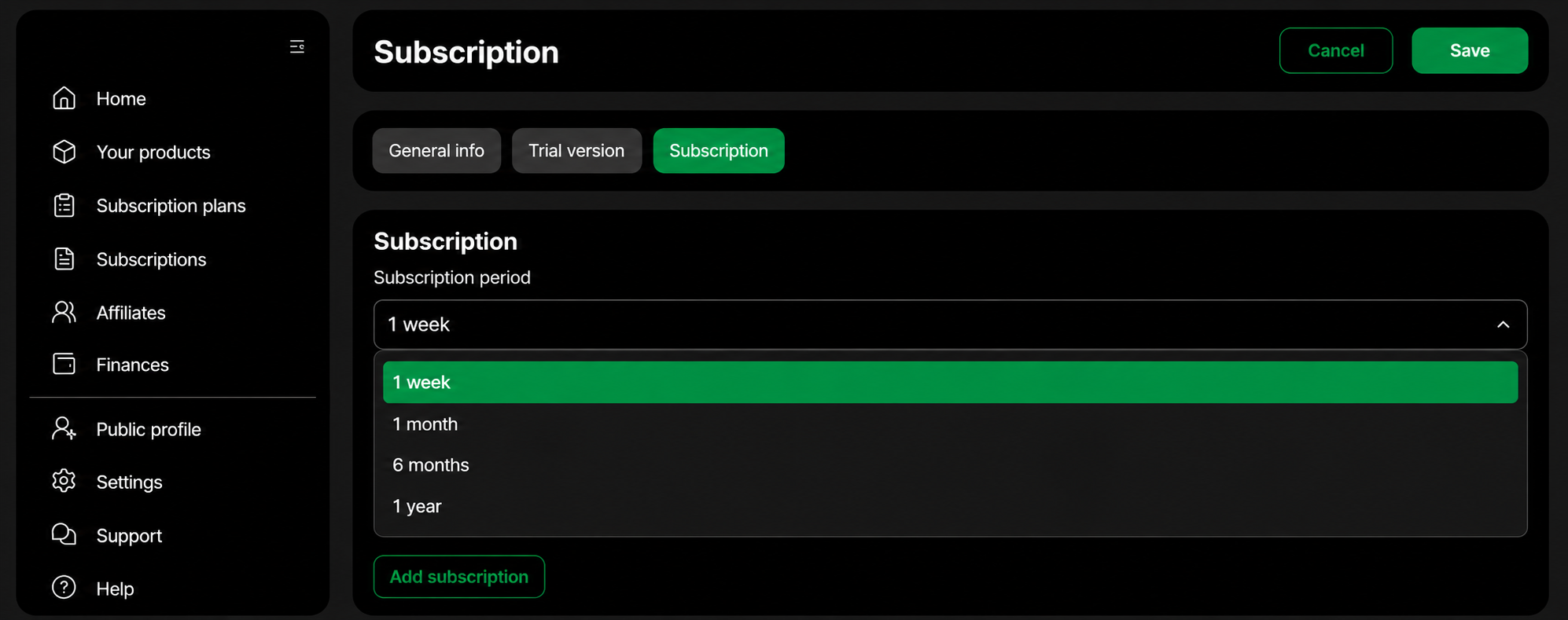
期間セレクターには、商品で利用可能な請求期間(毎週、毎月、6か月ごと、または毎年)がリストされます。
プランを管理 
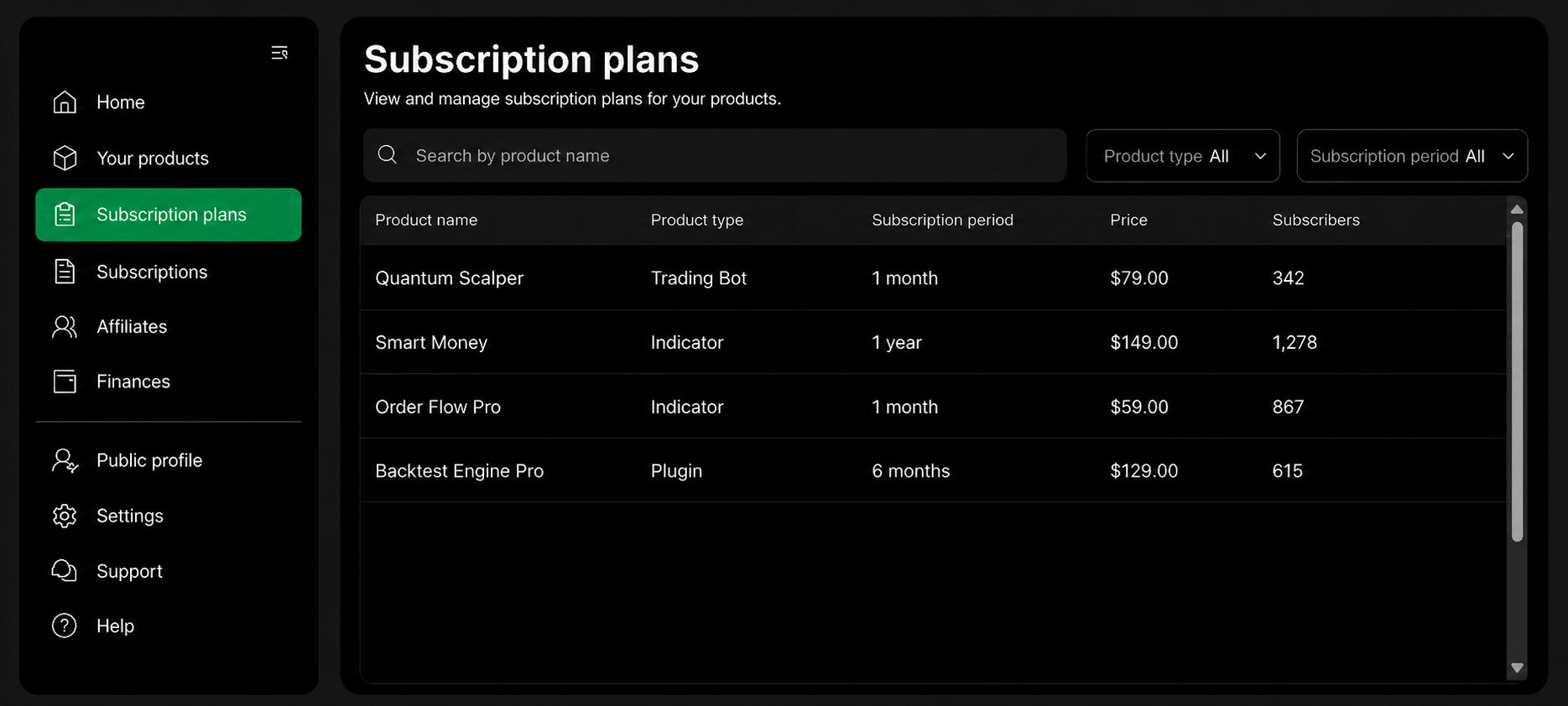
cTrader Storeアカウントのサブスクリプションプランページには、プランがリストされます。 各プランには、商品名、商品タイプ、サブスクリプション期間、価格、およびサブスクライバー数が表示されます。 商品名で検索したり、商品タイプやサブスクリプション期間でフィルタリングしたりできます。
プランの編集
プランを編集すると、新しいバージョンが作成され、以前のバージョンはアーカイブされます。 すでにサブスクライブしている購入者は、キャンセルするまで現在の条件を維持します。
プランの削除
- サブスクリプション専用商品の場合、最後のアクティブなプランを無効化することはできません。 新規購入者への商品提供を停止するには、代わりにアーカイブしてください。
- 一回払い価格も設定されている商品の場合、最後のサブスクリプションプランを削除できます。 すでにサブスクリプション登録している購入者は、キャンセルするまでアクセスを保持します。
サブスクライバーと収益の追跡 
サブスクリプションプランページのサブスクライバー数は、各プランにアクティブにサブスクリプション登録している購入者の数を示します。 サブスクリプション支払いは販売者の収益に追加されます。