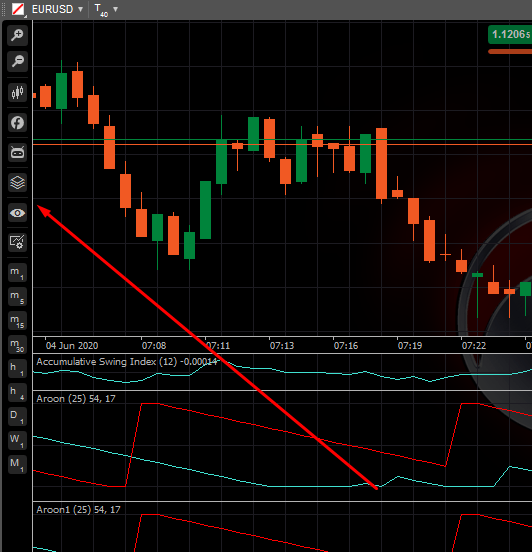
Chart toolbar
The Chart toolbar is located at the top of the open chart. It contains the following options:
- Workspaces
- Layouts
- Chart modes
- Zoom in/out
- Chart type
- Indicators
- cBots
- Chart objects
- Hide all drawings
- Chart templates
- Bar periods
Workspaces
Workspaces is a cTrader cloud feature that allows users to set up and save different cTrader settings that can be used from multiple accounts, with different brokers and on different devices.
You can create as many Workspaces as you need and use them across different brokers and different computers, by logging in with your cTrader ID.
Workspaces organise various software settings:
- Charts and chart configuration
- Quick Trade parameters
- Colour theme, layout, language and sound settings
- Asset display settings
- Symbols list settings
- In-app notification settings
Note
Workspaces created in cTrader Web do not work in the desktop versions of cTrader and vice versa.
Manage workspaces
After the first login, cTrader automatically creates a new workspace (My Workspace) for you. All changes you make are saved in "My Workspace".
To create a new workspace, hover over the My Workspace drop-down in the upper-right of the screen on the cTID bar, select Save workspace, type in the name and click Save.
To delete a Workspace, hover over the My Workspace drop-down list, then click the X icon next to the Workspace that you want to delete and confirm your action.
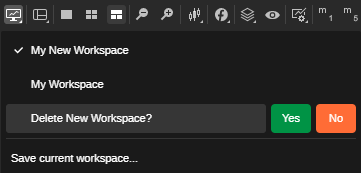
All changes are automatically saved when you switch to another Workspace or close the cTrader Web app.
Layouts
The Layouts settings allow showing or hiding Active Symbol Panel to the right and Trade Watch to the bottom. Hover over the Layouts icon and select the desired options from the dropdown.
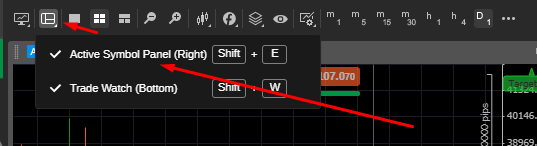
Chart modes
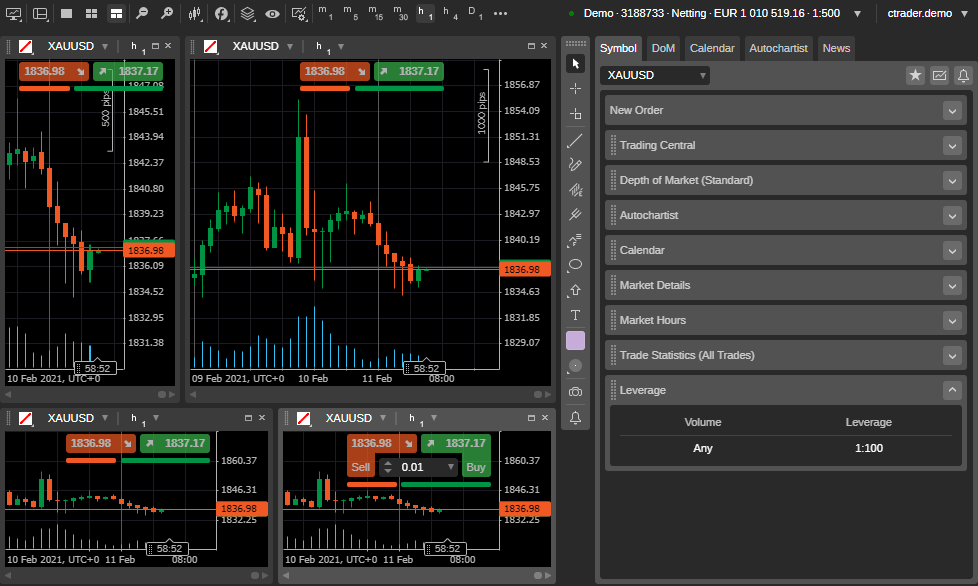
cTrader offers 3 modes of the chart layouts: multi-chart, single-chart and free-chart modes. These modes change the layout of the charts on the screen.
You can switch the chart modes from the Instruments toolbar next to the chart.
Click the Multi-chart icon in the Instruments toolbar to enable multi-chart mode. This mode is active by default.
You can add more charts and drag them around in the Charts area.
Learn how to add new charts from the Open charts section.
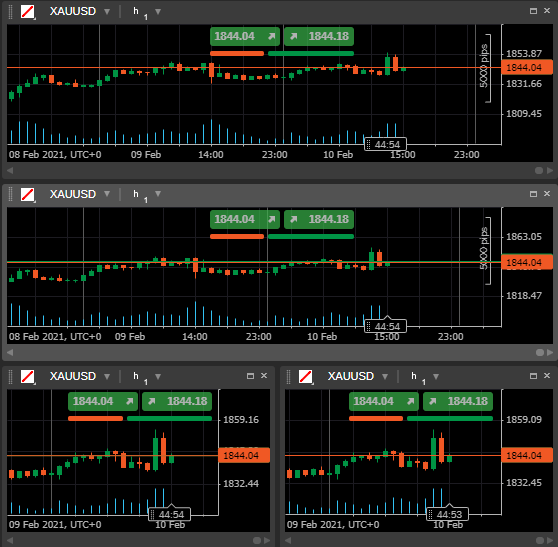
Click the Single-chart icon in the Instruments toolbar to enable single-chart mode.
In this mode, only one chart uses the charts area of the screen, and the other opened charts are displayed as tabs at the top of the chart area.
You can switch between the charts by selecting the tabs above. To add a new chart, click the Plus icon next to the tabs.
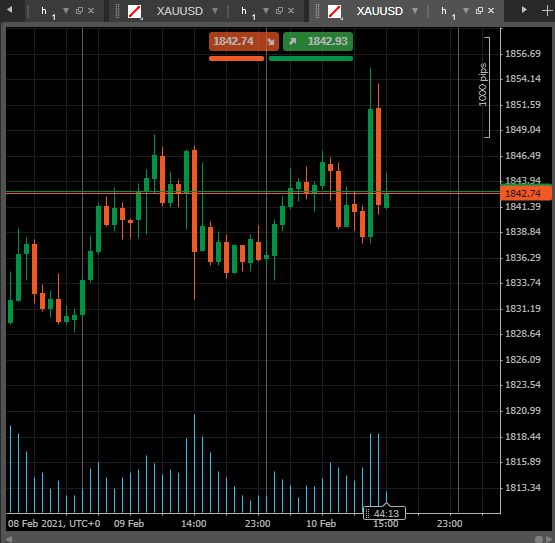
Click the Free-chart icon in the Instruments toolbar to enable free-chart mode. It is similar to multi-chart but also allows resizing each chart individually.
Zoom in/out
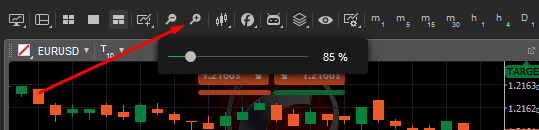
Hover over the Zoom in or Zoom out button and use the corresponding buttons or Zoom slider to change the scale of the chart.
The price axis (vertical) and the time axis (horizontal) scale automatically when you change the zoom level.
Alternatively, use the hotkeys + and - for zoom in and zoom out respectively.
Chart type
There are 4 chart types available in cTrader Web:
Bar chart (OHLC)
Provides the open, close, high and low prices for the selected period in the form of bars.

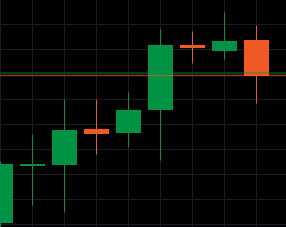
Candlestick chart
Composed of a series of open-high-low-close (OHLC) candles set apart by a period series.
The Candlestick chart is considered the most popular chart type, but you can check out any type to find out which one works better for you in a particular situation.
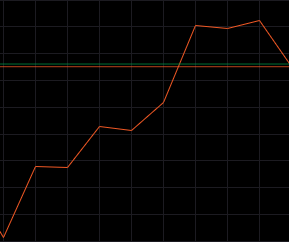
Line chart
Draws the line between the closing prices for the selected period.
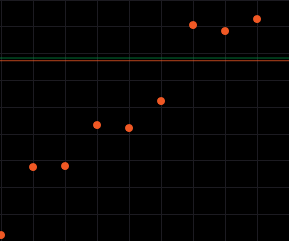
Dot chart
Displays only the closing prices for the selected period as dots.
Hover over the corresponding button (candlestick by default) in the charts favorites, and select the desired chart type from the submenu.
Alternatively, right-click anywhere on the chart and select Chart type from the drop-down list.
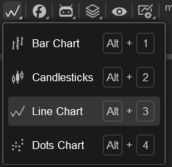
Alternatively, use the shortcut Ctrl + 1, Ctrl + 2, and Ctrl + 3 to switch between the Bar, Candlestick and Line chart respectively.
Indicators
Indicators are special tools used for technical analysis. An indicator performs certain mathematical calculations based on the price and volume of the symbol over time.
There are 58 built-in standard indicators in cTrader. They are sorted by groups depending on their function: Trend, Oscillator, Volatility, Volume and Other.
Add an indicator
Hover over the Indicators button, then hover over the group of indicators from the drop-down list and click the desired indicator.

The Indicator menu will pop up. Here you can customise the indicator line colour, thickness and set the indicator period. When done, click OK to apply changes and add the indicator to the chart.
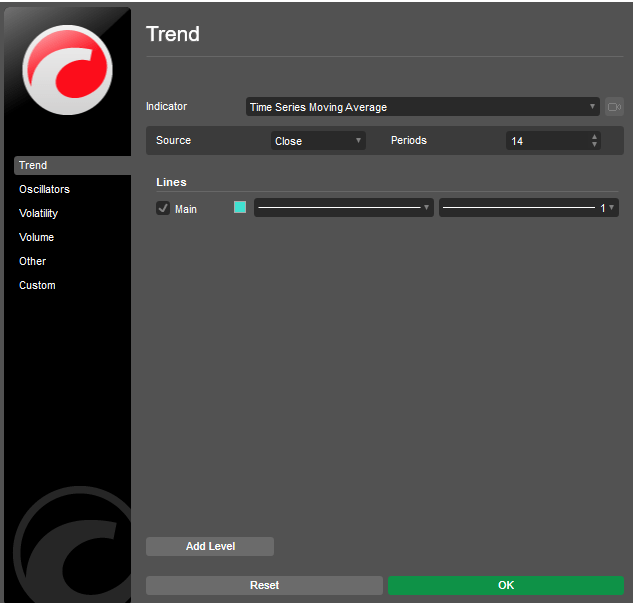
Alternatively, right-click directly on the chart to proceed to the Indicator menu.
Note
Some indicators appear directly on the chart and the others below it, in a separate chart area.
Modify and remove indicators
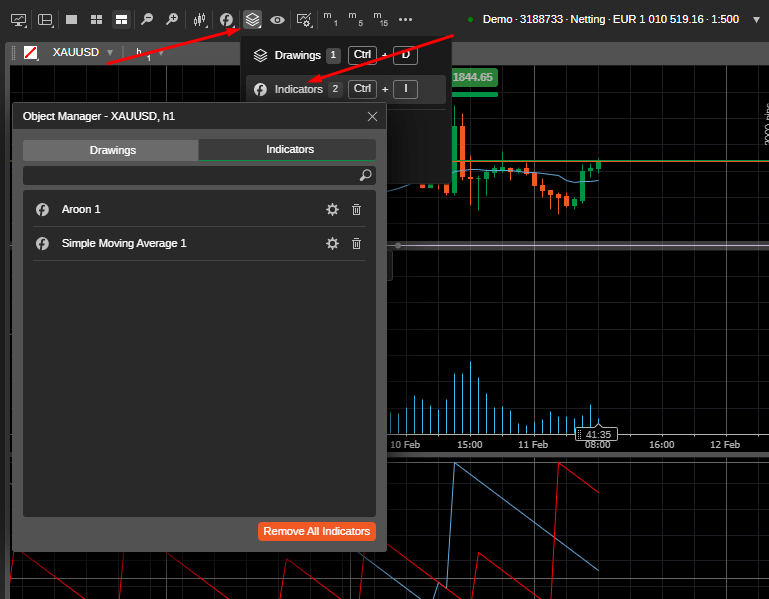
To modify an indicator, hover over the Objects icon and select indicators. Click the desired indicator in the list. The selected indicator will be highlighted on the chart and the Indicator menu will pop up. Modify your indicator and click Ok to save changes.
Alternatively, click X to remove the desired indicator from the chart.
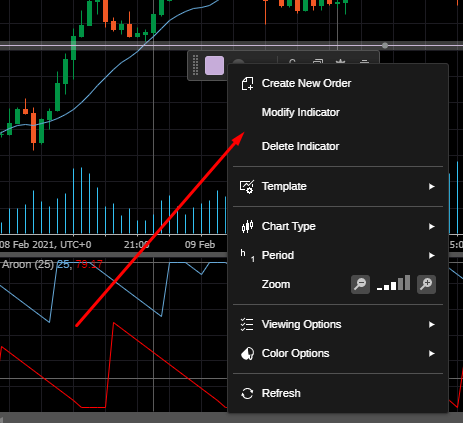
If you would like to modify or remove an indicator located in a separate area below the chart, right-click the indicator area and select Modify indicator from the dropdown.
The Indicator menu will pop up. Edit your indicator and click Ok to apply changes. Alternatively, click Delete indicator to delete it from the chart.
cBots (trading bots)
cBots are algorithmic trading solutions that trade automatically based on the technical analysis signals. You can add and manage cBots directly from the Chart toolbar.
Hover over the cBots button in the Chart toolbar to expand the cBots section. Here you can find the desired cBot by typing in its name or part of it in the search box.
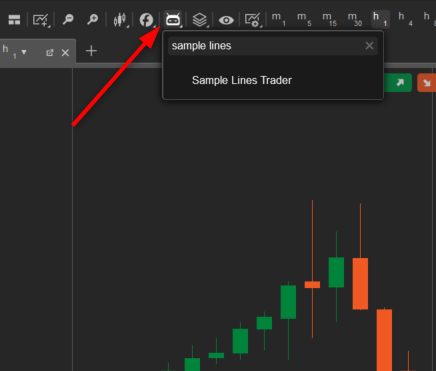
Select the desired cBot from the list to open its menu. Enter the required values to complete the cBot settings and click Apply. Note that the settings may vary depending on the cBot.
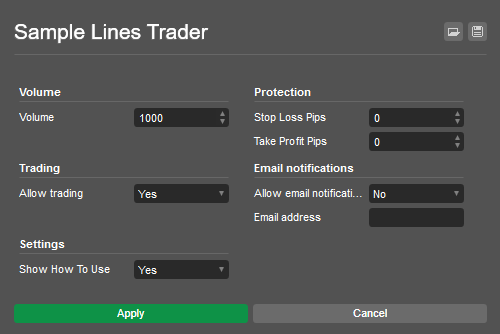
When done, an instance of the cBot will appear on the chart. Double click it to open its settings again. Click Play to start the cBot. Click the X to remove a cBot from the chart.
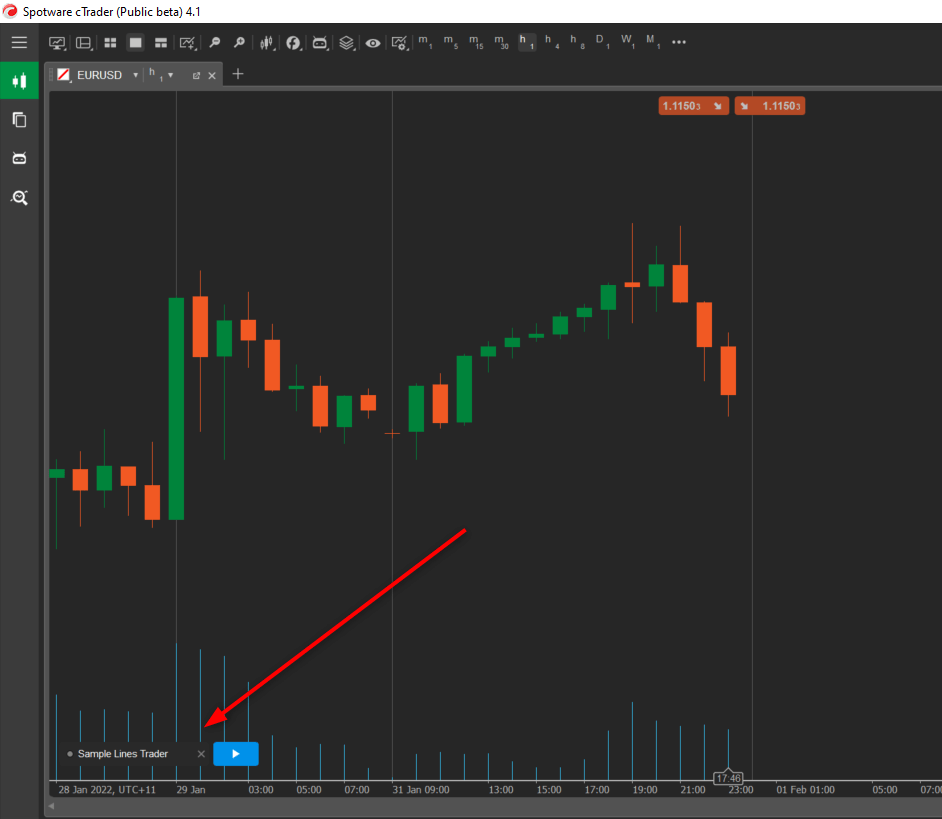
Chart objects
cTrader provides a suite of various chart objects for better trading and deeper analysis.
View the Line studies and chart objects section for the detailed description of how to use them.
The Objects icon of the Chart toolbar gives access to and allows managing those objects from the chart.
Hover the Objects icon to proceed to the Chart object menu. The number of drawings and indicators currently placed on the chart is displayed next to the respective item.
Click Remove all drawings or Remove all indicators to remove all the objects from the chart respectively.
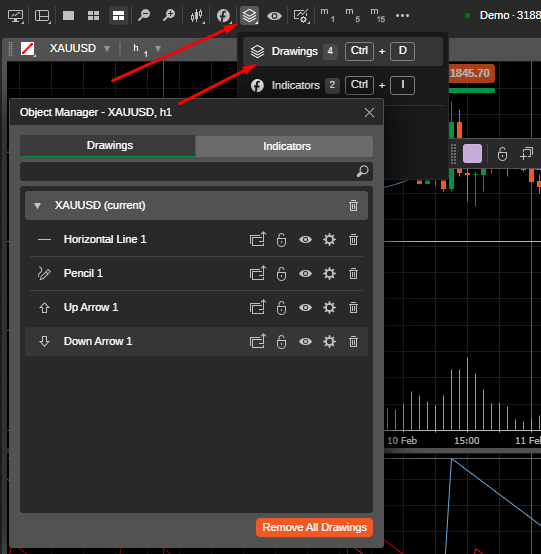
Select Drawings or Indicators to proceed to the respective chart object manager. Use the symbols dropdowns to view the list of all the objects for the specific symbol chart (or cross-symbol).
The following options are available for chart objects:
- Move to current/move to cross-symbol (for drawings only) – click to move the chart object to the cross-symbol chart (which means the object will be placed by default on every symbol chart you open), or move it back to the current chart only.
- Lock/unlock object (for drawings only) – use this option to avoid the accidental movements of the objects. When an object is locked, you can not move it on the chart.
- Hide/unhide object (for drawings only) – click to hide or show the object on the chart.
- Settings – click to open chart object settings.
- Remove – click to remove the chart object completely. Alternatively, use the Bin icon in the symbol drop-down tab to remove all chart objects for the symbol (or cross-symbol), or click Remove all drawing / Remove all indicators.

Use the toolbar next to the desired chart object to move your object to all the opened charts, lock it on the chart, hide open its settings, or remove it.

Alternatively, you can select an object in the chart and press Del on your keyboard to remove it.
Note
As long as you have not added any objects to the chart, no objects will be displayed in the objects dropdown. 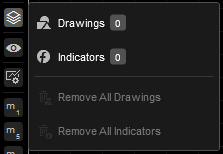
Hide all drawings
Use the Hide all drawings feature to hide or unhide all the drawings currently placed on the chart. When you unhide drawings they appear in the same place with the same parameters set.

Chart templates
Chart templates allow quickly changing various chart settings and viewing options by changing the template. There are 3 chart templates available by default:
- Range – optimised for analysing the price range (Candlestick, medium scale, Relative Strength Index indicator, Stochastic indicator and tick volume enabled).
- Trend – optimised for analysing the trend (Line Chart, small scale).
- Volatility – optimised for analysing the volatility (Candlestick, medium scale, Bollinger Bands and Standard Deviation indicators enabled).
The default template is Candlestick, medium scale and no indicators.
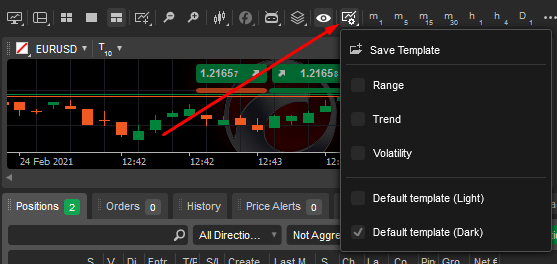
To change the chart template, hover over the Chart template button and check the desired template. The selected template is applied to all new charts being opened.
Custom chart templates
cTrader allows creating as many custom chart templates as you need.
To save all the various chart settings as a new template, hover over the Chart template button, click Save template, then type in the template name and click Save.
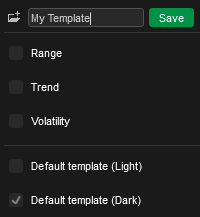
To save changes to an existing template, hover over the Chart template button, click Save template, then click the existing template, click Save and confirm the overwrite.
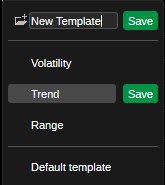
Note
You cannot edit the default template.
To delete a template, hover over the Chart template button, and click the X next to the template you would like to delete.
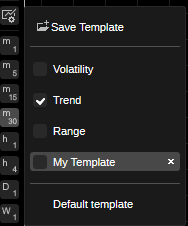
Bar periods
cTrader Web charts can be displayed based on a large number of predefined bar periods. Bar periods include standard time-based bars, tick-based bars, Renko bars and range bars.
Tick-based bars
Tick-based bars use a predefined number of pips to create a bar. For example a 50-tick bar includes price information for 50 ticks. Every 50 ticks, a new bar is added to the chart.
Standard time-based bars
Standard time-based bars display the price information within a given period. For example a 1-hour bar includes price information for 1 hour. Every hour, a new bar is added to the chart.
Renko bars
Renko bars display a new bar as soon as the price has moved a certain distance in pips from the previous Renko bar open or close price.
For example, a 5-pip Renko bar is added to the chart every time the price moves 5 pips from the opening or closing price of the previous Renko bar.
Range bars
Range bars display a new bar as soon as the price has moved within a certain range of pips. For example a 5-pip Renko bar is added to the chart every time the price moves within a range of 5 pips.
By default, the chart is built based on the 1-hour period and several period options are available in the Chart toolbar. Click any of them to apply it to the chart.
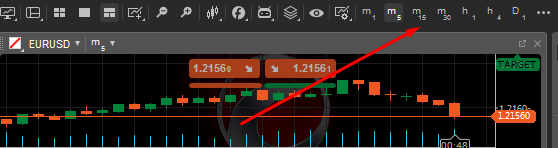
Click the Period button at the top of the chart to see all the available periods: standard, ticks, Range and Renko.
The Standard period allows selecting the desired period from 1 minute to 1 month to apply for the chart. In the ticks period you can select the number of ticks from 1 to 1000.
In the Range bar, all price bars are of equal length. So for example, if you set a 10-pip range bar, then all bars are of 10 pips range (high to low, or low to high).
In Range bars, the close of a bar is always equal to the open of the next bar. The range is measured as a high and low and not close.
In the Renko bars, every bar is of the same length (including reversals, but price must travel two times the Renko bar in the opposite direction).
Mark the desired items to enable their quick access buttons directly from the Favourites panel.
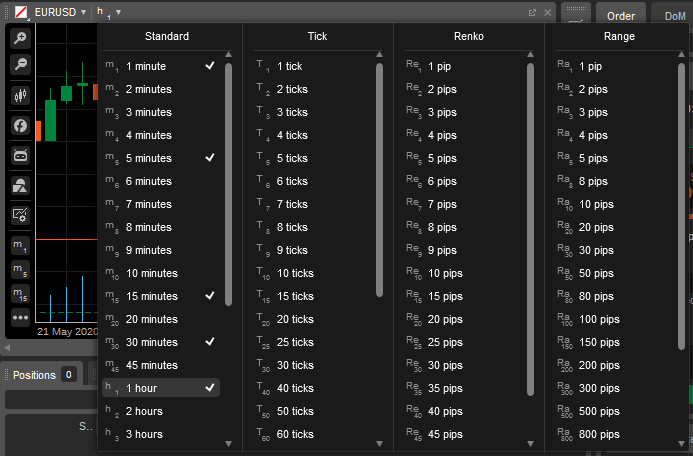
The buttons actually show the current period or the number of ticks in its title. For example, T10 means Tick chart, 10 ticks.
Use the Up and Down keys on your keyboard to switch the periods.
Countdown box
cTrader shows a live countdown to the next bar, line, point and candlestick in time units or ticks. Find the Countdown box on the time axis at the bottom of the chart.