Basics and layouts
cTrader Web consists of 4 basic software applications:
- Trade
- Copy
- Algo
- Analyze
You can switch between them directly from the main menu to the upper left.
Trade
The trading application with all the necessary market research tools.
Copy
The built-in web application for copying trading strategies and providing the trading strategies for copying.
Algo
The built-in application for building trading robots and indicators, and for automated trading.
Analyze
In-depth analysis of your performance across each trading account.
Main screen
The cTrader UI is designed to make trading easy and effective. Therefore, you can reach all the necessary tools and options from the application main page.
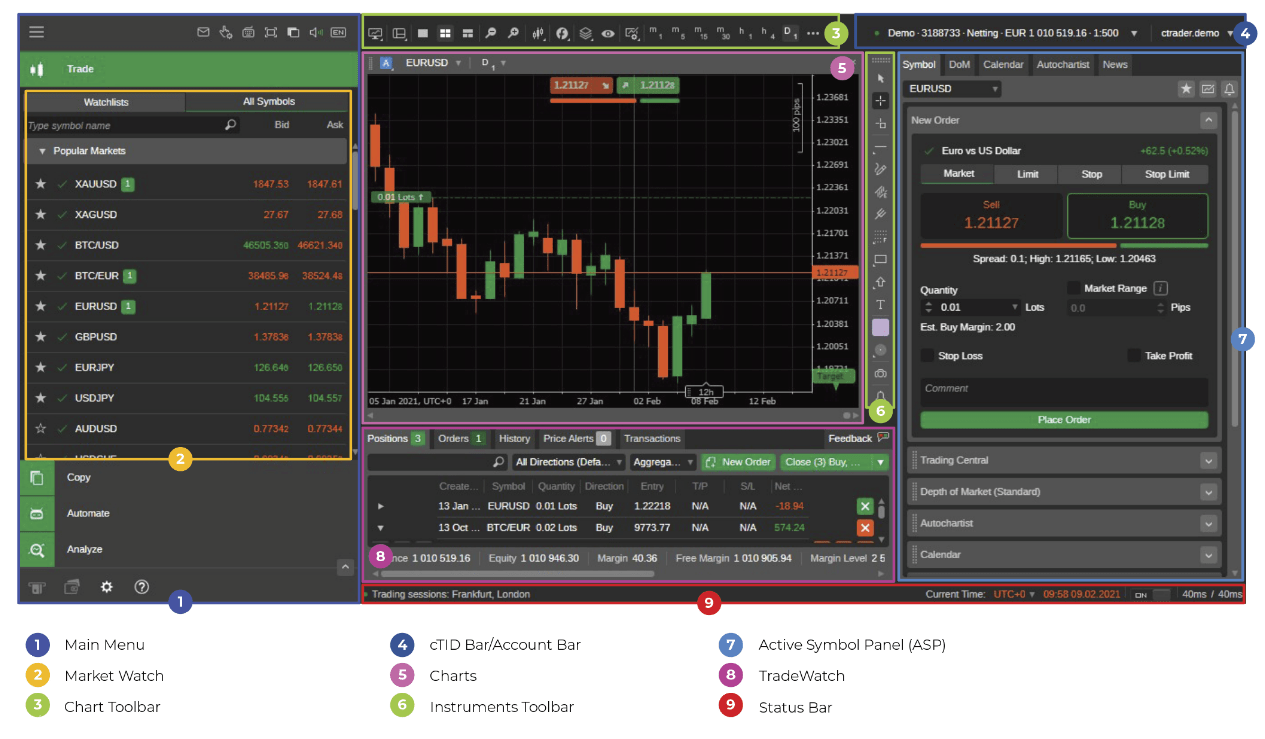
- Main menu – allows switching between Trade, Copy, Algo and Analyze applications, depositing or withdrawing funds, access cTrader Help Centre and cTrader settings, setting email alerts, access Quick Trade mode settings, viewing the hotkeys, switching the full-screen mode, colour, sound and language settings.
- Chart toolbar – allows setting your workspaces and layouts, switching between the chart modes and setting various charting options such as zoom in/out, chart type, indicators, chart objects, chart templates, and periods.
- cTID bar – allows switching between the trading accounts, creating trading accounts, managing workspaces and cTID profile, changing the layout and creating new orders.
- Account bar – allows switching between the trading accounts linked to the current cTID and creating new trading accounts.
- Market Watch – allows switching between the trading symbols, entering the trades, creating and managing the Watchlists.
- Charts – the market charts of the selected symbols. You can add as many charts on the cTrader main screen as you need, and create orders and manage open positions directly from the charts.
- Trade Watch – allows creating and managing orders and positions, controlling the balance, reviewing deal history, transaction history and giving feedback.
- Instruments toolbar – allows configuring market research and drawing tools, taking a Chartshot and set a price alert.
- Status bar – displays the current trading session, the current time, server and proxy latencies.
- Active Symbol Panel (ASP) – allows creating orders, access Depth of market (DoM), check the market sentiment, market details, inverted rate, market hours, trade statistics, leverage and links.
Note
You can hide or show such UI elements as Active Symbol Panel and Trade Watch in the layout settings.
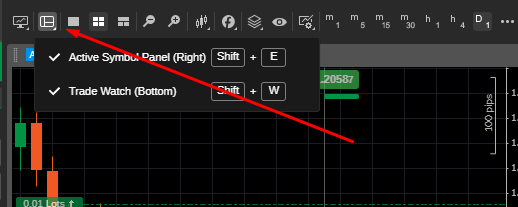
You can also switch between the layouts by pressing F3 on your keyboard.