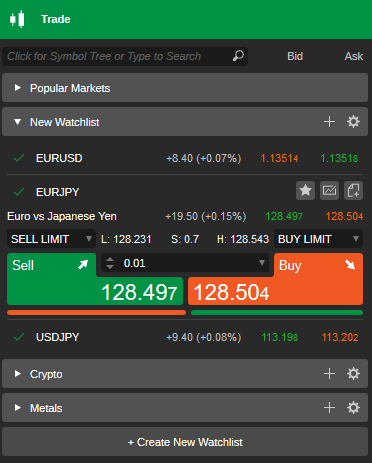
Market Watch
Market Watch is the panel on the left that displays trading symbols, enables placing trades in Quick Trade mode, and allows grouping symbols into watchlists.
Symbols
In cTrader, a symbol is a financial instrument, any tradable asset purchased by an investor. The platform supports thousands of currency pairs, stocks, indices, commodities, forex, ETFs and cryptocurrencies.
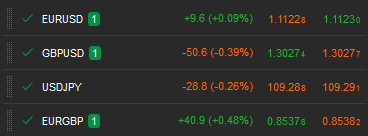
All symbols are organised in watchlists on the Market Watch panel. By default, these include Popular markets, Metals, Crypto and Assets.
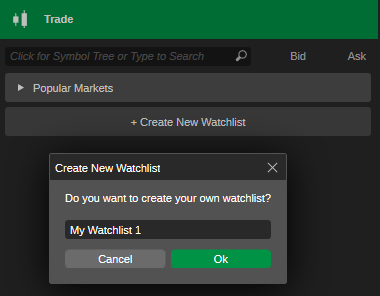
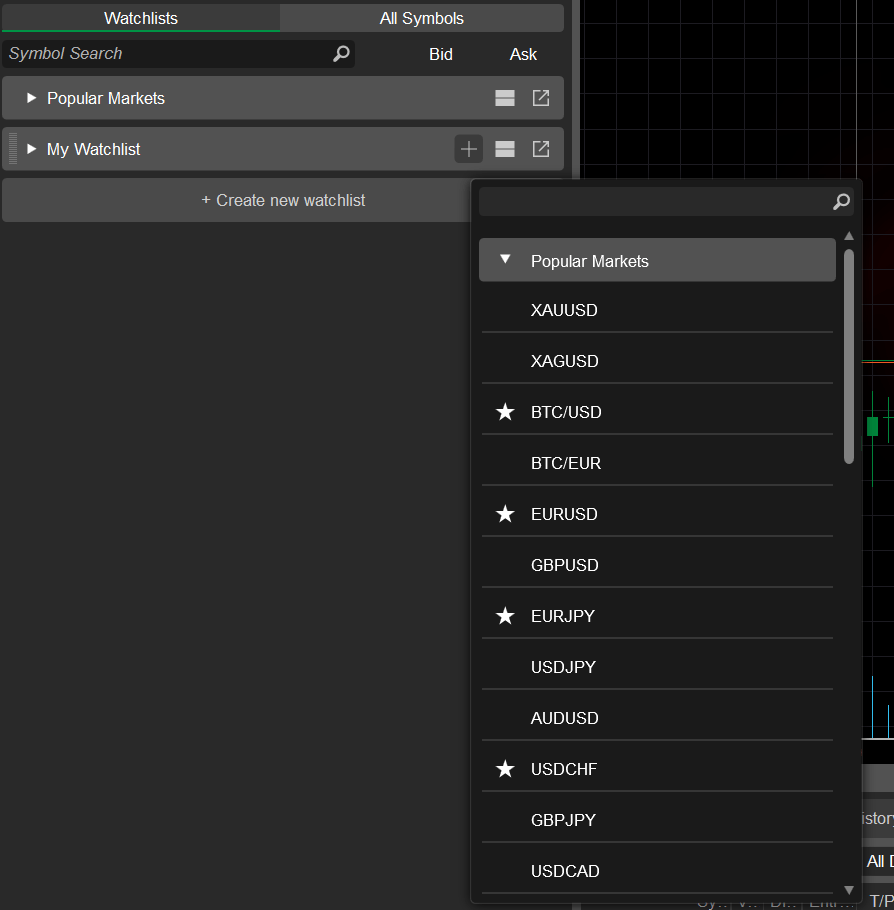
Use the Create new watchlist button at the bottom of the panel to create and name a new watchlist. Then, click the Plus icon to the right of New watchlist to add symbols to it.
Click any watchlist to expand or collapse it, or click a symbol in the watchlist to open or close its detailed symbol tile.
Note
You can expand as many Symbol tiles at a time as you need.
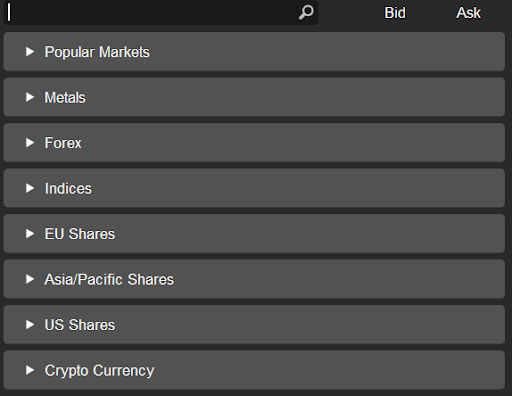
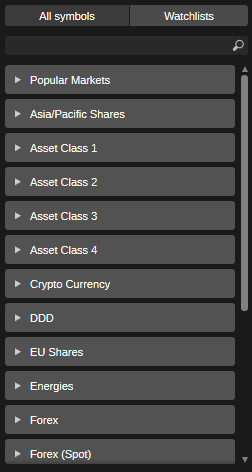
Use the Search bar above the watchlist to find the desired symbol. Click the Search bar to view the whole list of the asset classes and select the desired symbol.
Alternatively, use the shortcut Ctrl + F to proceed to the search bar.
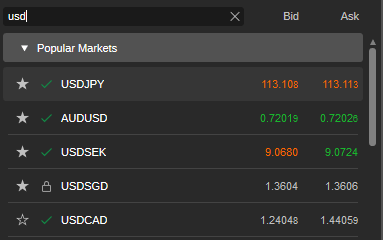
In the Search bar, you can also type the symbol title or part of it to find the symbol you want.
When you select a symbol from the watchlist, it becomes a current symbol in the Active Symbol Panel.
Note
If you have open positions, then you will see the positions count badge that displays the number of opened positions per symbol.
The Symbol tile displays the symbol information in real time. The following information is available on the Symbol panel in the Watchlist:
The symbol name in the upper left (for example, USDJPY). The number of your open positions for this symbol is displayed next to it.
- Daily low – the lowest price for the symbol over the last 24 hours.
- Daily high – the highest price for the symbol over the last 24 hours.
- Daily change – the difference between the current price of the symbol and its price 24 hours earlier.
- The current ask and bid prices for the symbol.
- Market sentiment – the overall attitude of investors towards the symbol. Hover over Market sentiment to see the percentage of client accounts that expect the price to fall or rise.
- Spread – the difference between the bid and ask prices.
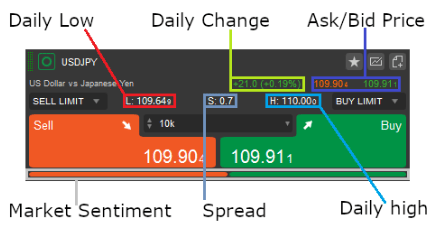
To add a symbol to the watchlists, click the Star icon and select an existing watchlist or create a new one. Click the New order icon to create an order, or the Chart icon to open the symbol chart.
Manage symbols
Right-click a symbol (no matter if it is expanded or not) to expand the additional symbol options drop-down.
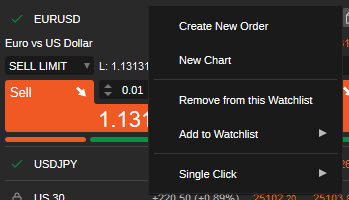
- Create new order – click to open the new order menu and create any type of trading order.
- New chart – click to open a new chart for the symbol.
- Remove from this watchlist – click to remove the symbol from the watchlist.
- Add to watchlist – add the symbol to the watchlist.
- Single click – enable or disable expanding the symbol with a single click.
Quick Trade
The watchlists allow you to place trades by creating limit orders and market orders using Quick Trade buttons.
To start trading with Quick Trade, click a symbol to expand it, then select the volume from the drop-down list. Alternatively, use the toggles or type a value and click Sell or Buy to create a market order.
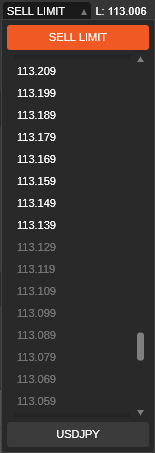
Use the Sell limit or Buy limit drop-down lists to create a limit order, and select the price for your order.
Note
In Quick Trade mode, market or limit orders are sent without confirmation. If Quick Trade is off, the Create order menu opens.
Only the most popular symbols appear in the watchlists. To view all available symbols, use the Symbol bar in Active Symbol Panel or the Market Watch search bar. Symbols are grouped by asset classes such as Popular markets, Metals, Energies, forex, Indices, EU and US shares, Powershares ETFs, iShares ETFs, Cryptocurrencies and Asia/Pacific shares.
Watchlists
cTrader allows you to trade thousands of symbols, depending on your broker.
A watchlist is a customisable group of symbols where you can add or remove symbols. In the Watchlists tab on the Market Watch panel, one watchlist is available by default – Popular markets, which contains the most popular symbols and is not editable.
You can create as many watchlists as you need by clicking Create new watchlist, specifying its name and clicking OK.
Use the plus icon on your watchlist to add as many new symbols to it as you need. Use the Search bar above if you do not see the desired symbol in the list.
Manage watchlists
Right-click a watchlist to expand its additional options.
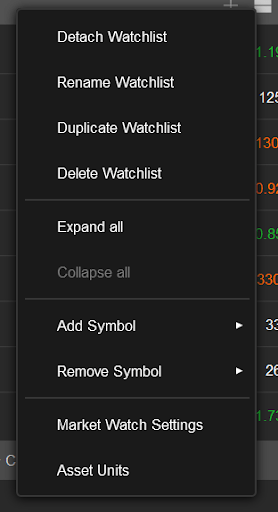
- Detach – click to detach the current watchlist.
- Rename – rename the current watchlist. You can rename any watchlist except the default Popular markets watchlist.
- Duplicate watchlist – duplicate the current watchlist. The Popular markets watchlist can also be duplicated. The duplicated watchlist appears at the bottom of the list.
- Delete watchlist – remove the current watchlist.
- Expand all – expand all symbols.
- Collapse all – collapse all symbols.
- Add symbol or Remove symbol – mark symbols to be added or removed from the list.
- Watchlist settings – enable or disable daily change for symbols, and enable or disable expanding the symbol on a single click.
- Asset units – open the asset units settings.
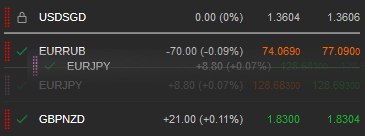
To reorder a watchlist, drag and drop the symbols in the list. Drag the watchlists to reorder them, or drag the symbols from one watchlist to another.