Orders
Place orders
cTrader Web offers several ways to place a new order.
Click the New order button in the chart toolbar, the Positions tab or the Orders tab of Trade Watch (TW).



Alternatively, press F9 to open the new order window.
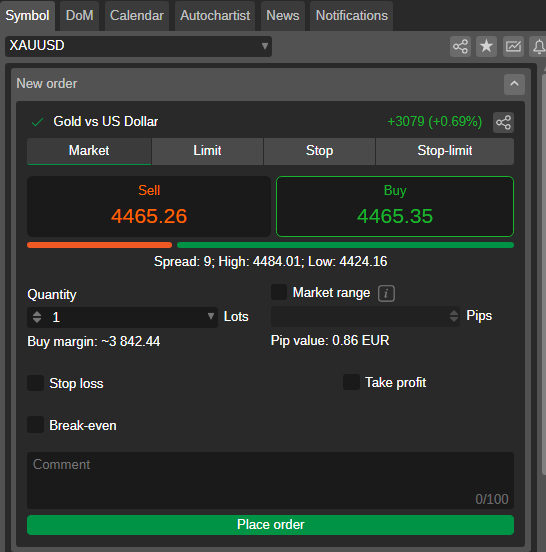
You can also place a new order from Active Symbol Panel (ASP).
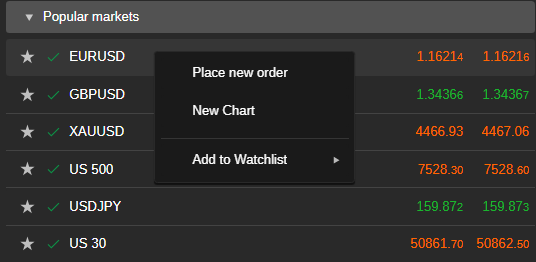
Alternatively, place a new order for the active symbol from the context menu, which opens when you right-click a symbol in Market Watch, or within the Positions or Orders tabs of Trade Watch. The chart context menu also allows you to place a new order for the symbol displayed on the chart.
Right-click a symbol in any watchlist, then select Place new order.
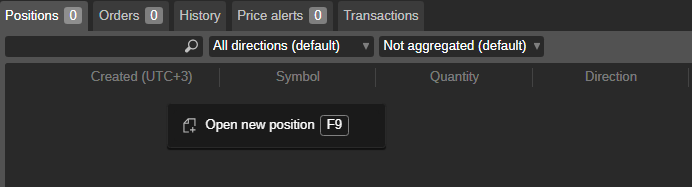
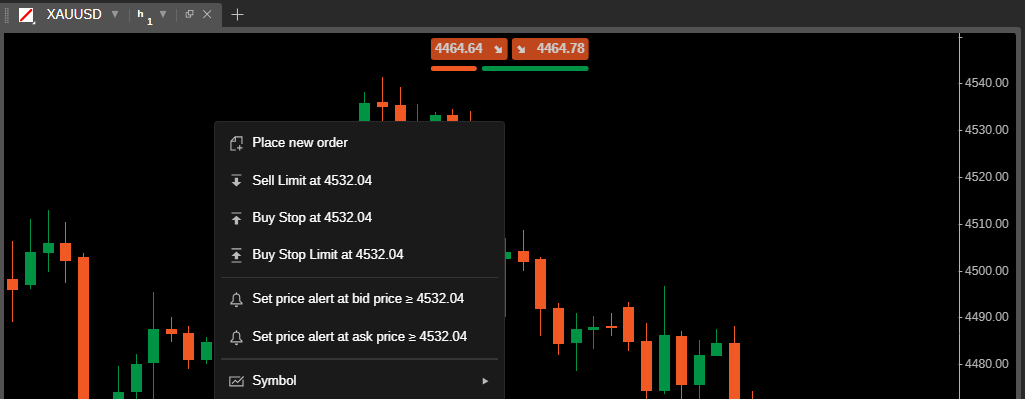
Finally, you can place new orders using chart trading features such as Quick Trade.
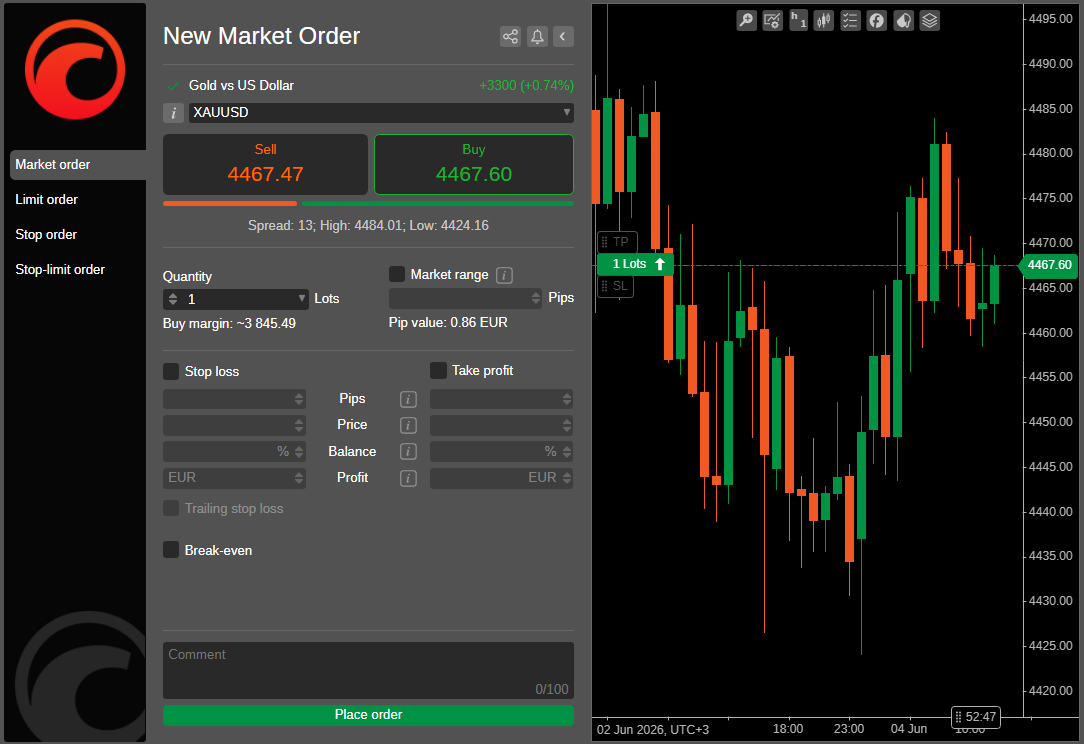
Place a market order
- Choose Market order as the order type.
- Select a symbol to trade, or continue with the active one.
- Click Sell or Buy to select the trading direction.
- Specify the order quantity in lots or the volume in units by selecting a value from the dropdown, using the toggles or typing a number.
- Click Place order to create a market order.
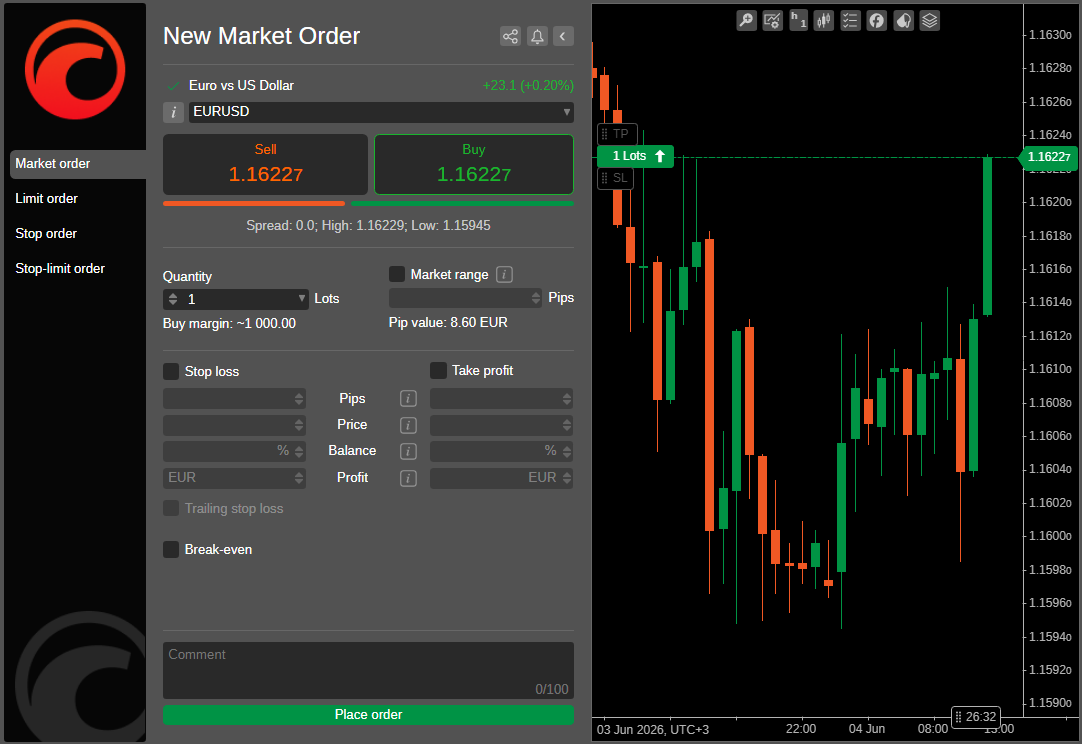
Optional steps include:
- Share – copy a link for sharing the order information to your clipboard.
- Bell – set a new price alert.
- Expand/Collapse – show or hide the chart for better market visualisation.
-
Market range – select the maximum deviation in pips from the current price at which your order can be filled.
Warning
If Market range is enabled and set very close to zero, your order may not be filled because no price deviation is allowed, and the requested price might no longer be available during execution.
-
Stop loss – set values to limit potential losses.
- Trailing stop loss – keeps your stop loss a fixed number of pips from the current price as the market moves in your favour.
- Break-even – set values that place a stop loss at the entry price when the specified trigger level is reached.
- Take profit – set one or more target price levels to scale out of the position as the market moves in your favour.
- Comment – add a note to your order.
Place a limit order
- Choose Limit order as the order type.
- Select a symbol to trade, or continue with the active one.
- Click Sell or Buy to select the trading direction.
- Set Entry price at which you want your order to be filled. For a buy limit order, the price must be below the current ask price, and the order will only be executed at the limit price or lower. For a sell limit order, the price must be above the current bid price, and the order will only be executed at the limit price or higher.
- Specify the order quantity in lots or the volume in units by selecting a value from the dropdown, using the toggles or typing a number.
- Click Place order to create a limit order.
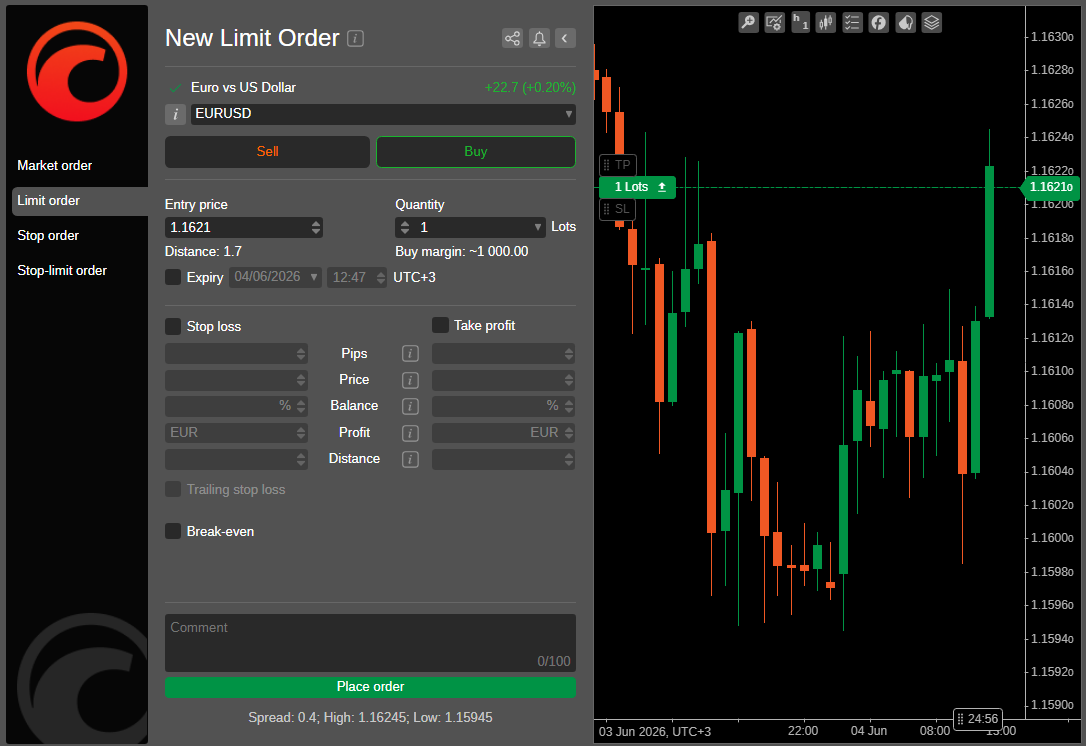
Optional steps include:
- Share – copy a link for sharing the order information to your clipboard.
- Bell – set a new price alert.
- Expand/Collapse – show or hide the chart for better market visualisation.
-
Expiry – set the date and time when the pending order will automatically expire if it is not triggered by the entry price.
Warning
If the order is triggered shortly before expiry, it will still be sent for execution and may be filled even after the selected expiry time. Pending orders without an expiry remain active until they are triggered by the price or cancelled manually.
-
Stop loss – set values to limit potential losses.
- Trailing stop loss – keeps your stop loss a fixed number of pips from the current price as the market moves in your favour.
- Break-even – set values that place a stop loss at the entry price when the specified trigger level is reached.
- Take profit – set one or more target price levels to scale out of the position as the market moves in your favour.
- Comment – add a note to your order.
Place a stop order
- Choose Stop order as the order type.
- Select a symbol to trade, or continue with the active one.
- Click Sell or Buy to select the trading direction.
- Set Entry price that will trigger the order. For a buy stop order, the price must be above the current ask price, and the order will only be executed when the market reaches or exceeds this level. For a sell stop order, the price must be below the current bid price, and the order will only be executed when the market reaches or falls below this level.
- Specify the order quantity in lots or the volume in units by selecting a value from the dropdown, using the toggles or typing a number.
- Click Place order to create a stop order.
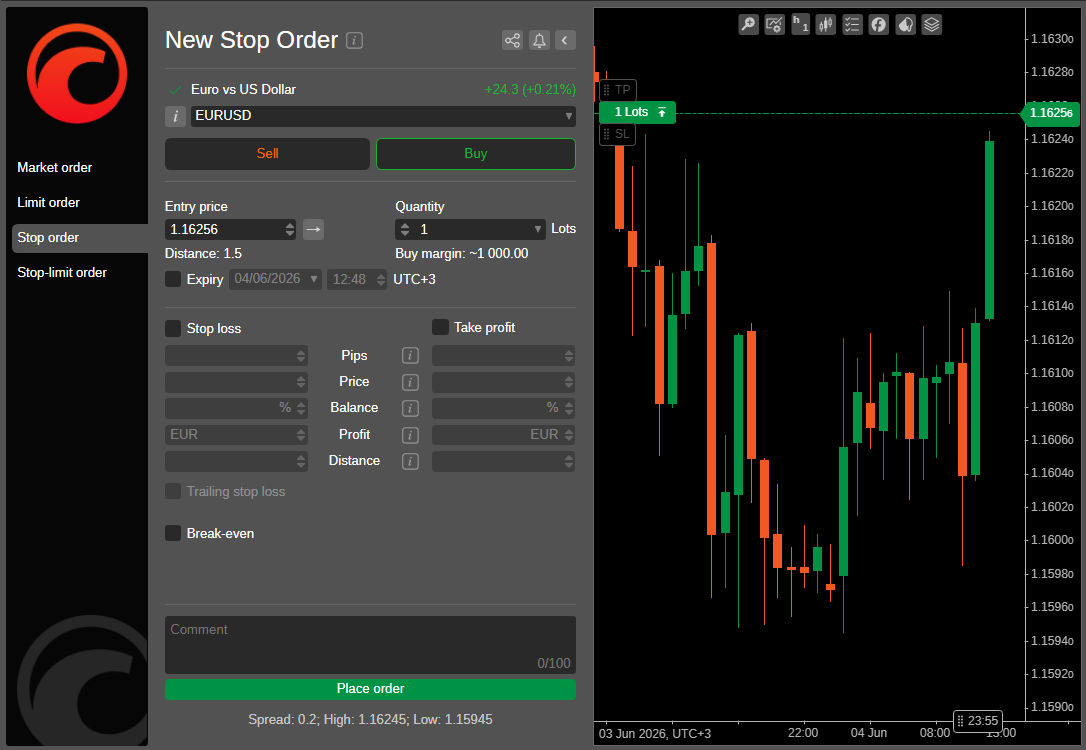
Optional steps include:
- Share – copy a link for sharing the order information to your clipboard.
- Bell – set a new price alert.
- Expand/Collapse – show or hide the chart for better market visualisation.
- Trade side – sets whether the bid or ask price triggers a stop order:
- Trade side – buy stop orders are triggered by the ask price, and sell stop orders are triggered by the bid price.
- Opposite side – buy stop orders are triggered by the bid price, and sell stop orders are triggered by the ask price.
- Double trade side – buy stop orders are triggered by two consecutive ticks of the ask price, and sell stop orders are triggered by two consecutive ticks of the bid price.
- Double opposite side – buy stop orders are triggered by two consecutive ticks of the bid price, and sell stop orders are triggered by two consecutive ticks of the ask price.
- Expiry – set the date and time when the pending order will automatically expire if it is not triggered by the entry price. !!! warning If the order is triggered shortly before expiry, it will still be sent for execution and may be filled even after the selected expiry time. Pending orders without an expiry remain active until they are triggered by the price or cancelled manually.
- Stop loss – set values to limit potential losses.
- Trailing stop loss – keeps your stop loss a fixed number of pips from the current price as the market moves in your favour.
- Break-even – set values that place a stop loss at the entry price when the specified trigger level is reached.
- Take profit – set one or more target price levels to scale out of the position as the market moves in your favour.
- Comment – add a note to your order.
Place a stop-limit order
- Choose Stop-limit order as the order type.
- Select a symbol to trade, or continue with the active one.
- Click Sell or Buy to select the trading direction.
- Set Entry price that will trigger the order. For a buy stop-limit order, the order is triggered when the ask price reaches or exceeds the entry price. For a sell stop-limit order, the order is triggered when the bid price reaches or falls below the entry price.
- Specify the order quantity in lots or the volume in units by selecting a value from the dropdown, using the toggles or typing a number.
- Set Limit range in pips to define the price range within which the order will be filled after it is triggered.
- Click Place order to create a stop-limit order.
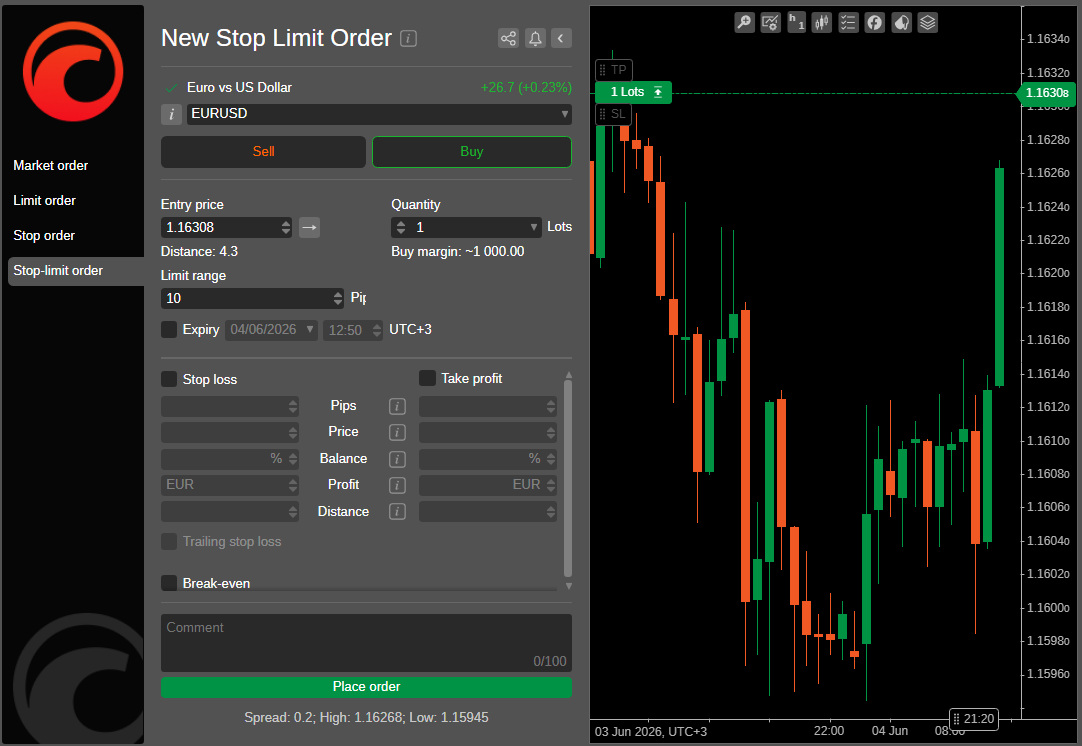
Optional steps include:
- Share – copy a link for sharing the order information to your clipboard.
- Bell – set a new price alert.
- Expand/Collapse – show or hide the chart for better market visualisation.
- Trade side – sets whether the bid or ask price triggers a stop-limit order:
- Trade side – buy stop-limit orders are triggered by the ask price, and sell stop-limit orders are triggered by the bid price.
- Opposite side – buy stop-limit orders are triggered by the bid price, and sell stop-limit orders are triggered by the ask price.
- Double trade side – buy stop-limit orders are triggered by two consecutive ticks of the ask price, and sell stop-limit orders are triggered by two consecutive ticks of the bid price.
- Double opposite side – buy stop-limit orders are triggered by two consecutive ticks of the bid price, and sell stop-limit orders are triggered by two consecutive ticks of the ask price.
-
Expiry – set the date and time when the pending order will automatically expire if it is not triggered by the entry price.
Warning
If the order is triggered shortly before expiry, it will still be sent for execution and may be filled even after the selected expiry time. Pending orders without an expiry remain active until they are triggered by the price or cancelled manually.
-
Stop loss – set values to limit potential losses.
- Trailing stop loss – keeps your stop loss a fixed number of pips from the current price as the market moves in your favour.
- Break-even – set values that place a stop loss at the entry price when the specified trigger level is reached.
- Take profit – set one or more target price levels to scale out of the position as the market moves in your favour.
- Comment – add a note to your order.
Manage pending orders
All pending orders are listed in the Orders tab of Trade Watch. Here you can modify and cancel pending orders.
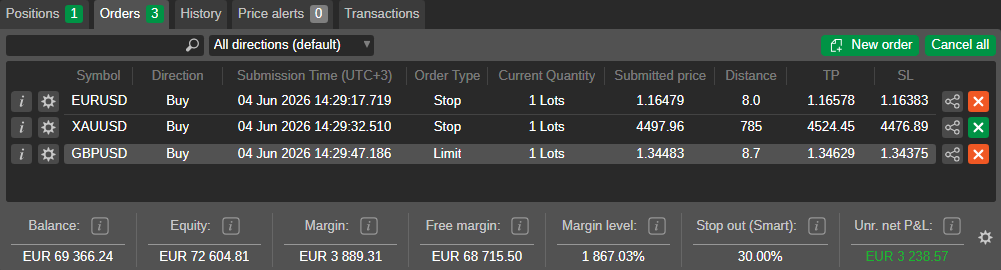
To filter orders by direction, type, symbol or trading volume, enter the value (or part of it) in the search box above the list.
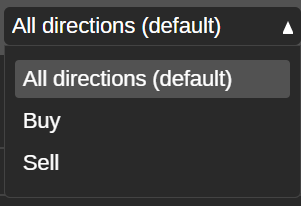
To filter the orders by their direction (buy or sell), click the All directions dropdown and select the desired direction.
Click the order Information icon next to an order to open its Order info window. Click the X button next to an order to cancel it.
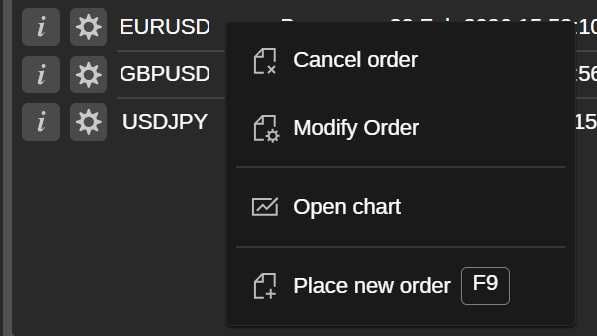
Right-click an order in the list to expand the additional order menu. Here you can:
- Cancel order – cancel the chosen order.
- Modify order – open the Modify order window.
- Open chart – open the current order symbol chart.
- Place new order – open the new order window.
Modify pending orders
In the Orders tab of Trade Watch, you can modify a pending order by double-clicking it or clicking the Cog icon of the order. The Modify pending order window opens.
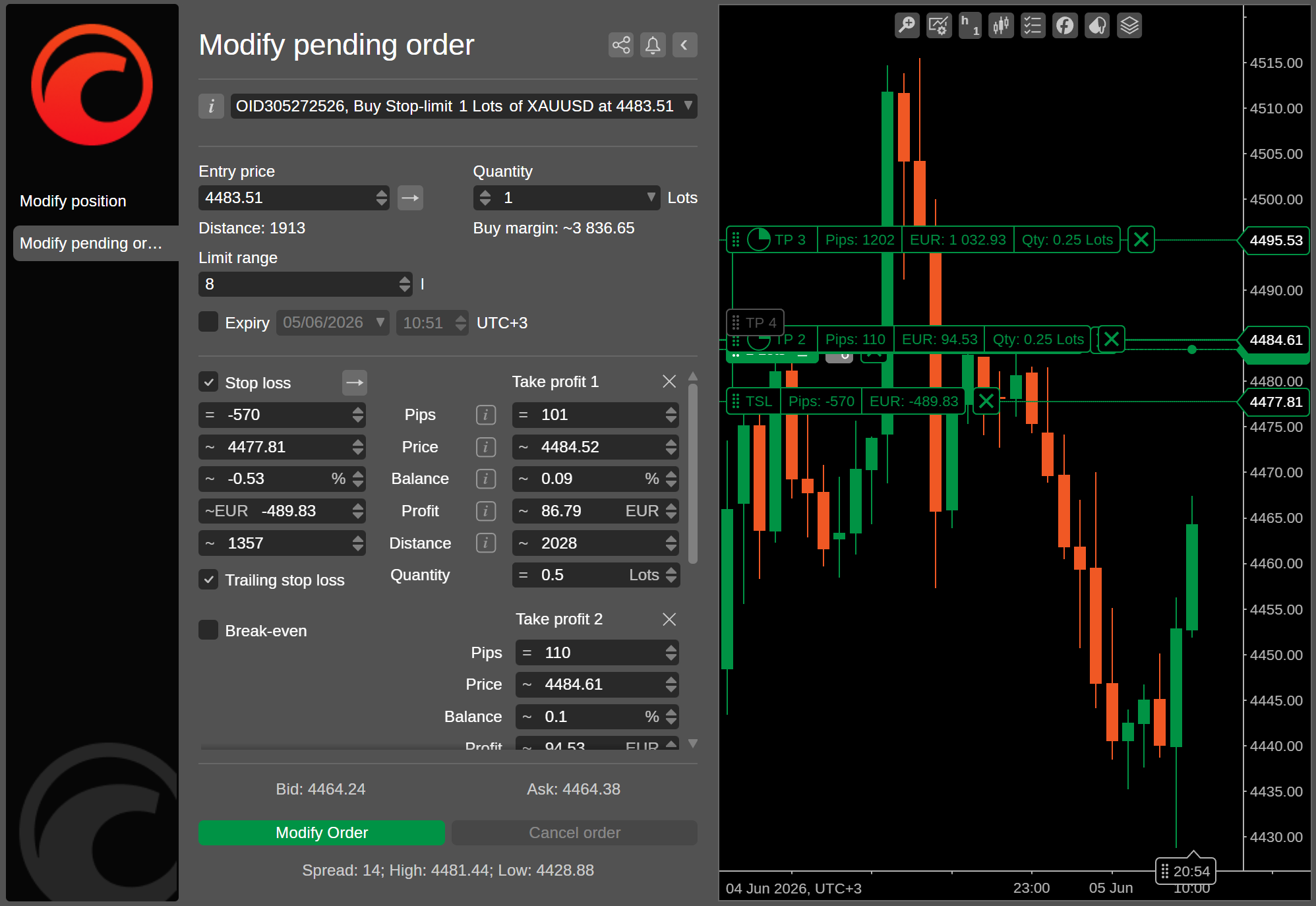
In the Modify pending order window, the following options are available:
- Entry price – modify the entry price using the toggles or by typing the number. This price cannot be higher than the current ask price on the market if going long (buy), or lower than the current bid price if going short (sell).
- Quantity – modify the volume using the dropdown, the toggles or by typing the number.
- Limit range – modify the limit range using the toggles or by typing the number.
- Expiry – set or modify the date and time when the pending order will automatically expire if it is not triggered by the entry price. Pending orders without an expiry remain active until they are cancelled manually, unless triggered by the price.
Warning
If a pending order is triggered by the entry price shortly before expiry, it will still be sent for execution and may be filled even after the selected expiry time.
- Stop loss – set values to limit potential losses.
- Trailing stop loss – keeps your stop loss a fixed number of pips from the current price as the market moves in your favour.
- Break-even – set values that place a stop loss at the entry price when the specified trigger level is reached.
- Take profit – set one or more target price levels to scale out of the position as the market moves in your favour.
Warning
You cannot change the type of the existing order.
Cancel pending orders
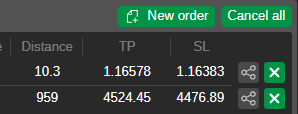
In the Orders tab of Trade Watch, click the X button to the right of an order, or right-click an order and select Cancel order.
Alternatively, click the X button next to the order in the Modify pending order window.
To cancel all the pending orders at once, click Cancel all in the upper-right corner of the Orders tab in Trade Watch.
More functions for managing orders from the chart area are described in chart trading.
Order information
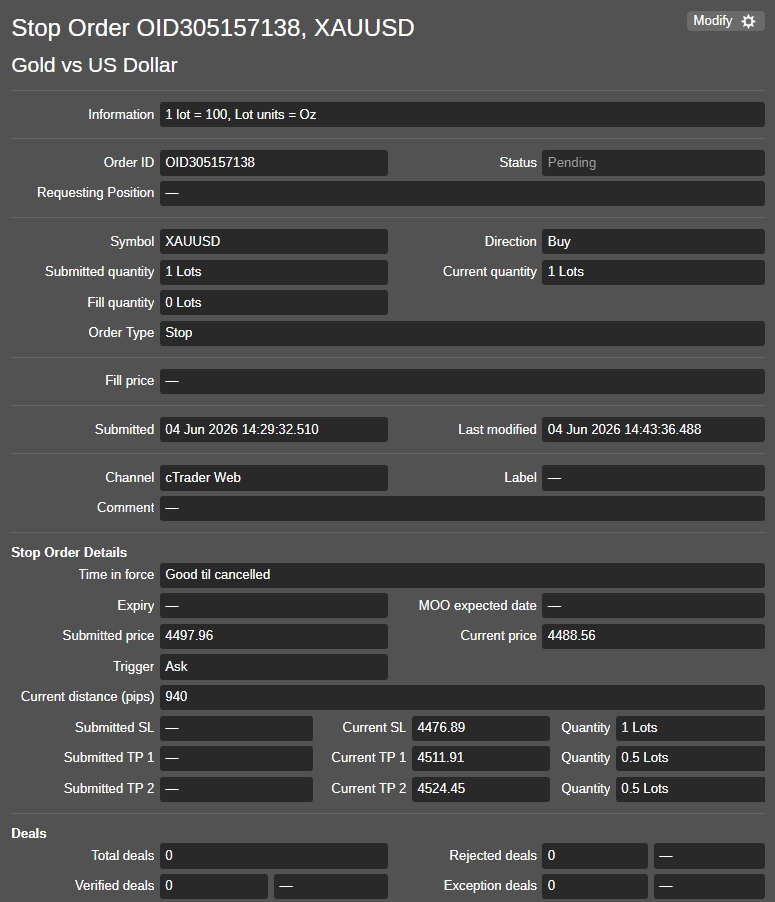
Click the Information icon next to an order in the Orders tab of Trade Watch to view the order details. The following information is available:
- Information – the lot value and units of the trading asset.
- Order ID – the unique order identifier.
- Status – the current status of the order.
- Requesting position – the position that has been requested for this order.
- Opened position – the position opened by this order.
- Position details – click to open the Position info window (if the order resulted in a position).
- Symbol – the financial instrument of this order.
- Direction – the direction of the order (buy or sell).
- Submitted quantity – the initial volume requested.
- Current quantity – the current volume requested (volume left to fill).
- Fill quantity – the amount of the volume filled.
- Order type – the type of the order.
- Fill price – volume-weighted average price (VWAP) of the deals used to fill this order.
- Submitted – the exact date and time when the order was filled.
- Last modified – the exact date and time of the latest changes made to the order.
- Channel – the platform used to open the current order.
- Label – a tag that may be added by a cBot.
- Comment – the custom user comment that may be sent with the order.
- Time in force – duration and conditions under which the order is valid.
- Expiry – the exact date and time when a pending order will automatically expire if it is not triggered by the entry price.
- MOO expected date – the market on open expected fill date.
- Current price – the current price of the traded symbol on the market.
- Submitted price – the initial price set for the order.
- Trigger – the price that triggers the order and the current order trigger side (bid or ask price).
- Current distance – the difference between the spot price and submitted price.
- Limit range – the specific price range at which the limit order will be executed.
- Submitted SL – the initial stop-loss value set with the order.
- Current SL – the current stop-loss value.
- Submitted TP – the initial take-profit value set with the order.
- Current TP – the current take-profit value.
- Total deals – the total number of deals attempted to fill the order.
- Rejected deals – the total number of rejected deals.
- Executed deals – the total number of accepted deals.
- Exception deals – the total number of deals that have encountered an exception.
Note
The availability of certain fields depends on the order type.
Order events
The Events section appears at the bottom of the Order info window and lists all events related to the order. It shows all events experienced by the order in chronological sequence: creation and modification, match with liquidity providers, executed deal and created position.
Here you can see how much time has passed between these events.
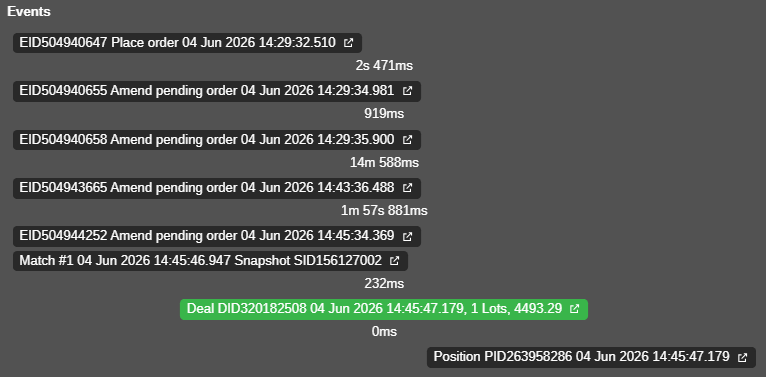
Click an event to open the respective window with all information about the order, deal or position. The following details are presented in the grid:
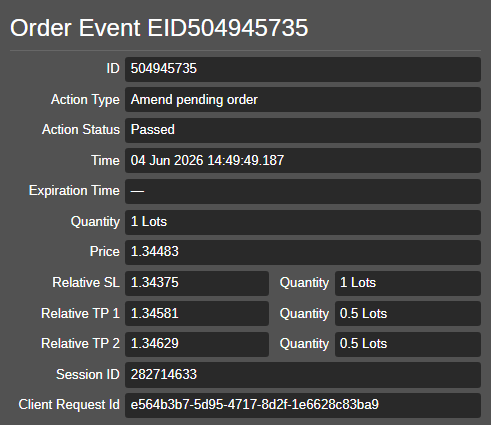
- ID – the unique identifier of the event.
- Action type – the type of the event (order created, order closed, etc.).
- Action status – the current status of the event.
- Time – the exact date and time of the event.
- Expiration time – the exact date and time when the event expires.
- Quantity – the exact number of lots involved in the event.
- Price – the current price of the number of lots involved in the event.
- Relative SL – the price level at which the stop loss is set for this order, along with the quantity of lots it covers.
- Relative TP 1, Relative TP 2 (up to five levels) – the price level of each take-profit target and the portion of the position (in lots) to be closed when that level is reached.
- Session ID – the unique identifier of the session.
- Client request ID – the unique identifier of the client request.