Positions
cTrader opens a position when an order is filled after the conditions for its order type are met. Each order is filled through one or more deals to create the position.
All open positions are listed in the Positions tab of Trade Watch, where you can manage and modify them.
Manage positions
You can filter, sort and search the positions:
- All directions (default) – filters positions by buy or sell direction.
- Not aggregated (default) – toggles symbol aggregation.
- Search box – filters the list to show positions matching the entered value.
Each position row includes the following action icons:
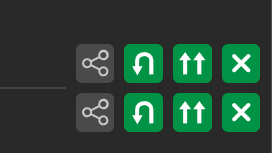
- Share – copy a signal link for sharing the order information to your clipboard.
- U-turn arrow – reverses the direction of the position, switching from buy to sell or from sell to buy.
- Double arrows – doubles the current trade volume of the position by opening an additional order of the same size and direction.
- X – closes the position at the current market price.
หมายเหตุ
When you reverse a position:
- Accrued swaps are charged immediately, and new swaps apply.
- You must reapply protections.
- The reversal crosses the spread again when the new position opens.
หมายเหตุ
When doubling a position, the commissions will also double.
Right-clicking a position in the list opens a context menu with the following options:
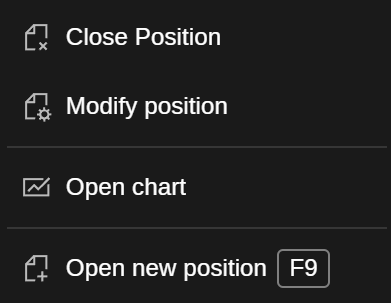
- Close position – close the selected position.
- Modify position – open the modify position window.
- Open chart – open the symbol chart for the current position.
- Open new position – open the new order window.
Modify positions
In the Positions tab of Trade Watch, you can modify an open position by double-clicking it, clicking the Shield with cog icon or right-clicking it and selecting Modify position.
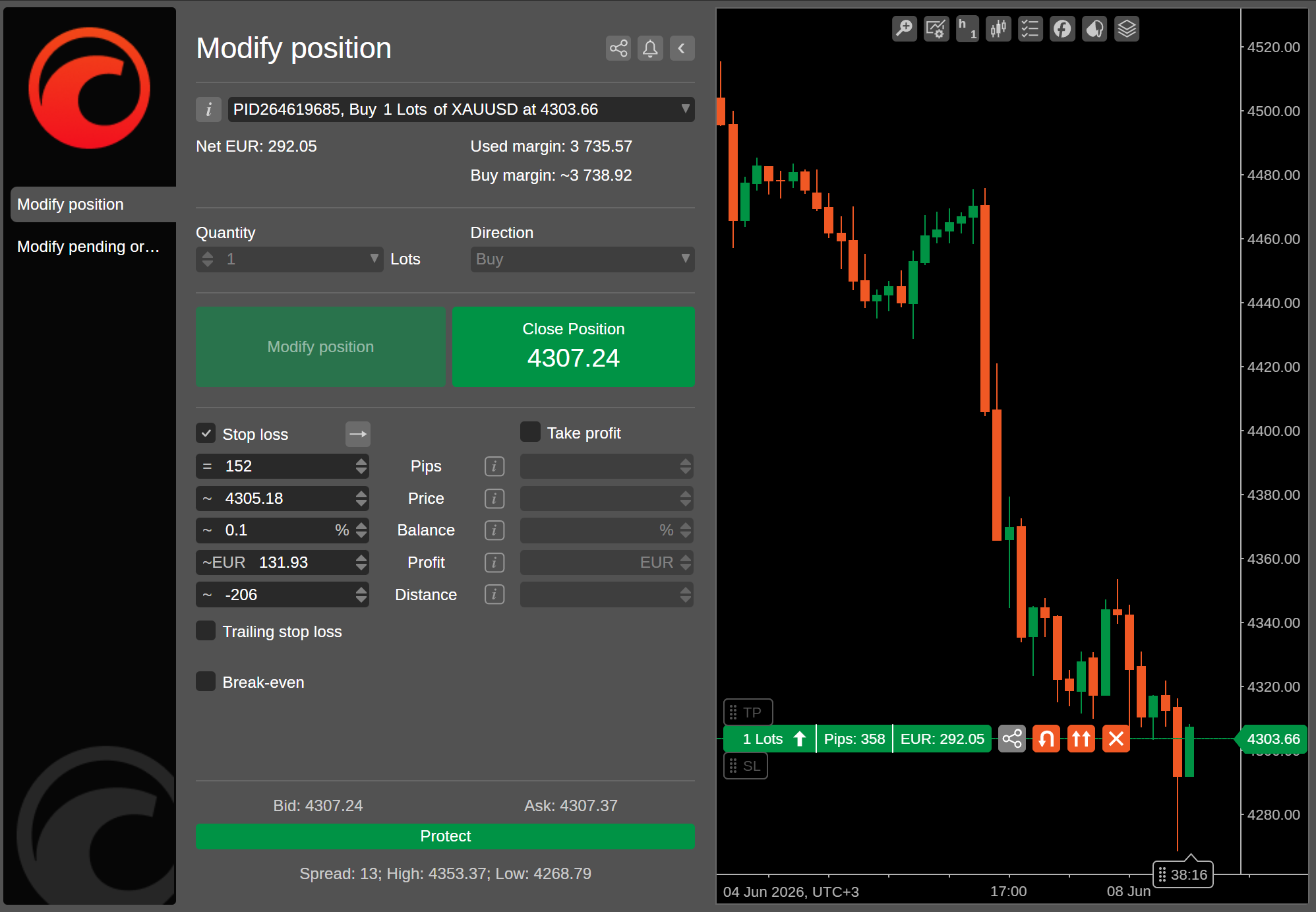
In the Modify position window, the following options are available:
- Stop loss – set or modify the stop-loss protection.
- Trailing stop loss – enable or modify a trailing stop loss.
- Break-even – set or modify the break-even protection.
- Take profit – set or modify the take-profit levels.
Click Protect to apply your changes.
หมายเหตุ
All cTrader protections work on the server side and remain active after your session ends.
Close positions
When you close a position, cTrader executes an opposing deal at the best available market price, offsetting your exposure on the symbol. Any profit or loss that was unrealised while the position was open is then realised. The resulting net P&L is added to or subtracted from your account balance.
The closed position is then moved from the Positions tab to the History tab, where you can review all the details.
หมายเหตุ
Some positions are closed automatically by cTrader without manual action:
- Stop loss or trailing stop loss – cTrader closes the position when the market price reaches your stop-loss level.
- Take profit – cTrader closes the position when your specified profit target is reached.
- Stop out – if your account margin level drops to your broker's stop-out threshold, cTrader automatically closes the position.
To close a single position, click the X icon of the position row, or right-click the position and select Close position.
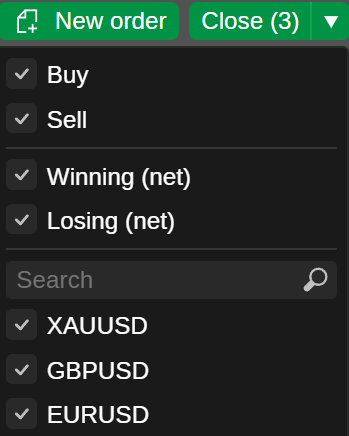
To close multiple positions at once, click the Close dropdown in the upper-right corner of the Positions tab. Use the checkboxes to filter which positions to close by direction (Buy or Sell), performance (Winning or Losing) or individual symbol, then click Close.
More options for managing open positions directly from a chart are described in chart trading.
Position information
Click the Information icon next to a position to open the Position info window and view the position details. The following information is available:
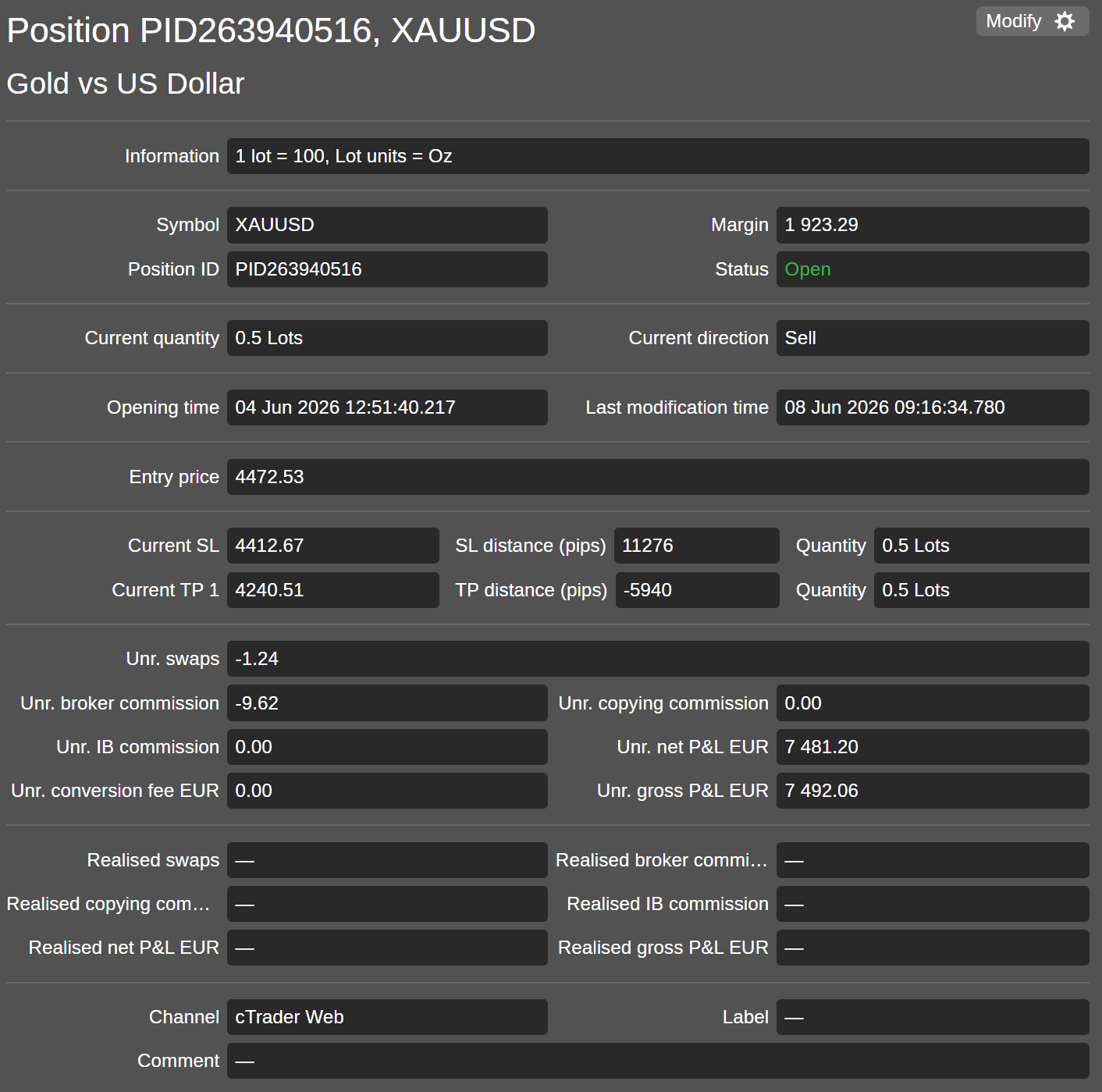
- Information – the lot value and units of the trading asset.
- Symbol – the financial instrument of this position.
- Margin – the margin used to open and maintain the position.
- Position ID – the unique position identifier.
- Status – the current status of the position.
- Current quantity – the current size of the position.
- Current direction – the direction of the position (buy or sell).
- Opening time – the date and time the position was created.
- Last modification time – the date and time of the most recent change to the position.
- Entry price – the volume-weighted average price (VWAP) of deals that were executed to open the position.
- Current SL – the current stop-loss level.
- SL distance (pips) – the distance between the stop loss and the current price in pips.
- Quantity – the value of the stop loss.
- Current TP 1 to Current TP 5 – each active take-profit level.
- TP distance (pips) – the distance between the take-profit level and the current price in pips.
- Quantity – the volume to be closed at that level.
Note
Multiple take-profit levels support server-side scaling out.
- Unr. swaps – the swaps that will be paid or earned when the position is closed or reversed.
- Unr. broker commission – the commission charged by your broker.
- Unr. copying commission – the commission charged for copying strategies in Copy.
- Unr. IB commission – unrealised introducing broker commission.
- Unr. net P&L – current unrealised net profit or loss.
- Unr. conversion fee – unrealised currency conversion fee.
- Unr. gross P&L – current unrealised gross profit or loss.
- Realised swaps – swap charges already paid for the position.
- Realised broker commission – broker commission already paid.
- Realised copying commission – commission charged for copying strategies in Copy.
- Realised IB commission – IB commission already paid.
- Realised net P&L – net profit or loss already secured for the position.
- Realised gross P&L – gross profit or loss already secured for the position.
- Channel – the platform used to open the position.
- Label – a tag that may be added by a cBot.
- Comment – the custom user comment sent with the order that opened the position.
หมายเหตุ
The availability of certain fields depends on the protections set for the position.
Position events
The Position events section at the bottom of the Position info window lists all events related to the position in chronological order, including the order that opened it, the deals executed and any subsequent updates.
Here you can see how much time has passed between these events.
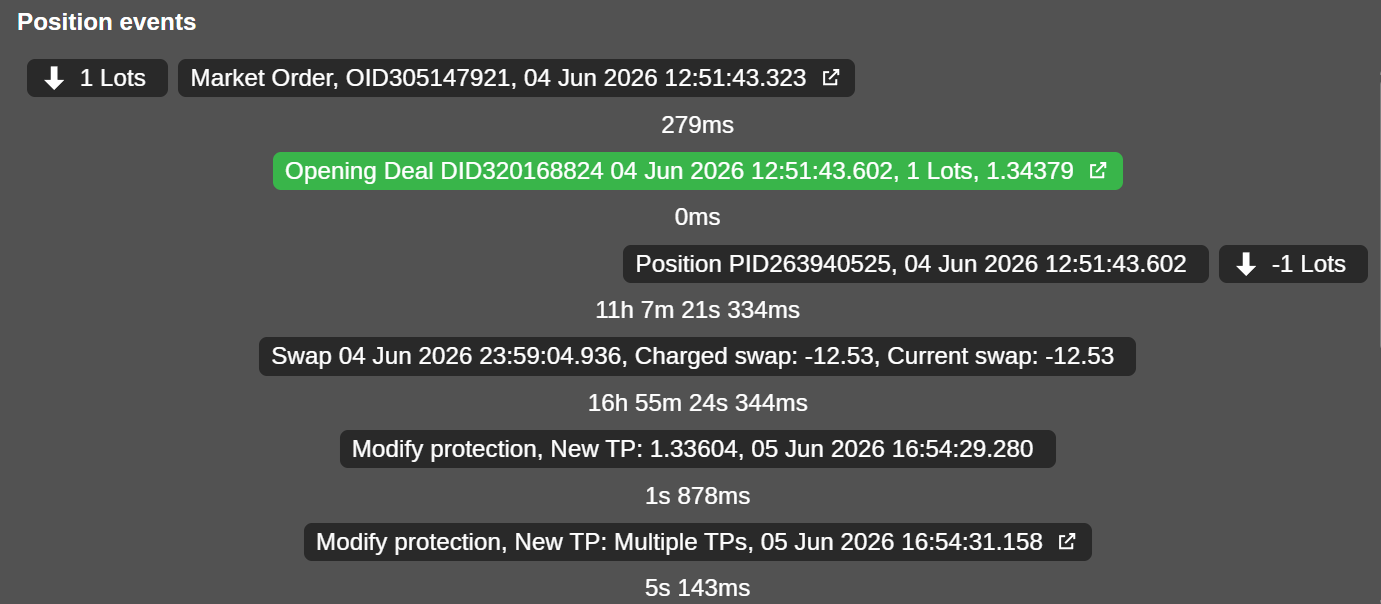
Click an event to open the respective window. The following details are displayed:
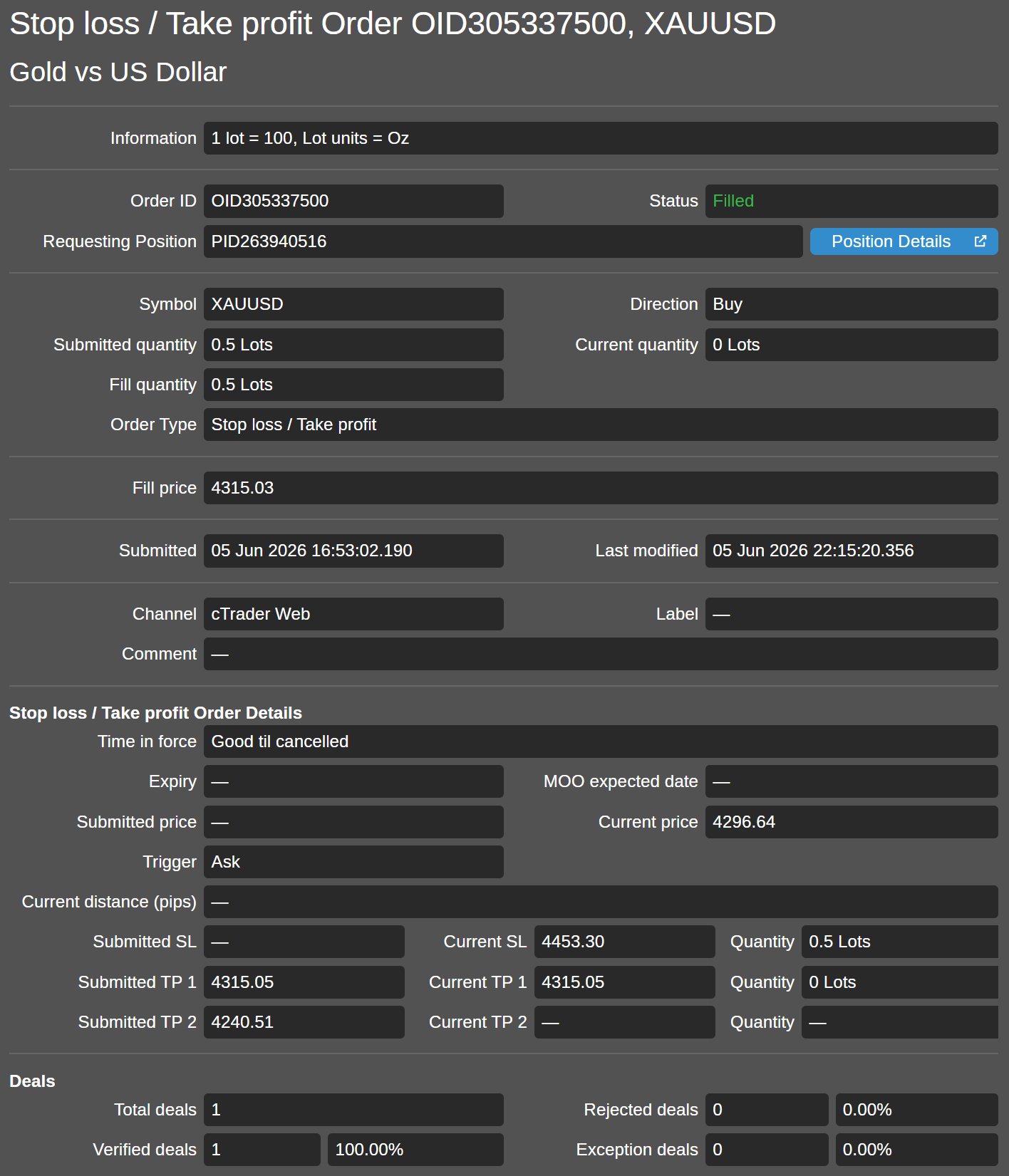
- Information – the lot value and units of the trading asset.
- Order ID – the unique identifier of the order associated with this event.
- Status – the current status of the order.
- Requesting position – the position that triggered this order, with a link to the position details.
- Symbol – the financial instrument of the order.
- Direction – the direction of the order (buy or sell).
- Submitted quantity – the initial quantity requested for this order.
- Current quantity – the remaining unfilled quantity of the order.
- Fill quantity – the quantity that was filled.
- Order type – the type of order (such as stop loss, take profit, etc.).
- Fill price – the VWAP at which the order was filled.
- Submitted – the date and time the order was submitted.
- Last modified – the date and time of the most recent change to the order.
- Channel – the platform used to place the order.
- Label – a tag added by a cBot, if applicable.
- Comment – the custom user comment, if applicable.
- Time in force – the duration condition applied to the order.
- Expiry – the expiry date and time of the order, if applicable.
- MOO expected date – the expected market on open fill date, if applicable.
- Submitted price – the price at which the order will be triggered, if applicable.
- Current price – the current market price of the symbol.
- Trigger – the price type used to trigger the order (e.g., ask or bid).
- Current distance (pips) – the current distance between the submitted price and the current price in pips.
- Submitted SL – the stop-loss price submitted with the order, if applicable.
- Current SL – the current stop-loss level, if applicable.
- Quantity – the volume covered by the stop loss.
- Submitted TP 1 to Submitted TP 5 – the submitted take-profit price for each level, if applicable.
- Current TP 1 to Current TP 5 – the current take-profit price for each level, if applicable.
- Quantity – the volume to be closed at that level.
- Total deals – the total number of deals used to fill this order.
- Rejected deals – the number of rejected deals.
- Verified deals – the number of executed deals.
- Exception deals – the number of deals that encountered an exception.
หมายเหตุ
The details displayed depend on the type of event selected.