Price alerts
cTrader can be configured to alert you when the market reaches a certain price.
You can receive alerts through in-app pop-ups, sounds and emails, which is useful if you are not logged into cTrader at the time.
Create and manage price alerts
Click the Price alert icon in the Instruments toolbar to the right, then click the desired price level in the chart of the corresponding symbol. The New alert menu will appear.
Alternatively, select the Price alerts tab in Market Watch and click Create price alert.
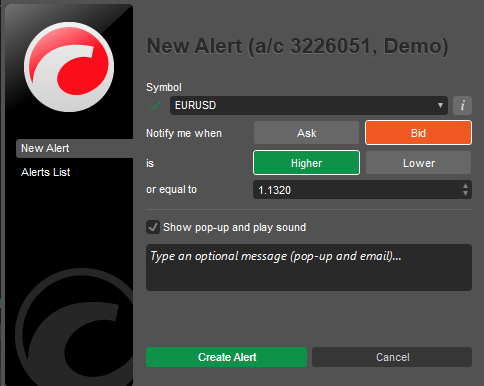
Confirm or select another symbol from the drop-down. Using the corresponding buttons, specify whether you want to be notified when either the ask or bid price is higher or equal, or lower or equal to a certain value. Disable or enable the Show pop-up and play sound checkbox, and add a text message if you want.
Click Create alert to apply changes. The Alerts list will open automatically, displaying all active price alerts with their basic information.
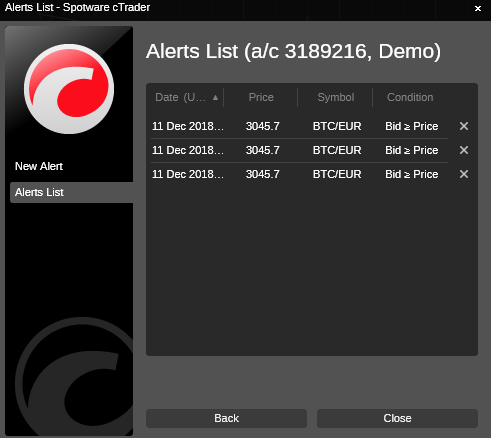
Click the x icon to delete the corresponding price alert. Click Back or New alert to the left to create a new price alert, or click Close to close the Price alerts menu.
Price alerts remain active even when cTrader is disconnected or closed. In this case, in-app notifications and sounds do not work, but you can still be notified by email.
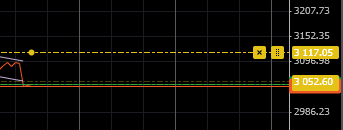
Price alerts are displayed in the corresponding symbol charts as yellow lines.
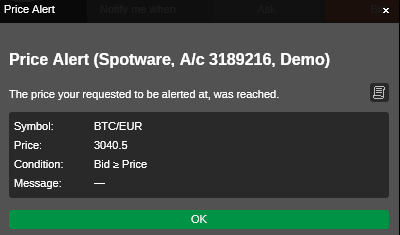
When a price alert is triggered, you will be notified with the respective sound signal and a pop-up with the price alert details.
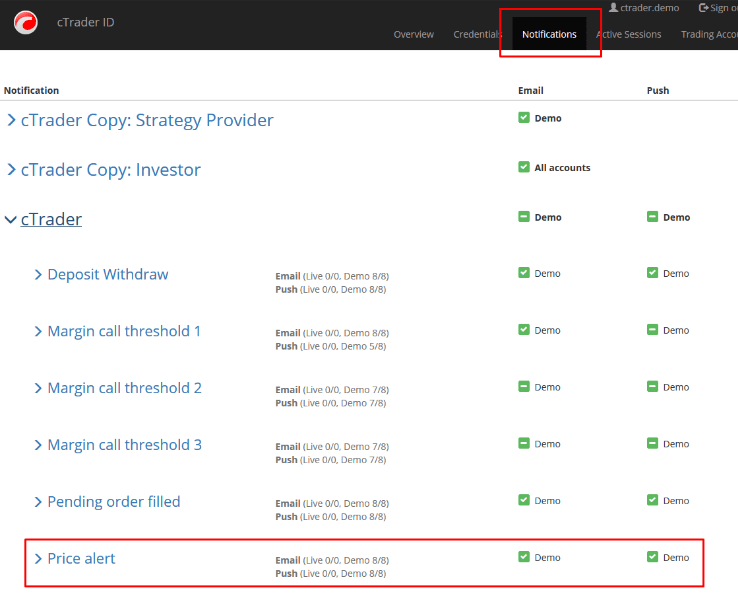
To receive price alert notifications by email, proceed to the cTID portal, select the Notifications tab and adjust the price alert notification settings for your cTID account.
All the price alerts are listed in the Price alerts tab of Trade Watch. Please check the Price alerts tab of Trade Watch panel for more information.
