Trade Watch
The Trade Watch panel is located at the bottom of the cTrader interface and provides tools to enter and exit trades, view and manage positions, and review deals and transactions.
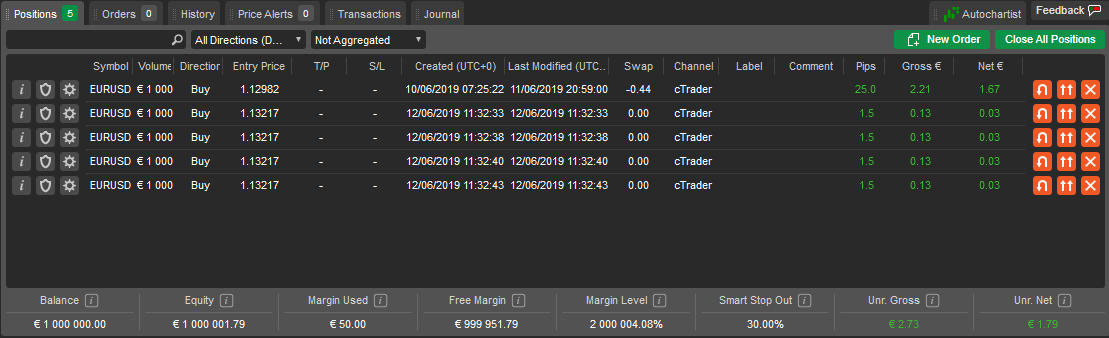
- Positions – manage all currently open positions.
- Orders – modify or cancel pending orders.
- History – review all closed positions and order history.
- Price alerts – create, view and delete alerts that notify you when a symbol reaches a specified price.
- Transactions – track all deposits and withdrawals of the current trading account.
- Balance bar – monitor current trading account parameters such as net and gross profit or loss, balance, margin and more at the bottom of the panel.
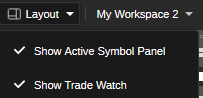
If Trade Watch is hidden, hover over the Layout icon in the chart toolbar and select Trade Watch (bottom) from the dropdown menu. You can also press Ctrl + W.
Note
Some columns in the Trade Watch tabs are hidden by default. Right-click any column header to view the full list of columns and choose which to show or hide.
Balance
At the bottom of Trade Watch, the balance bar displays key account parameters in real time, such as balance, equity, margin and profit or loss. You can view the values in the account currency or indicative currency USD. Left-click the balance bar to expand it and switch between account currency and indicative currency. Hover over any of the parameters to find out how this value is calculated.

Right-click the Balance bar to expand the following menu.
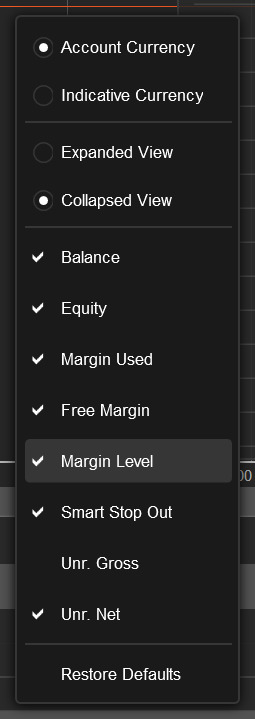
Use this menu to choose which values to show or hide, just like columns in other Trade Watch tabs. You can also expand or collapse the bar and switch between the account currency and the indicative currency.
Positions
All open positions are available in the Positions tab.
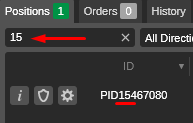
The Positions table displays all basic information about each position, including volume, commissions and gross and net profit and loss, and is sorted by date by default. Click the respective column in the panel to sort positions by symbol, direction, volume, price or date. To filter positions by any parameter, type the value or part of it into the search box above the list.
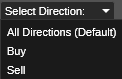
To filter the positions by their direction (buy or sell), click the Select directions and select the direction from the dropdown.
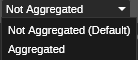
To group all positions of the same symbol and direction, click the Aggregated dropdown. This makes it easier to see the total profit or loss of a symbol group or close the groups with one click.
Right-click on a position to expand the additional position menu for further action:
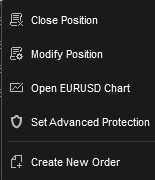
- Close position – to close the position immediately.
- Modify position – to open the Modify position menu.
- Open chart – to open the current position symbol chart.
- Place new order – to open the New order menu.
Position details
Positions are sorted by date by default. Left-click a column header to sort positions by that column. Drag column headers to reorder columns.
Right-click any column header to view the full list of columns and choose which to show or hide in the Positions tab. Select Reset to default to restore the default layout.
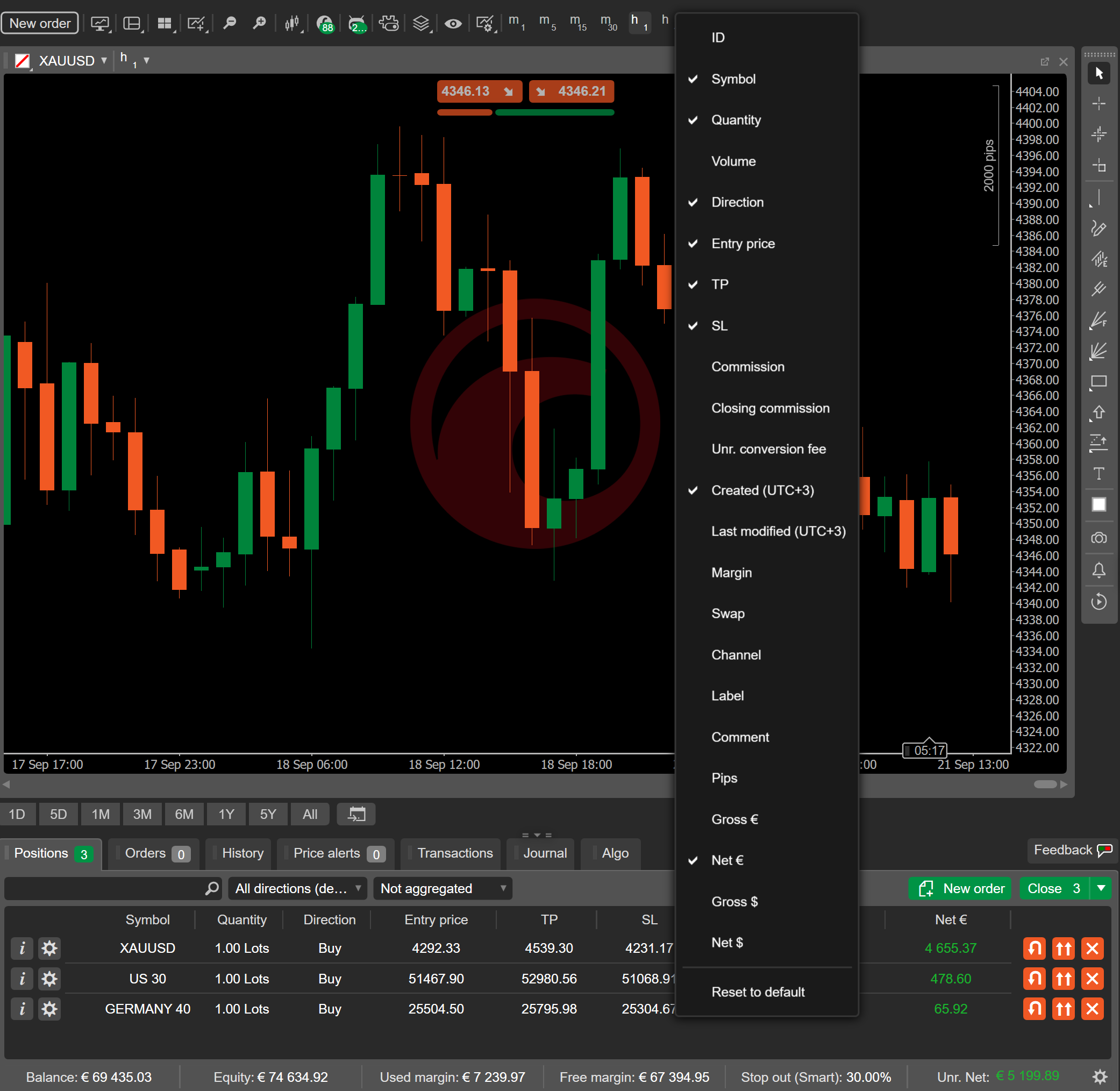
The following columns are available:
- ID – the unique position ID.
- Symbol – the traded instrument.
- Quantity – the current size of the position for the selected symbol.
- Volume – the volume of the position.
- Direction – the current direction of the position (buy or sell) for the selected symbol.
- Entry price – the VWAP (volume-weighted average price) of deals that were executed to open this position.
- TP – the take-profit price.
- SL – the stop-loss price.
- Commission – the commission owed.
- Closing commission – the commission charged by the broker for closing a trade.
- Unr. conversion fee – the unrealised currency conversion fee.
- Created (timezone) – the date and time the position was created.
- Last modified (timezone) – the date and time the position was last modified.
- Margin – the margin used to open and maintain the position.
- Swap – swaps that will be paid or earned when the position is closed or reversed.
- Channel – the platform or method used to open this position.
- Label – the tag for positions opened by trading robots.
- Comment – the comment sent with the order that opened this position.
- Pips – the current profit and loss in pips.
- Gross (currency) – the current profit and loss in the account currency, excluding added or deducted expenses (swaps, commission, etc.).
- Net (currency) – the profit and loss in the account currency after deducting swaps and commissions.
- Gross USD – the current profit and loss in USD, excluding added or deducted expenses (swaps, commission, etc.).
- Net USD – the profit and loss in USD after deducting swaps and commissions.
Click the Information icon next to the desired position to open the detailed position information for that position in a new window.
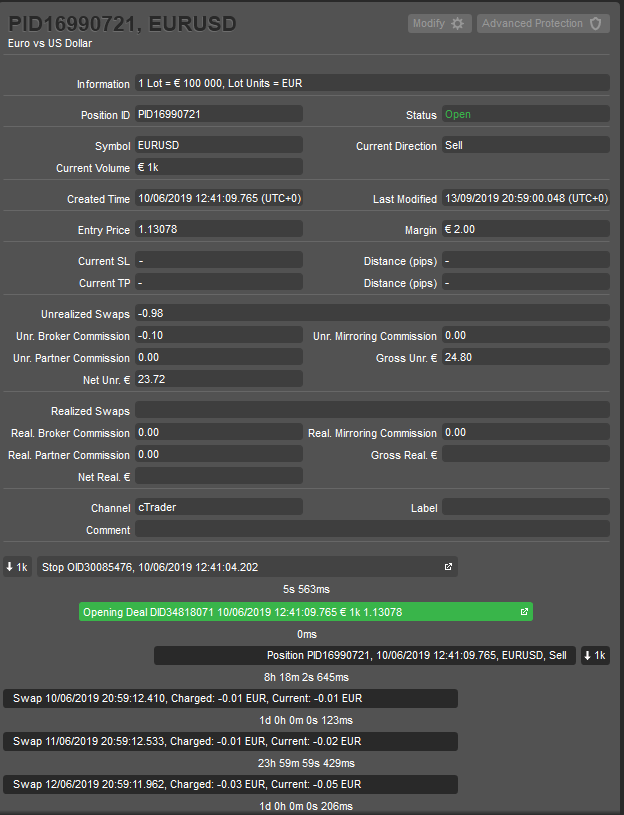
The following position information is available:
- Information – the trading asset lot value and lot units.
- Symbol – the financial instrument.
- Margin – the margin required by this position.
- Position ID – the unique ID of the position.
- Status – the current status of the position (open or closed).
- Current Quantity – the current number of lots being traded.
- Current Direction – the current direction of the position (buy or sell).
- Created Time – the exact time the position was created.
- Last Modified Time – the exact date and time the position was last modified.
- Entry price – VWAP (volume-weighted average price) of deals filled to create this position.
- Current SL – the current stop loss.
- Current TP – the current take profit.
- Distance (pips) – the current distance to SL or TP from the market price.
- Unrealised Swaps – swaps to be earned or paid when closing or reversing the position.
- Unr. Broker Commission – unrealised commission to be charged by your broker.
- Unr. Copying Commission – cTrader Copy strategy provider's commission to be charged.
- Unr. IB Commission – the unrealised introducing broker commission.
- Net Unr. – the current net profit or loss including swaps and commissions.
- Gross Unr. – the current gross profit or loss excluding swaps and commissions.
- Realised Swaps – swaps already paid.
- Real. Broker Commission – broker's commission charged.
- Real. Copying Commission – strategy provider's commission charged (cTrader Copy).
- Real. IB Commission – the realised introducing broker commission.
- Net Real. – net profit and loss secured for this position, including swaps and commissions.
- Gross Real. – gross profit and loss secured for this position, excluding swaps and commissions.
- Label – label added by cBot.
- Comment – user comments.
A position timeline is displayed at the bottom of the Position information panel.
Here you can view all events related to the position in chronological order, including orders, deals and status updates as each order and deal is processed, charged swaps and commissions, and stop-loss and take-profit triggers that were hit or modified.
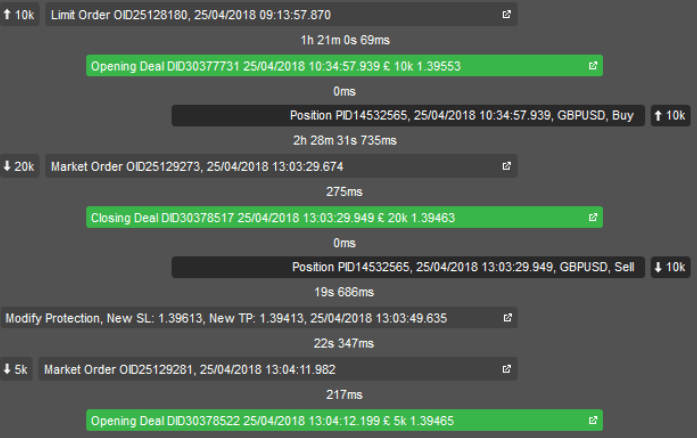
Click the desired item to open the respective panel with all the information about an order or a deal.
Tip
Click the Cog icon to modify a position or add and adjust its protections.
Orders
All the pending orders are listed in the Orders tab of Trade Watch. Here you can manage, edit, and cancel the pending orders. When an order is filled, it becomes a position and disappears from the Orders tab.
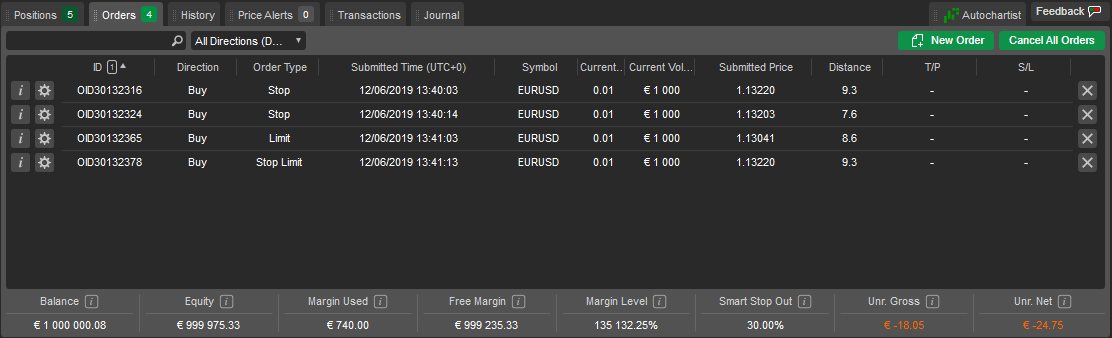
You can filter orders by ID, direction, type, symbol or traded volume by typing the value or part of it in the search box above the list of orders. Right-click any column title to add columns that are not displayed by default. For detailed information on managing orders, see the Orders section.
Order columns
Orders are sorted by date by default. Left-click a column header to sort orders by that column. Drag column headers to reorder columns.
Right-click any column header to view the full list of columns and choose which to show or hide in the Orders tab. Select Reset to default to restore the default layout.
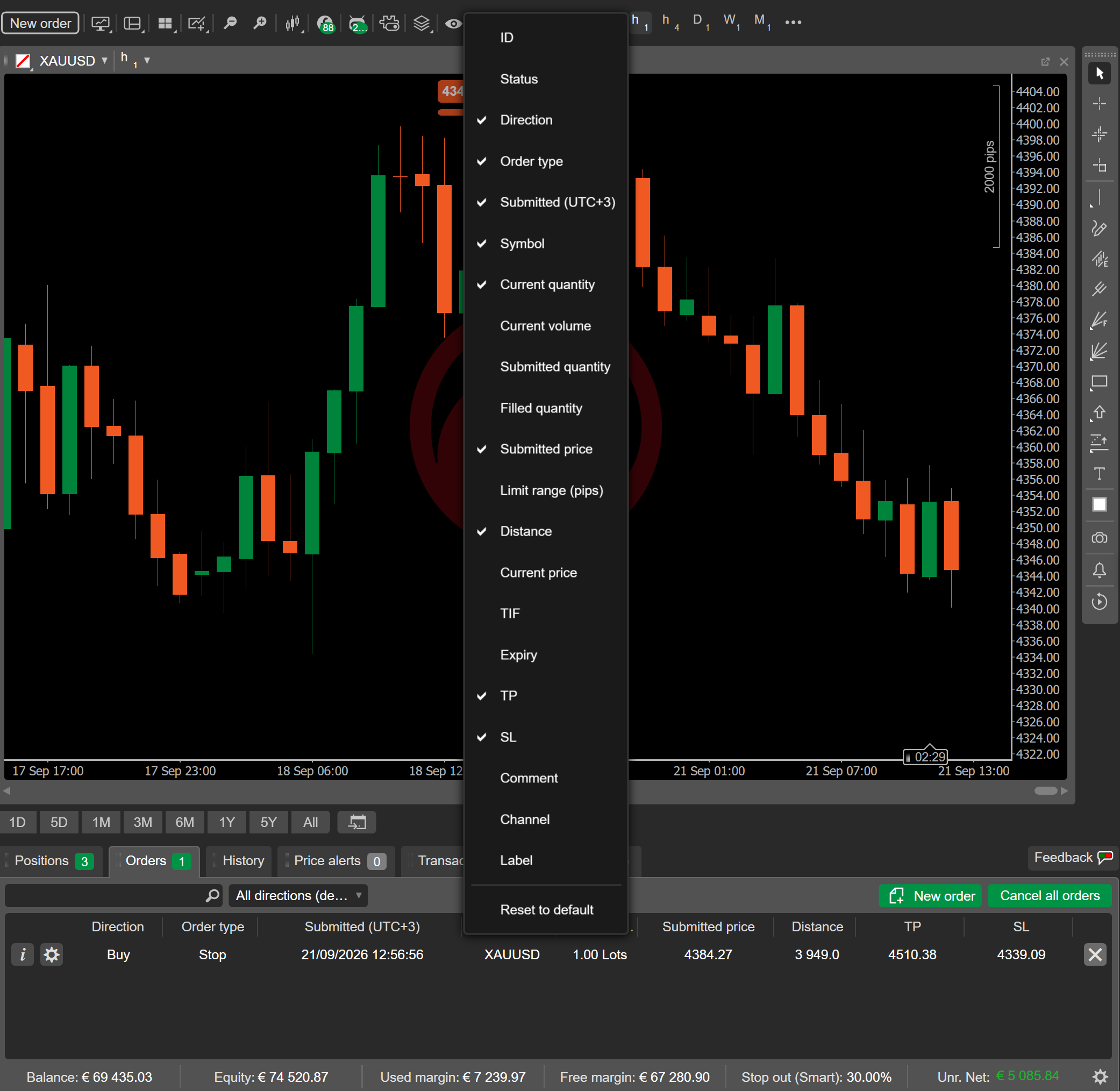
The following columns are available:
- ID – the unique order ID.
- Status – the current order status.
- Direction – indicates whether this is a buy or sell order.
- Order type – indicates the specific type of order: market, limit, stop, etc.
- Submitted (timezone) – the date and time the order was submitted.
- Symbol – the traded instrument.
- Current quantity – the quantity not yet filled.
- Current volume – the volume not yet filled.
- Submitted quantity – the quantity submitted with the order.
- Filled quantity – the quantity of this order that has been filled.
- Submitted price – the price at which the order will be triggered.
- Limit range (pips) – the price range in pips within which the order can be filled.
- Distance – the distance in pips between the submitted price and the current price.
- Current price – the current spot price.
- TIF – time in force.
- Expiry – the order expiry date.
- TP – the take-profit price.
- SL – the stop-loss price.
- Comment – the comment sent with the order upon its submission.
- Channel – the platform or method used to place this order.
- Label – the tag that may be applied by trading robots.
Note
When placing an order, you can add a comment to it, and a cBot can add a label. Neither can be edited once the order has been placed.
History
The History tab holds the complete history of all deals that have filled or attempted to fill your orders.
While each closed position is represented by a single deal in the list, you can access all the associated deals, positions and orders by double-clicking the deal or clicking the Information icon next to the desired deal. The total realised profit and loss for the selected period of the current account is displayed in the bottom-right of the History tab.
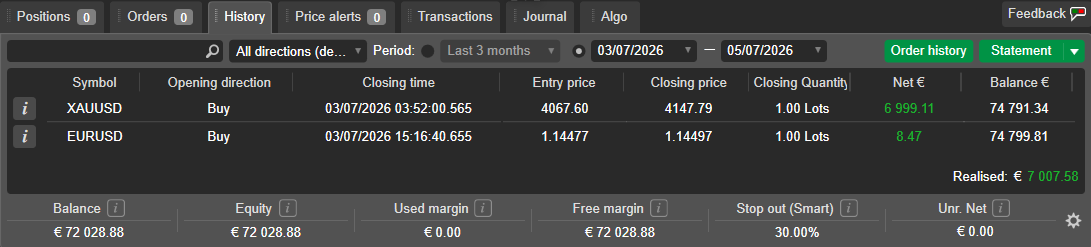
To filter deals by any parameter, enter a full or partial value in the search box above the list, or use the fields above to filter by a standard or custom period.
Note
Table settings are workspace-specific.
History details
Deals are sorted by date by default. Left-click a column header to sort deals by that column. Drag column headers to reorder columns.
Right-click any column header to view the full list of columns and choose which to show or hide in the History tab. Select Reset to default to restore the default layout.
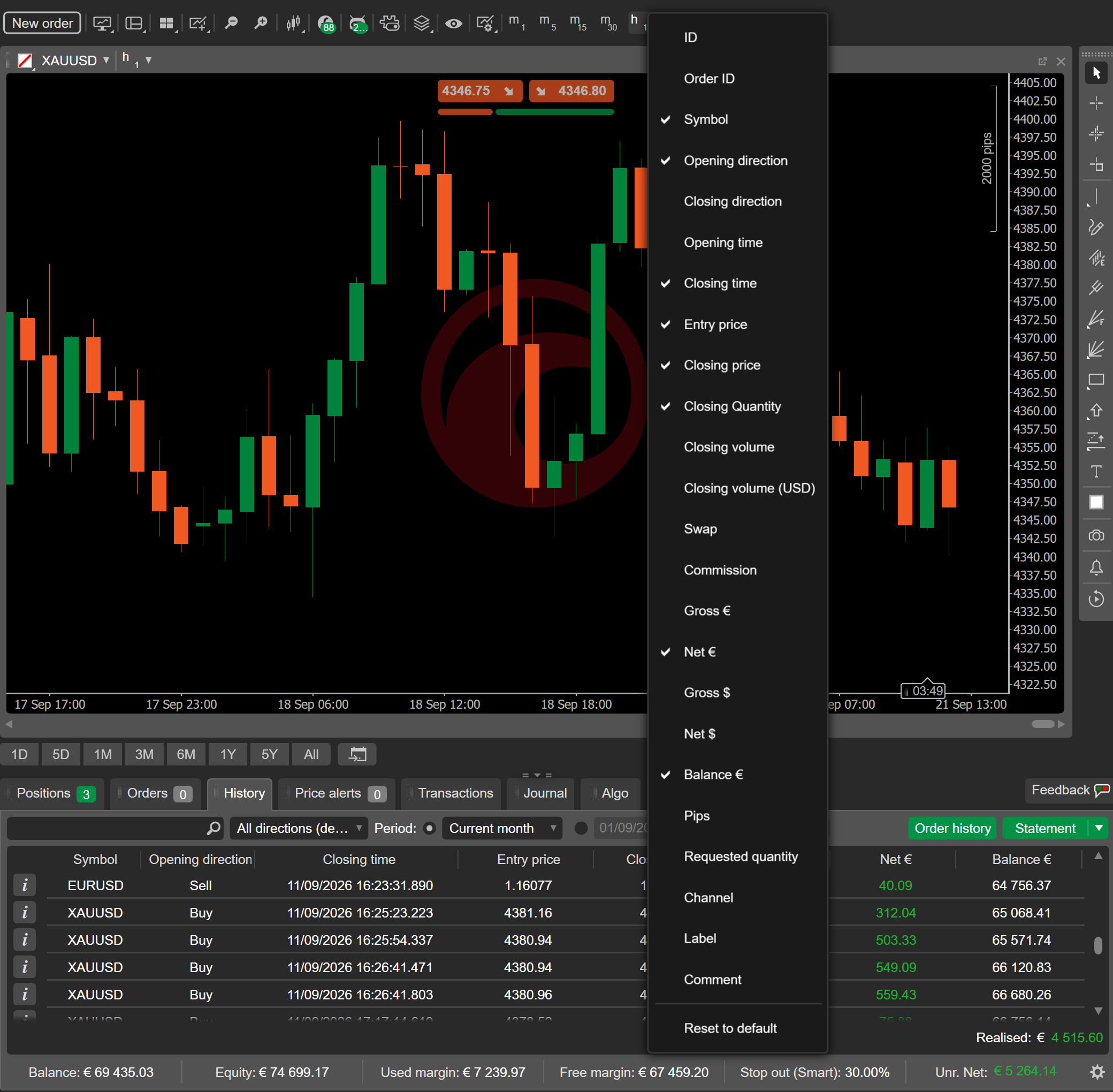
The following columns are available:
- ID – the unique deal ID.
- Order ID – the unique order ID.
- Symbol – the traded instrument.
- Opening direction – the initial trade direction (buy or sell).
- Closing direction – the direction of the closing deal (buy or sell).
- Opening time – the exact time and date when the deal was created.
- Closing time – the exact time and date when the deal was closed.
- Entry price – the executed price of the opening deal.
- Closing price – the price when the deal was closed.
- Closing quantity – the total number of lots.
- Closing volume – the volume of the closed position in account currency.
- Closing volume (USD) – the volume of the closed position in USD.
- Requested quantity – the requested number of lots.
- Swap – the swaps collected or paid for the deal.
- Commission – the total commissions paid for the deal.
- Pips – the profit or loss pips.
- Gross (currency) – the gross profit or loss in the account currency.
- Net (currency) – the net profit or loss in the account currency.
- Gross USD – the gross profit or loss in USD.
- Net USD – the net profit or loss in USD.
- Label – the label applied to the deal.
- Channel – the platform or method used to create the deal.
- Comment – the custom user comment.
- Balance (currency) – the account balance at the moment the deal was closed.
Click the Information icon next to the desired deal in the History tab to open the Deal info window.
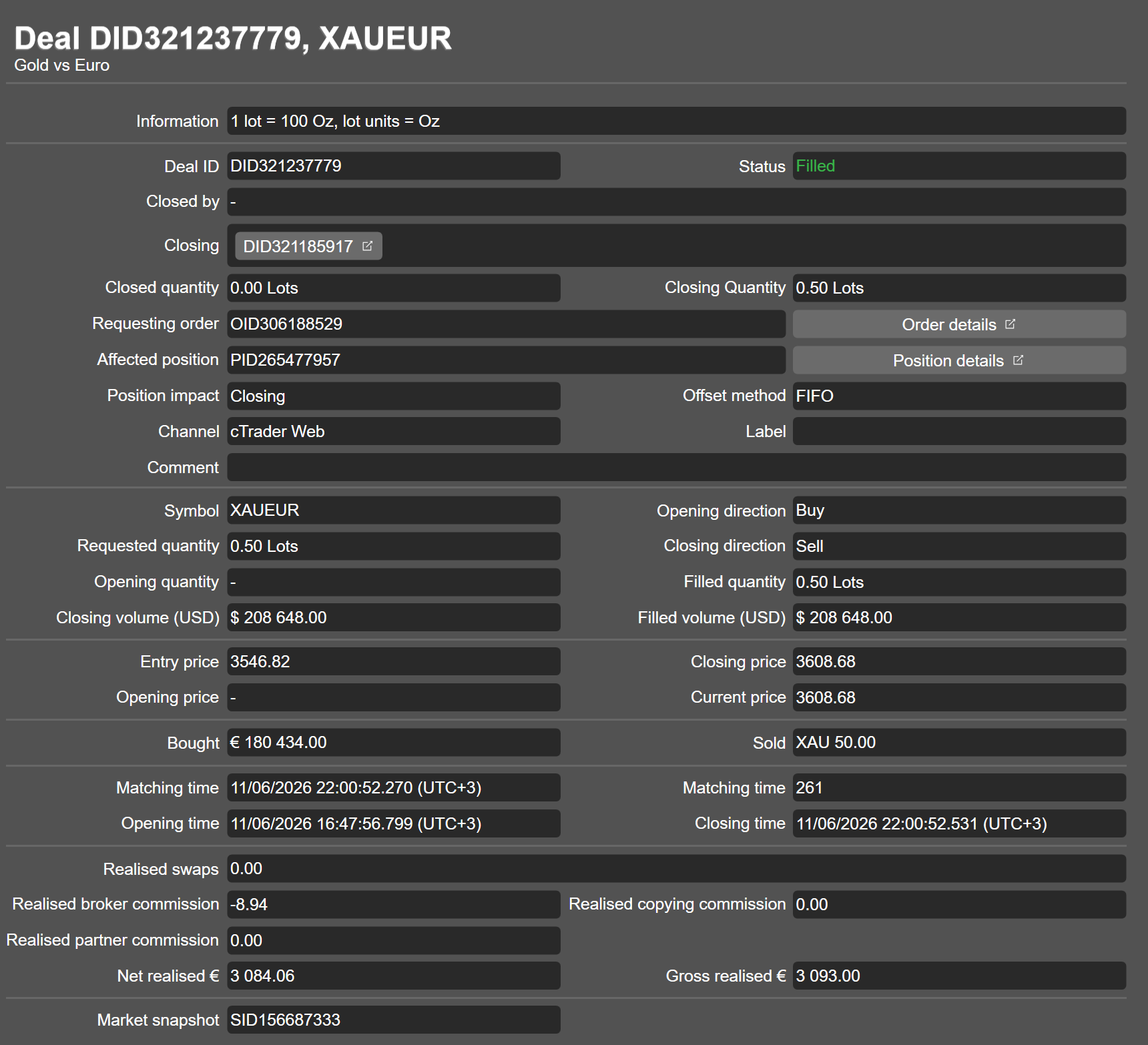
The following deal information is displayed in a new window:
- Information – the asset lot value and lot units.
- Deal ID – the unique identifier of the deal.
- Status – the current status of the deal.
- Filled – filled completely.
- Partially filled – partially filled.
- Rejected – rejected by the liquidity provider.
- Error – encountered an error while attempting to fill.
- Missed – liquidity provider failed to respond in time.
- Internally rejected – rejected by the broker.
- Closed by – the deals that close this deal.
- Closing – the deals that this deal closes.
- Closed quantity – the quantity of this deal closed by the other deals (the ones in the Closed by field).
- Closing quantity – the quantity that this deal is closing.
- Requesting order – the unique ID of the order that created this deal. Click Order details to open the full order details window.
- Affected position – the unique ID of the position affected by this deal. Click Position details to open the full position details window.
- Position impact – the effect of the deal on the position.
- Opening – the deal was the opening deal of a position or added volume to an existing position.
- Closing – the deal fully or partially closed an existing position.
- [EMPTY] – deals that were not filled.
- Offset method – first-in-first-out.
- Channel – platform used to open the deal.
- Label – the label applied to the deal by cBots.
- Comment – the custom user comments.
- Symbol – the financial instrument traded.
- Opening direction – the initial direction of the deal (buy or sell).
- Requested quantity – the initial volume requested by the order.
- Closing direction – the direction of the closing deal (buy or sell).
- Opening quantity – the quantity opened by this deal.
- Filled quantity – the quantity filled by this deal.
- Closing volume (USD) – the closing volume in USD.
- Filled volume (USD) – the filled volume in USD.
- Entry price – VWAP (volume-weighted average price) of the closed opening deals.
- Closing price – execution price of the closing deal (the price of the volume in the Closing quantity field).
- Opening price – the price of the volume in the Opening quantity field.
- Current price – the market price of the symbol at the time of execution.
- Bought – the amount of currency bought in this deal (markup included).
- Sold – the amount of currency sold in this deal (markup included).
- Matching time – the exact date and time at which the LP match was found for this deal.
- Execution time – time in ms from matching time to execution.
- Opening time – the time of the first opening deal.
- Closing time – the time of the closing deal.
- Realised swaps – swaps collected or paid for this deal.
- Realised broker commission – the commission charged by your broker.
- Realised copying commission – the commission charged by a strategy provider (when copying in cTrader Copy).
- Realised partner commission – the realised partner commission.
- Net realised (currency) – the net profit and loss including swaps and commissions.
- Gross realised (currency) – the gross profit and loss before calculating swaps and commissions.
- Market snapshot – the unique ID of the market snapshot. Market snapshot shows you a precise list of the prices and liquidity that were available at the exact moment your deal was filled, partially filled, rejected, missed or encountered an error.
Order history
Click the Order history button to open the list of all the orders ever created.
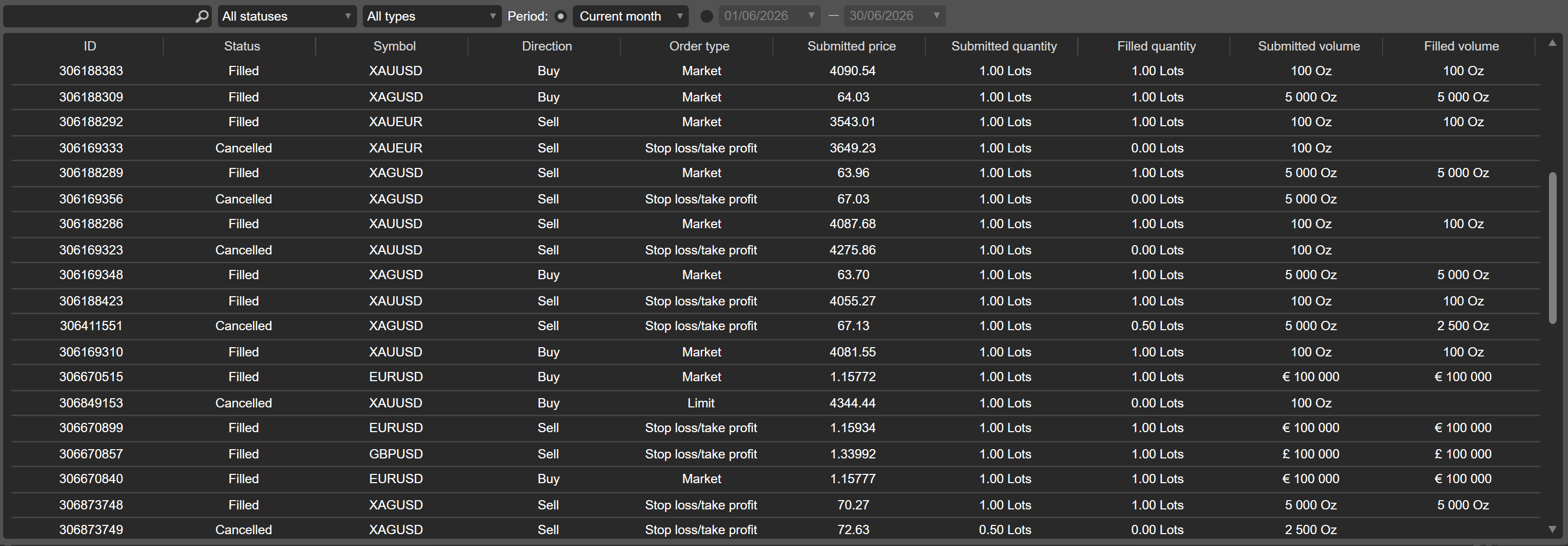
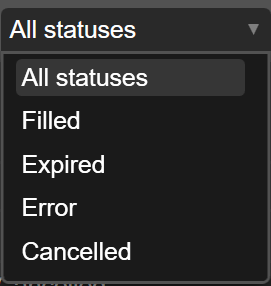
You can filter the orders by their status (Pending, Filled, Rejected, Expired or Cancelled).
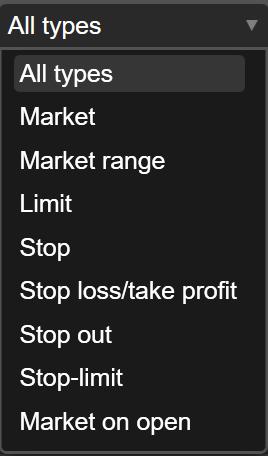
You can also filter the orders in the list by type (Market, Market range, Limit, Stop, Stop loss/take profit, Stop out, Stop-limit or Market-on-open).
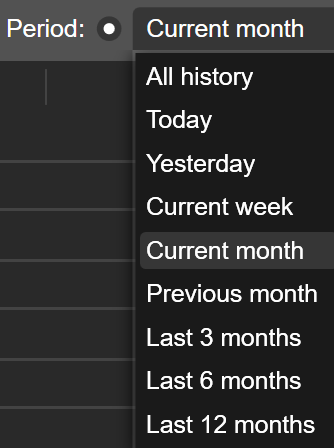
Use the Period dropdown to filter orders by a selected period, or set exact dates to show orders within a specific date range.
Click the Statement button to open the HTML account statement in a new tab, where you can save it locally as a CSV file or print it.
Price alerts
All the price alerts set for the trading account are listed in the Price alerts tab of Trade Watch. You can remove the desired price alert by clicking the X button next to it.
Click Create price alert to open the New alert window.
Click Close all price alerts to close all the price alerts in the list at once.
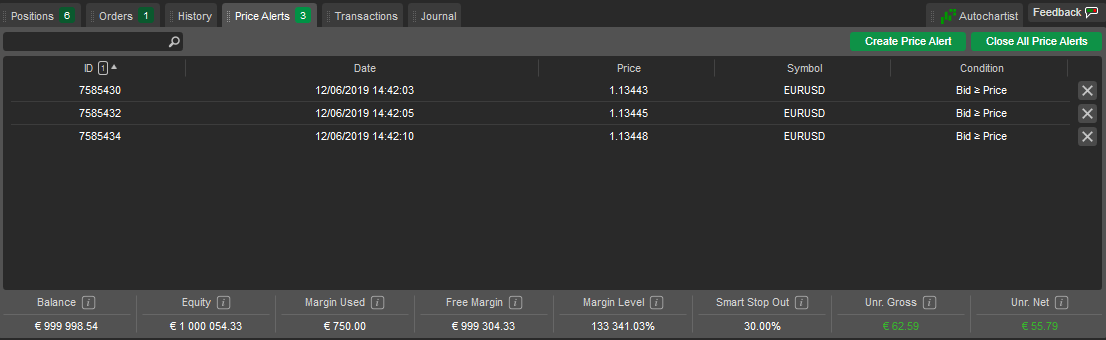
Price alert columns
Price alerts are sorted by date by default. Left-click a column header to sort price alerts by that column. Drag column headers to reorder columns.
Right-click any column header to view the full list of columns and choose which to show or hide in the Price alerts tab. Select Reset to default to restore the default layout.
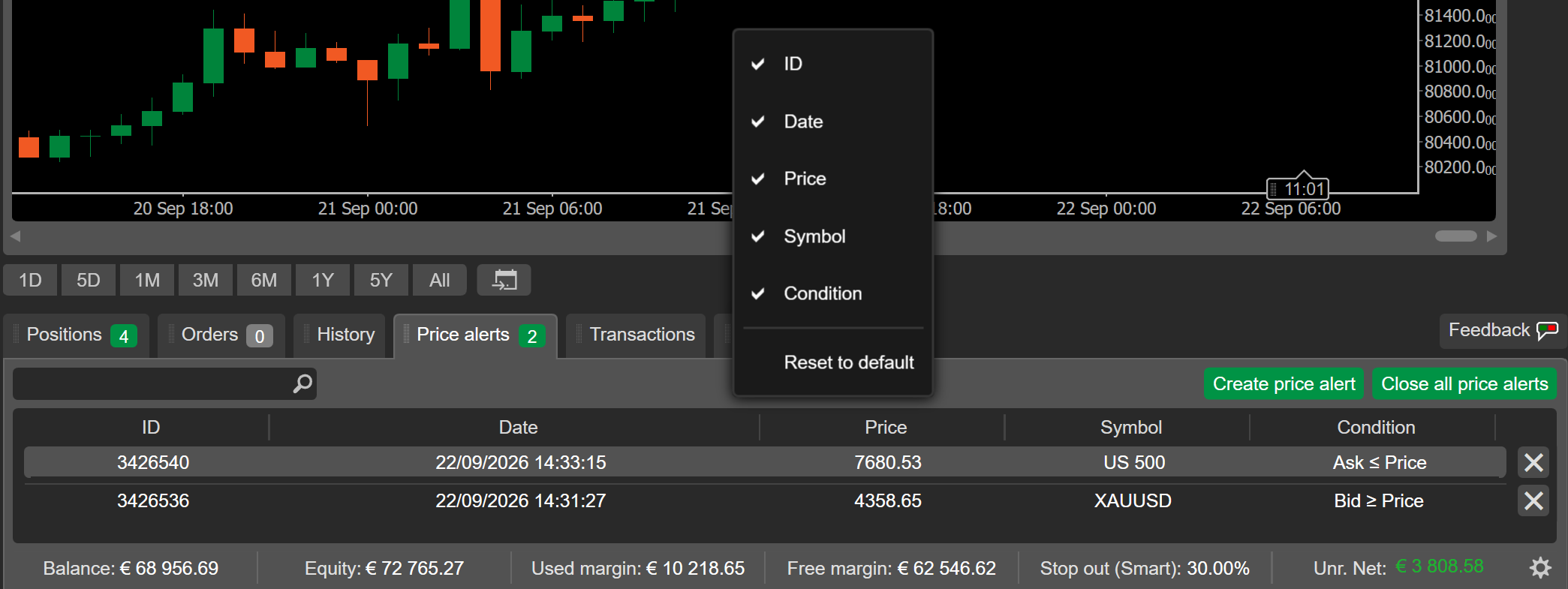
The following columns are available:
- ID – the unique ID of the price alert.
- Date – the date and time the alert was created.
- Price – the price at which the alert triggers.
- Symbol – the symbol the alert is set for.
- Condition – the condition that triggers the alert.
Transactions
All transactions of the current trading account are listed with details in the Transactions tab of Trade Watch panel. Filter transactions using the Withdrawal/Deposit dropdown or by typing the value, or part of it, in the search box. Use the Deposit and Withdraw buttons for the respective actions.
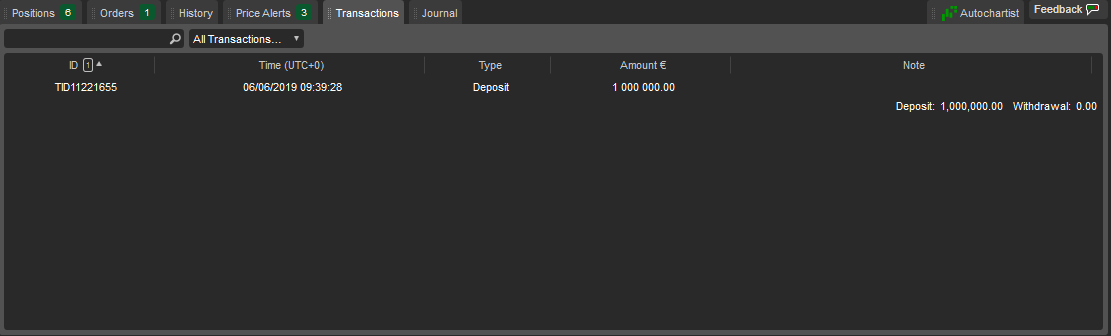
Transaction columns
Transactions are sorted by date by default. Left-click a column header to sort transactions by that column. Drag column headers to reorder columns.
Right-click any column header to view the full list of columns and choose which to show or hide in the Transactions tab. Select Reset to default to restore the default layout.
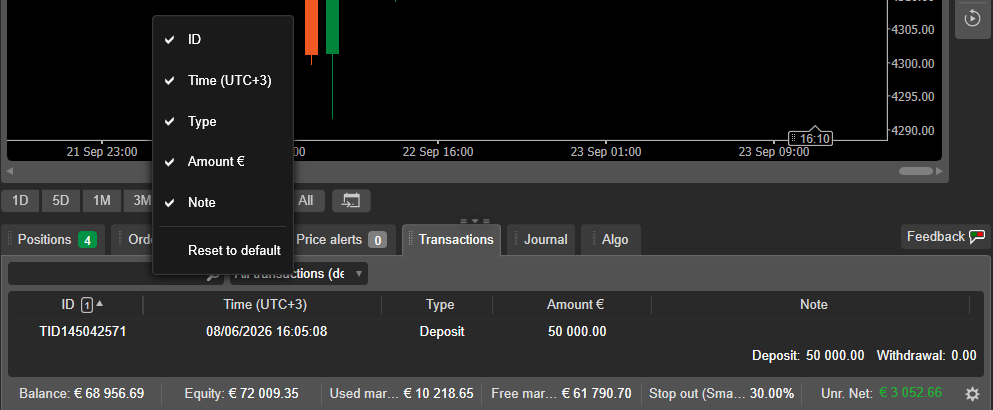
The following columns are available:
- ID – the unique ID of the transaction.
- Time – the date and time of the transaction.
- Type – the type of transaction (deposit or withdrawal).
- Amount (currency) – the deposit or withdrawal amount in your account currency.
- Note – a note from your broker.
Journal
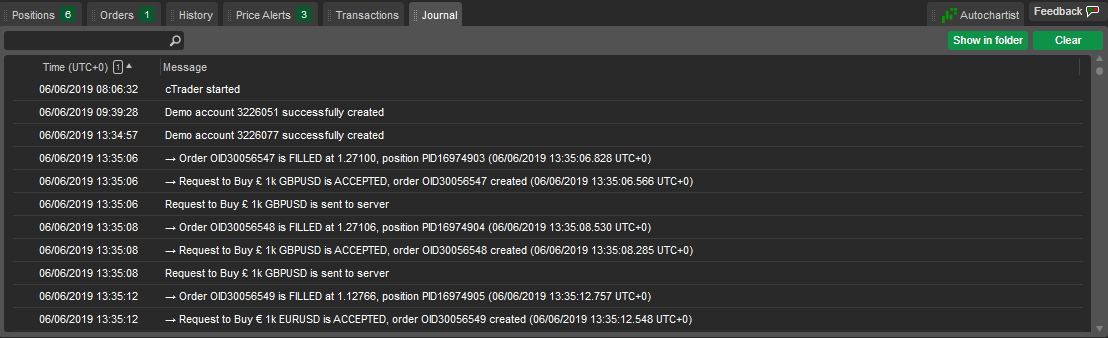
The Journal tab contains a log of all trading account events, with the exact date and time for each. Right-click a message to copy it, remove it or remove all history.