History
After being closed, all positions end up in the History tab of Trade Watch panel. This tab holds the complete history of all deals that have filled or attempted to fill your orders.
While each position is represented by a single deal in the list, you can access all the associated deals, positions and orders by double-clicking the deal or clicking the corresponding deal Information icon.
View the required deal information in the history table columns:
- ID – the unique deal ID
- Order ID – the unique order ID.
- Symbol – the traded instrument.
- Opening direction – the initial trade direction (buy or sell).
- Closing direction – the direction when the deal was closed.
- Opening time – the exact time and date when the deal was created.
- Closing time – the exact time and date when the deal was closed.
- Entry price – the executed price of the opening deal.
- Closing price – the price when the deal was closed.
- Closing quantity – the total number of lots.
- Closing volume (currency) – the initial volume in the currency requested when the deal was created.
- Requested quantity – the requested number of lots.
- Swap – the swaps collected or paid for the deal.
- Commissions – the total commissions paid for the deal.
- Pips – the profit or loss pips.
- Gross (currency) – the gross profit or loss in the account currency.
- Net (currency) – the net profit or loss in the account currency.
- Gross (USD) – the gross profit or loss in USD.
- Net (USD) – the net profit or loss in USD.
- Label – the tag created for the deal by algorithms.
- Comment – user comment.
- Balance (currency) – the account balance at the moment the deal was closed.
- Channel – the platform or method used to create the deal.
Note
Not all the table columns are enabled by default. Right-click any column to select which columns to show or hide. The columns in the tables are configurable. You can drag them to place them in any desired order.
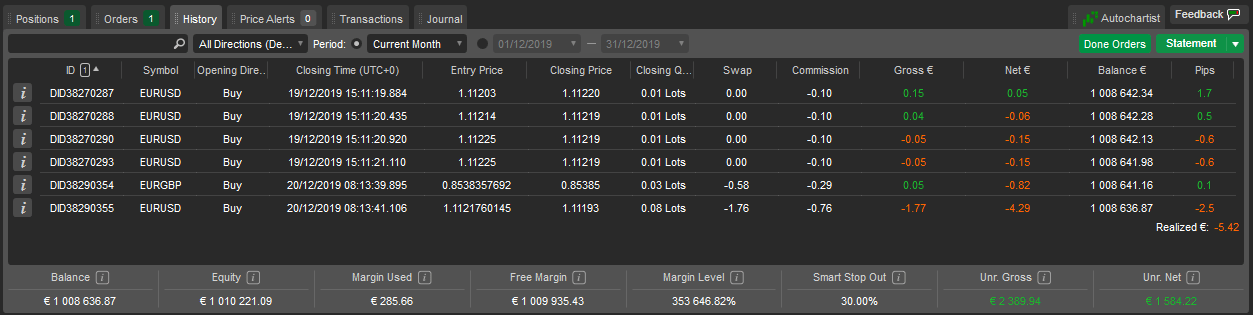
Table settings are workspace-specific. Click the desired column in the list to sort the deals by symbol, direction, price, quantity, commission, profit, etc. The deals are sorted by time by default. To filter the deals by any parameter, type the value or part of it in the Search box above the list or use the fields above to filter by standard or custom periods.
Click Order history to open the list of all orders created, including stop-loss and take-profit orders. Click Statement to open either an HTML or .xlsx account statement in a new tab. On the statement page, click Save to save it locally as an Excel spreadsheet in .csv format.
Deal information
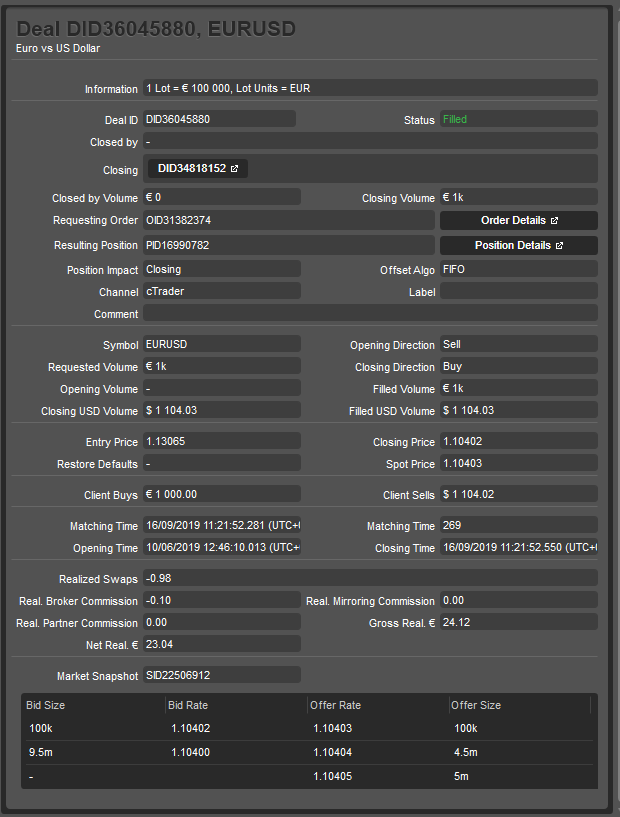
Click the Information icon next to the desired deal in the History tab in Trade Watch panel to open the Deal info panel.
The following deal information will be displayed in a new window:
- Information – the asset lot value and lot units.
- Deal ID – the unique identifier of the Deal.
- Status – the current status of the Deal.
- Filled – filled completely.
- Partially filled – partially filled.
- Rejected – rejected by the liquidity provider.
- Error – encountered an error while attempting to fill.
- Missed – liquidity provider failed to respond in time.
- Internally rejected – rejected by the broker.
- Closed quantity – the quantity of this deal closed by the other deals.
- Closing quantity – the number of other deals closed by this deal.
- Requesting order – the unique ID of the order that created this deal. Click Order details to open the full order details grid.
- Affected position – the unique ID of the position affected by this deal. Click Position details to open the full position details grid.
- Position impact – the effect of the deal on the position.
- Opening – the deal was the opening deal of a position or added volume to an existing position.
- Closing – the deal fully or partially closed an existing position.
- [EMPTY] – deals not filled.
- Offset method – First in, first out.
- Channel – platform or method used to open the deal.
- Label – the label applied to the deal by the cBots (cTrader Algo).
- Comment – the custom user comments.
- Symbol – the financial instrument traded.
- Opening direction – the initial direction of the deal (buy or sell).
- Requested quantity – the quantity requested by the order.
- Closing direction – the direction of the closing deal (buy or sell).
- Opening quantity – the quantity opened by this deal.
- Filled quantity – the quantity filled by this deal.
- Closing volume (USD) – the closing volume in USD.
- Filled volume (USD) – the filled volume in USD.
- Entry price – VWAP (volume-weighted average price) of the closed opening deals.
- Closing price – execution price of the closing deal.
- Opening price – execution price of the opening deal.
- Current price – symbol's market price at the time of execution.
- Bought – the amount of currency bought in quote currency.
- Sold – the amount of currency sold in base currency.
- Matching time – time that liquidity provider match was found for this deal.
- Matching time (ms) – time in milliseconds (ms) from matching time to closing time.
- Opening time – the time of the first opening deal.
- Closing time – the time of the closing deal.
- Realised swaps – swaps collected or paid for this deal.
- Realised broker commission – the commission charged by your broker.
- Realised copying commission – the commission charged by a strategy provider (when copying in cTrader Copy).
- Realised partner commission – the realised introducing broker commission.
- Net realised – the net profit and loss including swaps and commissions.
- Gross realised – the gross profit and loss before calculating swaps and commissions.
- Market snapshot – the unique ID of the market snapshot. Market snapshot provides a precise list of the prices and liquidity that were available at the exact moment your deal was filled, partially filled, rejected, missed or encountered an error.