BacktestingInPlugins Sample
개요 
BacktestingInPlugins Sample 플러그인은 다음과 같은 주요 기능을 사용하여 cTrader 플랫폼 인터페이스에서 직접 과거 전략 테스트를 실행할 수 있게 합니다:
- 드롭다운 메뉴, 액션 버튼 및 결과 표시 필드가 있는 구조화된 패널 레이아웃을 생성합니다.
- 쉽게 선택할 수 있도록 설치된 모든 cBot을 드롭다운에 나열합니다.
- 트리거될 때 과거 데이터를 사용하여 설정된 심벌에 대해 백테스트를 실행합니다.
- 백테스트 결과에서 투자수익률(ROI)과 순이익을 표시합니다.
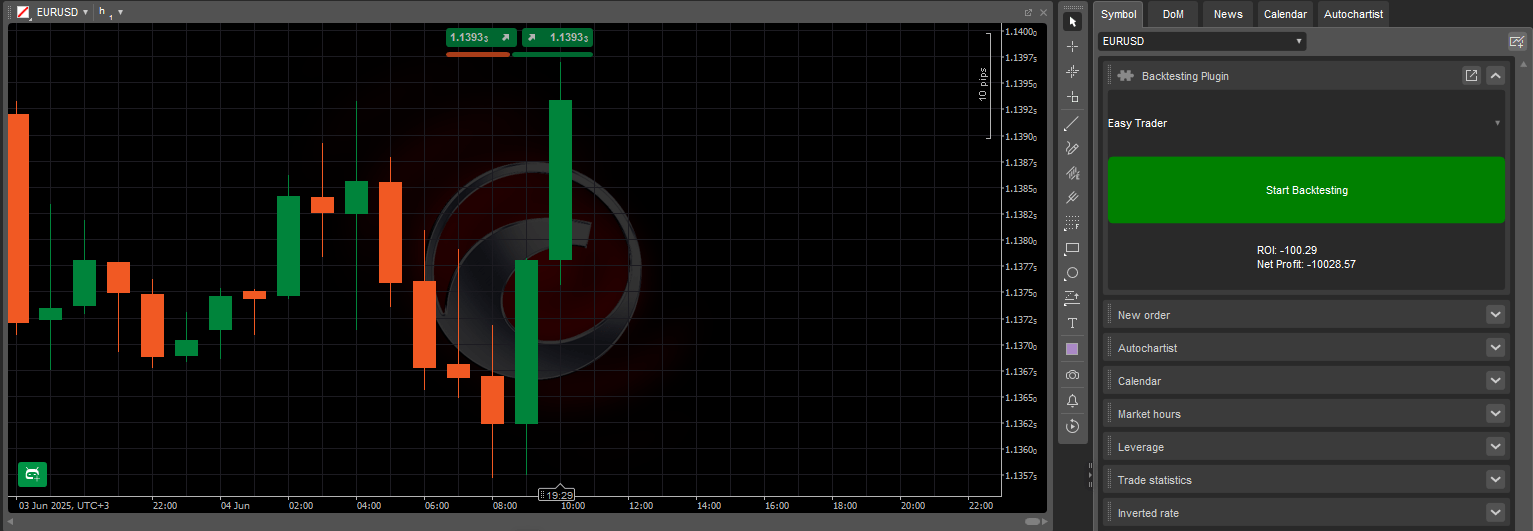
이 플러그인은 활성 심벌 패널 내의 사용자 지정 패널에서 실행되며 cTrader Windows 또는 Mac이 열려 있는 동안 활성 상태를 유지합니다. 플랫폼이 닫히거나 재시작될 때 자동으로 중지됩니다.
플러그인 생성 
단계별 가이드에서 템플릿 또는 처음부터 플러그인을 생성, 편집 및 빌드하는 방법을 알아보세요.
BacktestingInPlugins Sample 플러그인의 코드는 GitHub에서 찾을 수 있으며, 아래에서 간단히 복사할 수도 있습니다.
샘플 코드
using System;
using cAlgo.API;
using cAlgo.API.Collections;
using cAlgo.API.Indicators;
using cAlgo.API.Internals;
using System.Linq;
using System.Text.Json;
using System.Text.Json.Nodes;

namespace cAlgo.Plugins
{
    [Plugin(AccessRights = AccessRights.None)]
    public class BacktestingInPluginsSample : Plugin
    {
        // Declaring the necessary UI elements
        // and the cBot (RobotType) selected in the ComboBox
        private Grid _grid;
        private ComboBox _cBotsComboBox;
        private Button _startBacktestingButton;
        private TextBlock _resultsTextBlock;
        private RobotType _selectedRobotType;

        protected override void OnStart()
        {
            // Initialising and structuring the UI elements
            _grid = new Grid(3, 1);
            _cBotsComboBox = new ComboBox();
            _startBacktestingButton = new Button
            {
                BackgroundColor = Color.Green,
                CornerRadius = new CornerRadius(5),
                Text = "Start Backtesting",
            };
            _resultsTextBlock = new TextBlock
            {
                HorizontalAlignment = HorizontalAlignment.Center,
                VerticalAlignment = VerticalAlignment.Center,
                Text = "Select a cBot...",
            };

            _grid.AddChild(_cBotsComboBox, 0, 0);
            _grid.AddChild(_startBacktestingButton, 1, 0);
            _grid.AddChild(_resultsTextBlock, 2, 0);

            var block = Asp.SymbolTab.AddBlock("Backtesting Plugin");
            block.Child = _grid;

            // Populating the ComboBox with existing cBots
            PopulateCBotsComboBox();

            // Assigning event handlers to the Button.Click,
            // ComboBox.SelectedItemChanged, and Backtesting.Completed events
            _startBacktestingButton.Click += StartBacktestingButton_Click;
            _cBotsComboBox.SelectedItemChanged += CBotsComboBox_SelectedItemChanged;
            Backtesting.Completed += Backtesting_Completed;
        }

        protected void StartBacktestingButton_Click(ButtonClickEventArgs obj)
        {
            // Initialising and configuring the backtesting settings
            var backtestingSettings = new BacktestingSettings
            {
                DataMode = BacktestingDataMode.M1,
                StartTimeUtc = new DateTime(2023, 6, 1),
                EndTimeUtc = DateTime.UtcNow,
                Balance = 10000,
            };

            // Starting backtesting on EURUSD h1
            Backtesting.Start(_selectedRobotType, "EURUSD", TimeFrame.Hour, backtestingSettings);

            // Disabling other controls and changing
            // the text inside the TextBlock
            _cBotsComboBox.IsEnabled = false;
            _startBacktestingButton.IsEnabled = false;
            _resultsTextBlock.Text = "Backtesting in progress...";
        }

        protected void PopulateCBotsComboBox()
        {
            // Iterating over the AlgoRegistry and
            // getting the names of all installed cBots
            foreach (var robotType in AlgoRegistry.OfType<RobotType>())
            {
                _cBotsComboBox.AddItem(robotType.Name);
            }
        }

        protected void Backtesting_Completed(BacktestingCompletedEventArgs obj)
        {
            // Attaining the JSON results of backtesting
            string jsonResults = obj.JsonReport;

            // Converting the JSON string into a JsonNode
            JsonNode resultsNode = JsonNode.Parse(jsonResults);

            // Attaining the ROI and net profit from backtesting results
            _resultsTextBlock.Text = $"ROI: {resultsNode["main"]["roi"]}\nNet Profit: {resultsNode["main"]["netProfit"]}";

            // Re-enabling controls after backtesting is finished
            _cBotsComboBox.IsEnabled = true;
            _startBacktestingButton.IsEnabled = true;
        }

        protected void CBotsComboBox_SelectedItemChanged(ComboBoxSelectedItemChangedEventArgs obj)
        {
            // Updating the variable to always contain
            // the cBot selected in the ComboBox
            _selectedRobotType = AlgoRegistry.Get(obj.SelectedItem) as RobotType;
        }
    }
}
사용자 지정 옵션 
이 플러그인은 백테스트를 시작하고 기본 결과를 볼 수 있는 직접적인 인터페이스를 제공합니다. 아래 표는 주요 구성 요소와 그 기능을 설명합니다:
| 매개변수 | 설명 | 가능한 값 |
|---|---|---|
_grid | 플러그인 인터페이스의 레이아웃을 정의합니다. | (3, 1), (2, 2) 등 |
_startBacktestingButton | 시작 버튼의 모양과 라벨을 사용자 지정합니다. | Start Backtesting, Color.Green, new CornerRadius(5) |
_cBotsComboBox.AddItem | 레지스트리의 cBot으로 ComboBox를 채웁니다. | robottype.name |
_resultsTextBlock.Text | 백테스트 주기 동안 메시지를 표시합니다. | cBot 선택..., 백테스트 진행 중..., 백테스트 결과 요약 등 |
CBotsComboBox_SelectedItemChanged | 테스트할 선택된 cBot을 업데이트합니다. | obj.selecteditem |
StartTimeUtc | UTC 기준 백테스트 시작 날짜 및 시간. | new datetime(2023, 6, 1) |
EndTimeUtc | UTC 기준 백테스트 종료 날짜 및 시간. | datetime.utcnow |
DataMode | 각 데이터 포인트 이동이 나타내는 것을 정의합니다(1분, 1시간 또는 1일). | backtestingdatamode.m1 |
Balance | 가상 계정 시작 잔고. | 10000, 20000 등 |
Backtesting.Start | 백테스트를 실행할 심벌과 시간 프레임을 정의합니다. | eurusd, timeframe.hour |
Backtesting_Completed | 테스트 결과를 추출하여 UI에 표시합니다. | resultsnode[main][roi], resultsnode[main][netprofit] 등 |
참고
드롭다운이 올바르게 채워지도록 cTrader에 최소한 하나의 cBot이 설치되어 있는지 확인하세요.
사용 사례 
이 플러그인은 활성 심벌 패널에서 과거 전략 테스트를 실행하는 방법을 제공합니다. cBot 선택 및 테스트를 단순화하여 전략 평가에 이상적입니다. 아래는 플러그인을 실제 거래 시나리오에 적용할 수 있는 실용적인 사용 사례입니다.
| 사용 사례 | 시나리오 | 가치 |
|---|---|---|
| 전략 비교 | 동일한 테스트 조건을 사용하여 여러 cBot에 대해 백테스트를 실행합니다. | 단일 세션 내에서 직접적인 성능 비교가 가능합니다. |
| 빠른 성과 검토 | 표준 시장 설정에서 설치된 cBot을 테스트합니다. | 라이브 계정에서 cBot을 실행하기 전에 성과를 평가하는 데 도움이 됩니다. |
| 고정 규칙 백테스트 | 사전 정의된 백테스트를 실행하여 알고리즘 변경을 검증합니다. | 전략을 디버깅하거나 버전 테스트할 때 테스트 조건의 일관성을 보장합니다. |
| 빠른 인사이트 도구 | 설치된 cBot을 테스트한 후 즉시 ROI 및 이익 피드백을 확인합니다. | 별도의 테스트 세션을 실행하는 것보다 시간을 절약합니다. |
요약 
이 플러그인은 cBot을 선택하고 사전 정의된 설정을 사용하여 과거 백테스트를 실행하기 위한 간소화된 인터페이스를 제공합니다. 선택한 심벌과 시간 프레임에서 테스트를 실행한 다음 ROI 및 순이익과 같은 주요 성과 지표를 표시합니다. 이 구조는 빠른 전략 검증을 지원하며 다양한 거래 시나리오에 적용할 수 있습니다.
추가 개발 세부 사항은 플러그인 문서를 참조하세요.