Plugin placements in cTrader UI
Placements are the UI areas where a plugin displays its content. The available placements depend on the plugin type, and this article covers both web-based and native plugins. Web-based plugins are built using HTML, CSS, JavaScript and the plugin SDK, targeting all cTrader apps. Native plugins are built using C# or Python via Algo API, targeting cTrader Windows and Mac.
- Web-based plugins – the plugin can display content in supported UI areas in all cTrader apps. Specify your preferred placements when building the plugin.
- Native plugins – the plugin can display content in supported UI areas in cTrader Windows and Mac. Specify your preferred placements directly in the C# or Python code of the plugin.
Mobile
Remarque
Only web-based plugins support content placement in cTrader Mobile. Choose your preferred mobile UI areas when building the plugin.
Markets app
When traders pull down in the Markets app, the plugin bar containing all enabled plugins appears, and this behaviour cannot be configured or changed.
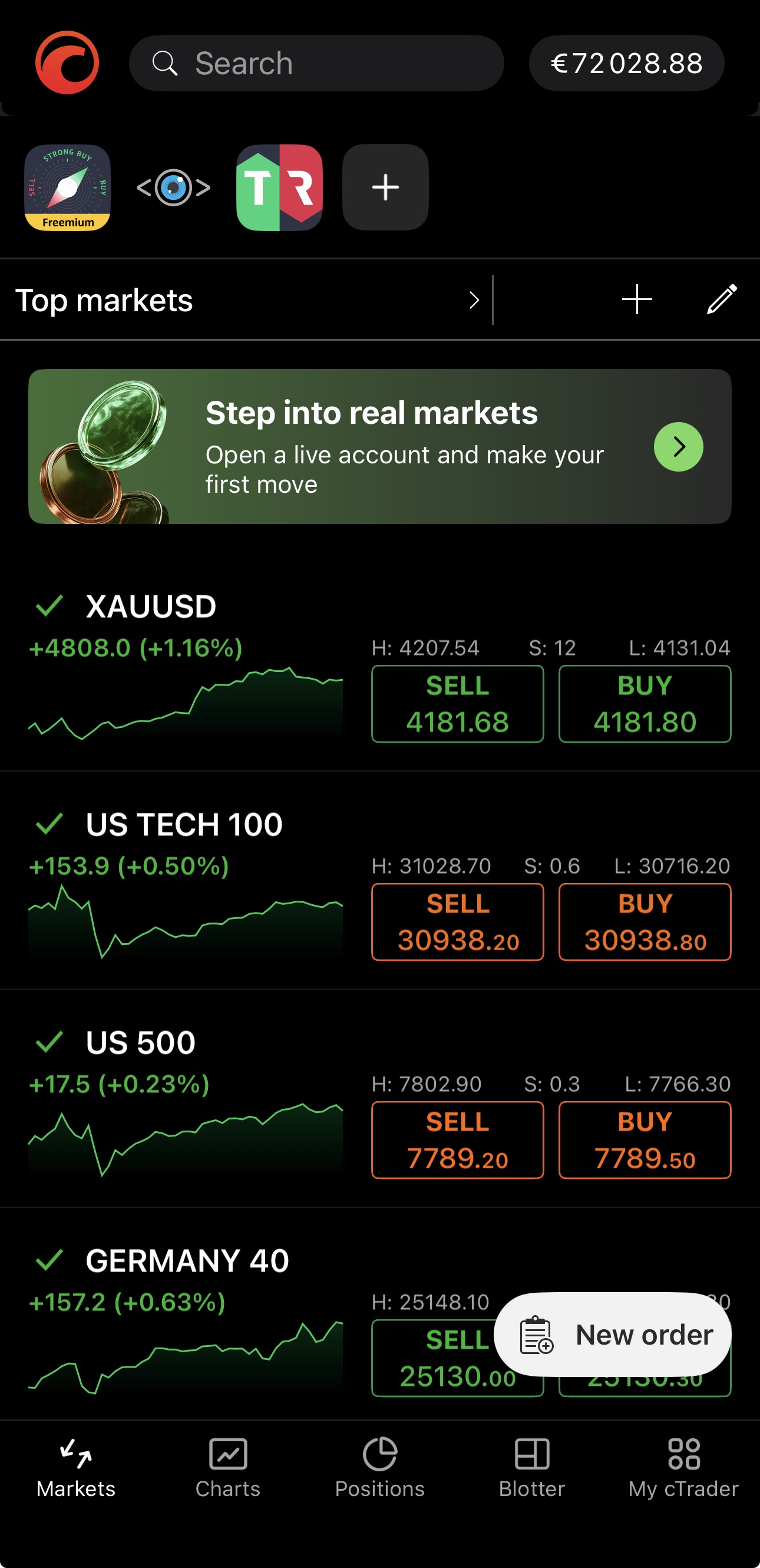
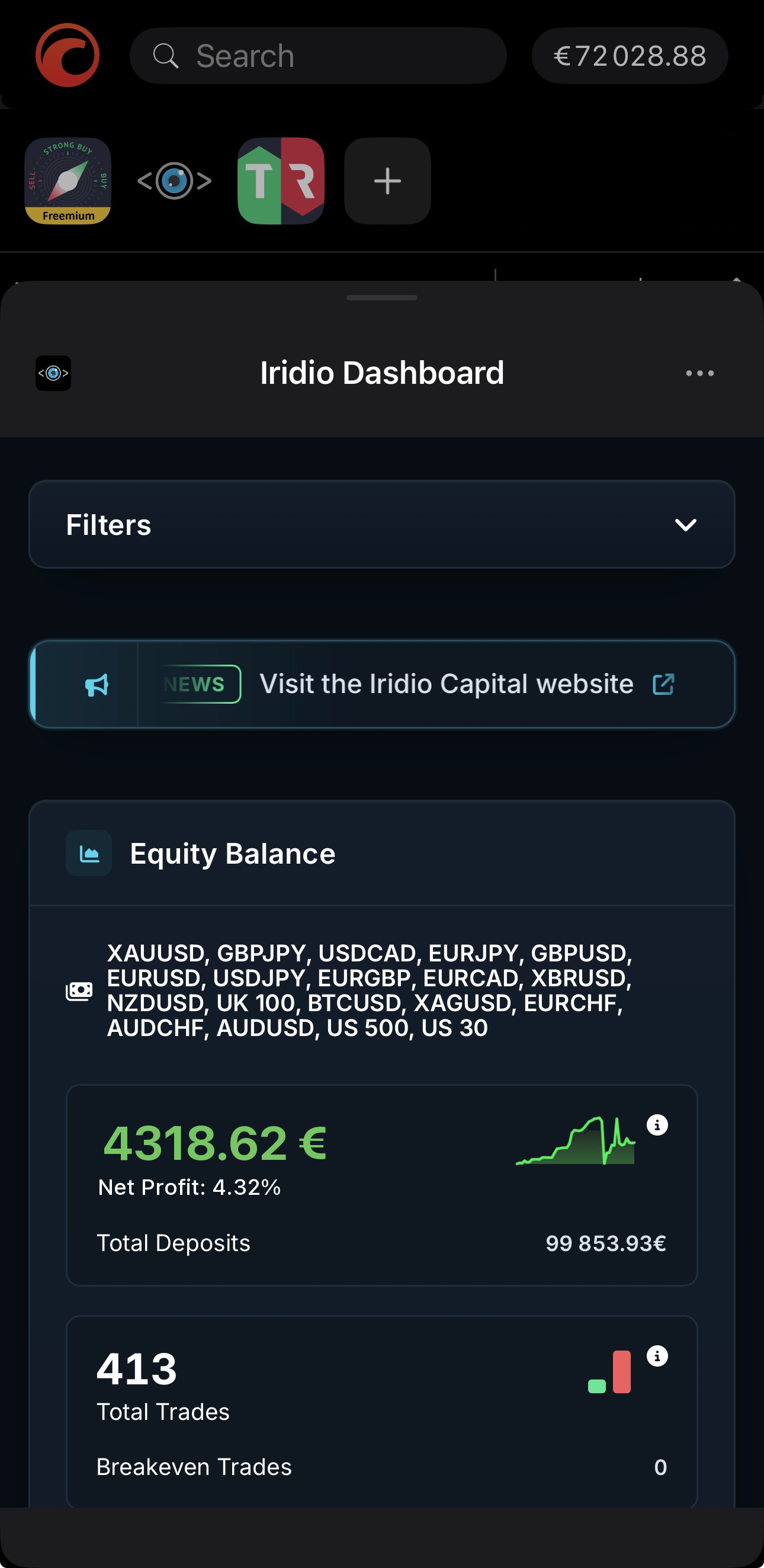
When traders tap the plugin in the panel, the bottom sheet is displayed.
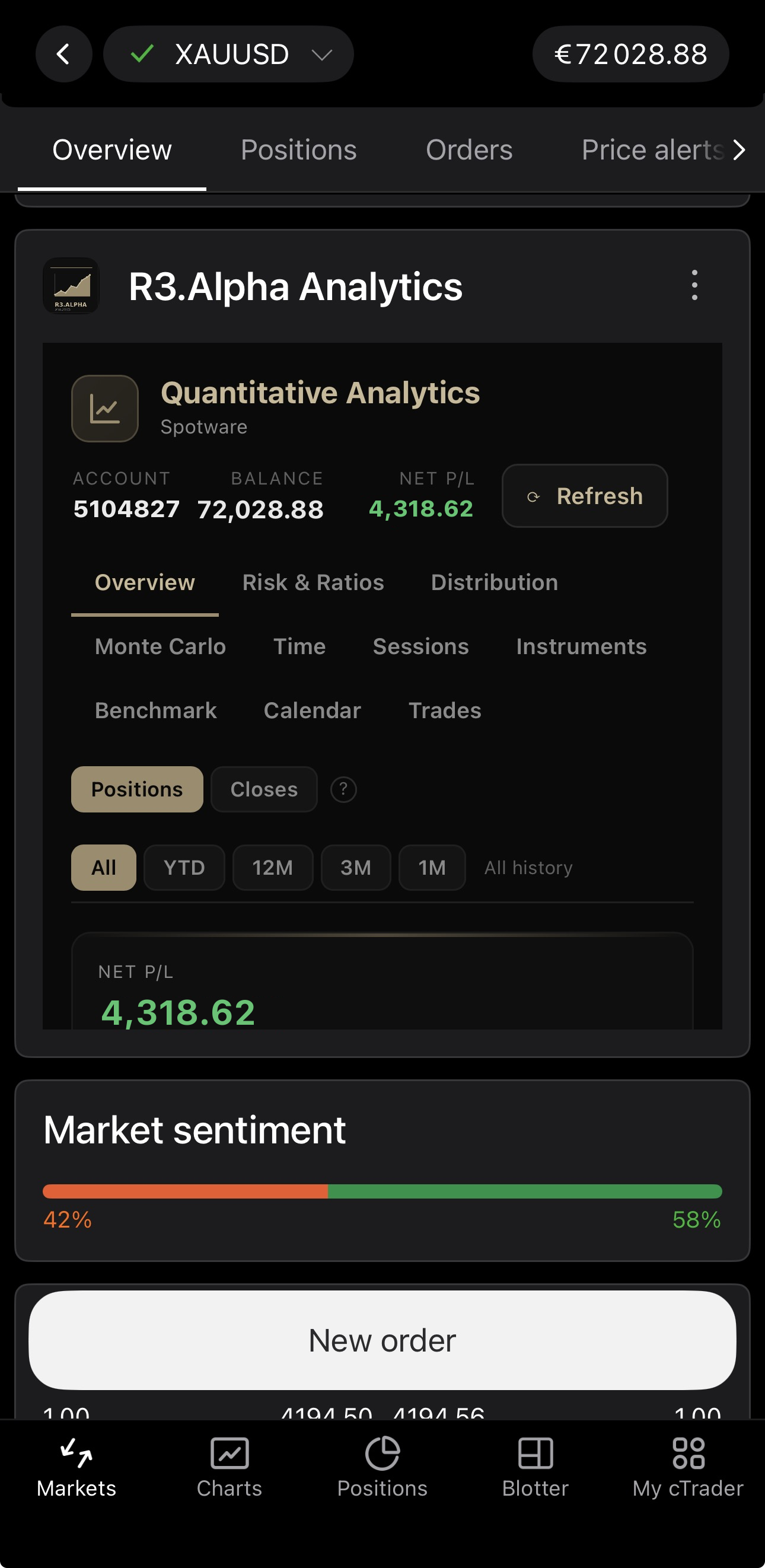
Symbol overview
The expanded view of the plugin is displayed in the Overview tab of any symbol.
Desktop
Remarque
cTrader Windows and Mac allow placements in all possible desktop UI areas, while cTrader Web supports only placements available when building the plugin.
ASP
Active Symbol Panel is located to the right of the chart display, and it allows plugins to display content in child blocks and tabs.
ASP block is a collapsible and expandable section in the Symbol tab.
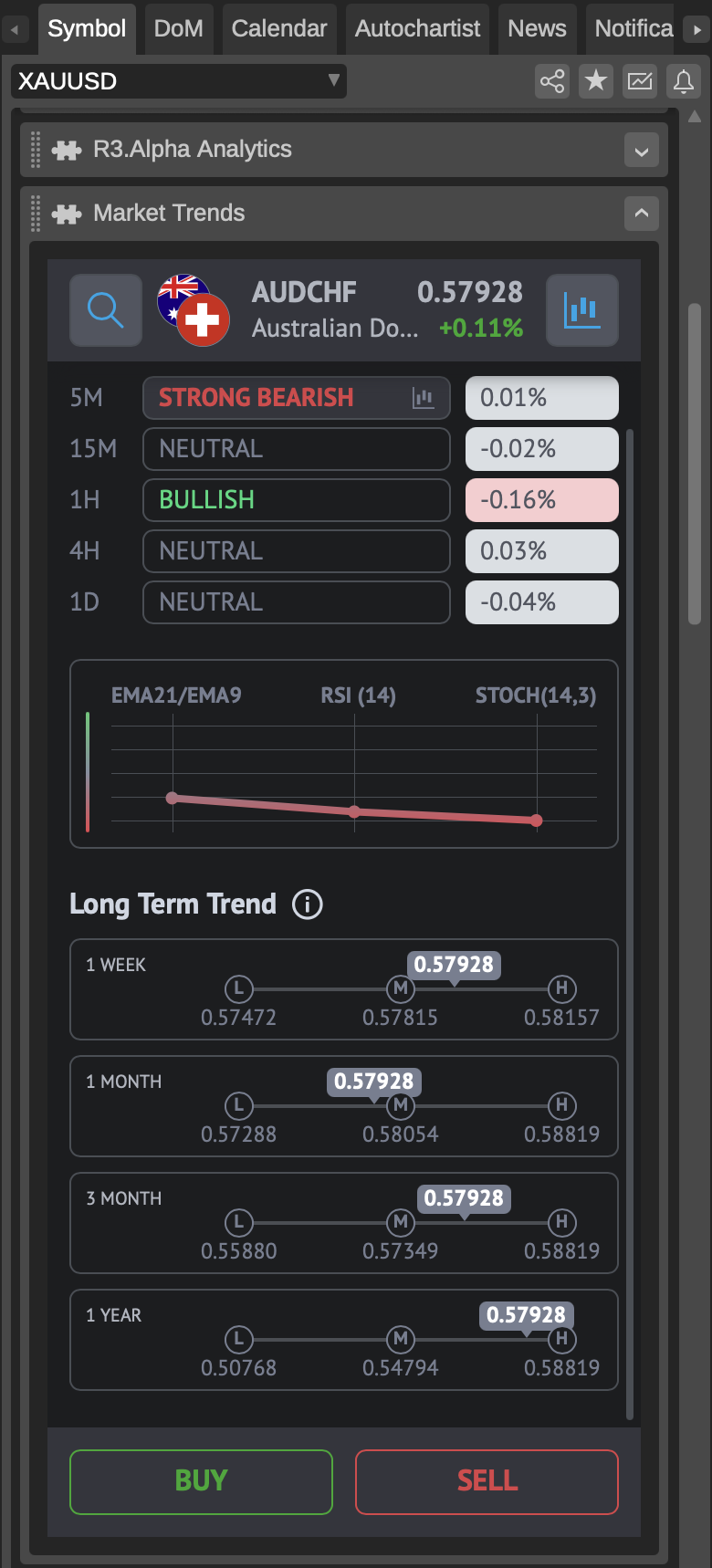
ASP tab is a separate tab next to Symbol, DoM and others.
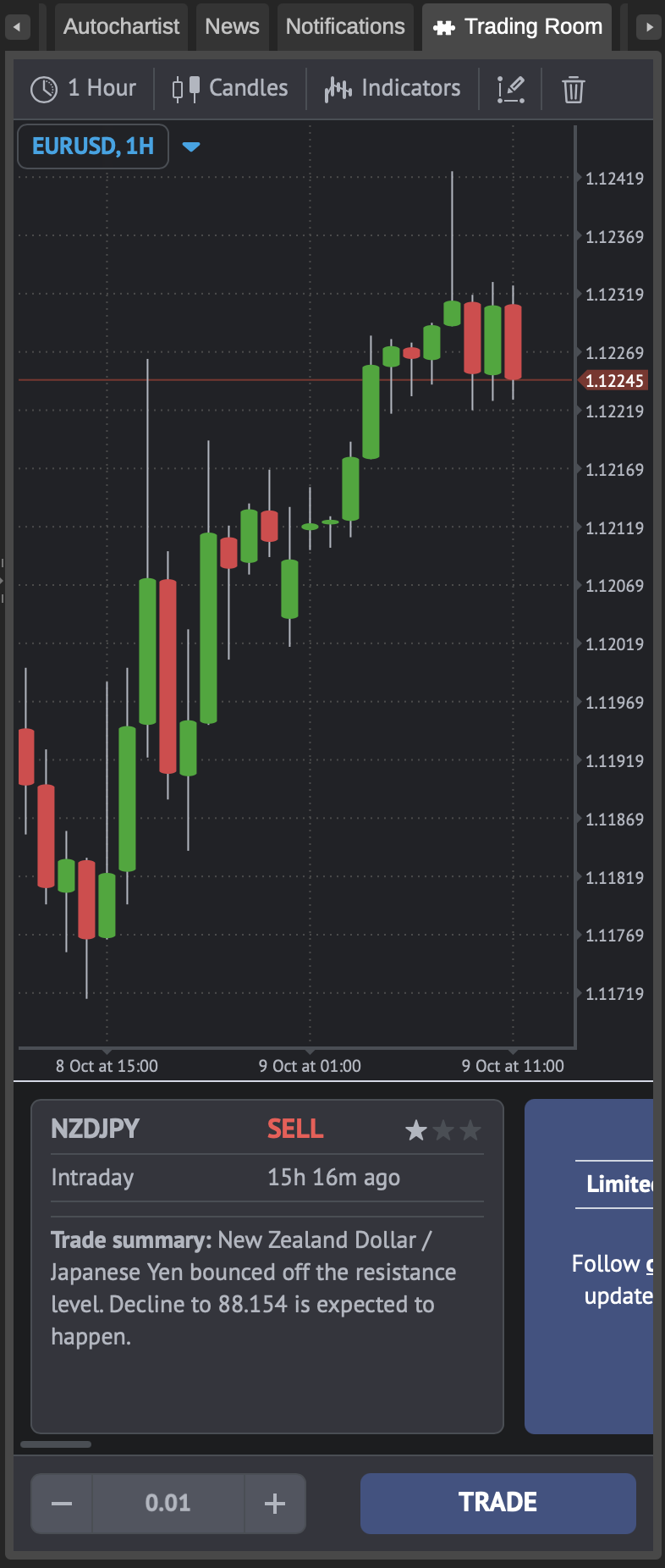
Choose Block in Active Symbol Panel, Tab in Active Symbol Panel or both when building the plugin.
You can code your plugin to add custom elements using the following options:
- As an
AspTab. When this option is used, the plugin displays custom elements in separate tabs alongside Symbol, DoM and others. - As an
AspBlock. When this option is used, the plugin displays custom elements in the Symbol tab in new collapsible and expandable sections with customisable titles and positions.
To add custom elements as an ASP block, use the Asp.SymbolTab.AddBlock(string title) method.
1 2 3 | |
To add custom elements as an ASP tab, use the Asp.AddTab(string title) method.
1 2 3 | |
To determine the order in which a block or tab appears in ASP, use the Index property of AspBlock and AspTab, respectively.
Warning
Note that no custom tabs can be placed before the Symbol tab. You also cannot embed your block higher than the New Order section in the Symbol tab. As a result, the smallest possible index for a block embedded into ASP is 1.
Trade Watch
Trade Watch is located just below the chart area.
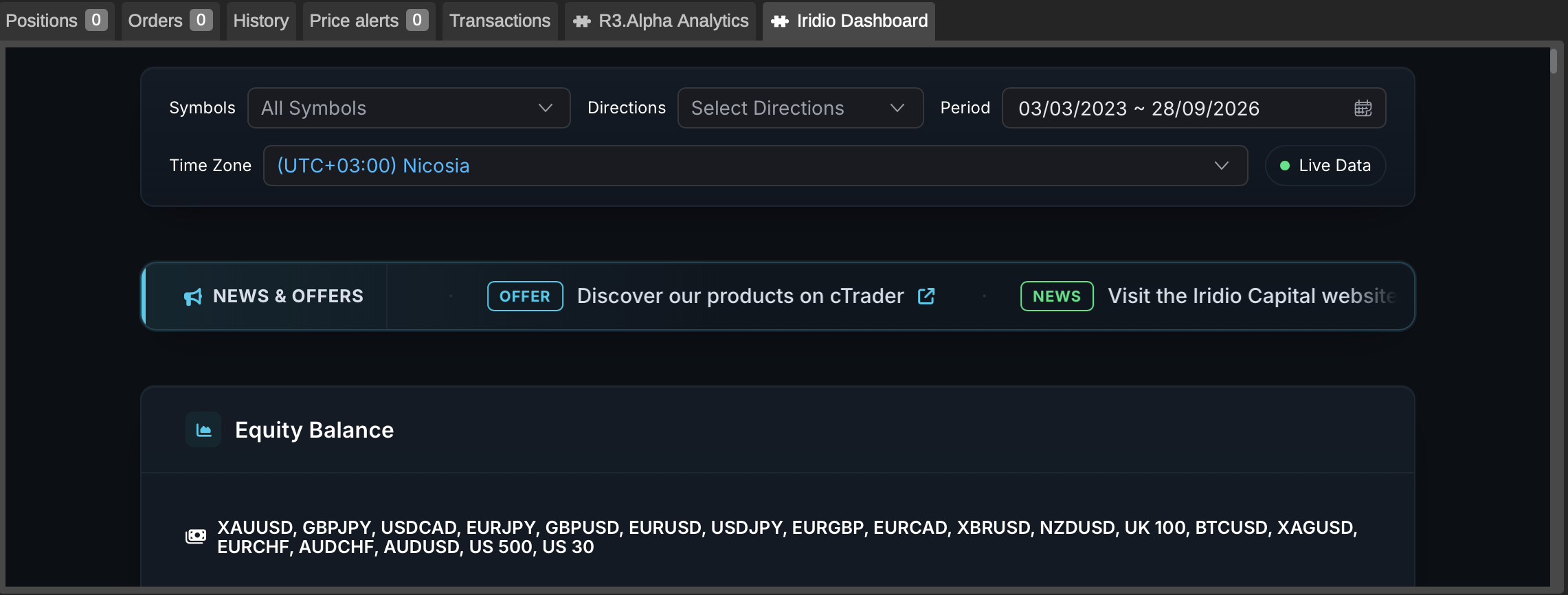
Choose Tab in Trade Watch and provide the necessary details when building the plugin.
To add custom elements as a new tab in Trade Watch display, use the TradeWatch.AddTab(string title) method.
1 2 3 | |
Similar to ASP blocks and tabs, you can use the Index property of a TradeWatchTab to define its position relative to other tabs in Trade Watch display.
Note
All custom tabs placed into Trade Watch appear to the far right of the default tabs included in the cTrader UI upon launch. Subsequently, the Index of these tabs must be 1 or greater; the index only determines the relative position of plugin tabs compared to other plugin tabs.
Chart and custom frame
Remarque
Chart or custom frame placement is possible only via Algo API.
Here is a custom chart frame with a WebView next to a regular chart.
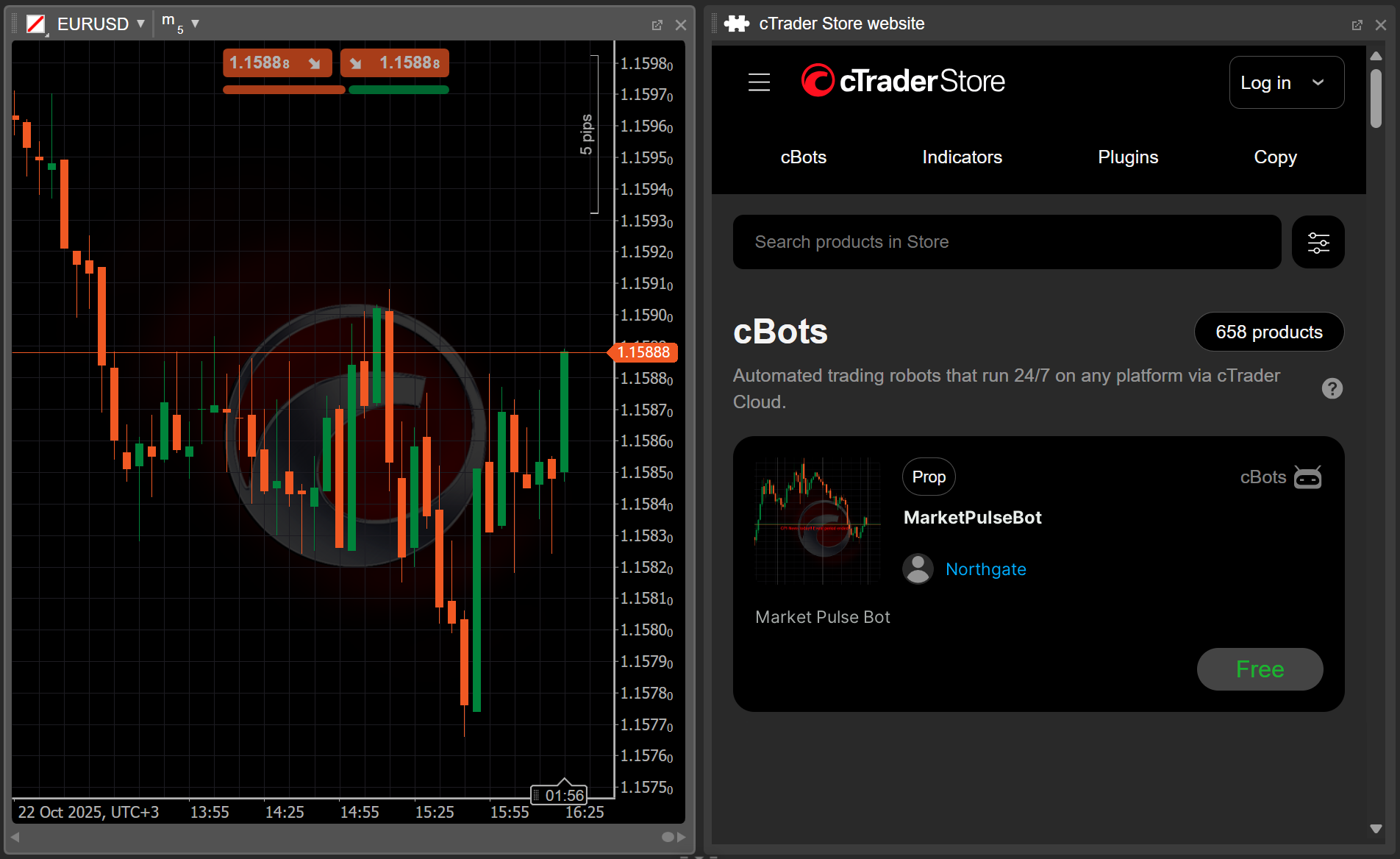
Use cases
The following ideas would look and work at their best when embedded in a custom frame:
- A
WebViewof another charting service. - A large-scale custom trading panel.
- A
WebViewof a generative AI service that a trader may consult with when deciding how to react to market movements.
To add a new custom frame, use the ChartManager.AddCustomFrame(string title) method.
1 2 3 | |
For your plugin to open a new chart, use the ChartManager.AddChartFrame(string symbolName, TimeFrame timeFrame) method.
1 | |
Remarque
Once a plugin adds a new custom frame or chart, cTrader switches to the multi-chart mode, even if the single chart mode or the free-chart mode was enabled previously.
Separate window
This is how a plugin displays a separate window:
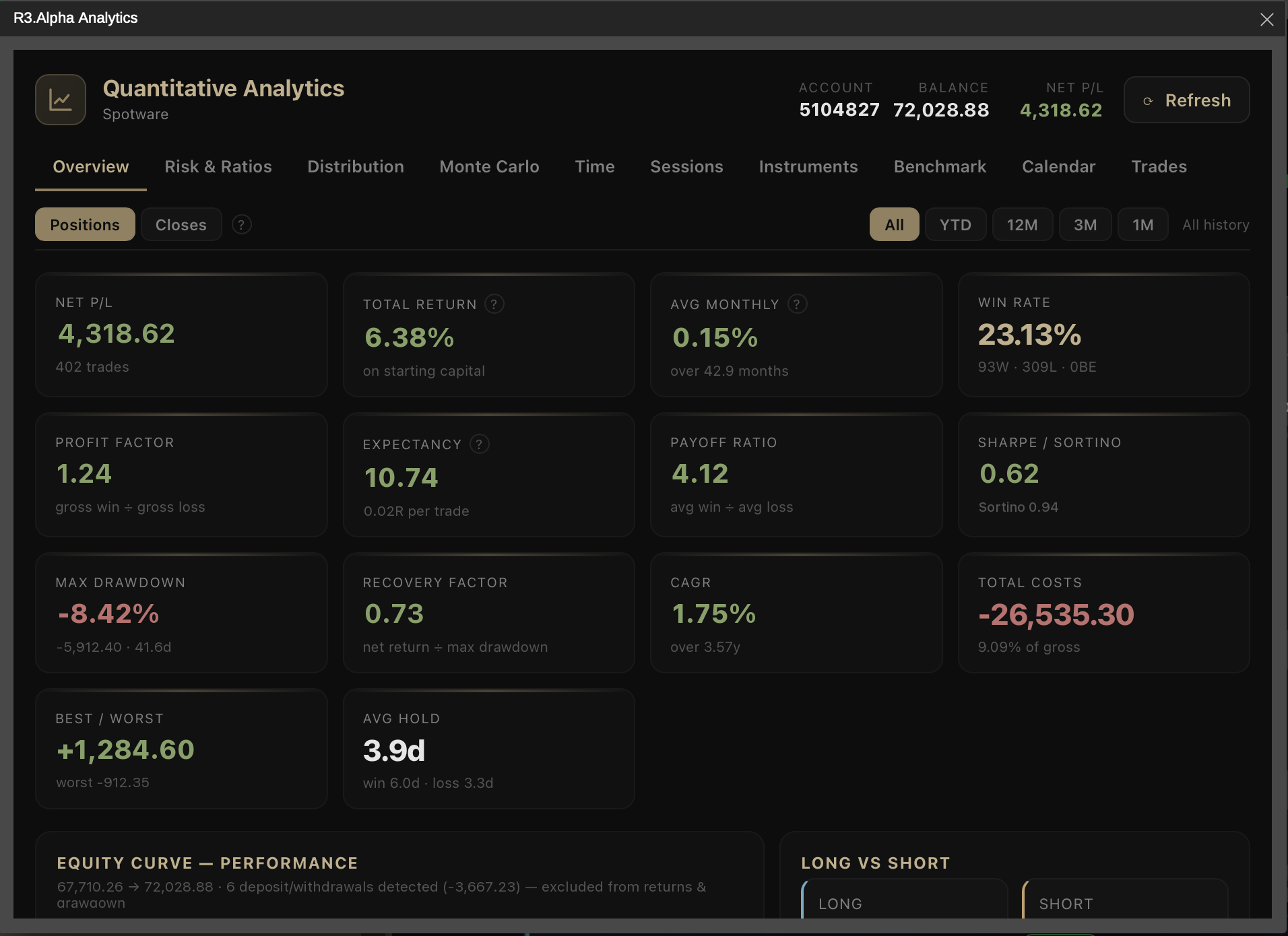
Depending on the cTrader desktop app where the plugin operates, users may be able to resize, minimise or maximise the window.
Choose Separate window and provide the necessary details when building the plugin.
This is the C# code of a plugin that displays the cTrader Store in a separate, adjustable window:
1 2 3 4 5 6 7 8 9 10 11 12 13 14 15 16 17 18 19 20 21 22 23 24 25 26 27 28 29 30 31 32 33 34 35 36 | |
Main menu
Remarque
Main menu placement is possible only via Algo API.
Plugins can be coded to add custom sections to the main menu UI, in addition to existing sections such as Trade, Algo, Copy and Analyze. Any added custom section can hold websites, dashboards, buttons, tools and more.
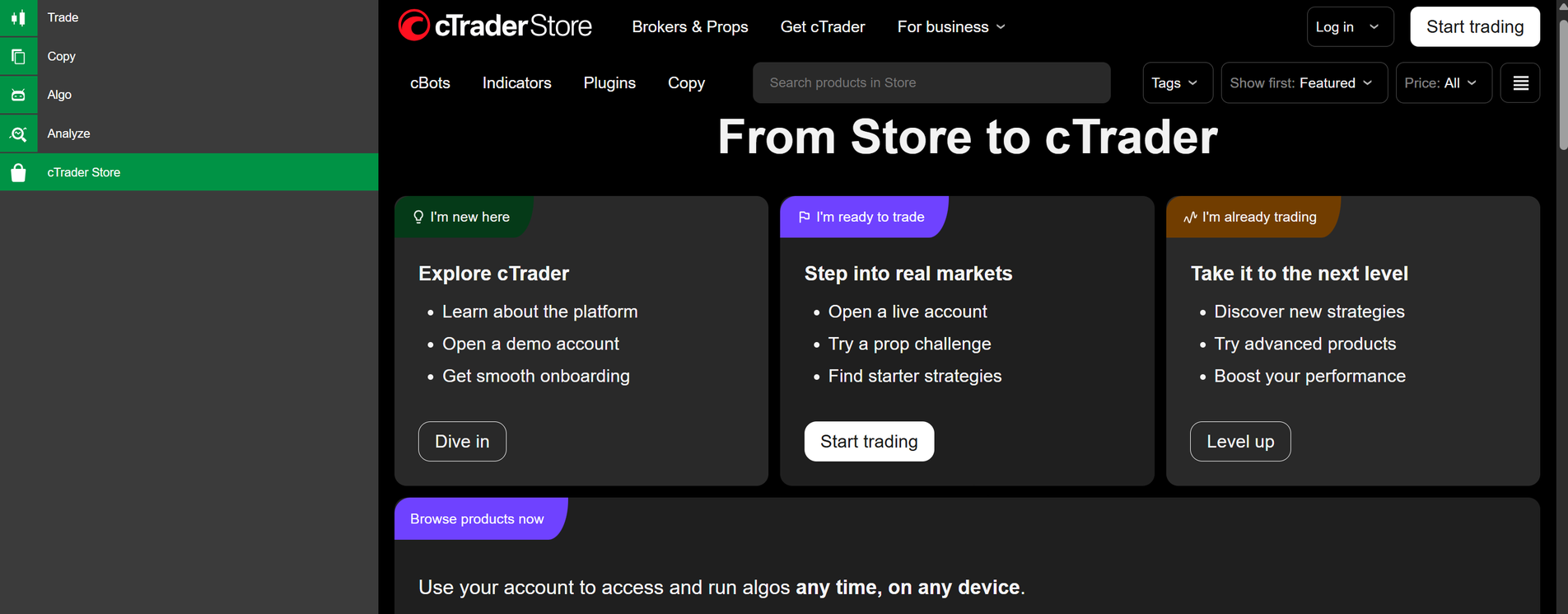
Here is the code for a simple plugin that adds a cTrader Store custom section, which houses the cTrader Store website, to the main menu:
1 2 3 4 5 6 7 8 9 10 11 12 13 14 15 16 17 18 19 20 21 22 23 24 25 26 27 28 29 30 31 32 33 34 35 36 37 38 39 40 41 42 43 44 45 46 47 48 49 50 51 52 53 | |
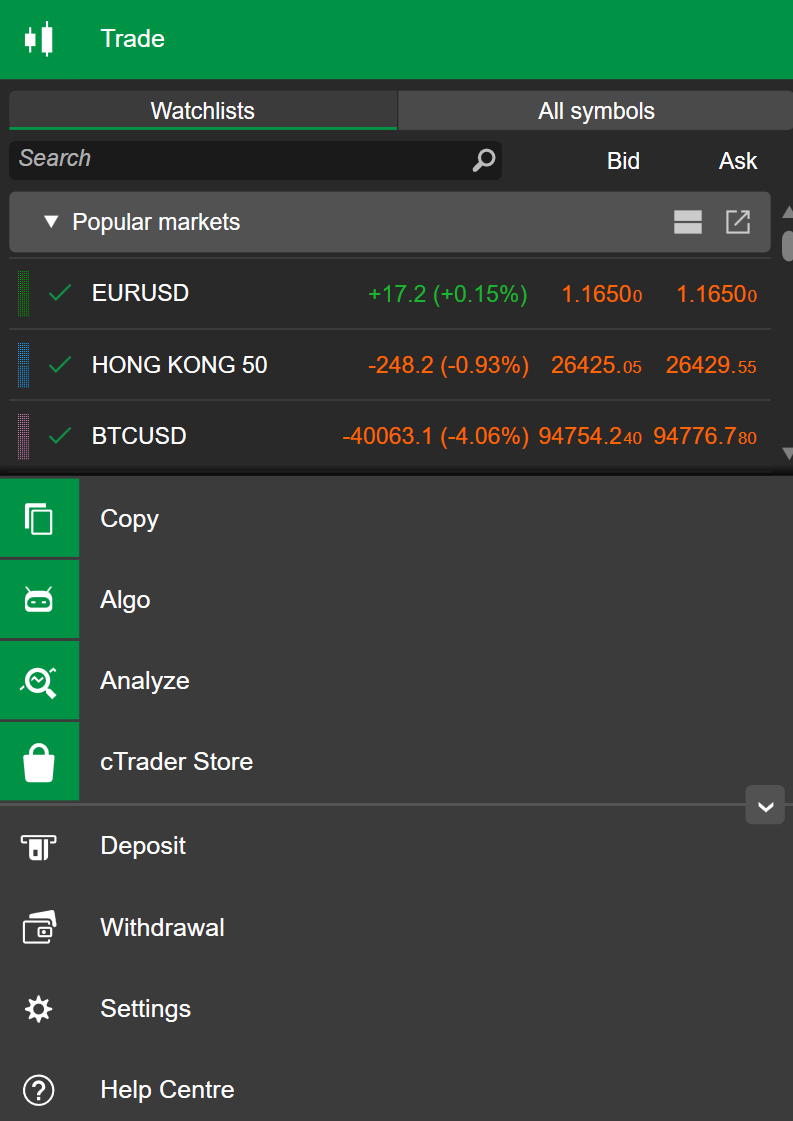
Selecting cTrader Store navigates to the custom section, revealing its content as shown below.
Multiple areas
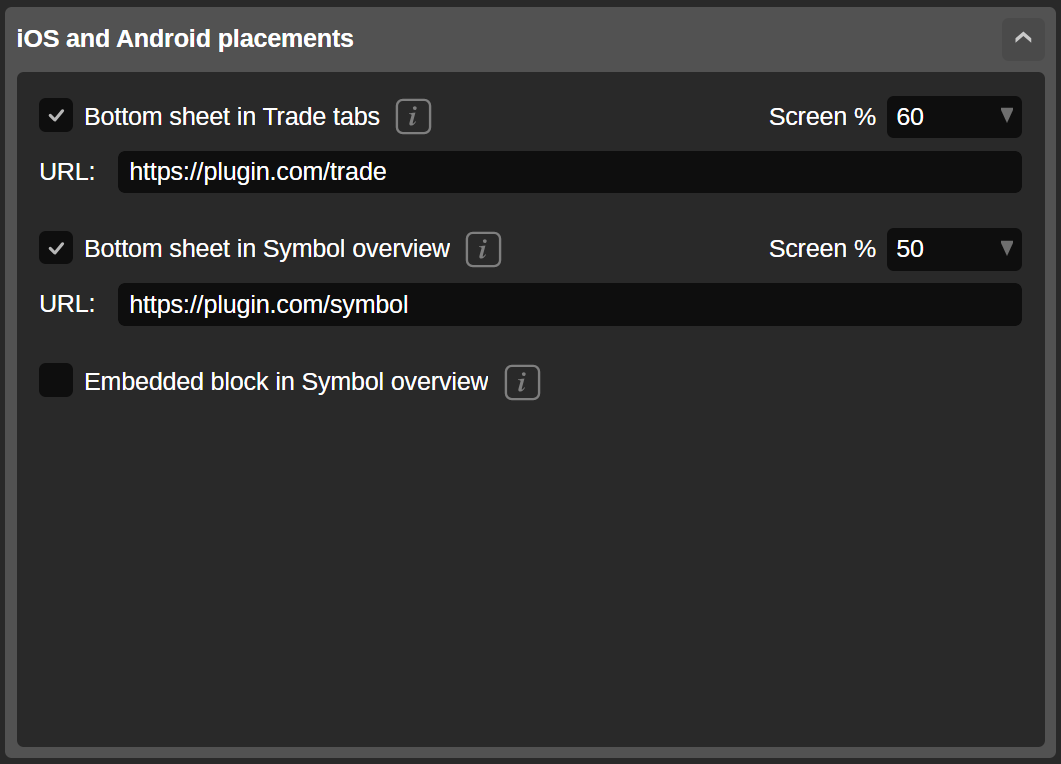
A plugin can display content in multiple UI areas across cTrader apps.
Choose several placements and provide details when building the plugin, and your plugin will display content in multiple UI areas simultaneously.
Entering the same URL across placement options leads to identical content in those UI areas. If you want your plugin to show unique content per UI area, provide different URLs (under the same domain) for the placements.
Example
https://ctrader.com/bots/ and https://ctrader.com/indicators/ lead to different pages, each with its own content, yet both exist under the https://ctrader.com/ domain.
The following plugin adds custom elements to several locations of the cTrader UI at once:
- The plugin displays the sum of commissions for all currently open positions in an ASP block.
- In Trade Watch, the plugin shows the cumulative volume of all open positions.
- The plugin also shows a
WebViewof ctrader.com in a custom chart frame.
1 2 3 4 5 6 7 8 9 10 11 12 13 14 15 16 17 18 19 20 21 22 23 24 25 26 27 28 29 30 31 32 33 34 35 36 37 38 39 40 41 42 43 44 45 46 47 48 49 50 51 52 53 54 55 56 57 58 59 60 61 62 63 64 65 66 67 68 69 70 71 72 73 74 75 76 77 78 79 | |