Plugins make it easy to create new sections containing website pages or other WebView components, calculators, analytics or data boards, AI tools, etc. in Active Symbol Panel (ASP).
In this article and its corresponding video, we will show you how to add a new section in Active Symbol Panel using a plugin.
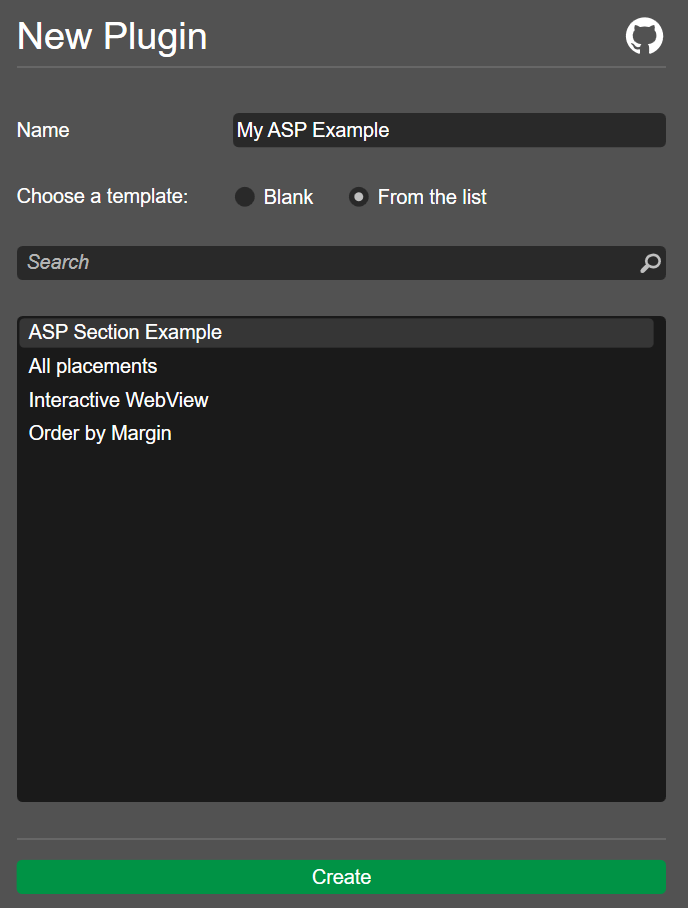
Go to the Algo app and navigate to the Plugins tab. Click the New button to create a new plugin. Tick the From the list option and select ASP Section Example. Give your plugin a name, such as "My ASP Example".
Click the Create button.
When the code editor appears, replace the "My title" part of the code with the name you chose for the plugin.
1
varblock=Asp.SymbolTab.AddBlock("My ASP Example");
You can copy the full code below:
1 2 3 4 5 6 7 8 9101112131415161718192021
usingcAlgo.API;namespacecAlgo.Plugins{[Plugin(AccessRights = AccessRights.None)]publicclassMyASPExample:Plugin{protectedoverridevoidOnStart(){varblock=Asp.SymbolTab.AddBlock("My ASP Example");block.Index=2;block.Height=500;block.IsExpanded=true;varwebView=newWebView();block.Child=webView;webView.NavigateAsync("https://ctrader.com/");}}}
Click the Build button or press Ctrl+B to build the plugin.
Navigate to the Trade app again to see what the plugin is showing in Active Symbol Panel. In our case, we now have a WebView component displaying the cTrader forum.
usingcAlgo.API;namespacecAlgo.Plugins{[Plugin(AccessRights = AccessRights.None)]publicclassMyASPExample:Plugin{TextBlock_txtBuyVWAP;TextBlock_txtSellVWAP;protectedoverridevoidOnStart(){varblock=Asp.SymbolTab.AddBlock("ASP Section Example");block.Index=2;block.Height=100;block.IsExpanded=true;varpanel=newStackPanel{Orientation=Orientation.Vertical};_txtBuyVWAP=newTextBlock{Text="Buy Text Box"};_txtSellVWAP=newTextBlock{Text="Sell Text Box"};panel.AddChild(_txtBuyVWAP);panel.AddChild(_txtSellVWAP);block.Child=panel;}}}
Build the plugin and then go to the Trade app.
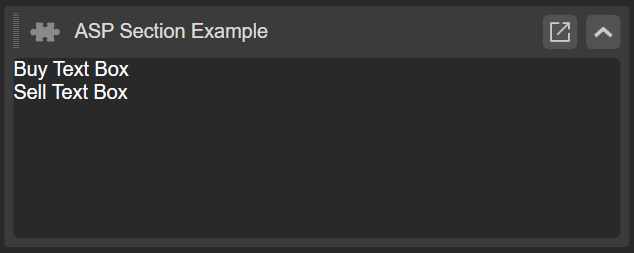
You should see two text boxes in place of the WebView component.
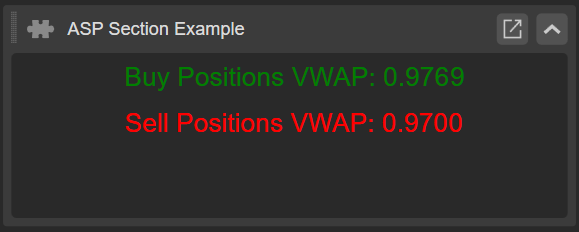
vartextBoxStyle=newStyle();textBoxStyle.Set(ControlProperty.Margin,5);textBoxStyle.Set(ControlProperty.FontFamily,"Cambria");textBoxStyle.Set(ControlProperty.FontSize,16);textBoxStyle.Set(ControlProperty.Width,200);textBoxStyle.Set(ControlProperty.ForegroundColor,Color.Yellow,ControlState.Hover);_txtBuyVWAP=newTextBlock{ForegroundColor=Color.Green,Text="Buy Text Box ",Style=textBoxStyle};_txtSellVWAP=newTextBlock{ForegroundColor=Color.Red,Text="Sell Text Box",Style=textBoxStyle};
We hope this article has been helpful in showing you how to add webpages and WebView components, text blocks, and other useful objects to the Active Symbol Panel.