Manage a plugin in cTrader
Plugins added to your cTrader ID automatically appear in supported cTrader apps due to cloud synchronisation.
To manage a plugin, first open its settings.
Open the main menu of cTrader, then select Manage plugins.
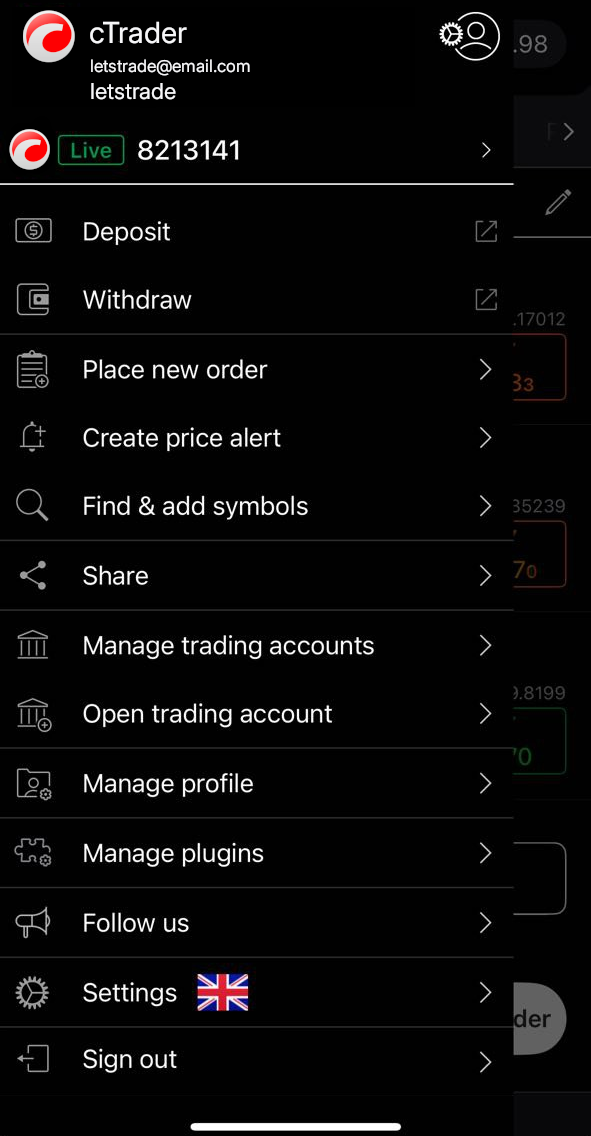
In Manage plugins, tap the Settings icon next to a plugin.
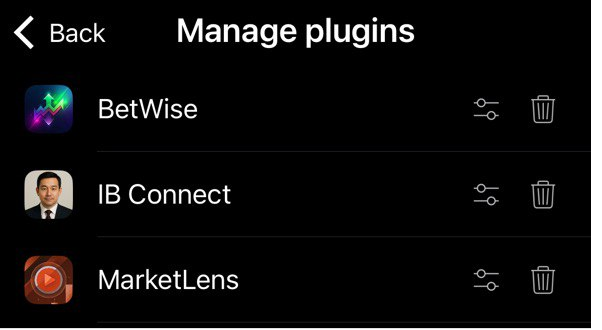
The Settings screen of the plugin will open.
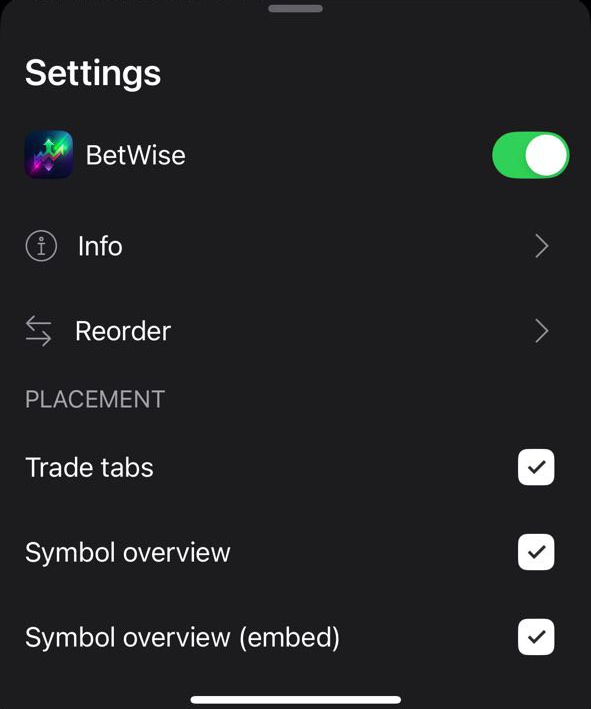
Alternatively, you can access the Settings screen of a plugin by doing any of these:
-
Long-press the plugin in the plugin bar.

-
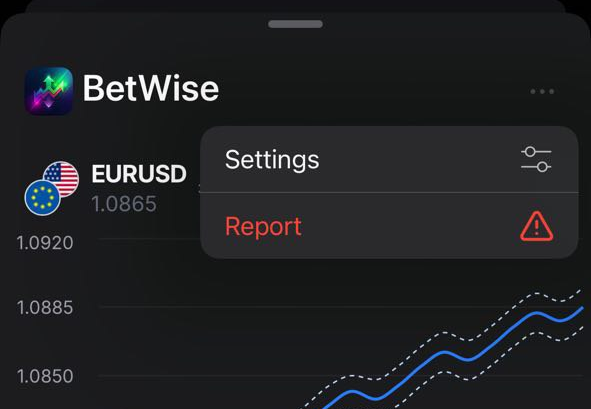
Open the plugin bottom sheet, tap More and select Settings.
-
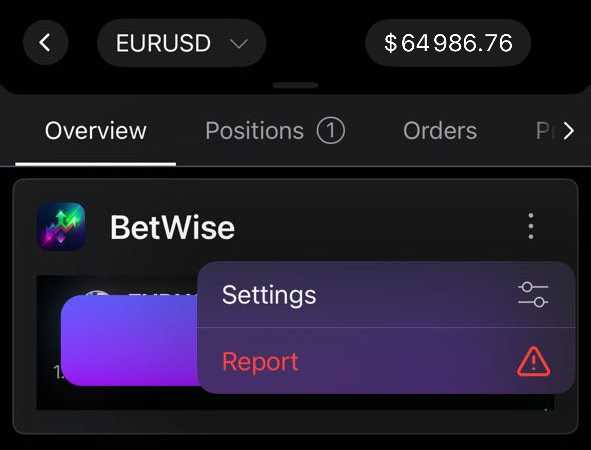
In the Overview tab of any symbol, tap More in the plugin section, then select Settings.
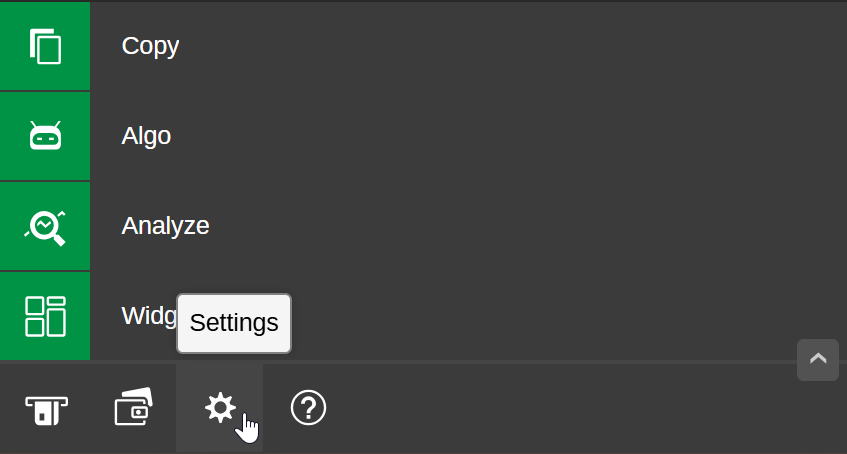
Click Settings in the main menu.
Navigate to Plugins.

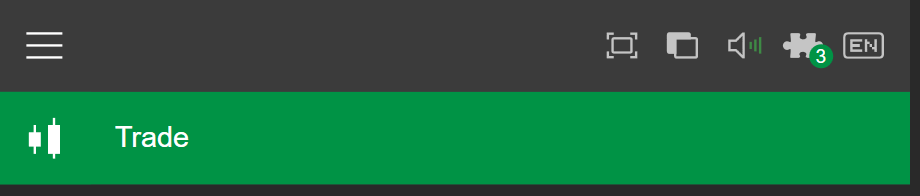
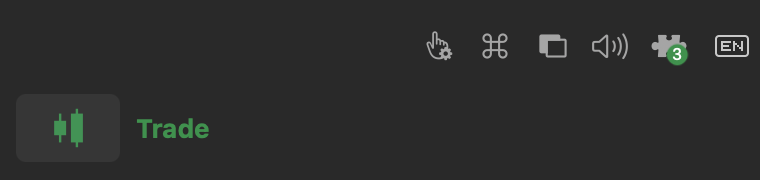
Click the Plugins icon in the main menu to open the settings window.
Note
The number on the icon shows how many plugins are currently enabled.
You can also access Plugins from Settings in the main menu.
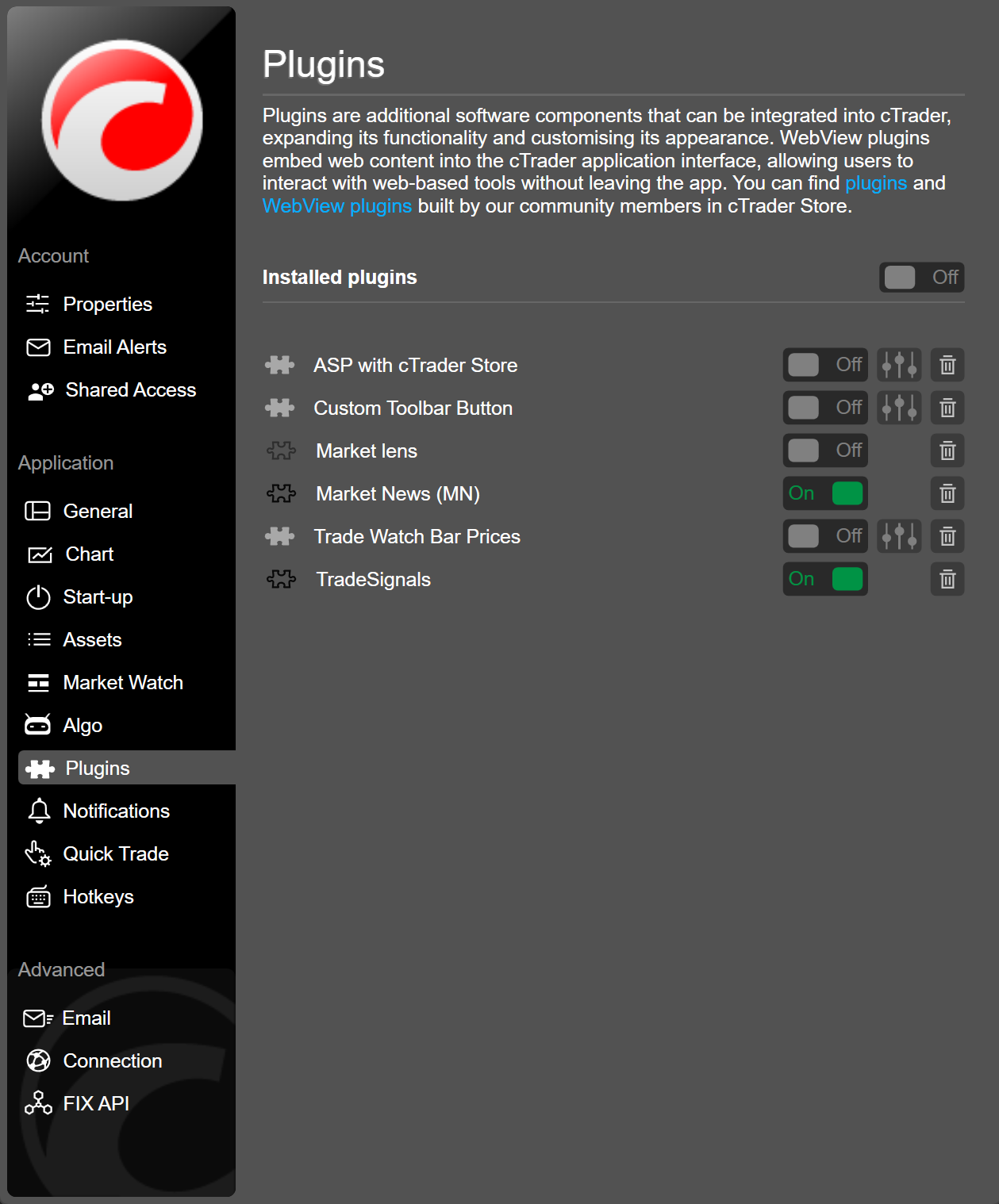
Click the Plugins icon in the main menu to open the settings window.
Note
The number on the icon shows how many plugins are currently enabled.
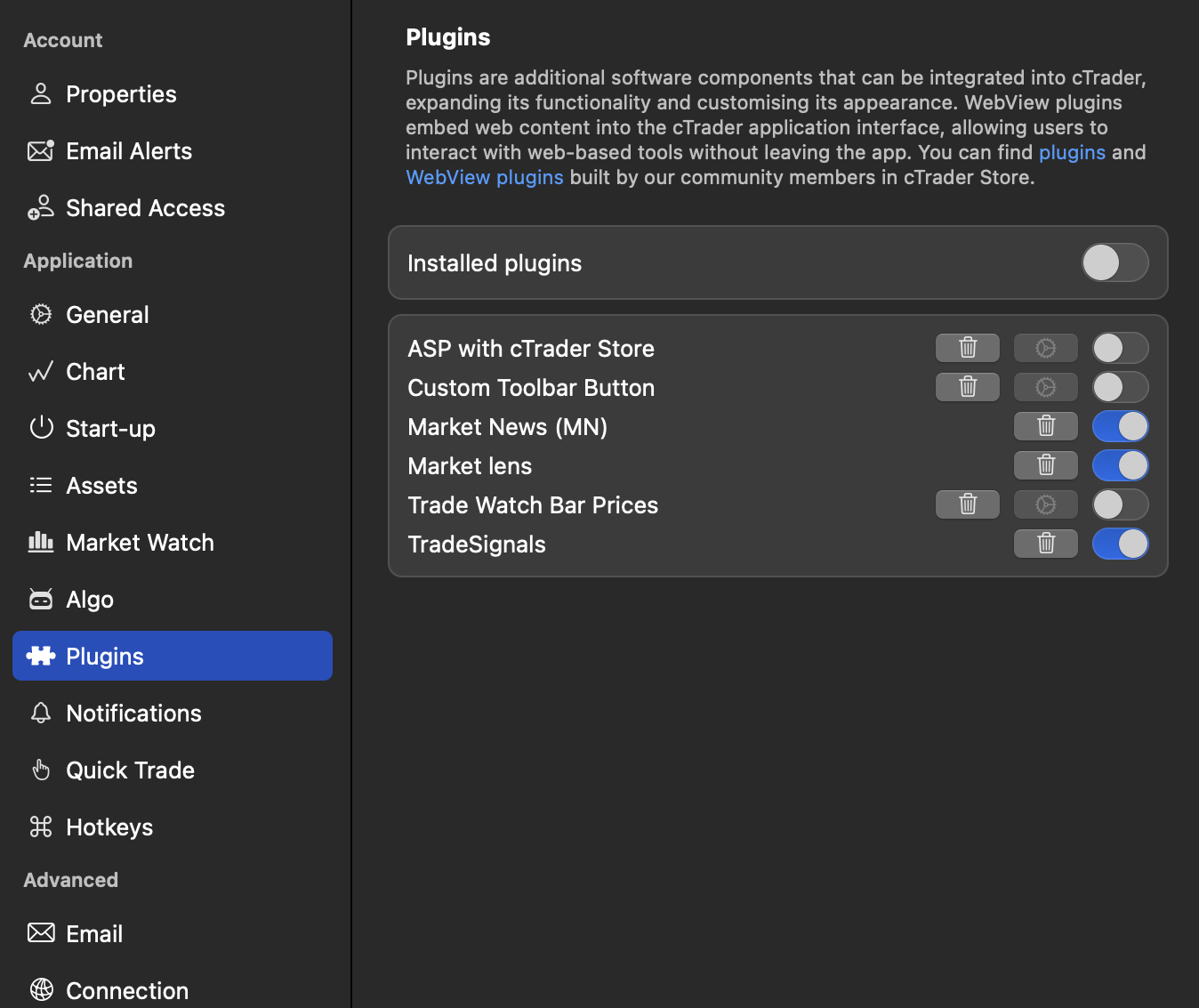
You can also access Plugins from Settings in the main menu.
Enable/disable
When enabled, a plugin displays its content in the appropriate UI area of cTrader. When disabled, the plugin no longer appears in any UI area until it is enabled again.
In Settings, toggle to enable or disable the plugin.
Tip
If you disable a plugin and close its settings screen, you can enable the plugin again in Manage plugins.
In Plugins, toggle to enable or disable a plugin.
In Plugins, toggle to enable or disable a plugin. You can toggle Installed plugins to enable or disable all plugins at once.
In Plugins, toggle to enable or disable a plugin. You can toggle Installed plugins to enable or disable all plugins at once.
Delete a plugin
In Manage plugins or in the More menu of a plugin, tap the Delete icon to remove the plugin.
In Plugins, click the Delete icon next to a plugin name. Confirm the action, and the plugin will be removed.
In Plugins, click the Delete icon next to a plugin name. Confirm the action, and the plugin will be removed.
In Plugins, click the Delete icon next to a plugin name. Confirm the action, and the plugin will be removed.
Specify placement
Some plugins allow you to control their visibility in specific UI areas.
In Settings, select the UI areas where your plugin should appear.
-
Trade tabs – display the plugin in the plugin bar across all tabs of the Trade app, and the plugin content will open in a bottom sheet within the Trade app.
-
Symbol overview – display the plugin in the plugin bar in the Overview tab of all symbols, and the plugin content will open in a bottom sheet within the Overview tabs.
-
Symbol overview (embed) – display the expanded plugin view in a dedicated section of the Overview tab of all symbols.
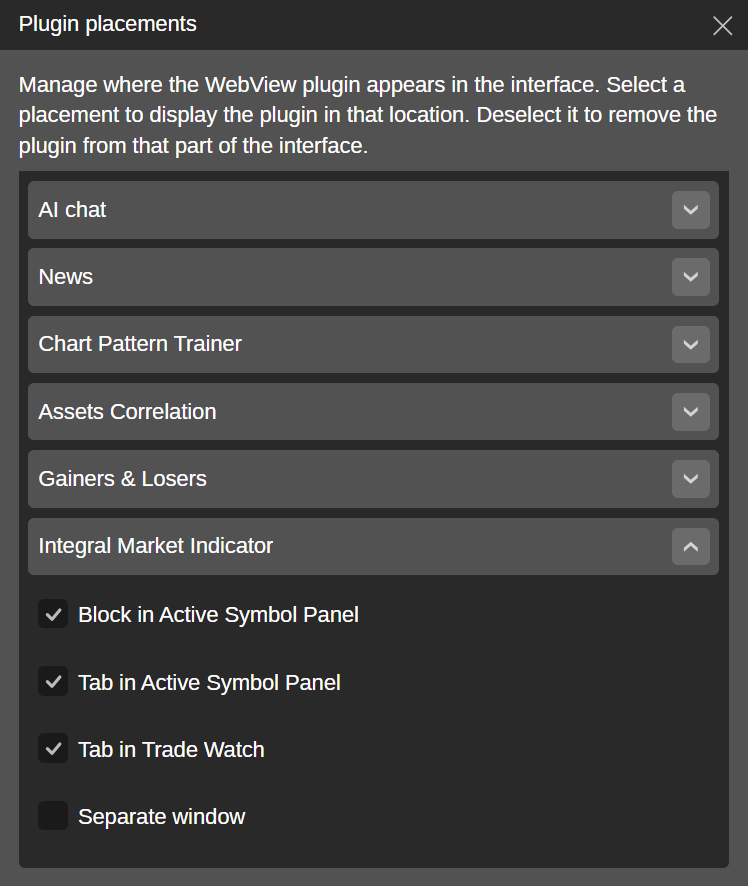
You can control visibility in Plugins, or you can click the Plugins icon in the chart toolbar to open a dedicated dialog.

Expand the needed plugin menu and tick the UI areas where your plugin should appear.
-
Block in Active Symbol Panel – display the plugin in a new ASP block.
-
Tab in Active Symbol Panel – display the plugin in a new ASP tab.
-
Tab in Trade Watch – display the plugin in a new TW tab.
-
Separate window – display the plugin in a new window that can be moved and resized.
Changes take effect instantly.
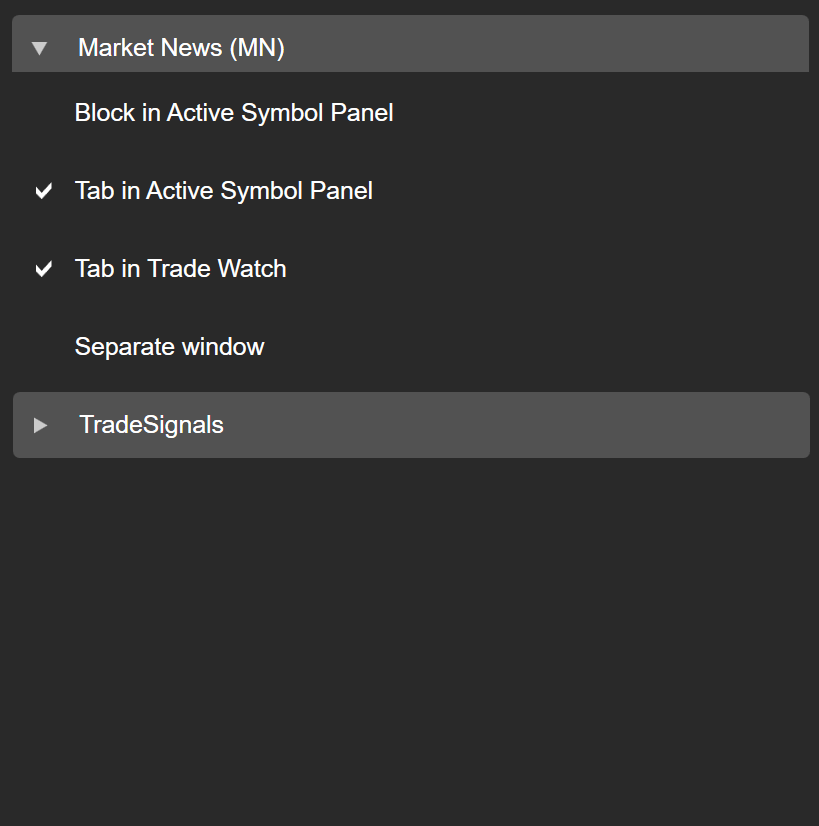
Click the Plugins icon in the chart toolbar to open a dialog for plugin placements.

Expand the needed plugin menu and tick the UI areas where your plugin should appear.
-
Block in Active Symbol Panel – display the plugin in a new ASP block.
-
Tab in Active Symbol Panel – display the plugin in a new ASP tab.
-
Tab in Trade Watch – display the plugin in a new TW tab.
-
Separate window – display the plugin in a new window that can be moved and resized.
Changes take effect instantly.
Click the Plugins icon in the chart toolbar.

A new dialog for plugin placements will open.
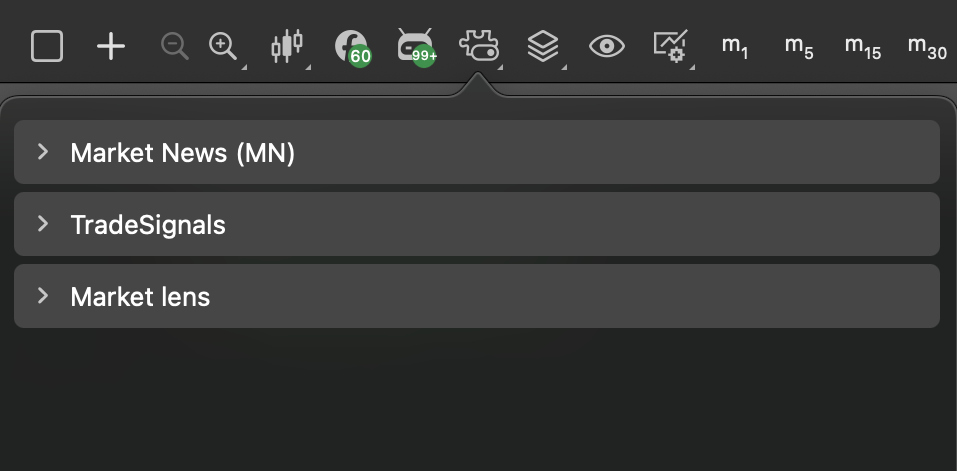
Expand the needed plugin menu and tick the UI areas where your plugin should appear.
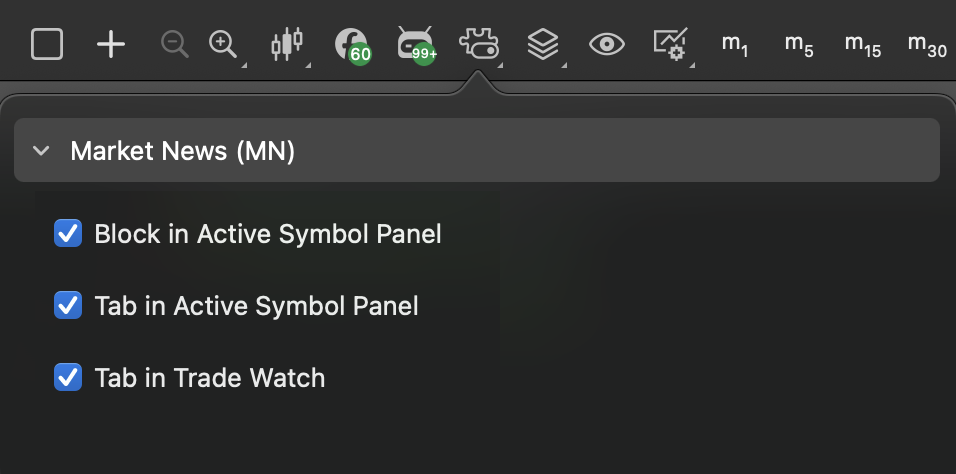
-
Block in Active Symbol Panel – display the plugin in a new ASP block.
-
Tab in Active Symbol Panel – display the plugin in a new ASP tab.
-
Tab in Trade Watch – display the plugin in a new TW tab.
-
Separate window – display the plugin in a new window that can be moved and resized.
Changes take effect instantly.
Reorder plugins
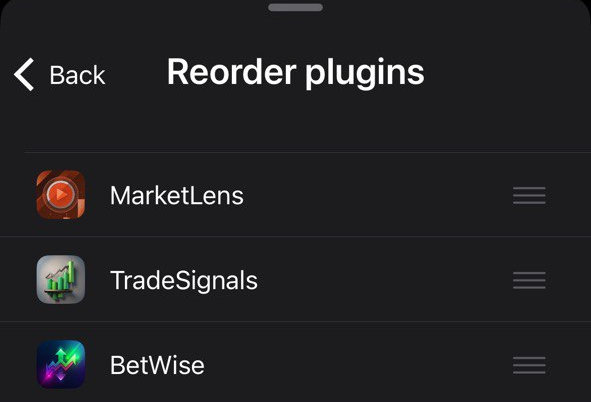
In cTrader Mobile, tap Reorder in Settings, then drag the control up or down to set a new position for the plugin.
Note
The specified order is used in all mobile UI areas where your plugins are displayed.
View information
In cTrader Mobile, tap Info in Settings to see the creator and additional details of the plugin.

