Install a custom indicator in cTrader
Note
Built-in indicators do not require any installation and are always available in all cTrader apps, including Mobile, Web, Windows and Mac.
You can install a custom indicator directly from cTrader Store, or by opening an indicator .algo file in cTrader Windows or Mac.
cTrader Store
In the Indicators tab of cTrader Algo in cTrader Windows or Mac, click Get algos from Store.
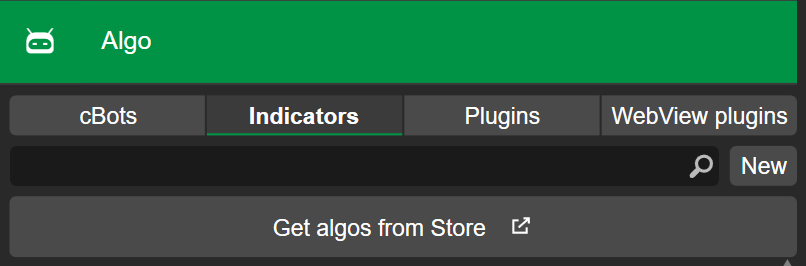
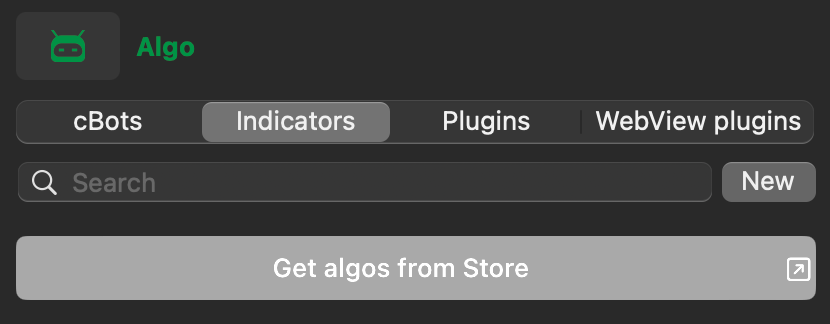
The dedicated indicators section in cTrader Store will open. Learn how to install indicators from Store and use them in cTrader Windows and Mac.
Note
With cloud synchronisation enabled, any indicator installed from Store automatically appears in desktop cTrader apps where your cTID is active.
Indicator file
If you have cTrader Windows or Mac installed on your computer, do one of the following:
-
Double-click the indicator
.algofile, and it should open in the cTrader app. -
Right-click the file, select Open with and choose cTrader.
Once cTrader finishes installing the custom indicator, you can start using it.