Manage custom indicator instances
A custom indicator instance is an operational copy of the indicator with its own parameters or settings. Each indicator instance operates separately, meaning you can run multiple instances of the same indicator across different symbols, periods and configurations.
The Indicators tab of cTrader Algo allows you to access and manage instances of custom indicators, and each instance uses parameters that define its operations.
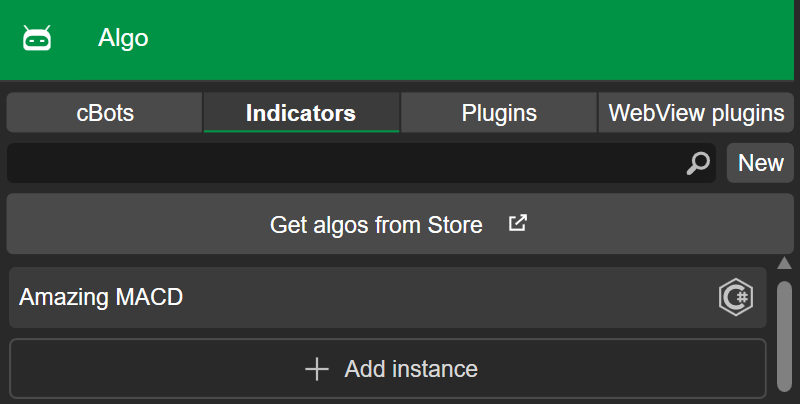
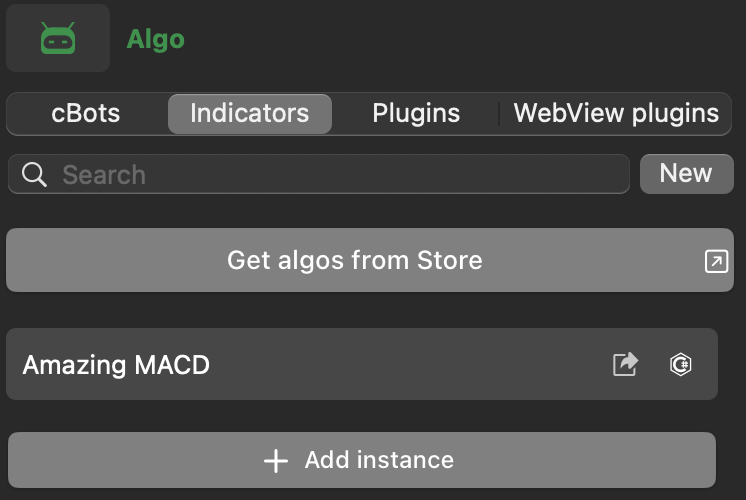
Essential parameters
Two essential parameters are always visible in cTrader UI for every instance: the symbol and period the indicator runs on.
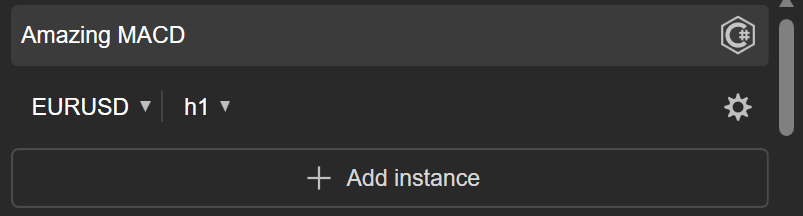
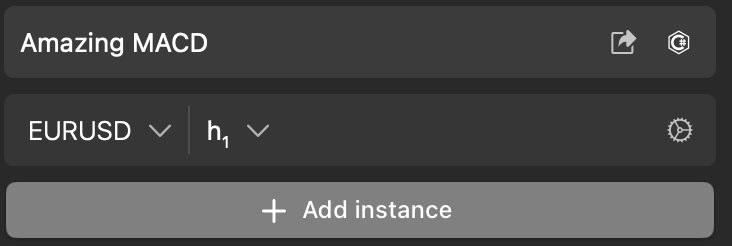
Additional parameters
Additional parameters come from the indicator's code and appear in cTrader UI as Parameters. Examples include volume, bar, element colour, panel position, font size or anything you could think of.
Note
The Lines parameter, which allows you to control the visibility, colour, thickness and other properties of the lines displayed on a chart, is mandatory for all custom indicators.
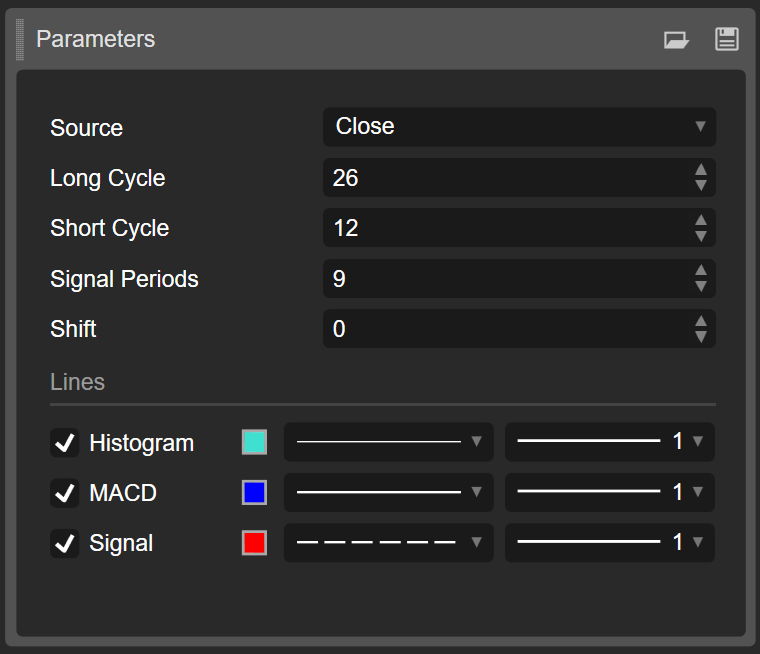
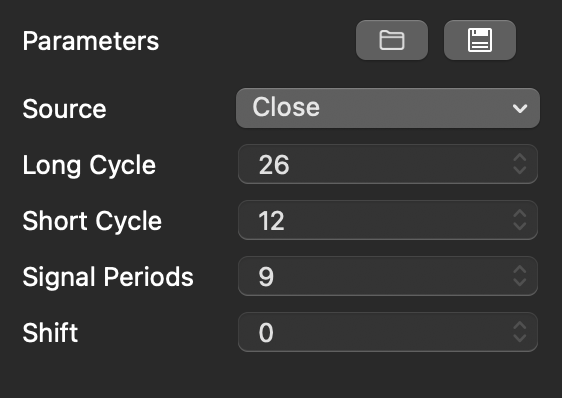
Additional parameters may significantly influence an indicator's appearance, behaviour and output. If you are not sure how to configure them, check the indicator product page in cTrader Store or contact the algorithm developer.
Add a new instance
You can add a new instance whenever you need it via the Add instance button in the Indicators tab.
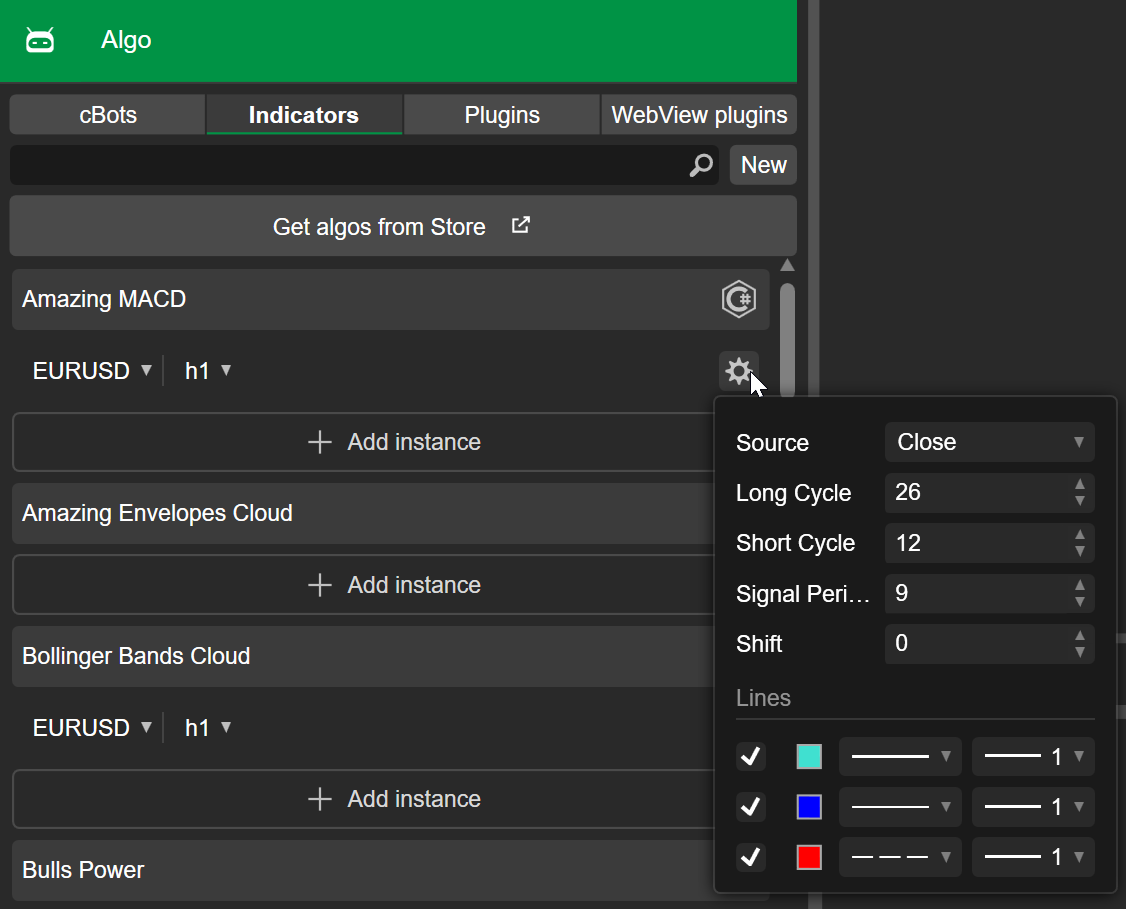
Choose your preferred symbol and period for the instance. Clicking the Cog icon reveals any available additional parameters, which you can also configure.
Edit instance parameters
You can access and change the values of additional parameters for an instance via several methods.
Cog icon
After clicking the Cog icon of an instance, you can edit the values of its additional parameters.
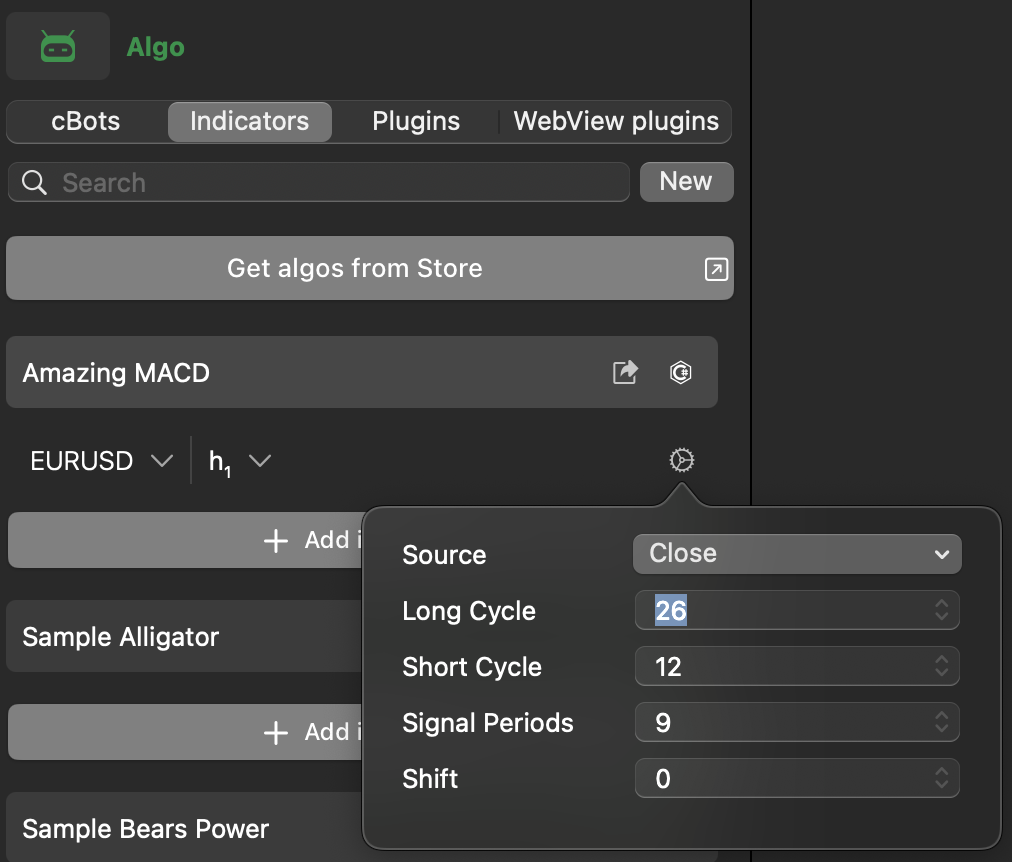
Parameters section
A Parameters section is available for every custom indicator instance in cTrader Windows and Mac.
Click an instance below the indicator name. You should see the Parameters section under the chart on the right.
INDISET file
An .indiset file stores specific values for an indicator's additional parameters. Loading this file for an instance fills the fields automatically. If you have such a file, right-click an instance in cTrader Windows or Mac, then select Load parameters.
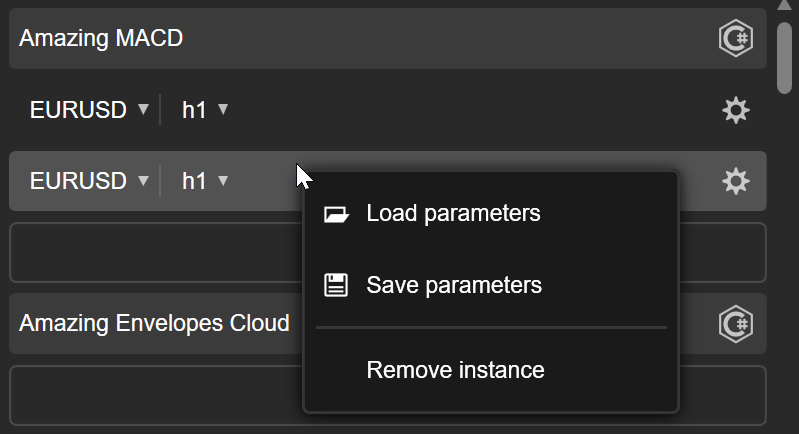
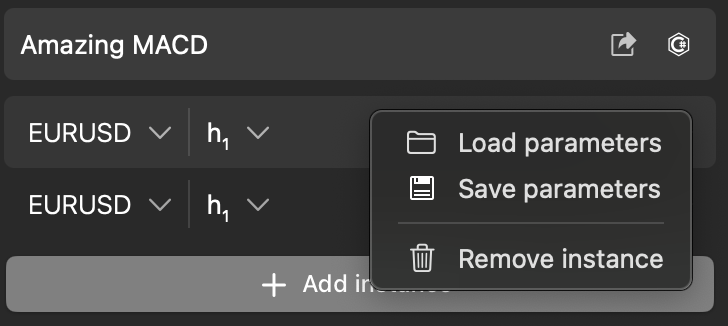
Choose the file on your computer, then click Open.
Save instance parameters
Saving the parameter values of an instance as an .indiset file lets you quickly reuse the same settings in another instance. You can generate the file from the Indicators tab or the Parameters section of an instance.
Indicators tab
Right-click the instance whose values you want to save, then select Save parameters.
Select a location on your computer, then click Save.
Parameters section
Go to the Parameters section of the instance and click the Save icon in the top-right corner. Choose a location to store the .indiset file on your computer, then click Save.
Delete an instance
Deleting a custom indicator instance removes it from the list under the indicator. Right-click the instance you want to delete, then select Remove instance.