Manage custom indicators
The Indicators tab of cTrader Algo lists all custom indicators for the active cTrader ID.
Note
Built-in indicators cannot be managed or changed, and the actions in this guide do not apply to such indicators.
Tap a custom indicator in the list.
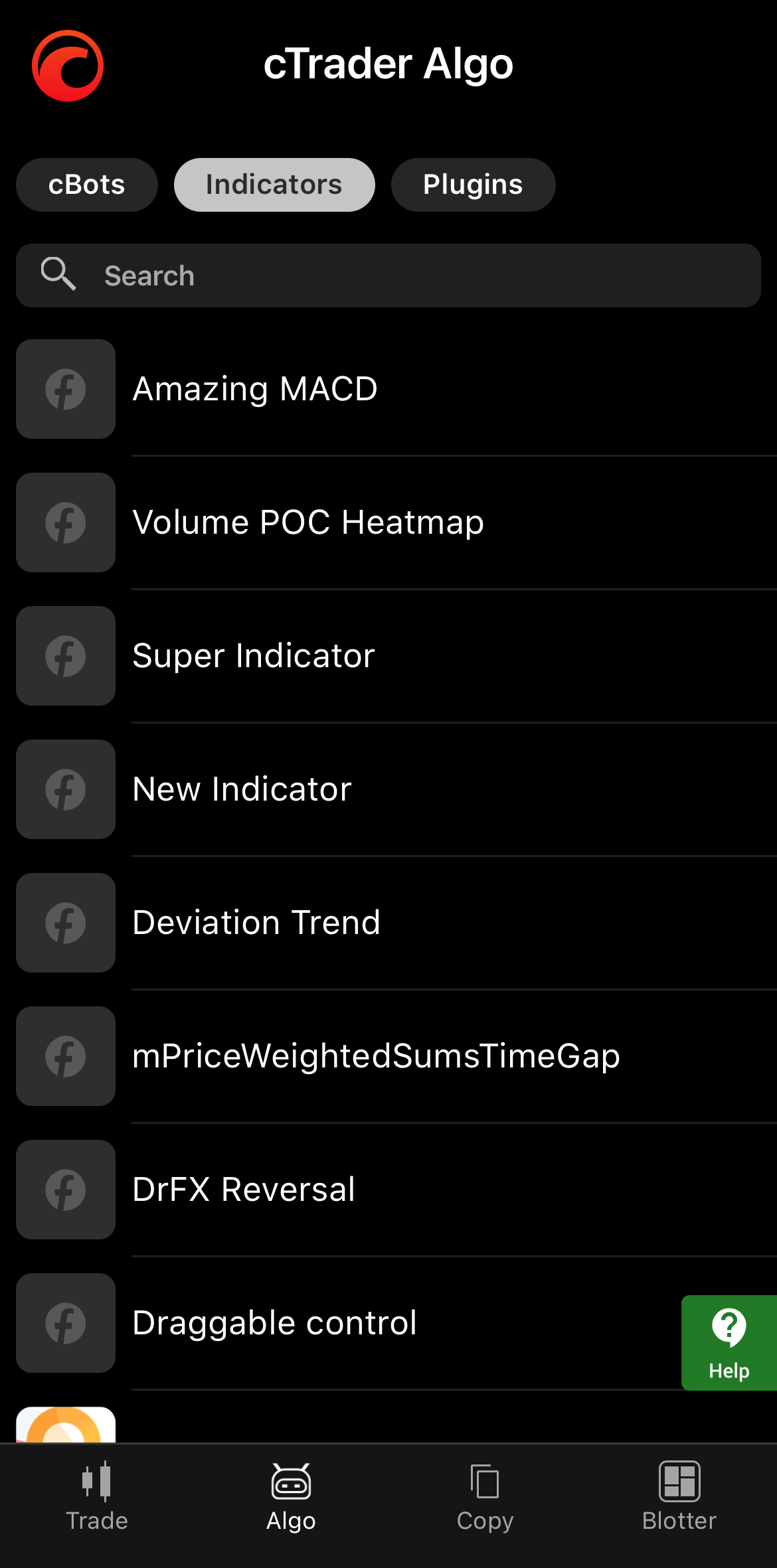
Tap the More icon in the bottom-right corner to open the management menu.
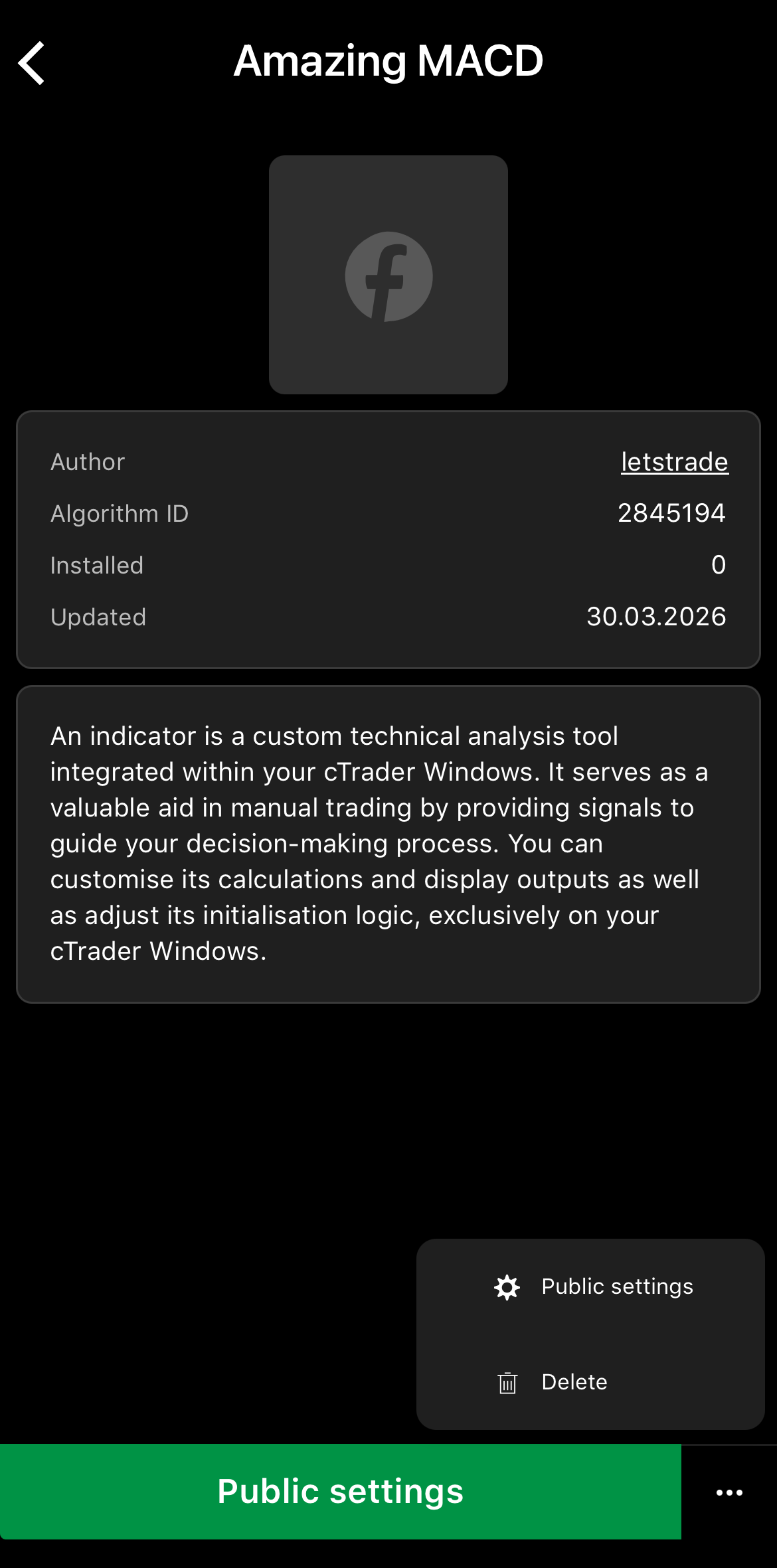
In cTrader Web, right-click a custom indicator to open its management menu.
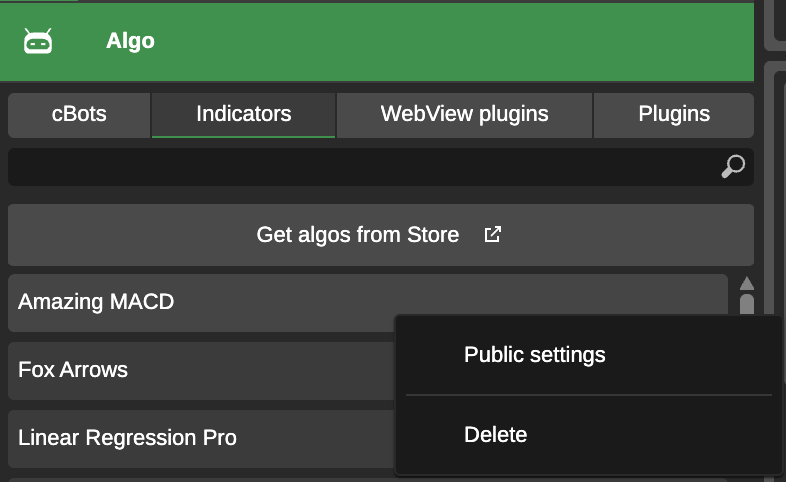
In cTrader Windows, right-click a custom indicator to open its management menu.
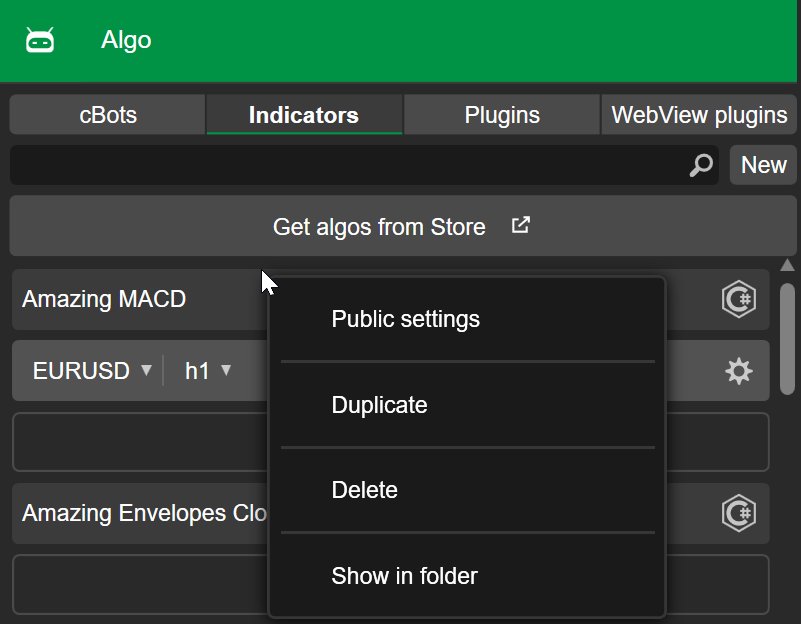
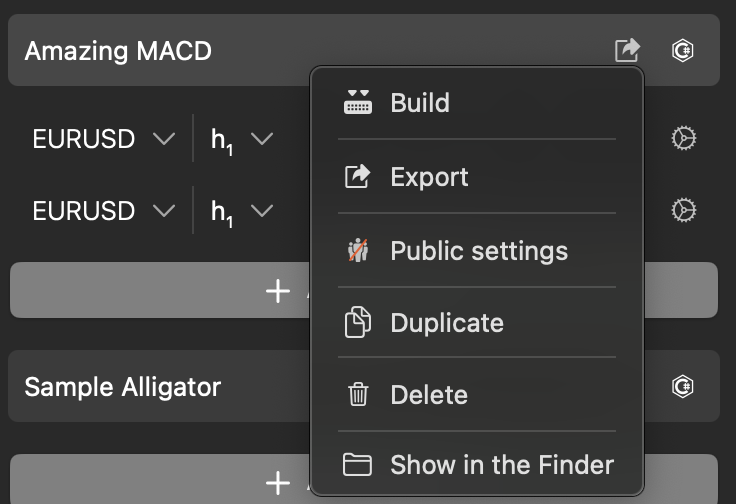
In cTrader Mac, right-click a custom indicator to open its management menu.
Upload an image
Adding an image to a custom indicator makes identifying the indicator easier.
Note
This operation is possible only if you created the custom indicator yourself or installed it via an .algo file.
In the custom indicator menu, choose Public settings. In the General tab, tap the Edit icon, press Upload file, then choose an image from your device.
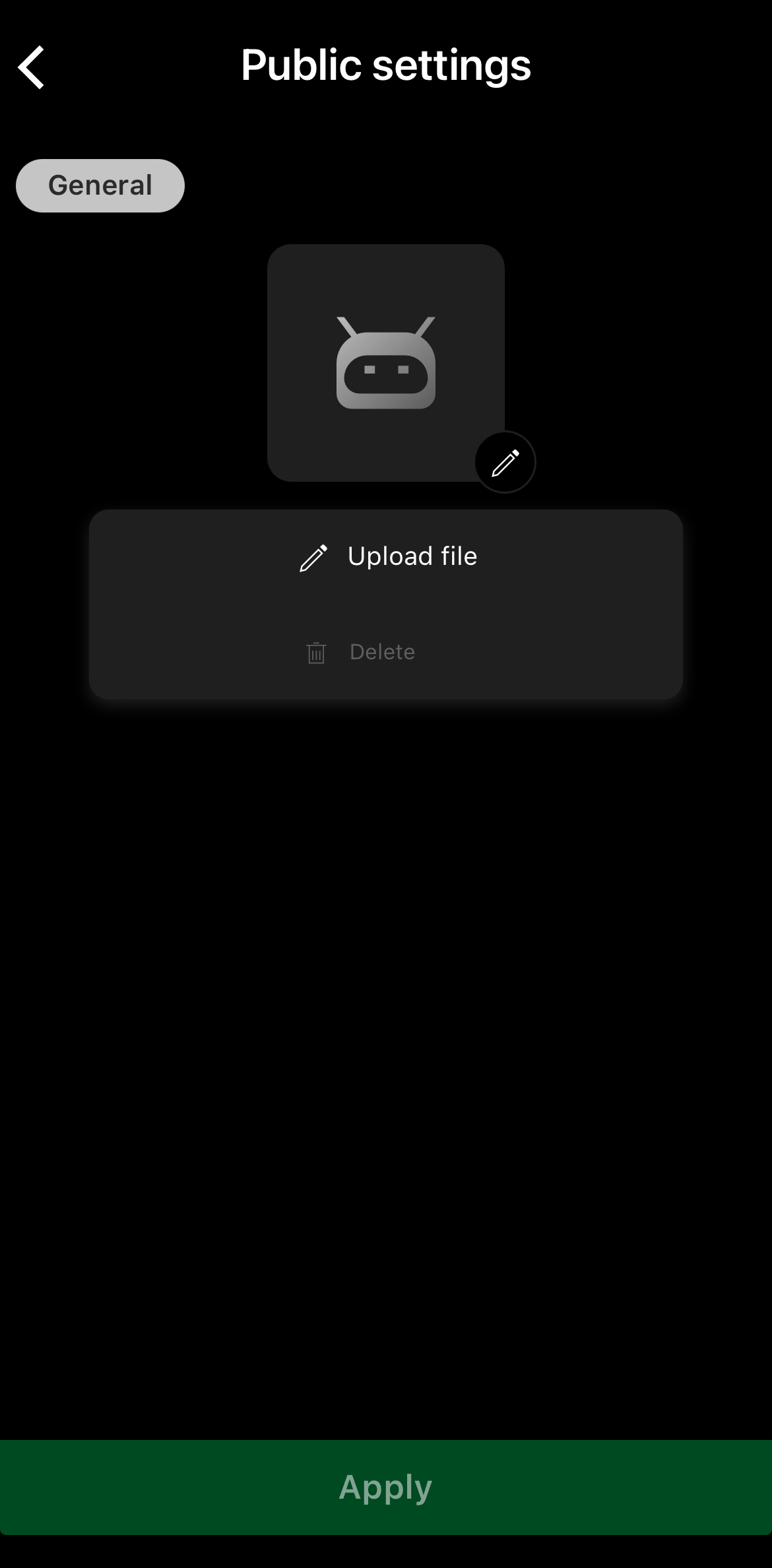
Tap the Apply button to finish.
In the custom indicator menu, choose Public settings. In the General tab of the new window, click Image 120 x 120 px.
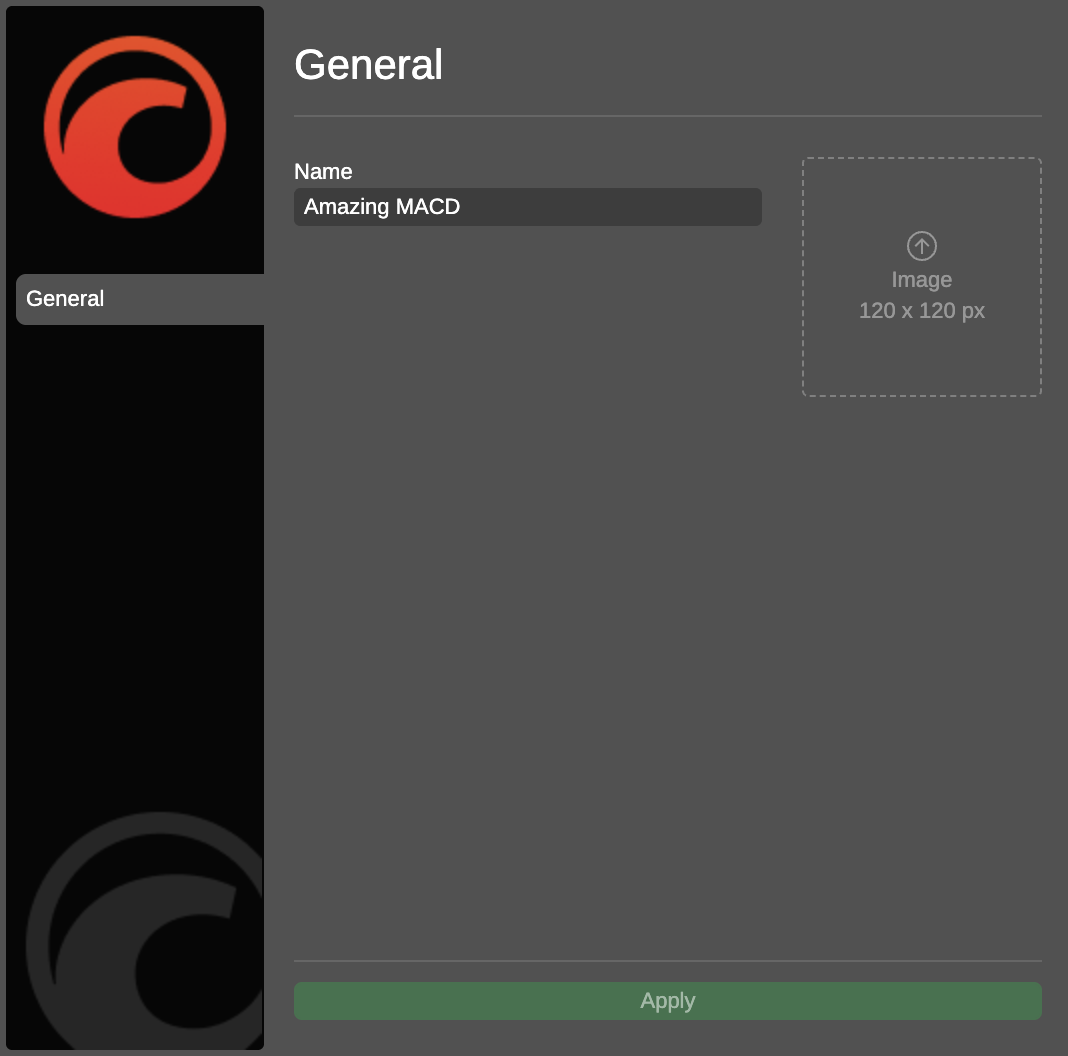
Choose an image from your device, then click Apply.
In the custom indicator menu, choose Public settings. In the General tab of the new window, click Image 120 x 120 px.
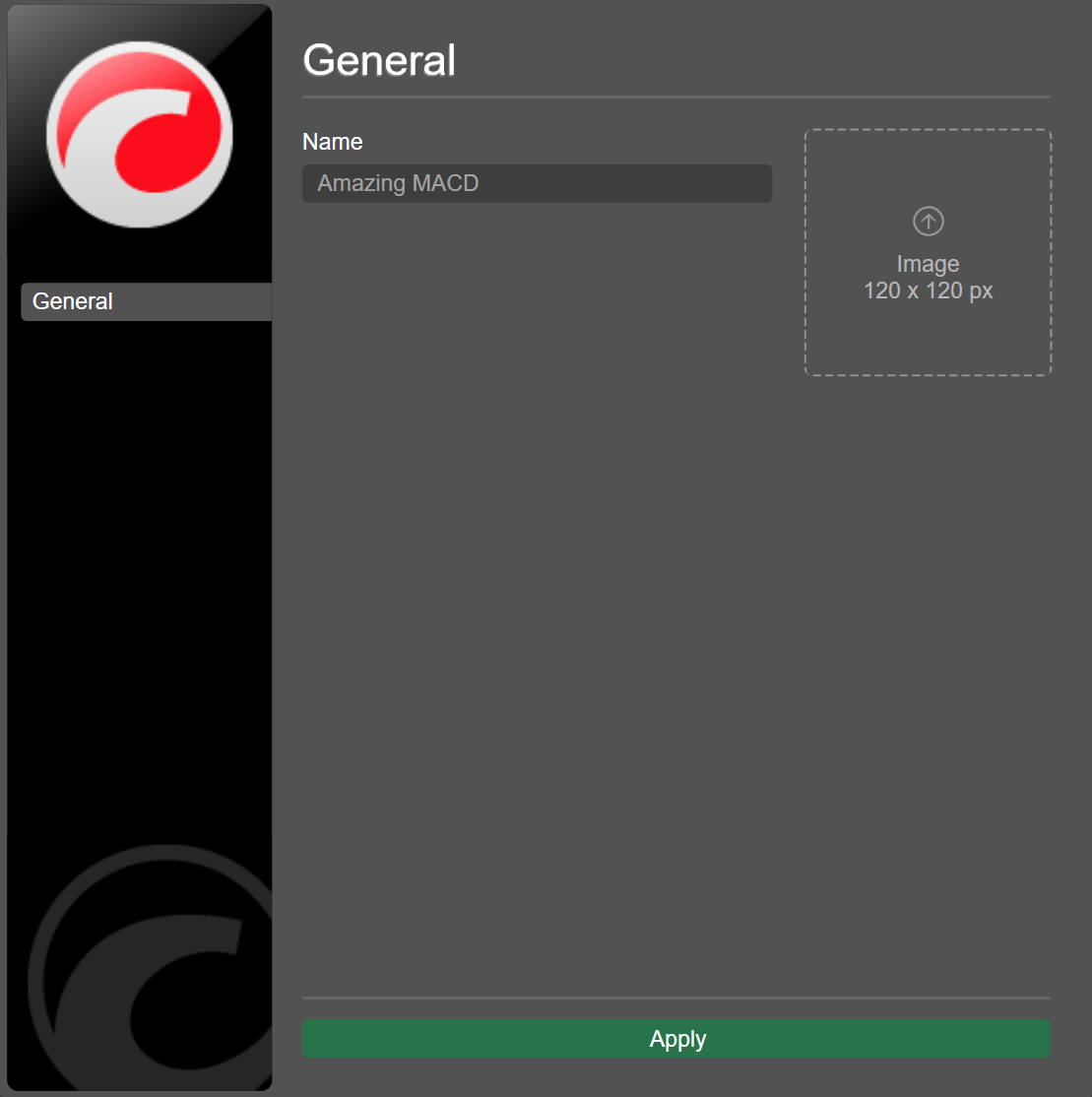
Choose an image from your device, then click Apply.
In the custom indicator menu, choose Public settings. In the General tab of the new window, click 120 x 120 px.
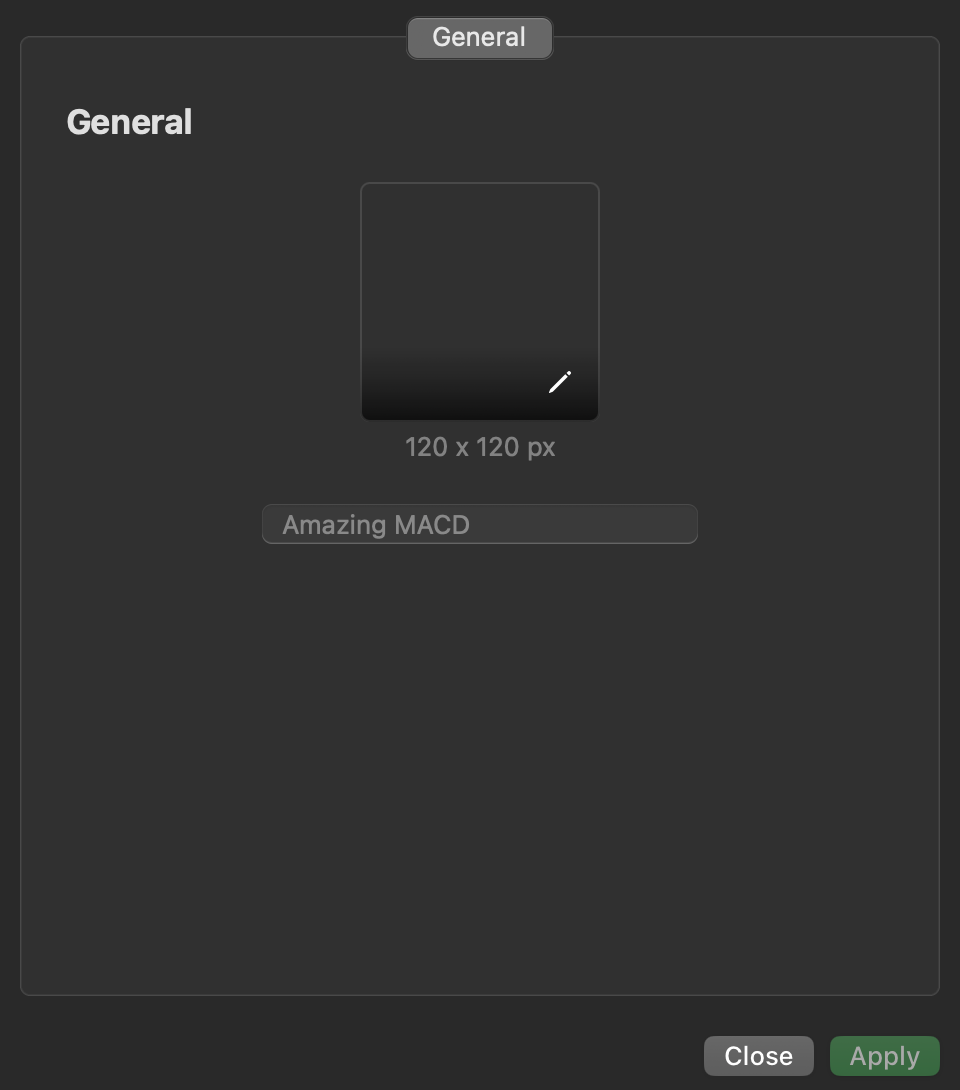
Choose an image from your device, then click Apply.
Note
With cloud synchronisation enabled, the new custom indicator image automatically appears in desktop cTrader apps where your cTrader ID is active.
Duplicate an indicator
Duplication allows you to quickly create a copy of an existing custom indicator in cTrader Windows or Mac.
Note
This option is available only if you created the custom indicator yourself or installed it via an .algo file.
In the custom indicator menu, choose Duplicate. Type in a name and click Continue. The new custom indicator should appear in the list.
In the custom indicator menu, choose Duplicate. Type in a name and click Continue. The new custom indicator should appear in the list.
Delete an indicator
Note
With cloud synchronisation enabled, deleting a custom indicator in any cTrader app automatically removes that custom indicator from all cTrader apps where your cTrader ID is active.
In the custom indicator menu, choose Delete. The custom indicator will disappear from the list.
In the custom indicator menu, choose Delete. The custom indicator will disappear from the list.
In the custom indicator menu, choose Delete. The custom indicator will disappear from the list.
In the custom indicator menu, choose Delete. The custom indicator will disappear from the list.