Use a technical indicator in cTrader
Using an indicator means adding the indicator to a chart in cTrader Mobile, Web, Windows or Mac.
Note
cTrader Mobile and Web support only built-in indicators, while cTrader Windows and Mac support both built-in and custom indicators.
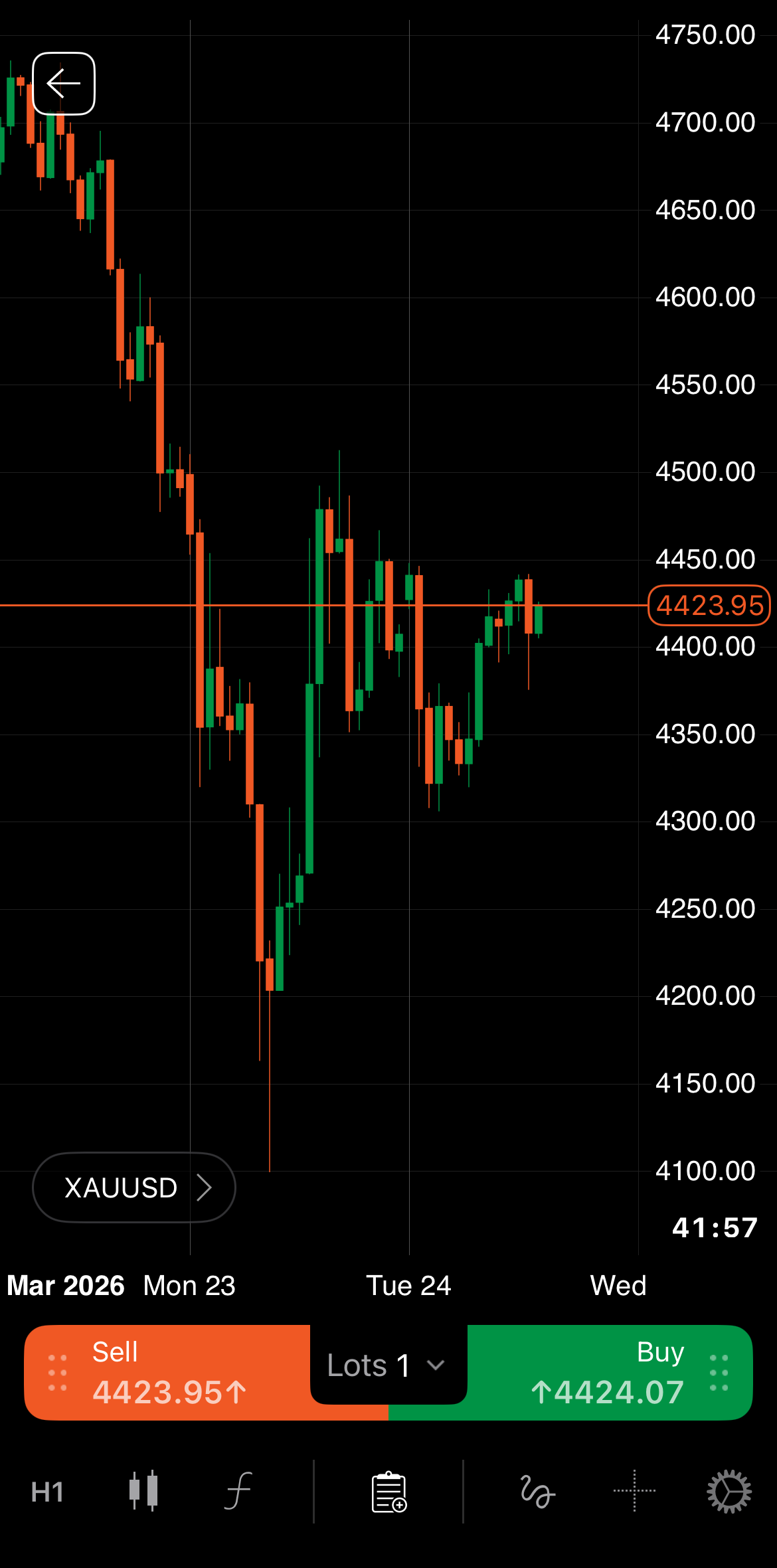
Open the symbol chart where you want to add an indicator, then tap the Indicator icon.
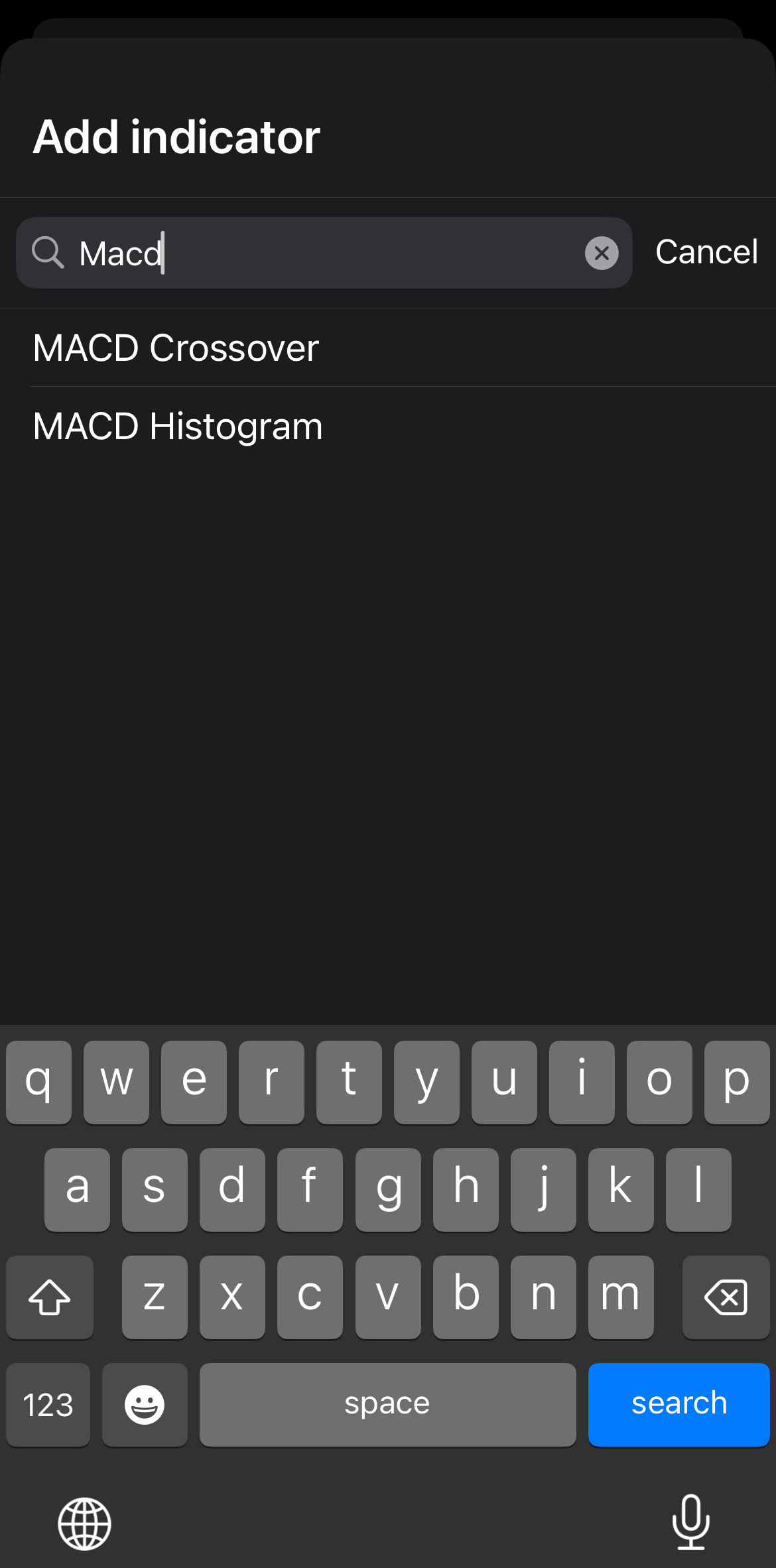
Type in a name to quickly find the indicator you want to use, then select it.
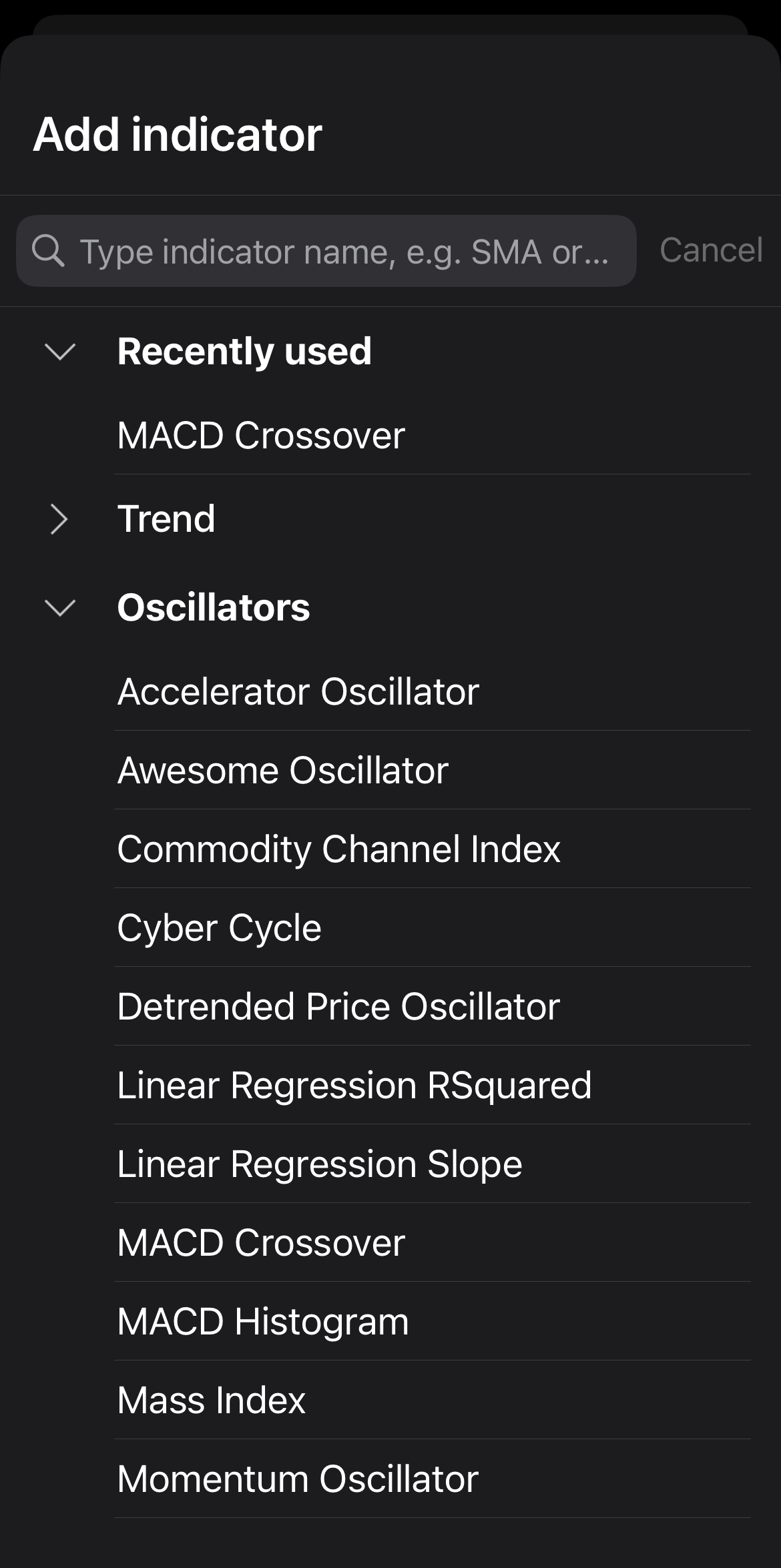
Alternatively, expand an indicator category such as Trend, Oscillators, Volatility, Volume or Other, then choose the specific indicator you want.
The indicator should appear in a new panel or directly on the chart. Now, you can customise the indicator to change its appearance, position on the chart and other attributes.
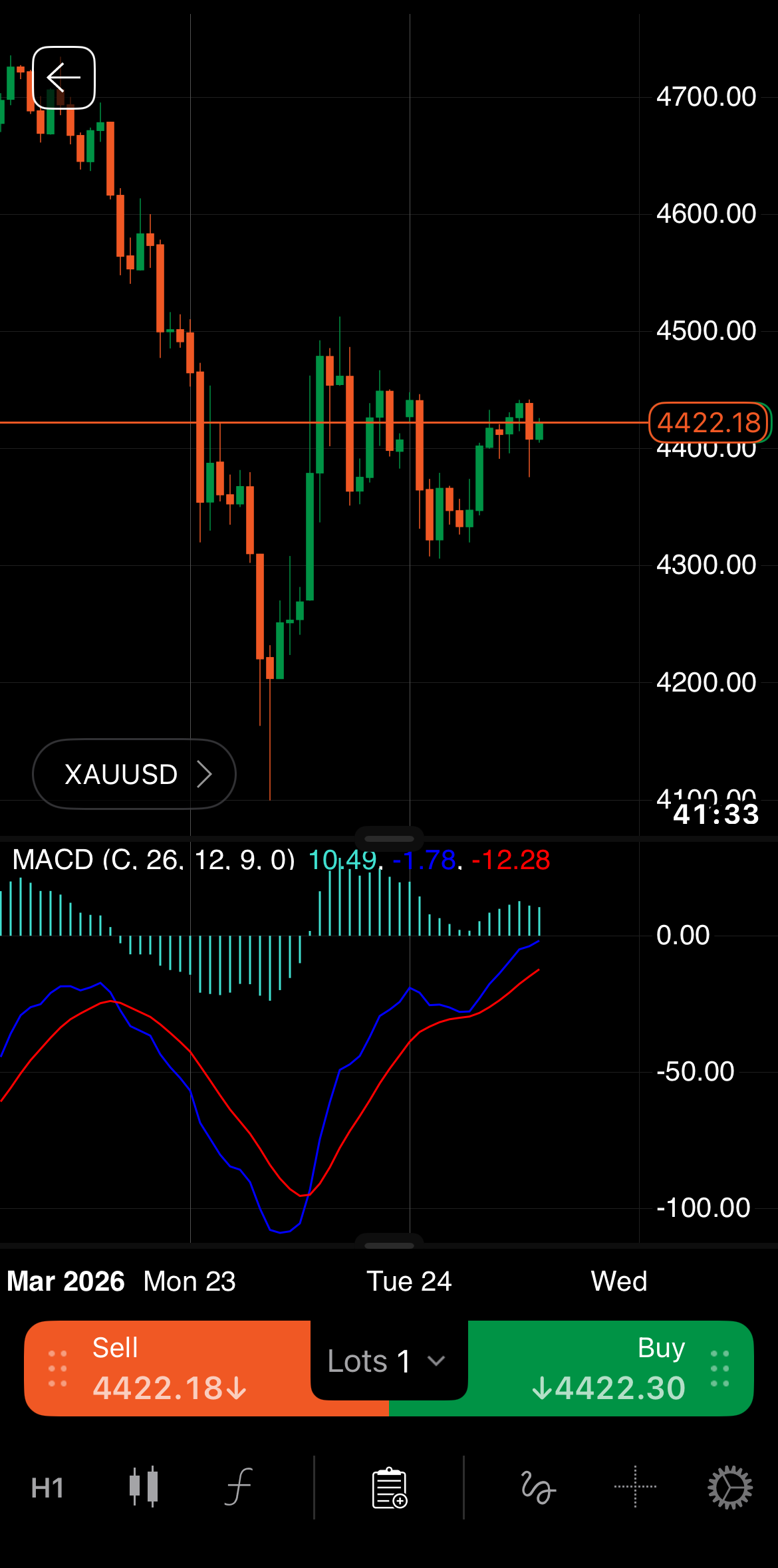
Open the symbol chart where you want to use an indicator, then click the Indicator icon.
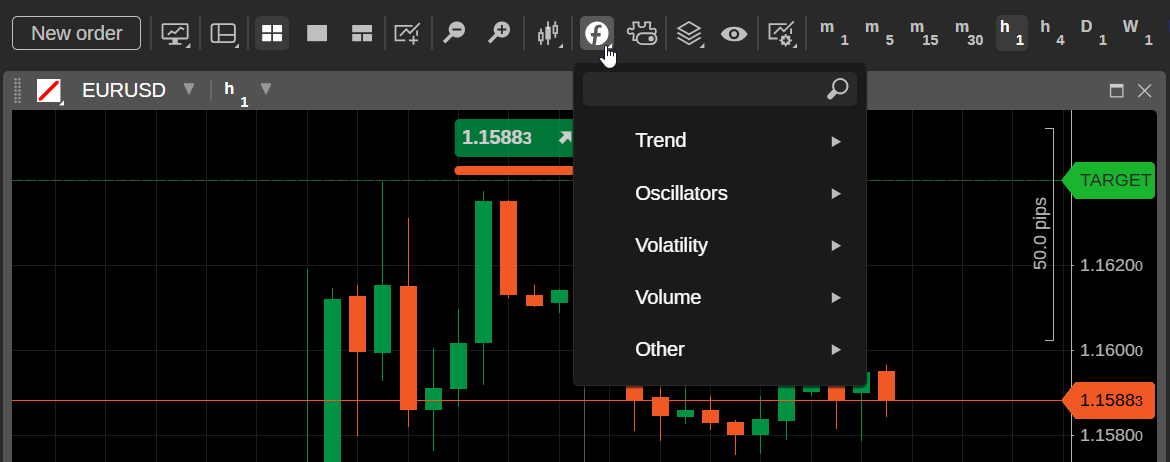
Type in a name to quickly find the indicator you want to use, then select it. Alternatively, click an indicator category such as Trend, Oscillators, Volatility, Volume or Other, then choose a specific indicator.
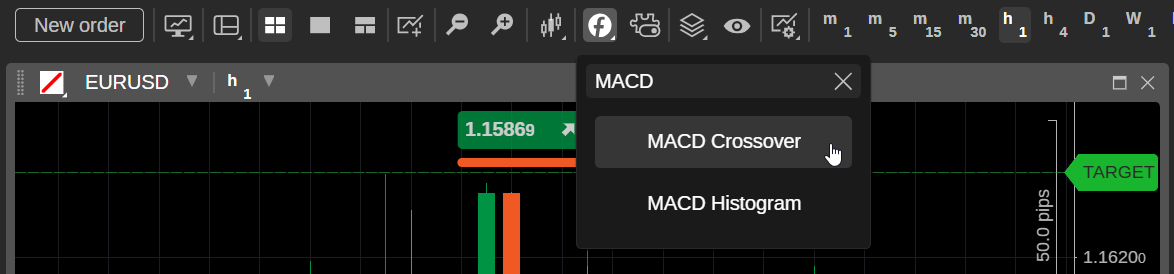
Specify your preferred settings for the indicator and click OK.
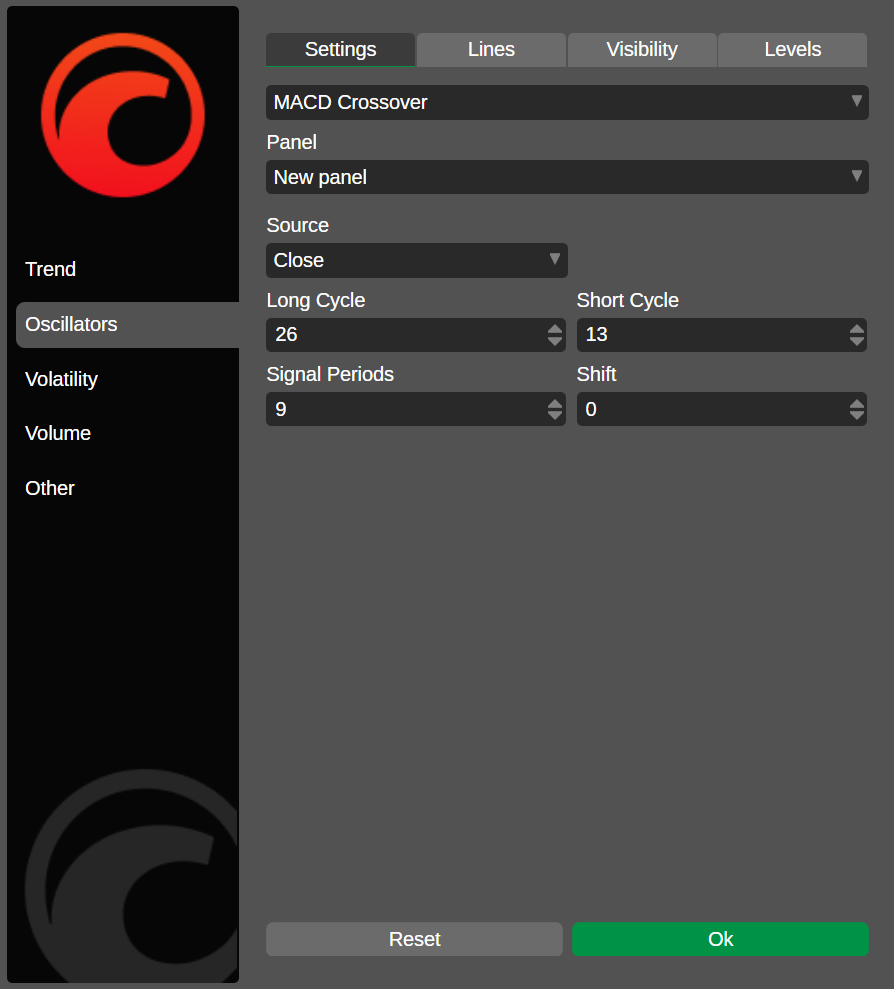
The indicator should appear in a new panel or directly on the chart. You can still customise the indicator to change its appearance, position on the chart and other attributes.
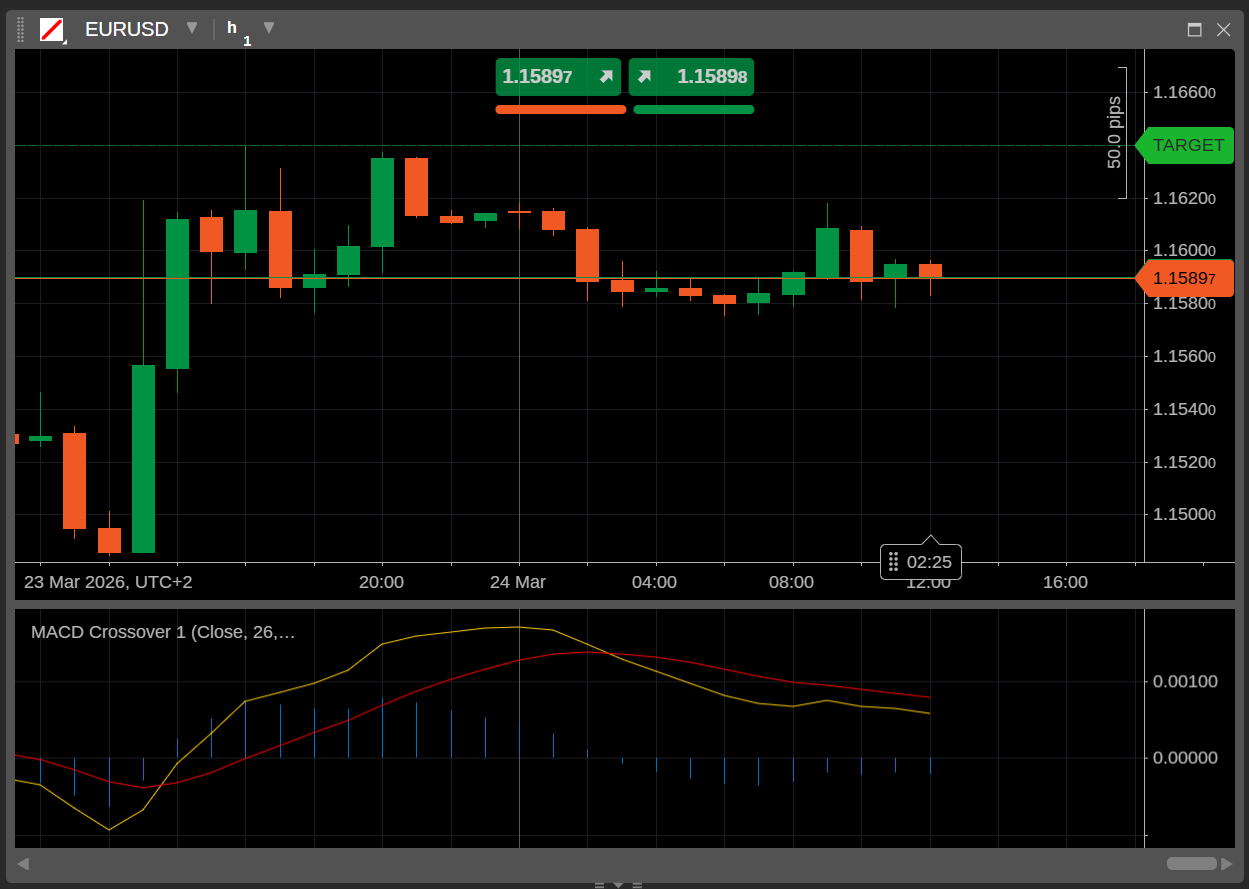
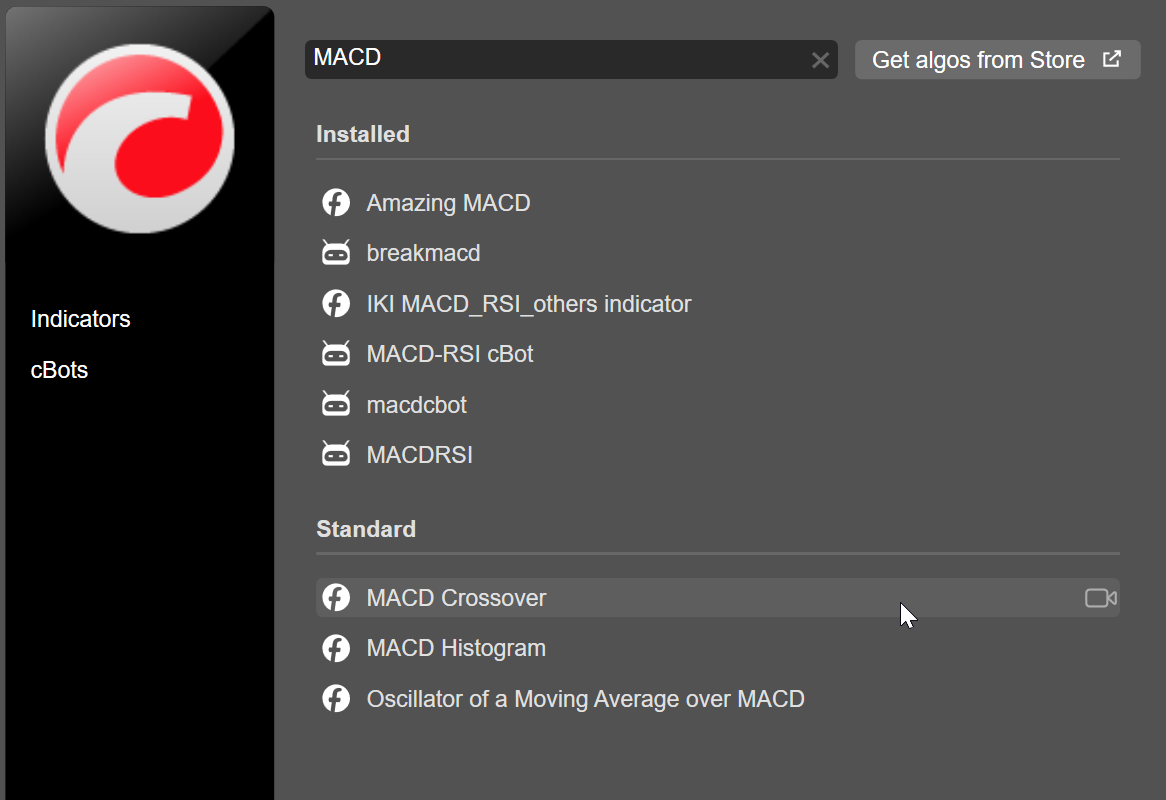
Open the symbol chart where you want to use an indicator, then click the Add indicator icon.

Type in a name to quickly find the indicator you want to use, then select it.
The indicator should appear in a new panel or directly on the chart. Now, you can customise the indicator to change its appearance, position on the chart and other attributes.
Alternative method
Note
This method applies only to custom indicators.
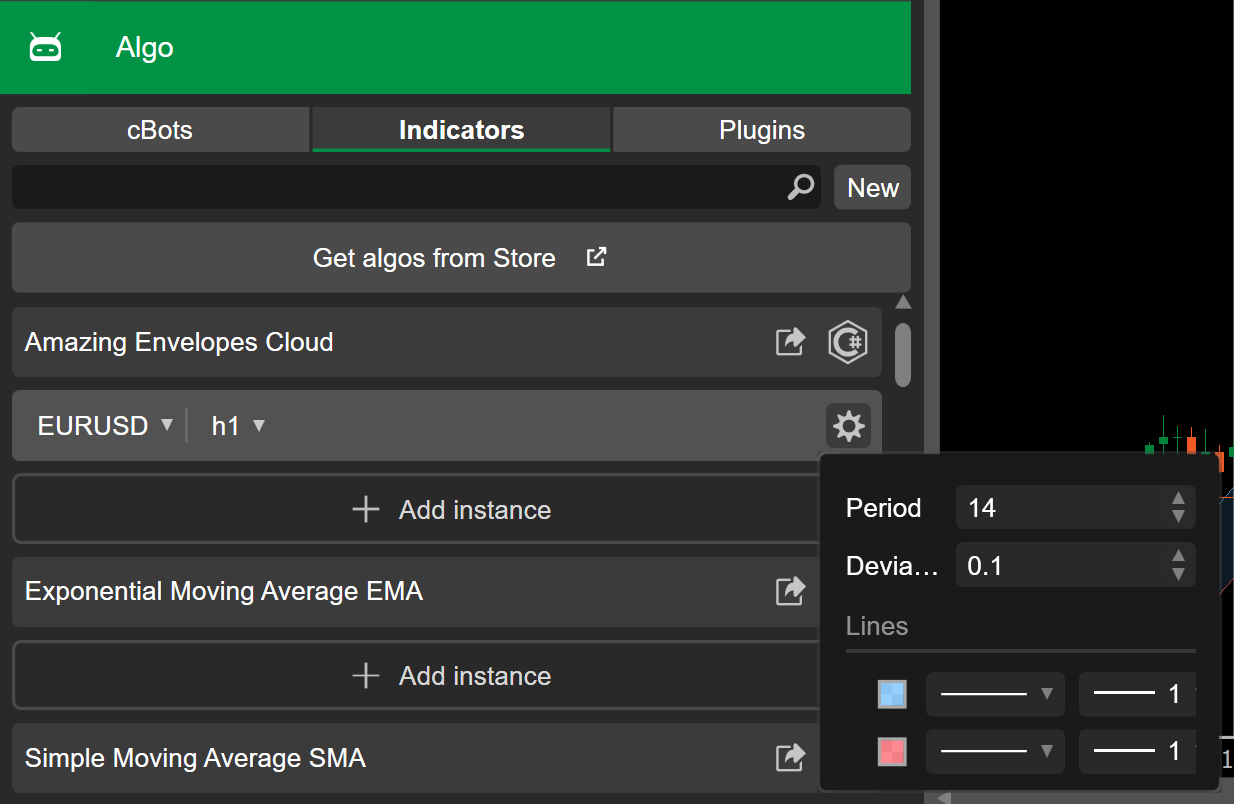
In the Indicators tab of the Algo app, click the Add instance button for the indicator you want to use. Select a symbol and period, then click the Settings icon to specify values for customisable parameters if available.
Note
The Lines parameter is universal to all indicators, even when it is not explicitly declared or used in the indicator code.
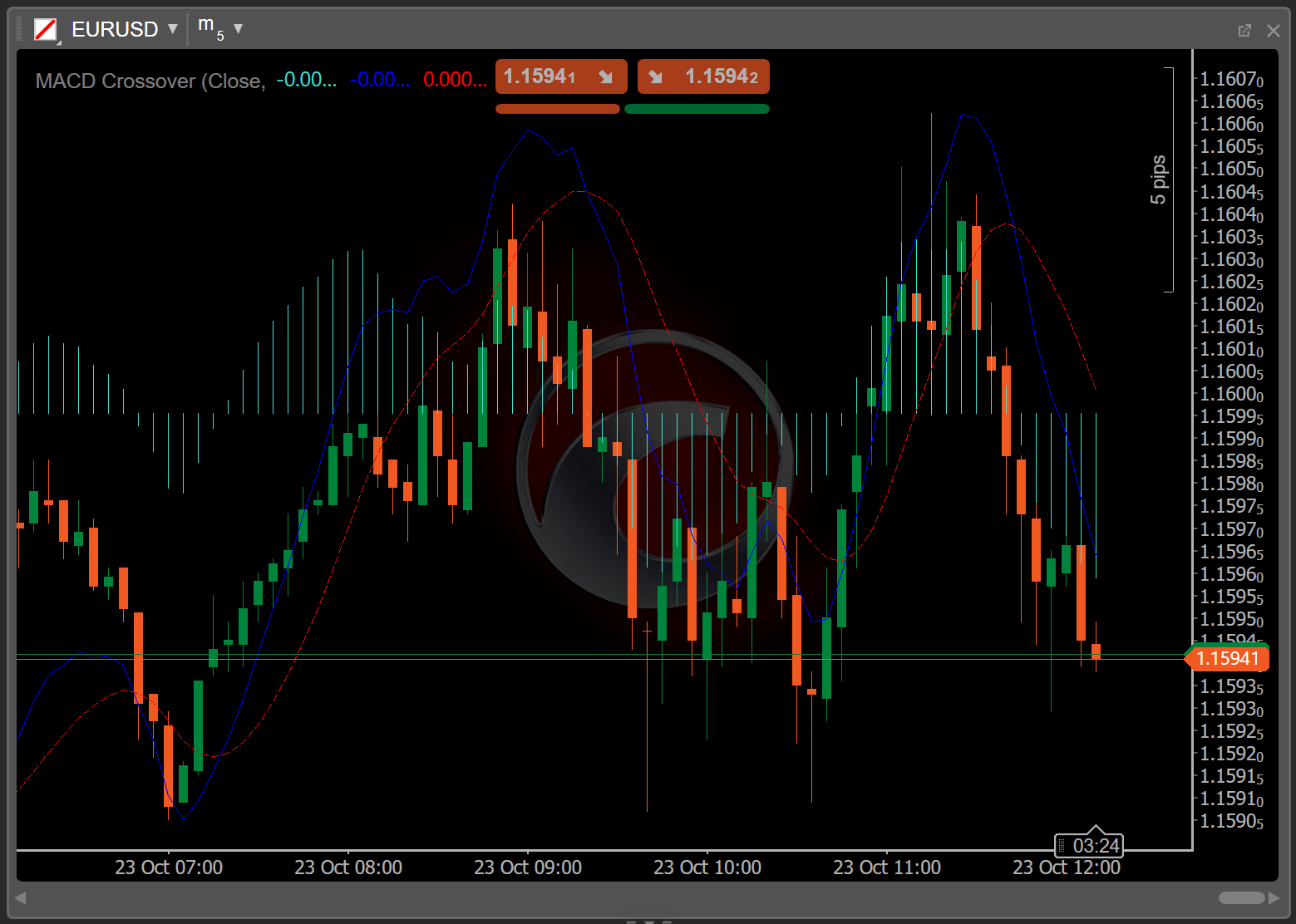
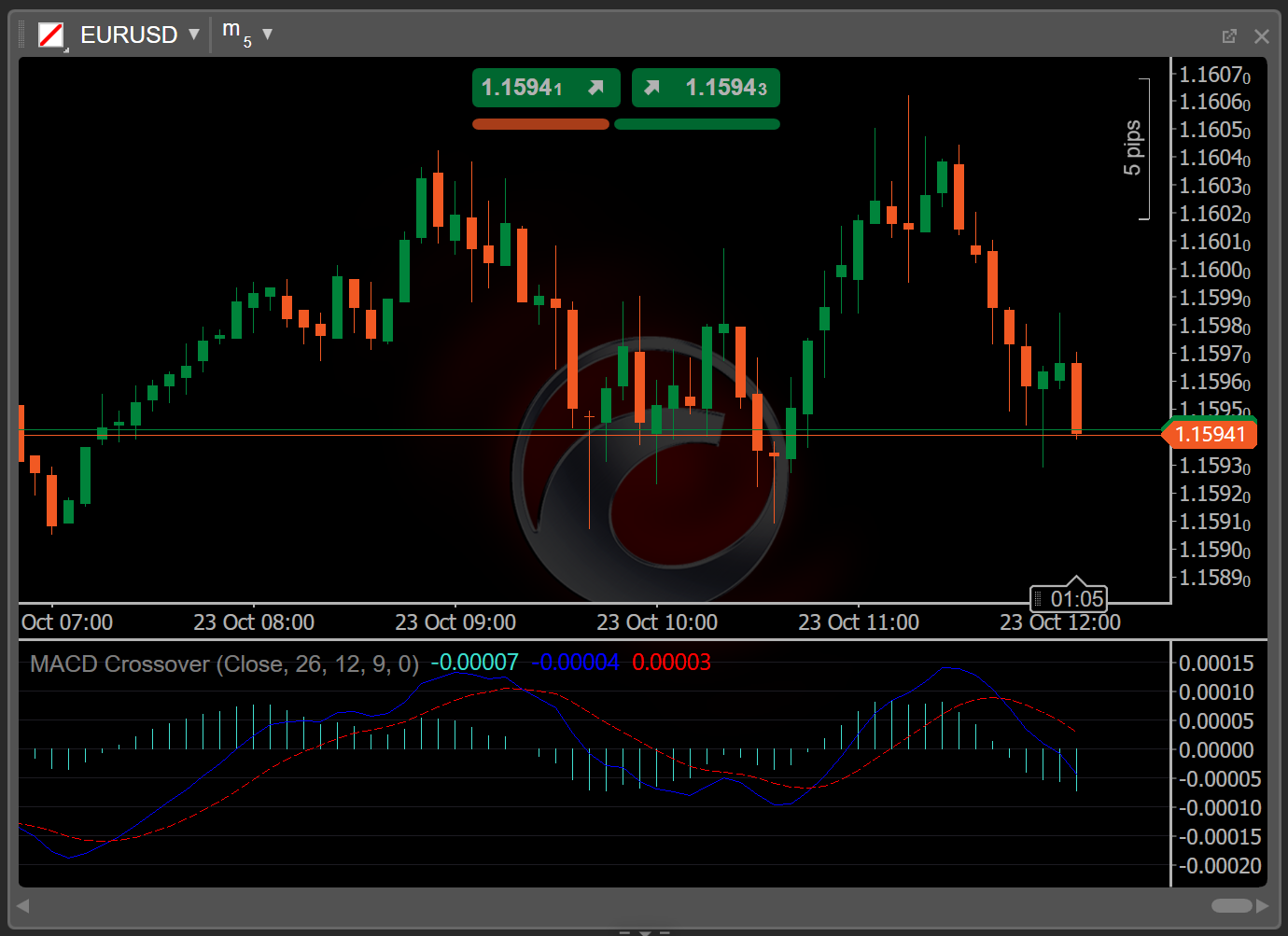
The chart on the right displays the added indicator.
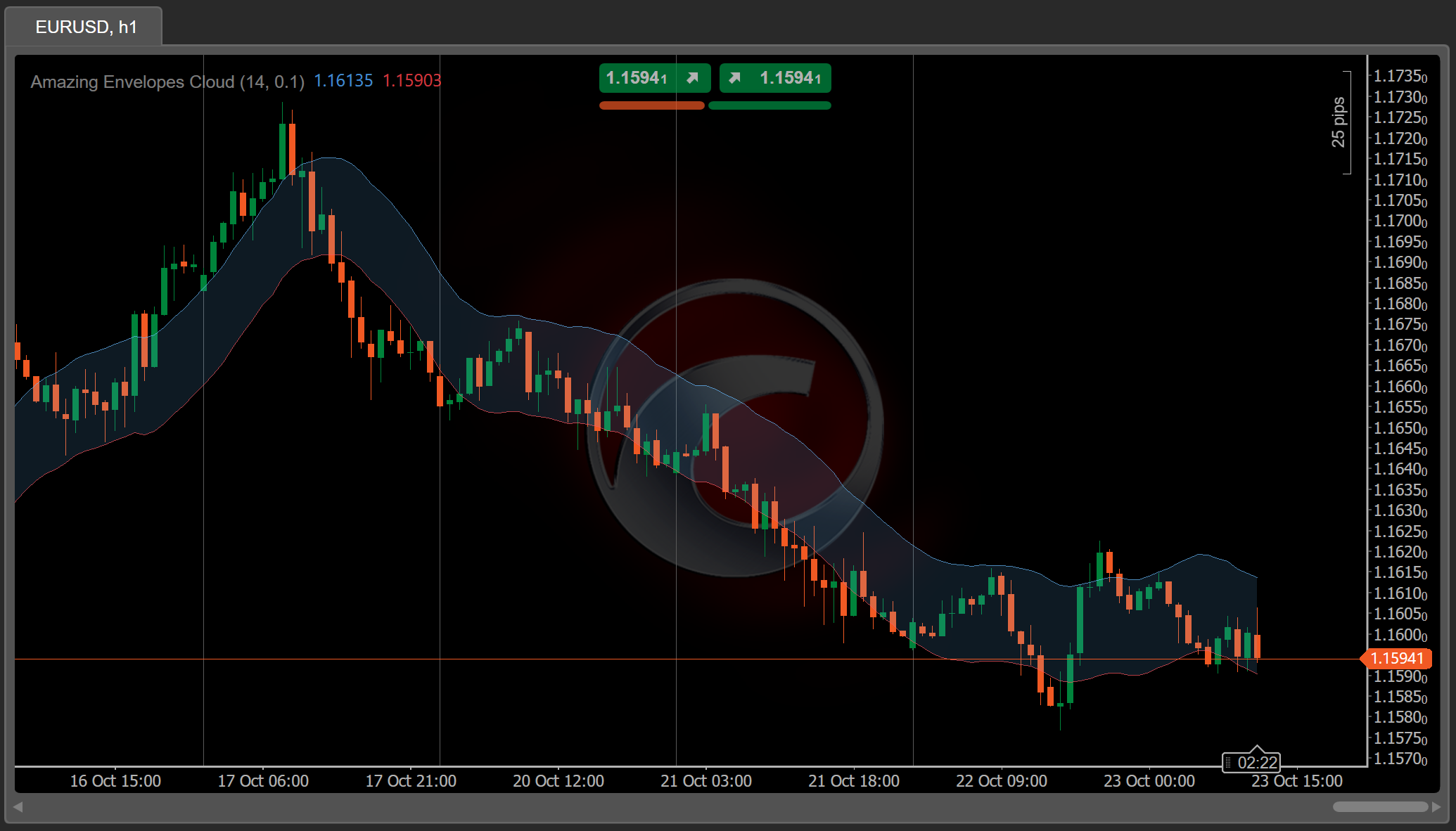
Depending on the algorithm's default settings, the indicator should appear in a new panel or directly on the chart. You can now customise the indicator and manage its instances.
Open the symbol chart where you want to use an indicator, then click the Indicator icon.

Type in a name to quickly find the indicator you want to use, then select it.
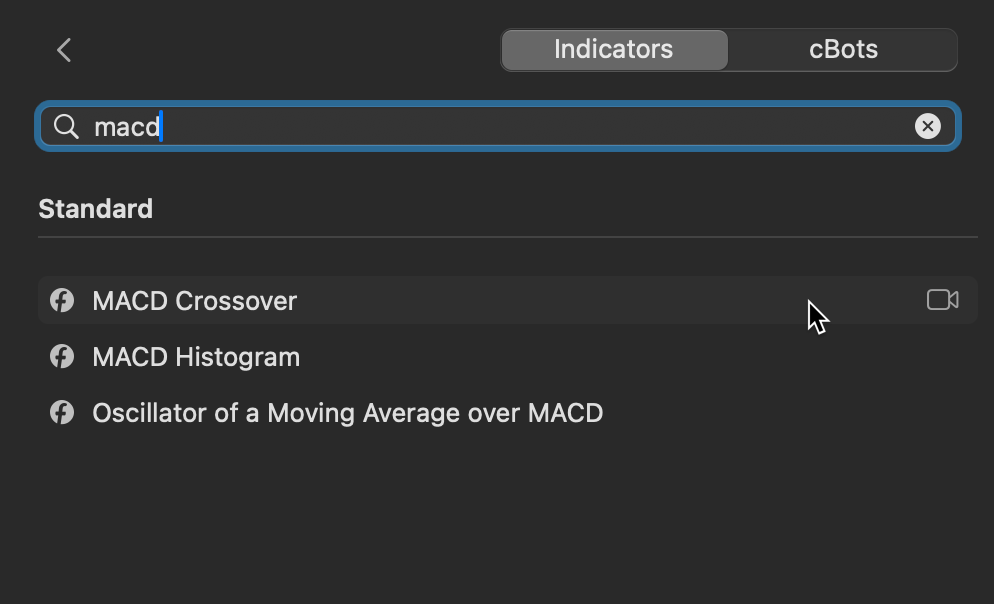
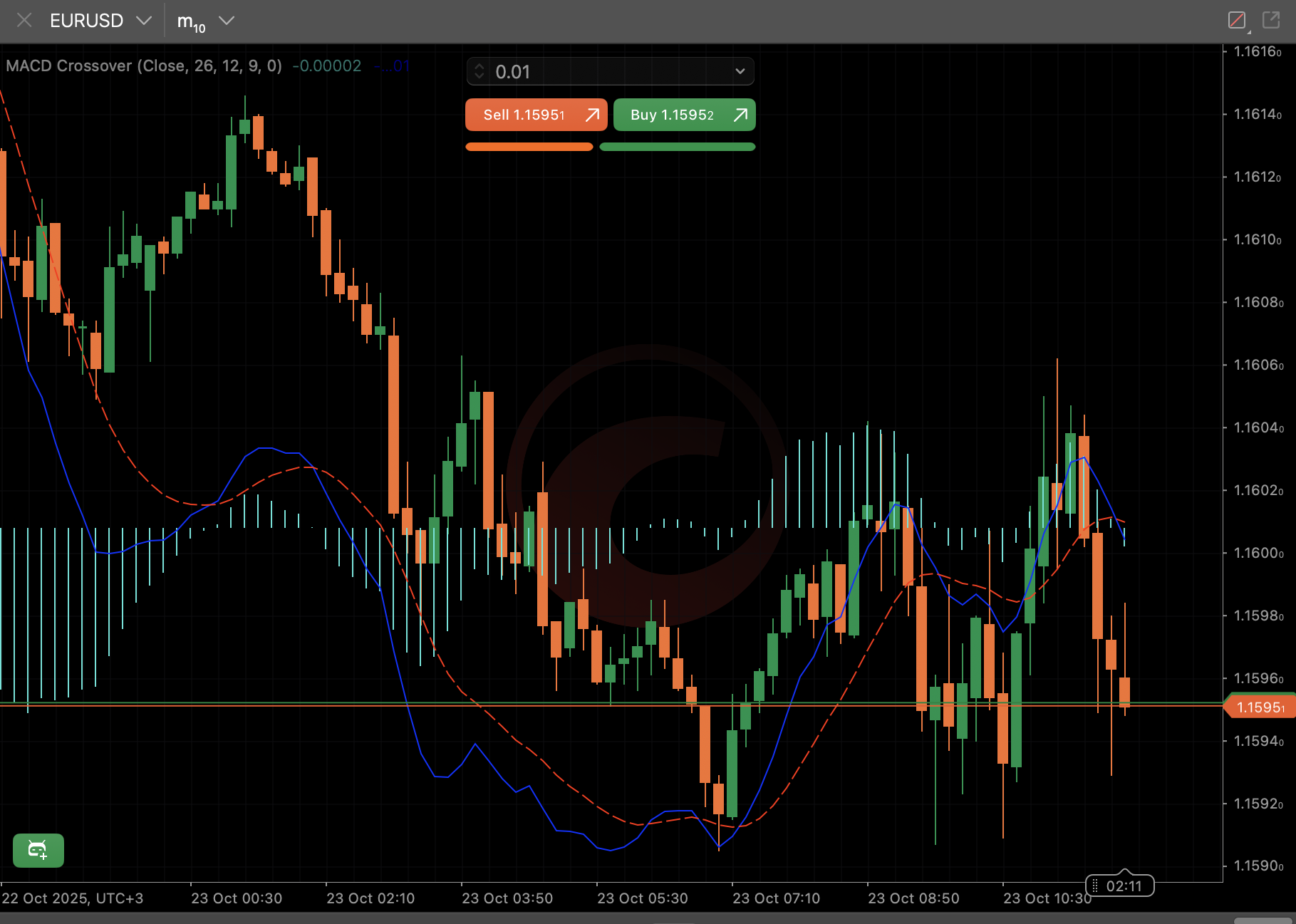
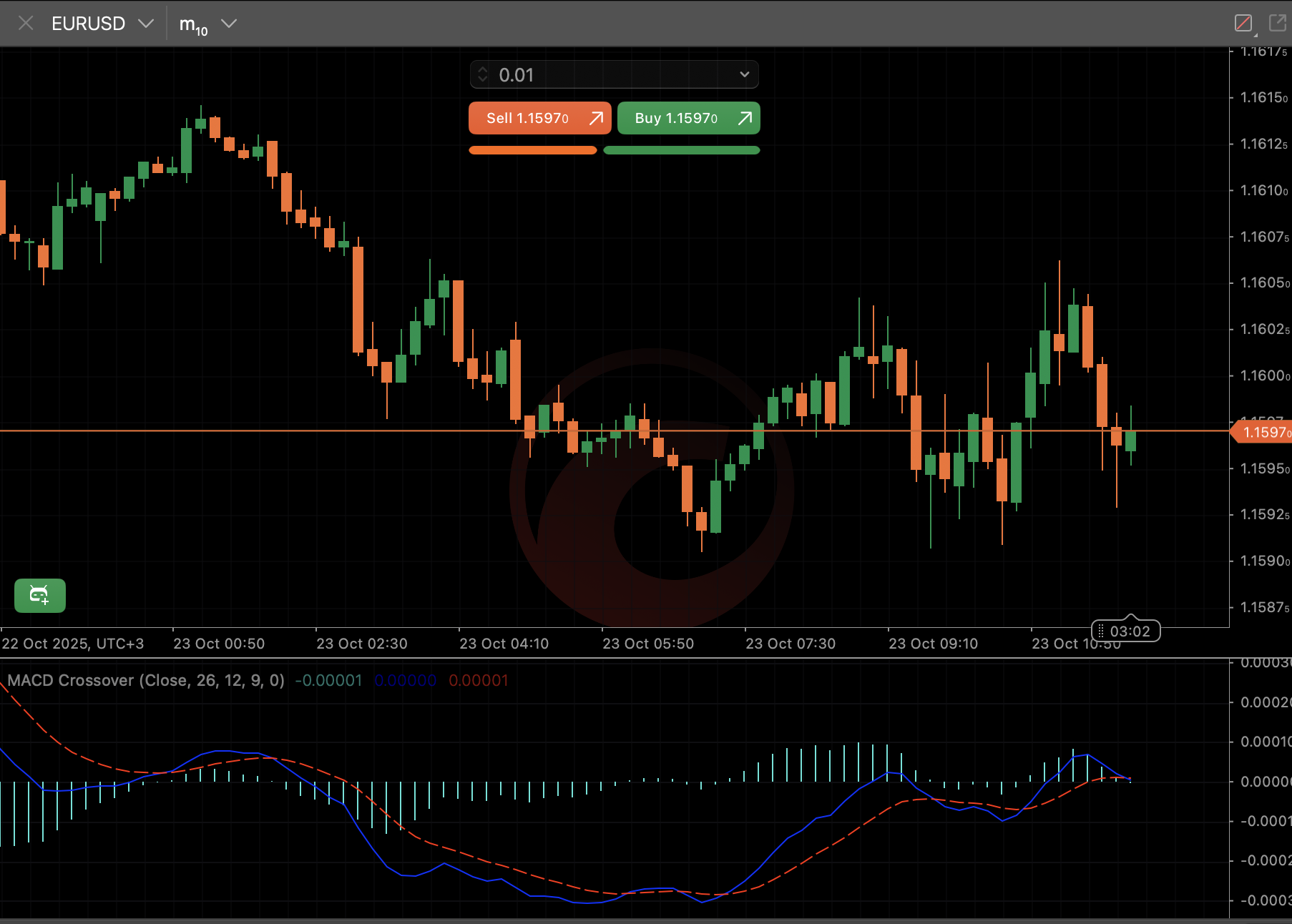
The indicator should appear in a new panel or directly on the chart. Now, you can customise the indicator to change its appearance, position on the chart and other attributes.
Alternative method
Note
This method applies only to custom indicators.
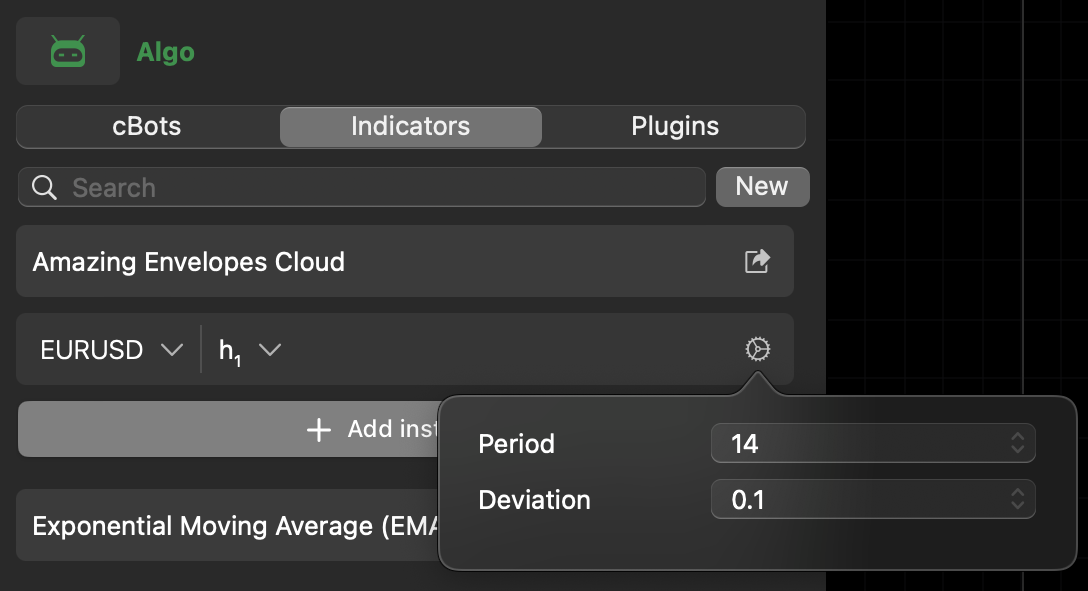
In the Indicators tab of the Algo app, click the Add instance button for the indicator you want to use. Select a symbol and period, then click the settings icon to specify values for customisable parameters if available.
Note
The Lines parameter is universal to all indicators, even when it is not explicitly declared or used in the indicator code.
The chart on the right displays the added indicator.
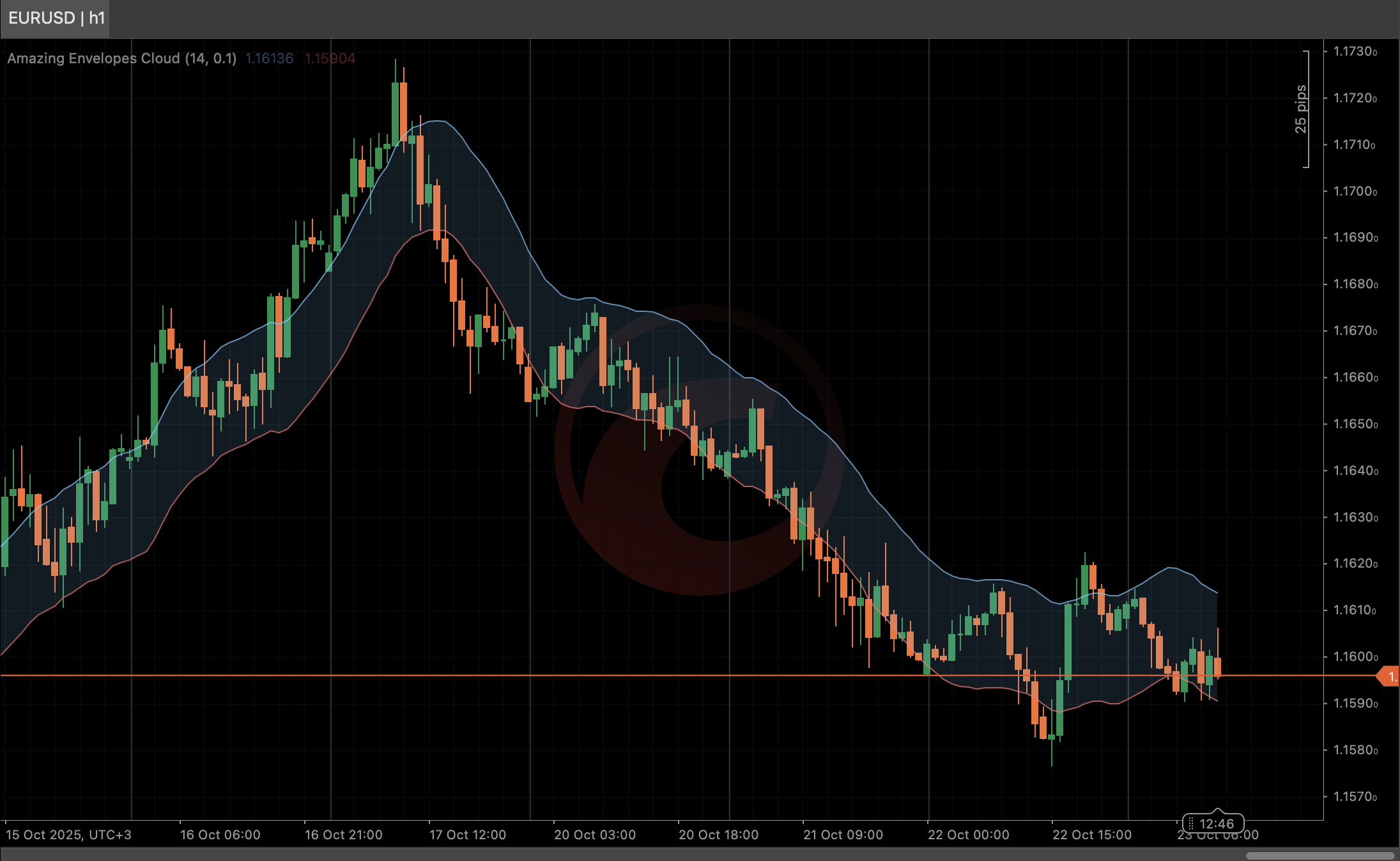
Depending on the algorithm's default settings, the indicator should appear in a new panel or directly on the chart. You can now customise the indicator and manage its instances.